Archive
Archive for the ‘audience-is-students’ Category
LRC Outlook/Exchange 2010 Resource Calendaring: How to alter meeting times in OWA
2012/01/23
Leave a comment
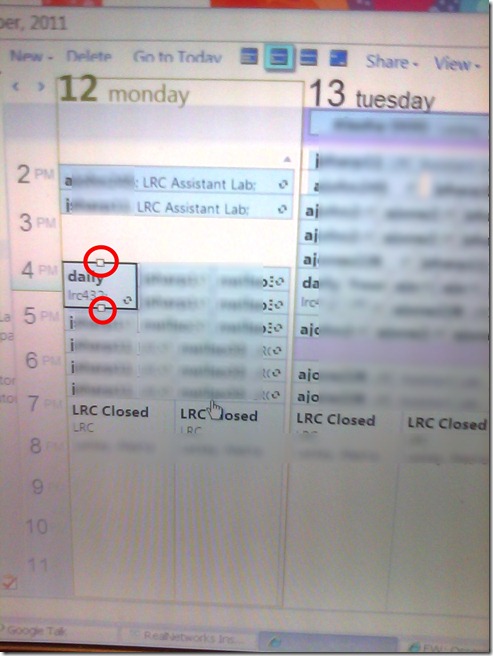
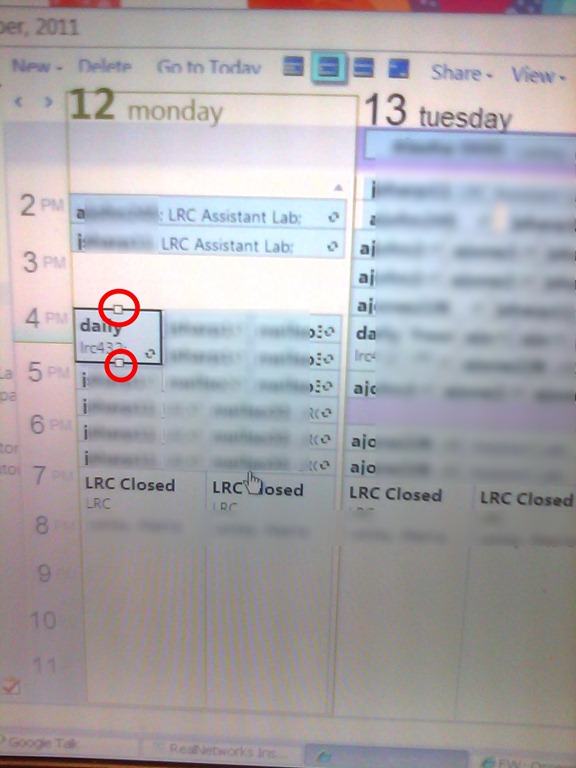
- If you are the meeting organizer (you initiated the meeting request), in your NINERMAIL/OWA calendar, just click on the meeting and drag the meeting start and/or end time with your left mouse button in the desired new location (works like in Outlook), and send updates (this will not affect for the series of a recurring meeting, only the current occurence):
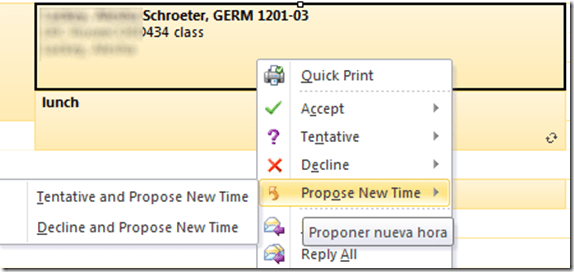
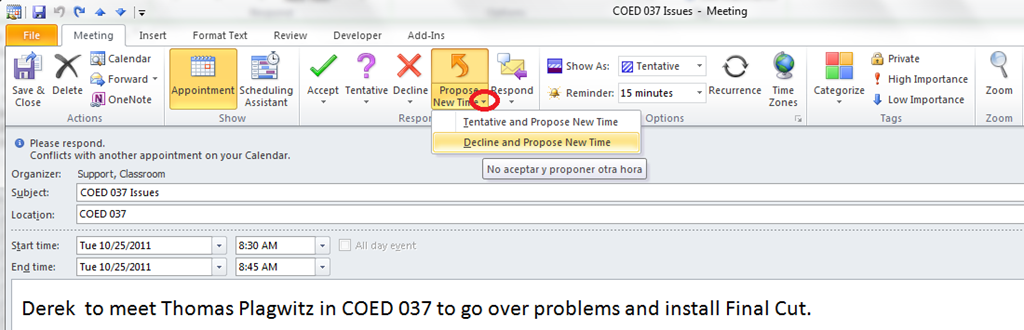
- If you are not the meeting organizer, the meeting organizer, when requesting a meeting with you, may have allowed you to “Request a new time”: use the corresponding button (screenshots are for Outlook):
- in the meeting request:
 .
.
- in the meeting request:
- or in the calendar item context menu

Categories: audience-is-language-learning-center-staff, audience-is-language-learning-center-temp-staff, audience-is-students, audience-is-teachers, e-infrastructure, office-software, service-is-documenting
2007, 2010, 2011, calendaring, changing, meeting-requests, ms-exchange, ms-outlook, resources, scheduling
How a student reviews a Moodle MS-Word file upload assignment for writing
2012/01/18
1 comment
- The student can see the submitted grade in her user report:
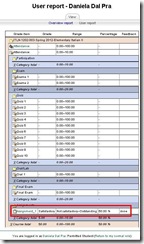
- She can view the assignment:

- from where she can open the corrected MS-word file
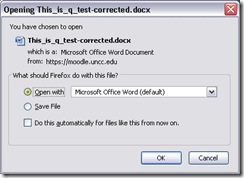
- for more detailed corrective feedback:


Categories: Arabic, audience-is-students, documentation, e-languages, English, Farsi, French, German, Italian, Japanese, Korean, Latin, Mandarin, Polish, Portuguese, Russian, Spanish, Writing, Yoruba
moodle, MS-Word, track-changes
Students get an error when trying to open links from MS-Word file
2012/01/18
Leave a comment
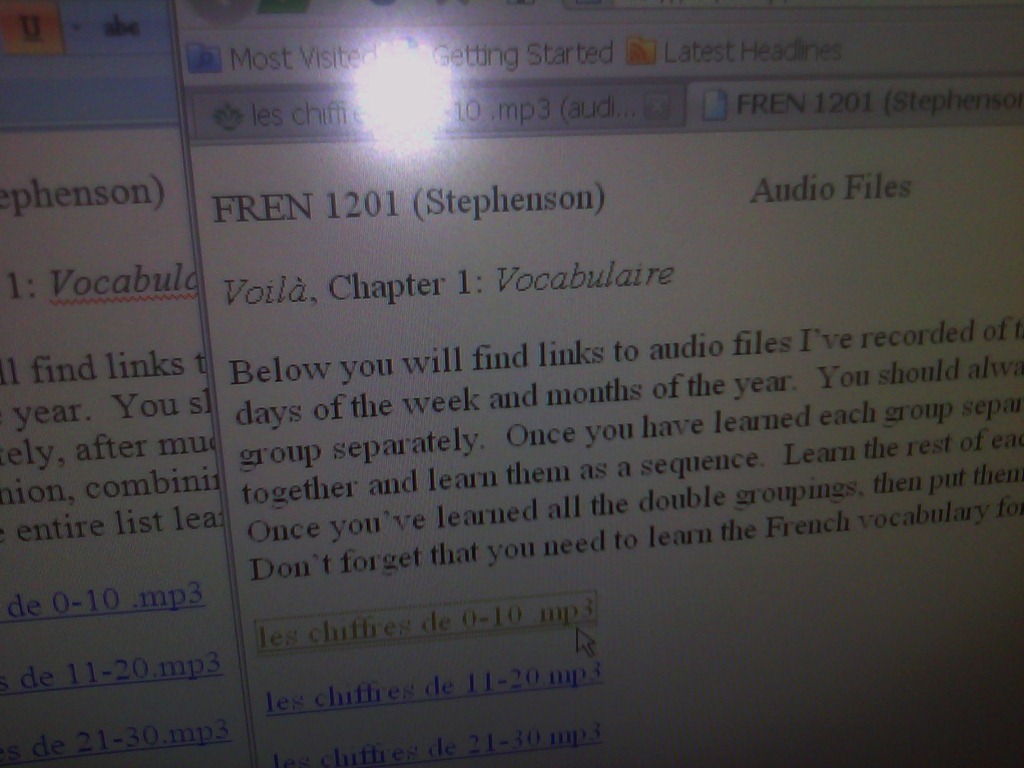
- Error reads: “”this operation has been cancelled due to restrictions in effect on this computer”.
- Immediate workaround:
- right-click on the link, choose copy, open a web browser window
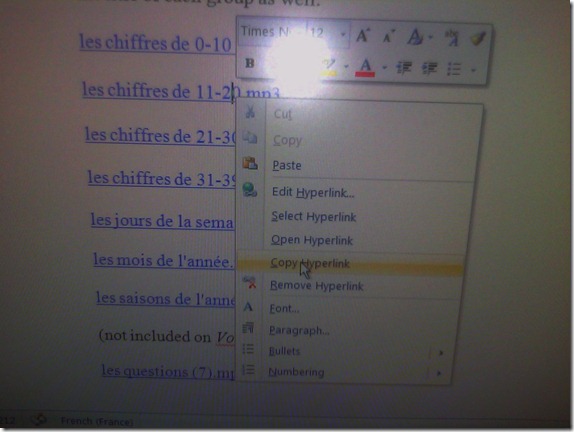 and paste the link into the address bar, browse to it from there.
 - File / Save as / Web page. From where you saved the web page, double click to open it in the your web browser, click the links form within there.

- Have you tried saving your MS-Word files to the new SkyDrive.live.com (login with your NINERNET password) yet? Students can choose to open MS-Word documents in either MS-Word or their web browser which should also bypass the problem.
- right-click on the link, choose copy, open a web browser window
- Solution: Investigating. Seems related to no “default browser set” in XP Control Panel / Internet options. If you cannot live with the workaround, do ask your System Administrator. Or stay tuned

How a student takes a Moodle Single file upload assignment
2012/01/13
2 comments
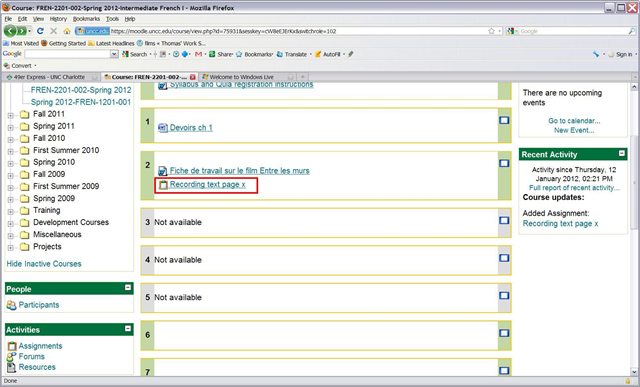
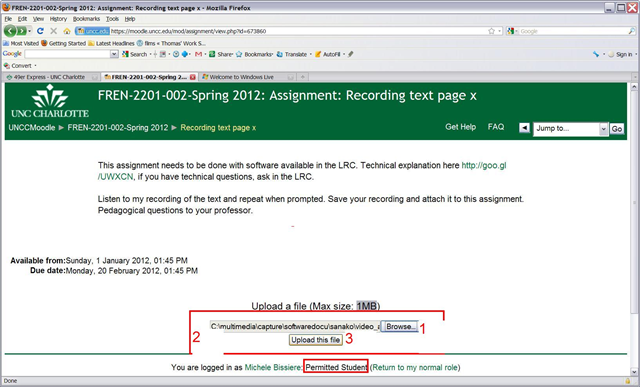
- Find your assignment:

- read the assignment text:

- Create the file locally, according to the assignment text
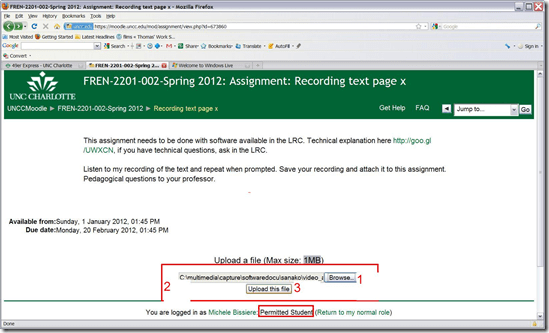
- Click the browse box and upload your file from your hard drive:
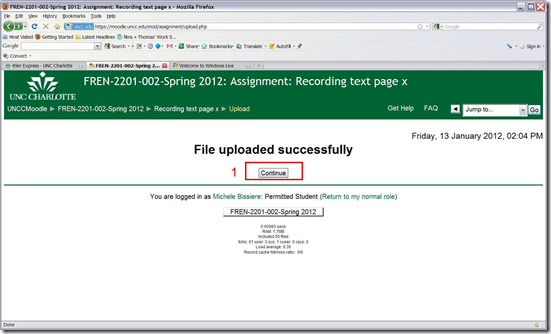
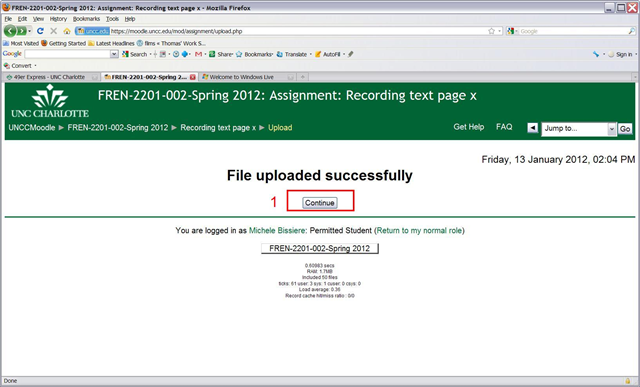
- Once the upload finishes, click: “ Continue”
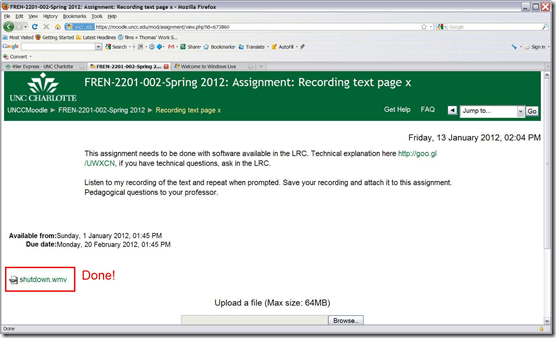
- You are done:
- Now wait for your grade.


Categories: assignments, audience-is-students, e-learning, lms
moodle, single-file-upload
How a student takes a Moodle MS-Word file upload assignment for writing
2012/01/12
1 comment
- Find your file upload writing assignment and click on it:

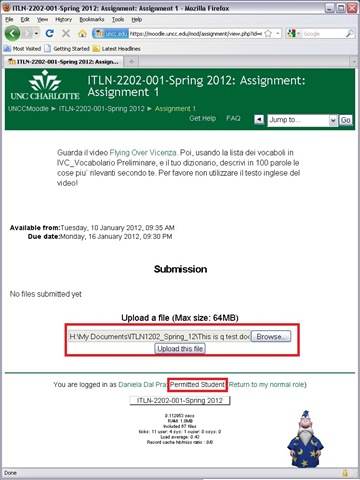
- Read the assignment text, write an MS-Word file (format not required, but your teacher will likely send you MS-Word back if she uses track changes) and attach it, like so:

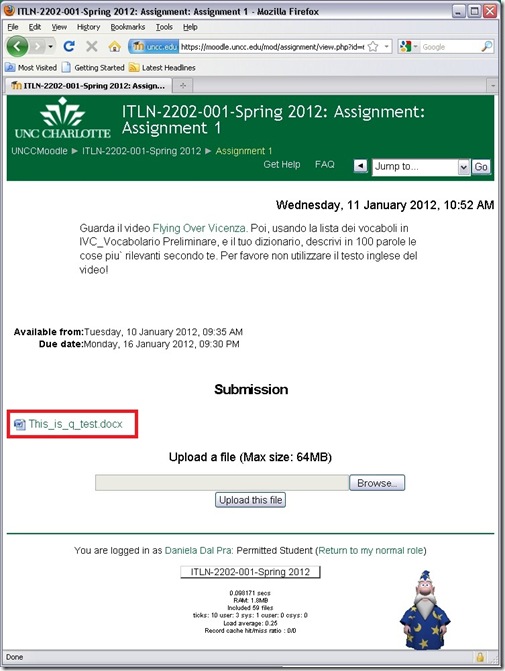
- If this shows, you have finished the assignment:
- Wait for notification, then go TBA:review your teacher’s comments.


Categories: all-languages, audience-is-students, documentation, e-learning, lms, Uncategorized, Writing
moodle, MS-Word, track-changes
Deutschland Radio
2012/01/12
Leave a comment
On popular request: Deutschland Radio still does live streaming, but their on demand archive is also very good. Unlike Deutsche Welle which has discontinued live streaming geared neither towards expats, nor language learners though.
Categories: audience-is-students, audience-is-teachers, e-languages, German, Media
dradio, links, radio
Treffpunkt Deutsch Companion Website with Online Exercises
2012/01/11
Leave a comment
- This first-year German textbook comes with a Companion Website with free online exercises, organized by chapter, on the publisher’s website (different from the Quia.com –based workbook and lab manual exercises).
- From the instructor guide: “The Companion Website is a robust online resource designed to give students a chance to practice and further explore the vocabulary, structures, and cultural themes introduced in the text. For each chapter, students will find self-grading practice exercises on vocabulary and grammar topics as well as Web-based reading and writing activities. Web links to carefully selected sites in Germany, Austria, Switzerland, Luxemburg, Liechtenstein, and South Tyrol (Italy), accompanied by interesting activities, provide additional interaction with the cultures of these German-speaking areas of Europe. Also available on the Website are the audio components of the Student Text and the SAM, as well as an interactive vocabulary flashcards tool. ”
- These exercises include vocabulary practice, even flash cards.
- The auto-correction feature provides:
- some useful feedback for further study,

- summary grades

- and an email to teacher function that should facilitate Syllabus integration of this useful resource:

- some useful feedback for further study,


UNCC LCS Language Placement Exam Information
2012/01/11
Leave a comment
- Short URL of this page for over the phone inquiries: http://goo.gl/ezQLu.
- The dates for the language placement exam are listed
- on the LCS department webpage. If you have trouble locating this page, use this canned Google search “placement exam site:uncc.edu”;
- on the calendar of the LRC main classroom (where the exam is held).
- The requirements, limitations and step-by-step procedure off the exam are explained here: https://plagwitz.wordpress.com/2011/06/08/uncc-lrc-language-placement-test-cape-online-placement-exam-step-by-step/


Questions? Read the About. Or just ask me a quick Our Databases: Resources with calendars -- Language learning material Moodle Sites, multimedia files -- films


FAQs for LRC student staff or for students or for teachers. To search our FAQs, in the browser addressbar, add after "https://plagwitz.wordpress.com/feed/?tag=faqs+/" "+TAG1" (from tag cloud below) OR "https://plagwitz.wordpress.com/feed/tag=faqs
&category_name=" "CAT1" (from category hierarchy below). OR search both categories and tags, and multiple TAGs/CATs (connect with "," for OR-search, with "+" for AND-search), like so: https://plagwitz.wordpress.com/feed/?tag=TAG1+TAG2+...TAGn&category_name=CAT1
+CAT2+...CATn"
Other ways to find help
If you cannot find it here, look there: 5,500 Language-Learning Links and Programs for learning or teaching 150 languages
Shortcuts:Our Lists, Our Maps, LRC Staff Moodle Site,LRC Project Moodle Site, 49erexpress, UNCC Moodle, Student Recordings: s:claslcslrcsanakostudent
Learning usage samples: Sanako oral exam, Kaltura webcam presentation, Dictation with speech recognition, Sanako written exam, Chinese and Japanese interactive stroke-order practice
Test the Sanako Installer, Webbrowser Popup Konfigurator for XP, or Windows7, faster LRC TeacherPC Log-in Let MS facilitate diacritics writing by installing for you US-International keyboard layout
This is my personal blog (Google+). The views expressed on these pages are mine alone and not those of my employer. The information in this weblog is provided “AS IS” with no warranties, and confers no rights.
 Thomas' Work Space