Archive
How we reorganized the reception area to improve support of circulation and small group work
The new reception desk is meant to secure the entrance to Coed436. To secure the circulation equipment, we do not let students into COED436 anymore, whether they are trying to check out equipment or for other reasons (except if they need to see the LRC coordinator). Hand all equipment to students over the counter. The door to Coed436 has to be locked when the LRC Assistant leaves the reception desk (it always can be unlocked from inside).
We also carved out 2 small group work spaces in the LRC entrance area. They can be used by language tutors with their students, and by other small student groups, including for assigned film viewing. These work spaces currently do not have to be booked, but they can be. Bookings take precedence over walk-ins. Send meeting requests to LRCRoomCoed433c@uncc.edu (Group1 next to entrance), LRCRoomCoed433d@uncc.edu (Group 2)). The calendar on the reception desk will display the bookings.
We moved 3 more iMacs (with built-in web cameras) into the main classroom (currently available to students only when all other iMacs are in use). All the iMacs in the main classroom actually have now also their own “room”: LRCroomCoed433b@uncc.edu (iMacs), but we are not requiring this “room” to be booked (yet). We are considering this in an attempt to avoid pile-ups of students trying to take video recording assignment. First we monitor actual usage patterns, especially nearing assignment dead-lines.
New “rooms”, and other equipment types are highlighted in green on our list of bookable resources.


How to bypass a Moodle Popup Window when using Respondus lockdown browser
- Problem: when starting the Moodle Lockdown browser to take an online exam, it opens with a popup window about messages. Popup window prevents access to the underlying main Moodle browser window (and exam). When closing the popup window, the entire lockdown browser closes, including main Moodle browser window.
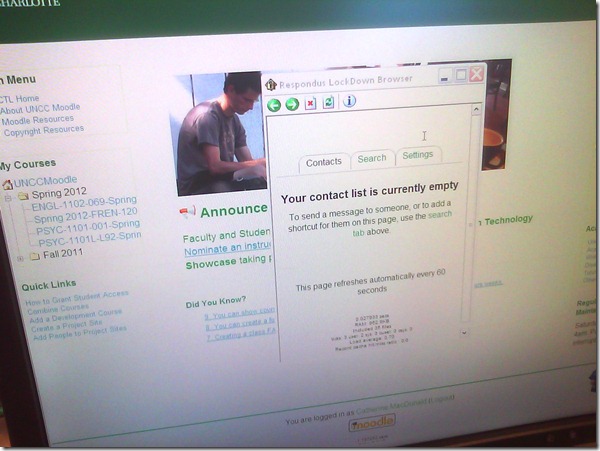
- Cause: Moodle can be configured to show a notification window when messages have arrived since your last login. This notification window has poor compatibility with the lockdown browser.
- Workaround: In the popup window, click on the tab: “Settings” and uncheck (at least for this exam session) the checkbox to show the message box as a popup when logging in. Close the popup window.

- Result: Even if this closes the main Moodle browser window once again, when you start the Moodle Lockdown browser again, the popup window will not appear again, and you can take your exam.


LRC Outlook/Exchange 2010 Resource Calendaring: How to alter meeting times in OWA
- If you are the meeting organizer (you initiated the meeting request), in your NINERMAIL/OWA calendar, just click on the meeting and drag the meeting start and/or end time with your left mouse button in the desired new location (works like in Outlook), and send updates (this will not affect for the series of a recurring meeting, only the current occurence):
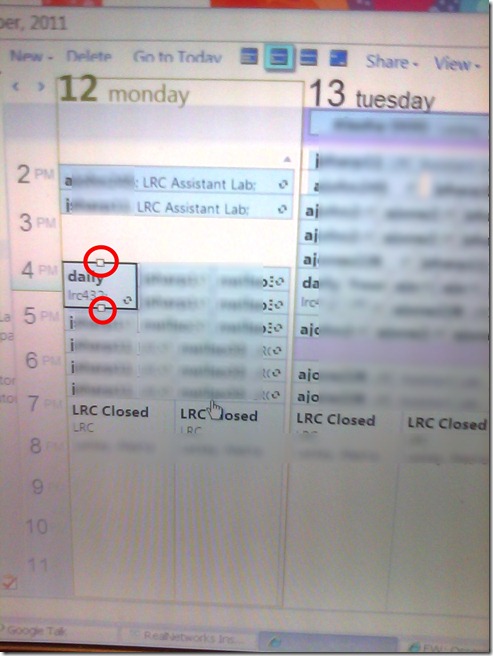
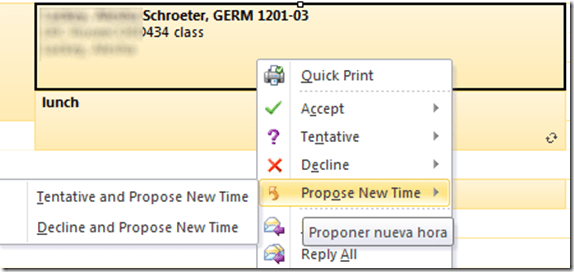
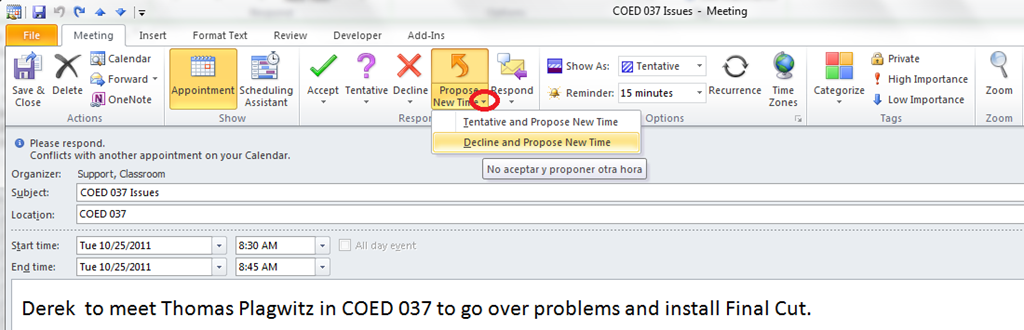
- If you are not the meeting organizer, the meeting organizer, when requesting a meeting with you, may have allowed you to “Request a new time”: use the corresponding button (screenshots are for Outlook):
- in the meeting request:
 .
.
- in the meeting request:
- or in the calendar item context menu

Students get an error when trying to open links from MS-Word file
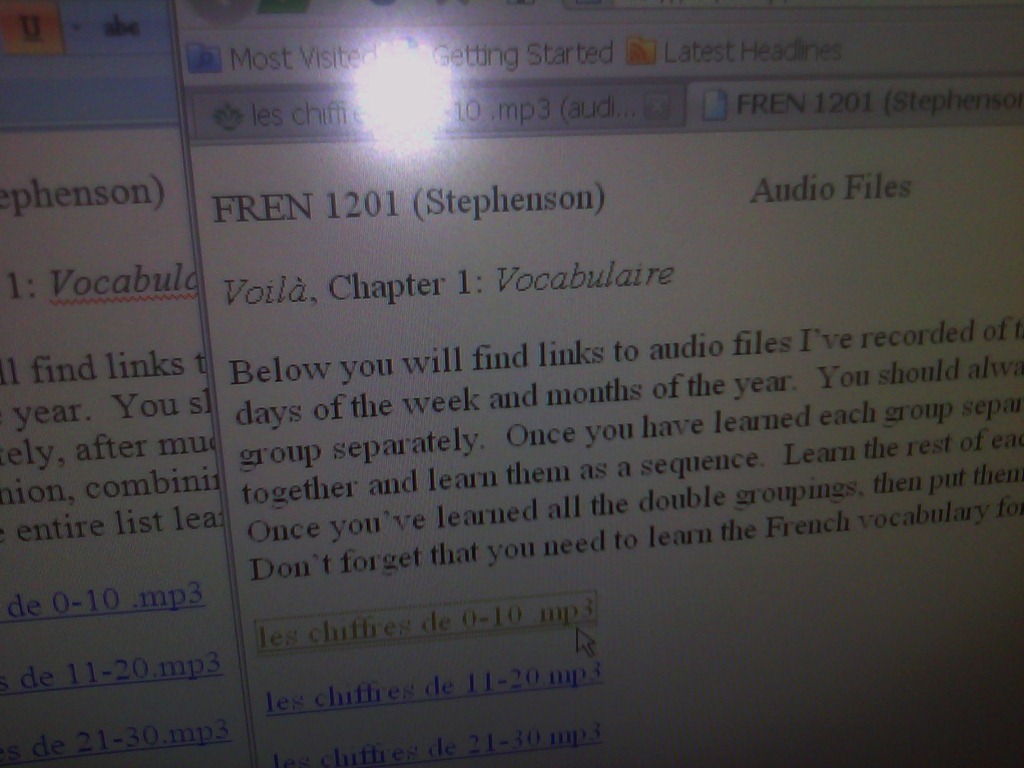
- Error reads: “”this operation has been cancelled due to restrictions in effect on this computer”.
- Immediate workaround:
- right-click on the link, choose copy, open a web browser window
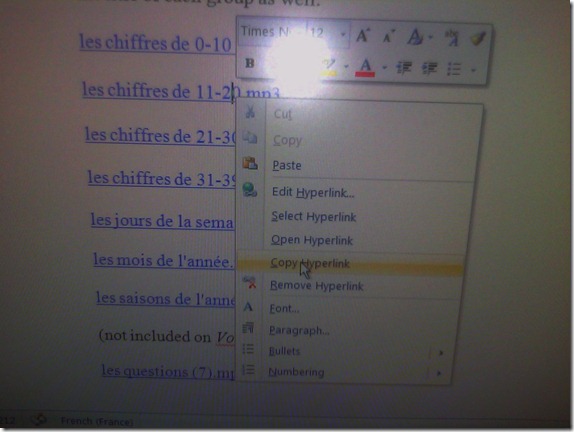 and paste the link into the address bar, browse to it from there.
 - File / Save as / Web page. From where you saved the web page, double click to open it in the your web browser, click the links form within there.

- Have you tried saving your MS-Word files to the new SkyDrive.live.com (login with your NINERNET password) yet? Students can choose to open MS-Word documents in either MS-Word or their web browser which should also bypass the problem.
- right-click on the link, choose copy, open a web browser window
- Solution: Investigating. Seems related to no “default browser set” in XP Control Panel / Internet options. If you cannot live with the workaround, do ask your System Administrator. Or stay tuned

UNCC LCS Language Placement Exam Information
- Short URL of this page for over the phone inquiries: http://goo.gl/ezQLu.
- The dates for the language placement exam are listed
- on the LCS department webpage. If you have trouble locating this page, use this canned Google search “placement exam site:uncc.edu”;
- on the calendar of the LRC main classroom (where the exam is held).
- The requirements, limitations and step-by-step procedure off the exam are explained here: https://plagwitz.wordpress.com/2011/06/08/uncc-lrc-language-placement-test-cape-online-placement-exam-step-by-step/
How to record your speech with Audacity
- For a cut-and-dry recording session, the LRC has a simple instruction on
- For more advanced editing with Audacity, I have a detailed screencast here.
How to make changes to a meeting request to update/alter a reservation
- You can easily release a reservation of an LRC room or resources, completely or partially (e.g. some of the time when you return an item earlier than anticipated), from your calendar in OWA/NINERMAIL:
- By opening the meeting request
- In (staff:)OWA,
- go to your calendar
- find and open your meeting
- make changes to the meeting, e.g. start and end time
- click “Send Update”
- (students:)NINERMAIL: looks like you have to cancel the meeting and recreate it with new times. This may change once we get the calendars used by students set up to autoaccept.
- More conveniently, without opening:
- right-click on and choose delete the appointment (if necessary, the system is smart enough to ask you whether you want to delete an entire series of appointments or only this occurrence; on cancelling, see also here).
![owa-update-recurring2_thumb[1]](https://thomasplagwitz.com/wp-content/uploads/2012/01/owa-update-recurring2_thumb1_thumb.png?w=559&h=302 "owa-update-recurring2_thumb[1]")
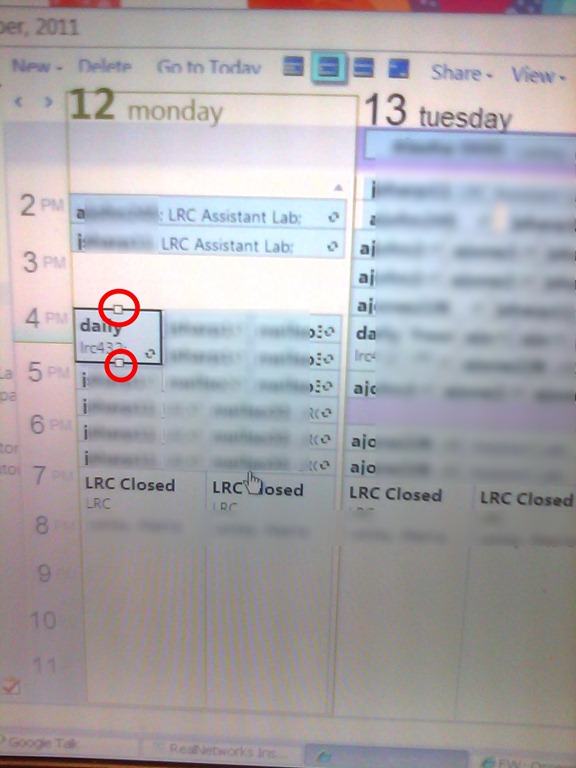
- Or to release the reservation partially (= reduce the time), drag the upper or lower margin to the new desired start or end time.
![owa-update-recurring_thumb[2]](https://thomasplagwitz.com/wp-content/uploads/2012/01/owa-update-recurring_thumb2_thumb.png?w=572&h=309 "owa-update-recurring_thumb[2]")
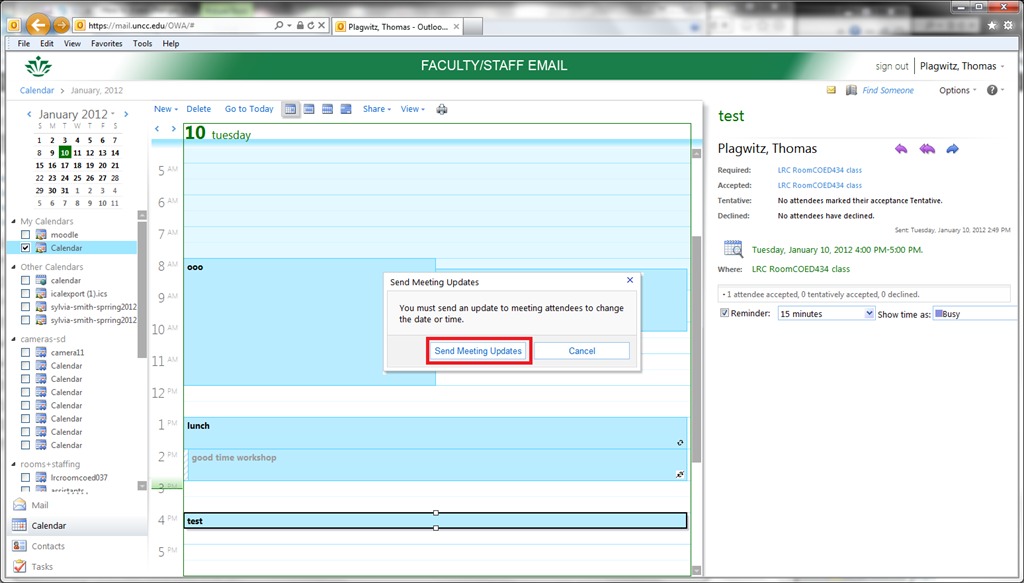
- If you are working with a meeting request (which by definition has more than the organizer as participants, unlike appointments you make for yourself on your calendar; be wary of making changes to meeting requests which you are not the organizer of (= you did not initially create the meeting request)), the system offers you – and should should accept – to notify the other participants automatically.

- Which in this case is not a person, but only (unless other people have been included in the resource booking which can be done) a resource mailbox which, if configured to autoaccept, may still respond to you like so, in this case with an acceptance, since you can not cause a conflict when releasing a resource that had been reserved for you):

- This also only affects the occurrence you are currently working with, as you can see from the stricken-out recurrence icon that results:
![owa-update-recurring1_thumb[2]](https://thomasplagwitz.com/wp-content/uploads/2012/01/owa-update-recurring1_thumb2_thumb.png?w=600&h=324 "owa-update-recurring1_thumb[2]")
- This flexibility is one of the main reasons (= better resource utilization) why we introduced this system: so that users who want to visit the LRC with their class/borrow a resource on short (often happens, depending on pedagogy, with a couple off days or less ) notice don’t have to be turned away with no good reason.
- Just do not try updating from the publically viewable web calendars, those are for “view”-ing only, including by students:
![owa-update-don-not-do-this-from-the-publically-viewable-web-calendar_thumb[3]](https://thomasplagwitz.com/wp-content/uploads/2012/01/owa-update-don-not-do-this-from-the-publically-viewable-web-calendar_thumb3_thumb.png?w=570&h=325 "owa-update-don-not-do-this-from-the-publically-viewable-web-calendar_thumb[3]")
- right-click on and choose delete the appointment (if necessary, the system is smart enough to ask you whether you want to delete an entire series of appointments or only this occurrence; on cancelling, see also here).
![owa-update-recurring2_thumb[1]](https://thomasplagwitz.com/wp-content/uploads/2012/01/owa-update-recurring2_thumb1.png "owa-update-recurring2_thumb[1]")
![owa-update-recurring_thumb[2]](https://thomasplagwitz.com/wp-content/uploads/2012/01/owa-update-recurring_thumb2.png "owa-update-recurring_thumb[2]")

![owa-update-recurring1_thumb[2]](https://thomasplagwitz.com/wp-content/uploads/2012/01/owa-update-recurring1_thumb2.png "owa-update-recurring1_thumb[2]")
![owa-update-don-not-do-this-from-the-publically-viewable-web-calendar_thumb[3]](https://thomasplagwitz.com/wp-content/uploads/2012/01/owa-update-don-not-do-this-from-the-publically-viewable-web-calendar_thumb3.png "owa-update-don-not-do-this-from-the-publically-viewable-web-calendar_thumb[3]")
How we improve LRC assistants’ and tutors’ visibility using name tags
- We posted name tag holders on lanyards at the bulletin board behind the reception desk.
- When you come in, take one, insert your student id card, and wear it during your shift.
- At the end of your shift, do not forget to return the name tag holders to the bulletin board for the next LRC assistant/tutor.




Questions? Read the About. Or just ask me a quick Our Databases: Resources with calendars -- Language learning material Moodle Sites, multimedia files -- films


FAQs for LRC student staff or for students or for teachers. To search our FAQs, in the browser addressbar, add after "https://plagwitz.wordpress.com/feed/?tag=faqs+/" "+TAG1" (from tag cloud below) OR "https://plagwitz.wordpress.com/feed/tag=faqs
&category_name=" "CAT1" (from category hierarchy below). OR search both categories and tags, and multiple TAGs/CATs (connect with "," for OR-search, with "+" for AND-search), like so: https://plagwitz.wordpress.com/feed/?tag=TAG1+TAG2+...TAGn&category_name=CAT1
+CAT2+...CATn"
Other ways to find help
If you cannot find it here, look there: 5,500 Language-Learning Links and Programs for learning or teaching 150 languages
Shortcuts:Our Lists, Our Maps, LRC Staff Moodle Site,LRC Project Moodle Site, 49erexpress, UNCC Moodle, Student Recordings: s:claslcslrcsanakostudent
Learning usage samples: Sanako oral exam, Kaltura webcam presentation, Dictation with speech recognition, Sanako written exam, Chinese and Japanese interactive stroke-order practice
Test the Sanako Installer, Webbrowser Popup Konfigurator for XP, or Windows7, faster LRC TeacherPC Log-in Let MS facilitate diacritics writing by installing for you US-International keyboard layout
This is my personal blog (Google+). The views expressed on these pages are mine alone and not those of my employer. The information in this weblog is provided “AS IS” with no warranties, and confers no rights.
 Thomas' Work Space