Archive
Archive for the ‘Area-is-any’ Category
Watch how you can backup and restore your Windows speech-recognition training data
2014/03/07
Leave a comment

Categories: audience-is-students, Student-Computers
speech-recognition
Example 5: Watch how you can dictate to Windows speech-recognition (e.g. in English) and correct results in MS-Word
2014/03/07
Leave a comment

- Important: Listen carefully: I am not a native speaker, but have a reasonably low amount of errors, because it enunciate, speak clearly and slowly, and separate the words.
- Consider it part of the exercise that you will have to re-read and re-type some your output – use track changes in MS-Word:
- Make it a game: How good can you get?
- If you get really good at it, make a screencast like this one and include it in your Mahara ePortfolio as authentic evidence of your foreign language proficiency.
- Overall, it’s like how I refer to cycling: Beats walking. Anytime.

Categories: assignments, audience-is-students, audience-is-teachers, e-languages, English, French, German, Hindi, Japanese, Mandarin, multimedia-recording, Operating-system, Reading, Screencasts, service-is-applying-learning-tools, Spanish, Speaking, Student-Computers, training, Writing
ePortfolio, MS-Word, speech-recognition, track-changes
Protected: LRC old media inventory for spring cleaning
2014/03/07
Enter your password to view comments.
Sanako text messaging: How teacher sends URL to all students, to individual, and closes individual response
2014/02/26
Leave a comment

Save yourself some valuable face-to-face class time with instant messaging of clickable URLs.
FAQs for issues with Respondus Lockdown Browser
2014/02/18
Leave a comment
- New to Respondus Quizzes? Read the CTL’s write-up.
- No Photo ID (Niner ID or other state-issued)? Use the reception desk camera to take a photo with sheet, like below, we will forward it to the teacher for verification.

- Issues with starting:
- Respondus won’t open: How to bypass a Moodle Popup Window when using Respondus lockdown browser
- Test won’t open and you get a warning
- in Moodle that this test must be run in Respondus Lockdown Browser? Close your regular web browser and double click on the desktop on the Moodle Lockdown Browser Icon:
 , then go to Moodle2 from in there.
 - in Respondus that “No more attempts are allowed”, but the student has not made any attempts yet and the quiz closing date is long in the past: contact the teacher to check whether the quiz needs updating.

- in Moodle that this test must be run in Respondus Lockdown Browser? Close your regular web browser and double click on the desktop on the Moodle Lockdown Browser Icon:
- Issues with Audio:
- Students are advised to test the headsets before entering Respondus Lockdown browser assessments:
- Start Audacity from the desktop, click record: if you say something, you must see something;
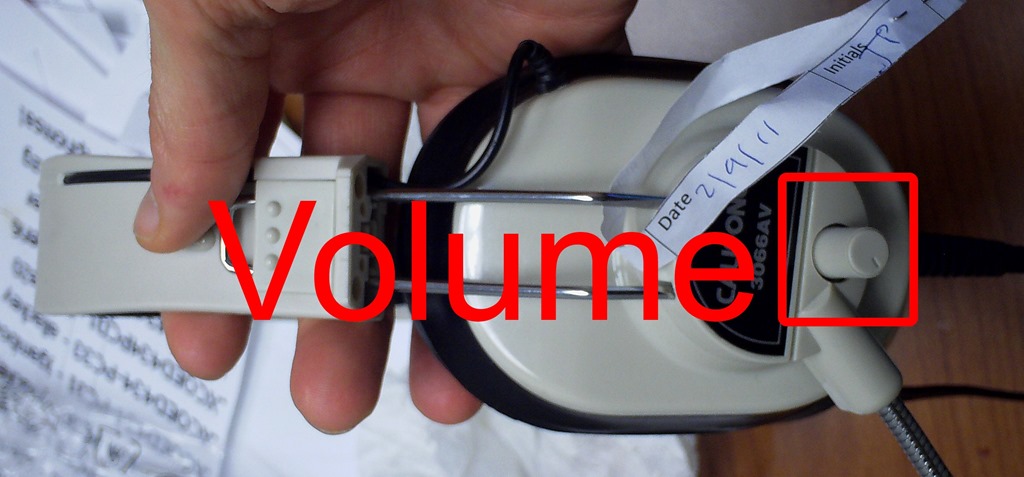
- Play back to test the speakers. Hear nothing? Try the volume knob:
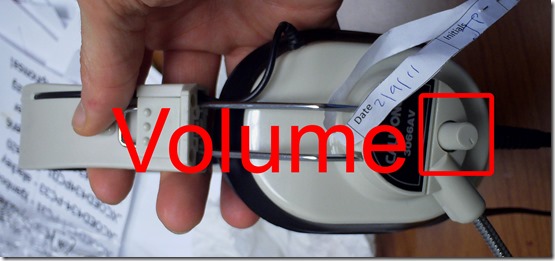
- (More detail here).
- Rewind-audio may get you stuck – to fix, next-page, then back (reloads page). More info: How to workaround Moodle quiz audio not playing to the end in Respondus Lockdown Browser
- How to bypass a Moodle Popup Window when using Respondus lockdown browser
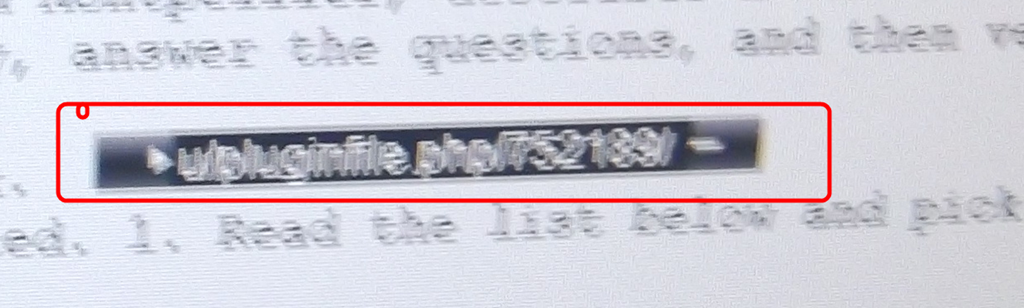
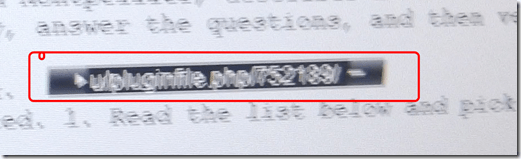 If no audio and error “pluginfile” flashes when clicking “Next”and back: notify permanent staff.
- Students are advised to test the headsets before entering Respondus Lockdown browser assessments:
- Issues with Writing:
- Lost the
 ?
?
- Clicking around nearby where it was may bring it back.
- Or
 , quickly cancel (gets you out of lockdown browser), new attempt from desktop shortcut.
 - Learn to use the installed US-international keyboard shortcuts.
 .
. - more info: Problems with accented characters in Respondus Lockdown Browser
- If your keyboard stops typing in English in a Respondus lockdown browser quiz…
- Lost the
- Issues with finishing
- If the test won’t submit, start Respondus lockdown browser on a different computer to see whether you can resume your attempt there.
- More issues? Let us know in the comments here.




 .
.How to test Voice boards (Blackboard Collaborate, formerly Wimba voice) for Vista Higher Learning (Supersite3) Textbooks
2014/02/04
1 comment
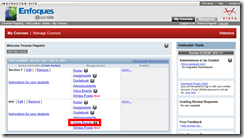
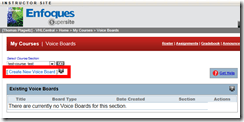
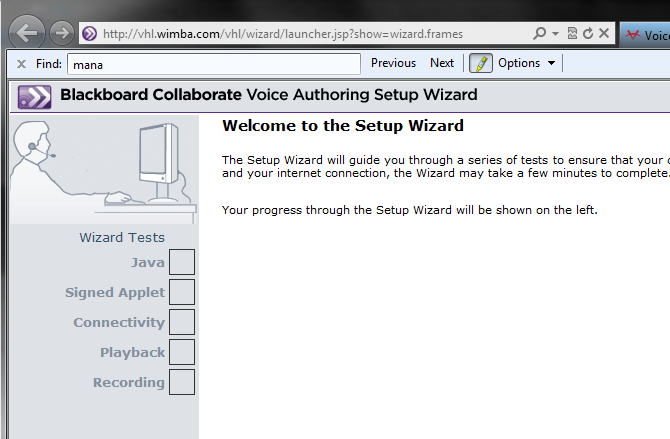
- First I create a voice board,

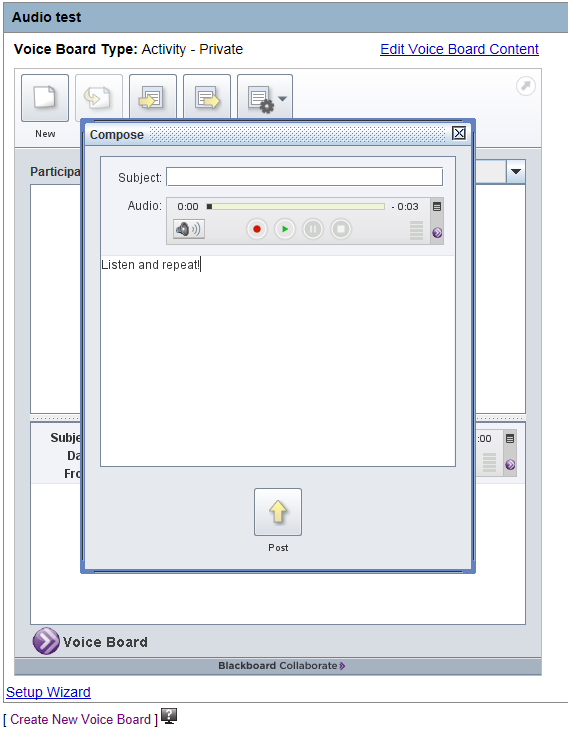
- and add an audio contribution so that students can respond:
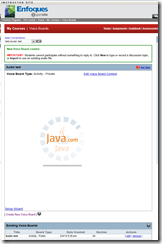
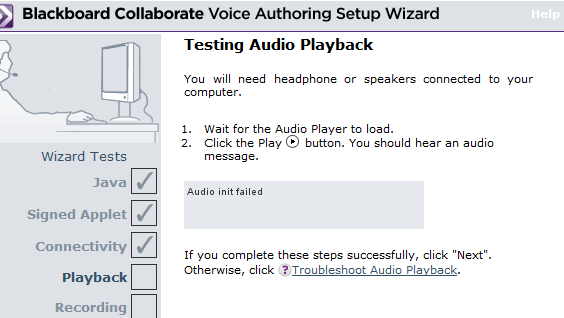
- Fail:
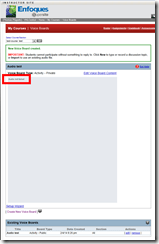


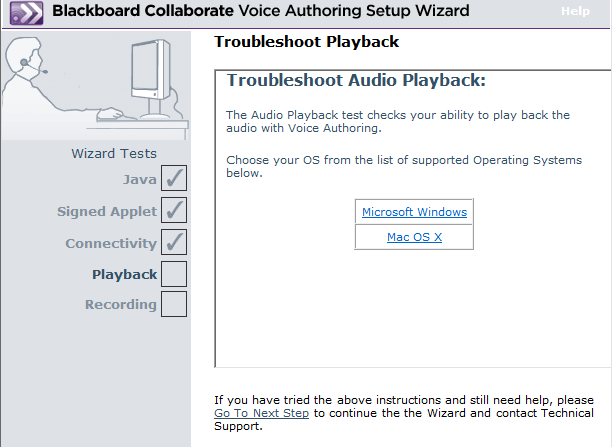
- More fail


- The help offered is of no use: “If the Applet displayed the message “Audio Unavailable”, click here. “ This is neither the error message, nor does the help address Java (but rather audio hardware config) issues
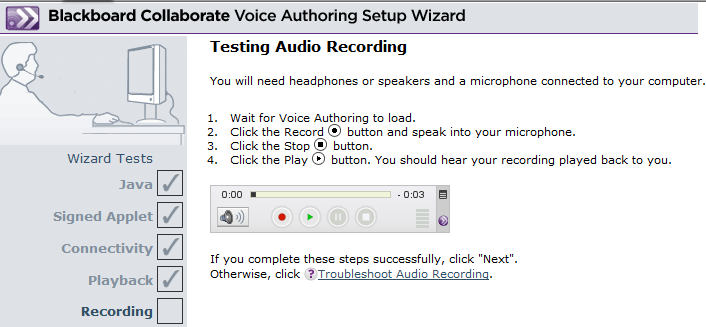
- But if you refresh (F5 suffices) the window with the Setup Wizard, it starts working?

- Even the audio recorder:

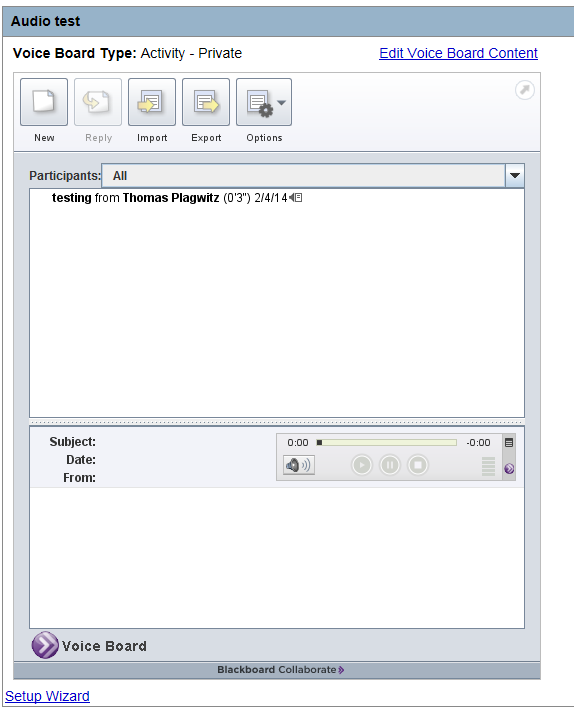
- And the voice board (after F5):
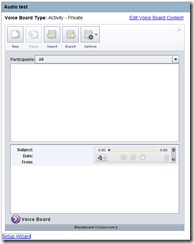
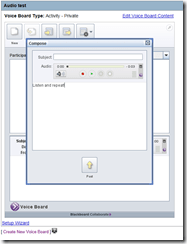

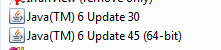
- What Java version is this under ?
 really? have I restarted after uninstall of 7.54?
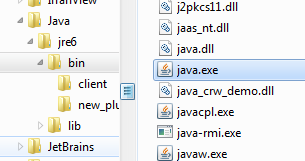
- The running process here is now Java 6.
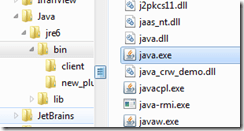
- Still need to test on Java 7.45.
- Now a user needs to test from the student view


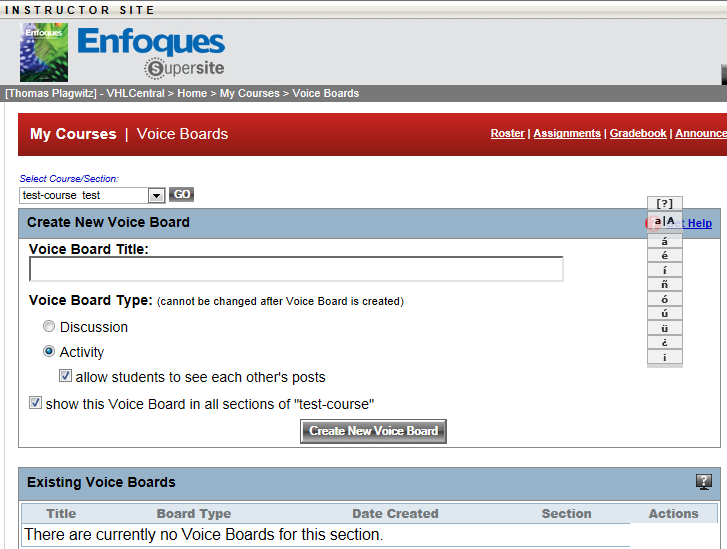





How to test Blackboard IM (formerly Wimba Pronto) for Vista Higher Learning Textbooks
2014/02/04
Leave a comment
- After logging in on vhlcentral.com,
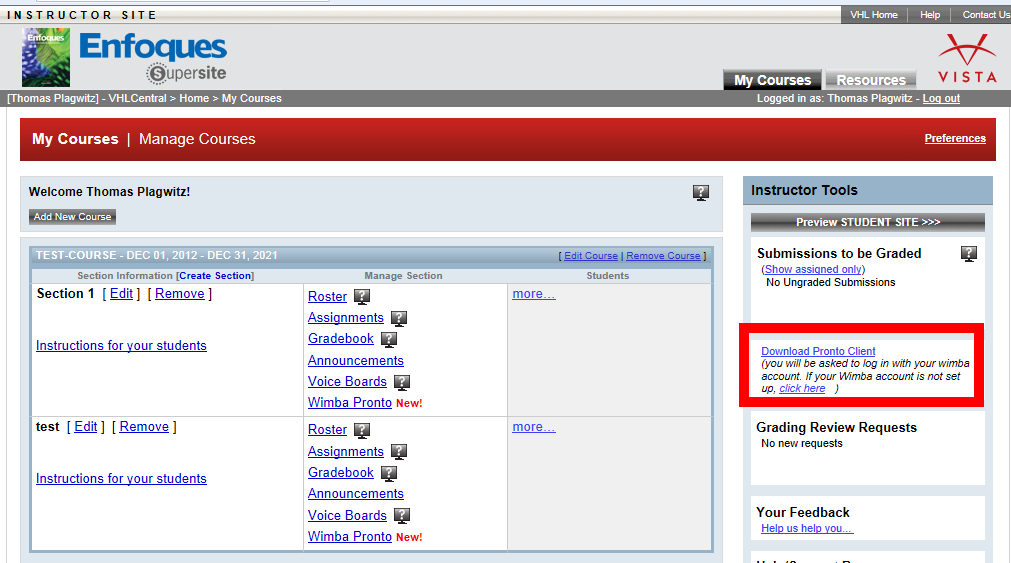
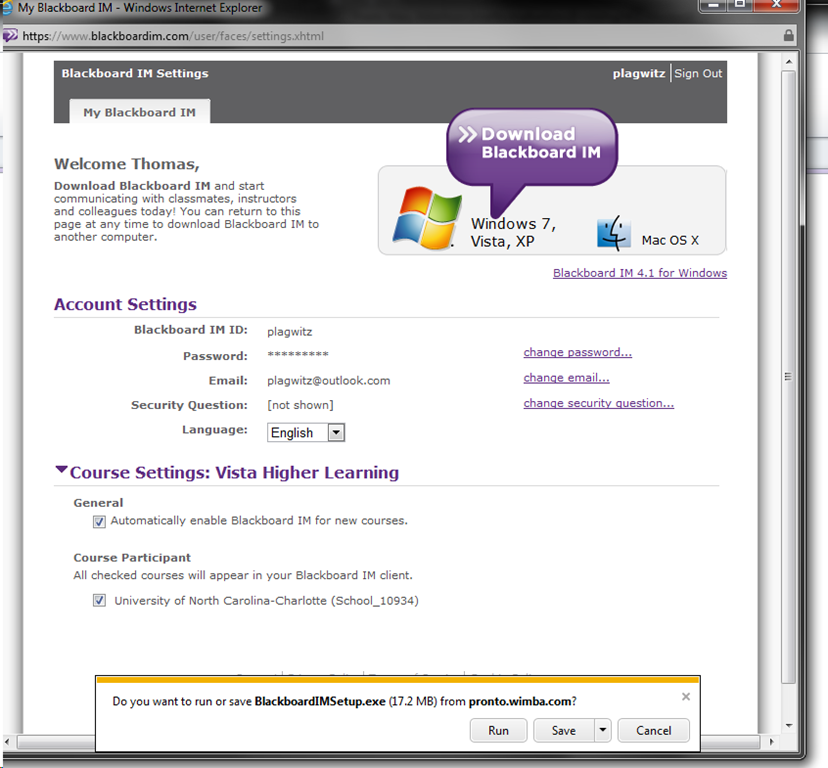
- the Software is linked on your “My courses” page:
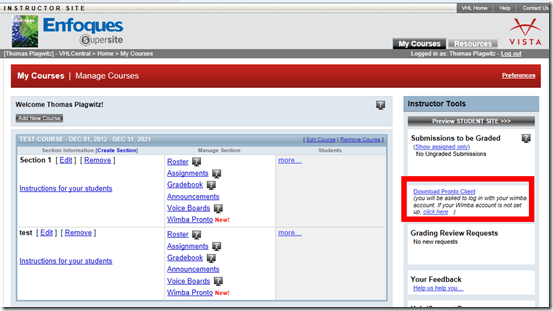
- Download and install:

- After install:
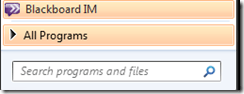
- Mine was already enabled, but the help says:
 Log in (Note: my account info was different form my vhlcentral.com)
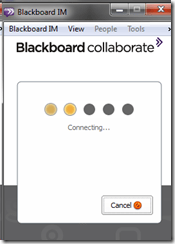

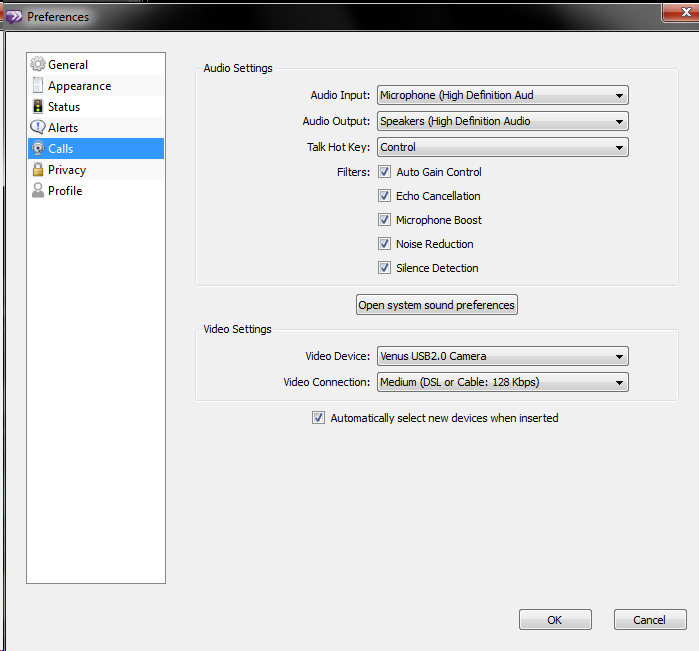
- Check out the Tools menu
- Audio settings should be especially interesting, but there ix no built-on test:

- Need a partner for testing ..


Categories: e-infrastructure, Student-Computers, textbooks, web-conferencing
audio, blackboard, enfoques, im, image2014spring, java, pronto, supersite, vistahigherlearning, wimba


Questions? Read the About. Or just ask me a quick Our Databases: Resources with calendars -- Language learning material Moodle Sites, multimedia files -- films


FAQs for LRC student staff or for students or for teachers. To search our FAQs, in the browser addressbar, add after "https://plagwitz.wordpress.com/feed/?tag=faqs+/" "+TAG1" (from tag cloud below) OR "https://plagwitz.wordpress.com/feed/tag=faqs
&category_name=" "CAT1" (from category hierarchy below). OR search both categories and tags, and multiple TAGs/CATs (connect with "," for OR-search, with "+" for AND-search), like so: https://plagwitz.wordpress.com/feed/?tag=TAG1+TAG2+...TAGn&category_name=CAT1
+CAT2+...CATn"
Other ways to find help
If you cannot find it here, look there: 5,500 Language-Learning Links and Programs for learning or teaching 150 languages
Shortcuts:Our Lists, Our Maps, LRC Staff Moodle Site,LRC Project Moodle Site, 49erexpress, UNCC Moodle, Student Recordings: s:claslcslrcsanakostudent
Learning usage samples: Sanako oral exam, Kaltura webcam presentation, Dictation with speech recognition, Sanako written exam, Chinese and Japanese interactive stroke-order practice
Test the Sanako Installer, Webbrowser Popup Konfigurator for XP, or Windows7, faster LRC TeacherPC Log-in Let MS facilitate diacritics writing by installing for you US-International keyboard layout
This is my personal blog (Google+). The views expressed on these pages are mine alone and not those of my employer. The information in this weblog is provided “AS IS” with no warranties, and confers no rights.
 Thomas' Work Space