Archive
Practice Chinese Stroke Order at varying speeds
Here we are providing over 80,000 animated GIF files for you to practice Chinese Stroke Order at varying (hopefully increasing) speeds of your choice (millisecs denotes the time you have for each stroke): strip, 1010millisecs, 1000millisecs, 990millisecs, 980millisecs, 970millisecs, 960millisecs, 950millisecs, 940millisecs, 930millisecs, 920millisecs, 910millisecs, 900millisecs, 890millisecs, 880millisecs, 870millisecs, 860millisecs, 850millisecs, 840millisecs, 830millisecs, 820millisecs, 810millisecs, 800millisecs, 790millisecs, 780millisecs, 770millisecs, 760millisecs, 750millisecs, 740millisecs, 730millisecs, 720millisecs, 710millisecs, 700millisecs, 690millisecs, 680millisecs, 670millisecs, 660millisecs, 650millisecs, 640millisecs, 630millisecs, 620millisecs, 610millisecs, 600millisecs, 590millisecs, 580millisecs, 570millisecs, 560millisecs, 550millisecs, 540millisecs, 530millisecs, 520millisecs, 510millisecs, 500millisecs, 490millisecs, 480millisecs, 470millisecs, 460millisecs, 450millisecs, 440millisecs, 430millisecs, 420millisecs, 410millisecs, 400millisecs, 390millisecs, 380millisecs, 370millisecs, 360millisecs, 350millisecs, 340millisecs, 330millisecs, 320millisecs, 310millisecs, 300millisecs, 290millisecs, 280millisecs, 270millisecs, 260millisecs, 250millisecs, 240millisecs, 230millisecs, 220millisecs, 210millisecs, 200millisecs, 190millisecs, 180millisecs, 170millisecs, 160millisecs, 150millisecs, 140millisecs, 130millisecs, 120millisecs, 110millisecs, 100millisecs, 090millisecs, 080millisecs, 070millisecs, 060millisecs, 050millisecs, 040millisecs, 030millisecs, 020millisecs, 010millisecs. 
Downloading the originals from the most helpful site (also available by direct download) created by Tim Xie for the California State University, Long Beach, and applying my bash shell script from here, then generating your own speed-differentiated versions, seems to difficult for most users. Even better, instead of perusing the above links, you could just hit my server once and download the whole lot of post-processed animated Gif files with different speeds from here.
Enterprise Library Logging Sample
Using Enterprise Library (still on 5), You can declaratively configure the logger properties (including desired formatting, see Textformatter template below)) in the app.config’s appsettings:
  <loggingConfiguration name="Logging Application Block" tracingEnabled="true"
  defaultCategory="General" logWarningsWhenNoCategoriesMatch="true">   <listeners>    <add name="Event Log Listener" type="Microsoft.Practices.EnterpriseLibrary.Logging.TraceListeners.FormattedEventLogTraceListener, Microsoft.Practices.EnterpriseLibrary.Logging, Version=5.0.505.0, Culture=neutral, PublicKeyToken=31bf3856ad364e35"
    listenerDataType="Microsoft.Practices.EnterpriseLibrary.Logging.Configuration.FormattedEventLogTraceListenerData, Microsoft.Practices.EnterpriseLibrary.Logging, Version=5.0.505.0, Culture=neutral, PublicKeyToken=31bf3856ad364e35"
    source="Enterprise Library Logging" formatter="Text Formatter 2"
    log="" machineName="." traceOutputOptions="None" />    <add name="Rolling Flat File Trace Listener" type="Microsoft.Practices.EnterpriseLibrary.Logging.TraceListeners.RollingFlatFileTraceListener, Microsoft.Practices.EnterpriseLibrary.Logging, Version=5.0.505.0, Culture=neutral, PublicKeyToken=31bf3856ad364e35"
    listenerDataType="Microsoft.Practices.EnterpriseLibrary.Logging.Configuration.RollingFlatFileTraceListenerData, Microsoft.Practices.EnterpriseLibrary.Logging, Version=5.0.505.0, Culture=neutral, PublicKeyToken=31bf3856ad364e35"
    fileName="%AppData%\trpsoft\langlabemailer\trace-rolling.log"
    footer="" formatter="Text Formatter" header="" rollFileExistsBehavior="Increment"
    rollInterval="Day" rollSizeKB="1000" maxArchivedFiles="10" traceOutputOptions="None" />    <add name="Flat File Trace Listener" type="Microsoft.Practices.EnterpriseLibrary.Logging.TraceListeners.FlatFileTraceListener, Microsoft.Practices.EnterpriseLibrary.Logging, Version=5.0.505.0, Culture=neutral, PublicKeyToken=31bf3856ad364e35"
    listenerDataType="Microsoft.Practices.EnterpriseLibrary.Logging.Configuration.FlatFileTraceListenerData, Microsoft.Practices.EnterpriseLibrary.Logging, Version=5.0.505.0, Culture=neutral, PublicKeyToken=31bf3856ad364e35"
    fileName="%AppData%\trpsoft\langlabemailer\exception.log" header=""
    footer="" formatter="Text Formatter" traceOutputOptions="None" />    <add name="Rolling Flat File Trace Listener 2" type="Microsoft.Practices.EnterpriseLibrary.Logging.TraceListeners.RollingFlatFileTraceListener, Microsoft.Practices.EnterpriseLibrary.Logging, Version=5.0.505.0, Culture=neutral, PublicKeyToken=31bf3856ad364e35"
    listenerDataType="Microsoft.Practices.EnterpriseLibrary.Logging.Configuration.RollingFlatFileTraceListenerData, Microsoft.Practices.EnterpriseLibrary.Logging, Version=5.0.505.0, Culture=neutral, PublicKeyToken=31bf3856ad364e35"
    fileName="%AppData%\trpsoft\langlabemailer\exception-rolling.log"
    footer="" formatter="Text Formatter" header="" rollFileExistsBehavior="Increment"
    rollInterval="Hour" rollSizeKB="100" maxArchivedFiles="10" filter="All" />   </listeners>   <formatters>    <add type="Microsoft.Practices.EnterpriseLibrary.Logging.Formatters.TextFormatter, Microsoft.Practices.EnterpriseLibrary.Logging, Version=5.0.505.0, Culture=neutral, PublicKeyToken=31bf3856ad364e35"
    template="Timestamp	 {timestamp}	Message	 {message}	Category	 {category}	Priority	 {priority}	EventId	 {eventid}	Severity	 {severity}	Title	{title}	Machine	 {localMachine}	App Domain	 {localAppDomain}	ProcessId	 {localProcessId}	Process Name	 {localProcessName}	Thread Name	 {threadName}	Win32 ThreadId	{win32ThreadId}	Extended Properties	 {dictionary({key} - {value})}"
    name="Text Formatter" />    <add type="Microsoft.Practices.EnterpriseLibrary.Logging.Formatters.TextFormatter, Microsoft.Practices.EnterpriseLibrary.Logging, Version=5.0.505.0, Culture=neutral, PublicKeyToken=31bf3856ad364e35"
    template="Timestamp: {timestamp}{newline}
Message: {message}{newline}
Category: {category}{newline}
Priority: {priority}{newline}
EventId: {eventid}{newline}
Severity: {severity}{newline}
Title:{title}{newline}
Machine: {localMachine}{newline}
App Domain: {localAppDomain}{newline}
ProcessId: {localProcessId}{newline}
Process Name: {localProcessName}{newline}
Thread Name: {threadName}{newline}
Win32 ThreadId:{win32ThreadId}{newline}
Extended Properties: {dictionary({key} - {value}{newline}
)}"
    name="Text Formatter 2" />   </formatters>
<categorySources> <add switchValue="All" name="General"> <listeners> <add name="Rolling Flat File Trace Listener" /> </listeners> </add> <add switchValue="All" name="Exceptions"> <listeners> <add name="Event Log Listener" /> <add name="Rolling Flat File Trace Listener 2" /> </listeners> </add> </categorySources> <specialSources> <allEvents switchValue="All" name="All Events" /> <notProcessed switchValue="All" name="Unprocessed Category" /> <errors switchValue="All" name="Logging Errors & Warnings"> <listeners> <add name="Event Log Listener" /> </listeners> </errors> </specialSources> </loggingConfiguration> <exceptionHandling> <exceptionPolicies> <add name="Log and Rethrow"> <exceptionTypes> <add name="All Exceptions" type="System.Exception, mscorlib, Version=2.0.0.0, Culture=neutral, PublicKeyToken=b77a5c561934e089"
postHandlingAction="NotifyRethrow"> <exceptionHandlers> <add name="Logging Exception Handler" type="Microsoft.Practices.EnterpriseLibrary.ExceptionHandling.Logging.LoggingExceptionHandler, Microsoft.Practices.EnterpriseLibrary.ExceptionHandling.Logging, Version=5.0.505.0, Culture=neutral, PublicKeyToken=31bf3856ad364e35"
logCategory="Exceptions" eventId="100" severity="Error" title="Enterprise Library Exception Handling"
formatterType="Microsoft.Practices.EnterpriseLibrary.ExceptionHandling.TextExceptionFormatter, Microsoft.Practices.EnterpriseLibrary.ExceptionHandling"
priority="0" /> </exceptionHandlers> </add> </exceptionTypes> </add> </exceptionPolicies> </exceptionHandling> <appSettings>
Import and call the logger like so:
using Microsoft.Practices.EnterpriseLibrary.ExceptionHandling.Logging;

using Microsoft.Practices.EnterpriseLibrary.Logging;

Logger.Write("regex:RegExRecordingFileGroup - target:" + "\t" + _filenamenoext + "\t" + strGroups);
Which outputs: 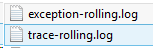 and
and
 ,
,
the latter can be easily imported and analyzed in MS-Excel:

These are obviously only the simplest examples, study the Enterprise Library documentation for more customization
ScreenToGif Debugging: Object reference not set to an instance of an object (#7)
- Trying to contribute a tiny bit to the development of this great utility ScreenToGif:
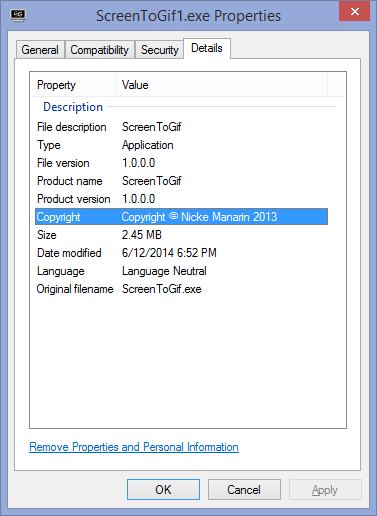
- 1st version:

- crashes on pressing “stop”:

- the Log
- Title: NullPointer in the Stop function 7
Message: Object reference not set to an instance of an object.
Source: ScreenToGif
TargetSite: Void Stop()
StackTrace: at ScreenToGif.Legacy.Stop()
Date/Time: 7/3/2014 12:55:16 PM
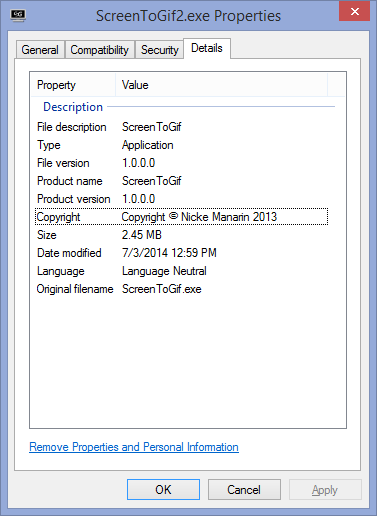
============================== - Newer version:

- does not hang on “stop”
- after adding overlay text (great new feature!),

- seems to hang on pressing “Done” with “Analizing [sic] Unchanged Pixels”
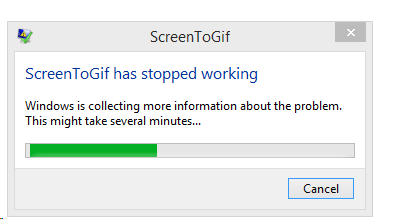
- crashes on pressing window close:

- Maybe I was just not patient enough? for:
- without adding overlay pixels:
- seems to also take a long time (2-3minutes analyzing, without a progress bar, or any other indication that the program is still working and has not crashed – the couple of minutes “Processing” seem to go by faster, thanks to the progress bar and frame counter) for a 5fps 1073*810, about 300frames, but hey! It works:

- Plus you can now open the resulting GIF file directly from the creator.
- Actually, when I click “Stop” (I realize I am supposed to click “Close”), I still get a NullReferenceException (#9), probably should not:

- No log has been outputted with the new version .




Your camera roll backup to OneDrive may not be turned on automatically on the MS-Surface after all
- Swipe from the right, tab on “Settings”, “Change PC Settings”.
- On the next page in the left menu, tab on “OneDrive”, and check:
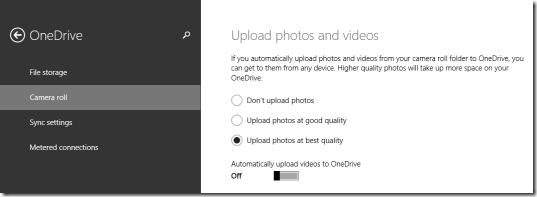
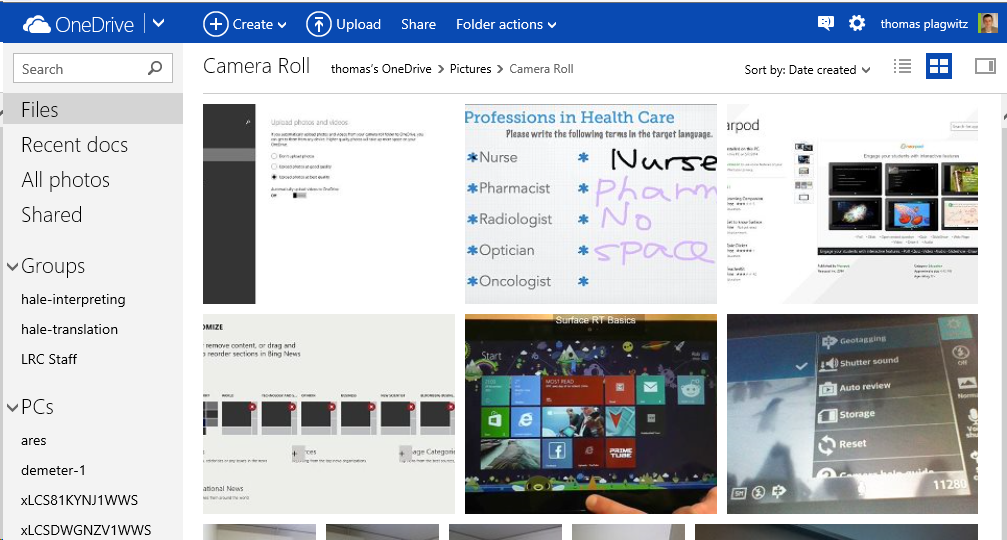
- Turn it on. If necessary, start OneDrive, give it some time, then check in OneDrive whether your photos from your Surface camera get uploaded:
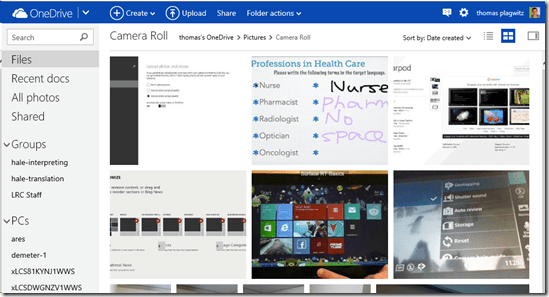
- My automatic camera roll backup may have been off
- due to an initial problem setting up OneDrive on my MS-Surface
- due to a path that was too long
- due to the fact that, in spite of trying the instructions to change this folder, my surface seems to insist on synching my OneDrive to a subfolder of my user folder: That, however, is a post for another day…

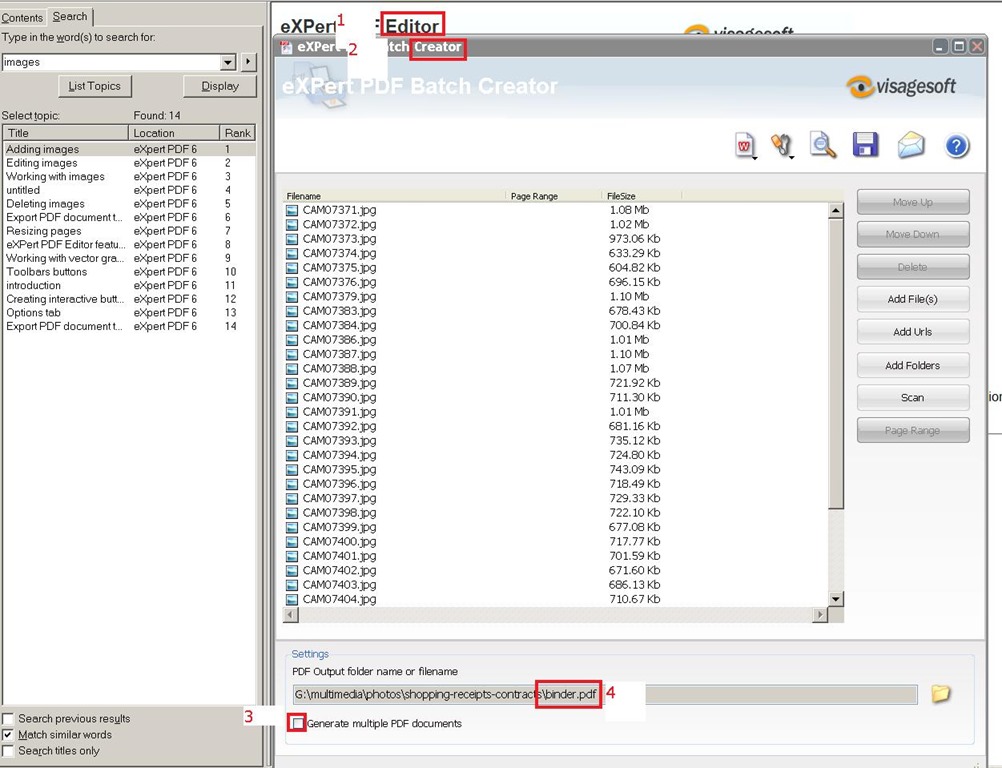
How to bind files to PDF with eXpert PDF Creator
- I tried PDF Editor (mind you, old version! 6 which I still have around from a promotion – nice software, though) first, including its help.
- Use Batch Creator instead,
- uncheck “Create multiple Documents”
- then you will be prompted for a (new) filename for the bound files.

- Then click the “save” icon in the upper right menu.

Intel HD 4000 a disappointment even in 2D…
- I did not expect anything great of INTEL HD’s 3d performance, and I do not need it.
- I thought, however, I could get away with the HD4000 which is part of my I5-3570k.
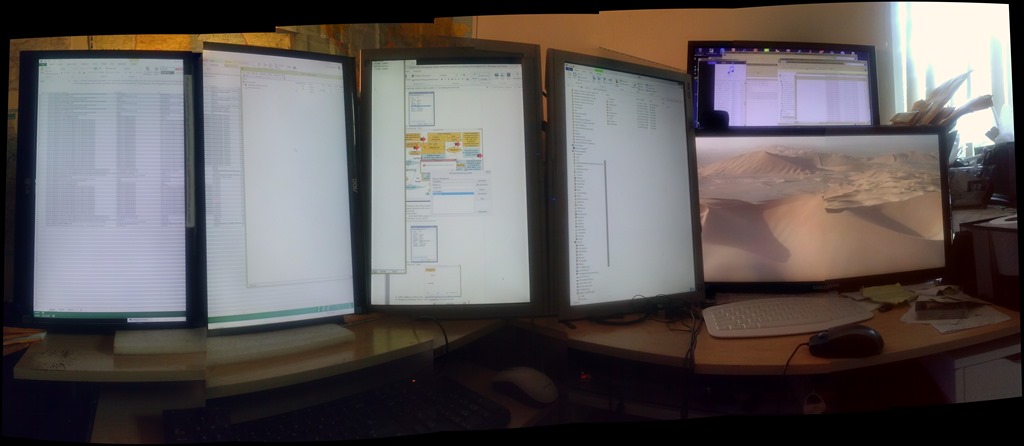
- first disappointment: my board comes with HDMI, DVI and VGA, but HD4000 supports only up to 2 screens at a time.
- System is unbalanced, slowed down.
- Winsat seems to indicate, why:

- Seems poorly balanced by Intefor the most common use case.
- After installing an ASUS GT640-2GD (inexpensive, but supports 4 displays):
- And 4 (+2, the alignment is better than it appears in this photo stitch) instead of dual screens:

- Still not great (and the 3d score drops actually), but seems much more usable during office work: CPUScore : 7.8
D3DScore : 6.4
DiskScore : 8.05
GraphicsScore : 6.4
MemoryScore : 7.8 - Especially efficient is the support of 4 displays without need for equipment supporting Displayport:

- No full screen spanning support in the driver (monitors are not considered one large screen by Windows): good for window management with Aero Snap; not good for multimedia display spanning screens.
- And 4 (+2, the alignment is better than it appears in this photo stitch) instead of dual screens:


“To rely on raw MT output is almost as bad an idea as getting a full-body tattoo in a language you don’t speak.”
“Hanzi Smatter, a blog, received a picture of a biker who got a computer-translated “Ride Hard Die Free” tattooed in huge Chinese characters down his torso. The only problem was that he got “die” in the sense of a “tool used for stamping or shaping metal” permanently inked on his body, probably because nothing like “die free” was in the translator’s training texts. (It also translated “free” as “free of charge”.)” (from: Johnson: Rise of the machine translators, Economist Jun 4th 2014). However, “using MT, plus post-editing, has cut translation time by 40% for” DELL. Good use of Machine Translation seems all about “blending” resources intelligently, while managing expectations – like eLearning. Like most things in life  .
.


Questions? Read the About. Or just ask me a quick Our Databases: Resources with calendars -- Language learning material Moodle Sites, multimedia files -- films


FAQs for LRC student staff or for students or for teachers. To search our FAQs, in the browser addressbar, add after "https://plagwitz.wordpress.com/feed/?tag=faqs+/" "+TAG1" (from tag cloud below) OR "https://plagwitz.wordpress.com/feed/tag=faqs
&category_name=" "CAT1" (from category hierarchy below). OR search both categories and tags, and multiple TAGs/CATs (connect with "," for OR-search, with "+" for AND-search), like so: https://plagwitz.wordpress.com/feed/?tag=TAG1+TAG2+...TAGn&category_name=CAT1
+CAT2+...CATn"
Other ways to find help
If you cannot find it here, look there: 5,500 Language-Learning Links and Programs for learning or teaching 150 languages
Shortcuts:Our Lists, Our Maps, LRC Staff Moodle Site,LRC Project Moodle Site, 49erexpress, UNCC Moodle, Student Recordings: s:claslcslrcsanakostudent
Learning usage samples: Sanako oral exam, Kaltura webcam presentation, Dictation with speech recognition, Sanako written exam, Chinese and Japanese interactive stroke-order practice
Test the Sanako Installer, Webbrowser Popup Konfigurator for XP, or Windows7, faster LRC TeacherPC Log-in Let MS facilitate diacritics writing by installing for you US-International keyboard layout
This is my personal blog (Google+). The views expressed on these pages are mine alone and not those of my employer. The information in this weblog is provided “AS IS” with no warranties, and confers no rights.
 Thomas' Work Space