Archive
Archive for March, 2013
One can connect to the SANAKO files from home via VPN…
2013/03/18
Leave a comment
- …, I found when testing (on Window 7) here, but there are some prerequisites:
- You need VPN:
- install the UNCC preconfigured Cisco VPN (once), possibly troubleshoot (supported by IT Service Desk for Faculty/Staff),
- start the client:
- log in with your UNCC account:

- Use my shortcuts: goo.gl/yqR18 to the Sanako folders.
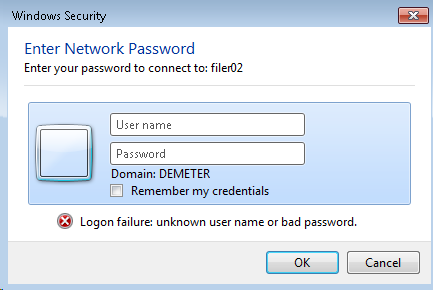
- Even after logging in, I needed to reissue my UNCC network credentials. Use this format: unccharlotte-nt\your-username-here, check “remember"):

- Then you can browse:
 and arrive :
 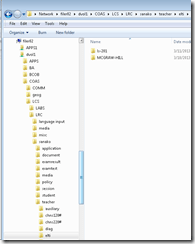 almost like in the office.
 - Make sure you stay connected:
 , not disconnected:
- Live with any (temporary) side effects and conflicts
- I seem to remember I lost my internet during VPN, this may have been fixed).
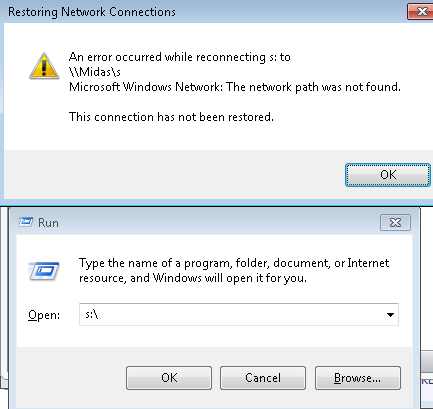
- Drive lettering: not for me
 , YMMV.
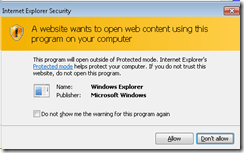
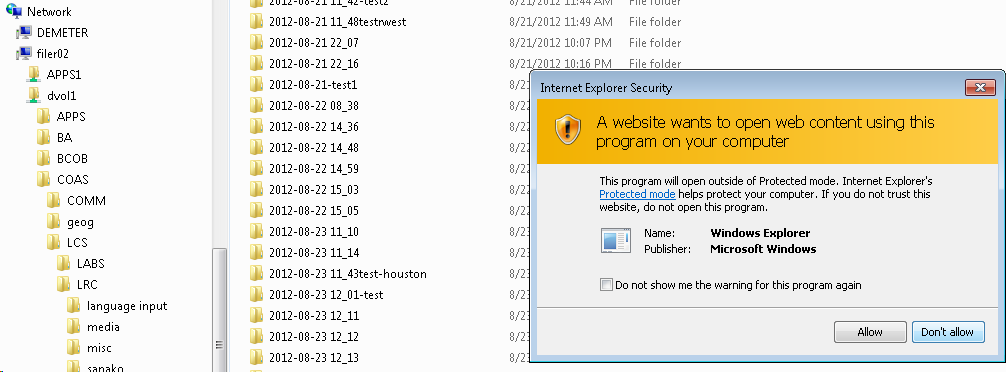
 - Even more security warnings on Adobe Acrobat:
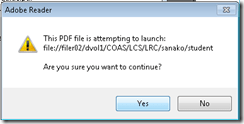 ,
, 
- But you can get to your files eventually:
 .
.





Protected: Sanako teacher station stuck on trying to verify the license
2013/03/18
Enter your password to view comments.
Categories: audience-is-IT-staff, Glitches&Errors
licensing-server, sanako-study-1200
LRC training animated-gifs
2013/03/18
Leave a comment
- This link gives you a nice overview list of the LRC animated gif’s for training.
- Chrome users need to install this first, still can view get only a subset.
- Neither Chrome nor Firefox offer a search-within like Internet Explorer.
- They are meant for display on the left lrc teacher station screen.
- whether you display them as student training material on the projector
- or display them as guidance for yourself
- Did you miss something?
- The animated gif’s cycle in an infinite loop. Just wait for the next round.
- If you want to restart the video now, press F5 or click the Refresh button
 in your browser address bar.
 - Or use one of the slower speed videos I made.
- I also made clickable versions that you can hand-browse (more control. More effort also).

Protected: Sanako Study 1200 hangs on “changing control method”?
2013/03/13
Enter your password to view comments.
How to prevent squealing noise on the brown headphones AKA audio feedback
2013/03/13
Leave a comment
- Symptom:high-pitched squealing sound, usually when logged into the computers along the wall (listening stations –other computers have different black headsets which are not as prone to this problem,) and not wearing the headset.
- Short answer: LRC Assistants will let the student who causes the squealing noise know:
- ”Turn the volume knob on the brown headset down!”
- “You can turn it back up once you have put the headset on”.
- Explanation:
- The brown (analog) headsets on the listening stations exhibit this squealing noise when
- the students do not wear the headset
- AND the microphone is too close to the headphone speakers
- AND the headphone volumne knob is turned up to high.
- This phenomenon is called an (audio) feedback loop:
- The headphone speakers echo what is spoken into the microphone (this is called sidetone).
- This is an important language learning feature (helps you control your pronunciation).
- However, it spirals out of control when students do not wear the headset. They also need to “wear the headset!” (general recommendation in the language lab) to have the benefit of the sidetone (and then their head insulates between speakers and microphones).
- The brown (analog) headsets on the listening stations exhibit this squealing noise when
Have I reserved the LRC? 10 safety nets for you, plus a bonus
2013/03/12
Leave a comment
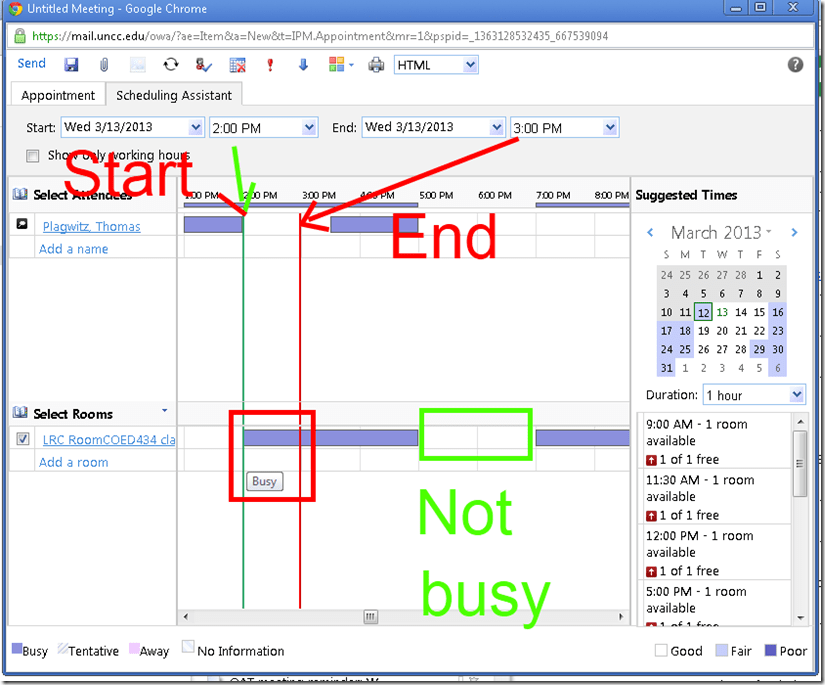
- No need to use them all: The first one you notice suffices. But we hope 1 of the 10 will work for you. Starting (that is why it is in explained in How to book LRC resources – explained in one screenshot: “Book me!”versus “Leave me alone!”) with the tab: “scheduling assistant” in your “meeting request” itself before you try to book the room: It tells you when the room is free (white or blank along the timeline). Don’t try to book the room when the room’s timeline is not blank and the hovering tool tip tells you “Busy”: It is futile.
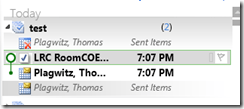
- But if you do, there will be more alerts: Immediately after you send the meeting request, a so-called “toast” (think of a slice of bread jumping out of a toaster – depending on email client you are using for NINERMAIL in the lower or upper right of the screen) flashes briefly with the automatic response from the room attendant. The response has in the subject : “Accepted or Denied” (you will not get “Tentative” from the room like in the example – UPDATE: only faculty and staff used to receive such toasts, but with the next upgrade of NINERMAIL, students will also!):

- Never mind if you miss the toast: it just notified you that the automatic response from the room attendant went into your inbox. You can see it on top there (here I unfolded it).
 It tells you in the subject and in bold in the body whether your booking was accepted or denied. If you have questions about these messages, you can forward them with your comment like any other email (no point in responding though).
 This does NOT remove the appointment from your own NINERRMAIL calendar (makes sense if you think about it: You still have your appointment (exam etc.), just the room can not be part of it).
 - If you miss that also, go to the LRC homepage and click on “Hours&Events” under the Quick links in the upper left (How to view ?)

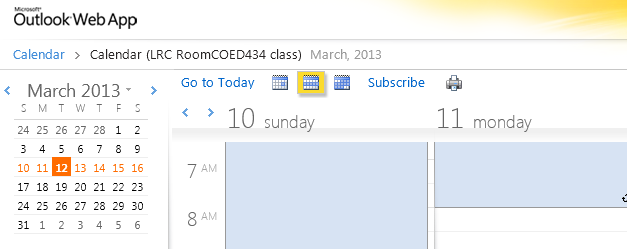
- You do not even need to visit the LRC home page: you have privileged access to the the LRC hours end events calendar from your NINERMAIL, if you subscribe to it there (shortcut: start @ #3 armed with this link:http://mail.uncc.edu/owa/calendar/LRCRoomCOED434@uncc.edu/Calendar/calendar.ics).
- You can do all this under guidance at the LRC reception desk: We try to have 1-3 name-tagged student assistants there at all times during LRC opening hours, 8 eyes see more than 2.
- One day after your booking, you will also be able to see your reservation (if successful!) on the
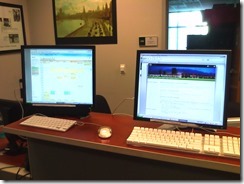 : .
: . - If in doubt, do all this well before your class takes place.
- Take a training: ITS supports NINERMAIL and CTL teaches Taming your inbox.
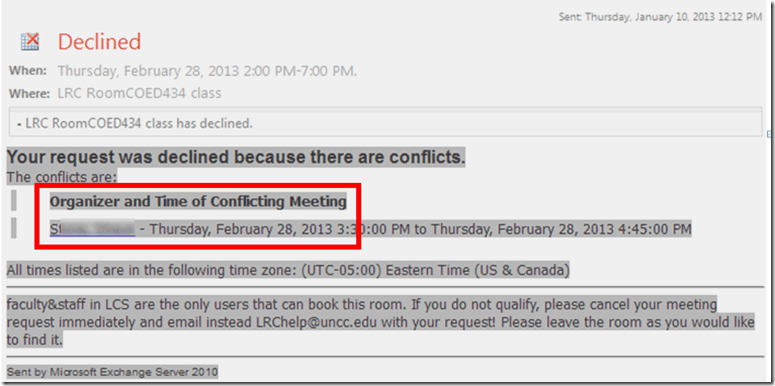
- Bonus: In the unfortunate event of a “Denied” response to your booking request, if it is not just an AM/PM error or similar which you can easily correct, the response includes information on the prior reservation, organizer, and email address.
- Why not email the colleague (click on the underlined name of the colleague that booked the LRC before you) from right here and see whether you both can rearrange? Remember: Sharing is caring.
- There is a departmental initiative to reschedule entire classes that might conflict over the use of the LRC. Talk to the departmental office well before the the prior term ends (i.e. before next term’s class schedules are finalized).
- Still confused? At this point, talk to LRC permanent staff who will go through above list with you. Please understand that the LRC staff cannot cancel other faculty’s bookings, we only extended the availability and bookability of the LRC which is readily available and easily bookable at many times during each term.
- Why not email the colleague (click on the underlined name of the colleague that booked the LRC before you) from right here and see whether you both can rearrange? Remember: Sharing is caring.


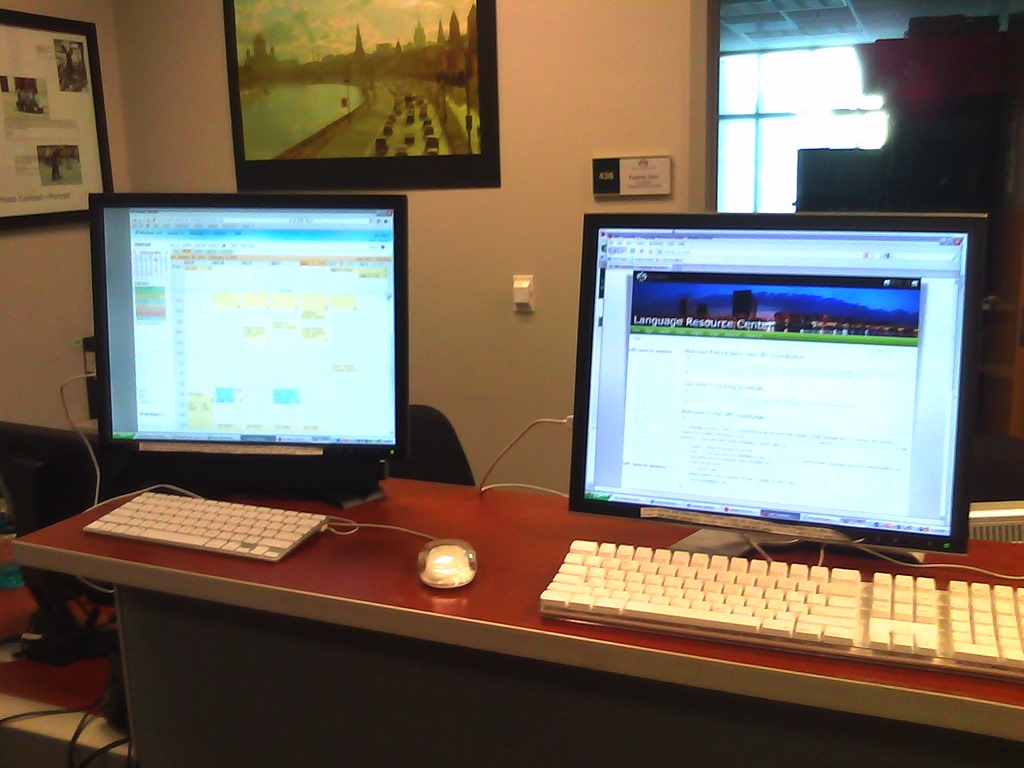

Deepfreeze still rebooting computers in scheduled maintenance
2013/03/12
Leave a comment
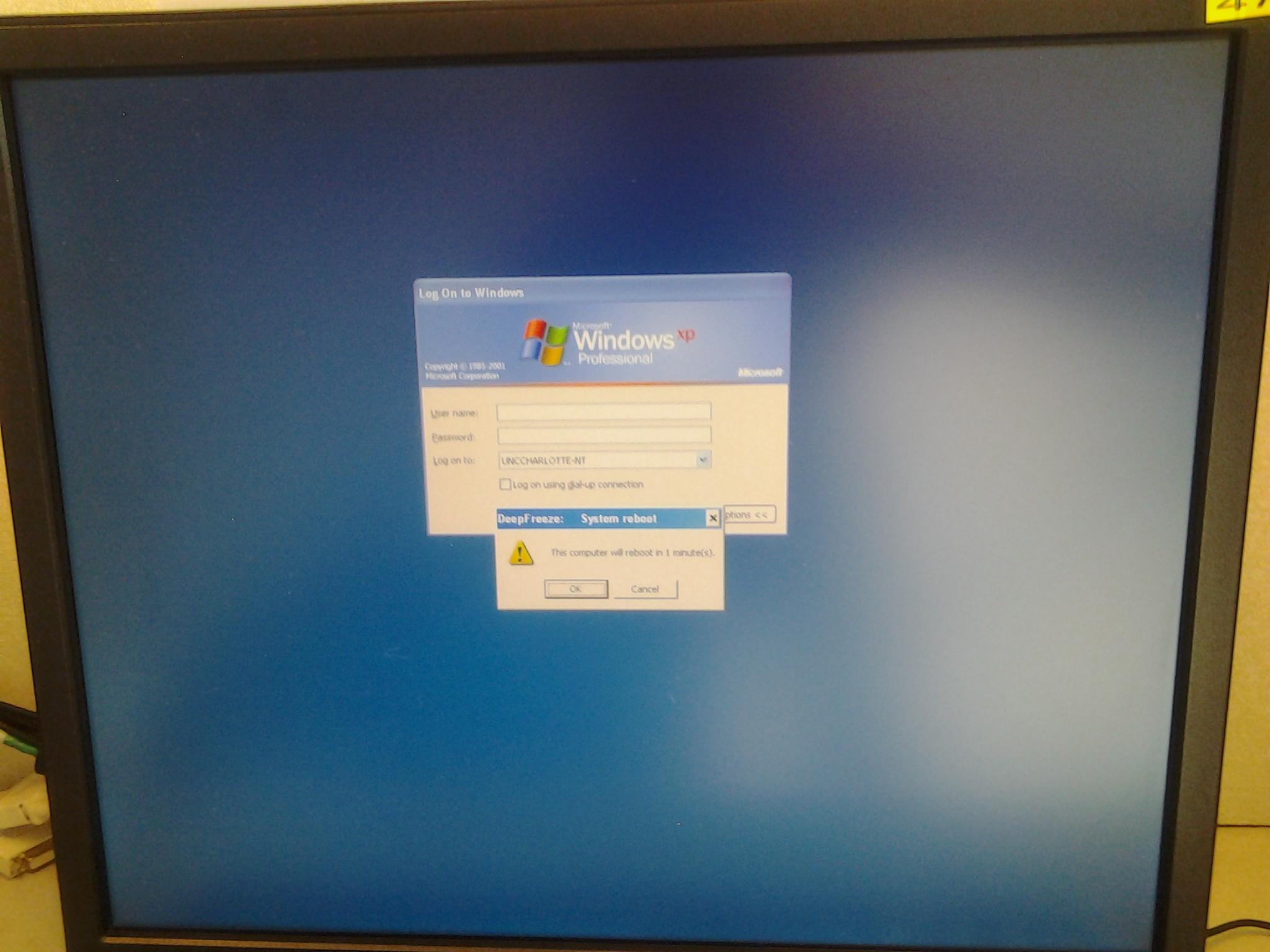
PC47.
Categories: Glitches&Errors
faronics-deepfreeze
How a teacher can adapt a Sanako teacher-controlled class recording activity for individual student recordings
2013/03/12
Leave a comment
- Pedagogical need:
- A teacher wants her students to record a presentation,
- but allow the students to move around freely in their recording afterwards, when evaluating it, and submit the best out of 3 tries:
- Technical implementation:
- Using Sanako activity:model imitation of differing for multiple groups
- offers maximum control, least flexibility: students have to speak their presentation linearly
- if you anticipate presentations of considerably different lengths
- first try asking your students – might be useful to them anyway to realize if theirs turns out to be much shorter than others,
- if students are unsure about the length of their presentation,
- conduct the first recording with the entire class and
- have students note what time their recorder time counter is at when they finish, and send you the time as text via the button:envelope
- group your students (grouping step-by-step) into Sessions A-F by incrementing time according to what the student icon bubble shows
- then differentiate class into as many groups as necessary (if <= the 6 “sessions”A-F Sanako Study 1200 offers) end the recording at a different time for each group
- for each group (one or more up to 6),
- choose from dropdown activity: model imitation recording
- and from dropdown: source: none) with more than one group at a time,
- and (optionally) for not more than one group at a time (suggest choosing the biggest group for that) from (dropdown: source: file ) the background noise to play
- and after each group’s allocated time (+ buffer) is up,
- press button:end to end the recording
- after collection of the recordings from students is finished, you can
- press button:replay
 , to let each student listen to her recording (linearly, without control), and
 - press button:free
 , to let students freely move back and forth on the timeline)
 - eventually, press button: clear, to be ready:
- choose from dropdown activity: model imitation recording
- for tries 2 and 3: repeat above steps.
- using Sanako activity: self access:
- provides
- the teacher some control (none over this turning into more of an editing than coherent language practice exercise),
- and students more flexibility (hence requiring prior recording training for students);
- students individually
- record
- move around freely in the file
- replay
- record over prior footage and/or start completely over (menu: File / new)
- press button:envelope to text message the teacher that they are finished and want their (final ) recording to be collected by the teacher
- teacher
- moves signaling students into a group (grouping step-by-step) that is
- dedicated for collecting recordings (TBA:does this not empty their buffer?)
- and button:pc control: locked (= no further or accidental changes)
- once an appropriate (compromise between finished students wanting to leave and teacher not having to collect each recording individually) number of students have been added to this group, presses
- button: end to collect and
- button: clear session to clear the button
- assesses the recordings in the folder that opens with audacity;
- in case of problems, moves students back to the group dedicated to recording
- else lets students leave
- moves signaling students into a group (grouping step-by-step) that is
- provides


Categories: Arabic, assessments, audience-is-teachers, digital-audio-lab, e-languages, English, Farsi, French, German, Greek (modern), Hebrew, Hindi, Italian, Japanese, Korean, Mandarin, multimedia-recording, Polish, Portuguese, Presenter-Computer, Russian, service-is-assessing, Spanish, Speaking, step-by-step-guides, Student-Computers, Swahili, Yoruba
oral-exams, sanako-study-1200


Questions? Read the About. Or just ask me a quick Our Databases: Resources with calendars -- Language learning material Moodle Sites, multimedia files -- films


FAQs for LRC student staff or for students or for teachers. To search our FAQs, in the browser addressbar, add after "https://plagwitz.wordpress.com/feed/?tag=faqs+/" "+TAG1" (from tag cloud below) OR "https://plagwitz.wordpress.com/feed/tag=faqs
&category_name=" "CAT1" (from category hierarchy below). OR search both categories and tags, and multiple TAGs/CATs (connect with "," for OR-search, with "+" for AND-search), like so: https://plagwitz.wordpress.com/feed/?tag=TAG1+TAG2+...TAGn&category_name=CAT1
+CAT2+...CATn"
Other ways to find help
If you cannot find it here, look there: 5,500 Language-Learning Links and Programs for learning or teaching 150 languages
Shortcuts:Our Lists, Our Maps, LRC Staff Moodle Site,LRC Project Moodle Site, 49erexpress, UNCC Moodle, Student Recordings: s:claslcslrcsanakostudent
Learning usage samples: Sanako oral exam, Kaltura webcam presentation, Dictation with speech recognition, Sanako written exam, Chinese and Japanese interactive stroke-order practice
Test the Sanako Installer, Webbrowser Popup Konfigurator for XP, or Windows7, faster LRC TeacherPC Log-in Let MS facilitate diacritics writing by installing for you US-International keyboard layout
This is my personal blog (Google+). The views expressed on these pages are mine alone and not those of my employer. The information in this weblog is provided “AS IS” with no warranties, and confers no rights.
 Thomas' Work Space