Archive
LRC Outlook/Exchange 2010 Resource Calendaring: How staff view resource “Calendars from your organization” in OWA
- Note: Students that have not been specifically invited to share a calendar, must use (staff may also) this approach to view calendars, to avoid a permission problem .
- Staff can load resource calendars, but as somebody who books the resource (except where you still cannot book/schedule/sign up: Tutors), you normally neither need nor want to (unless you manage the resources).
- To preview the free/busy schedule of the resource, use the scheduling assistant instead.
- To make sure that you have booked the resource, load your OWN calendar instead: Since it is you who “meets” with the resource, your meeting will be reflected on there. If you also loaded the resource’s calendar, you would see your “meeting” twice. A meeting always appears in the calendar of all “participants” – only that, other than for resource calendars, you normally do not view the calendar of the other participants who are “human resources”(or maybe you are, at least in the scheduling assistant, but not with details beyond “busy”).

- You may want to load the resource calendar to learn details about the other “meetings”of the resource (e.g. which conflicting meeting organizer you can contact in an emergency, or to know how many tentative meeting requests are already pending for a tutor). Below is how:
-
Similarly to in Outlook (desktop):
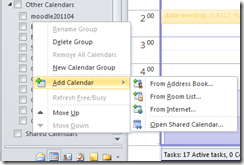 , in OWA, click on the lower left “Calendar-icon”
  to unfold the “My Calendars” list
  in the left pane, then right-click on “My Calendars”, choose “Add Calendar”
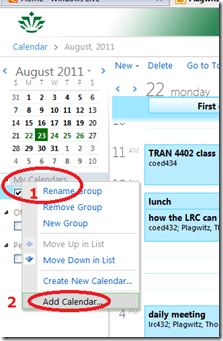 .
. -
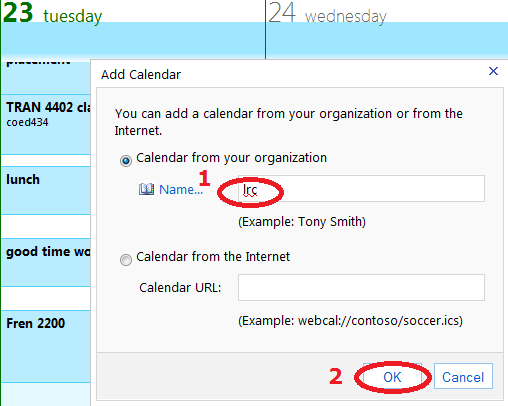
put (part of) the name, click “ok”
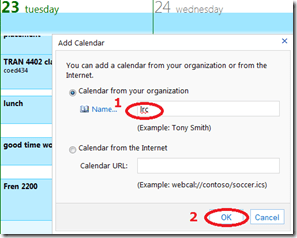
-
if there are multiple matches, select the correct one (you can only select one at a time)

-
press “OK” again:
 .
. -
As explained above, there is little reason to go overboard and add too many calendars, unless you have to manage:

-
However, you can also easily remove calendars, through the context menu item “Remove shared calendar”






Calendaring: How students can view the LRC schedules
- As of Fall 2011, this is obsolete. View instead the new and improved procedure.
- Calendars you can subscribe to:
|
Ind.Instr.Spanish |
webcal://calendars.office.microsoft.com/pubcalstorage/6d826ffz2216669/COED_434-Tutoring-Spanish_Calendar.ics |
|
Tutors French |
webcal://calendars.office.microsoft.com/pubcalstorage/6d826ffz2216669/COED_434-Tutoring-French_Calendar(1).ics |
|
Tutors Russian |
webcal://calendars.office.microsoft.com/pubcalstorage/6d826ffz2216669/COED-434-Tutoring-Russian-2_Calendar.ics |
|
Tutors Portuguese |
webcal://calendars.office.microsoft.com/pubcalstorage/m8qcbqfz1289583/COED-434-Tutoring-Portuguese_Calendar.ics |
|
Tutors Japanese |
webcal://calendars.office.microsoft.com/pubcalstorage/m8qcbqfz1289583/COED-434-Tutoring-Japanese_Calendar.ics |
|
Lab Assistants |
webcal://calendars.office.microsoft.com/pubcalstorage/6d826ffz2216669/COED_434-Lab_Assistants_Calendar.ics |
|
Director Free/Busy |
webcal://calendars.office.microsoft.com/pubcalstorage/m8qcbqfz1289583/Plagwitz_Thomas_Calendar.ics |
- How?
“You can subscribe to published calendars if you use a program that supports the WebCal protocol, such as Outlook, Windows Live Calendar, Google Calendar, or Apple iCal” (MS-Office online Help), as well as Yahoo Calendar.
Is Windows Live Calendar available to everyone with a Windows Live ID?
Yes, the Windows Live Calendar is available to all Windows Live ID accounts. To learn more about setting up and maintaining your calendar, open Windows Live Calendar Help. (Microsoft Live Services for Moodle User FAQ)
Windows Live ID = UNCC Live@edu ID
Using the “webcal://”-links (to be posted also on the LRC website), students will be able to view live LRC schedules from live@edu (and many other applications that support the iCalendar format, like listed on
http://blogs.office.com/b/microsoft-outlook/archive/2007/08/08/publishing-a-calendar-using-office-online.aspx or here):
-
Application
Publisher
Open Source Applications Foundation
Novell & GNOME
Facebook.com
Google
iCal and iCal Server
Apple Computer
The Kontact Team
IBM
Microsoft
Microsoft
Microsoft
Microsoft
Sun
Zimbra
-
How to set this up, taken from the Windows Live help:
-
Sign into Windows live (or later live@edu) with your Windows live (or later live@edu) ID.
-
On the toolbar, go to Calendar.
-
Click Subscribe.
-
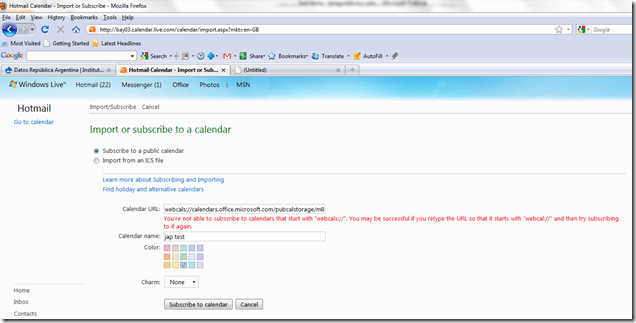
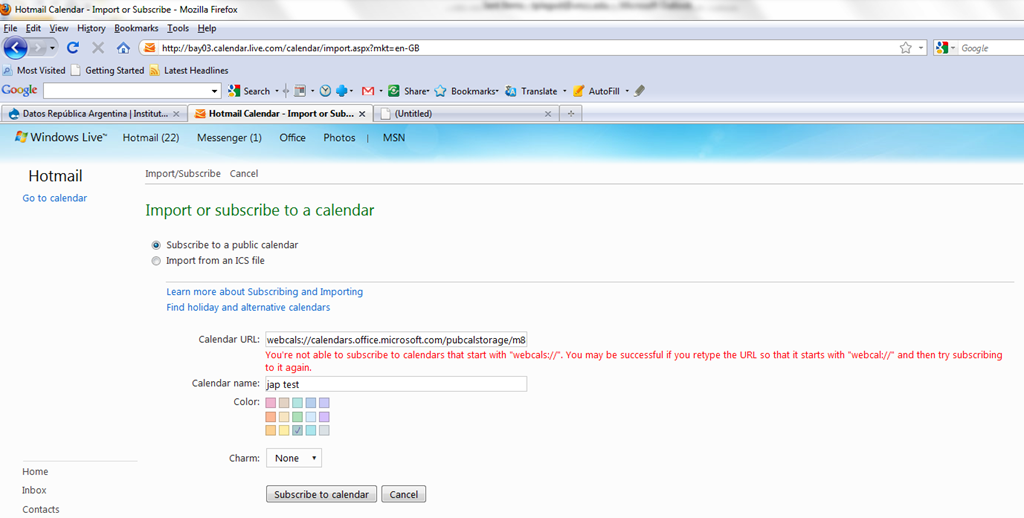
Select Subscribe to a public calendar, and then, in the Calendar URL box, paste the “webcal://” link from the LRC website for the tutoring hours or other LRC schedule that you want to keep an eye on. You begin the link either with “webcal:” or “http:”. Note, however, that trying to subscribe to “webcalS” will result in this error:
-
In the Calendar name box, type a name for the calendar.
-
Next to Color, select a color for the calendar.
-
Click Subscribe to calendar, and then click Done. Result:
-
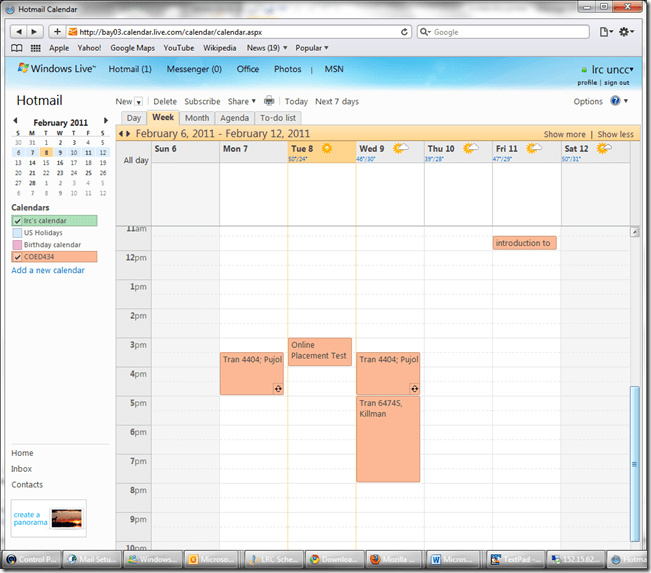
- This calendar will be live, i.e. every subscriber will see any updates the LRC makes (like for late-breaking changes and cancellations of tutoring hours). Note however, that synchronization is not instantaneous. Give it up to 30 minutes, under normal circumstances.

LLC Catalogue: Video-Reserves.xlsm, Reserve desk, Schedule, using Blackboard Content System WebDAV
For a LLC video schedule, we came up with the following repurposing of existing infrastructure:
- MS-Excel: still the “Swiss army knife” of choice for the middle manager. Allows for: semi-automatic creation of reserve date sequences (insert series), given a start and end date; data validation during data entry, and, based on that, sorting and filtering and, based on that, finding.
- Blackboard Content management system (WebDAV) to manage reading and writing (editing) permissions.

- Staff can use MS-Excel to request videos – preferably at start of term – to be put on reserve within a start and end date, during which they will be periodically shown, by opening the spreadsheet from MS-Excel and filling in the green cells in the first empty row at the bottom.

- Lab Staff can use MS-Excel to periodically transfer video reserve requests into video showings.
- Lab Assistants can use MS-Excel to daily maintain video reserve desk and video showings.
- Students can use a web browser to preview video showing times during the remainder of the term.
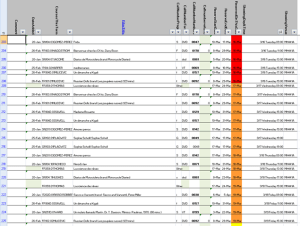
- To open the video schedule for read-only, Loyola students and staff can simply click this link in their browser: https://blackboard.loyola.edu/bbcswebdav/users/trplagwitz/llc-pfiles/video/video-reserves.xslm. Even read-only access includes the capability to search, sort and filter the schedule data, but you cannot save back.
- To open the video schedule for editing, LLC and Modern Languages staff can start MS-Excel, click menu: File / Open, and copy/paste this link: https://blackboard.loyola.edu/bbcswebdav/users/trplagwitz/llc-pfiles/video/video-reserves.xslm, then click open.
- All users will have to authenticate with their institutional account info:


Video Library: Scheduling for Reserve Desk and Viewings
Lab staff instruction for editing the video-reserves spreadsheet H:\LLC\scheduling\video-reserves&mh441b-showing\video-reserves.xls:
- Lab supervisors build the spreadsheet for the reserve desk and viewing: video-reserves-reservedonthisday-unfold-schedule-viewing.wmv, video-reserves-viewing-selecting-timeslots&venues.wmv
- Lab assistants read the spreadsheet and handle the actual media (i.e. update the reserve desk and show the videos): video-reserves-reservedonthisday-filter-viewing-or-reserve.wmv
Shared Calendar for Interpreting Suite Bookings on Windows Live: Frequently asked questions
-
Problem: How do I return to “Windows live”?
-
Solution: AFTER you followed the “accept” button in the invitation email, you can return to the calendar by simply going to http://calendar.live.com. Or for easy access to other windows live services like groups, go through http://home.live.com and the top menu “more”/ “calendar”.
-
-
Problem: I seem to have lost access to the calendar?
-
Solution: if you go to http://login.live.com, make sure you are logged in with the windows live account that you gave us for calendar access (if you are logged in under a different name, log out from that account first) . Then go to http://calendar.live.com: you should have access now.
-
-
Problem: My calendar time seems off?
-
Solution: adjust your time zone: after going to http://calendar.live.com, in the upper right hand side, click on options / more options / time zone: change this to “Greenwich mean time [….] LONDON” (do NOT choose GMT UNIVERSAL time”, this has no daylight savings time adjustment!). Then click “save”at the bottom Please let me know of any other issues (please provide OS and browser version and error message).
-
-
Problem: Other users cannot see my calendar appointments.
-
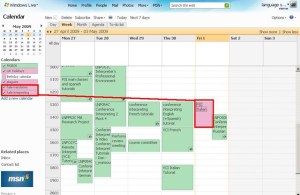
Solution: Make sure you added them to the right calendar, called “MGB-36” (an option when you add an appointment). There are now several calendars for other purposes, but booking of the suite is done in “MGB-36”. You can see something went wrong if your appointment stands out in a different colour (see legend), like here:
-
-
Problem: I would like to book some space (booths) in the suite, but the entire suite seems already booked – what should I do?
-
Solution: The original calendar instructions mentioned to start a booking with your email address under “what” and qualify under “where” if you require only parts of the interpreting suite for your class. If only the latter has been omitted, you can still email the colleague to inquire. If the former has been omitted also, we will have to try tracking down which the information which will take time.
-
-
Problem: There is a (recurring) event which I can not delete (I get the error: “there’s a problem connecting to windows live calendar”).
-
Solution: The error message is misleading. This seems a bug in the software. You can try to work around it like this
: Move one occurrence of the event (drag it with your mouse to a different time). This breaks the recurrence. Now left-click on the moved event to edit it. From the popup, choose to “Edit every occurrence” instead of “Edit this one occurrence”. This should get you to the “Event details” page, where you can delete the entire event from the top menu.
-



Questions? Read the About. Or just ask me a quick Our Databases: Resources with calendars -- Language learning material Moodle Sites, multimedia files -- films


FAQs for LRC student staff or for students or for teachers. To search our FAQs, in the browser addressbar, add after "https://plagwitz.wordpress.com/feed/?tag=faqs+/" "+TAG1" (from tag cloud below) OR "https://plagwitz.wordpress.com/feed/tag=faqs
&category_name=" "CAT1" (from category hierarchy below). OR search both categories and tags, and multiple TAGs/CATs (connect with "," for OR-search, with "+" for AND-search), like so: https://plagwitz.wordpress.com/feed/?tag=TAG1+TAG2+...TAGn&category_name=CAT1
+CAT2+...CATn"
Other ways to find help
If you cannot find it here, look there: 5,500 Language-Learning Links and Programs for learning or teaching 150 languages
Shortcuts:Our Lists, Our Maps, LRC Staff Moodle Site,LRC Project Moodle Site, 49erexpress, UNCC Moodle, Student Recordings: s:claslcslrcsanakostudent
Learning usage samples: Sanako oral exam, Kaltura webcam presentation, Dictation with speech recognition, Sanako written exam, Chinese and Japanese interactive stroke-order practice
Test the Sanako Installer, Webbrowser Popup Konfigurator for XP, or Windows7, faster LRC TeacherPC Log-in Let MS facilitate diacritics writing by installing for you US-International keyboard layout
This is my personal blog (Google+). The views expressed on these pages are mine alone and not those of my employer. The information in this weblog is provided “AS IS” with no warranties, and confers no rights.
 Thomas' Work Space