Archive
How a teacher can start up the Sanako Study 1200 for her class
- The Sanako Tutor software starts automatically, when you log in on the teacher station in the LRC:

- Choose from “saved classes” what best you fits your class-size:
- “Both halfs” (still not the full classroom, due to lack of licenses),
- or, for small class sizes up to 16 computers, left or, preferably, right-half
- Students also need to log in, and class is not ready for the Sanako until all students show up as Student icons like the right me:

-
- We can get there faster once we
- upgrade to faster computers
- fix that they manually have to choose their client
- have at least the teacher already log in from her office
- Hint: Log in yourself on a couple of student computers, to have them ready for latecomers (easier to deal with them being logged in as you than if the class has to wait for 5-10 minutes).
- We can get there faster once we
- Then, choose how to display the students on your classroom map:

- Finally,
- during your class’ first visit can play them this screencast introduction into Sanako digital audio lab procedures
- during later visits, you can refresh their knowledge of the basics in the digital audio lab with this slideshow.



New problem in Sanako Study 1200 version 7 with 2 student recorder exe’s running simultaneously on client, under different user accounts?
- UPDATE: Also an issue in the spring term on the teacher computer..
- UPDATE: still an issue in the spring term.

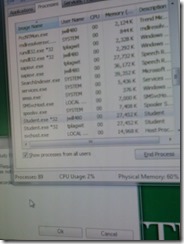
- This cannot be good (brought this student down).
- How is this possible?
- Presumably the student logged out an admin during a Sanako activity (we frequently have to place late-coming students sit and use an administrator computer, but they do not always get at term start that they are not supposed to log the admin out and in)
- So this seems another (special) case of the recently observed student managing to exit the Sanako during an activity (helper.exe was running alright).
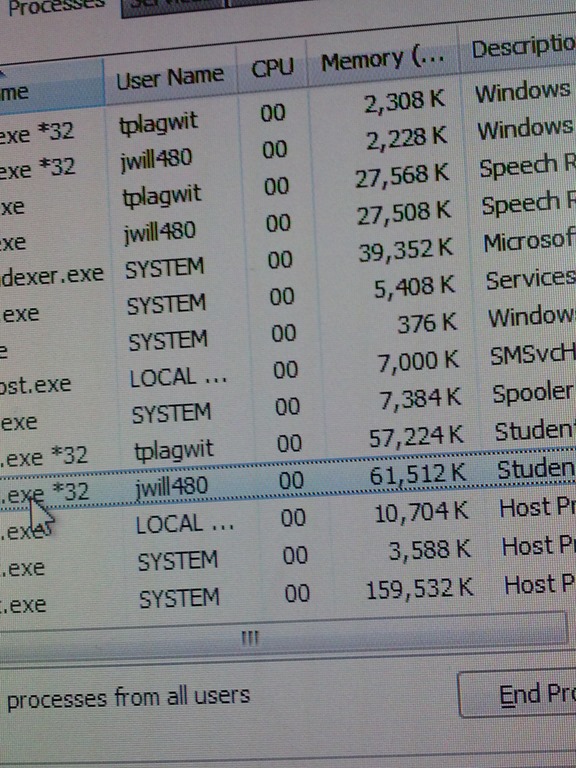

Sanako screen sharing is now too slow for the client machine..
… So that clients get suggested to downgrade to basic color scheme, in the middle of class. I saw this for the first time recently , after upgrade to Windows 7 and study 1200 version 7, on the teacher machine, same 4yr old dell optiplex 760.
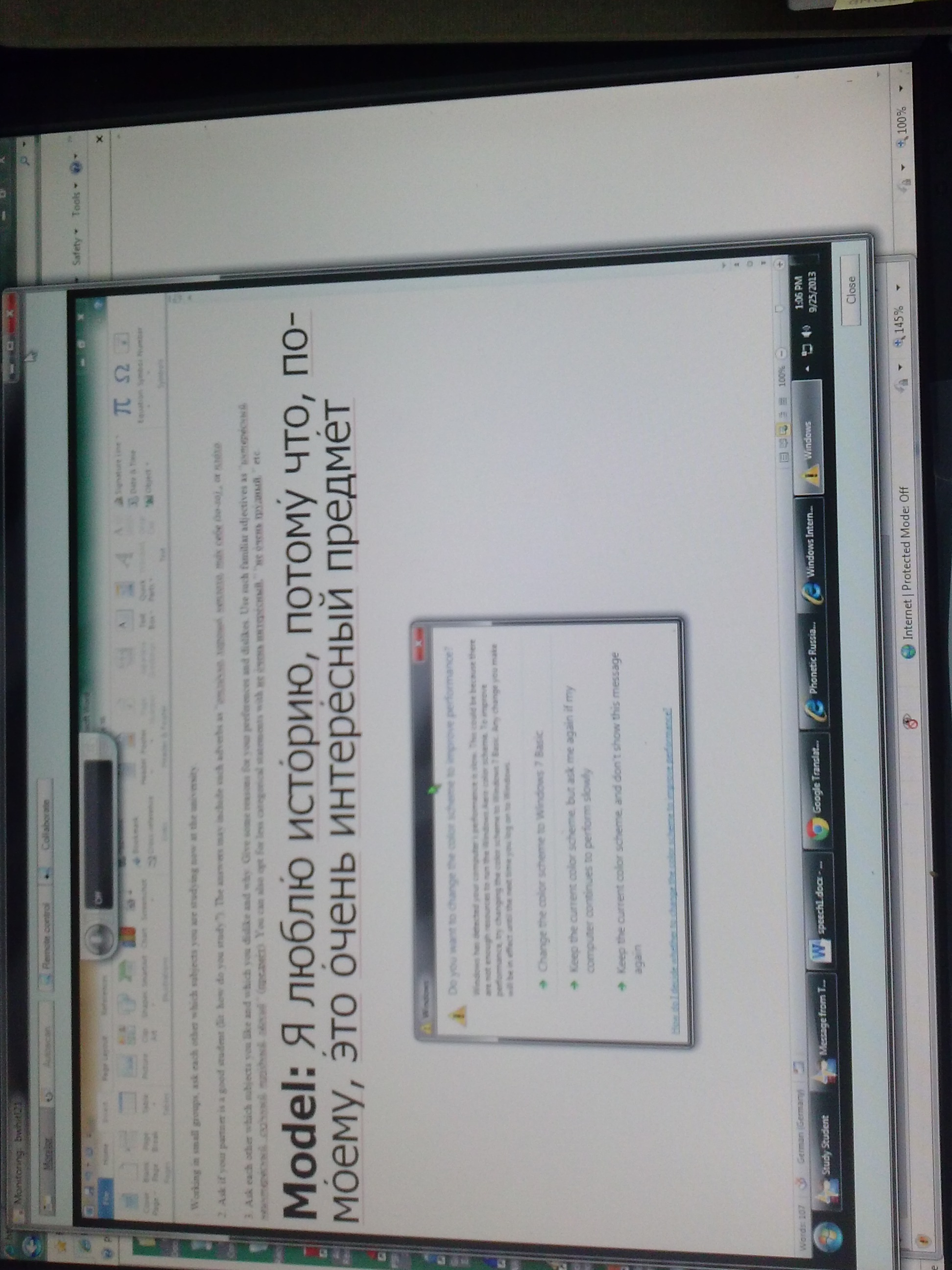
Making computerized vocabulary quizzes for use in the LRC from Prof. Koralova’s Friendly Russian textbook
You can browse on the Group room PC to this folder with the
source files (read acces), you just need to look at the Word versions: S:\COAS\LCS\LRC\sanako\student\friendly-russian-docx-student-copy
In the source files, new vocabulary that the students have to learn, appears in 2 forms
1. Either under the heading “new words”, mostly with English meaning in a sparate column
2. Or in the running text, colored in red (and with no entirely obvious English translation for me who I do not speak Russian, but likely for you).
The target file is here (in most browsers other than Internet Explorer 64-bit, you should be able to open this in EXCEL for easier editing).
We need Russian and English in 2 columns. The computer program we are going to feed these flash cards into is quite simple in its automatic evaluation. That’s why we need to enable students to guess exactly the Russian from the English flash card side (and vice versa). Hence we may need to simplify the entries in both.
To give a few examples:
– Complicated lists of variants (inflected forms, similar phrases etc.) need to be broken up into separate rows
– linguistic metadata (like gender “fem.”– but maybe not articles: “la maison – das Haus” -, irregular verb) in a separate column, per language.
I included an example (from chapter 4, section 6) what I think the end result is supposed to look like:
Source example:
ти́хо (adv.) – quiet(ly); тишина́ (n.) – stillness; quiet
никогда́ – never; ти́хо, как никогда́ – quiet as never (before); когда́ – when
В чём де́ло? – idiom: What’s the matter?
ах да – oh yes
матч – match; game
почти́ – almost
ка́ждый – each; every
ме́сяц – month
всё в поря́дке (idiom)– everything is OK (lit.: everything is in order)
что ещё на́до? – what else (does one) need?
Target example:
|
russian |
metadata |
english |
metadata2 |
|
Ти́хо |
quiet |
||
|
тишина́ |
stillness |
||
|
тишина́ |
quiet |
||
|
никогда́ |
never |
||
|
ти́хо, как никогда́ |
quiet as never before |
||
|
когда́ |
when |
||
|
В чём де́ло? |
What’s the matter? |
||
|
ах да |
oh yes |
||
|
матч |
match |
||
|
матч |
game |
||
|
почти́ |
almost |
||
|
ка́ждый |
each |
||
|
ка́ждый |
every |
||
|
ме́сяц |
month |
||
|
всё в поря́дке |
everything is OK |
||
|
что ещё на́до? |
what else does one need? |
||
Hint: the easiest way to get the vocabulary charts Russian – English from Word into 2 columns in Excel: CTRL+H, “find:” space-space, “Replace”:^t (for tab), then copy/pasting the result makes 2 columns for Russian/English.
Our Sanako Study 1200 tutor is “not responding” or crashes
- Update: We have been advised to
- change the Windows Color Scheme to Basic (especially removing the desktop background on both client and teacher) and
- set the Tutor / Preferences / to “Slow WLAN”
- possibly update the video driver on the teacher station, using Windows Update or, preferably, the manufacturer’s version
- try to replicate the problem, but keep the Sanako logs.
- Now we are trying to replicate he issue without the teacher station frozen, so that we have access to the logs.
- change the Windows Color Scheme to Basic (especially removing the desktop background on both client and teacher) and
- 2 hard crashes during one class
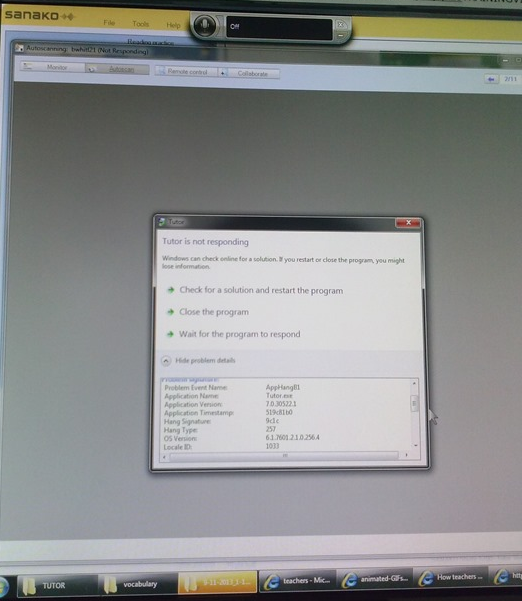
- The first one
- on “Autoscanning” (cycling screensharing connections to student PC’s)
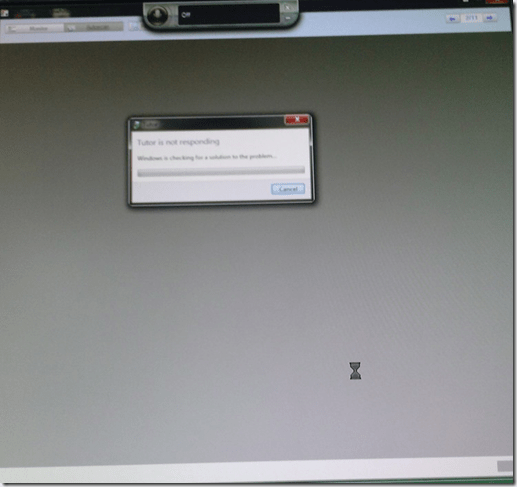
- The first one took me by surprise, the computer hung completely, I could not bring up process manager nor taskkill the tutor, had to power cycle, at considerable interruption to the the class.
- However, here I got some problem details from windows:

- The first one
- The 2nd one
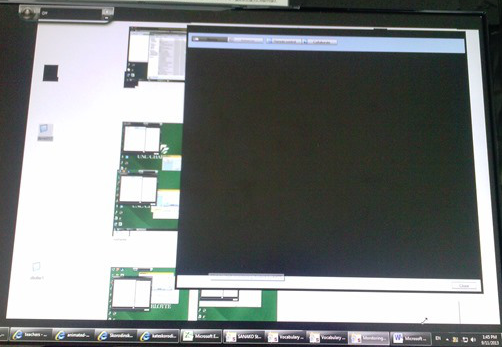
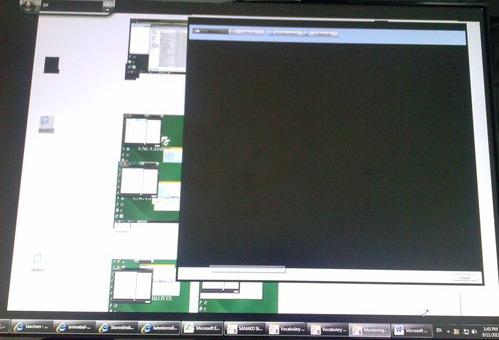
- also occurred during “Autoscanning”.
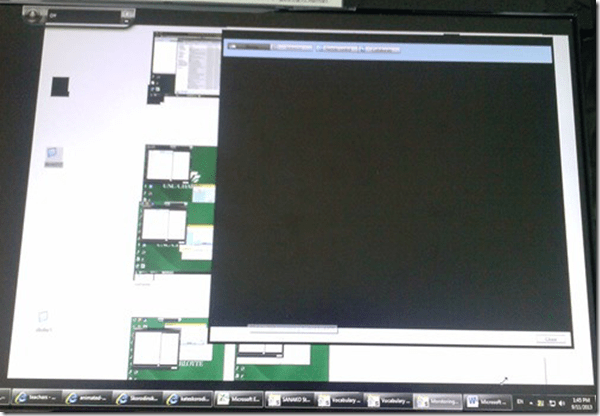
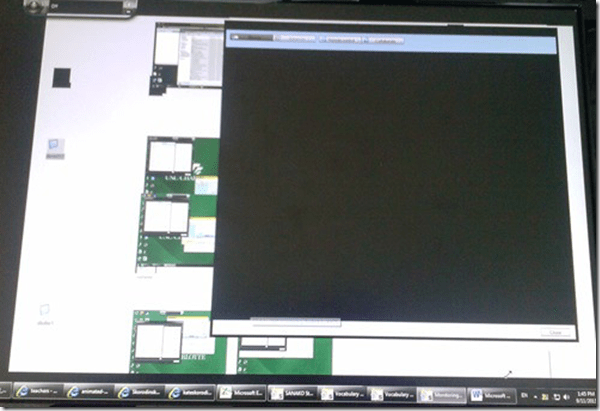
- This time, however, not the Autoscan itself brought the system down, but only when I tried to resize the autoscan window by dragging and dropping the border (video-intensive?).
- I got a performance notification from Windows (not legible here, but something to the amount of “your computer is dangerously slow”):
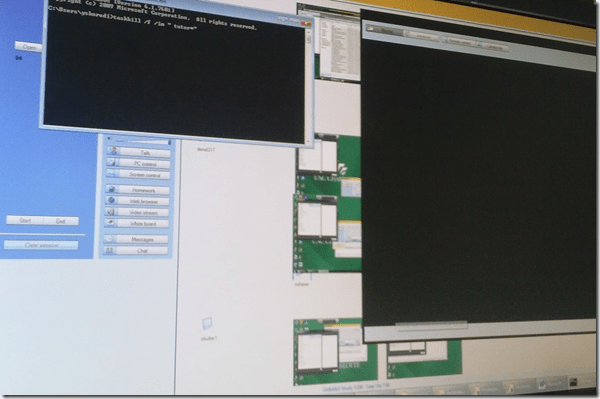
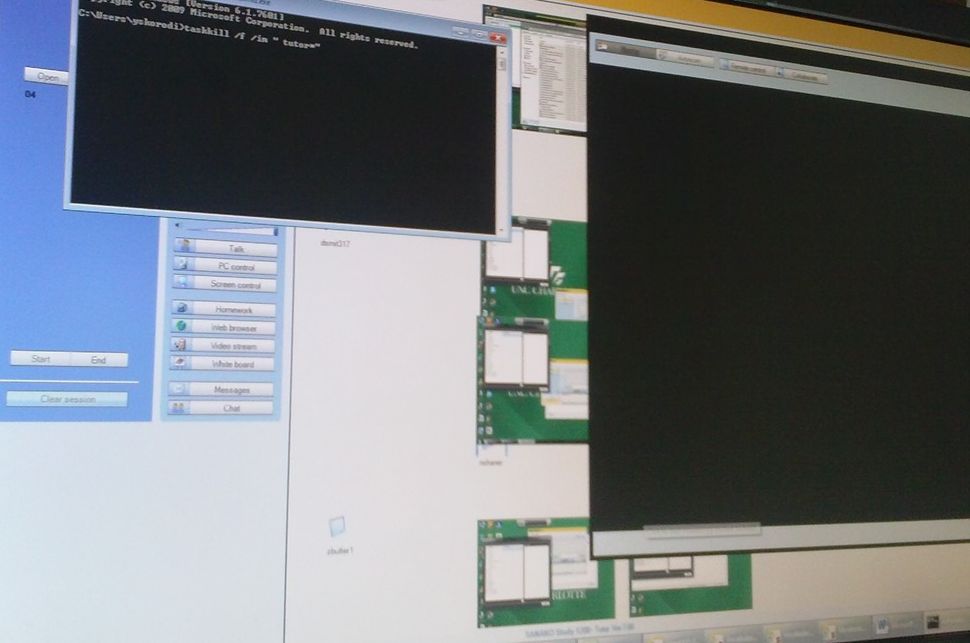
- I managed to task kill the tutor:
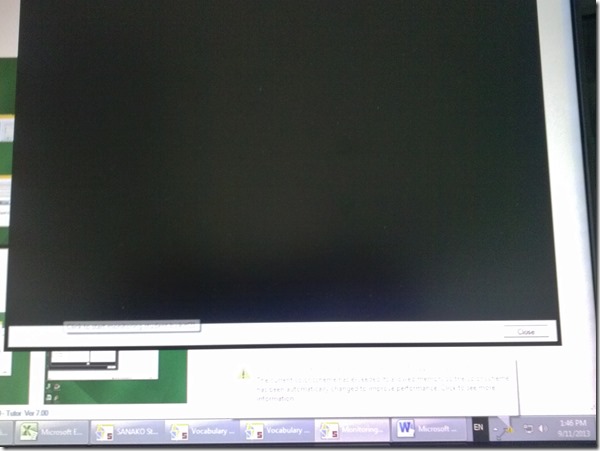
- I got some more diagnostics help from Windows which notified me that my “Windows Color scheme” had to be downgraded to “Basic”:
- also occurred during “Autoscanning”.
- Dell Optiplex 760 (B6CCLK1)
- 4GB,
- graphics chip: Y103D Card, Graphics, 256, Loop, OUGA6; original driver Video: AMD Radeon HD3450 256M, v.8.593 WHQL Vista, A05 with DUP (101 MB)
- dual screen (1024*768 secondary, 1920*1080 primary – I remember having hard hangs on this system when attempting to drag Autoscan Windows of Sanako Stuy 1200 Tutor ver. 5.2 across 2 dual screens of the same size on Windows XP )
- Win 7 (64bit).
- No eventvwr or Sanako log data since PC was frozen…

How to work around a possible bug of Sanako Study 1200 collecting student files opening multiple explorer windows?
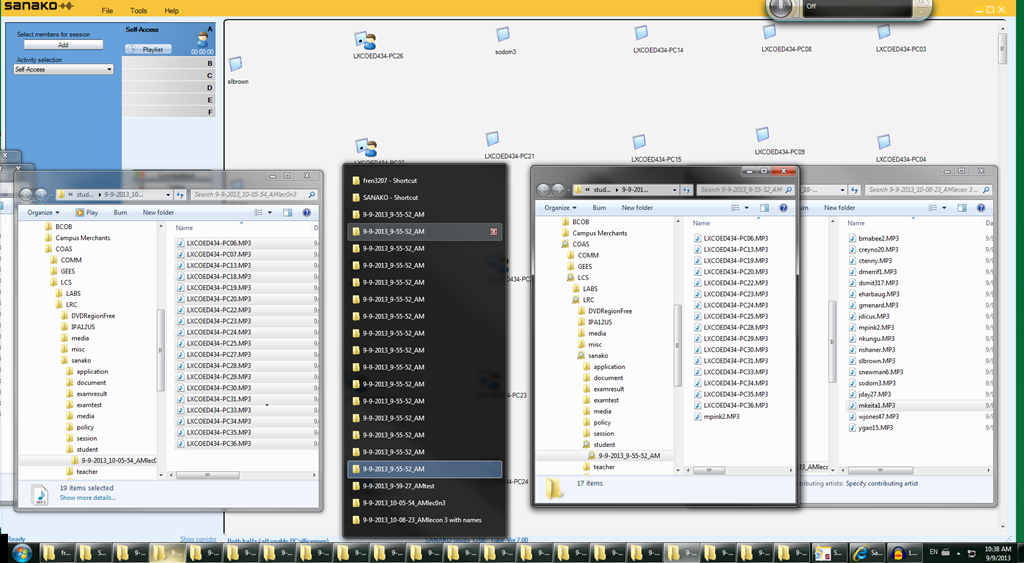
- Problem: To great confusion of my teachers, Sanako version 7 often seems to open multiple collection windows (1 per student recorded?) when collecting files, like so:
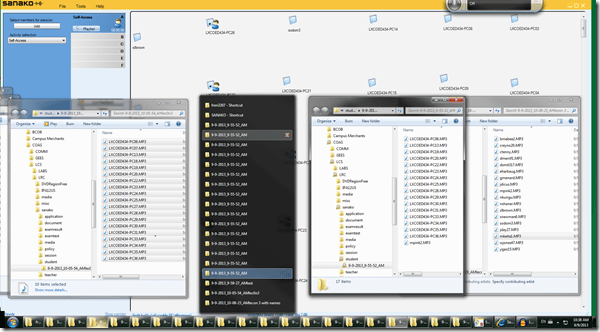
- Possible Cause: From the screenshot above,
- where only 1 collection event out of 3 shows this undesirable behavior,
- and the 2 that did not, collected all file either under student computer name or all under student login name:
- is it possible that Sanako has a bug which causes it to open one Windows explorer window per student file collected, if
- some students are displayed under their computer name,
- while other are displayed under their login name?
- This is aggravated by another limitation (or bug): Students that come online after I chose show student computer names, are not affected by this setting, but display with their login name (the default).
- Possible Workaround:
- Make sure all students display under the same naming scheme.
- This is best achieved by waiting until every student icon shows up in the classroom map before changing the classroom map student display option.
Creating site-specifically useful learning content for the Sanako Study 1200 vocabulary testing
- The usefulness of the Sanako Study 1200 new (from ver 6) vocabulary test activity hinges on the availability of site-specific vocabulary lists.
- Sanako UK
- seems aware of this and publishes vocabulary collections for textbooks and assessments commonly used in UK secondary education.
- Sanako favors using the built-in format and saving it on the network share that is required for the Sanako study 1200.
- Vocabulary tests are organized and can be discovered and browsed by file name only.
- TBA: How could something similar be done in a US HE context? One would need:
- establish which textbooks are (and will remain) in use?
- are they e-books or would the material need digitization?
- is the chapter vocabulary easily accessible as a list? Appendix glossaries encompass usually much more than the vocabulary required to study, so testing on these would quickly become frustrating
- how best to reformat the materials (from turning into a table to handling linguistic metadata) for easy use with the Sanako vocabulary test?
- how best to publish the material?
- to make it manageable for the updaters: crowdsourcing? copyright issuew?
- to make it easily selectable for the teacher: filter by integrated linguistic and course metadata?
- Last not least: How to do all this economically? Taking into consideration teacher preference, enrollment, preexisting materials…?
- cost lowered if tabular lists of vocabulary already exists
- benefit is lowered if online flash card applications already exist.
First steps with the Sanako Study 1200 vocabulary test activity
- Click to watch an example below of the new (in version 6, we are now on 7) activity:”Vocabulary Test”
 which allows you to administer during a face-top-face-class just exactly what its name says –
 - with these benefits:
- needing no paper,
- digital contents
- “can” and reuse past tests with ease
- TBA: can you swap target and source language?
- blending automated and teacher feedback:
- the example I give below is based on what the teacher gave me: single words and very short idiomatic expression.
- You can use longer phrases (I prefer teaching and studying vocabulary in context), but then it become increasingly unlikely that the automated feedback is accurate (The automated feedback is limited to exact, up to case-insensitive string matching – now distance metrics).
- You can override the automated feedback before sending the results back to the student. This is somewhat practical, since the submitting is fast and not all students will finish at the same time, and if you provided students with the follow up activity after submission, The teacher overriding the feedback gets unpractical in large classes, so it is recommended restricting the test to short source/target language pairs. Also be clear about or minimize punctuation and, if required, the format of other metalinguistic information (gender, plural forms etc).
- Issues:
- not communicative, how can this be used or fitted in with other activities to make best use of a fully computerized face-to-face teaching environment?
- simplistic autocorrecting algorithm (case-insensitive, otherwise exact, right or wrong, my way or the highway” string matching)
- no tracking, no memory, personalization only via the other built-in Sanako personalization features (groups – to be left to the teacher to handle)
- no learning content – at least no vocabulary learning materials usable out of the box for us (TBA).


Questions? Read the About. Or just ask me a quick
Your message has been sent

FAQs for LRC student staff or for students or for teachers. To search our FAQs, in the browser addressbar, add after "https://plagwitz.wordpress.com/feed/?tag=faqs+/" "+TAG1" (from tag cloud below) OR "https://plagwitz.wordpress.com/feed/tag=faqs
&category_name=" "CAT1" (from category hierarchy below). OR search both categories and tags, and multiple TAGs/CATs (connect with "," for OR-search, with "+" for AND-search), like so: https://plagwitz.wordpress.com/feed/?tag=TAG1+TAG2+...TAGn&category_name=CAT1
+CAT2+...CATn"
Other ways to find help
If you cannot find it here, look there: 5,500 Language-Learning Links and Programs for learning or teaching 150 languages
Shortcuts:Our Lists, Our Maps, LRC Staff Moodle Site,LRC Project Moodle Site, 49erexpress, UNCC Moodle, Student Recordings: s:claslcslrcsanakostudent
Learning usage samples: Sanako oral exam, Kaltura webcam presentation, Dictation with speech recognition, Sanako written exam, Chinese and Japanese interactive stroke-order practice
Test the Sanako Installer, Webbrowser Popup Konfigurator for XP, or Windows7, faster LRC TeacherPC Log-in Let MS facilitate diacritics writing by installing for you US-International keyboard layout
This is my personal blog (Google+). The views expressed on these pages are mine alone and not those of my employer. The information in this weblog is provided “AS IS” with no warranties, and confers no rights.
 Thomas' Work Space