Archive
Sanako Study-1200 slow spanning 2 screens with different resolutions
- UPDATE2: 2013-09: apparently new video driver crashes with autoscan window, this time even on primary screen alone?
- UPDATE: 2011-01:Problem seems to have disappeared (windows update?)
- Symptom: This is on a Dell Optiplex 760 (B6CCLK1) which has no problems with Sanako’s screen sharing application, as long as you do not attempt to span the windows across two screens with different resolution which makes even the mouse jerky. Not sure, but do not remember having this problem across two screens with the same resolution. Actually, the Sanako subwindow (remote ctronl specifically) slows down the computer even if it is only on th secondary screen.
- Solution: Relatively easily fixed, if you can afford upgrading not only the screen, but also the LCD projector that hangs on one of the screens…
- Workaround: Do not span sub-windows of Sanako Study-1200 across screens. This problem can become so bad that the Sanako sub window becomes completely unresponsive and cannot be moved or closed (neither with the close button in the upper right nor with ALT-F4). Try CTRL-ALT-ESC then and kill the process. You could also try and upgrade the video card driver which may be the true culprit. However, on the Sanako sub windows seem to display the problem (screensharing with remote control, chat also). E.g. Internet Explorer windows do not have the same problem when spanned across screens.
How best to fit your class into the Sanako Study1200 Classroom Layout
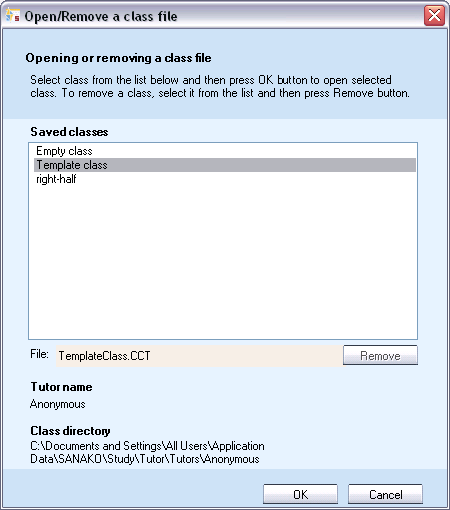
- When started, the Study1200 Tutor will prompt for the classroom layout (computer and student icons in the right part of the Sanako window) that you want to load, like so:
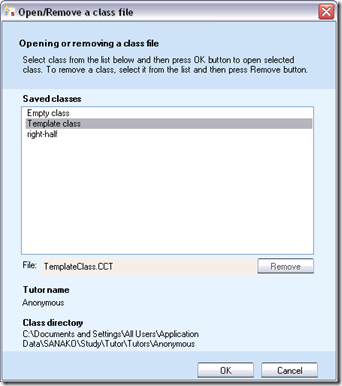
- We have 2 classroom layouts preconfigured for common uses of the LRC
- “right-half”: only the right half, as viewed by the teacher, of the coed434 main classroom. If you come with smaller classes (<16), this will fit relatively nicely onto the screen.
- “template class” = all that can fit onto the screen which means:To fit students (and, more importantly, the reasonably sized thumbnails of their desktops) onto the screen (Sanako Tutor will not span both screens, at least not if they have different resolutions), we had to
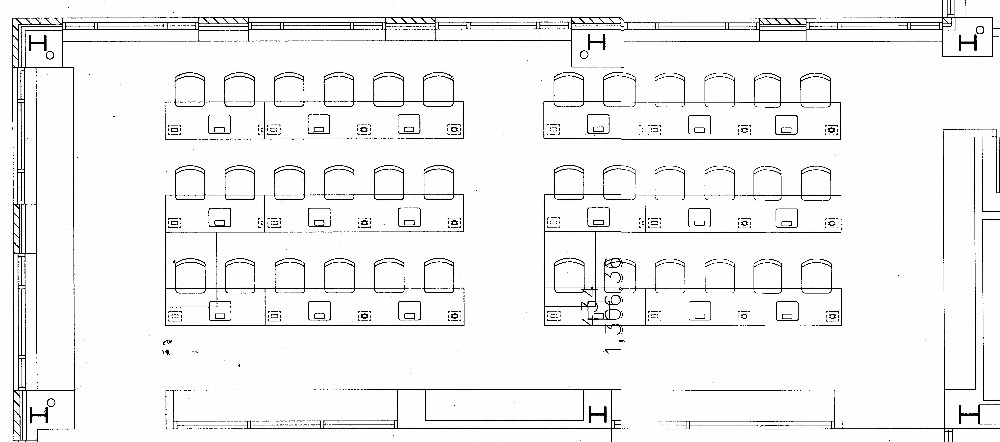
- take the main classroom COED434

- break out the front 2 rows, break them apart in the middle, and turn them counterclockwise, like so:
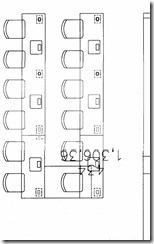
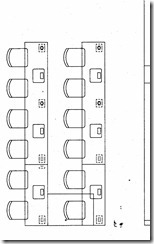
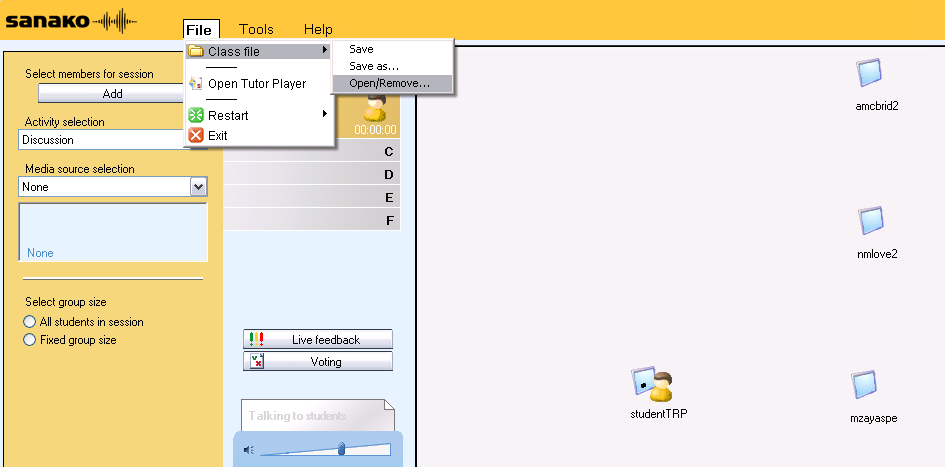
- to achieve the following result in the Study 1200 classroom layout:
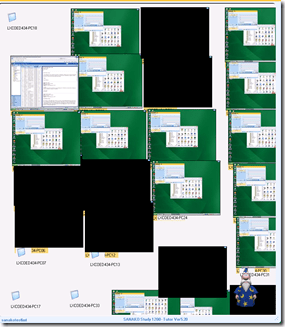 thumbnails of the 2 front rows barely fit the layout, remaining computers from the rear row are cluttering the bottom of the classroom layout. This severely limits the usefulness of this great feature, and is counter-intuitive, which is twice as bad when standing in front of (or here rather: behind) a class. We are working on getting a bigger secondary screen on the teacher podium. Since we will also eventually need more Sanako licenses to equip the whole classroom. So the secondary screen should be as big as we can possibly get for the podium: 1900*1200 would be 1.75 times what we have now.
 - To simplify this while we wait, we have numbered the seats (rather: the monitors) in the LRC according to the computer numbers. In the Study-1200 classroom layout, you can show the computer (names which end in these) numbers instead of the the student login names, by going to menu: tools / admin / change student names.
- if you classroom configuration changes,
- you can change the layout by reloading a preconfigured classroom layout file, like so:

- you can alter the layout on the right on the fly, by CTRL-SHIFT dragging student/computer icons
- If you have done this, on exiting, the study1200 tutor will ask you whether you want to save your changes to the layout. Feel free to do this, as longs as you save them in your personal tutor folder. Please do not overwrite existing layouts for all teachers.
- Classroom layouts are stored with the extension CCF, but are simply XML files. To preview or even edit them, You can open them in your preferred XML editor, like so in MS-Excel:




Sanako Study 1200 screen sharing: How students can present their computer-based work to the entire class from their seats
- Do you assign computer projects – web quests, writing tasks – to students on the LRC computers, and do you want each of them to present his/her project work to the entire class?
- You can save a fair amount of (precious class) time (and of distracting commotion), if you use the Sanako classroom management system’s screen sharing features.
- Rather than having students walk up (the “pedestrian” approach), transfer their work to (e.g. reopen their website or MS-Word on) the teacher computer and present it from there to the class –
- students can remain in their seats/on their computers, if you use one of these two approaches:
- to show the students’ work on the classroom projector screen:
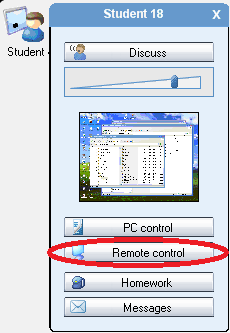
- Click on the student’s icon in the classroom layout, from the popup-window, choose button: “Remote Control”
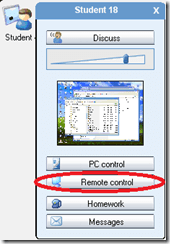
- a new window showing the student’s screen opens up: drag it to the projected screen and maximize it: ready to roll…
- to show the students’ work on the audience’s computer screens:
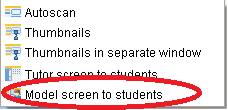
- from the center buttons, open the submenu of button “screen control” , choose submenu item “model student”
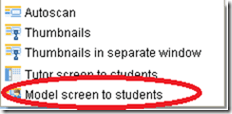
- (to avoid affecting self access students in the LRC, you may want to group all your students into one color group, and then work with the colored left parts of the center buttons, instead o the grey right parts),
- with the altered mouse cursor, click on the student icon in the classroom layout that you want to become the model student
- the other students’ icons (either in the entire class or in the group affected, see above) in the classroom layout will change to the icon denoting “receiving model student”:
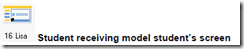 . ready to roll…

Sanako Study 1200 Workshop Fall 2011
Those who wanted to, but did not make it to the vendor training by Sanako’s David Golden (who gave us a basic orientation displaying functions of teacher screen and student screen and demonstrated basic activity functions and what happens at the student screen), might want to have a look at the unedited screencast footage (for Windows Media Player on Windows, if necessary, resort to LRC) I recorded during the entire 2 1/4-hour session:
- the first one recording the screen of a sample student station
- with an explanation of the student player at the beginning,
- the second one recording the screen of the teacher computer
- have a look at the end around 2:10:00 where we connect a group of students via screensharing and audio (headsets), so that a group, dispersed across the classroom, can orally collaborate on an MS-Word document that one student types into but all students see.
- The Sanako features used for this are from the dropdown: activity: discussion, and from the button: pc control:model student. Both can be combined with each other, and with a third feature, the capability to subdivide the class in multiple groups.
- This application I found useful when, before reviewing materials with one half of the class, I sent my more advanced learners off to a more independent and applied group writing task. I allows any member of the class to join the advanced group, no matter where they are located. It also forces the group members to communicate all the target language aurally to the model student. Finally, it affords them access (though not individually) to the language learning tools of a computer while working on their tasks
Sanako Study 1200 Teacher Guide

Taken directly from the Sanako documentation and posted here for your convenience (click on image for larger version), this practical cheat sheet is also available on the teacher podium.
Sanako Study 1200 Workshop Spring 2011
Those who wanted to, but did not make it to my introductory training for the newly installed Sanako Study-1200 in LRC COED434 might want to have a look at the unedited screencast footage of the teacher computer that I recorded during this session (for Windows Media Player on Windows, if necessary, resort to LRC PCs).
QuickNotes: For ELTI 201/202/501 Student Recordings with Sanako Study1200
- This is 20 students class doing a model imitation for English phonetics and grammar – use right half of classroom plus 2 rightmost columns of left half.
- Have a couple of spare student computers logged in as labadmn (not as presenter: has no permissions to s-drive to save recordings) for emergencies.
- Your students will log in, then take their break. Wait until entire class shows up in the Sanako Classroom layout. Then you can lock their keyboard and mouse – but remember when computers go into locked mode, Sanako cannot control them
- See http://plagwitz.org, upper right corner “Quick links” for the path to copy/paste. Or, on the teacher computer in LRC 434, in folder C:\Temp, you can find a shortcut to the Sanako folders
- “media” with teacher audio (to be prepared with pauses and beeps once it has been recorded and sent; you can easily prepare it yourself: download and view how with Windows Media Player);
- “student” with student recordings
- You can download and view with Windows Media Player the (unedited) screencast of our summative walkthrough here.
Grouping students using Sanako Study 1200 “sessions”
This sccreencast on grouping with Study 1200 demonstrates:
|
0:00
|
left activity pane – button:add
|
|
0:25
|
right classroom layout pane – click or drag frame
|
|
0:50
|
the effects of grouping
|
|
1:05
|
bottom link: show corridor
|
|
1:25
|
moving between session/groups with context menu (not shown)
|
|
1:30
|
You may have to start/end the current activity from the activity pane first
|


Questions? Read the About. Or just ask me a quick
Thank you for your response. ✨

FAQs for LRC student staff or for students or for teachers. To search our FAQs, in the browser addressbar, add after "https://plagwitz.wordpress.com/feed/?tag=faqs+/" "+TAG1" (from tag cloud below) OR "https://plagwitz.wordpress.com/feed/tag=faqs
&category_name=" "CAT1" (from category hierarchy below). OR search both categories and tags, and multiple TAGs/CATs (connect with "," for OR-search, with "+" for AND-search), like so: https://plagwitz.wordpress.com/feed/?tag=TAG1+TAG2+...TAGn&category_name=CAT1
+CAT2+...CATn"
Other ways to find help
If you cannot find it here, look there: 5,500 Language-Learning Links and Programs for learning or teaching 150 languages
Shortcuts:Our Lists, Our Maps, LRC Staff Moodle Site,LRC Project Moodle Site, 49erexpress, UNCC Moodle, Student Recordings: s:claslcslrcsanakostudent
Learning usage samples: Sanako oral exam, Kaltura webcam presentation, Dictation with speech recognition, Sanako written exam, Chinese and Japanese interactive stroke-order practice
Test the Sanako Installer, Webbrowser Popup Konfigurator for XP, or Windows7, faster LRC TeacherPC Log-in Let MS facilitate diacritics writing by installing for you US-International keyboard layout
This is my personal blog (Google+). The views expressed on these pages are mine alone and not those of my employer. The information in this weblog is provided “AS IS” with no warranties, and confers no rights.
 Thomas' Work Space