Archive
Protected: Sanako Study 1200 hangs on “changing control method”?
How a teacher can organize a student-controlled high-stakes assessment recording session using the Sanako in the LRC
- How:
- An initial central microphone and speaker test (animated step-by-step) is recommended. Clear the session afterwards.
- Recording: Have the student operate the Sanako recorder to individually record (like during a self-access assignment)
- For starters, teacher can display this narrated individual recordings with the Sanako Student Recorder training screencast, it auto-starts and auto-cycles):
- And/or explain:
- Red Record Button to record;
- Blue Stop button to stop recording
- Green Play Button to play their assignment for review (also use the recap button to jump back)
- Menu: “File / New”, if they want to redo the assignment.
- Button: call/envelope to call the teacher on the teacher station for help (an audio connection between student and teacher should pause the recorder automatically)
- Submitting:
- Individually by students:
- Menu “File” / “Save” (opt to save as student track mp3), to save locally, once student is happy to submit.
- (recommended:) upload the save file to a Moodle single-file upload assignment. Requires the teacher to create a Moodle Single file upload assignment, with optional attached file first.
- From the Sanako tutor at the teacher station:
- For entire class (If you do not need the flexibility to have students end at different times). TBA
- Group-wise (varying (staggered) recording times): TBA
- Individually by students:
- Pro’s:
- Less distraction from language learning by having to operate technology (editing audio rather then practicing L2) and more language-learning-specific features (sidetone, recap) than if using Audacity.
- Works with the Sanako Study 1200 teacher stations (e.g. automatic pause of recorder when remote connecting to student during monitoring of recording task).
- Con’s:
- noise interference with dozens of student speaking in a confined space simultaneously. Nobody wants to return to the language lab station of yore, i.e. in a cubicle. However, a teacher-controlled oral exam (sample video, step-by-step video),
- can play a soothing background sound to students over the headphones which insulates them from their neighbors (prevents both distraction and cheating);
- there is no room for distracting unrelated chit-chat;
- there is no need for distracting conversation when students do technical troubleshooting, during highly structured question/response exams.
- More user flexibility/control is achieved by more individual distracting operation of computer technology, which always implies more opportunity for user error. To reduce (not eliminate!) the error ratio:
- Students
- have to have received the general digital audio lab introduction for students.
- have to double-check their recordings for quality before submitting.
- Teachers
- have to monitor students’ recording progress closely
- which the Sanako Study 1200 teacher station (link cannot replace hands-on training) greatly facilitates (provided Students use the Sanako Student Recorder, as described above).
- however, even with a classroom management system like Sanako Study 1200, it is impossible to completely monitor a class size of students operating computers. Therefore teachers
- have to check the validity of submissions before students leave.
- If you use submission through Moodle, here are 2 tips how to do this quicker:
- Whether you use submission through Moodle or collection through Sanako tutor:
- view end of this video for how to quickly check validity of all file submissions in a folder using Audacity
- are advised to have a make-up assessment plan not only for those students missing the exam, but also for those that miss to complete the computerized multimedia assessment correctly.
- have to monitor students’ recording progress closely
- Students
- noise interference with dozens of student speaking in a confined space simultaneously. Nobody wants to return to the language lab station of yore, i.e. in a cubicle. However, a teacher-controlled oral exam (sample video, step-by-step video),
How a teacher can adapt a Sanako teacher-controlled class recording activity for individual student recordings
- Pedagogical need:
- A teacher wants her students to record a presentation,
- but allow the students to move around freely in their recording afterwards, when evaluating it, and submit the best out of 3 tries:
- Technical implementation:
- Using Sanako activity:model imitation of differing for multiple groups
- offers maximum control, least flexibility: students have to speak their presentation linearly
- if you anticipate presentations of considerably different lengths
- first try asking your students – might be useful to them anyway to realize if theirs turns out to be much shorter than others,
- if students are unsure about the length of their presentation,
- conduct the first recording with the entire class and
- have students note what time their recorder time counter is at when they finish, and send you the time as text via the button:envelope
- group your students (grouping step-by-step) into Sessions A-F by incrementing time according to what the student icon bubble shows
- then differentiate class into as many groups as necessary (if <= the 6 “sessions”A-F Sanako Study 1200 offers) end the recording at a different time for each group
- for each group (one or more up to 6),
- choose from dropdown activity: model imitation recording
- and from dropdown: source: none) with more than one group at a time,
- and (optionally) for not more than one group at a time (suggest choosing the biggest group for that) from (dropdown: source: file ) the background noise to play
- and after each group’s allocated time (+ buffer) is up,
- press button:end to end the recording
- after collection of the recordings from students is finished, you can
- press button:replay
 , to let each student listen to her recording (linearly, without control), and
 - press button:free
 , to let students freely move back and forth on the timeline)
 - eventually, press button: clear, to be ready:
- choose from dropdown activity: model imitation recording
- for tries 2 and 3: repeat above steps.
- using Sanako activity: self access:
- provides
- the teacher some control (none over this turning into more of an editing than coherent language practice exercise),
- and students more flexibility (hence requiring prior recording training for students);
- students individually
- record
- move around freely in the file
- replay
- record over prior footage and/or start completely over (menu: File / new)
- press button:envelope to text message the teacher that they are finished and want their (final ) recording to be collected by the teacher
- teacher
- moves signaling students into a group (grouping step-by-step) that is
- dedicated for collecting recordings (TBA:does this not empty their buffer?)
- and button:pc control: locked (= no further or accidental changes)
- once an appropriate (compromise between finished students wanting to leave and teacher not having to collect each recording individually) number of students have been added to this group, presses
- button: end to collect and
- button: clear session to clear the button
- assesses the recordings in the folder that opens with audacity;
- in case of problems, moves students back to the group dedicated to recording
- else lets students leave
- moves signaling students into a group (grouping step-by-step) that is
- provides


How teachers find their Sanako files – once they are in the right network share folder
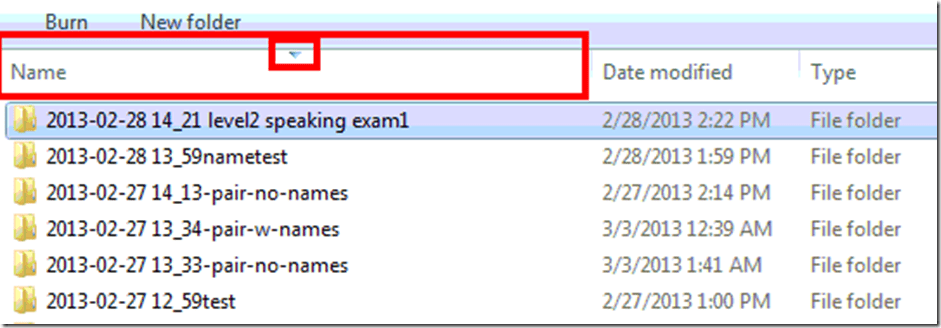
- The beginning of the folder name with your recordings corresponds to the date/ time the exam was collected (some translation required – the date time appears in this special format yyyy-MM-dd hh_mm) so that the folders can also be easily sorted by name, see below).

- When viewing the folder, click on the column headers to sort by name (sorting by date also often works):
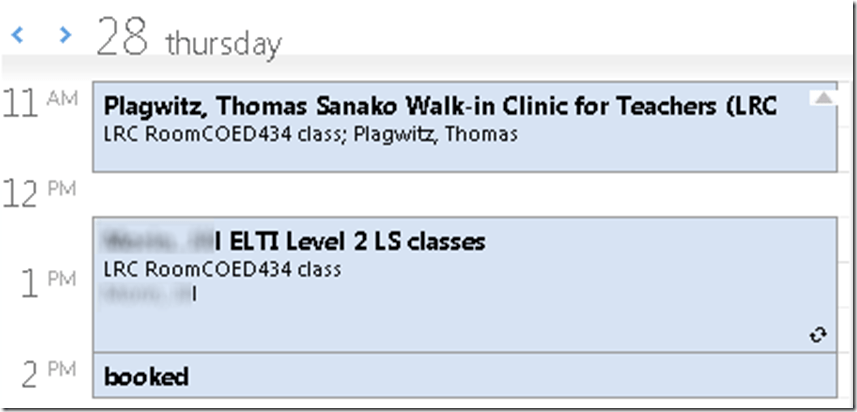
- If you forgot when you held your exam: The exam appointment is not only in the LRC room calendar (which can get busy and takes some prior setup to be searchable), but in your own NINERMAIL calendar, so that you can check there also:
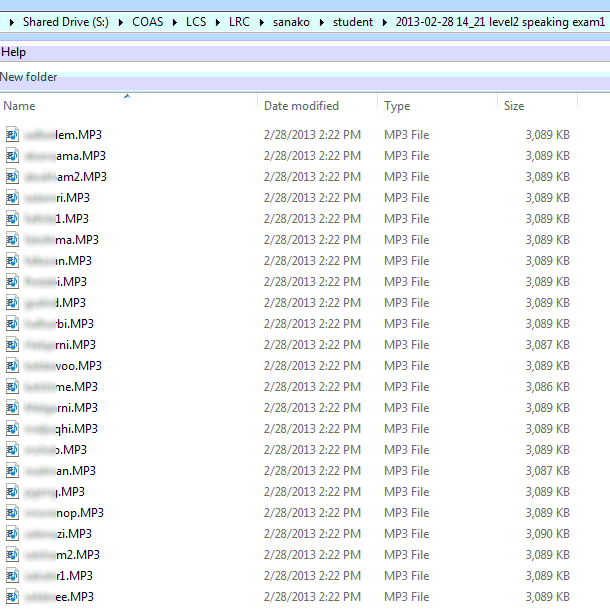
- We recommend that the exams (unlike the system tests (“nametests”) which can be collected using the computer name as filename) be collected using the student username as recording filename, you can also search the student folder for students with your username:

- We also recommend that you add a memorable (to you) tag to the folder name when collecting (in this case “level2 speaking exam1”) to make it easier for you to retrieve your assessments. The best tags in this world of computers helping us find things seem to be long unique strings (think of twitter hashtags).


How teachers find their Sanako materials – even from home
- The best way (from your office) I described here and support, for lack of any other possibilities, by getting you the desktop shortcuts and Sanako student recorder.
- Other ways are supported by whatever home connection to network shares ITS supports:
- The myfiles portal: https://myfiles.uncc.edu
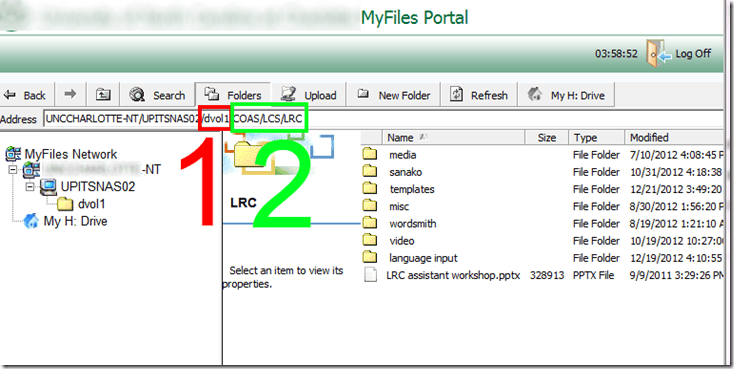
- You can use the folders listed in here,
- except you have to translate “S:” into (1) “DVOL1”.
- Rest stays the same (2).
- Cons’:
- Slower network
- You cannot easily save back after comment on your students audio or text (but give it a shot).
- VPN
- which I test and explain here in detail,
- Pro’s: it is a better experience
- instead of it requiring you to do yet another path translation, you can simply click here;
- you can (batch) open and save files (maintaining ownership) like on your office PC (no extra upload and download operations required, and no need to manually route files to students)
- Con’s: Slower network.
- The myfiles portal: https://myfiles.uncc.edu
General digital audio lab introduction for student users of the LRC
- The LRC has been upgraded from use of solely Audacity to a digital audio lab and classroom management system geared towards language learning, and teaching. The Sanako Study 1200 is a professional software suite that includes a remote-controlled dual track audio recorder with many specialized features not found in OSS audio editors and simple free web-based recorders. It successful use, even by so-called “digital natives”, requires, for lack of exposure, training .
- Archived online versions of overview training (for your review; sorry: viewing is NOT equivalent to taking the training) were published here when the Sanako was first set up:
- Specific tasks:
- How student downloads, edits and submits files sent from the teacher with Sanako Study 1200 Homework –the ultimate training summary….
- How students can do voice insert recordings with Sanako Study 1200 student recorder – the ultimate training summary…
- More student task training videos are being added continuously as time permits, check back at this link: Sanako step-by-step training videos for students.
- Sorry, we have no self-study online tests to check learning outcomes in digital audio lab proficiency. However, we offer interactive live trainings for classes.
New Sanako Lite Recorder Installation error
As seen when starting up the Student.exe after instalaltion (and before restart). What i noticed was the red warning in the sanako student “no audio”. After a restart after installation, i could play back sound. no microphone was installed on the system, but should that result in such errors? we are having a lot of installation issues with the sanako lite recorder on our pretty standard (xp dp3, win7 64-bit) dell optiplex (755, 760,780 mostly) machines. I am used to reading stack traces, but my users are not and would run into this – plus this one seems deliberately obfuscated.
************** Exception Text **************
System.ArgumentOutOfRangeException: Index was out of range. Must be non-negative and less than the size of the collection.
Parameter name: index
at System.Collections.ArrayList.get_Item(Int32 index)
at A.B.A()
at A.B.A(Int32 offset)
at A.B.b(Object sender, EventArgs e)
at System.Windows.Forms.Control.OnClick(EventArgs e)
at System.Windows.Forms.Button.OnClick(EventArgs e)
at System.Windows.Forms.Button.OnMouseUp(MouseEventArgs mevent)
at System.Windows.Forms.Control.WmMouseUp(Message& m, MouseButtons button, Int32 clicks)
at System.Windows.Forms.Control.WndProc(Message& m)
at System.Windows.Forms.ButtonBase.WndProc(Message& m)
at System.Windows.Forms.Button.WndProc(Message& m)
at System.Windows.Forms.Control.ControlNativeWindow.OnMessage(Message& m)
at System.Windows.Forms.Control.ControlNativeWindow.WndProc(Message& m)
at System.Windows.Forms.NativeWindow.Callback(IntPtr hWnd, Int32 msg, IntPtr wparam, IntPtr lparam)
************** Loaded Assemblies **************
mscorlib
Assembly Version: 2.0.0.0
Win32 Version: 2.0.50727.5466 (Win7SP1GDR.050727-5400)
CodeBase: file:///C:/Windows/Microsoft.NET/Framework/v2.0.50727/mscorlib.dll
—————————————-
SoundDeviceWizard
Assembly Version: 5.51.10221.1
Win32 Version: 5.51.010221.01
CodeBase: file:///C:/Program%20Files%20(x86)/SANAKO/Study/Student/SoundDeviceWizard.exe
—————————————-
System.Windows.Forms
Assembly Version: 2.0.0.0
Win32 Version: 2.0.50727.5468 (Win7SP1GDR.050727-5400)
CodeBase: file:///C:/windows/assembly/GAC_MSIL/System.Windows.Forms/2.0.0.0__b77a5c561934e089/System.Windows.Forms.dll
—————————————-
System
Assembly Version: 2.0.0.0
Win32 Version: 2.0.50727.5467 (Win7SP1GDR.050727-5400)
CodeBase: file:///C:/windows/assembly/GAC_MSIL/System/2.0.0.0__b77a5c561934e089/System.dll
—————————————-
System.Drawing
Assembly Version: 2.0.0.0
Win32 Version: 2.0.50727.5467 (Win7SP1GDR.050727-5400)
CodeBase: file:///C:/windows/assembly/GAC_MSIL/System.Drawing/2.0.0.0__b03f5f7f11d50a3a/System.Drawing.dll
—————————————-
Localization
Assembly Version: 5.51.10221.1
How a teacher can show a model student screen to other student computers in Sanako Study 1200–the ultimate training summary…



Questions? Read the About. Or just ask me a quick
Your message has been sent

FAQs for LRC student staff or for students or for teachers. To search our FAQs, in the browser addressbar, add after "https://plagwitz.wordpress.com/feed/?tag=faqs+/" "+TAG1" (from tag cloud below) OR "https://plagwitz.wordpress.com/feed/tag=faqs
&category_name=" "CAT1" (from category hierarchy below). OR search both categories and tags, and multiple TAGs/CATs (connect with "," for OR-search, with "+" for AND-search), like so: https://plagwitz.wordpress.com/feed/?tag=TAG1+TAG2+...TAGn&category_name=CAT1
+CAT2+...CATn"
Other ways to find help
If you cannot find it here, look there: 5,500 Language-Learning Links and Programs for learning or teaching 150 languages
Shortcuts:Our Lists, Our Maps, LRC Staff Moodle Site,LRC Project Moodle Site, 49erexpress, UNCC Moodle, Student Recordings: s:claslcslrcsanakostudent
Learning usage samples: Sanako oral exam, Kaltura webcam presentation, Dictation with speech recognition, Sanako written exam, Chinese and Japanese interactive stroke-order practice
Test the Sanako Installer, Webbrowser Popup Konfigurator for XP, or Windows7, faster LRC TeacherPC Log-in Let MS facilitate diacritics writing by installing for you US-International keyboard layout
This is my personal blog (Google+). The views expressed on these pages are mine alone and not those of my employer. The information in this weblog is provided “AS IS” with no warranties, and confers no rights.
 Thomas' Work Space
