Archive
Character Input Methods for SLA (Western)
For studying (typing) Western Languages (= need for diacritics only; whether you have a US keyboard hardware or UK which is pretty similar), we recommend the MS Windows US International Keyboard layout which is based on “dead keys”.
Currently installed in the LLC are the Language Bar (floating on top of screen or accessible from the taskbar) with these keyboard layouts:
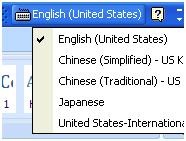
Keyboard layout settings are application/window specific, and “US” (non-international) is still the default for new applications/windows, so prepare to switch after you start a new application;
There are keyboard shortcuts for switching, however, “Key settings”: “switch between input languages” , using LEFT ALT + SHIFT, does not work. Workaround: use the language bar for switching:
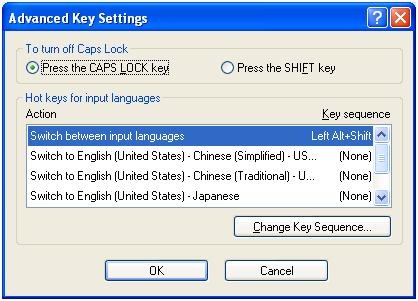
Windows keyboard layout settings can be temperamental – if you find you cannot switch to a certain layout anymore, you may have to restart the computer.
Use the following keyboard shortcuts to enter diacritics more easily:
|
Press (together, then release) |
then press |
Example Result |
|
` (accent grave) |
any letter that can have this accent, e.g. "a”, also cedilla ç |
à |
|
‘ (apostrophe) |
á |
|
|
^ (caret)- |
â |
|
|
~ (tilde) |
ã |
|
|
” (double quotation marks) |
ä |
|
|
CTRL+& |
Z or z |
æ |
|
rightALT+ |
X or x |
œ |
|
rightAlt+n |
|
ñ |
|
ALT+CTRL+? |
|
¿ |
|
rightAlt+? |
|
|
|
ALT+CTRL+! |
|
¡ |
|
rightAlt+1 |
|
|
|
rightAlt+s |
S |
ß |
To access the original, now dead keys, press space bar after pressing the dead key.
|
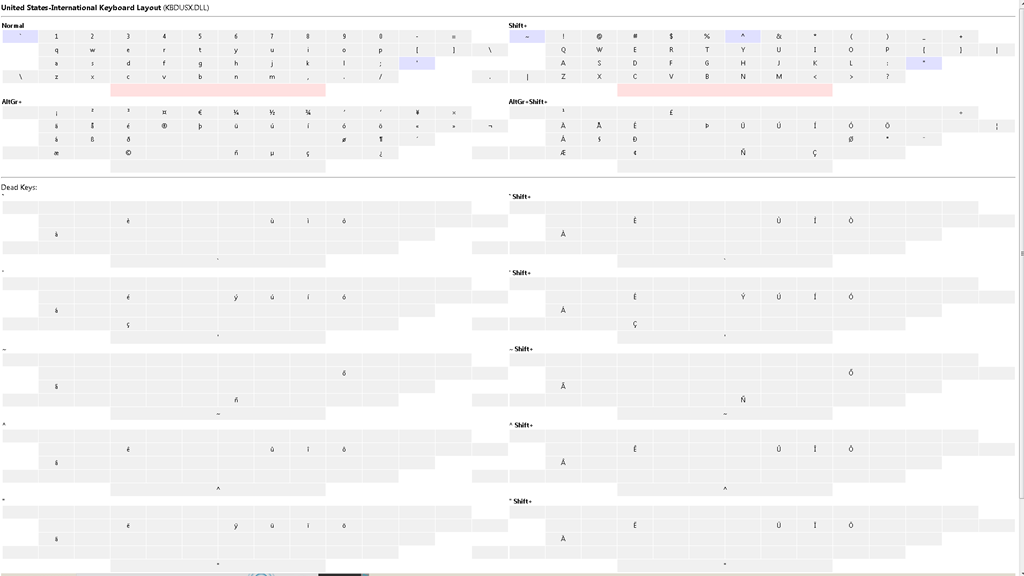
Modifiers(blue)/Layout |
Note the new modifier = “dead” keys, indicated by light blue color (click to enlarge) |
|
Normal |
|
|
|
|
|
Shift |
|
|
|
US International |
|
|
|
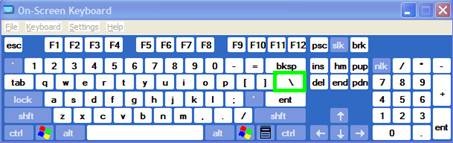
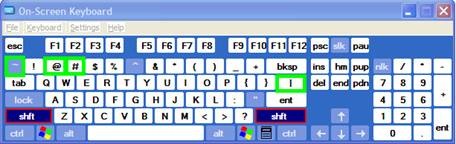
Screencast of US International in action here: deadkeys.wmv
Interactive Demo of installation procedure (personal computers outside of the LLC) here: keyboard_usinternational.swf
Planned improvements:
- Use LEFT ALT+Shift to switch to (Software) “Keyboard Layout” “United-States International”.
- Use other keyboard short cuts to access a desired keyboard layout directly
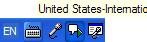
- Dock the “Language Bar” in the Taskbar, then hover over it to make sure you selected the proper “Keyboard Layout”.
· 
How to get started with Moodle here
- Moodle is the UNCC LMS – it is central to teaching with technology.
- The LRC provides Moodle-information specific to language learning, incuding FAQ’s.
- The CTL (= Center for Teaching and Learning) has oodles of general Moodle help.
- Search the CTL site for Moodle by clicking here, and you will find:
- Moodle specific:
- view Moodle on-demand screencast video tutorials,
- read Moodle FAQ’s (updated).
- sign up for instructor-led (face-to-face or webinars, some of which are archived and available on-demand) training:
- Updated Webinar list, which includes for Moodle (I highlighted the more general ones)
- Avoiding the Moodle Scroll of Death (30 min. Webinar)
- Copying a Moodle Course (30 min. Webinar)
- Find & Embed Videos in Moodle (30-min. Webinar)
- How Do I: Peer Review in Moodle (30 min. Webinar)
- Incorporating Streaming Media into Moodle (30 min. Webinar)
- Making Moodle Beautiful (30 min. Webinar)
- Moodle 2 FAQ (30 min. Webinar)
- Moodle Grade Book and Mail Merge (30-min. Webinar)
- Moodle Under the Hood (30 min. Webinar)
- Using Moodle’s Team Assignment (30 min. Webinar)
- Previous (Moodle 1.9)
- Updated Webinar list, which includes for Moodle (I highlighted the more general ones)
- There is more Moodle-information here, just no way for me to provide a direct, filtered link so just browse the pages:
- the CTL podcasts
- Episode 106 Getting Students to Read Your Syllabus: Quizzing in Moodle
- the CTL podcasts
- Moodle specific:
How users can change their time zone in OWA

Or as screenshot: 
You know: You just have to know what to look for – considerably easier than knowing *when* to look for pretty much anything once you have been put in the wrong time zone… 
How to recycle your Moodle Course using backup/restore
Better do this before the first day of classes, but if you need a quick refresher:

Keyboard layouts and IME’s on LRC Windows 7 PCs
You can change the input language using the language toolbar which appears next to the notification area in the lower right of the task bar.
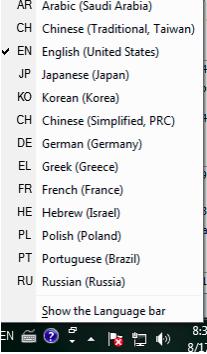
Note that many languages need not be listed since their characters can be typed, Windows-wide, using keyboard shortcuts of the English-US (international extended) keyboard layout.
Some installed input methods benefit from having keyboard overlays which have been installed on some computer. Other input methods allow for drawing characters, e.g. in Japanese or Mandarin, which works better with the Wacom tablet installed on PC01 and PC02 than with a mice.
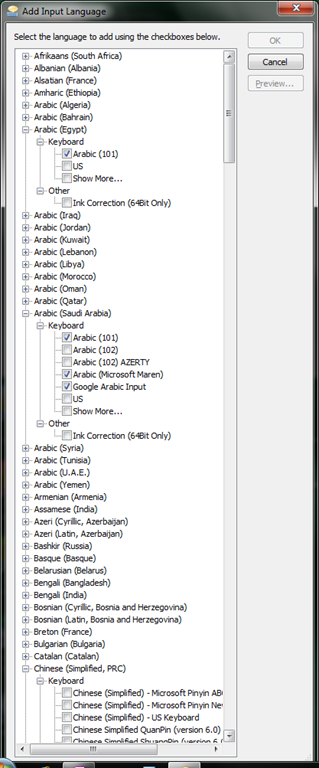
Many languages have more than one keyboard/input method. After changing to your language on the language toolbar, you can switch from the language’s default keyboard layout to another by clicking on keyboard icon behind the 2-letter language abbreviation.
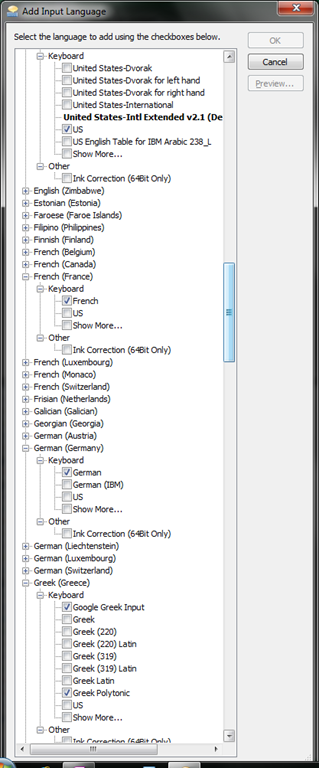
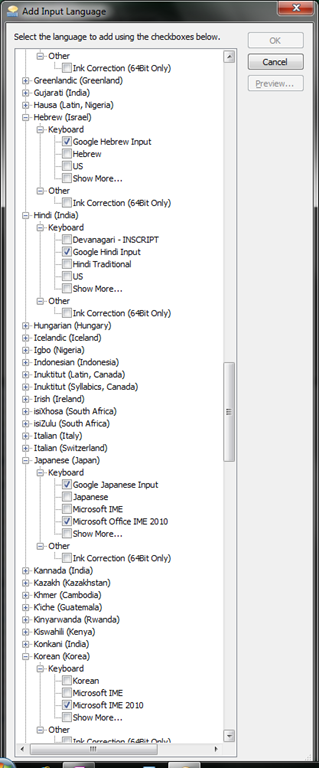
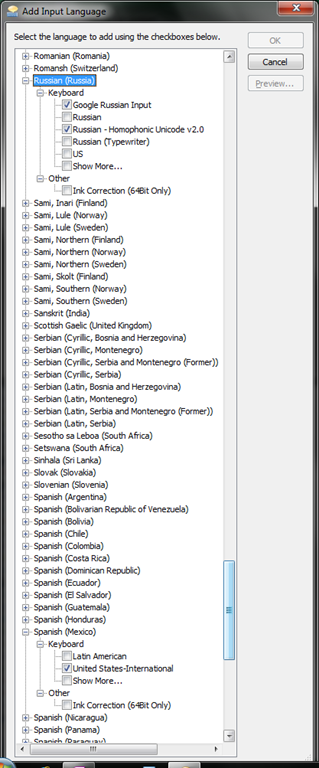
 Below is a comprehensive list of all layouts that are available to you:



Setting time zone for all and for all misconfigured OWA users
live@edu/Office365 Exchange in the cloud does not seem to allow setting a default time zone, but rather leaves it to the user to change the time zone (defaulting to the time zone the cloud server is in that the user happens to hit) on first login – in the world I operate in, большая ошибка!
How to use the cmdlet set-MailboxRegionalConfiguration with parameter TimeZone to change the time zone of all your mailboxes is nicely explained on the blog How Exchange Works here, including screenshot and PowerShell command.
Unfortunately such an operation is reported to have needed 3 days for updating all mailboxes in an educational live@edu installation with 30000 users… You can restrict the mailboxes touched by examining first which are not in your local time zone (consult the MS TimeZone table for syntax, e.g. US “Eastern Standard Time”):
$mymailboxes = get-mailbox
ForEach ($examinedmailbox in $mymailboxes){
$regionalconfig = get-MailboxRegionalConfiguration –identity $examinedmailbox.identity
if ($regionalconfig.timezone -ne “Eastern Standard Time”){
Set-MailboxRegionalConfiguration -identity $examinedmailbox.identity -TimeZone “Eastern Standard Time” -confirm:$false
}
}
Yes, Chrome, you too can display my RSS feeds nicely…
… if you install this extension made by Google themselves (who, I think, should include this RSS feed display extension in the default Chrome distribution):
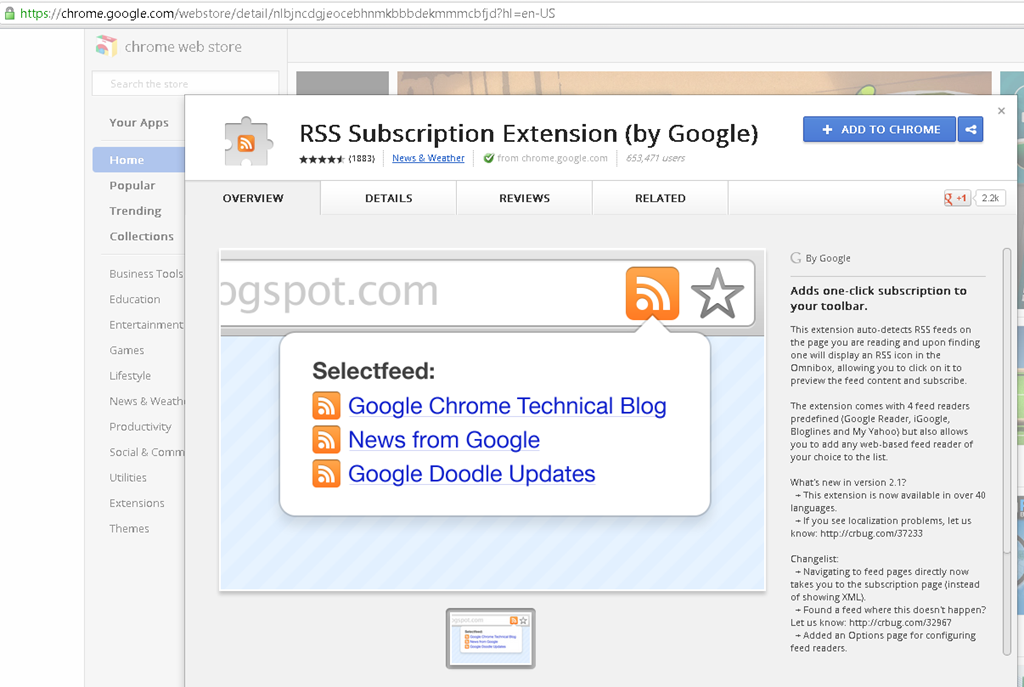
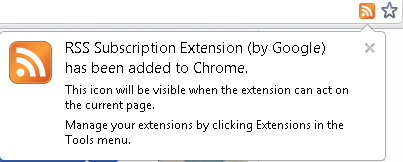
No comparison with Internet-Explorer’s feed display, but much legible than the XML code display Chrome defaults to:



Questions? Read the About. Or just ask me a quick Our Databases: Resources with calendars -- Language learning material Moodle Sites, multimedia files -- films


FAQs for LRC student staff or for students or for teachers. To search our FAQs, in the browser addressbar, add after "https://plagwitz.wordpress.com/feed/?tag=faqs+/" "+TAG1" (from tag cloud below) OR "https://plagwitz.wordpress.com/feed/tag=faqs
&category_name=" "CAT1" (from category hierarchy below). OR search both categories and tags, and multiple TAGs/CATs (connect with "," for OR-search, with "+" for AND-search), like so: https://plagwitz.wordpress.com/feed/?tag=TAG1+TAG2+...TAGn&category_name=CAT1
+CAT2+...CATn"
Other ways to find help
If you cannot find it here, look there: 5,500 Language-Learning Links and Programs for learning or teaching 150 languages
Shortcuts:Our Lists, Our Maps, LRC Staff Moodle Site,LRC Project Moodle Site, 49erexpress, UNCC Moodle, Student Recordings: s:claslcslrcsanakostudent
Learning usage samples: Sanako oral exam, Kaltura webcam presentation, Dictation with speech recognition, Sanako written exam, Chinese and Japanese interactive stroke-order practice
Test the Sanako Installer, Webbrowser Popup Konfigurator for XP, or Windows7, faster LRC TeacherPC Log-in Let MS facilitate diacritics writing by installing for you US-International keyboard layout
This is my personal blog (Google+). The views expressed on these pages are mine alone and not those of my employer. The information in this weblog is provided “AS IS” with no warranties, and confers no rights.
 Thomas' Work Space