Archive
Posts Tagged ‘2011’
The new way of booking LRC rooms and equipment from Fall 2011: Why?
2011/09/01
2 comments
- With the upgrade to Outlook 2011, MS-Exchange 2010, and live@edu, unfortunately, we had to revise our booking system over the summer. Please note: Teachers cannot not use calendars in the public folders of Outlook desktop anymore since ”Public folders are going away”. The earlier instruction has been updated accordingly and links now to here.
- Fortunately, this upgrade also allowed us to expand our booking system, to now include:
- more than rooms and tutors. You can now also book LRC equipment – see the complete list of LRC resources that you can book or check out . And we hope to set up that you can truly sign up for tutoring.
- more than staff: We hope that, with Ninermail (live@edu), students will also be able to book and check out. We hope to achieve better resource utilization this w
- more and faster information to act on, and thus a better workflow
- you get an immediate response
- you can get always a positive response since in “scheduling assistant”, you can see the prior bookings, both times and organizers (hover your mouse over busy times), and can thus either can fit your request into the schedule, or contact the prior organizer for a resolution.
- your bookings and cancellations are immediately disseminated through the scheduling assistant and resource calendars, for others (students, teachers, support staff) to work with/around
- Read more here on how to book LRC resources
The new way of booking LRC rooms and equipment from Fall 2011: How?
2011/08/31
7 comments
- Read here why.
- You can book LRC resources like rooms, equipment, even tutor hours:
- as
- faculty & staff: from [MS-Outlook“(pretty much) whatever version”]:
- on the desktop Outlook 2007, Outlook 2010 or Outlook 2011 (preferred option for faculty & staff) – if you are familiar with Outlook Desktop, it is the recommended tool
- or at http://mail.uncc.edu, using Outlook Web Access (OWA) at http://mail.uncc.edu, in most browsers – we, however, decided to focus our training of new users on OWA.
- student: in Outlook Live (the only option for students) at Ninermail or http://outlook.com,
- faculty & staff: from [MS-Outlook“(pretty much) whatever version”]:
- through
- creating from menu:”new” a “meeting request”
 (for details see How to book an LRC resource)
 - and adding a resource (or several: temporarily, to compare which one’s availability fits best into your own schedule; permanently, to book multiple items at once, as long as all start/end times are the same) by clicking on the “Resources”, like here

- all LRC resources names begin with “LRC” and will appear if your search the Global address list (GAL) for “LRC”; all bookable rooms and equipment have been given an email address listed here):
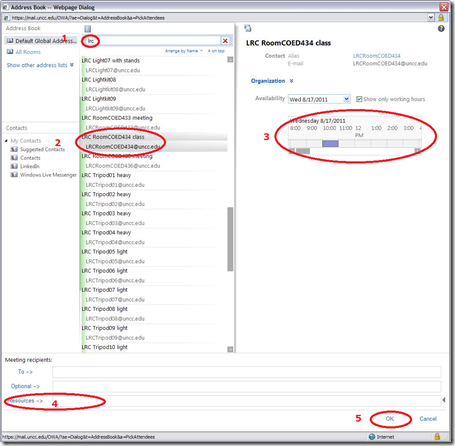
- e.g. to book the LRC main classroom, send to LRC RoomCOED434 class <LRCRoomCOED434@uncc.edu>
- all LRC resources names begin with “LRC” and will appear if your search the Global address list (GAL) for “LRC”; all bookable rooms and equipment have been given an email address listed here):
- and adding other meeting participants, e.g. co-teachers of your class, or LRC staff if you need more than routine support
- If you hold a class in the LRC, to remind students of the new location, teachers could also try and add your class, if you made a convenient group of all students in your class in Outlook.
- and, from the “scheduling assistant”, choosing a time when the room/equipment is free (= blank), not blocked (= solid or hatched) (and all participants),

- and adding a subject with class number and possibly special instructions:
- if you do not allow self-access students on free seats: *EMPTY ROOM*
- if you do not allow tutoring in corners: *NO TUTORING*:
- I will ask the LRC assistants (unfortunately we have large gaps in the schedule) and tutors to load and check the lrcroomcoed434@uncc.edu so that tutors can relocate with their students on time.
- and sending it (like email to a person) to the room or equipment
- What happens next?
- await responses: Read more in What happens after the meeting request.
- monitor calendars: you can link into your OWA the calendars of those resources that you use frequently (e.g. a piece of equipment, an LRC classroom or tutor office for the language you study). Read more in View Calendars.
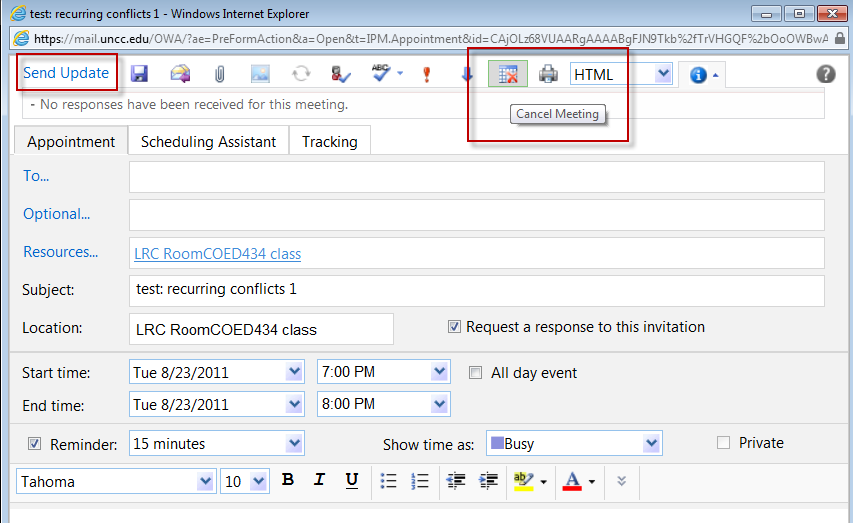
- If you need to release the resource, i.e. to free up the room/equipment for others to use – esp. helpful when you have the LRC booked for your entire class, but won’t meet there this week), open the meeting form your calendar and click in the top menu the buttons cancel series, ”send update”
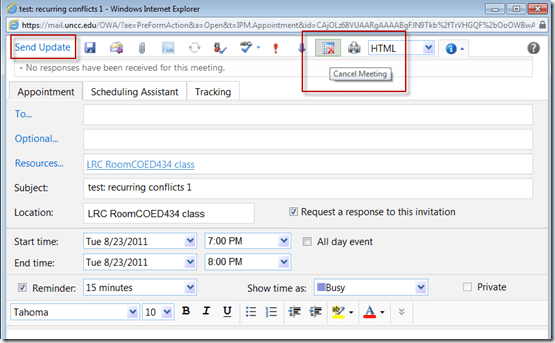 (for details see how to cancel a meeting request)
 - SummaryList of Links:
- this intro
- list of LRC resources that you can book or check out
- request resource meeting
- change meeting request
- cancel meeting resource
- resources in OWA’s Global Address List (GAL)
- scheduling assistant, avoiding scheduling conflicts
- resource responses
- resource calendars for staff, and for students
- equipment check-out/in
- why?
- For further reading: Microsoft explains Scheduling for Outlook Livein more detail here:




LRC Outlook/Exchange 2010 Calendaring: What happens after the meeting request? Automated or manual responses and reminders
2011/08/30
3 comments
- If you have been invited to a meeting, e.g. a co-taught class in the LRC, you will see in your inbox an email-like meeting request with pre-set answer options:
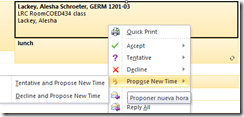
- Wait, there is more: Proposing:
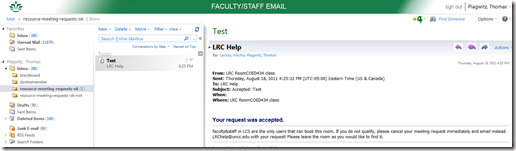
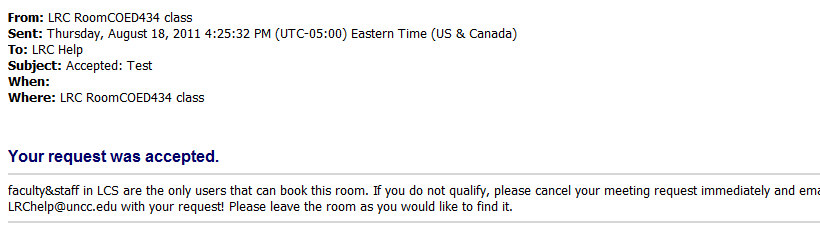
- If you followed the instructions in TBA:request meeting, you should immediately get an acceptance response from the resource:

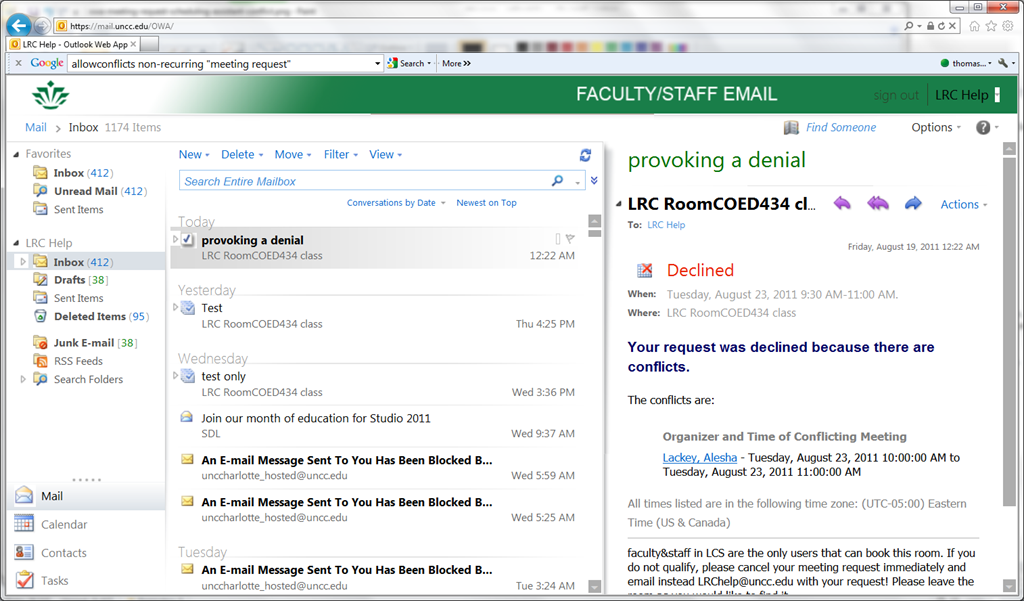
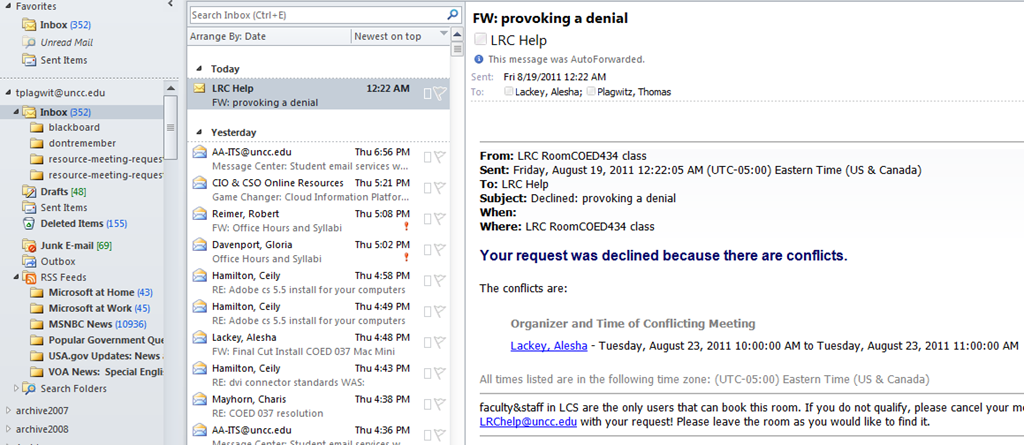
- If something went wrong, read the denial response for how to overcome the issue:
- there are resource specific policies, like maximum booking duration, listed here: TBA: list resources
- if there is a conflict with a prior booking of the resources, please go back to the meeting request scheduling assistant and find a time when the resource is available.
- if you requested a recurring/repeating meeting, like for a weekly class meeting in the LRC, there may be individual conflicts. Note that we have set the resource scheduling options for the non-conflicting instances of your request to be accepted (in most cases). For how to deal with the conflicting instances, study the conflict information in the denial response.
- Note that the LRC calendars are set up so that the LRC staff is copied (as delegates) on LRC resource requests (as a backup for issues and paper trail for reporting):


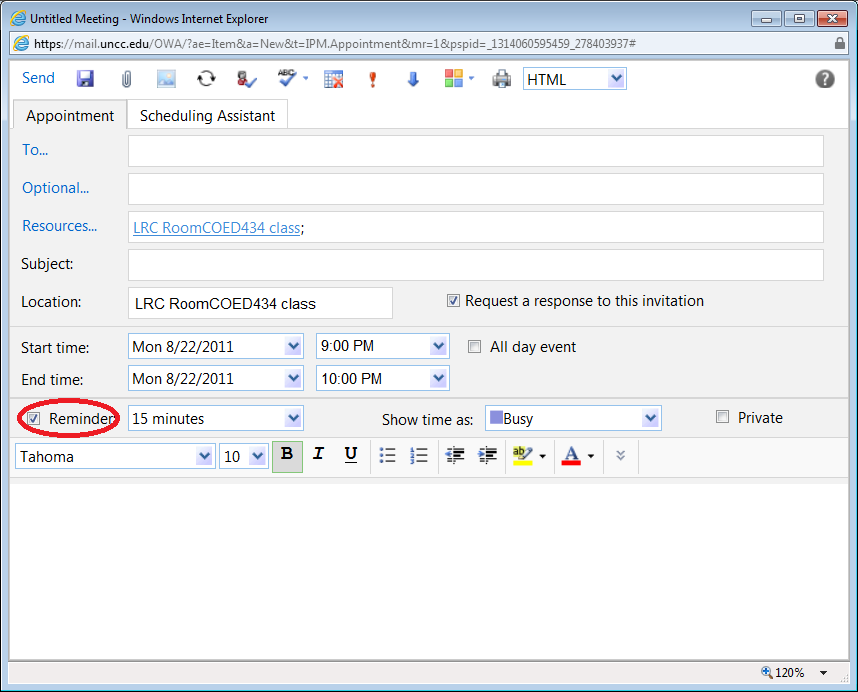
- If you find you get too many meeting reminders that you do not need, when requesting a meeting, turn the default reminder option off:

- The reminder can also be set to off as default in the calendar settings for a resource.



Room and Equipment handling using MS-Exchange Resource Mailboxes: Configuration with OWA instead of PowerShell
2011/08/30
1 comment
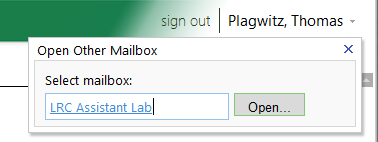
- As once can easily find documented for MS-Exchange 2007, if you are the owner of the mailbox, you can use the OWA-feature “open other mailbox”.

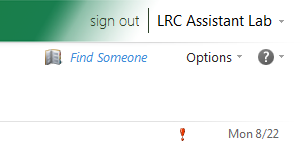
- As impersonated user for this mailbox
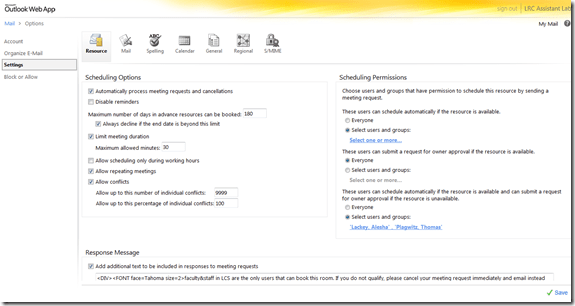
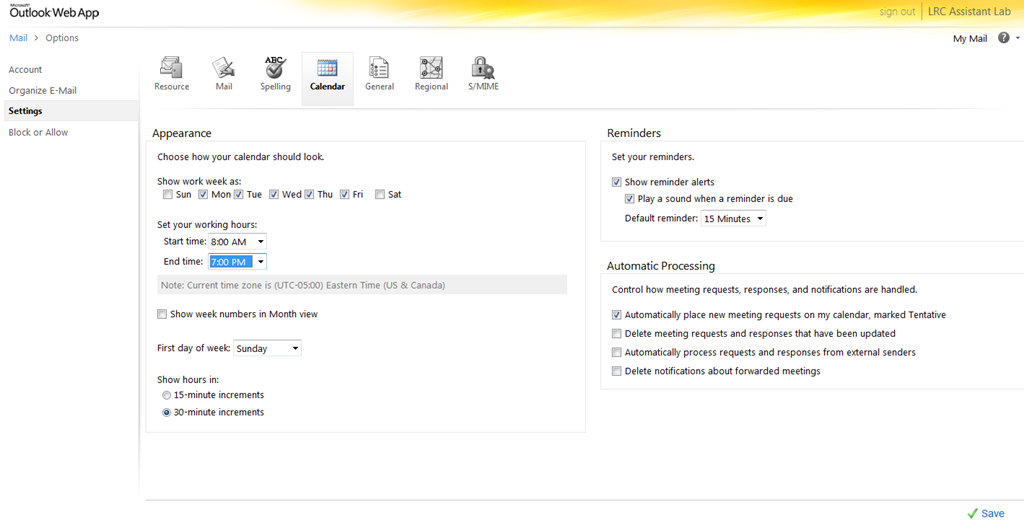
 , you can access the “Options / Settings”:
 - for the “resource” scheduling
- for its “calendar”

- This is maybe not as much fun as PowerShell’s Set-MailboxCalendarSettings and set-CalendarProcessing (click as you go, no batching), but easier on your MS-Exchange admin
 and especially practical for quick modifications and tests,

LRC Outlook/Exchange 2010 Resource Calendaring: LRC resources in the Global Address List (GAL)
2011/08/30
3 comments
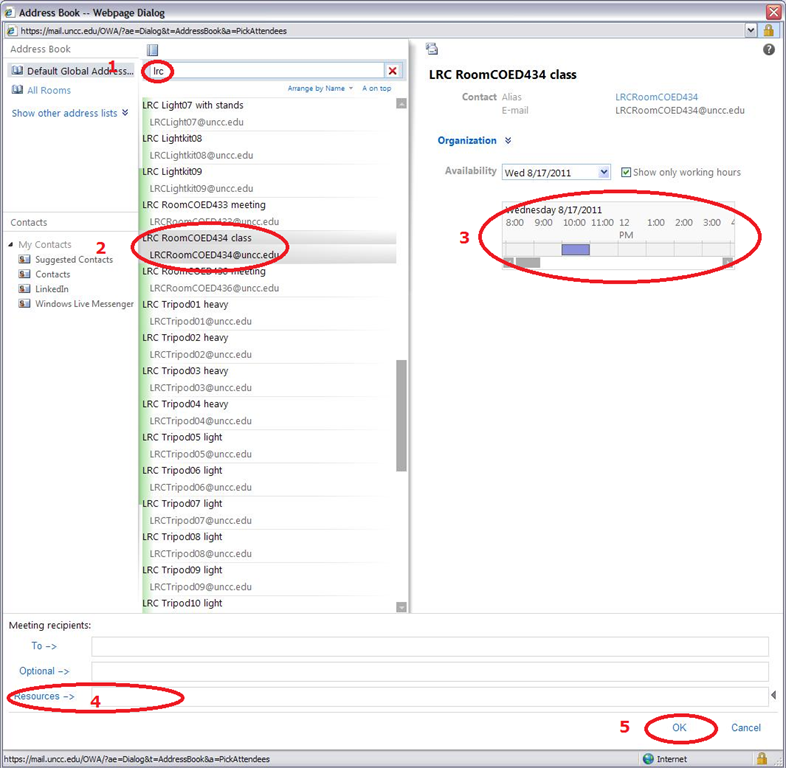
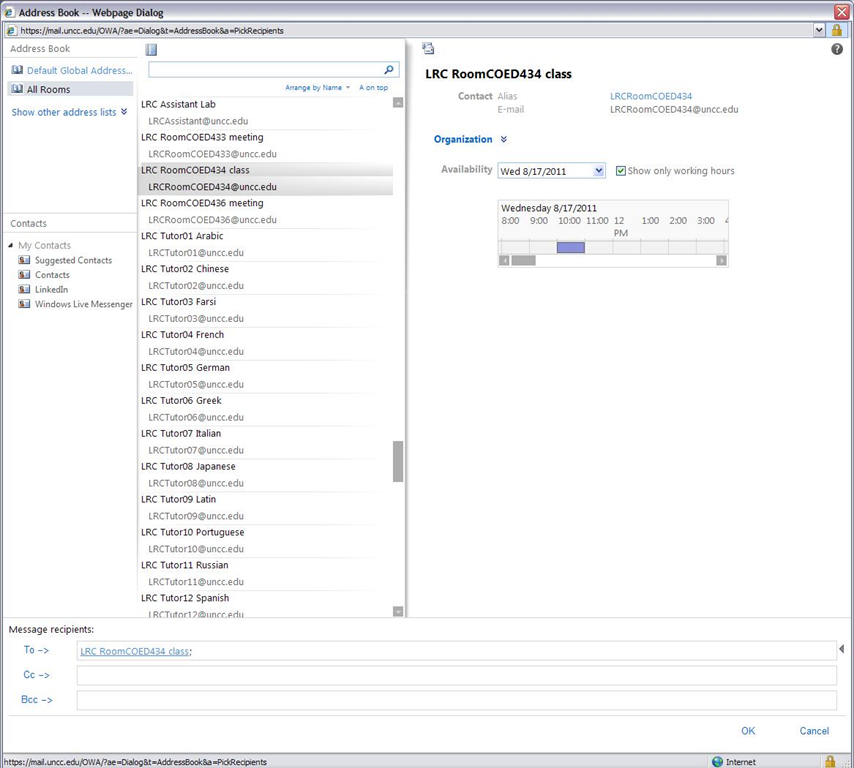
- Open the GAL for resources by clicking on “Resources” in a meeting request, like here:

- You will find an equivalent of the LRC bookable resources list in Outlook’s/O’WA’s Global Address List.
- In the GAL,you can filter by recipient type:

- the result, in outlook:
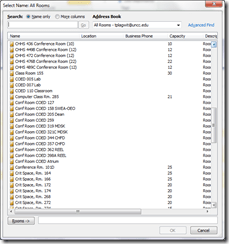
- the result, in outlook:
- for LRC resources, especially other than rooms, it is easier to filter by name(all LRC resource names start with “LRC”) – the result,
- in Outlook:
- in OWA you will see the GAL as part of the address book

- in Outlook:


LRC Outlook/Exchange 2010 Resource Calendaring: How to cancel meetings in OWA
2011/08/30
4 comments
- View instead a short screencast how to cancel meeting requests in OWA.
- Or: You start out with a meeting request conversation like this, showing:
- a request send from account LRC help (example)
- an accepted meeting response from the resource (e.g. the room) account

- to cancel that meeting, you can go to your (!) calendar in OWA,
- select (click on) the meeting and choose “delete”
- either from the context menu after right-click the meeting
- or from the ribbon after selecting the meeting
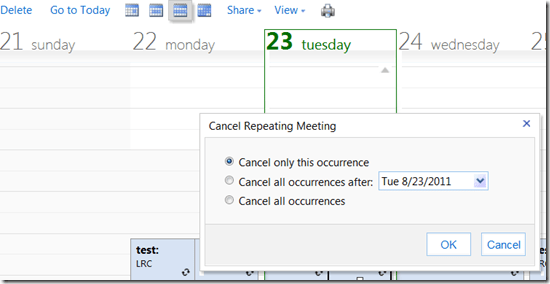
- if the meeting was repeating/recurring, you will be given the option to
- cancel this occurrence
- cancel all future occurrences
- cancel all occurrences (be CAREFUL not to delete past meetings that have taken place; cancel all future meetings in a series by updating the meeting series end time (leaves past meetings of the series intact))
- either from the context menu after right-click the meeting
- select (click on) the meeting and choose “delete”
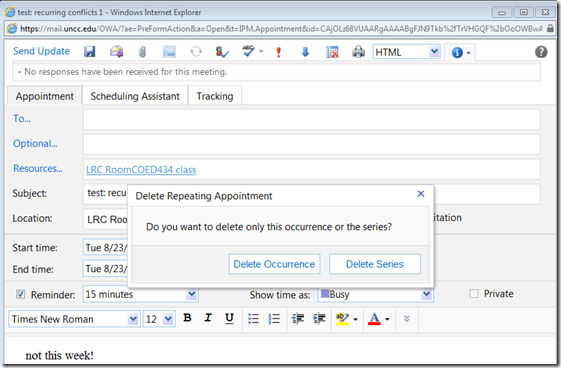
- you can also just open the meeting and choose from the top menu the “Cancel meeting” button, then press menu button: “Send update”:

- Again, for recurring/repeating meetings, you will be asked to confirm what exactly you want to cancel, the individual occurrence or the entire series of meetings:
- Again, for recurring/repeating meetings, you will be asked to confirm what exactly you want to cancel, the individual occurrence or the entire series of meetings:
- You have the opportunity to include an informative note in your update before sending.

- After the cancellation has gone through, this is how the results will look like in the e-paper trail:
- “sent items”
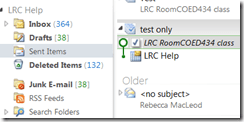
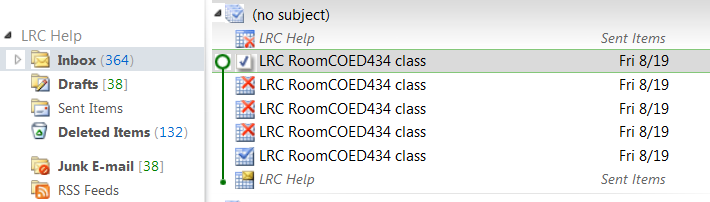
- a cancelled meeting conversation in your “inbox” in “conversation view”:

- Here is a complete icon legend:

- “sent items”





LRC Outlook/Exchange 2010 Resource Calendaring: How staff view resource “Calendars from your organization” in OWA
2011/08/30
6 comments
- Note: Students that have not been specifically invited to share a calendar, must use (staff may also) this approach to view calendars, to avoid a permission problem .
- Staff can load resource calendars, but as somebody who books the resource (except where you still cannot book/schedule/sign up: Tutors), you normally neither need nor want to (unless you manage the resources).
- To preview the free/busy schedule of the resource, use the scheduling assistant instead.
- To make sure that you have booked the resource, load your OWN calendar instead: Since it is you who “meets” with the resource, your meeting will be reflected on there. If you also loaded the resource’s calendar, you would see your “meeting” twice. A meeting always appears in the calendar of all “participants” – only that, other than for resource calendars, you normally do not view the calendar of the other participants who are “human resources”(or maybe you are, at least in the scheduling assistant, but not with details beyond “busy”).

- You may want to load the resource calendar to learn details about the other “meetings”of the resource (e.g. which conflicting meeting organizer you can contact in an emergency, or to know how many tentative meeting requests are already pending for a tutor). Below is how:
-
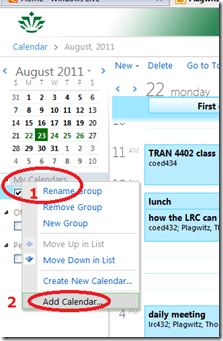
Similarly to in Outlook (desktop):
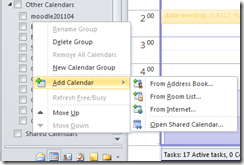 , in OWA, click on the lower left “Calendar-icon”
  to unfold the “My Calendars” list
  in the left pane, then right-click on “My Calendars”, choose “Add Calendar”
 .
. -
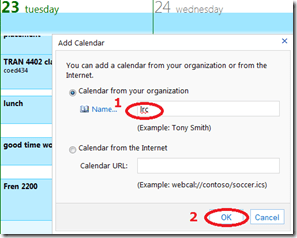
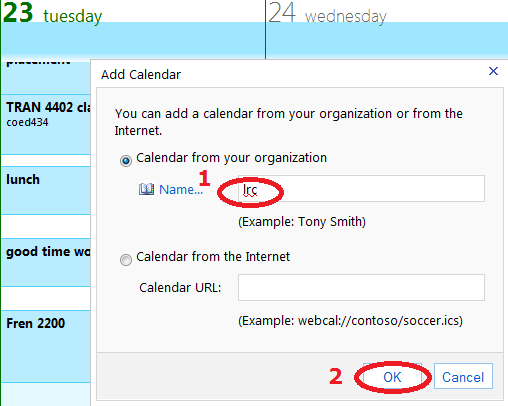
put (part of) the name, click “ok”
-
if there are multiple matches, select the correct one (you can only select one at a time)

-
press “OK” again:
 .
. -
As explained above, there is little reason to go overboard and add too many calendars, unless you have to manage:

-
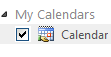
However, you can also easily remove calendars, through the context menu item “Remove shared calendar”








Questions? Read the About. Or just ask me a quick Our Databases: Resources with calendars -- Language learning material Moodle Sites, multimedia files -- films


FAQs for LRC student staff or for students or for teachers. To search our FAQs, in the browser addressbar, add after "https://plagwitz.wordpress.com/feed/?tag=faqs+/" "+TAG1" (from tag cloud below) OR "https://plagwitz.wordpress.com/feed/tag=faqs
&category_name=" "CAT1" (from category hierarchy below). OR search both categories and tags, and multiple TAGs/CATs (connect with "," for OR-search, with "+" for AND-search), like so: https://plagwitz.wordpress.com/feed/?tag=TAG1+TAG2+...TAGn&category_name=CAT1
+CAT2+...CATn"
Other ways to find help
If you cannot find it here, look there: 5,500 Language-Learning Links and Programs for learning or teaching 150 languages
Shortcuts:Our Lists, Our Maps, LRC Staff Moodle Site,LRC Project Moodle Site, 49erexpress, UNCC Moodle, Student Recordings: s:claslcslrcsanakostudent
Learning usage samples: Sanako oral exam, Kaltura webcam presentation, Dictation with speech recognition, Sanako written exam, Chinese and Japanese interactive stroke-order practice
Test the Sanako Installer, Webbrowser Popup Konfigurator for XP, or Windows7, faster LRC TeacherPC Log-in Let MS facilitate diacritics writing by installing for you US-International keyboard layout
This is my personal blog (Google+). The views expressed on these pages are mine alone and not those of my employer. The information in this weblog is provided “AS IS” with no warranties, and confers no rights.
 Thomas' Work Space