Bringing 4 bad computers back into the fold: GhostClient update in spite of bad image
The reason why we cannot join these computers to the domain is simple:

The old image we installed in the last installment of this series does not seem to be for the LRC: it does not contain the right drivers for basic hardware, including Ethernet controller, comes up frozen and keeps booting with warning “Windows did not start normally”.

Steps to take to work around this on each of the PCs:
- Boot thawed.
- Changed the computer name from System Properties / tab: Computername
- Install the Ethernet Controller driver INTEL_825XX-GIGABIT-PLATFORM_A04_R272000.exe which I downloaded from DELL, using the service tag, from the driver CD which I burnt.
- Reboot, the PC picks up an IP similar to the ones that the Ghost console can talk to.
- Insert a thumb drive and go to control panel / administrative tools / computer management / disk management , change the thumb drive letter to H:, exit (otherwise ghost client installer will fail if it does not see the home drive on the domain.

- Insert the ghost client upgrade CD I made earlier. Since autorun is disabled in this configuration, browse to \ghost\ghostclientupgrade.bat, and execute this.
- The computer reboots. Once it is back up, check, by hovering over the ghost client icon in the notification bar, whether the ghost client points to the ghost server IP.

Mine did: The Ghost console shows it as “connected”, and the Deepfreeze Console could reboot it thawed.
Bringing 4 bad computers back into the fold: GhostCast Error 19922: Cannot connect to GhostCast session
Error happens when trying to deploy newer image (created with GhostConsole11) with older GhostCast software.
GhostCast is only the old program we are trying to fade out. But in order to get failing computers to start at all, and connect to the network, we need to resurrect it.
19922 is most frequent error according to Google autocomplete. Symantec asks you to try this:
- Do you have the correct NIC driver specified?
- Boot into a ghost boot disk, exit ghost shell to a DOS prompt, type “chkdsk c: /f”, when finished, reboot the machine into ghost and try connecting to GhostCast session again [this found errors, but did not fix the issue in our case. ]
- Can you try another image? [This fixed the issue. Version incompatibilities between images?]
- Recreate the image on the source machine after “chkdsk c: /f”, attempt to deploy newly created image.
List of Maps for Foreign Language and Culture Study
The United Nations has a nice – even though not complete – collection of PDF-downloadable political maps of countries and regions – including some language regions – around the world:
- World
- [Broken:] Non-Self-Governing Territories (En.)
- [Broken:] Non-Self-Governing Territories (Fr.)
- [Broken:] Non-Self-Governing Territories (Esp.)
- South Asia
- South East Asia
- Central Asia
- Western Asia
- Greater Mekong Subregion
- Africa
- Africa(french)
- Eastern Africa
- Horn of Africa
- Horn of Africa (with Relief)
- South-Eastern Africa, Drainage
- Western Africa
- Great Lakes Region 1
- Great Lakes Region 2
- Great Lakes Region 2 (french)
- Central & Eastern Europe
- Baltic States
- South Eastern Mediterranean
- Middle East Region
- ECA
- ECE
- ECLAC
- ESCAP
- ESCWA
- Darfur Regional map
- Afghanistan
- Afghanistan, Regions
- Albania
- Angola
- Armenia
- Azerbaijan
- Bahrain
- Bangladesh
- Belarus
- Bolivia
- Bosnia and Herzegovina
- Bougainville Island
- Burkina Faso
- Burundi
- Cambodia
- Cameroon
- Central African Republic
- Chad
- Central Chile
- Chile
- Comoros
- Congo
- Costa Rica
- Côte d’Ivoire
- Croatia
- East Croatia
- Cyprus
- Czech Republic
- Djibouti
- Democratic People’s Republic of Korea
- Democratic Republic of the Congo
- Democratic Republic of the Congo (East)
- Ecuador
- Egypt
- El Salvador
- Equatorial Guinea
- [Removed:] Eritrea
- Estonia
- [Removed:]Ethiopia
- Fiji
- Gabon
- Georgia
- Ghana
- Greece
- Guatemala
- Guatemala (Southern)
- Guinea
- Guinea-Bissau
- Haiti
- Honduras
- Indonesia
- Iran (Islamic Republic of)
- Iraq
- Israel
- Jammu and Kashmir area
- Kazakhstan
- Kenya
- Kosovo
- Kuwait
- Kyrgyzstan
- Lao People’s Democratic Republic
- Latvia
- Lebanon
- Region of Southern Lebanon
- Liberia
- Libyan Arab Jamahiriya
- Lithuania
- The frmr Yugoslav Republic of Macedonia
- Madagascar
- Malawi
- Mali
- Moldova
- Mongolia
- Montenegro
- Morocco
- Mozambique
- Myanmar
- Nepal
- Nicaragua
- Niger
- Nigeria
- Oman
- Pakistan
- Palau
- Papua New Guinea
- Paraguay
- Peru
- Poland
- Prevlaka
- Qatar
- Moldova
- Romania
- Russian Federation
- Rwanda
- Southern Serbia
- Senegal
- Serbia
- Sierra Leone
- Slovakia
- Slovenia
- Somalia
- South Africa
- Sri Lanka
- Sudan
- Syria
- Tajikistan
- Tanzania, United Republic of
- Thailand
- Timor-Leste
- Timor-Leste (Regions)
- Turkmenistan
- Uganda
- Uganda (regions only)
- Ukraine
- Uzbekistan
- Western Sahara
- Yemen
- Former Yugoslavia map
- Zambia
- Zimbabwe
GoogleApps.uncc.edu
Symptoms: When clicking on a a sharing link from a GoogleApps document, the recipients may be redirected to the standard Google login page, with their personal Google account user name. Even if they change this user name to their UNCC user name, they cannot log in (Error: wrong password).

Resolution: Do not click on the sharing link in the email. Rather, go to http://googleapps.uncc.edu and log in there. Find the new document shared with you in your documents list.
Wimba Classroom Session with AppSharing for online tutoring or support
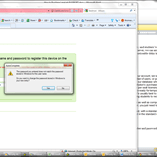
Here you can view a 2.5 minutes screencast of how to initiate a Wimba Classroom session with Appsharing.
|
0:28
|
Logging in as participant
|
|
0:44
|
Chime indicates: loading finished
|
|
1:05
|
Demo:hand raising
|
|
1:17
|
Demo:messaging
|
|
1:42
|
Local screen sharing started by remote
|
|
1:57
|
Local dialogue to permit
|
|
2:02
|
Text message: “the app sharing is now displaying Plagwitz’desktop”
|
|
2:07
|
Local frame to select screen portion shared.
|
Now students can share a Moodle or other online assignment or all local text file with their tutor; users in need of computing support the offending application.


How to batch-upload learning materials, give students access in Moodle
To upload a set of learning materials (e.g. multiple audio tracks from a CD) at once:
- On your computer, browse to the files (assuming that, if your source material is on an audio CD, you have already “ripped” the audio to files on your computer)
- Zip the folder, e.g. using the built-in Windows right-click/context menu option “send to”/ “compressed file” (for more options, install the free 7-zip is more powerful, which is required on Windows XP if your file names contain foreign language diacritics).
In your Moodle course, Step 1 is to upload the files: click at the bottom of the left menu: “File”
- No need to create a folder since this is done automatically (advantage: keep files manageably together, e.g. applying student permissions to an entire folder set of files versus individual files – disadvantage: you may run into our Moodle file size limit (as of 2011-05 64MB for individual files, including the uploaded zip-file; you may ask for an increase or TBA:compress your audio files) .
- Enter the folder and upload, by browsing to the zipped file on your computer
- Wait for the upload to finish (remember you may have a single file size limit, so while it is not as convenient as uploading all files in one batch, you may have to split the files. When using Windows “Send to”, you have to manage this manually. 7-zip offers more assistance),
- Once the file appears in the folder, there will be a link “unzip” to the right of it: Click it.

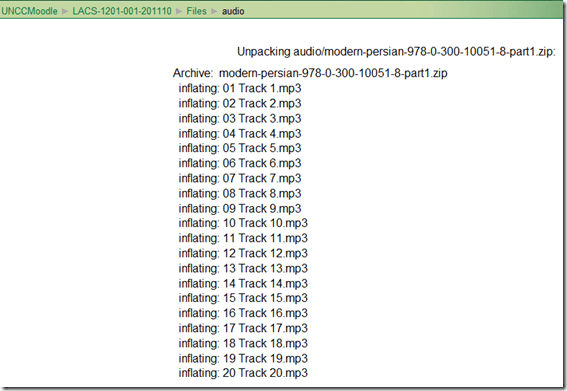
- Once the initial files appear in the folder, you can and may want to delete the zipped file.


Step 2 is to to make these files accessible to your students, by wrapping them as a resource:
- Button: “Turn editing on.”
- Section / drop-down:“Resources” / “Display a directory”.
- Enter a descriptive Name (your folder name will not carry over).
- You can enter a description of the file if you want into the Summary field. This is optional.
- Under “Display a directory”,’ select the desired folder directory from the pull-down menu.
- Click “Save and Display” to check the results.
Automatically download all documents/files/images linked from a web page
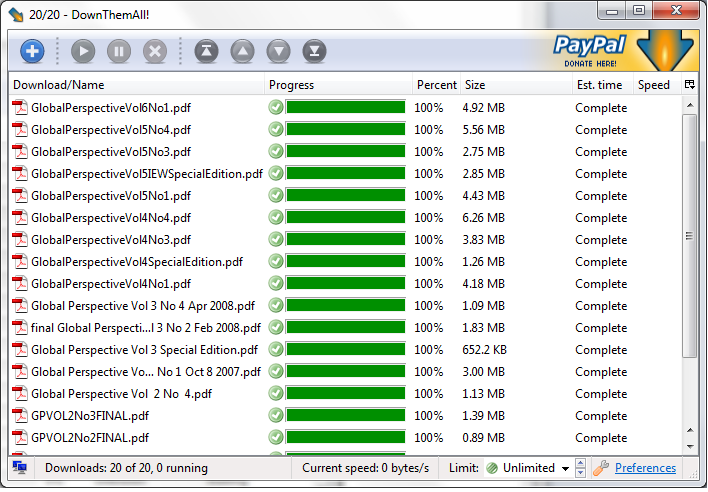
You can easily do this in FireFox with a free extension from Braunschweig (Germany): DownThemAll:
- Right-click on your page with the media you want.
- Make your choices:

- Lean back (or do something else!):

- A chime will alert you when your downloads are ready for consumption. Enjoy!




Questions? Read the About. Or just ask me a quick Our Databases: Resources with calendars -- Language learning material Moodle Sites, multimedia files -- films


FAQs for LRC student staff or for students or for teachers. To search our FAQs, in the browser addressbar, add after "https://plagwitz.wordpress.com/feed/?tag=faqs+/" "+TAG1" (from tag cloud below) OR "https://plagwitz.wordpress.com/feed/tag=faqs
&category_name=" "CAT1" (from category hierarchy below). OR search both categories and tags, and multiple TAGs/CATs (connect with "," for OR-search, with "+" for AND-search), like so: https://plagwitz.wordpress.com/feed/?tag=TAG1+TAG2+...TAGn&category_name=CAT1
+CAT2+...CATn"
Other ways to find help
If you cannot find it here, look there: 5,500 Language-Learning Links and Programs for learning or teaching 150 languages
Shortcuts:Our Lists, Our Maps, LRC Staff Moodle Site,LRC Project Moodle Site, 49erexpress, UNCC Moodle, Student Recordings: s:claslcslrcsanakostudent
Learning usage samples: Sanako oral exam, Kaltura webcam presentation, Dictation with speech recognition, Sanako written exam, Chinese and Japanese interactive stroke-order practice
Test the Sanako Installer, Webbrowser Popup Konfigurator for XP, or Windows7, faster LRC TeacherPC Log-in Let MS facilitate diacritics writing by installing for you US-International keyboard layout
This is my personal blog (Google+). The views expressed on these pages are mine alone and not those of my employer. The information in this weblog is provided “AS IS” with no warranties, and confers no rights.

