One-on-one virtual language tutoring using Wimba Classroom
The most useful tools in Wimba Classroom for synchronous one-on-one online tutoring, apart from the basic text instant messaging, may be not the videoconferencing, but the audio tools combined with screen-sharing or application-sharing AKA desktop sharing (remote user can control the application – especially for reviewing online learning materials with automated feedback which the student may need additional help with.
A two-way audio connection is obviously useful for language learning, and incurs no phone costs. Videoconferencing is only available on the most advanced phones. And more than video even,
we thought that especially the application screen sharing in wimba would be useful, e.g. if tutor and student go through some of the online exercises together live and the tutor can answer additional questions of the student that the automated online correction has not answered).
To start application sharing, click in tab:content button:share, set the desired sharing options and click “begin sharing”
Recommended learning path:
-
Both Wimba.com on their Wimba Classroom page and the CTL on their Wimba entry page have a wealth of learning resources on (notice that I
 loop inductions, learning by doing):
 -
First watch an archived session held using Wimba classroom: Both the vendor (TBA) and the CTL have archived sessions, including introductory sessions on the use of Wimba Classroom and components.
-
Then take the student perspective: You can anticipate student issues and learn from/with the teacher without full responsibility for the session, if you participate in a live session using Wimba Classroom., like the ones the CTL regularly offers (the next one: http://teaching.uncc.edu/how-do-i-moodle-more-course-web-site-30-min-webinar).
-
Read the FAQ, to learn from colleagues with a similar background/context: Intricacies of the talk button (keep it pressed, or set the options so that you do not ; video/audio/text out of sync may indicate slow internet connection, consider dropping video, the biggest bandwidth hog.
-
Practice makes perfect: Once equipped with a computer, I plan to test out the Wimba Classroom instructor room, by using it for intra- and inter-office communications. There are competing platforms that I like, e.g. MS-Communicator with its strong presence and escalation features. But Wimba rooms which span students, teachers and staff – any staff member has one by default, any student can enter a room -, have the strongest network effect).
-
Do one-on-one student support, like in tutoring or online office hours. This can serve you as a gentle introduction to doing more ambitious Wimba classroom projects:
-
Meeting online with small student groups, e.g. when planning or reviewing student groups projects.
-
Teaching large online classes.
-
Before you do this and for your specialized features, you may want to review in–depth multimedia documentation: Wimba Classroom has in depth print manual for presenters and students. Screencast videos (Using Audio, Web Page Display, Application Sharing) are instructional, 1-page “cheat sheets” (Web Page Display, Application Sharing) are perfect for putting up at your computer during your first session.
-
Once you are experts, don’t forget that your studentsmay not have used Wimba classroom.
We can support such online tutoring
-
in the LRC when open (not on weekends unfortunately);
- Or in your office, with spare parts from the LRC hardware resources (headsets and webcams) which we can set up for you;
-
Or – to gain maximum benefit from the flexibility synchronous online affords – from home: This however hinges on teachers’ (and students!) whether you are comfortable independently supporting this and if your setup can handle the requirements – – soundcard, headset with microphone (fewer audio problems than with a microphone/speakers built-in/connected to your webcam/laptop), (webcam is possible, but not necessarily the most useful language learning feature , and but maybe contenting with more instructional screen-sharing or application-sharing, capability of running the Java plugin in your browser, sufficiently fast computer and internet connection
All participants must run the Wimba wizard well ahead of session, to be able to address any technical problems before entering a classroom. You can watch the Wizard at work in this screencast video.
Configuring an MS-Exchange mail account from home on a personal laptop with Windows 7 (64-bit), Outlook 2010 (32-bit)
Follow your provider’s official instructions and entry points – this is only to remind myself where I have to jump through which domain qualifying hoops:
- Establish the VPN connection to your MS-Exchange environment
- Go to “Control Panel”, open “Mail Setup”, click button:”E-mail Accounts”
- In dialogue:”Account settings”, click button:”New”

- Select “E-mail account”
- Select “Manually configure …”
- Select “Microsoft Exchange…”
- Enter the info you have been given and click check names.
- In the Windows Security Dialogue, enter the qualifying domain:

- I did not need to enter “More Settings”.
- One of quite a few oddities I observed: After creating the Exchange account in the Control Panel: Mail item, when starting Outlook, the Windows Security dialogue that asks for my credentials appear to not accept my password (it comes up over and over again, asking for the password). However, once I canceled out of it and restarted Outlook, Outlook went right into downloading my Exchange mail etc. (this was with “Remember my credentials”set in the Windows Security dialogue). Go figure!
Swift-TX subtitling with Windows XP Japanese IME
In order to get Swift to work with Japanese , you have to set the font in the swift preferences:

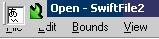
This computer worked –

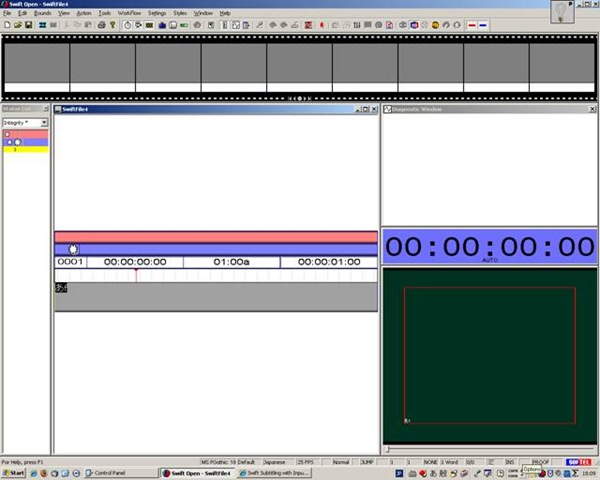
meaning: IME showing up here.

”Input mode” must be set to Hiragana, not “direct input” which (if I recall correctly think) we did in XP/ control panel/ “regional and language settings”.

We could replicate getting it to work on other XP computers:
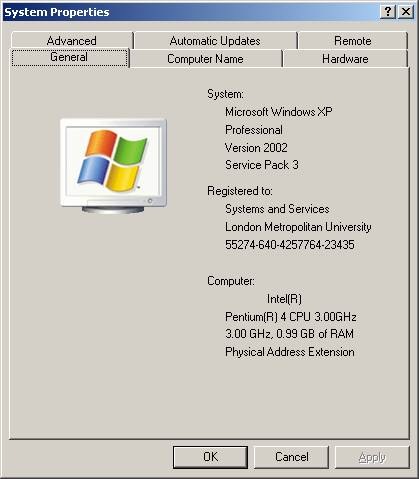
by resetting of the “input mode” from “direct input” to “hiragana”,

AND after a restart of switch and opening a new swift file:


Next problem:
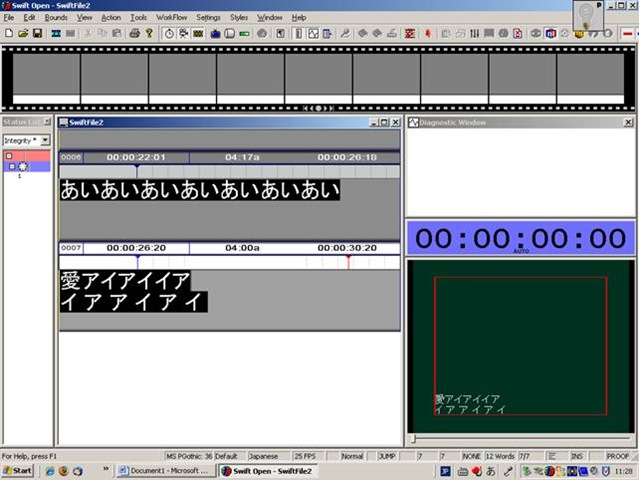
when you use ctrl up/down arrow , spurious spaces appear between letters.
Swift-TX Subtitling/Screen Translation Software: Preference Dialogues
This impressive array of preferences dialogues of the Swift subtitling software by Softel is in desperate need of a FAQ

– which I have yet to write (feel free to make suggestions in the comments).
OK, here is one bit: Japanese.
eRepository: How to manage multimedia learning materials? Maybe with ShareStream
Target language audio and video materials – as well as other textual, multimedia and/or interactive materials – are crucial assets (and should become “reusable learning objects”) in learning centers – how best to manage them?
I have worked for a number of HE institutions, up to the very recent past, that charge their students between $30.000 and $40.000 per year, while their learning materials handling in the learning center consisted of what DVDs and VCR tapes fit into a shoe carton, for a lab assistant to frantically browse through when faced with a learner or teacher request for materials. Not to mention teachers spending inordinate amounts of time scanning stacks of make-believe VCR and DVD “libraries” in the learning center.
I have blogged here before about various solutions that attempt to remedy this: from home-baked stop-gap measures to the introduction of eRepository offerings for digital asset management.
If you are familiar with these issues, you will understand that I am eagerly looking for better help with managing multimedia learning materials. ShareStream claims to provide a turnkey solution addressing these needs. Its architecture – according to the Tulane pilot – consists of a ShareStream server which serves as eRepository and metadata catalogue, a streaming server, and an encoding server (for lecture-capture: YAT (“yet another tag”)). ShareStream also integrates with the Blackboard LMS.
Have a look at the demo of the pilot at Georgetown University which they gave during MAALLT 2010 and which they now also offer workshops on. One interesting thing I figured out during the question period is that they avoid breaking the Digital Millennium Act when digitizing copy-protected DVD materials by capturing to digital only the analog AV output of a DVD – a reminder that a reform of copyright is sorely needed.
Language-Learning-Audio-Stretcher II: Samples
What does the Language-Learning-Audio-Stretcher introduced in an earlier blog post do to an audio file you feed in?
For illustration purposes, let’s have a look at a segment of a news broadcast. The example is(taken from the daily Langsam gesprochene Nachrichten by Deutsche Welle: a nice service of slowly spoken news for language learners – in my experience, however, not spoken slowly enough for North-American German students.
This timeline (X axis) shows what a computer program has automatically detected as pauses of varying length (Y axis) in the audio. Depending on a (safety) threshold which the user sets (manually, or, from experience, stored and loaded from a configuration file) in the dropdown boxes of the lower dialogue, the program attacks pauses from a certain threshold value up only: 
The segment below consists of a single sentence about peace negotiations with North Korea. It is shown in the following screenshot.

- 1: transcript of the original audio file
- 1a: audio graph of the original audio file
- 2: transcript of the stretched audio file. A new line in this transcript represents a pause inserted by the software.These pauses should aid language students in review the utterance last heard in memory, and hopefully parsing it correctly.
- 2a: audio graph of the stretched audio file.
- 2b: note: non-flat audio is stretched
- 2c: note: flat lines show the pauses inserted, on top of stretching the audio.
Hearing is believing:
- segment original audio:
- the same segment in the stretched audio:
This software can be applied to any of numberless public domain audio books (see Project Gutenberg or Wikipedia, audio books, as well as other free audio book sources) in mp3 or wma format (other formats can be converted). It can also can be applied to commercial audio books, if you have proper licensing.
The software comes with many options that allow you to tweak the output to your liking and needs, see prior blog post.
Virtual Whiteboard in Computerized Classrooms
To virtualize/digitize your classroom scripts/textbooks/etc. – with all the obvious benefits (single familiar, control interface for multimedia, audio and video) and hidden benefits, like being able to link to offline (e.g. MS–Proofing Tools, MS-Text-to-Speech API) and online language learning tool (e.g. dictionaries, image libraries), use the already installed and supported hardware and software tools in computerized classrooms.
Hardware:
- Teacher Computer
- LCD Projector
- LCD Projector Screen
- Classroom Speakers
- Wireless keyboard/mouse
Software/Content:
- Textbook Scans as images – common nuisance: as ingle exercise (or a rule explanation and its practice exercise) gets spread over 2 pages that won’t fit on document camera –> right-click, open with, “Paint”, use rectangle selection, edit/cut, file/new, edit/paste to combine).
- my template Teacher.Dot (and additional downloaded or saved files, copyright permitting) with lookup menu:


- MS-Remote desktop: default enabled on all office PCs; on classroom teacher computer, click “start”-button, type “mstsc”, click “OK”, type the IP address of your office computer once, if logged in a yourself on the teacher computer, it will remember it, (you only need to access the advanced options of MSTSC if you encounter compatibility problems, like with screen resolution
- MS-ZoomIt: on file server, allows you to zoom, draw + type on frozen images of your screen (access advanced options if you want to change the font settings and behavior of the mouse scroll wheel)
- Blackboard: Content System <—Web folder <—> Email
Time saving benefits:
- Class time: prep in office; slow writing on blackboard, handling of document camera (switching, drawing), internet access
- Teacher time: separate steps to & handling email (<—> close file with class and be done)
- Student: slow note-taking (not all is mnemonic), handling email (still need to access Blackboard)
- More benefits could be had if students had hardware/software to share the screen. If a fully computerized classroom freaks you out, consider MS multi mouse, especially designed for resource challenged educational environments (India originally)


Questions? Read the About. Or just ask me a quick Our Databases: Resources with calendars -- Language learning material Moodle Sites, multimedia files -- films


FAQs for LRC student staff or for students or for teachers. To search our FAQs, in the browser addressbar, add after "https://plagwitz.wordpress.com/feed/?tag=faqs+/" "+TAG1" (from tag cloud below) OR "https://plagwitz.wordpress.com/feed/tag=faqs
&category_name=" "CAT1" (from category hierarchy below). OR search both categories and tags, and multiple TAGs/CATs (connect with "," for OR-search, with "+" for AND-search), like so: https://plagwitz.wordpress.com/feed/?tag=TAG1+TAG2+...TAGn&category_name=CAT1
+CAT2+...CATn"
Other ways to find help
If you cannot find it here, look there: 5,500 Language-Learning Links and Programs for learning or teaching 150 languages
Shortcuts:Our Lists, Our Maps, LRC Staff Moodle Site,LRC Project Moodle Site, 49erexpress, UNCC Moodle, Student Recordings: s:claslcslrcsanakostudent
Learning usage samples: Sanako oral exam, Kaltura webcam presentation, Dictation with speech recognition, Sanako written exam, Chinese and Japanese interactive stroke-order practice
Test the Sanako Installer, Webbrowser Popup Konfigurator for XP, or Windows7, faster LRC TeacherPC Log-in Let MS facilitate diacritics writing by installing for you US-International keyboard layout
This is my personal blog (Google+). The views expressed on these pages are mine alone and not those of my employer. The information in this weblog is provided “AS IS” with no warranties, and confers no rights.
 Thomas' Work Space