Archive
LRC Outlook/Exchange 2010 Resource Calendaring: How to use the Scheduling Assistant in OWA
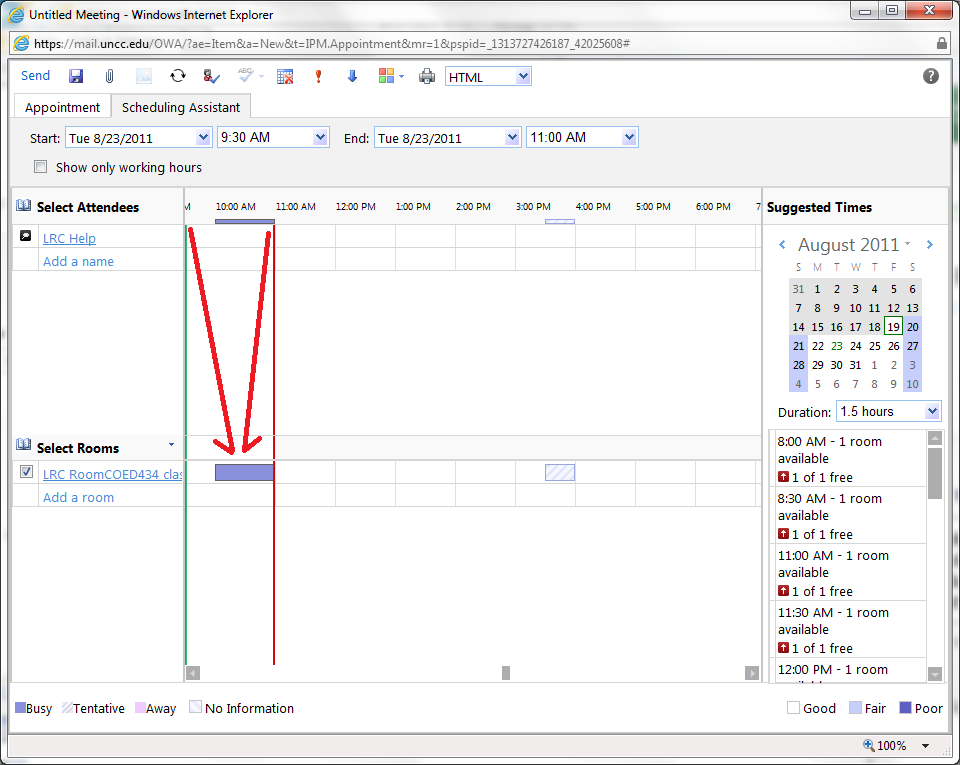
- The scheduling assistant lets you find a common free time for all the (resource and human) participants of your meeting request.
- The scheduling assistant shows you start/end meeting time and free/busy information.
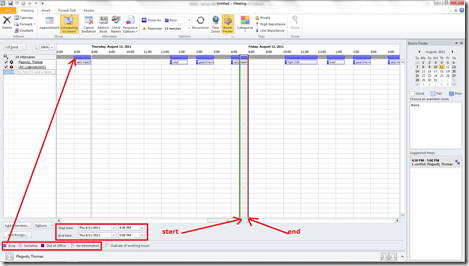
- The default shows only work hours:

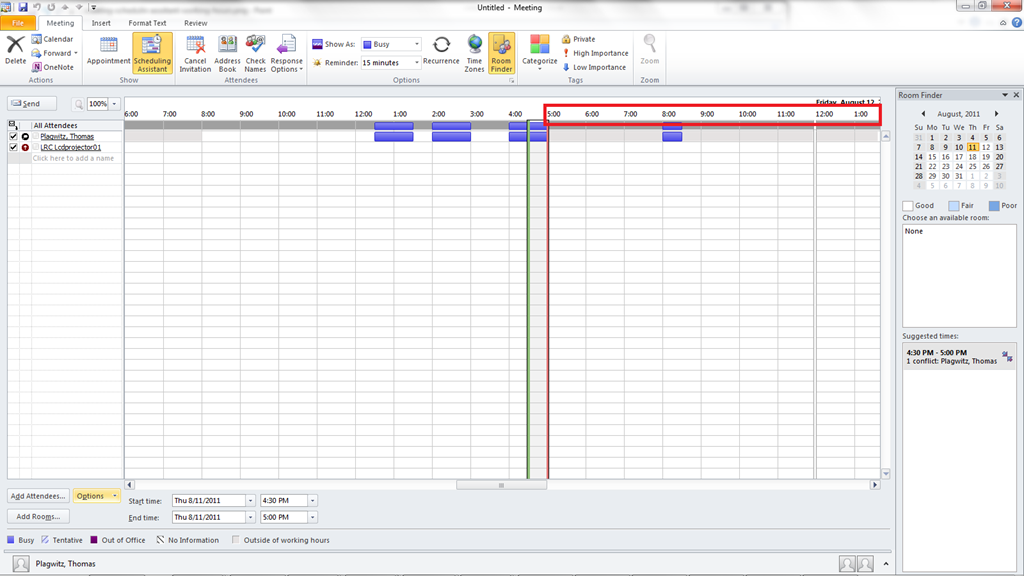
- You can show more than work hours (useful for some resources):

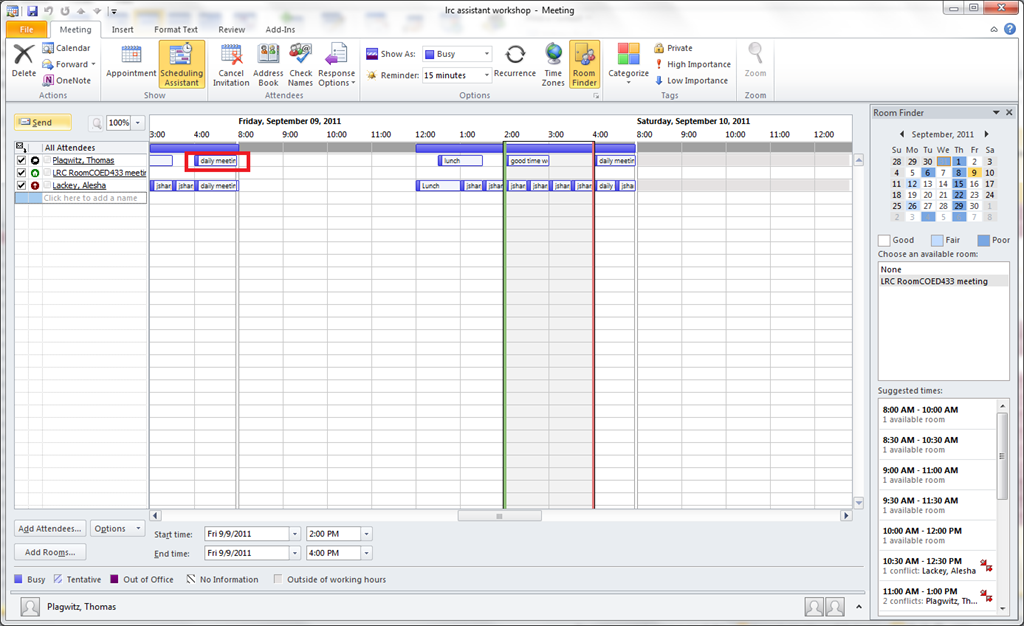
- You may also be able to see the meeting subjects.

- You can spot scheduling conflicts in advance, instead of sending a meeting request that will have to be denied.

- For some resources, you can make a recurrent/repeating meeting request:
 . note that you will lose the begin/end markers: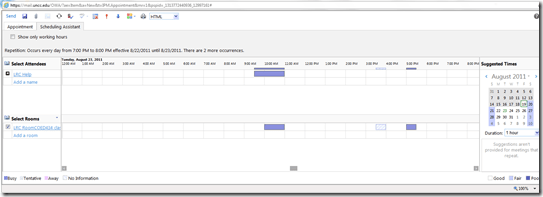




LRC Outlook/Exchange 2010 Calendaring: How to use the Global Address list/Address Book for LRC Resources in OWA
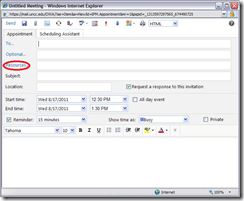
- Open the GAL for Resources by clicking on “Resources”, like here :
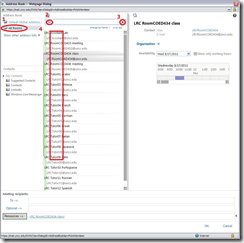
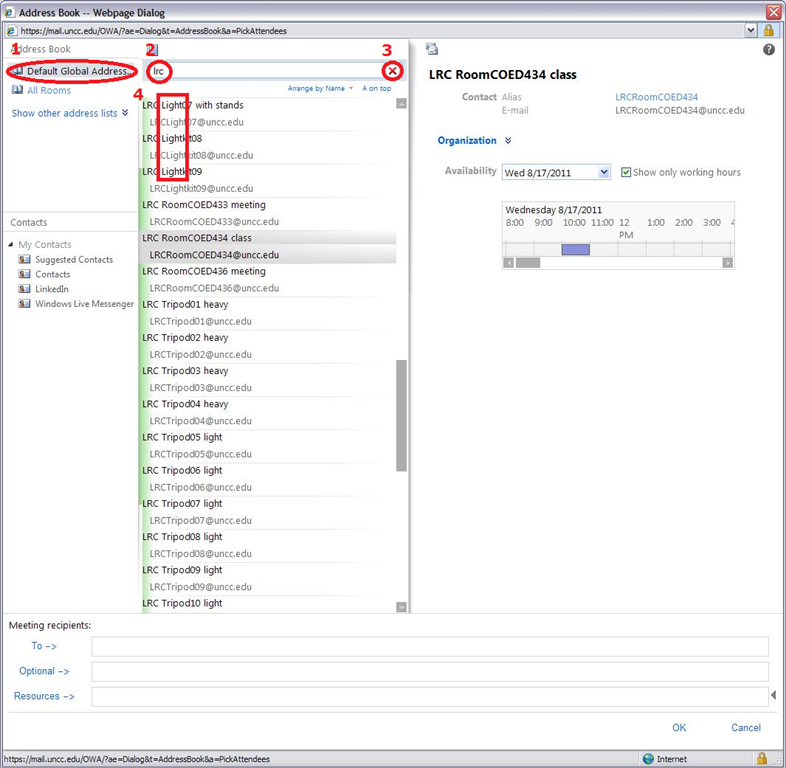
- Use (1) default filtering, (2) “LRC” (3) search, to see all resources, including (4) equipment:

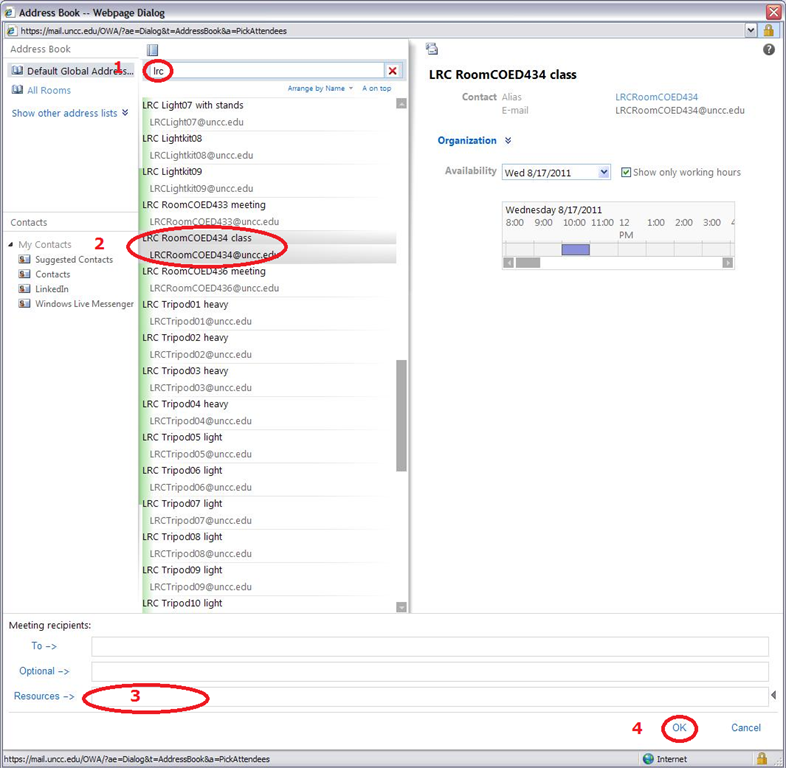
- use (1) room filtering, (2) “LRC” (3) search, to see only (4) resources that resemble “Rooms” (including “Offices” held):
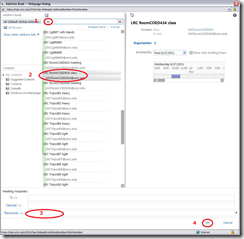
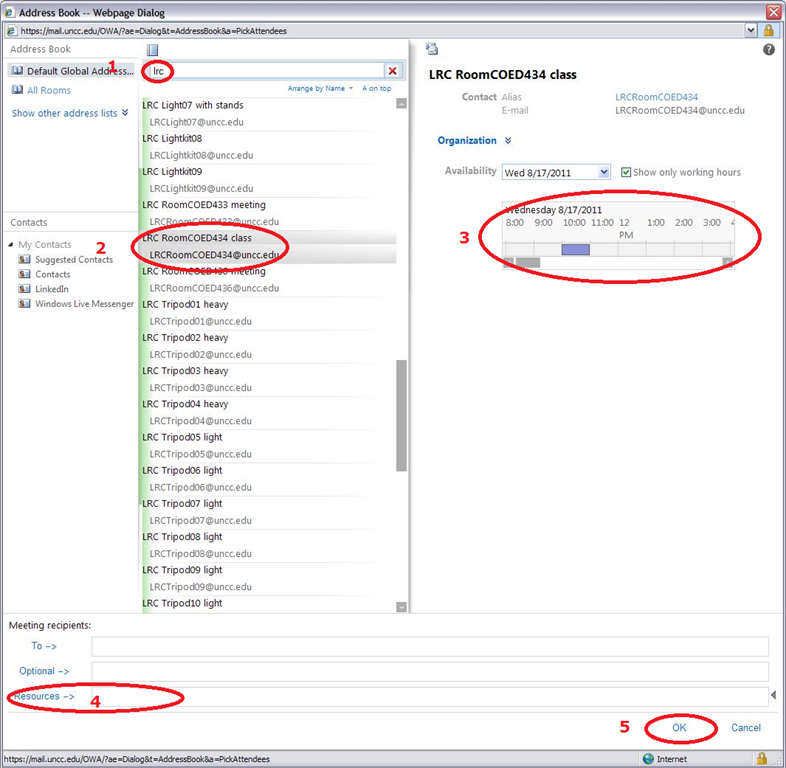
- after (1) searching “LRC”, (2) pick the desired resource, (3) add it to the resources recipient list, (4) click “ok” to close the address book (which will send you back to your meeting request)
- if there are several equivalent resources you could use (like any of our voice recorders), you can quickly compare their immediate availability using the scheduling window in the right pane
- if you need a better overview over availability of the resource, and other participants, add multiple resources to the to-list and compare their availability using the “Scheduling Assistant” which features a full legend and easy-to-read begin/end markers for your chosen begin/end times
- In the address book, you have a limited (to today) preview of the (3) schedule of the resource, which can aid you in deciding which resource to add to the resources-list
-
- Alternatively, for a more expansive schedule, add all equivalent resources (e.g. lights) and decide later in the scheduling assistant which one to send the meeting request to


LRC Outlook/Exchange 2010 Resource Calendaring: How to book an LRC resource by making a Meeting Request in OWA
- A meeting request is – as you can see from its icon:
 – an email with calendar information.
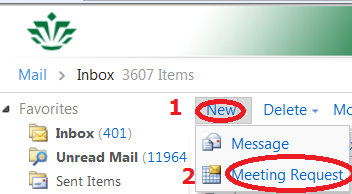
 - In OWA, start writing a (2) meeting request, like an email, from the (1) menu: ”new” (click not on “new” directly, but on the arrow next to “new” to unfold the menu:

- By default, the meeting will show you as the organizer in the calendar. In addition, on default tab : appointment, like in an email, you may want to add subject (like your course number), and a message body (e.g. “to make audio recordings with 20 students”).

- Start adding “resources” (do not send “to” a room or equipment piece, and send “to” people only if you need them to staff the room or operate the equipment for you) by clicking it:

- This will open the window: Address book (read more on the Address book), find and select your “LRC” resource in the list of LRC bookable resources and click “OK”:

- Switch from default tab : appointment to tab: scheduling assistant , and set the meeting (1) start and (2) end day/time, to when the resource is (3) available:
 (read more on the Scheduling Assistant)
 - from the default tab : appointment, click button: send.

- For what happens next, see responses and calendar.
- For a high-level overview, see this LRC calendaring How-to




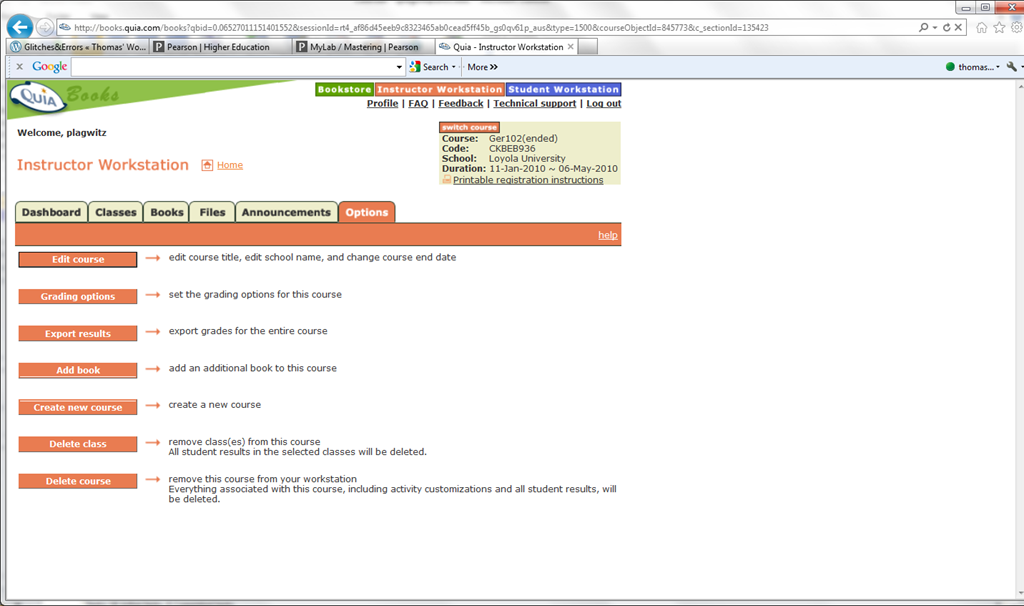
Quia Options for Grading in course or book or exercise
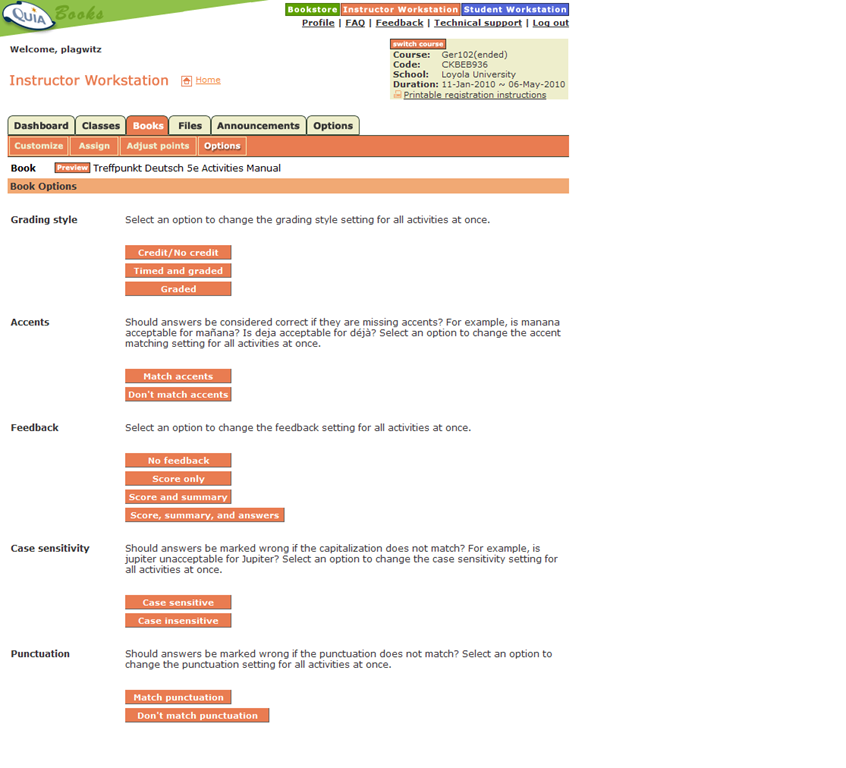
- The instructor workstation features prominently the tab : options.

- if you go into grading, you see that not all options can be changed from here.
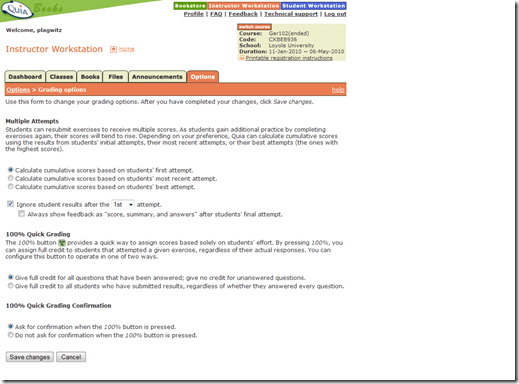
- However, when customizing your book, you may have already found the options next to each individual exercise that allow you to change Spelling/Case sensitivity

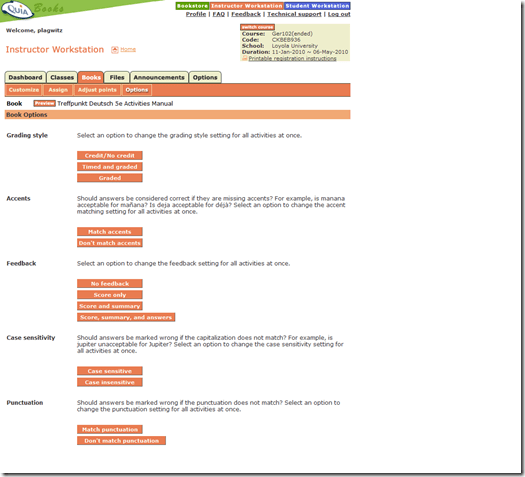
- However, if you go to the tab: book, you will find more options there, including how you can change Feedback and Spelling/Case sensitivity for the entire book instead of individual exercises:

Moodle Metacourses, part III: The support workflow: File-renaming
We discussed file renaming utilities in an earlier post. Here are some more practical tips:
Limitations: While both utilities can accept Windows Search Result sets, drag-drop seems limited to fewer than 256 files at a time (on my Vista 64-bit – but that is not an OS limitation, since MS Expression Encoder can accept a drag-and-drop of all over 3.5k files that need reencoding).
Workaround: both utilities have a folder-select, and Renamer in addition accepts file masks, which can mimic some basic searches:
![image_thumb[2]](/Users/trp/AppData/Local/Temp/WindowsLiveWriter1286139640/supfilesB79F19A/image[6].png "image_thumb[2]")
Bulk Rename Issue: While it allows for “Select from Clipboard” which you can use with the Windows “Copy as Path”/”Send to Clipboard as Name” feature which works with search result sets. However, I could not get this feature to work (neither with the default “” around the path nor, after removing them manually, without).
Renamer, Issue: rule, clean up, strip-out-content-of-brackets-does-not-what-it-should:
Renamer-translit-anglicize-foreign-language-diacritics: unfortunately still recommended for technical reasons; Renamer has presets, e.g. German here: TBA
Only one preset can be inserted add a time (overwrites previous) – but you can build your list with copy/paste from/to this text box and persist it to disk to load it later, just like the search rules – an extremely handy feature.
Moodle Metacourses, part IV: The support workflow: Transcoding audio learning materials
The MS-WMA-Voice codec features very acceptable audio quality for spoken language learning materials in a highly compressed format. It allowed me to reduce our existing audio files collection size by about 50%.
Expression Encoder 3 crashed a few times during encoding this queue of 3.500 audio files. In addition, it took a long time to reload the .XEJ project files of such a size. It is, however, easy enough to inspect the XEJ in an XML editor:

And even easier to delete the finished media files form the queue using a text editor: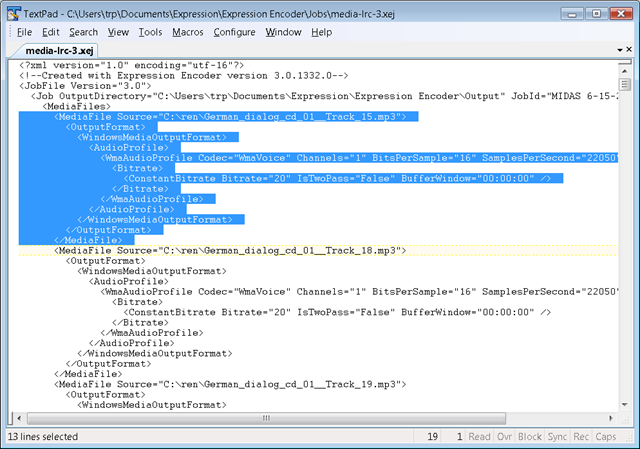
I am wondering whether this queuing could be streamlined (recovery automated, and the need for human interaction be reduced) using the PowerShell Module for Automating Expression-Encoder, but so far the process is good enough.
Sanako Study-1200 slow spanning 2 screens with different resolutions
- UPDATE2: 2013-09: apparently new video driver crashes with autoscan window, this time even on primary screen alone?
- UPDATE: 2011-01:Problem seems to have disappeared (windows update?)
- Symptom: This is on a Dell Optiplex 760 (B6CCLK1) which has no problems with Sanako’s screen sharing application, as long as you do not attempt to span the windows across two screens with different resolution which makes even the mouse jerky. Not sure, but do not remember having this problem across two screens with the same resolution. Actually, the Sanako subwindow (remote ctronl specifically) slows down the computer even if it is only on th secondary screen.
- Solution: Relatively easily fixed, if you can afford upgrading not only the screen, but also the LCD projector that hangs on one of the screens…
- Workaround: Do not span sub-windows of Sanako Study-1200 across screens. This problem can become so bad that the Sanako sub window becomes completely unresponsive and cannot be moved or closed (neither with the close button in the upper right nor with ALT-F4). Try CTRL-ALT-ESC then and kill the process. You could also try and upgrade the video card driver which may be the true culprit. However, on the Sanako sub windows seem to display the problem (screensharing with remote control, chat also). E.g. Internet Explorer windows do not have the same problem when spanned across screens.
LRC Outlook/Exchange 2010 Calendaring: What happens after the meeting request? Automated or manual responses and reminders
- If you have been invited to a meeting, e.g. a co-taught class in the LRC, you will see in your inbox an email-like meeting request with pre-set answer options:
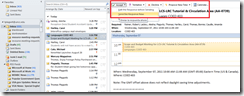
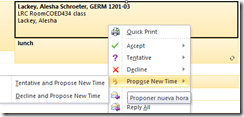
- Wait, there is more: Proposing:
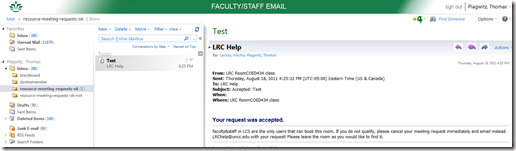
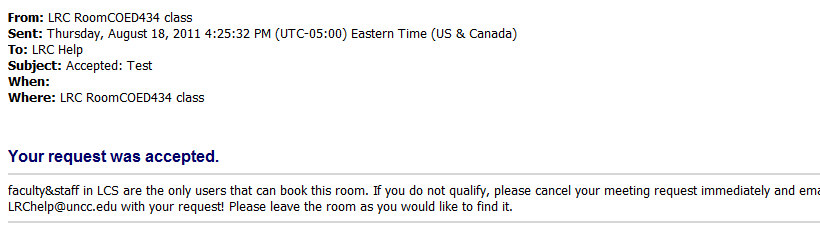
- If you followed the instructions in TBA:request meeting, you should immediately get an acceptance response from the resource:

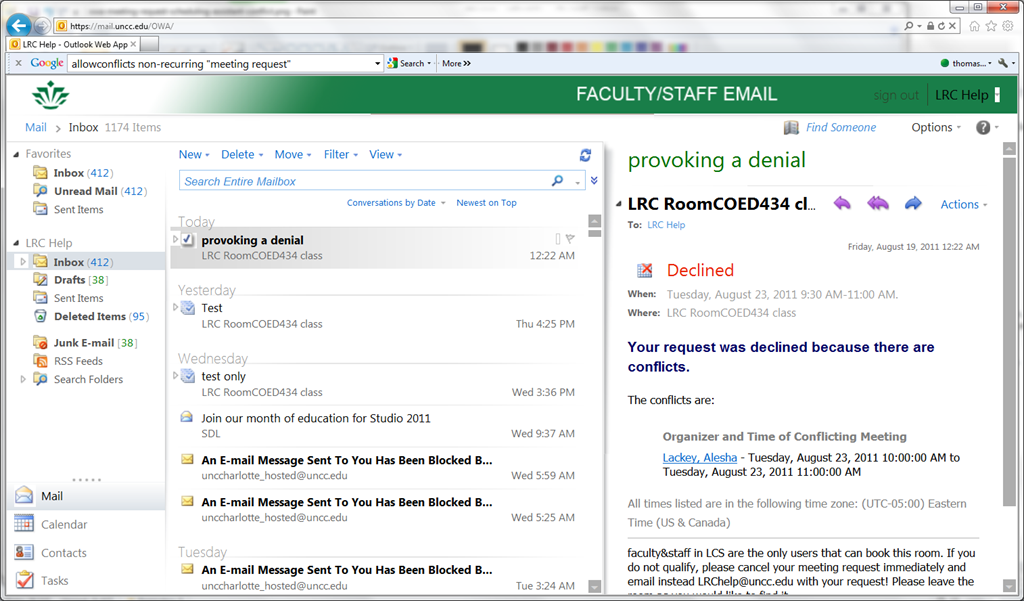
- If something went wrong, read the denial response for how to overcome the issue:
- there are resource specific policies, like maximum booking duration, listed here: TBA: list resources
- if there is a conflict with a prior booking of the resources, please go back to the meeting request scheduling assistant and find a time when the resource is available.
- if you requested a recurring/repeating meeting, like for a weekly class meeting in the LRC, there may be individual conflicts. Note that we have set the resource scheduling options for the non-conflicting instances of your request to be accepted (in most cases). For how to deal with the conflicting instances, study the conflict information in the denial response.
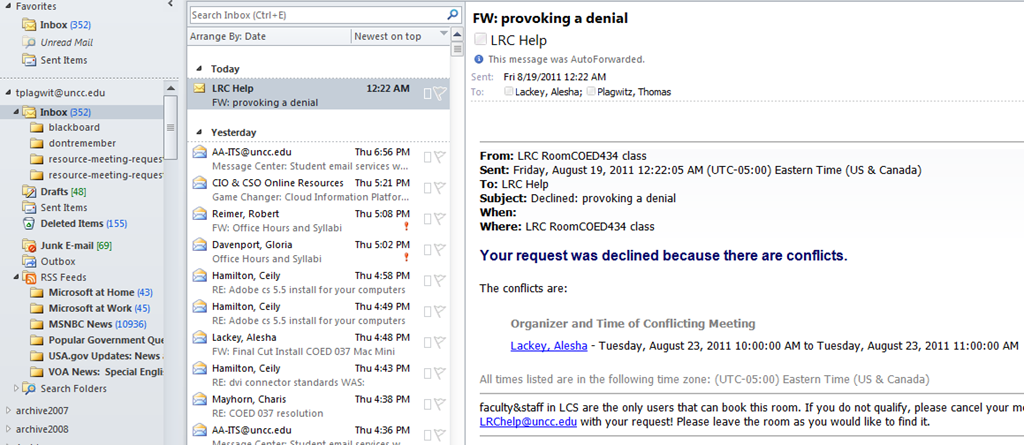
- Note that the LRC calendars are set up so that the LRC staff is copied (as delegates) on LRC resource requests (as a backup for issues and paper trail for reporting):


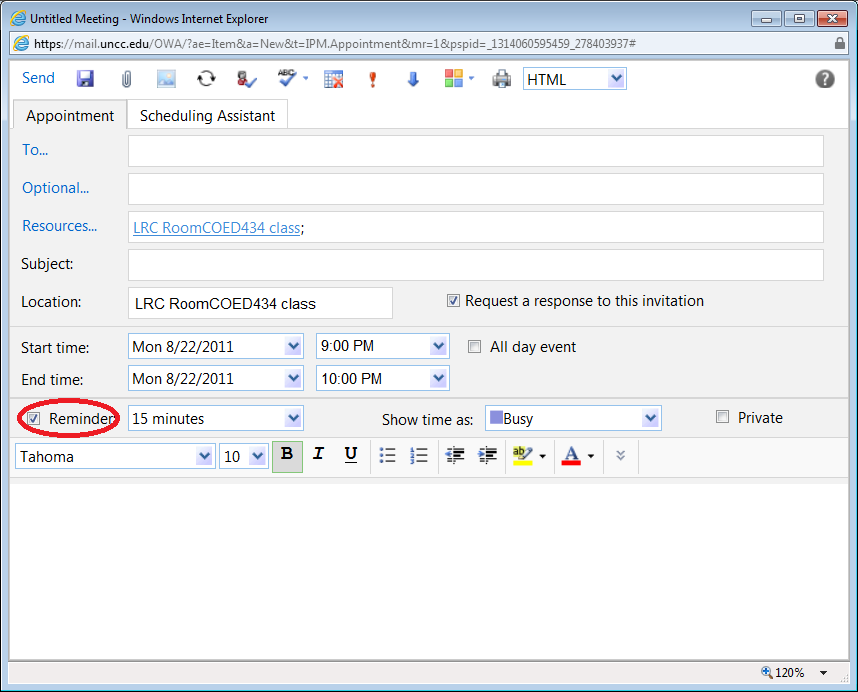
- If you find you get too many meeting reminders that you do not need, when requesting a meeting, turn the default reminder option off:

- The reminder can also be set to off as default in the calendar settings for a resource.





Questions? Read the About. Or just ask me a quick Our Databases: Resources with calendars -- Language learning material Moodle Sites, multimedia files -- films


FAQs for LRC student staff or for students or for teachers. To search our FAQs, in the browser addressbar, add after "https://plagwitz.wordpress.com/feed/?tag=faqs+/" "+TAG1" (from tag cloud below) OR "https://plagwitz.wordpress.com/feed/tag=faqs
&category_name=" "CAT1" (from category hierarchy below). OR search both categories and tags, and multiple TAGs/CATs (connect with "," for OR-search, with "+" for AND-search), like so: https://plagwitz.wordpress.com/feed/?tag=TAG1+TAG2+...TAGn&category_name=CAT1
+CAT2+...CATn"
Other ways to find help
If you cannot find it here, look there: 5,500 Language-Learning Links and Programs for learning or teaching 150 languages
Shortcuts:Our Lists, Our Maps, LRC Staff Moodle Site,LRC Project Moodle Site, 49erexpress, UNCC Moodle, Student Recordings: s:claslcslrcsanakostudent
Learning usage samples: Sanako oral exam, Kaltura webcam presentation, Dictation with speech recognition, Sanako written exam, Chinese and Japanese interactive stroke-order practice
Test the Sanako Installer, Webbrowser Popup Konfigurator for XP, or Windows7, faster LRC TeacherPC Log-in Let MS facilitate diacritics writing by installing for you US-International keyboard layout
This is my personal blog (Google+). The views expressed on these pages are mine alone and not those of my employer. The information in this weblog is provided “AS IS” with no warranties, and confers no rights.
 Thomas' Work Space