Archive
Archive for the ‘technology-domains-is-any’ Category
Using NLP tools to automate production and correction of interactive learning materials for blended learning templates in the Language Resource Center. Presentation Calico 2012, Notre Dame University
2012/06/13
Leave a comment
View screencast  here.
here.
How to bypass email cloaking in Joomla 2.5
2012/05/31
1 comment
- If you have URLs on your Joomla site that contain @-signs, Joomla 2.5 will mangle them, since it seems to think out of the box that these are email addresses that need to be protected (anybody else using Joomla 2.5 with MS-Exchange 2010 calendars…?).
- If you do not want to give directive {emailcloak=off} on top of the article, try url-encoding the @-sign (%40). May be more difficult for your users to memorize, though.
Categories: e-infrastructure, lab-portal
2.5, 2010, calendaring, joomla, ms-exchange
How to use the MS-Office Labs Community Clips Screen Capture Tool
2012/05/31
7 comments
- I seem to remember this initiative of having MS-Office users sharing tips and tricks using screencasts has been faded out – but the screen capture tool is still available, and it is not restricted to recording MS-Office applications.
- After download and install (here on Windows 7),

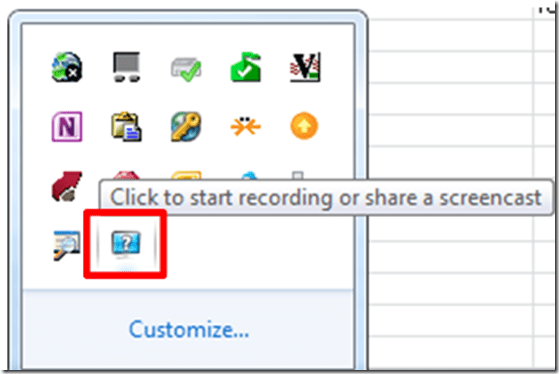
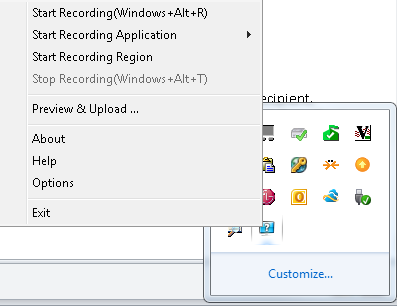
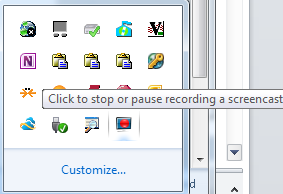
- click the community clips system tray icon to easily start a screen capture:
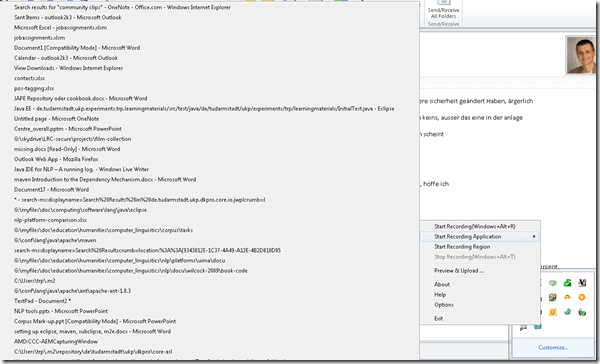
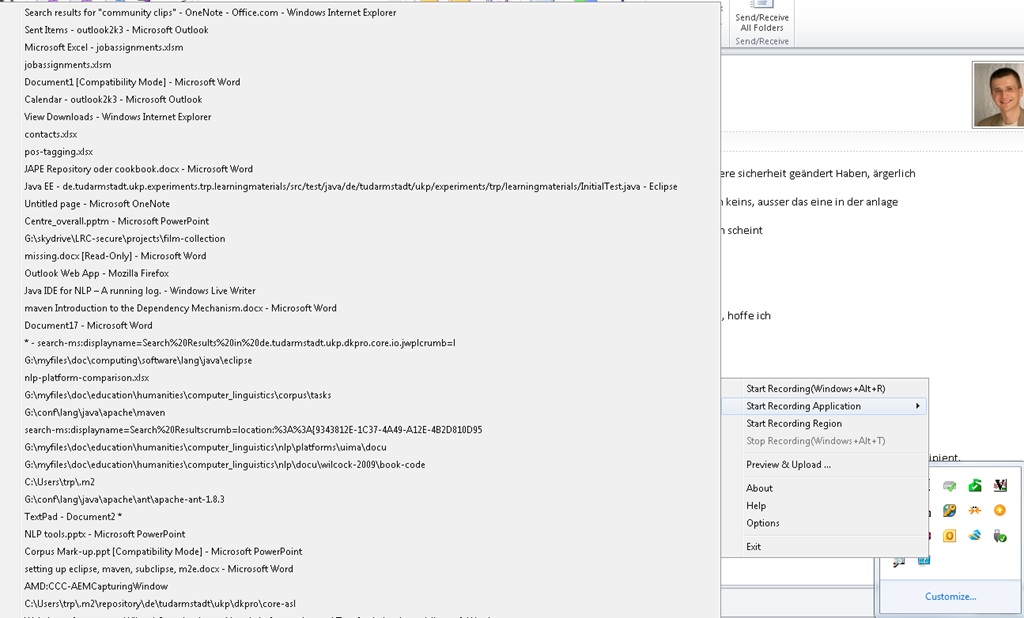
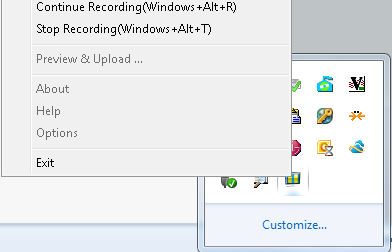
- Or access the context menu with advanced options:

- including restricting recording to specific windows:
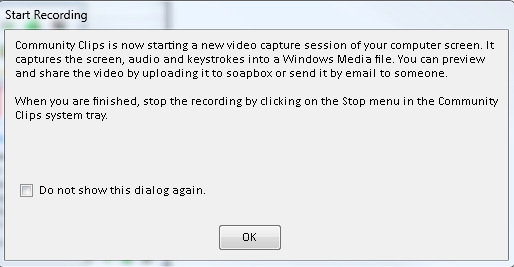
- It does not start up very fast:

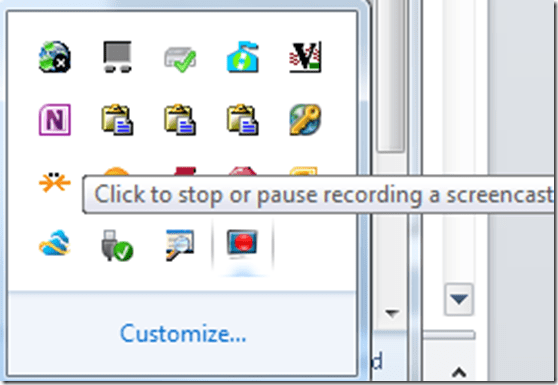
- It flashes a frame around the recorded area.
- This is a test…


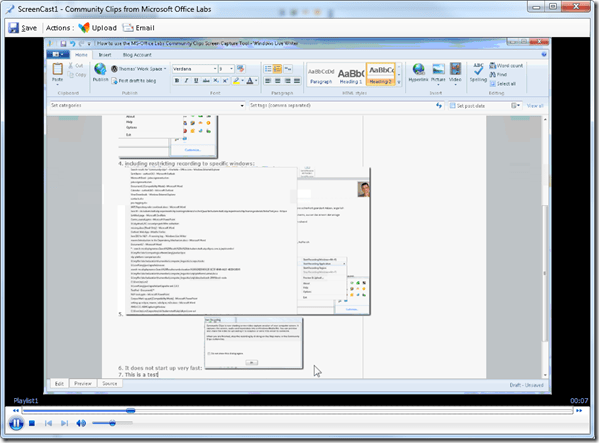
- The preview starts automatically:
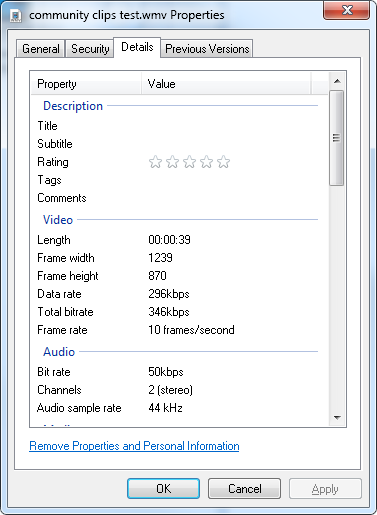
- About the file quality:

- Both the save and the email option
 work, only the built-in upload fails, likely due to the demise of MS-Soapbox:
  , but can be easily uploaded to other services, e.g. MS-SkyDrive
 - Unfortunately, like the Windows Media Encoder clips, it won’t preview without download on SkyDrive – unlike the (newer) MS-PowerPoint 2010-recorded screencasts:

- Still, the MS-Office Labs Community Clips Screen Capture Tool seems to have a friendlier interface than Windows Media Encoder, and is as free.






Categories: audience-is-IT-staff, audience-is-language-learning-center-staff, audience-is-language-learning-center-temp-staff, audience-is-students, audience-is-teachers, e-infrastructure, multimedia-recording, service-is-documenting, service-is-learning-materials-creation, software, Student-Computers
ms-community-clips
How to easily upload, distribute, share and play large multimedia files with Google Apps
2012/05/11
Leave a comment
- Tired of burning, lugging around, inserting, ejecting, or forgetting, losing, scratching and replacing CD- and DVD- media, or hard- and thumb drives to handle your large multimedia files? Do you have internet and web browser where you need to access and play your files? Then you can use UNCC Google Apps instead.
- Go to your UNCC Google Apps (you have to log into UNC)
- Click on the Hard-drive-icon in the upper left
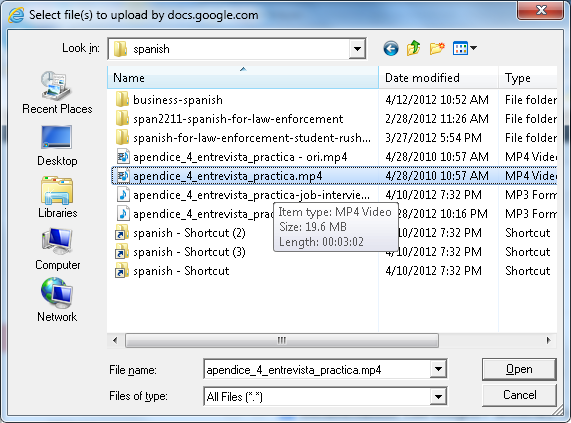
 and on “files”, select a video file:
 (many formats and underlying codecs supported, including Flash, MOV, AVI, WMV, MPG. File size limits: currently “every user is given 1GB of free storage space for files” (not enough for much HD footage, but difficult to upload, and didn’t Google Drive just increase this limit to 5GB, or does this not carry over to Google Apps? Stay tuned for updates), click “Start upload”..
- Wait until upload is finished,
 and then, depending:
- if you want to share the file with colleagues, click on “share” (appears after “cancel”) and fill out the dialogue. You can share your file both
- inside the university community and

- inside the university community and
- outside of the university community:
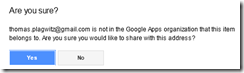

- if you want to share the files with students in your course, there is a better way using Moodle Kaltura video upload;
- if you just want to play the file yourself (including to your students in the classroom), you are already done.
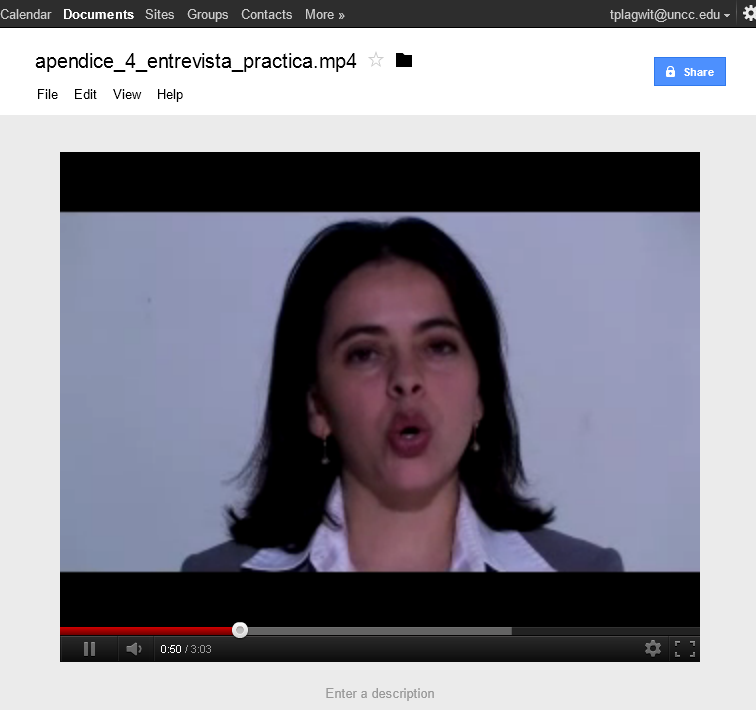
- Go to your files
 and click on the file in the list to play the video: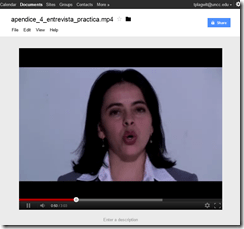
- Also, you can always “get your file back” by “Download”:
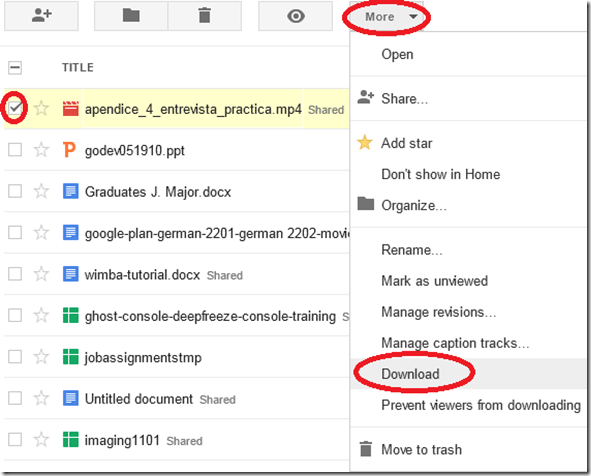 (and note you can also prevent users from downloading the files. This is useful if you only want to temporarily share it, but later revoke permissions).
- if you want to share the file with colleagues, click on “share” (appears after “cancel”) and fill out the dialogue. You can share your file both
- More help is available from the from the source




How to easily merge MP3 files
2012/05/11
Leave a comment
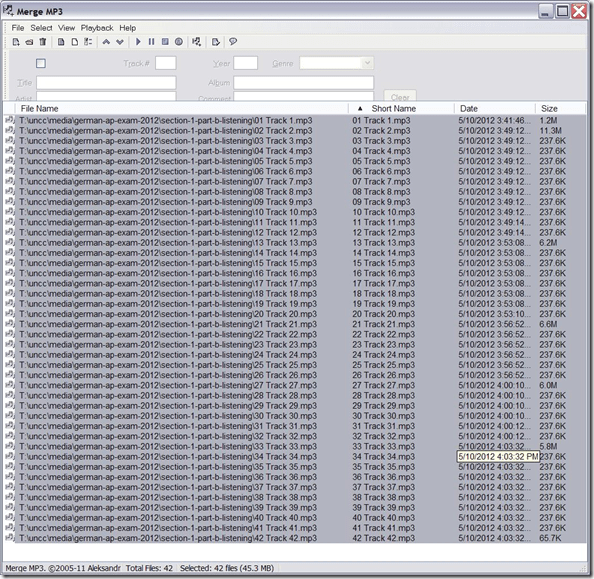
- There are many ways, including many that are easier than doing it manually in Audacity.
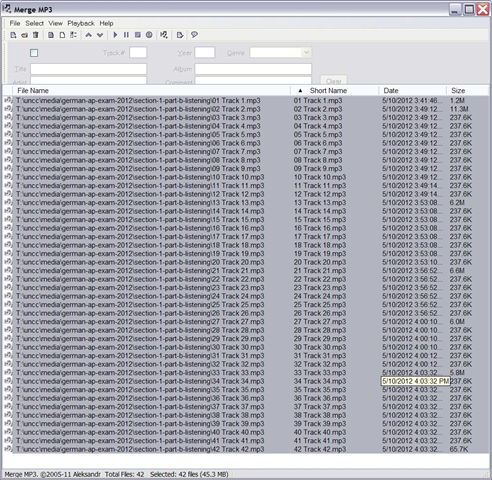
- MergeMP3 is a free and easy one that worked here:
How to automatically uninstall Visual Studio.net 2008/2010 and components
2012/05/09
Leave a comment
- Although not well-publicized, Microsoft has uninstall tools available for VS.net 2008 and 2010 (English).
- This one did the job of stringing together the individual uninstallers nicely here:

- which beats doing it semi-manually as was explained here.

Categories: e-infrastructure
2008, 2010, ms-visual-studio
Bootsect (the command formerly known as fixmbr), may enable your Windows 7 installation to start up from a CorruptVolume
2012/05/07
Leave a comment
- I am trying to back up my system partition to external media. The 3rd party utility I boot into refuses to get to work since it sees inconsistencies on the partition.
- I schedule a chkdsk /f /r from Windows 7 which on restart runs without errors.
- Upon completion, however, Windows 7 fails to boot.
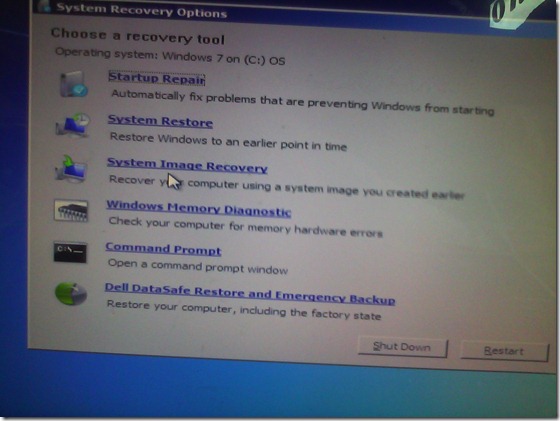 I go in the Startup Repair, but System Repair tells me it cannot fix my problem, but offers System Restore, which I try twice, to no avail.
 Cryptic Error IDs 21200664, googling of which leads to nothing but MS System Engineers advising reimaging the system partition to the factory copy which would lose my 16 months worth of system customizations.
- I feel I have other things to do to research the innards of Windows 7. Faintly I remember that fixmbr used to get me out of fixes with non-starting XP installations. It has been replaced by bootsect /nt60 <driveletter>, and on top of that, it responds with an apparent failure “since the volume could not be locked during the update” (actually deemed likely harmless, or use /force).
- Windows 7 starts up. (WTH?! Check disk versus the master boot record?!)
- Now, am I supposed to use a 3rd party or a Microsoft tool for my system partition backup?


Categories: e-infrastructure, Glitches&Errors
bootsect, bsod, corruptvolume, fixmbr, startup-repair, system-repair, windows-7
Sanako Study 1200 Version 5 now allows for larger student screen thumbnails, but still limits the classroom layout size
2012/05/04
Leave a comment
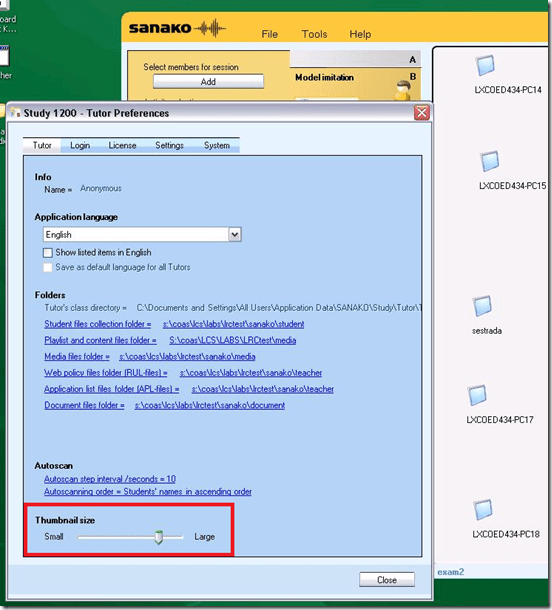
- The capability of increasing the size of the student thumbnails, to be able to easily read the MS-Word writing student exercises template that I had programmed for Sanako Lab 300 was sorely missed in version 1 and 2 of the Sanako Study 1200 software.
-
In version 5, the capability to adjust the size has been added. In Tutor.exe, Go to Menu: tools / preferences / thumbnail-size.
- Now, however, the 20 licensed student seats we have, already fill up the entire Teacher software’s screen estate since the software window cannot be spanned across our multi-monitor setup (The Sanako software seems to have this single-screen limitation built-in. Our unusual asymmetric (1280 and 1024) dual-monitor system may have something to do with it).
- Fortunately, in the newest version 5.42 for of Sanako Study, scrollbars appear and allow for panning the classroom layout window if there are more student icons/thumbnails than will fit on the screen.
- Upgrading to a screen with a larger screen resolution on the teacher computer would be even better.
- We hope to teach up to 30 students (class sizes seem to be constantly increasing, but the LRC also caters to visits of merged class sections which may be even larger than 30 students) in this large classroom setup:




Questions? Read the About. Or just ask me a quick Our Databases: Resources with calendars -- Language learning material Moodle Sites, multimedia files -- films


FAQs for LRC student staff or for students or for teachers. To search our FAQs, in the browser addressbar, add after "https://plagwitz.wordpress.com/feed/?tag=faqs+/" "+TAG1" (from tag cloud below) OR "https://plagwitz.wordpress.com/feed/tag=faqs
&category_name=" "CAT1" (from category hierarchy below). OR search both categories and tags, and multiple TAGs/CATs (connect with "," for OR-search, with "+" for AND-search), like so: https://plagwitz.wordpress.com/feed/?tag=TAG1+TAG2+...TAGn&category_name=CAT1
+CAT2+...CATn"
Other ways to find help
If you cannot find it here, look there: 5,500 Language-Learning Links and Programs for learning or teaching 150 languages
Shortcuts:Our Lists, Our Maps, LRC Staff Moodle Site,LRC Project Moodle Site, 49erexpress, UNCC Moodle, Student Recordings: s:claslcslrcsanakostudent
Learning usage samples: Sanako oral exam, Kaltura webcam presentation, Dictation with speech recognition, Sanako written exam, Chinese and Japanese interactive stroke-order practice
Test the Sanako Installer, Webbrowser Popup Konfigurator for XP, or Windows7, faster LRC TeacherPC Log-in Let MS facilitate diacritics writing by installing for you US-International keyboard layout
This is my personal blog (Google+). The views expressed on these pages are mine alone and not those of my employer. The information in this weblog is provided “AS IS” with no warranties, and confers no rights.
 Thomas' Work Space