Archive
LRC Renovation Proposal: Add small group collaboration spaces by consolidating equipment storage and circulation
- Objective:
- to support new requirements in LCS
- increased and further increasing 1-on-1 tutoring and small group collaboration spaces for the (current) hybrid Spanish program and tele-taught LCTL (imminent: Hindi) programs,
- collaborative presentation and multimedia (e.g. ePortfolio projects) in other languages,
- circulation of multimedia equipment to teachers and students
- with
- small group work spaces
- which we free up by streamlining the workflow (cope with higher traffic, keep accurate records, monitor repair state and provide hands-on instructions) for the increased tech equipment circulation needs (and to make up for one lost office)
- to support new requirements in LCS
- Action proposed:
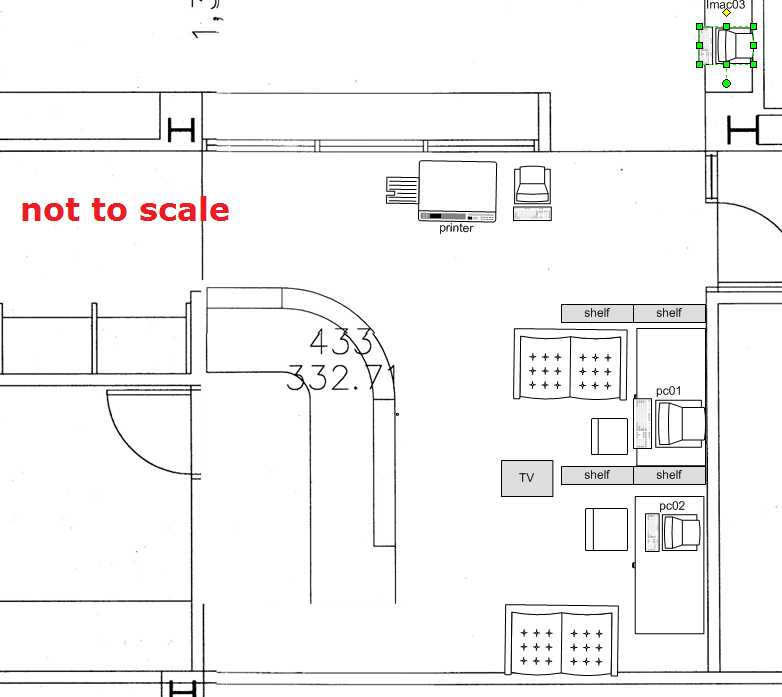
- centralize circulation desk & materials in COED436, with storage, student assistants, supervisor in fishbowl, and walkup circulation counter;
- equip the freed-up spaces 431,433&435a/b with furniture (portable walls, seats,desks,insulation) and technology (power, internet access) for tutoring&small group work.
- Illustrations:
- inspiration from other institutions:
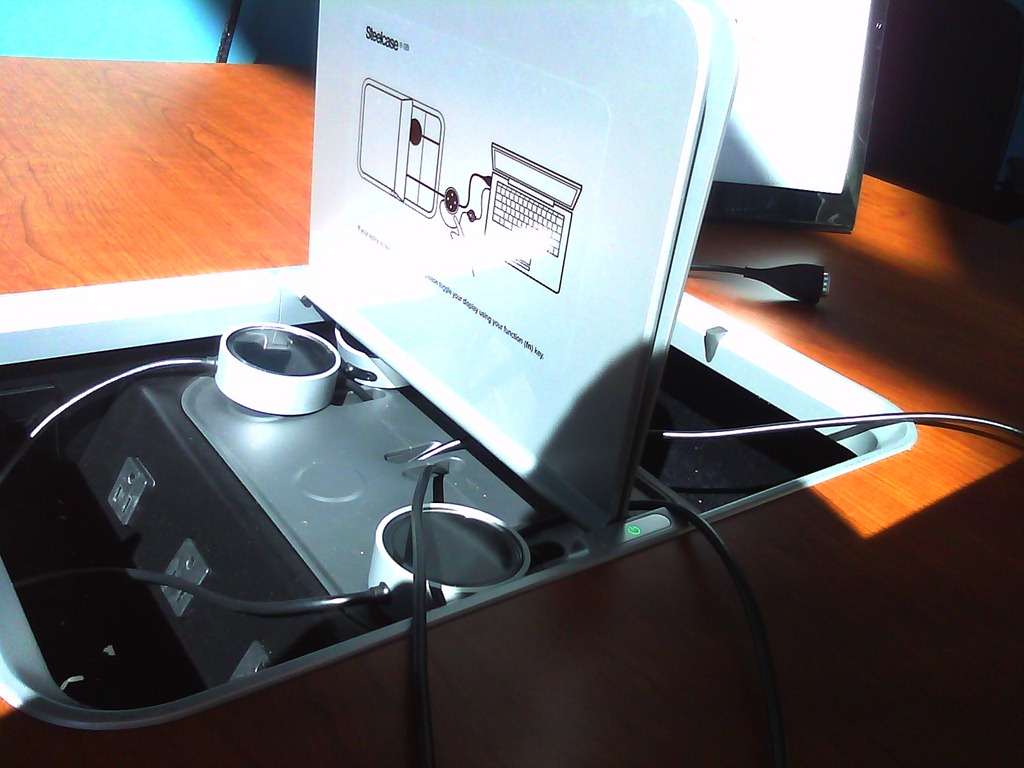
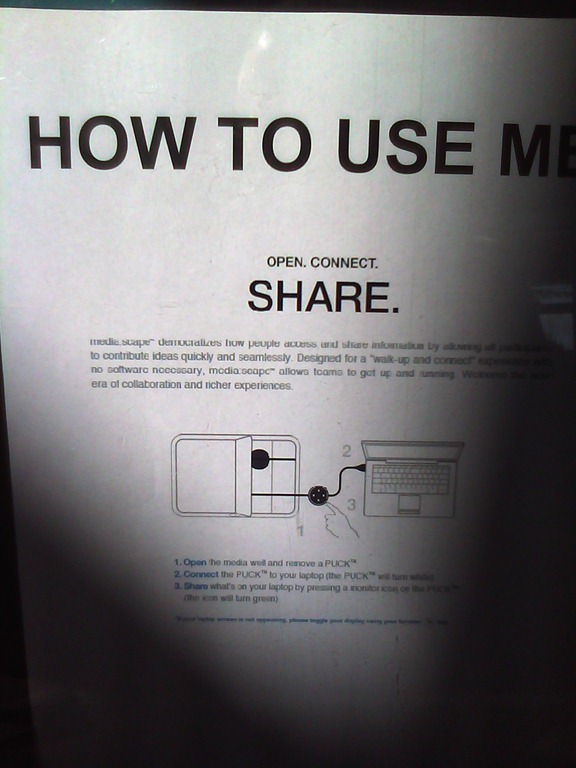
- Shared computer screen small group collaboration spaces
- UNCC Atkins library installation by TBA: We would need better sound insulation to accommodate multiple tutors and groups for currently 12 languages taught:


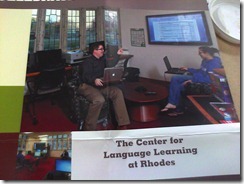
- Rhodes College. We would prefer booths with tables (for laptops, notebooks) to easy chairs.
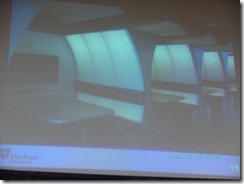
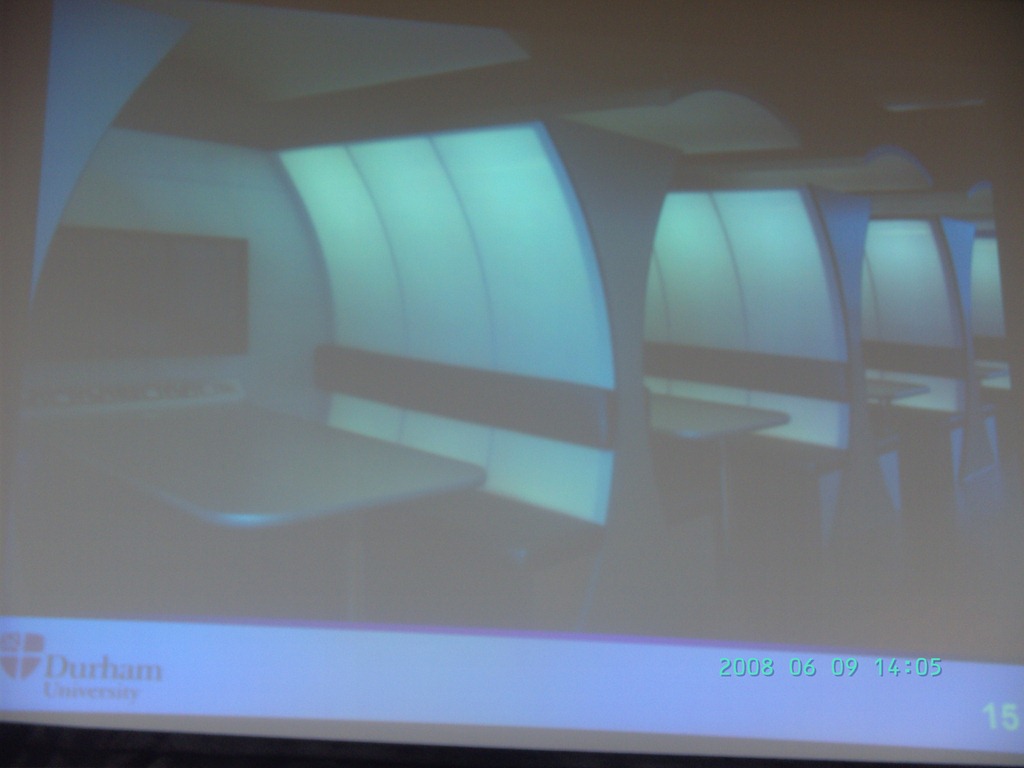
- Computer science collaboration spaces, Durham University, UK. For foreign language exchanges, we would want better sound proofing:

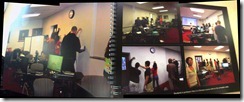
- Rhodes College. whiteboard writable walls would be excellent space savers for small group workspaces:
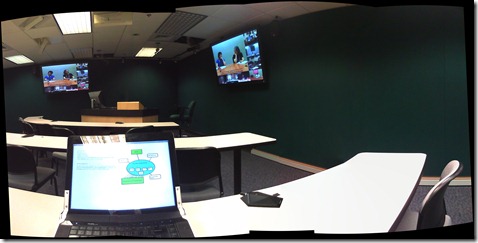
- The Atkins library videoconferencing facility: For small groups in (many different) LCTL, one would better set up a more intimate facility with better audio, possibly with facilities for directed audio channels and possibly breakout groups which are a requirement for SLA classes.
- Loyola University language resource center library walkup counter with one computer shared between staff and client (the LRC would want 2 computers, to serve 2 lines)

- UNCC Atkins library installation by TBA: We would need better sound insulation to accommodate multiple tutors and groups for currently 12 languages taught:
- Shared computer screen small group collaboration spaces
- to document our current facilities:
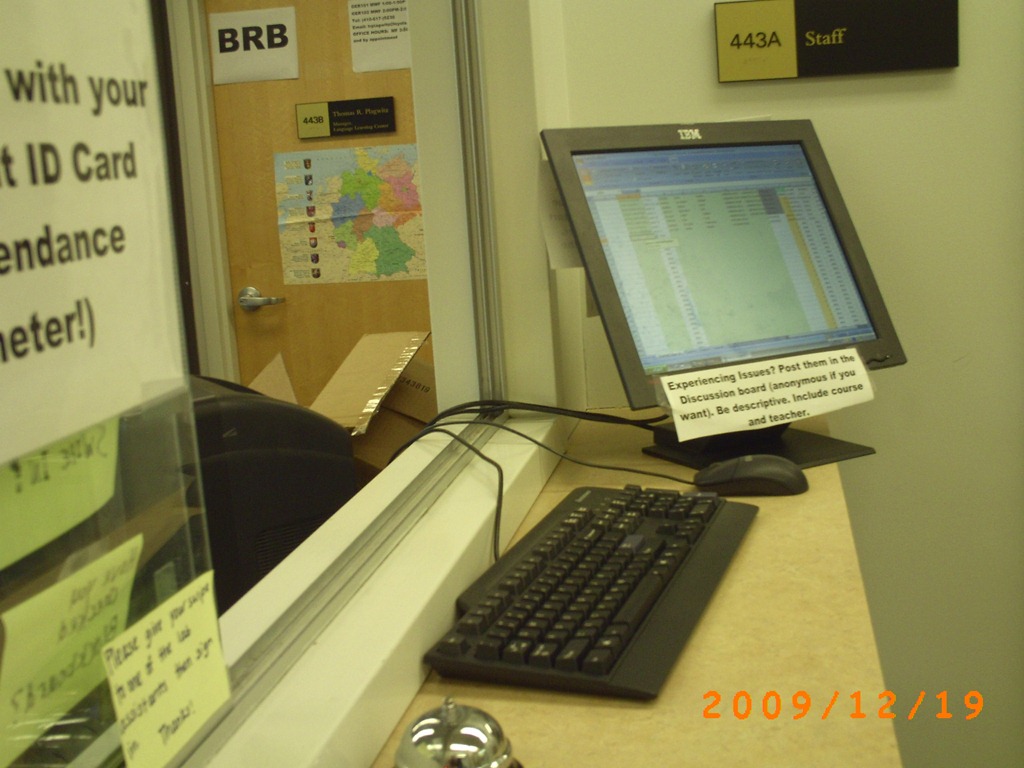
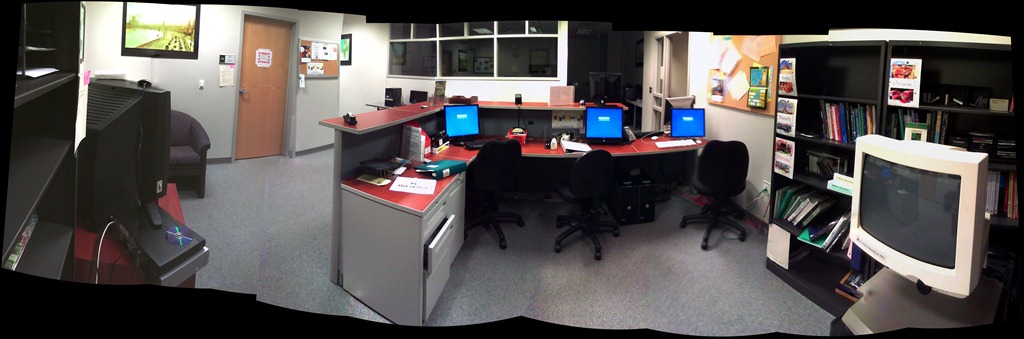
- To the right: Coed 434 (large classroom). To the left: Coed433 (reception area part which should be converted into 2-3 small group workspaces:
- Rooms to be converted into small group workspaces:
- Storage Coed435a, to become teleconferencing or pair workspace:

- Storage Coed4355b, to become teleconferencing or pair workspace:

- Storage Coed431, to become small group workspace:

- Coed436, to become consolidated storage area and office:

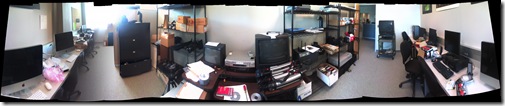
- Or use this as a stopgap:

- Storage Coed435a, to become teleconferencing or pair workspace:
- To the right: Coed 434 (large classroom). To the left: Coed433 (reception area part which should be converted into 2-3 small group workspaces:
- inspiration from other institutions:








The LRC staff Moodle site: An Introduction
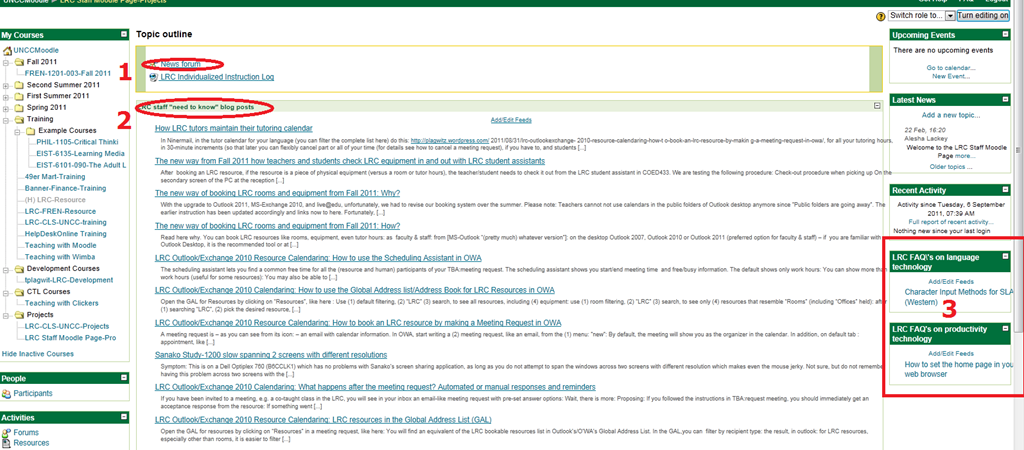
- The LRC has now a Moodle site for staff. All permanent and temporary LRC staff members will be enrolled in this site.
- All permanent and temporary LRC staff members will participate in this site. This means logging in at shift start and reviewing the following sections for new items:
- The news forum: here LRC assistants can find announcements and assigned jobs, as well as post notes of their own for all colleagues and responses.
- The most recent LRC assistant training articles appear here. In these tasks, LRC assistants are supposed to assist clients hands-on with more general
- LRC FAQ’s: LRC assistants have to monitor this block to be in the know about what the LRC has in terms of answer guides to FAQs about technology use in learning, and be able to point clients with questions to these answer guides (i.e. identify an applicable answer guide, display it on the reception computer, email the client the link for the client to review the guide).
The new way of booking LRC rooms and equipment from Fall 2011: Why?
- With the upgrade to Outlook 2011, MS-Exchange 2010, and live@edu, unfortunately, we had to revise our booking system over the summer. Please note: Teachers cannot not use calendars in the public folders of Outlook desktop anymore since ”Public folders are going away”. The earlier instruction has been updated accordingly and links now to here.
- Fortunately, this upgrade also allowed us to expand our booking system, to now include:
- more than rooms and tutors. You can now also book LRC equipment – see the complete list of LRC resources that you can book or check out . And we hope to set up that you can truly sign up for tutoring.
- more than staff: We hope that, with Ninermail (live@edu), students will also be able to book and check out. We hope to achieve better resource utilization this w
- more and faster information to act on, and thus a better workflow
- you get an immediate response
- you can get always a positive response since in “scheduling assistant”, you can see the prior bookings, both times and organizers (hover your mouse over busy times), and can thus either can fit your request into the schedule, or contact the prior organizer for a resolution.
- your bookings and cancellations are immediately disseminated through the scheduling assistant and resource calendars, for others (students, teachers, support staff) to work with/around
- Read more here on how to book LRC resources
The new way of booking LRC rooms and equipment from Fall 2011: How?
- Read here why.
- You can book LRC resources like rooms, equipment, even tutor hours:
- as
- faculty & staff: from [MS-Outlook“(pretty much) whatever version”]:
- on the desktop Outlook 2007, Outlook 2010 or Outlook 2011 (preferred option for faculty & staff) – if you are familiar with Outlook Desktop, it is the recommended tool
- or at http://mail.uncc.edu, using Outlook Web Access (OWA) at http://mail.uncc.edu, in most browsers – we, however, decided to focus our training of new users on OWA.
- student: in Outlook Live (the only option for students) at Ninermail or http://outlook.com,
- faculty & staff: from [MS-Outlook“(pretty much) whatever version”]:
- through
- creating from menu:”new” a “meeting request”
 (for details see How to book an LRC resource)
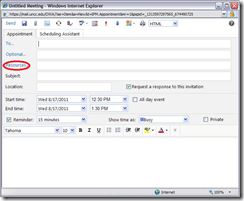
 - and adding a resource (or several: temporarily, to compare which one’s availability fits best into your own schedule; permanently, to book multiple items at once, as long as all start/end times are the same) by clicking on the “Resources”, like here

- all LRC resources names begin with “LRC” and will appear if your search the Global address list (GAL) for “LRC”; all bookable rooms and equipment have been given an email address listed here):
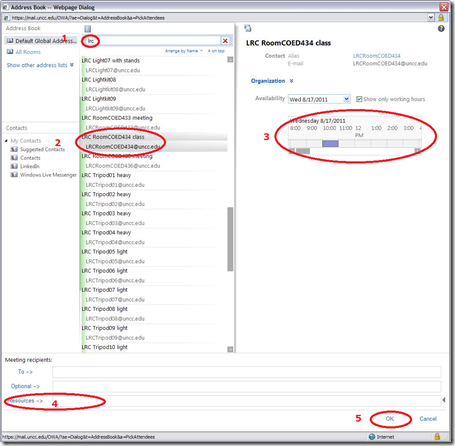
- e.g. to book the LRC main classroom, send to LRC RoomCOED434 class <LRCRoomCOED434@uncc.edu>
- all LRC resources names begin with “LRC” and will appear if your search the Global address list (GAL) for “LRC”; all bookable rooms and equipment have been given an email address listed here):
- and adding other meeting participants, e.g. co-teachers of your class, or LRC staff if you need more than routine support
- If you hold a class in the LRC, to remind students of the new location, teachers could also try and add your class, if you made a convenient group of all students in your class in Outlook.
- and, from the “scheduling assistant”, choosing a time when the room/equipment is free (= blank), not blocked (= solid or hatched) (and all participants),

- and adding a subject with class number and possibly special instructions:
- if you do not allow self-access students on free seats: *EMPTY ROOM*
- if you do not allow tutoring in corners: *NO TUTORING*:
- I will ask the LRC assistants (unfortunately we have large gaps in the schedule) and tutors to load and check the lrcroomcoed434@uncc.edu so that tutors can relocate with their students on time.
- and sending it (like email to a person) to the room or equipment
- What happens next?
- await responses: Read more in What happens after the meeting request.
- monitor calendars: you can link into your OWA the calendars of those resources that you use frequently (e.g. a piece of equipment, an LRC classroom or tutor office for the language you study). Read more in View Calendars.
- If you need to release the resource, i.e. to free up the room/equipment for others to use – esp. helpful when you have the LRC booked for your entire class, but won’t meet there this week), open the meeting form your calendar and click in the top menu the buttons cancel series, ”send update”
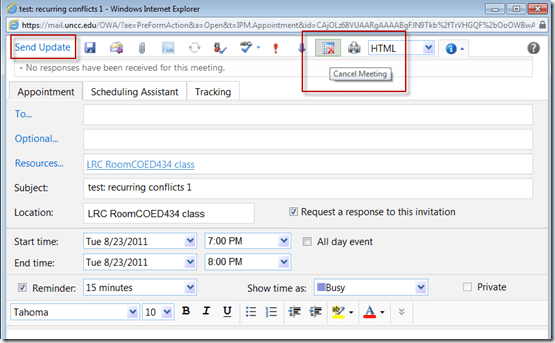 (for details see how to cancel a meeting request)
 - SummaryList of Links:
- this intro
- list of LRC resources that you can book or check out
- request resource meeting
- change meeting request
- cancel meeting resource
- resources in OWA’s Global Address List (GAL)
- scheduling assistant, avoiding scheduling conflicts
- resource responses
- resource calendars for staff, and for students
- equipment check-out/in
- why?
- For further reading: Microsoft explains Scheduling for Outlook Livein more detail here:




LRC Outlook/Exchange 2010 Resource Calendaring: How to use the Scheduling Assistant in OWA
- The scheduling assistant lets you find a common free time for all the (resource and human) participants of your meeting request.
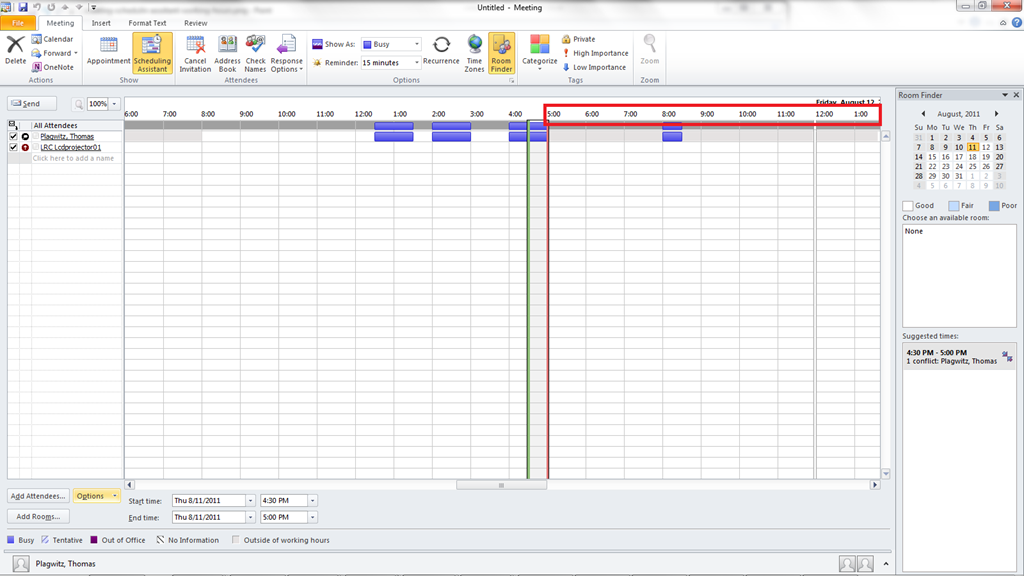
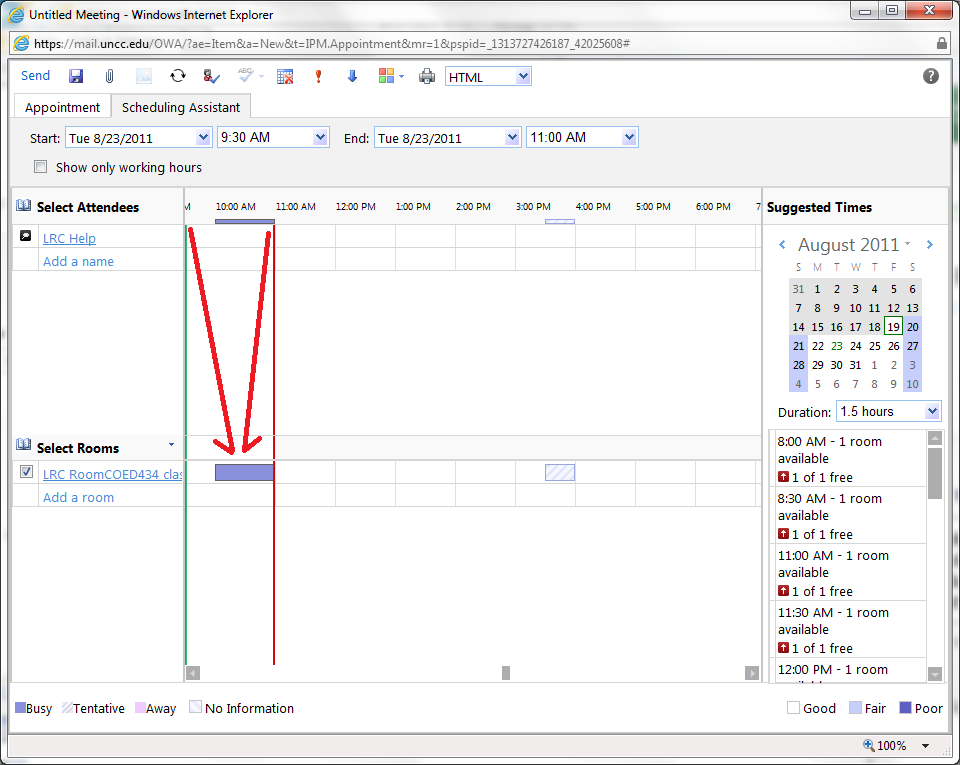
- The scheduling assistant shows you start/end meeting time and free/busy information.
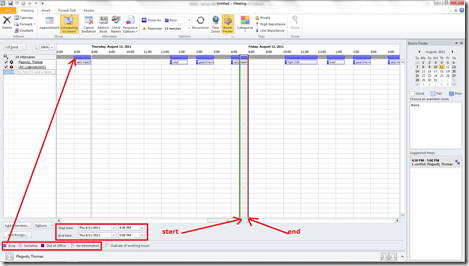
- The default shows only work hours:

- You can show more than work hours (useful for some resources):

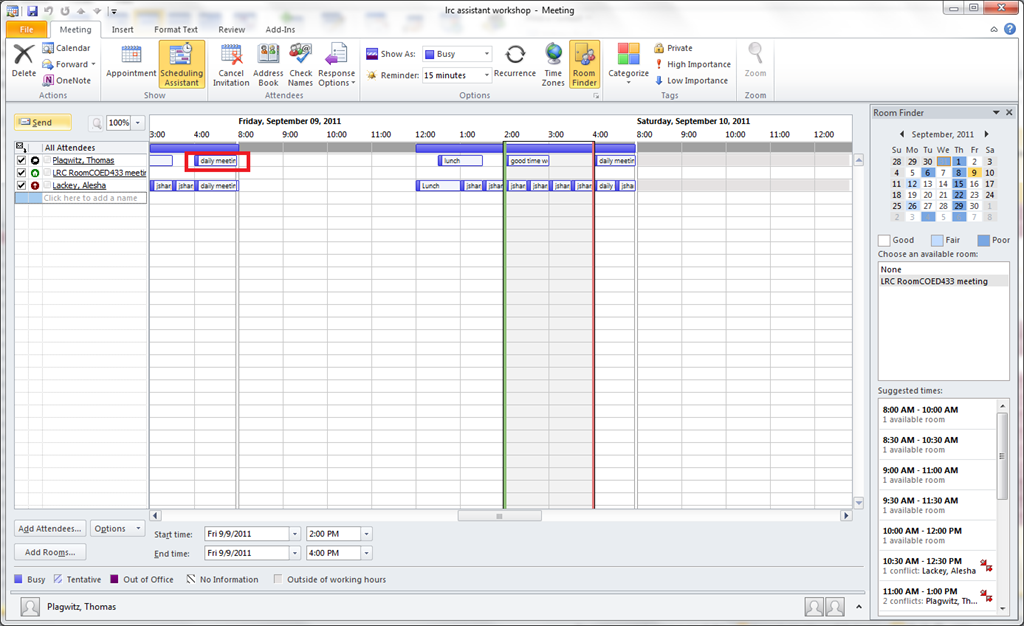
- You may also be able to see the meeting subjects.

- You can spot scheduling conflicts in advance, instead of sending a meeting request that will have to be denied.

- For some resources, you can make a recurrent/repeating meeting request:
 . note that you will lose the begin/end markers: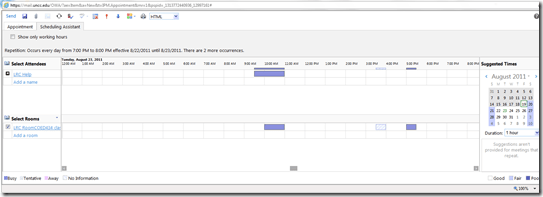




LRC Outlook/Exchange 2010 Calendaring: How to use the Global Address list/Address Book for LRC Resources in OWA
- Open the GAL for Resources by clicking on “Resources”, like here :
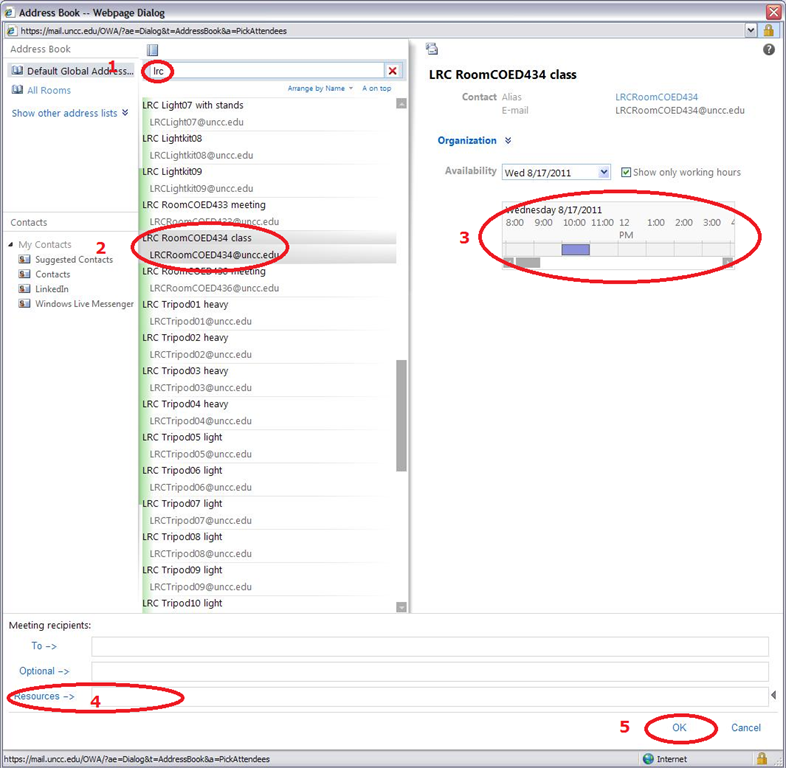
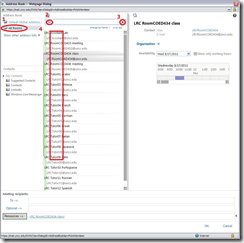
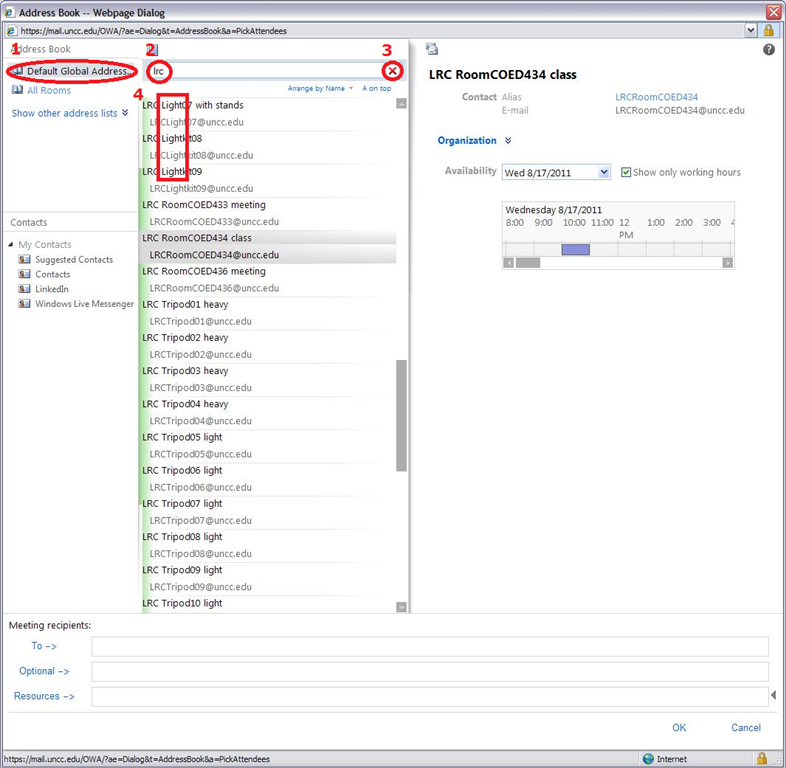
- Use (1) default filtering, (2) “LRC” (3) search, to see all resources, including (4) equipment:

- use (1) room filtering, (2) “LRC” (3) search, to see only (4) resources that resemble “Rooms” (including “Offices” held):
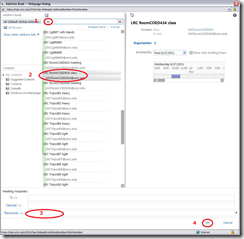
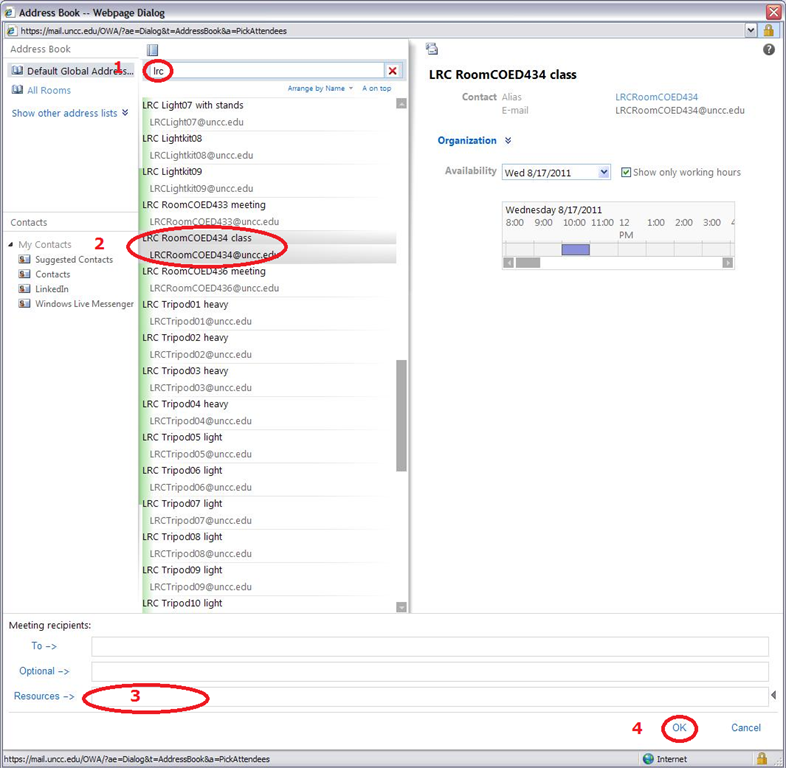
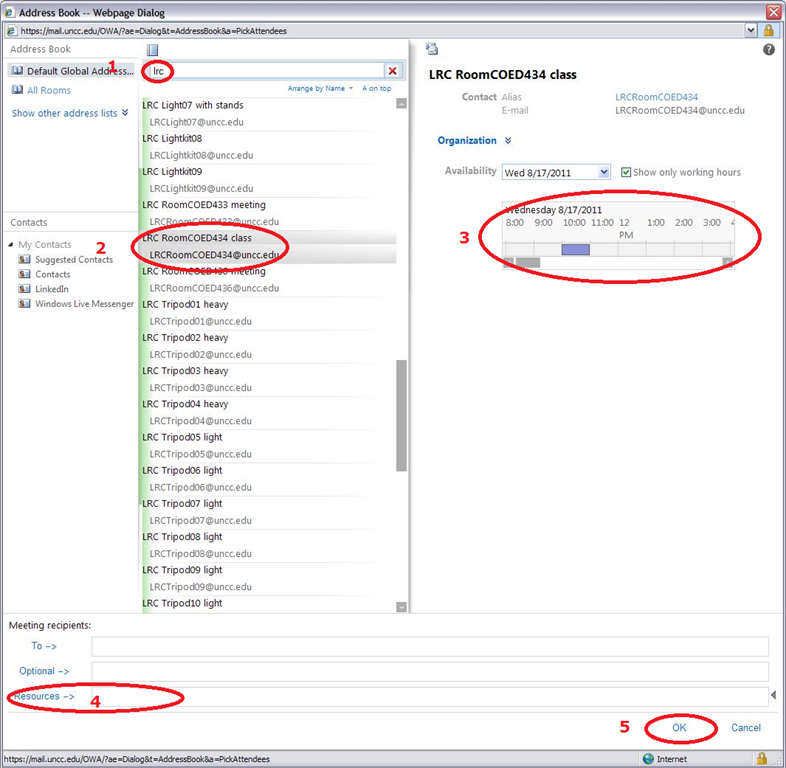
- after (1) searching “LRC”, (2) pick the desired resource, (3) add it to the resources recipient list, (4) click “ok” to close the address book (which will send you back to your meeting request)
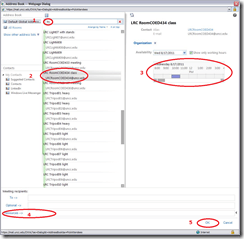
- if there are several equivalent resources you could use (like any of our voice recorders), you can quickly compare their immediate availability using the scheduling window in the right pane
- if you need a better overview over availability of the resource, and other participants, add multiple resources to the to-list and compare their availability using the “Scheduling Assistant” which features a full legend and easy-to-read begin/end markers for your chosen begin/end times
- In the address book, you have a limited (to today) preview of the (3) schedule of the resource, which can aid you in deciding which resource to add to the resources-list
-
- Alternatively, for a more expansive schedule, add all equivalent resources (e.g. lights) and decide later in the scheduling assistant which one to send the meeting request to


LRC Outlook/Exchange 2010 Resource Calendaring: How to book an LRC resource by making a Meeting Request in OWA
- A meeting request is – as you can see from its icon:
 – an email with calendar information.
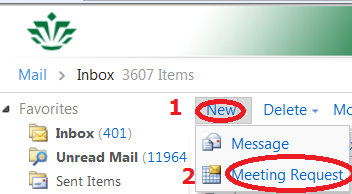
 - In OWA, start writing a (2) meeting request, like an email, from the (1) menu: ”new” (click not on “new” directly, but on the arrow next to “new” to unfold the menu:

- By default, the meeting will show you as the organizer in the calendar. In addition, on default tab : appointment, like in an email, you may want to add subject (like your course number), and a message body (e.g. “to make audio recordings with 20 students”).

- Start adding “resources” (do not send “to” a room or equipment piece, and send “to” people only if you need them to staff the room or operate the equipment for you) by clicking it:

- This will open the window: Address book (read more on the Address book), find and select your “LRC” resource in the list of LRC bookable resources and click “OK”:

- Switch from default tab : appointment to tab: scheduling assistant , and set the meeting (1) start and (2) end day/time, to when the resource is (3) available:
 (read more on the Scheduling Assistant)
 - from the default tab : appointment, click button: send.

- For what happens next, see responses and calendar.
- For a high-level overview, see this LRC calendaring How-to




Moodle Metacourses, part IV: The support workflow: Transcoding audio learning materials
The MS-WMA-Voice codec features very acceptable audio quality for spoken language learning materials in a highly compressed format. It allowed me to reduce our existing audio files collection size by about 50%.
Expression Encoder 3 crashed a few times during encoding this queue of 3.500 audio files. In addition, it took a long time to reload the .XEJ project files of such a size. It is, however, easy enough to inspect the XEJ in an XML editor:

And even easier to delete the finished media files form the queue using a text editor: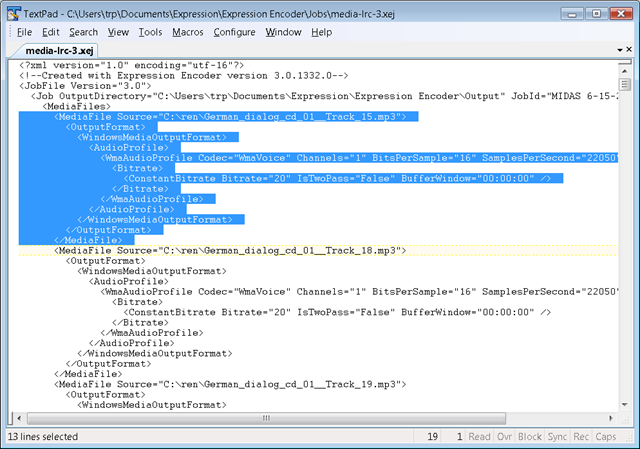
I am wondering whether this queuing could be streamlined (recovery automated, and the need for human interaction be reduced) using the PowerShell Module for Automating Expression-Encoder, but so far the process is good enough.


Questions? Read the About. Or just ask me a quick Our Databases: Resources with calendars -- Language learning material Moodle Sites, multimedia files -- films


FAQs for LRC student staff or for students or for teachers. To search our FAQs, in the browser addressbar, add after "https://plagwitz.wordpress.com/feed/?tag=faqs+/" "+TAG1" (from tag cloud below) OR "https://plagwitz.wordpress.com/feed/tag=faqs
&category_name=" "CAT1" (from category hierarchy below). OR search both categories and tags, and multiple TAGs/CATs (connect with "," for OR-search, with "+" for AND-search), like so: https://plagwitz.wordpress.com/feed/?tag=TAG1+TAG2+...TAGn&category_name=CAT1
+CAT2+...CATn"
Other ways to find help
If you cannot find it here, look there: 5,500 Language-Learning Links and Programs for learning or teaching 150 languages
Shortcuts:Our Lists, Our Maps, LRC Staff Moodle Site,LRC Project Moodle Site, 49erexpress, UNCC Moodle, Student Recordings: s:claslcslrcsanakostudent
Learning usage samples: Sanako oral exam, Kaltura webcam presentation, Dictation with speech recognition, Sanako written exam, Chinese and Japanese interactive stroke-order practice
Test the Sanako Installer, Webbrowser Popup Konfigurator for XP, or Windows7, faster LRC TeacherPC Log-in Let MS facilitate diacritics writing by installing for you US-International keyboard layout
This is my personal blog (Google+). The views expressed on these pages are mine alone and not those of my employer. The information in this weblog is provided “AS IS” with no warranties, and confers no rights.
 Thomas' Work Space