Archive
Protected: LRC calendars requirements and configuration management
UNC-Charlotte Shortcuts
Archived Links: Need Help?For general computer problems call central Helpdesk: x75500 to get remote assistance on your computer. Or post to online or email help at uncc.edu. Also check for campus-wide known issues on the ITS Alerts page. LRC-specific problems? 1st ask LRC help desk. Then email a photo of problem/screen from your phone to lrchelp at uncc.edu.
How to work around flat flush-left nested lists in Windows Live Writer
- Windows Live Writer (2012), in WYSIWYG mode under the “edit” tab, conveniently interprets “tab” keys, when issued within an <ol>/<ul>, as, i.e. converts them into nested lists.
- However, Windows Live Writer does not horizontally indent the nested lists. Rather the lists appear “flat” flush left –(restart in ) only numbering and vertical indentation, like so:

- The underlying source code feature is that <li> get immediately closed, before the nested <ol> gets even opened, as you can see here:

- You can force the indented view by wrapping the <li></li> around the nested <ol></ol?, like so:

- The resulting look with horizontal indentation:

- Unfortunately, to make matters worse, certain work with lists in the “edit” mode make them revert back to the default “flat”view. So you often have to redo your work under the source code tab.


How to work around broken links and visible “Machine generated alternative text”issues with images from MS-OneNote in Windows Live Writer
- Problem: Sometimes when you use Windows Live Writer (2012) to post images copied from MS-OneNote (2010, 2013), the result (on WordPress) can get messed up, like so (post has since been fixed as described below):
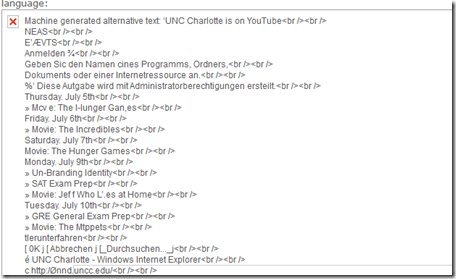
- The image is missing (“src=” link broken).
- The “alt=” text is visible instead (and you did not want to post this “alt=”text anyway. (MS-OneNote OCRs images to make the text therein searchable; this text is put into the “alt”when pasting from MS-OneNote).
- Root cause:
- Windows Live Writer converts the pasted content by
- removing the “alt=”Machine generated alternative text: [deleted for brevity]”
- creating from the pasted content thumbnail images
- which it links in the “src=” tag, and links the thumbnail image to the full-size original image.
- If something – unclear what – prevents this conversion, Unfortunately, this is not obvious from the “edit” tab view or elsewhere within Windows Live Writer. But when posted, will result in “Machine generated alternative text” from MS-OneNote in place, but even break the image src link:
 .
. - What exactly triggers (and would allow you to force) a successful conversion within Windows Live Writer I do not know. However, there is a simple:
- Windows Live Writer converts the pasted content by
- Workaround:
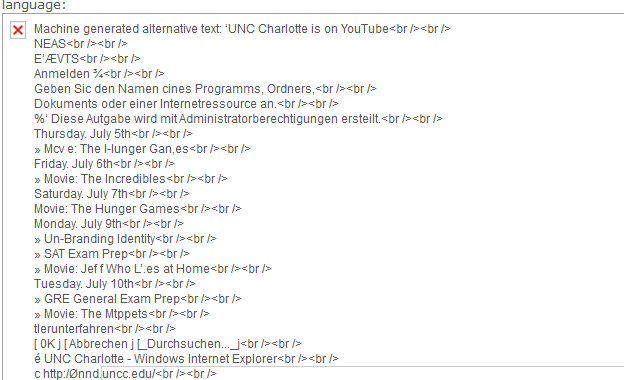

- After pasting your images, be patient : The trick seems to be to give Windows Live Writer enough time (more apparently if you have pasted multiple images) to finish
- Things you can look for in Windows Live Writer to make sure the conversion is finished:
- edit tab: you can tell the difference by the resizing of the image on the edit tab:
- before:

- after (= conversion finished):
- before:
- source code tab: A somewhat radical solution, but here beneficial is that the conversion removes the imported “alt” text of the image.
- before: alt=”Machine generated alternative text: [deleted for brevity]” src=”$clip_image006.jpg”
- after: alt=”clip_image006″ src=”$clip_image006_thumb.jpg”
- edit tab: you can tell the difference by the resizing of the image on the edit tab:
Digitales Wörterbuch der Deutschen Sprache dwds.de

If you can handle – or actually prefer the increased stimulus of – a monolingual dictionary resource, this one looks nice – with its parallel display of dictionary entries, etymology, common collocates, and empirical use in KWIK format – and well-founded: Based on the Wörterbuch der deutschen Gegenwartssprache (WDG) and providing access to many corpora that document empirical use (including frequency and longitudinal information) of the language – modern German, including spoken language and many newspapers, altogether comprising about 1.75 bn words.
Enterprise Library Logging Sample
Using Enterprise Library (still on 5), You can declaratively configure the logger properties (including desired formatting, see Textformatter template below)) in the app.config’s appsettings:
  <loggingConfiguration name="Logging Application Block" tracingEnabled="true"
  defaultCategory="General" logWarningsWhenNoCategoriesMatch="true">   <listeners>    <add name="Event Log Listener" type="Microsoft.Practices.EnterpriseLibrary.Logging.TraceListeners.FormattedEventLogTraceListener, Microsoft.Practices.EnterpriseLibrary.Logging, Version=5.0.505.0, Culture=neutral, PublicKeyToken=31bf3856ad364e35"
    listenerDataType="Microsoft.Practices.EnterpriseLibrary.Logging.Configuration.FormattedEventLogTraceListenerData, Microsoft.Practices.EnterpriseLibrary.Logging, Version=5.0.505.0, Culture=neutral, PublicKeyToken=31bf3856ad364e35"
    source="Enterprise Library Logging" formatter="Text Formatter 2"
    log="" machineName="." traceOutputOptions="None" />    <add name="Rolling Flat File Trace Listener" type="Microsoft.Practices.EnterpriseLibrary.Logging.TraceListeners.RollingFlatFileTraceListener, Microsoft.Practices.EnterpriseLibrary.Logging, Version=5.0.505.0, Culture=neutral, PublicKeyToken=31bf3856ad364e35"
    listenerDataType="Microsoft.Practices.EnterpriseLibrary.Logging.Configuration.RollingFlatFileTraceListenerData, Microsoft.Practices.EnterpriseLibrary.Logging, Version=5.0.505.0, Culture=neutral, PublicKeyToken=31bf3856ad364e35"
    fileName="%AppData%\trpsoft\langlabemailer\trace-rolling.log"
    footer="" formatter="Text Formatter" header="" rollFileExistsBehavior="Increment"
    rollInterval="Day" rollSizeKB="1000" maxArchivedFiles="10" traceOutputOptions="None" />    <add name="Flat File Trace Listener" type="Microsoft.Practices.EnterpriseLibrary.Logging.TraceListeners.FlatFileTraceListener, Microsoft.Practices.EnterpriseLibrary.Logging, Version=5.0.505.0, Culture=neutral, PublicKeyToken=31bf3856ad364e35"
    listenerDataType="Microsoft.Practices.EnterpriseLibrary.Logging.Configuration.FlatFileTraceListenerData, Microsoft.Practices.EnterpriseLibrary.Logging, Version=5.0.505.0, Culture=neutral, PublicKeyToken=31bf3856ad364e35"
    fileName="%AppData%\trpsoft\langlabemailer\exception.log" header=""
    footer="" formatter="Text Formatter" traceOutputOptions="None" />    <add name="Rolling Flat File Trace Listener 2" type="Microsoft.Practices.EnterpriseLibrary.Logging.TraceListeners.RollingFlatFileTraceListener, Microsoft.Practices.EnterpriseLibrary.Logging, Version=5.0.505.0, Culture=neutral, PublicKeyToken=31bf3856ad364e35"
    listenerDataType="Microsoft.Practices.EnterpriseLibrary.Logging.Configuration.RollingFlatFileTraceListenerData, Microsoft.Practices.EnterpriseLibrary.Logging, Version=5.0.505.0, Culture=neutral, PublicKeyToken=31bf3856ad364e35"
    fileName="%AppData%\trpsoft\langlabemailer\exception-rolling.log"
    footer="" formatter="Text Formatter" header="" rollFileExistsBehavior="Increment"
    rollInterval="Hour" rollSizeKB="100" maxArchivedFiles="10" filter="All" />   </listeners>   <formatters>    <add type="Microsoft.Practices.EnterpriseLibrary.Logging.Formatters.TextFormatter, Microsoft.Practices.EnterpriseLibrary.Logging, Version=5.0.505.0, Culture=neutral, PublicKeyToken=31bf3856ad364e35"
    template="Timestamp	 {timestamp}	Message	 {message}	Category	 {category}	Priority	 {priority}	EventId	 {eventid}	Severity	 {severity}	Title	{title}	Machine	 {localMachine}	App Domain	 {localAppDomain}	ProcessId	 {localProcessId}	Process Name	 {localProcessName}	Thread Name	 {threadName}	Win32 ThreadId	{win32ThreadId}	Extended Properties	 {dictionary({key} - {value})}"
    name="Text Formatter" />    <add type="Microsoft.Practices.EnterpriseLibrary.Logging.Formatters.TextFormatter, Microsoft.Practices.EnterpriseLibrary.Logging, Version=5.0.505.0, Culture=neutral, PublicKeyToken=31bf3856ad364e35"
    template="Timestamp: {timestamp}{newline}
Message: {message}{newline}
Category: {category}{newline}
Priority: {priority}{newline}
EventId: {eventid}{newline}
Severity: {severity}{newline}
Title:{title}{newline}
Machine: {localMachine}{newline}
App Domain: {localAppDomain}{newline}
ProcessId: {localProcessId}{newline}
Process Name: {localProcessName}{newline}
Thread Name: {threadName}{newline}
Win32 ThreadId:{win32ThreadId}{newline}
Extended Properties: {dictionary({key} - {value}{newline}
)}"
    name="Text Formatter 2" />   </formatters>
<categorySources> <add switchValue="All" name="General"> <listeners> <add name="Rolling Flat File Trace Listener" /> </listeners> </add> <add switchValue="All" name="Exceptions"> <listeners> <add name="Event Log Listener" /> <add name="Rolling Flat File Trace Listener 2" /> </listeners> </add> </categorySources> <specialSources> <allEvents switchValue="All" name="All Events" /> <notProcessed switchValue="All" name="Unprocessed Category" /> <errors switchValue="All" name="Logging Errors & Warnings"> <listeners> <add name="Event Log Listener" /> </listeners> </errors> </specialSources> </loggingConfiguration> <exceptionHandling> <exceptionPolicies> <add name="Log and Rethrow"> <exceptionTypes> <add name="All Exceptions" type="System.Exception, mscorlib, Version=2.0.0.0, Culture=neutral, PublicKeyToken=b77a5c561934e089"
postHandlingAction="NotifyRethrow"> <exceptionHandlers> <add name="Logging Exception Handler" type="Microsoft.Practices.EnterpriseLibrary.ExceptionHandling.Logging.LoggingExceptionHandler, Microsoft.Practices.EnterpriseLibrary.ExceptionHandling.Logging, Version=5.0.505.0, Culture=neutral, PublicKeyToken=31bf3856ad364e35"
logCategory="Exceptions" eventId="100" severity="Error" title="Enterprise Library Exception Handling"
formatterType="Microsoft.Practices.EnterpriseLibrary.ExceptionHandling.TextExceptionFormatter, Microsoft.Practices.EnterpriseLibrary.ExceptionHandling"
priority="0" /> </exceptionHandlers> </add> </exceptionTypes> </add> </exceptionPolicies> </exceptionHandling> <appSettings>
Import and call the logger like so:
using Microsoft.Practices.EnterpriseLibrary.ExceptionHandling.Logging;

using Microsoft.Practices.EnterpriseLibrary.Logging;

Logger.Write("regex:RegExRecordingFileGroup - target:" + "\t" + _filenamenoext + "\t" + strGroups);
Which outputs: 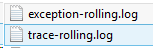 and
and
 ,
,
the latter can be easily imported and analyzed in MS-Excel:

These are obviously only the simplest examples, study the Enterprise Library documentation for more customization
ScreenToGif Debugging: Object reference not set to an instance of an object (#7)
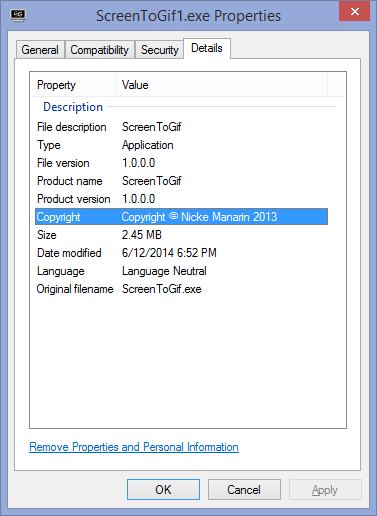
- Trying to contribute a tiny bit to the development of this great utility ScreenToGif:
- 1st version:

- crashes on pressing “stop”:

- the Log
- Title: NullPointer in the Stop function 7
Message: Object reference not set to an instance of an object.
Source: ScreenToGif
TargetSite: Void Stop()
StackTrace: at ScreenToGif.Legacy.Stop()
Date/Time: 7/3/2014 12:55:16 PM
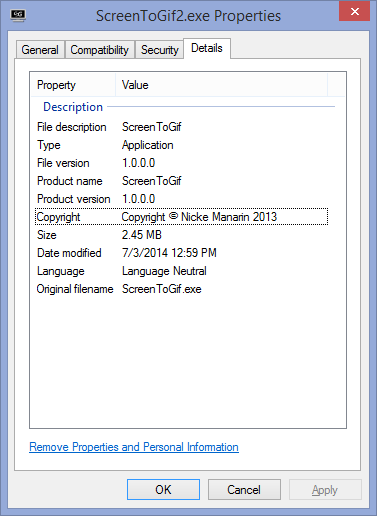
============================== - Newer version:

- does not hang on “stop”
- after adding overlay text (great new feature!),

- seems to hang on pressing “Done” with “Analizing [sic] Unchanged Pixels”
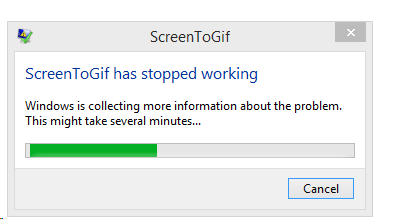
- crashes on pressing window close:

- Maybe I was just not patient enough? for:
- without adding overlay pixels:
- seems to also take a long time (2-3minutes analyzing, without a progress bar, or any other indication that the program is still working and has not crashed – the couple of minutes “Processing” seem to go by faster, thanks to the progress bar and frame counter) for a 5fps 1073*810, about 300frames, but hey! It works:

- Plus you can now open the resulting GIF file directly from the creator.
- Actually, when I click “Stop” (I realize I am supposed to click “Close”), I still get a NullReferenceException (#9), probably should not:

- No log has been outputted with the new version .






Questions? Read the About. Or just ask me a quick Our Databases: Resources with calendars -- Language learning material Moodle Sites, multimedia files -- films


FAQs for LRC student staff or for students or for teachers. To search our FAQs, in the browser addressbar, add after "https://plagwitz.wordpress.com/feed/?tag=faqs+/" "+TAG1" (from tag cloud below) OR "https://plagwitz.wordpress.com/feed/tag=faqs
&category_name=" "CAT1" (from category hierarchy below). OR search both categories and tags, and multiple TAGs/CATs (connect with "," for OR-search, with "+" for AND-search), like so: https://plagwitz.wordpress.com/feed/?tag=TAG1+TAG2+...TAGn&category_name=CAT1
+CAT2+...CATn"
Other ways to find help
If you cannot find it here, look there: 5,500 Language-Learning Links and Programs for learning or teaching 150 languages
Shortcuts:Our Lists, Our Maps, LRC Staff Moodle Site,LRC Project Moodle Site, 49erexpress, UNCC Moodle, Student Recordings: s:claslcslrcsanakostudent
Learning usage samples: Sanako oral exam, Kaltura webcam presentation, Dictation with speech recognition, Sanako written exam, Chinese and Japanese interactive stroke-order practice
Test the Sanako Installer, Webbrowser Popup Konfigurator for XP, or Windows7, faster LRC TeacherPC Log-in Let MS facilitate diacritics writing by installing for you US-International keyboard layout
This is my personal blog (Google+). The views expressed on these pages are mine alone and not those of my employer. The information in this weblog is provided “AS IS” with no warranties, and confers no rights.
 Thomas' Work Space