Archive
How teachers prepare files for oral exam with Sanako Study 1200
- For an oral exam with visual cues (example), make a PowerPoint slideshow by
- finding images, e.g. online
- (e.g using Google image search,
- and optionally advanced search,
- and optionally filtering by clip art.
- and optionally advanced search,
- (e.g using Google image search,
- saving found images to a local folder (e.g. “my documents”),
- using them with PowerPoint’s PhotoAlbum feature
- saving the result as [your username]_[your class####]_oral-exam##.pptx.
- finding images, e.g. online
- For an oral exam with aural cues,
- if you do not have the Sanako student recorder installed on your PC yet,
- Follow the instructions here to install it for use in your office (or even at home – make sure you have access to the network share with the recordings if you want give aural feedback with insert recording)
- or come to the LRC to record where the Sanako is set up be default;
- fill out our oral exam MS-Word template (sample question included) from here (use the lower right menu download button).
-
Start the Sanako student recorder (in the LRC or on your own computer – if in need, you can borrow one of headsets in this this list),
- press the red record-button in the center right, as shown here and
- read out the MS-word template, row by row, that you just filled out.
- Once done, press the blue stop button.
- Go to Menu: file / save as/ [your username]_[your class####]_oral-exam##.mp3.
- if you do not have the Sanako student recorder installed on your PC yet,
- Normally (it is still being worked on),
- you could save all files in a special Sanako folder visible on the desktop of your office PC,
- from which I, as soon as you let me know about the files, can pick them up in my office to finalize them for delivery in the LRC and
- from which you can pick up the final version in the classroom to when administering the exam in the Sanako lab.
- Questions remain? Come to the LRC reception desk during regular business hours with this blog post to be walked through this step-by-step.
How to create a visual cue exam file using Insert Photo album in PowerPoint
Once you have found (e.g. with a Google advanced image search) your desired images and saved them in a folder, open PowerPoint (e.g. by clicking “start”/ “run”/ typing “powerpnt”, click “OK”) and do this: 

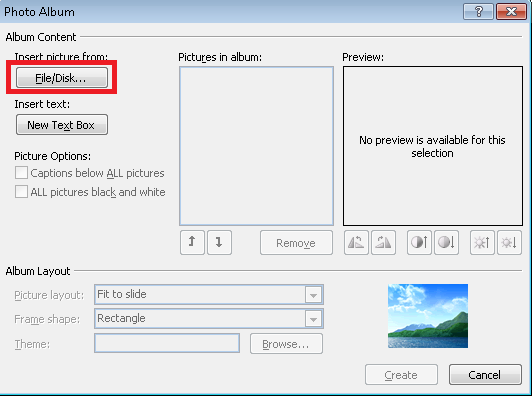

Result: an easy displayable list of images (you may want to drag&drop the slide thumbnails on the left in to a different sequence if you did not get the sequence right in the above “PhotoAlbum” dialogue: 
How to find clip art for learning material creation with Google’s Advanced Image Search
Once you made it to http://images.google.com, click on the “options” button in the upper right and choose “Advanced search”:

One of the useful options for learning material creation is restricting search to “clip art”, like in the screenshot below:

The results in many cases are more different – and useful – than in this example:
So give it a try, and also let us know in the comments what other advanced image search options you like to use in your learning material creation.
Does the Sanako Study 1200 tutor set the input language to Chinese (traditional)?
- Or why is my input language set to Chinese after the Sanako tutor install:

- Unclear whether the tutor install has an effect on the default language, but we observed this problem earlier on an XP computer that also had the Sanako study 1200 tutor.

How to redirect Windows Live Writer “My Weblog Posts” to SkyDrive using Symbolic Links
- UPDATE: Using Junctions and Symbolic Links has limitations, e.g. I have not found a way to point a network share location of to my Skydrive folder. A solution using a secret windows live writer supported key in the registry is explained here seems simpler and better (assuming support for this key will not vanish in a new release of windows live writer).
- Benefits:
- Recently, the documentation and training materials I do with windows Live Writer have become somewhat more evolved, and my Live writer posts both big and live documents.
- With this method, I can access and edit your posts and drafts from different computers. Possibly also save drive space on the drive where the “My weblog Posts”points to be default.
- Prerequisites:
- MS-SkyDrive account and app.
- Here we are using the Link Shell Extension, but you can use the mklink command built-into Windows.
- To create Symlinks, you need to have admin rights.
- Steps:
- After closing Live Writer, go to “My Weblog Posts” in your “My Documents” folder, move it to your SkyDrive folder.
- In the new location, right-click on the folder “My Weblog Posts”, choose “Pick link source”.
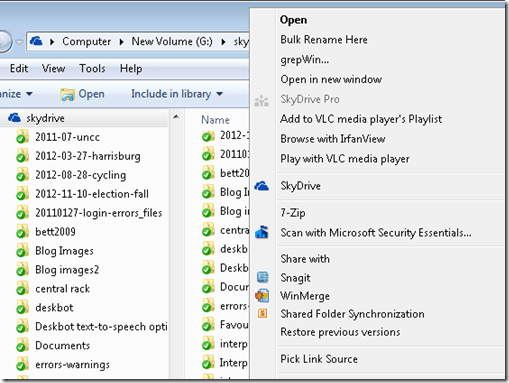
- Right-click on the “My documents”folder in the original location and choose Drop link / Symbolic Link.
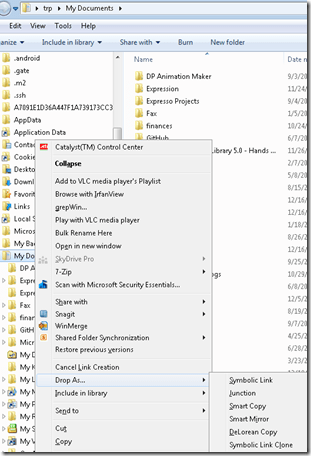
- The original location is now only a link (see folder icon), but Live Writer still opens.
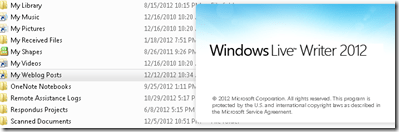
- Final step: Blog this from Live Writer, then check the location of your weblog post.




The big LRC SANAKO “How do I…?”
(Work in progress).
View larger Word version than this embed:


Questions? Read the About. Or just ask me a quick Our Databases: Resources with calendars -- Language learning material Moodle Sites, multimedia files -- films


FAQs for LRC student staff or for students or for teachers. To search our FAQs, in the browser addressbar, add after "https://plagwitz.wordpress.com/feed/?tag=faqs+/" "+TAG1" (from tag cloud below) OR "https://plagwitz.wordpress.com/feed/tag=faqs
&category_name=" "CAT1" (from category hierarchy below). OR search both categories and tags, and multiple TAGs/CATs (connect with "," for OR-search, with "+" for AND-search), like so: https://plagwitz.wordpress.com/feed/?tag=TAG1+TAG2+...TAGn&category_name=CAT1
+CAT2+...CATn"
Other ways to find help
If you cannot find it here, look there: 5,500 Language-Learning Links and Programs for learning or teaching 150 languages
Shortcuts:Our Lists, Our Maps, LRC Staff Moodle Site,LRC Project Moodle Site, 49erexpress, UNCC Moodle, Student Recordings: s:claslcslrcsanakostudent
Learning usage samples: Sanako oral exam, Kaltura webcam presentation, Dictation with speech recognition, Sanako written exam, Chinese and Japanese interactive stroke-order practice
Test the Sanako Installer, Webbrowser Popup Konfigurator for XP, or Windows7, faster LRC TeacherPC Log-in Let MS facilitate diacritics writing by installing for you US-International keyboard layout
This is my personal blog (Google+). The views expressed on these pages are mine alone and not those of my employer. The information in this weblog is provided “AS IS” with no warranties, and confers no rights.
 Thomas' Work Space