Archive
How a teacher creates and grades a Moodle streaming video assignment.
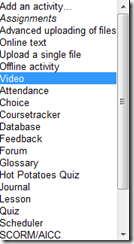
- Click button: “Turn editing on”, from the “add an activity dropdown, choose: “video”, like so:
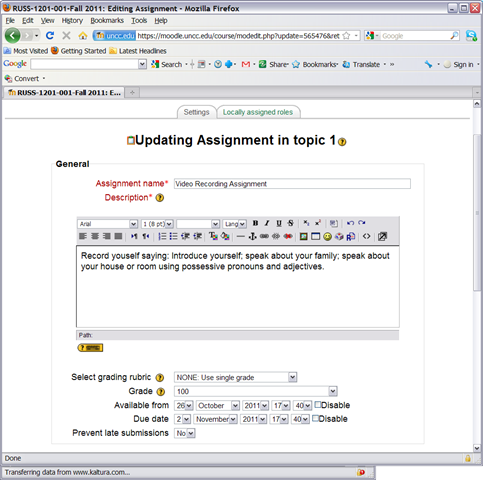
- Edit your assignment, like so:

- using the following options (or else expect problems)
- Due date: not DISABLED (is the default)
- Prevent late submissions: YES (is not the default)
- Allow resubmitting: NO (is the default)
- using the following options (or else expect problems)
- after you post your assignment and your students took it, like so,
- and if you turned notifications (not recommended; rather grade the assignment well after the deadline, or else expect problems) on (if you get already enough email, remember you can turn notifications off, rather send a deadline to the assignments which the students can see in their calendar, and until they get used to it, tell them there will be more video assignments, best: make it a routine and leave 2 for extra credit could be enough to get everybody to catch), you will get an email like this:

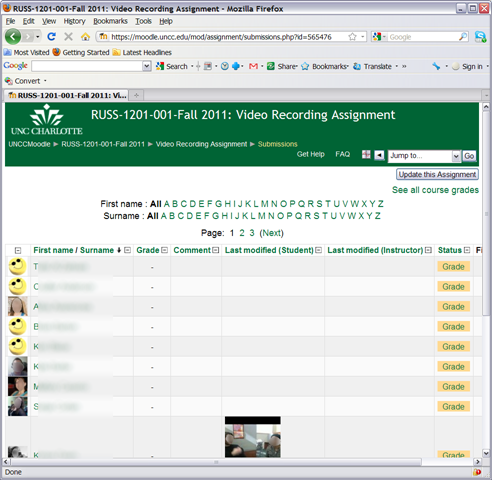
- where you click either on the link (1) to go to the assignment, then click through to the submissions (3)

- or on (2) to go directly to the grade book:

- where you are best advised to click on the button: “grade” to view the video submission, , or else you might run into this bug.
- In the grading window,
 play the video, add helpful comments, if any, add final Grade and click “save and next” (but click “next” if no video submitted yet and you grade before the submission deadline. Better: do not grade before the submission deadline).
 - If video seems unwilling to play (frozen frame), drag the play cursor forward on the timeline underneath the video.
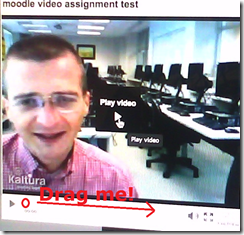 If this does not unfreeze the video, let the timeline run to the end (both workarounds have helped with Kaltura issues we encountered here).





MS-Engkoo glossing of Chinese newspaper text
- Learners of Mandarin can increase not only their cross-cultural knowledge, when using the English versions of two of the biggest Chinese newspapers: “China Daily has adopted Engkoo’s “hover translation” feature—hover your cursor over an English word or phrase and get an inline Chinese translation— on its China-facing website” and the People’s Daily, the largest official newspaper in China, uses the same feature in its English website”
- Make sure you are on the right version (English version for Chinese user) of the site (
 are the choices you want to see on top) and “Enable Bing Dictionary”in lower right corner:
 ![china daily engkoo enable_thumb[1]](https://thomasplagwitz.com/wp-content/uploads/2011/10/china-daily-engkoo-enable_thumb1_thumb.png?w=244&h=40 "china daily engkoo enable_thumb[1]")
- Then hover:
![china daily engkoo example_thumb[1]](https://thomasplagwitz.com/wp-content/uploads/2011/10/china-daily-engkoo-example_thumb1_thumb1.png?w=559&h=462 "china daily engkoo example_thumb[1]") .
.

![china daily engkoo enable_thumb[1]](https://thomasplagwitz.com/wp-content/uploads/2011/10/china-daily-engkoo-enable_thumb1.png "china daily engkoo enable_thumb[1]")
![china daily engkoo example_thumb[1]](https://thomasplagwitz.com/wp-content/uploads/2011/10/china-daily-engkoo-example_thumb11.png "china daily engkoo example_thumb[1]")
Chinese newspapers
- China Daily is the largest Chinese newspaper available in English. It has a variety of versions: here is the version for the US, for cross-cultural learning, while the English version for speakers of Chinese is valuable both for learners of Mandarin and English.
- The government-run newspaper People’s Daily has an English version, also with language learner glossing.
MS-Bing Dictionary for Chinese learners of English–and vice versa?
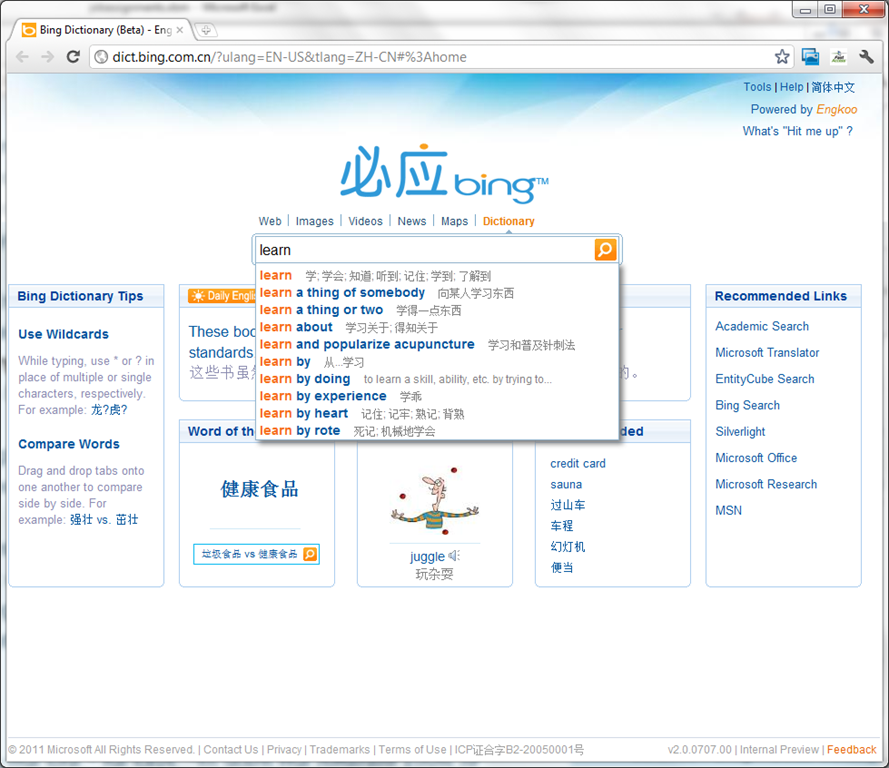
- Link: http://dict.bing.com.cn/?ulang=EN-US&tlang=ZH-CN#%3Ahome, powered by Engkoo:
- This looks like a pretty evolved learning tool: It has instant suggestions that include usage information and translations.

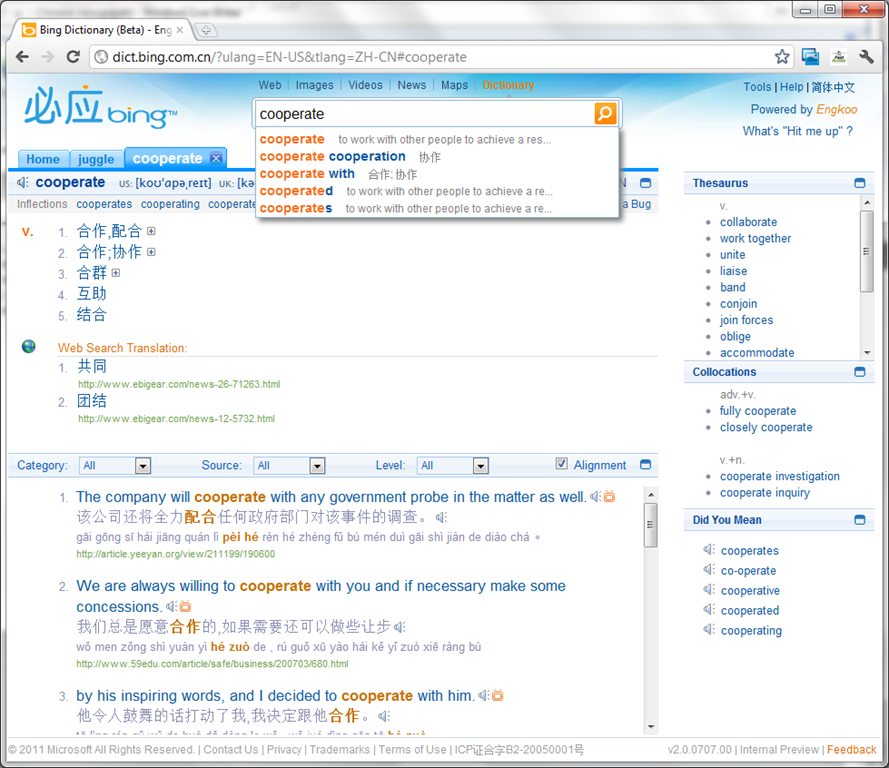
- Rich results that include contextual, parallel web-as-corpus matches in text and text-to-speech (that, on spot-checking, seems barely noticeably computer-generated).

Sample of how students use the foreign language TTS (text-to-speech) in the LRC
Last week, I noticed this student in the LRC working on a speaking assignment in her SLA class. First, she wrote a draft of her presentation. She then had the Deskbot TTS wizard (in the lower right of her screen) read out the draft to her. She recorded her version, modeling after the Deskbot’s pronunciation. Then she had the Deskbot read out the draft again, to compare with her own recording.
Look for the little guy in the lower right corner of the screen with the cartoon bubble over his head.
I favor the use of the Deskbot TTS (a Windows XP technology) as an easily accessible speaking dictionary, including during face-to-face teaching, when students may otherwise be too shy to make an utterance because they are not sure about the pronunciation of a single word, or even ask the teacher to pronounce it for them. Prosodically, the deskbot TTS leaves many things to be desired. Let’s hope that Windows 7 will enable us to set up more advanced TTS support in the LRC.
How to use the online Portuguese pronunciation help to generate phonetic alphabet transcriptions and text-to-speech
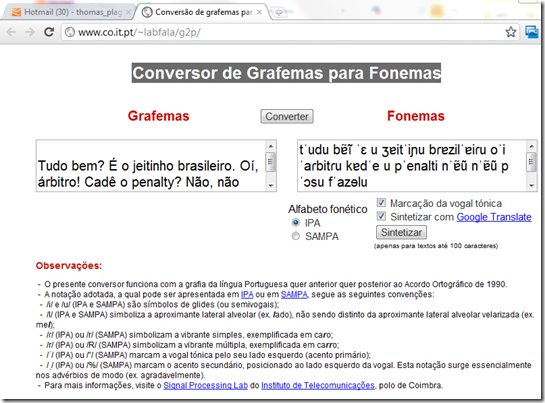
- Go to http://www.co.it.pt/~labfala/g2p/
- Write or paste your text into the textbox:“Grafemas”
- Choose your preferred phonetic alphabet (IPA, SAMPA) and other options.
- Press button: “Converter” to see results.
- Press button: “Sintetizar” to hear results.
- Like so:
- Or click here to view a demo (requires Windows Media Player) with audio (download requires Windows Media Player). Our example was:
- Input: Tudo bem? É o jeitinho brasileiro. Oí, árbitro! Cadê o penalty? Não, não posso faze-lo.
- Output: tˈudu bɐ̃ĩ ˈɛ u ʒɐitˈiɲu bɾɐzilˈɐiɾu oˈi ˈaɾbitɾu kɐdˈe u pˈenalti nˈɐ̃ũ nˈɐ̃ũ pˈɔsu fˈazɘlu

Learn Chinese character stroke-order with slowed-down animated GIFs
Further to our prior tips on learning Chinese stroke order, now you can take your time, in the LRC: To facilitate your practicing of Chinese character stroke-order, we have used the most helpful site (also available by direct download) created by Tim Xie for the California State University, Long Beach, to create 100 different speed versions, and one comic strip like static image, for each of the several hundred of animated GIFs demonstrating Chinese character writing, and made them available on the LRC computers under Internet Explorer Favorites – Example:
 |
 |
 |
|
 |
|
 |
|
 |
|
 |
|
 |
|
 |
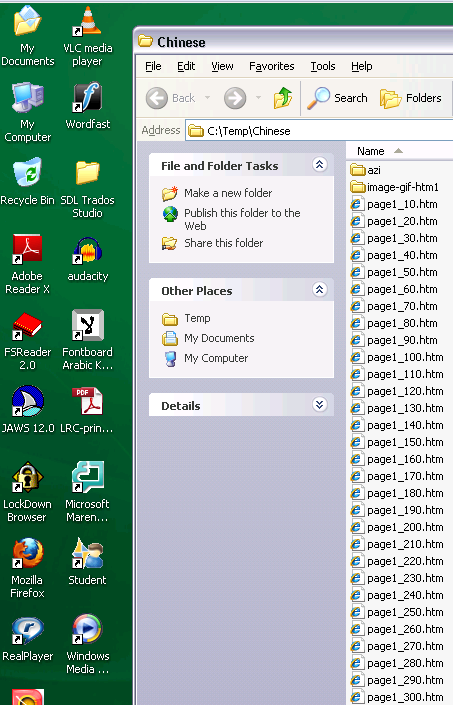
You can access the files with the stroke order speed of your preference from the LRCCOED434 student computers, like so:
(Many thanks also to the authors of programmable ImageMagick image editor and corresponding Unix shell scripts that we could use in the production of the slowed down animated GIFs. To create your own version of these slowed down animated GIFs, or others similar websites, feel free to pick up and/or adapt our shell script here).


Questions? Read the About. Or just ask me a quick Our Databases: Resources with calendars -- Language learning material Moodle Sites, multimedia files -- films


FAQs for LRC student staff or for students or for teachers. To search our FAQs, in the browser addressbar, add after "https://plagwitz.wordpress.com/feed/?tag=faqs+/" "+TAG1" (from tag cloud below) OR "https://plagwitz.wordpress.com/feed/tag=faqs
&category_name=" "CAT1" (from category hierarchy below). OR search both categories and tags, and multiple TAGs/CATs (connect with "," for OR-search, with "+" for AND-search), like so: https://plagwitz.wordpress.com/feed/?tag=TAG1+TAG2+...TAGn&category_name=CAT1
+CAT2+...CATn"
Other ways to find help
If you cannot find it here, look there: 5,500 Language-Learning Links and Programs for learning or teaching 150 languages
Shortcuts:Our Lists, Our Maps, LRC Staff Moodle Site,LRC Project Moodle Site, 49erexpress, UNCC Moodle, Student Recordings: s:claslcslrcsanakostudent
Learning usage samples: Sanako oral exam, Kaltura webcam presentation, Dictation with speech recognition, Sanako written exam, Chinese and Japanese interactive stroke-order practice
Test the Sanako Installer, Webbrowser Popup Konfigurator for XP, or Windows7, faster LRC TeacherPC Log-in Let MS facilitate diacritics writing by installing for you US-International keyboard layout
This is my personal blog (Google+). The views expressed on these pages are mine alone and not those of my employer. The information in this weblog is provided “AS IS” with no warranties, and confers no rights.
 Thomas' Work Space