Archive
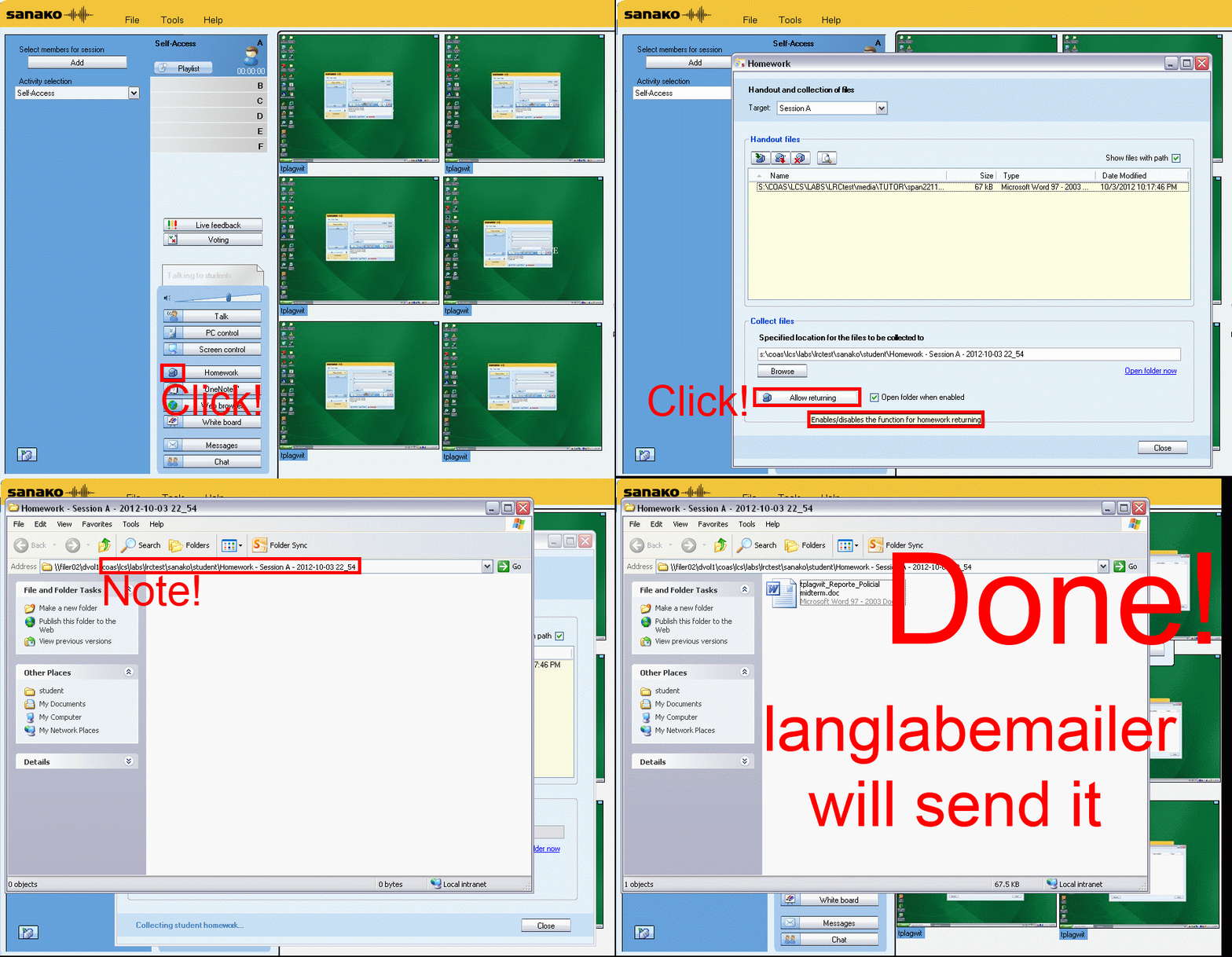
How teachers can collect any file from students’ computers with Sanako Study 1200 homework–the ultimate training…
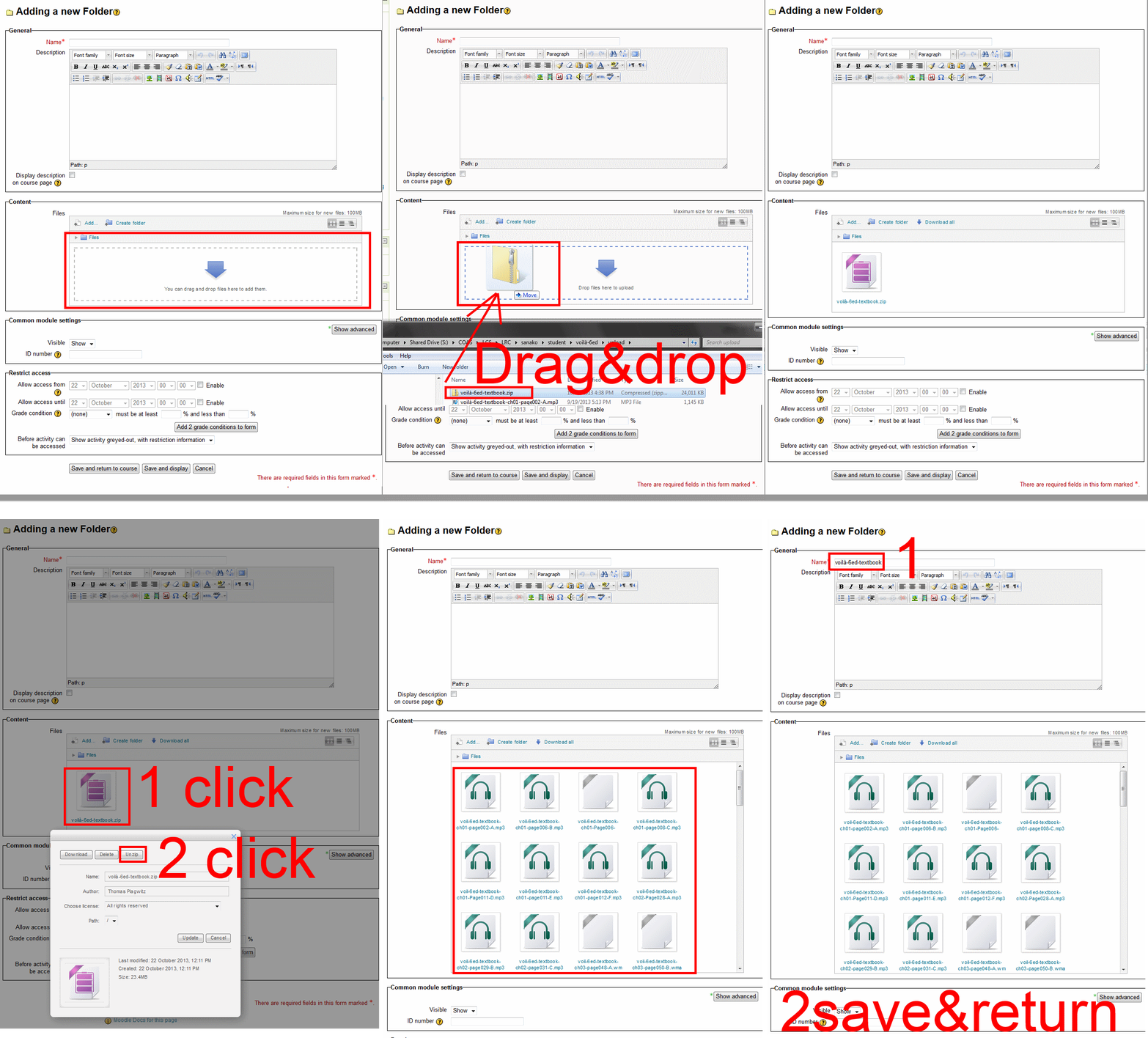
How to upload a folder with many files in Moodle 2–the ultimate training
- …using animated .gifs. Different speed? 0.25sec,0.5sec, 0.75sec, 1sec, , 2sec, 3sec, 4sec, 5sec, 6sec, 7sec, 8sec, 9sec, 10sec. 1.5sec

- And the answer is: You now can simply drag-and-drop a zip file (provided you are using a recent web browser). Start with “Turn editing on”, “Add resource”, “Folder”, and then proceed like so:
- Easy enough, but you can still save time: If your folder is reusable not only between terms, but also teachers (sections etc.), I suggest doing this in our Moodle metacourses (once).
- If you want to use an existing instead of adding a new folder, a slightly different way to manage your multiple files upload in Moodle 2 is described here.
How to book a resource in Office365–the ultimate training…

How to make (and cancel) a room/resource booking without conflict by sending a meeting request from OWA and OUTLOOK–the ultimate training…
…using animated .gifs. Note the update for Outlook (desktop) users at the bottom. (Slower? Click the Links.)You can not only book lrcroomcoed434@uncc.edu like this, but any resource listed here.If you need the classroom repeatedly or other advanced features, read on.
To Book:
0.25sec,0.5sec, 0.75sec, 1sec, , 2sec, 3sec, 4sec, 5sec, 6sec, 7sec, 8sec, 9sec, 10sec. 1.5sec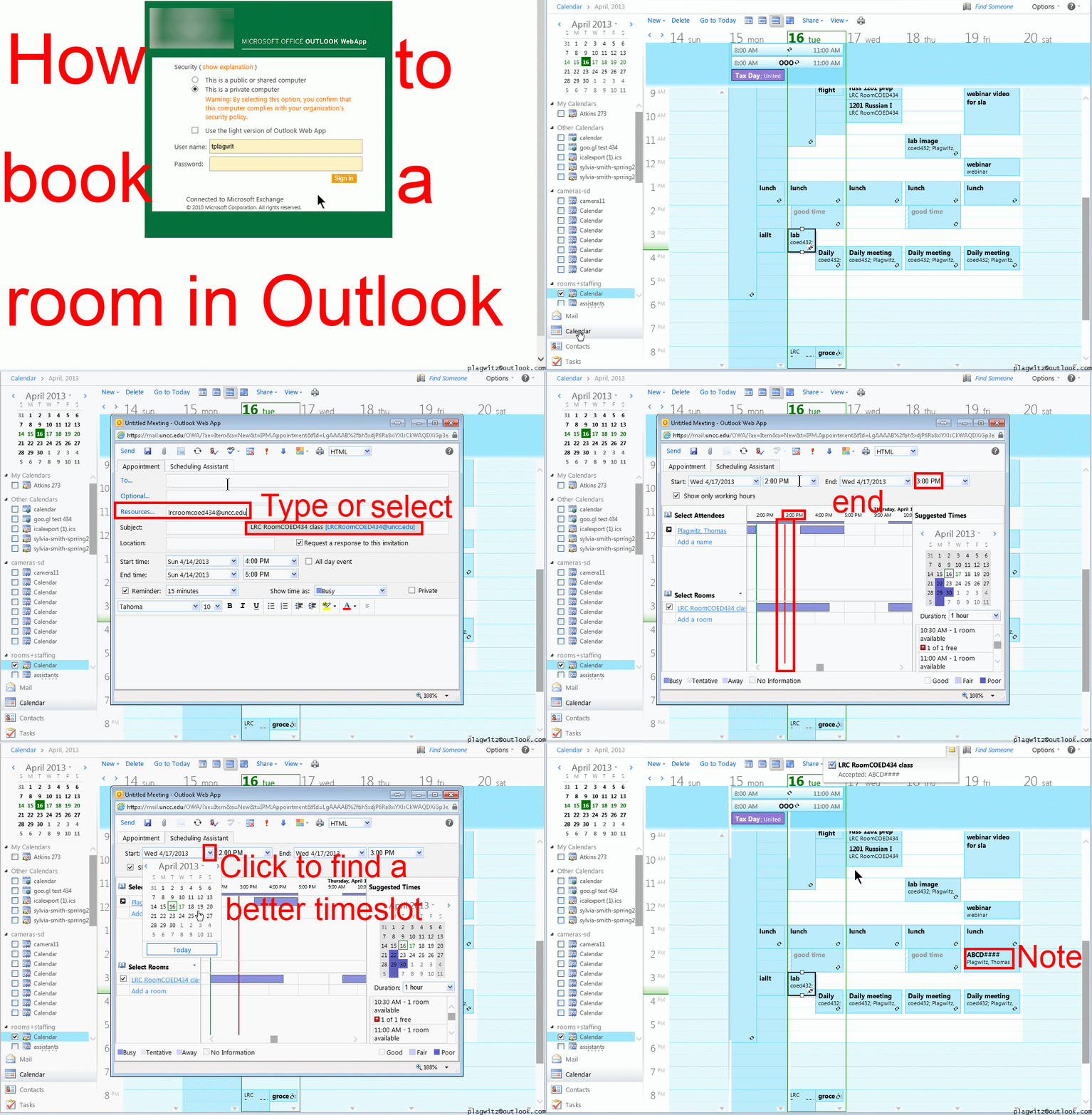
To Cancel booking (why so?):
0.25sec,0.5sec, 0.75sec, 1sec, , 2sec, 3sec, 4sec, 5sec, 6sec, 7sec, 8sec, 9sec, 10sec. 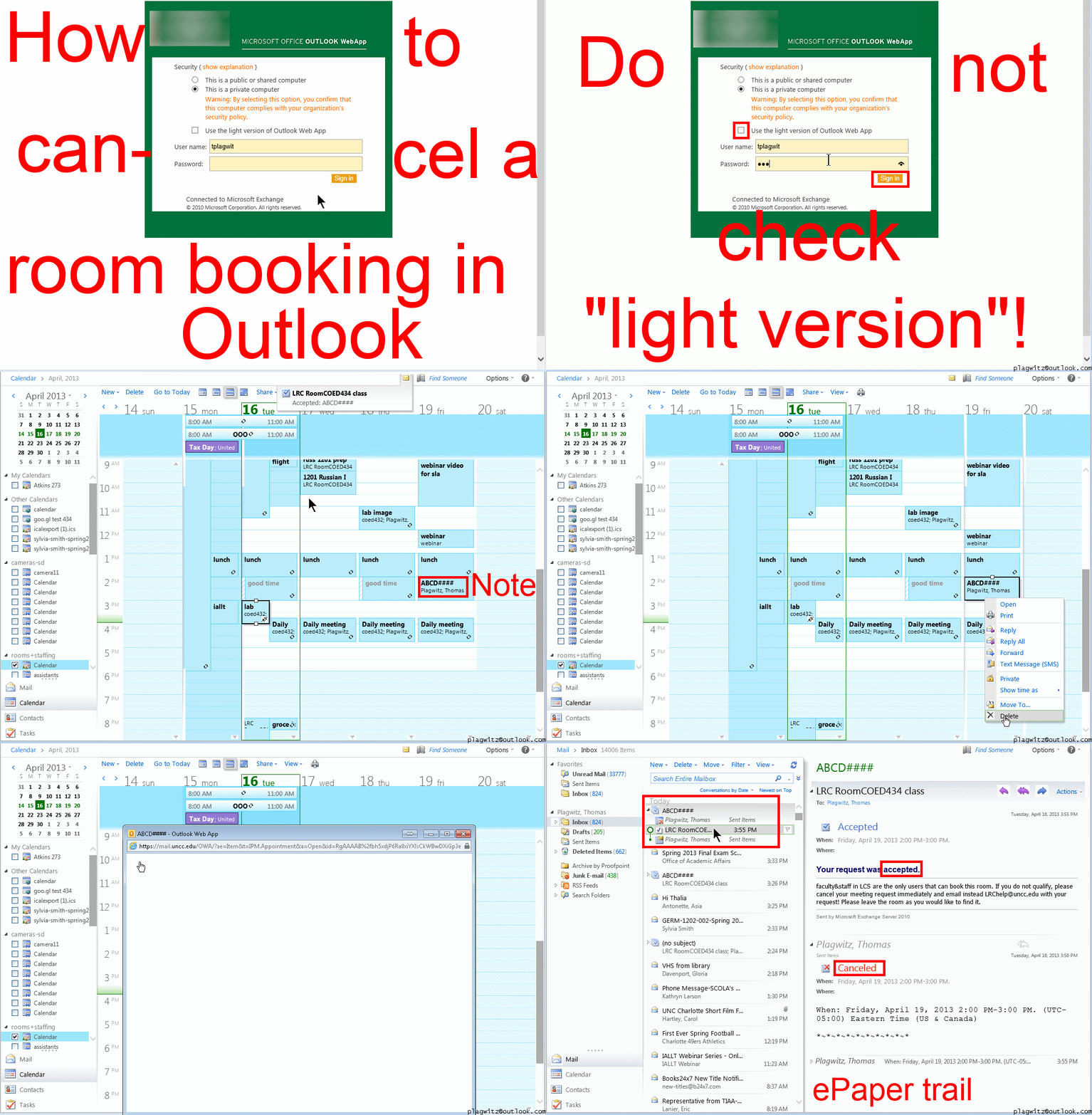
Both book and cancel booking: Compact: 0.25sec,0.5sec, 0.75sec, 1sec, , 2sec, 3sec, 4sec, 5sec, 6sec, 7sec, 8sec, 9sec, 10sec. 1.5sec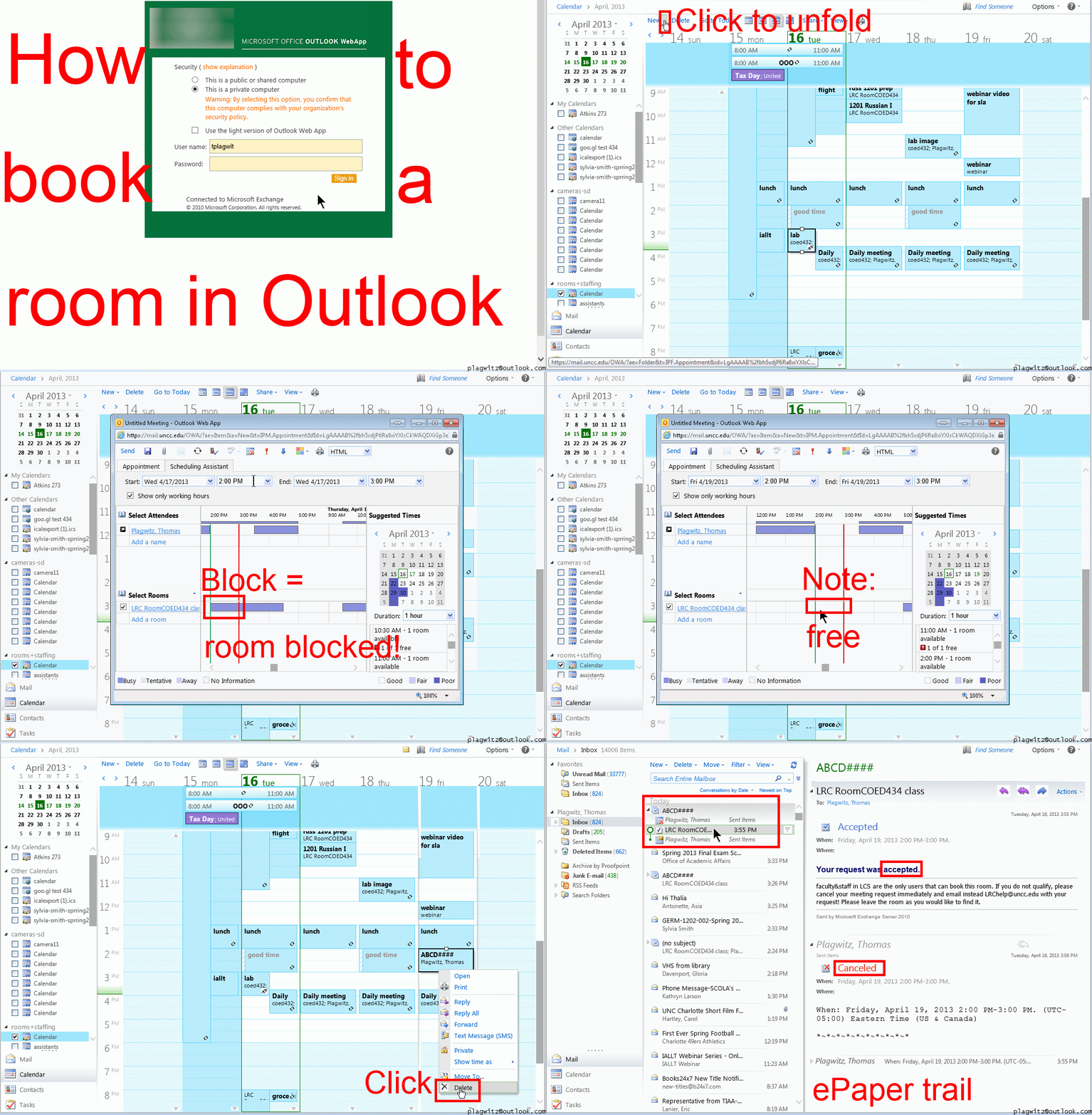 Or including unmarked frames: 0.25sec, 0.5sec, 0.75sec, 1sec, 1.5sec, 2sec, 3sec, 4sec, 5sec, 6sec, 7sec, 8sec, 9sec, 10sec.
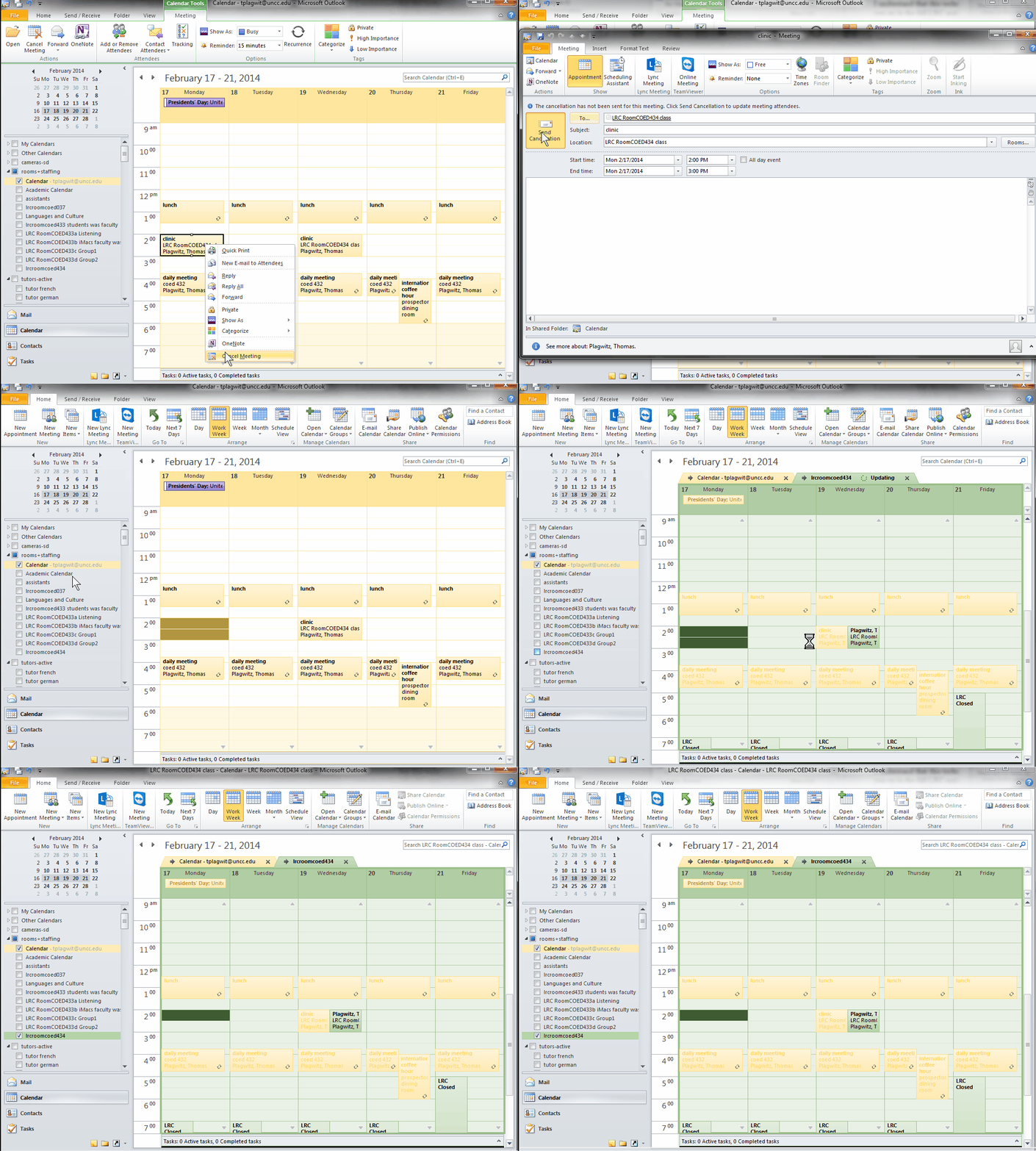
And now in addition 2 screencasts (make/cancel reservation) for our OUTLOOK (desktop) users:

How a teacher can see student computer screens in Sanako Study 1200–the ultimate training summary


Cheatsheet for typing phonetic symbols with the IPA Keyboard Layout on Windows 7 – the ultimate training…
…using animated .gifs. Slower? Compact: 0.25sec, 0.5sec, 0.75sec, 1sec, 1.5sec, 2sec, 3sec, 4sec, 5sec, 6sec, 7sec, 8sec, 9sec, 10sec. 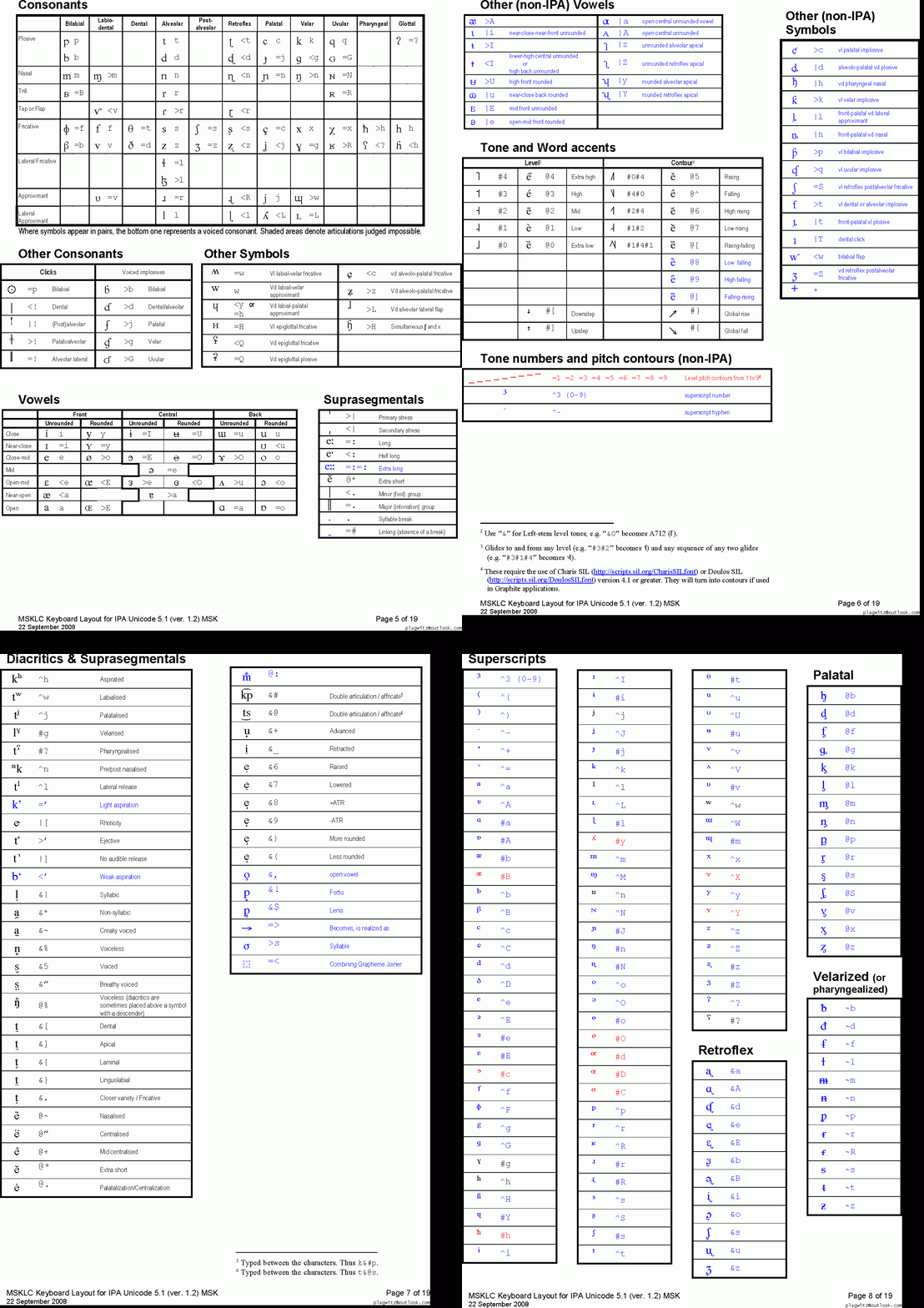
This is taken straight from the great documentation of this great Phonetic symbols Windows keyboard layout by SILS international, but needed a bit of massaging to support hands-free lookup via display on one screen of your dual screen system, while you learn or demo the keyboard to the class). Users without dual screen (including students) are better off with the slideshow below in which they can stop the images on any page:


The IPA MSKLC can produce both regular Roman characters and transcriptions with phonetic symbols by employing certain “dead keys” that can be combined with regular keys. Just and like our default LRC keyboard us-international .
Your first must select the keyboard like so. 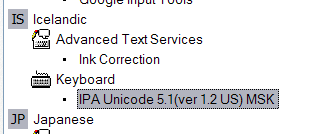 (Icelandic is suitable since it is not used for other purposes much). In the LRC, you must wait until we upgrade to Windows7.
LRC training animated-gifs
- This link gives you a nice overview list of the LRC animated gif’s for training.
- Chrome users need to install this first, still can view get only a subset.
- Neither Chrome nor Firefox offer a search-within like Internet Explorer.
- They are meant for display on the left lrc teacher station screen.
- whether you display them as student training material on the projector
- or display them as guidance for yourself
- Did you miss something?
- The animated gif’s cycle in an infinite loop. Just wait for the next round.
- If you want to restart the video now, press F5 or click the Refresh button
 in your browser address bar.
 - Or use one of the slower speed videos I made.
- I also made clickable versions that you can hand-browse (more control. More effort also).



Questions? Read the About. Or just ask me a quick Our Databases: Resources with calendars -- Language learning material Moodle Sites, multimedia files -- films


FAQs for LRC student staff or for students or for teachers. To search our FAQs, in the browser addressbar, add after "https://plagwitz.wordpress.com/feed/?tag=faqs+/" "+TAG1" (from tag cloud below) OR "https://plagwitz.wordpress.com/feed/tag=faqs
&category_name=" "CAT1" (from category hierarchy below). OR search both categories and tags, and multiple TAGs/CATs (connect with "," for OR-search, with "+" for AND-search), like so: https://plagwitz.wordpress.com/feed/?tag=TAG1+TAG2+...TAGn&category_name=CAT1
+CAT2+...CATn"
Other ways to find help
If you cannot find it here, look there: 5,500 Language-Learning Links and Programs for learning or teaching 150 languages
Shortcuts:Our Lists, Our Maps, LRC Staff Moodle Site,LRC Project Moodle Site, 49erexpress, UNCC Moodle, Student Recordings: s:claslcslrcsanakostudent
Learning usage samples: Sanako oral exam, Kaltura webcam presentation, Dictation with speech recognition, Sanako written exam, Chinese and Japanese interactive stroke-order practice
Test the Sanako Installer, Webbrowser Popup Konfigurator for XP, or Windows7, faster LRC TeacherPC Log-in Let MS facilitate diacritics writing by installing for you US-International keyboard layout
This is my personal blog (Google+). The views expressed on these pages are mine alone and not those of my employer. The information in this weblog is provided “AS IS” with no warranties, and confers no rights.
 Thomas' Work Space