Archive
Blackboard: Discussion board: Unread posts
- The Blackboard discussion board is designed for busy people keeping track of large constituencies – some classes have 1 instructor, 100s of participants and discussion board assignments….
- One of the most useful features is when you enter the discussion board, there is a shortcut to the “Unread Posts”, like marked here:
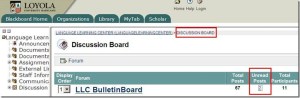
- If you click on this number of unread posts, you are taken to an overview page (sorted counter-chronologically be default; not threaded, but you have plenty of other display and management options), which you can skim for new developments, as well as use to manage your posts:

- Examine the top menu for options. You can either for individual posts click “mark as read”, as you read each one. Or you can use the “select all” tool and the “mark all as read” button in the top menu to clean up your board. Once you leave, your discussion board home page should look like this:


How to distribute learning materials using the Blackboard Content System
I needed to make a large set of textbook mp3 files accessible to myself in the classroom, as well as to students and myself from dorm/home.
The Blackboard Content System makes this easy, while observing copyright restrictions.
Below is a 6-minute narrated screencast on how to set up and use the Blackboard Content System to easily (work on batches of files on the web, just like on your computer, access from office, classrooms or home office) and securely (allow access only to qualified students) handle multimedia files
The example involves numerous mp3 files from a Textbook Audio CD previously only accessible from the LLC computers)).
This would work as well with your self-created teaching materials, from text handouts to video recordings.
If you need better management (many files, reuse across terms) than the standard course document upload can provide.
See the video file name for a brief table of contents:
If the teaching material item is already in the content collection, to publish it to a new course:
- add a new item to a content area of the course,
- follow the numbered steps 1-4 in this screenshot:

- then click submit twice: first close the content system window with
 , to automatically give your students access to the files:
  , then finish adding



Windows Live FAQ
Thoughts on use of MS-OneNote for Learner Portfolios in Interpreting?
What are aspects of portfolios, according to Wikipedia.org? Portfolios “document education, work samples and skills” “more in-depth than a resume” can. They come in different flavours: “developmental (e.g., working), reflective (e.g., learning), and representational (e.g., showcase)” and can contain “personal information, evaluations, sample work, and awards and acknowledgments”. If they are e-Portfolios, implying online, they can be “updated often” and with ease, and are “assembled and managed by a user” who controls the “varying degrees of audience access”. With this come “problems of exporting data and related interoperability issues” and the pros and cons of portfolios integrated into existing VLEs of educational institutions, who are initially easily available, but may lack in “learner-centered-ness” beyond the institutional affiliation.
In the OneNote ecosystem, there is a lot of student workbooks samples – may be closer to what I mean to be a portfolio, if they would groom it and reflect on their work –, plus a so called “Digital portfolio: Sample digital portfolio of a teacher that contains multiple sets of student work, stored and organized within OneNote. Includes homework, quizzes, tests and projects.”
“If you want to use recordings made in OneNote, be aware that the default recording quality for OneNote is not meant for speech recognition. We use a voice codec and bit rate/sample rate designed to compress spoken word audio as small as can be while still usable by human beings. In OneNote 2007 we increased the settings slightly to make audio search work better, but speech recognition (transcription) requires a much higher level of quality. To set up your future recordings in OneNote to be transcribable, first go to Tools/Options/Audio and Video. Switch the codec to Windows Media Audio 9.1 Professional. ”
8+x computers in the interpreting suite and maybe 8 extra in the language center could get us started. (an configuration of these computers which is different from the it labs configuration may save some money initially, but incurs maintenance cost permanently, which may be somewhat hidden, but is very real. so a site license for OneNote, if the licensing cost is reasonable at all, would probably be preferable. of course we are past the deadline for software image upgrades, i just managed to get the OneNote in the interpreting suite request in before the deadline).
if we want to enable students to work remotely, they need personal licenses. this is not necessarily expensive (ca 40 pounds for a full office 2007 suite from ms directly for students only which i recommend to any student just to get ms-word, much more so if you use more advanced office applications)..
one of the nicest features of ms-OneNote and which, even if i have not had a chance to test, would most likely strongly recommend using, is the following:
we can store these OneNote portfolios as shared files on our intranet so that students can keep editing /adding to them, and Danielle and other staff at the same time, without conflicts or need for copying and keeping files in synch, open for checking and giving feedback.
this seems much more usable than copying and transmitting (email is impossible, Weblearn, sans webdav and learner portfolio feature at least, very inconvenient) large multimedia files.
using this feature requires, however, a network share which the students can write to (which will also be required for the digitization of the interpreting suite, even my personal hack), and, if we want to support students doing this from home, probably VPN access (i do not think the current FTP access to the home drive would help us any with this task).
Learning materials management: Links (1998-2004)
Originally implemented for a series of Canadian universities teaching Wirtschaftsdeutsch, then continually expanded into all of German for Queen’ s University, and multiple languages, including non-western, for university of Michigan-Dearborn and Drake university.
Was based on an open source software project by Gossamer Threads popular for web 2.0 precursors of collaborative links collections, whose Perl-CGI code needed only minor modification to facilitate the “”commenting”” on instructor-“posted” ( i.e. assigned links) by students.
The model was Yahoo’s human-edited web-catalogue. the data structure was the tree (nested folders, unidirectional graph). For managing, I implemented a secondary branch mirroring the primary under the root “old links” for, using Perl regex, automatically moving links which a batch link-checking management script in the open source had identified and logged as “broken” (404 and a few other similarly bad http return codes) into.
The original layout of the “ontology” first introduced me to the complexity of such a task. The basic content division was between 2 branches.
- web-based ready-made teaching materials for commenting (recommending, categorizing) by instructors and self-access by students (no feedback of student data to the instructor mostly, except by email, and outside of the application, in those days).
- the other content branch consisted of not teaching-related “”authentic materials””: the early day web applications, sometimes multimedia (maps, audio and video collections, news), often times also self-service database interfaces (online shopping and public services) whose language-wise rather restricted interface and topical focus (think Wirtschaftsdeutsch) lent themselves to capstone exercises at the end of textbook chapters (our “Friday in the lab””, not even a language lab then. Geek bonus points: one of these Fridays, a future queens university educated engineer asking me whether i had written all these pages they browsed through in the searchable catalogue of eventually 1500 links. Well, dynamic web pages were not common at all in education in those days, and the credit goes to Gossamer Threads.).
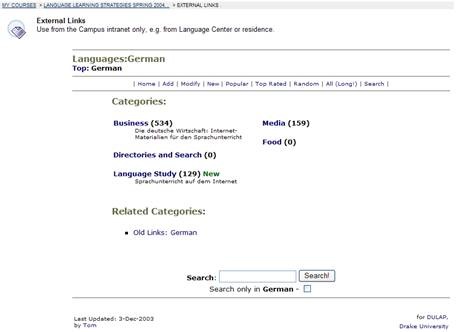


While there was hope to collect a comprehensive teaching resource through collaboration, “der Weg war das Ziel”, having students interact with and review foreign language web content. The links database remained definitely, as it grow in bursts revolving around the topics of our chapters. I had a lot of fun finding instructional ways to having students review all those fancy web applications in which endless amounts of money were poured before the first bubble in this millennium burst. E.g. the first early online city maps for “Wegbeschreibung” in German 102. as well web 2.0 like developments, like grassroots web cams (Germans allowing the world to spy on their surroundings 24/7, including remote camera panning – you could go all kinds of places, “”Wie heißt der bürgermeister von Wesel? was macht das wetter in der Schweizzzzzz?” but alas, the time lag, especially during winter term.
A couple of screen casts for instructor training are here and here.
Blackboard VLE Training Videos Overview
|
2006 |
Video |
|
|
2006 |
Video |
|
|
2007 |
Video |
|
|
2007 |
Video |
|
|
2007 |
Video |
|
|
How to do a language lab recording exercise as Blackboard assignment |
2007 |
Video |
| Blackboard controlpanel_export_import_course_or_parts.wmv | 2008 |
Video |
| Blackboard dropbox_sort_filter.wmv | 2008 |
Video |
|
Blackboard Content System: Add a content item instead of attaching a file |
2009 |
Video |
|
2010 |
Video |
|
|
2010 |
Video |
|
|
2010 |
Video |
|
|
2010 |
Video |
How to Join one of our Windows Live Groups at London Metropolitan
Go the group’s web address (not from your londonmet email client’s browser) and click “Sign in”. 
If you have a windows live account (hotmail or msn qualify), click “sign in”, otherwise click “sign up”.

Go through an account creation process (you only have to do this once): 
Afterwards, you will be automatically signed in (you may have to answer an email first at the address you have given during sign-up) and redirected to the invitation page for the group, click on “Ask to join”. 
Now you are done: 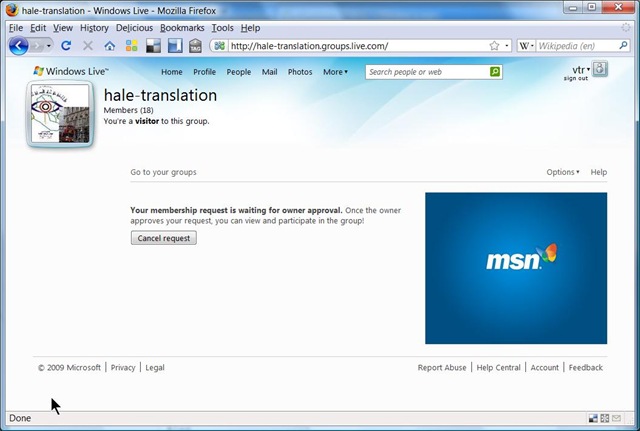
Don’t forget to write down your user name and password.


Questions? Read the About. Or just ask me a quick Our Databases: Resources with calendars -- Language learning material Moodle Sites, multimedia files -- films


FAQs for LRC student staff or for students or for teachers. To search our FAQs, in the browser addressbar, add after "https://plagwitz.wordpress.com/feed/?tag=faqs+/" "+TAG1" (from tag cloud below) OR "https://plagwitz.wordpress.com/feed/tag=faqs
&category_name=" "CAT1" (from category hierarchy below). OR search both categories and tags, and multiple TAGs/CATs (connect with "," for OR-search, with "+" for AND-search), like so: https://plagwitz.wordpress.com/feed/?tag=TAG1+TAG2+...TAGn&category_name=CAT1
+CAT2+...CATn"
Other ways to find help
If you cannot find it here, look there: 5,500 Language-Learning Links and Programs for learning or teaching 150 languages
Shortcuts:Our Lists, Our Maps, LRC Staff Moodle Site,LRC Project Moodle Site, 49erexpress, UNCC Moodle, Student Recordings: s:claslcslrcsanakostudent
Learning usage samples: Sanako oral exam, Kaltura webcam presentation, Dictation with speech recognition, Sanako written exam, Chinese and Japanese interactive stroke-order practice
Test the Sanako Installer, Webbrowser Popup Konfigurator for XP, or Windows7, faster LRC TeacherPC Log-in Let MS facilitate diacritics writing by installing for you US-International keyboard layout
This is my personal blog (Google+). The views expressed on these pages are mine alone and not those of my employer. The information in this weblog is provided “AS IS” with no warranties, and confers no rights.

