Archive
Archive for the ‘software’ Category
How to use Remote Desktop Connection Manager for computer lab access instead of having to manage faculty computers
2014/08/22
Leave a comment
- We have conflicting needs for a language technology software environment: diversity, simplicity, quality, manageability. We use of software configuration management tools like TEM. However, we are sitting between an extremely diverse user base (supporting 17 languages) in our unit and a central IT support with a diverse base of units to support.
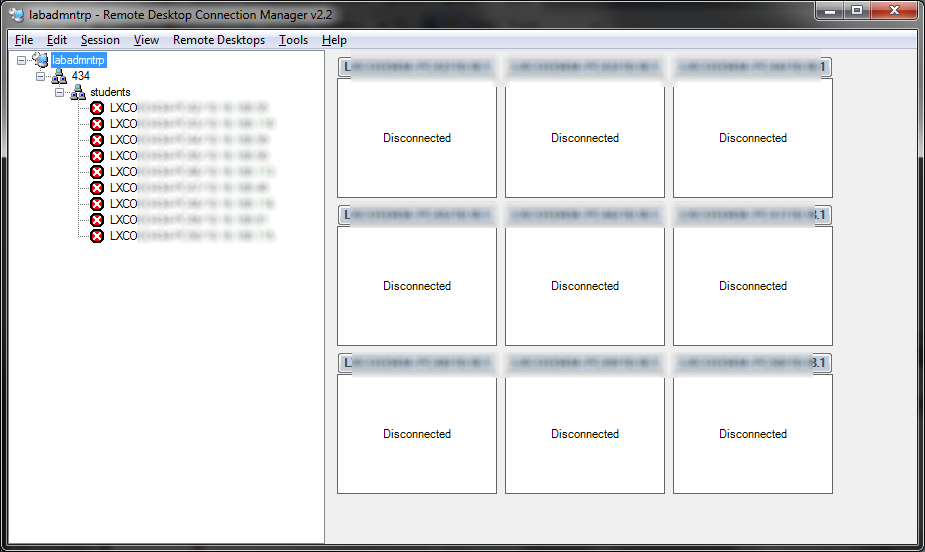
- Enter MSTSC, facilitated by Remote Desktop Connection Manager:
 . If your LRC allows for MSTSC access, consider providing faculty access to a LRC computers via Remote Desktop.
 - this is for us a great time saver, compared with maintaining subsets of software on subsets of faculty computers that are as similar to the configuration of the subset software on LRC computers as possible,
- while for faculty at the same time a realistic test bed what it will be like to operate LRC computers during class.
- We provide access to a subset (which is easily set and edited in the RDG file loaded into Remote Desktop Connection Manager, which is stored on a shared network drive so that we can update the connection files without disruption of faculty access should there be network changes) since we teach faculty not to log out currently logged in users when they try to connect, but rather choose another computer from the subset that is free to not. We exclude computers used in classes where we frequently have high-stakes exams. We also have high-stakes assignments (using Respondus Lockdown browser)
- we put a shortcut to the Remote Desktop Connection Manager on the start menu or desktop.
- Our computer numbering scheme is simple enough for faculty to navigate – besides, since we connect only to the uniform LRC PC environment, it does not matter.


How to open multiple windows in OneNote 2013 on Windows 8 (desktop)
2014/08/22
Leave a comment
CTRL-M still works… Reason I am jotting this down: On Windows 7, I used to open multiple windows by going through the OneNote program icon in the Start bar. But on Windows 8. the OneNote tile from “Tile world” just goes back to the last OneNote window. (As always: Live and learn.)
Categories: office-software
ms-onenote
Solved: Cannot remote desktop into 2nd Microsoft account on Windows 8
2014/08/22
Leave a comment
- MSTSC’ing from the remote computer simply fails with a non-descriptive error message.
- However, if you get as far as the remote computer login screen, you get a valuable hint: Your 2nd Microsoft account has not been added to the Remote Desktop Users Group (presumably this happens by default when you create your first Microsoft account).

- To fix this, log in as admin on your Windows 8 machine (either locally or remotely with an account which is in the Remote Desktop Users Group), windows key+f, “users”, click on “settings”, and use the direct shortcut to “remote desktop users group” to add the user in question (with the Microsoft account email) to the permitted users group.
- Adding what I believed was the local account equivalent of the 2nd Microsoft account via desktop / windows-ley x/ “computer management” / “users and groups” to the “remote desktop users group” did not work.


Categories: e-infrastructure, os
mstsc, security
How to get dkRandomdata to run on 64-bit Excel
2014/08/22
Leave a comment
- Dick Kusleika made this very useful random data generator for Excel (more random data sources I plan to list here).
- To get this to run on 64-bit Excel 2013, I need to make a few quick changes in the source (which will break on 32-bit Excel):
- First, the usual “must be updated for use on 64-bit systems”:
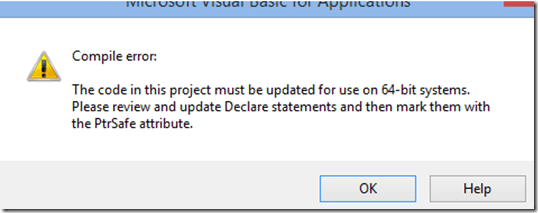 , fixed by this (but note the 1st line):
Private mlParentPtr As LongPtr 'trp:Long
#If VBA7 Then
Private Declare PtrSafe Sub CopyMemory Lib "kernel32" Alias "RtlMoveMemory" _
	(dest As Any, Source As Any, ByVal bytes As Long)
#Else
Private Declare Sub CopyMemory Lib "kernel32" Alias "RtlMoveMemory" _
(dest As Any, Source As Any, ByVal bytes As Long)
#End If
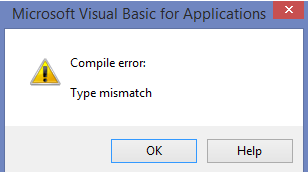
- Then, to fix the various “Type mismatch” errors
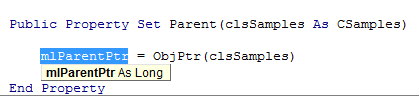
 , e.g. at
  , change Lomg into PtrLong: in these locations:
-
above: Private mlParentPtr As LongPtr 'trp:Long
-
Private Function ObjFromPtr(ByVal pObj As LongPtr) As Object
'trp Private Function ObjFromPtr(ByVal pObj As Long) As Object
-
- First, the usual “must be updated for use on 64-bit systems”:
- Then I am finally getting to the xmlDoc As MSXML2.DOMDocument error on Windows 8.1, but that has been solved in the comments here earlier this year (also for Windows 8.1, but apparently with Excel 32-bit): I changed MSXML2.DOMDocument to MSXML2.DOMDocument60 where I could:
-
Dim xmlDoc As MSXML2.DOMDocument60 'trp: Dim xmlDoc As MSXML2.DOMDocument
-
WriteToFile:
-
Dim xmlDoc As MSXML2.DOMDocument60 'here it is already fixed? Dim xmlDoc As MSXML2.DOMDocument6
-
Dim xmlStyle As MSXML2.DOMDocument60
-
Dim xmlOutput As MSXML2.DOMDocument60
-
-
LoadFromFile(): Dim xmlDoc As MSXML2.DOMDocument60
'trp: Dim xmlDoc As MSXML2.DOMDocument
-
testxml() (looks like the XML issue has been worked on since the comments):
-
Dim xmlDoc As MSXML2.DOMDocument60 'trp: Dim xmlDoc As MSXML2.DOMDocument
-
Set xmlDoc = New MSXML2.DOMDocument60 'trp: New MSXML2.DOMDocument
-
-
test_writetofile():
-
Set xmlDoc = New MSXML2.DOMDocument60 'here it is already fixed, and here
-
Set xmlStyle = New MSXML2.DOMDocument60
-
Set xmlOutput = New MSXML2.DOMDocument60
-
-
- Finally, if you have trouble getting the add-in buttons to show in Excel 2013 ribbon, close all workbooks, and you may (but I did not) have to restart Excel (KB2761240):

- Viola. And I sure like me some Seinfeld references in my sample data….



Categories: e-infrastructure, office-software, service-is-programming
64-bit, addins, Dkrandomdata, MS-Excel, VBA
How to fix “Print to OneNote”, “OneNote cannot find a page on which to insert your printout”
2014/07/16
2 comments
- This error kept popping up for me on OneNote 2013, but I gather it is a classic.
- I should have just taken the error message seriously and literally: Could I do better than OneNote and find a page where OneNote says it cannot?
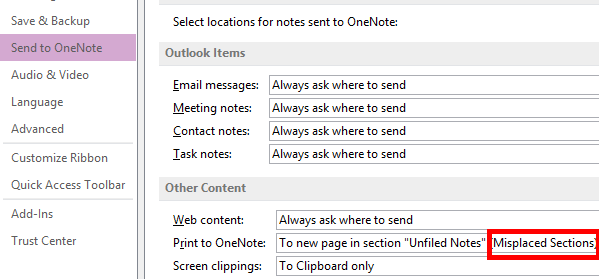
- First, to find out where I and OneNote are supposed to be looking for this page, go to File / Options/ Send To OneNote and check which “print to “location you have set.
- This one here looks obviously suspicious (and does not exist – one would wish still when this location goes out of scope this could be flagged with a more transparent warning):

- Change the location :

- to one that actually exists:

- or better maybe, for lack of a more transparent error checking if page goes out of scope, chose one of the other, hopefully more robust options:



Categories: e-infrastructure, Glitches&Errors, office-software
2013, ms-onenote, printing
MS-OneDrive “Get link” incompatible with MS-Word “Always create backup copy”, use MS-OneDrive versioning instead
2014/07/07
Leave a comment
- Symptoms:
- If I edit my local MS-OneDrive copy with MS-Word, my collaborators lose access to the most recent copy via the link I shared with them.
- Worse, the new file MS-Word generates when the backup is created, won’t get automatically synched with MS-OneDrive, and no sync error seems to get flagged in Explorer.
- Root cause (presumably):
- When saving in MS-Word, I can see my focus moving to the backup file

- MS-Word, when creating a backup of the original file, actually rather creates a “fore-up”: The original file gets renamed (“Backup of…”) and the recent changes get copied into a new file.
- The MS-OneDrive link keeps pointing to the old file “Backup of…”, “when after (which one can see normally, if the user renames a file manually, is a desirable feature)
- Workaround: I managed to manually upload the files that got out off synch.
- When saving in MS-Word, I can see my focus moving to the backup file
- Solution:
- Turn MS-Word backup off, it is not compatible with MS-OneDrive under File / Options /Advanced / section: Save:

- Rather, rely on the MS-OneDrive versioning.
- Turn MS-Word backup off, it is not compatible with MS-OneDrive under File / Options /Advanced / section: Save:


Categories: e-infrastructure, Glitches&Errors, office-software
2013, backups, MS-OneDrive, MS-Word, versioning
How to bind files to PDF with eXpert PDF Creator
2014/06/23
Leave a comment
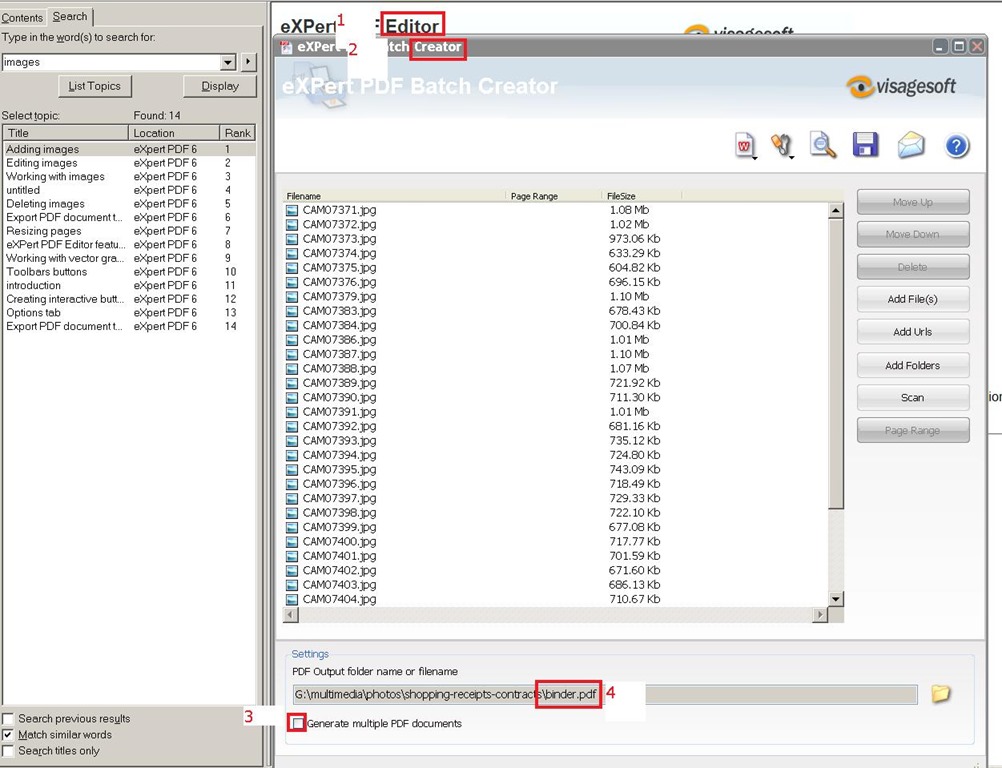
- I tried PDF Editor (mind you, old version! 6 which I still have around from a promotion – nice software, though) first, including its help.
- Use Batch Creator instead,
- uncheck “Create multiple Documents”
- then you will be prompted for a (new) filename for the bound files.

- Then click the “save” icon in the upper right menu.
Categories: e-infrastructure, mental-notes, office-software
expert-pdf, pdf


Questions? Read the About. Or just ask me a quick Our Databases: Resources with calendars -- Language learning material Moodle Sites, multimedia files -- films


FAQs for LRC student staff or for students or for teachers. To search our FAQs, in the browser addressbar, add after "https://plagwitz.wordpress.com/feed/?tag=faqs+/" "+TAG1" (from tag cloud below) OR "https://plagwitz.wordpress.com/feed/tag=faqs
&category_name=" "CAT1" (from category hierarchy below). OR search both categories and tags, and multiple TAGs/CATs (connect with "," for OR-search, with "+" for AND-search), like so: https://plagwitz.wordpress.com/feed/?tag=TAG1+TAG2+...TAGn&category_name=CAT1
+CAT2+...CATn"
Other ways to find help
If you cannot find it here, look there: 5,500 Language-Learning Links and Programs for learning or teaching 150 languages
Shortcuts:Our Lists, Our Maps, LRC Staff Moodle Site,LRC Project Moodle Site, 49erexpress, UNCC Moodle, Student Recordings: s:claslcslrcsanakostudent
Learning usage samples: Sanako oral exam, Kaltura webcam presentation, Dictation with speech recognition, Sanako written exam, Chinese and Japanese interactive stroke-order practice
Test the Sanako Installer, Webbrowser Popup Konfigurator for XP, or Windows7, faster LRC TeacherPC Log-in Let MS facilitate diacritics writing by installing for you US-International keyboard layout
This is my personal blog (Google+). The views expressed on these pages are mine alone and not those of my employer. The information in this weblog is provided “AS IS” with no warranties, and confers no rights.
 Thomas' Work Space