Archive
Quia Options for Grading in course or book or exercise
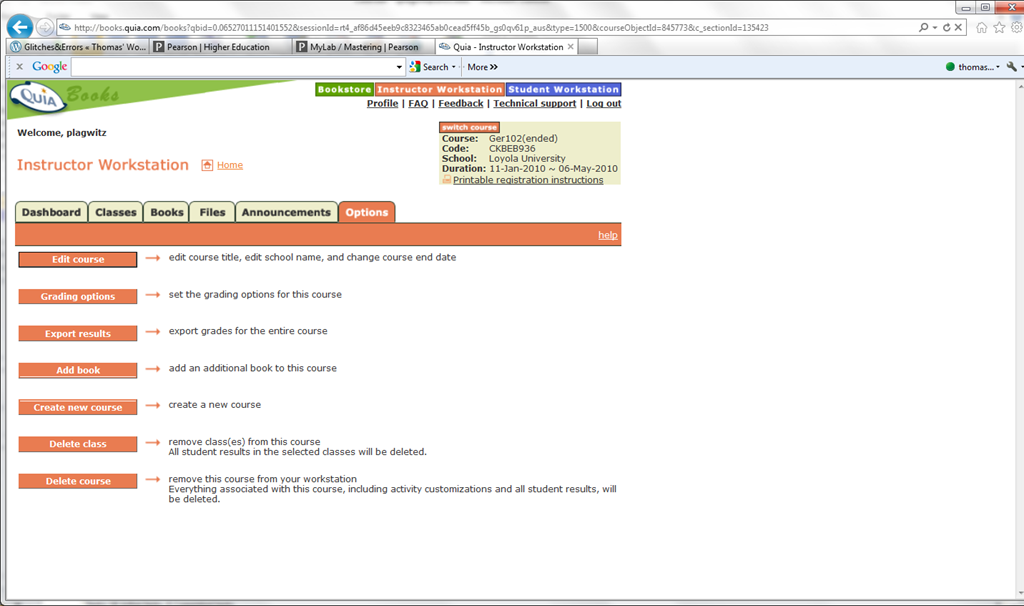
- The instructor workstation features prominently the tab : options.

- if you go into grading, you see that not all options can be changed from here.
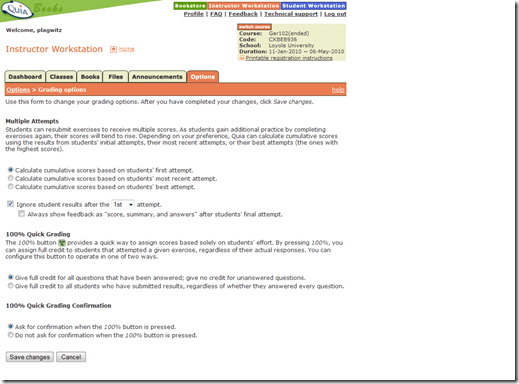
- However, when customizing your book, you may have already found the options next to each individual exercise that allow you to change Spelling/Case sensitivity

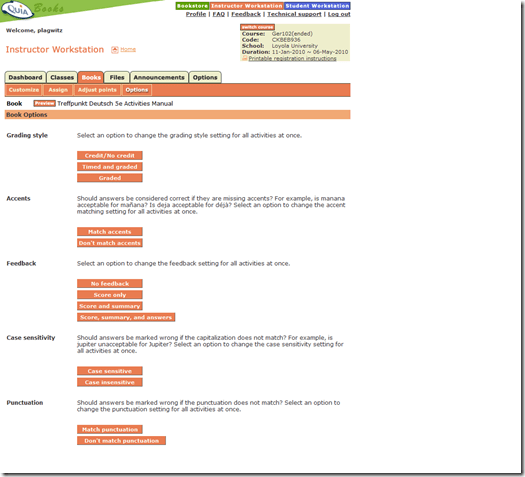
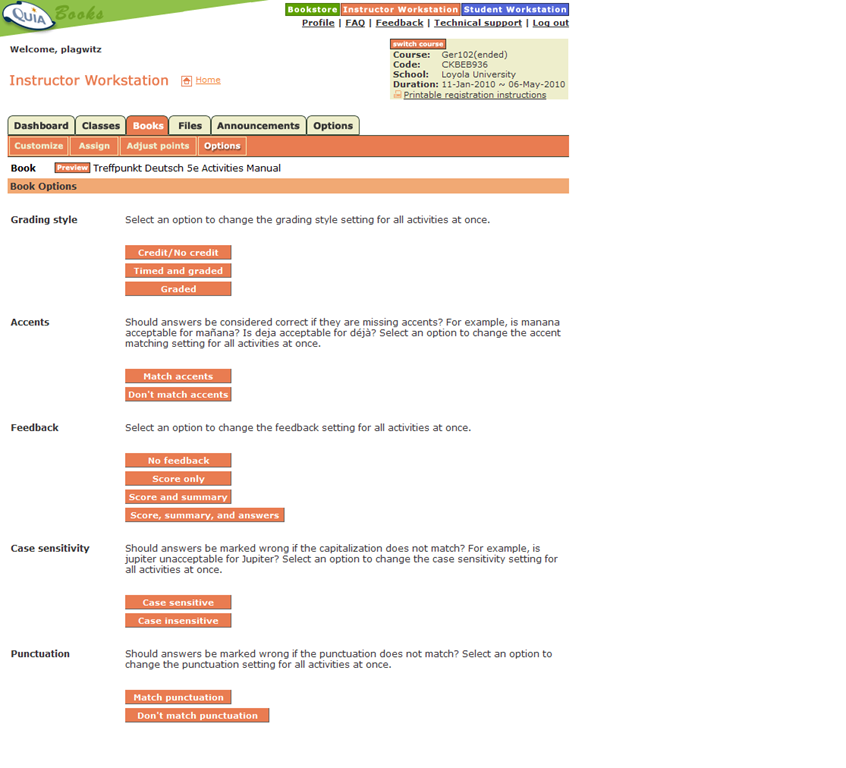
- However, if you go to the tab: book, you will find more options there, including how you can change Feedback and Spelling/Case sensitivity for the entire book instead of individual exercises:

Centro/Quia student access problems at term start: What OneKey?
-
Our Pearson/Prentice Hall textbook comes with online component, access to which is purchased in the University bookstore.
-
The textbook comes with a setup brochure (OneKey, yellow) that states: “Go to www.prenhall.com/onekey, click OneKey for Students, then click Getting Started, and select CourseCompass. Follow the on-screen instructions to register for CourseCompass”.
-

-
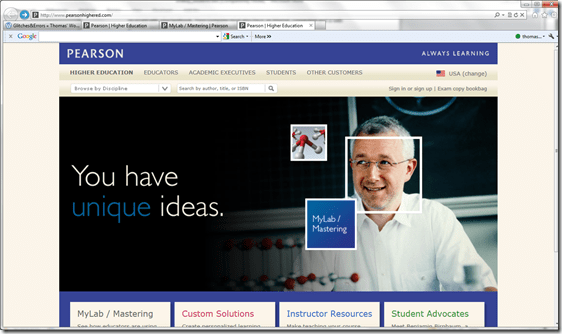
This page is unresponsive und forwards to http://www.pearsonhighered.com/
-
-
Cute but I have no idea how to continue from here.
-
if you try to enter the “CourseCompass Access Code” by browsing manually to www.coursecompass.com, you will read: “CourseCompass is now MyLab and Mastering If you had a CourseCompass account, it works with MyLab / Mastering. Sign in now.” Maybe this change broke the entire signup process?
- 100000s of these packages must have been sold by now, each costing 100s of dollars. Why do students and teachers have to waste entire class hours, each worth also 100s of dollars, on banging their head against this pay wall even after they paid?
- When reading the instructions, I found it necessary to highlight the steps our students need to take:
- CourseCompass Access Code
- CourseCompass Course ID
- Account username and password
- Quia Student Book Key
- Quia Course Code
- Wow! With my teacher login, I can see that the online content which is protected by this pay wall is still the same literally translated print lab manual/workbook material. Must be decades old now.


Moodle Metacourses, part III: The support workflow: File-renaming
We discussed file renaming utilities in an earlier post. Here are some more practical tips:
Limitations: While both utilities can accept Windows Search Result sets, drag-drop seems limited to fewer than 256 files at a time (on my Vista 64-bit – but that is not an OS limitation, since MS Expression Encoder can accept a drag-and-drop of all over 3.5k files that need reencoding).
Workaround: both utilities have a folder-select, and Renamer in addition accepts file masks, which can mimic some basic searches:
![image_thumb[2]](/Users/trp/AppData/Local/Temp/WindowsLiveWriter1286139640/supfilesB79F19A/image[6].png "image_thumb[2]")
Bulk Rename Issue: While it allows for “Select from Clipboard” which you can use with the Windows “Copy as Path”/”Send to Clipboard as Name” feature which works with search result sets. However, I could not get this feature to work (neither with the default “” around the path nor, after removing them manually, without).
Renamer, Issue: rule, clean up, strip-out-content-of-brackets-does-not-what-it-should:
Renamer-translit-anglicize-foreign-language-diacritics: unfortunately still recommended for technical reasons; Renamer has presets, e.g. German here: TBA
Only one preset can be inserted add a time (overwrites previous) – but you can build your list with copy/paste from/to this text box and persist it to disk to load it later, just like the search rules – an extremely handy feature.
Just testing the post by email
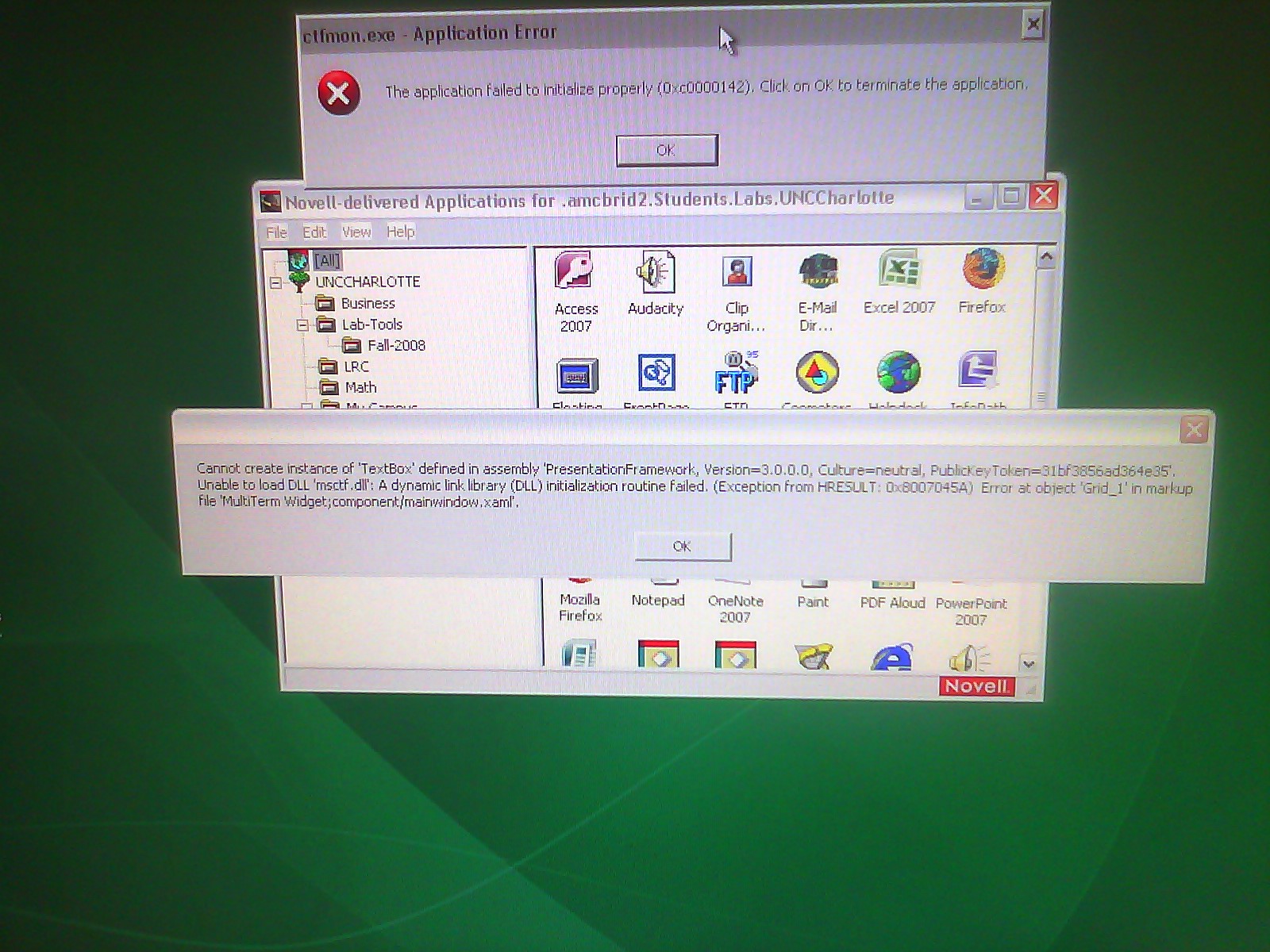
This appears to be a Trados error. Does it appear on every startup? On each Coed434 PC? We have to investigate.
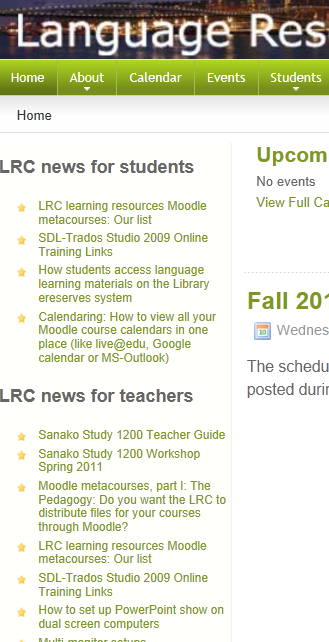
LRC website homepage updated to included LRC newsfeeds
We have added newsfeeds to the most recent LRC news for students and teachers to the UNCC-LRC homepage, in the hope that our clients will find it easier to learn about new LRC features for language learning.
Sanako Study 1200 Teacher Guide

Taken directly from the Sanako documentation and posted here for your convenience (click on image for larger version), this practical cheat sheet is also available on the teacher podium.

Questions? Read the About. Or just ask me a quick Our Databases: Resources with calendars -- Language learning material Moodle Sites, multimedia files -- films


FAQs for LRC student staff or for students or for teachers. To search our FAQs, in the browser addressbar, add after "https://plagwitz.wordpress.com/feed/?tag=faqs+/" "+TAG1" (from tag cloud below) OR "https://plagwitz.wordpress.com/feed/tag=faqs
&category_name=" "CAT1" (from category hierarchy below). OR search both categories and tags, and multiple TAGs/CATs (connect with "," for OR-search, with "+" for AND-search), like so: https://plagwitz.wordpress.com/feed/?tag=TAG1+TAG2+...TAGn&category_name=CAT1
+CAT2+...CATn"
Other ways to find help
If you cannot find it here, look there: 5,500 Language-Learning Links and Programs for learning or teaching 150 languages
Shortcuts:Our Lists, Our Maps, LRC Staff Moodle Site,LRC Project Moodle Site, 49erexpress, UNCC Moodle, Student Recordings: s:claslcslrcsanakostudent
Learning usage samples: Sanako oral exam, Kaltura webcam presentation, Dictation with speech recognition, Sanako written exam, Chinese and Japanese interactive stroke-order practice
Test the Sanako Installer, Webbrowser Popup Konfigurator for XP, or Windows7, faster LRC TeacherPC Log-in Let MS facilitate diacritics writing by installing for you US-International keyboard layout
This is my personal blog (Google+). The views expressed on these pages are mine alone and not those of my employer. The information in this weblog is provided “AS IS” with no warranties, and confers no rights.

