Archive
Archive for the ‘Learning-Tool-is-any’ Category
Calendaring: How to view all your Moodle course assignments in Ninermail, OWA or MS-Outlook – Shortest
2012/01/05
3 comments

Categories: audience-is-students, audience-is-teachers, documentation, lms, Screenshots, step-by-step-guides
calendaring, FAQs, moodle, ms-outlook, OWA
Windows Live Messenger Advanced Options
2012/01/04
Leave a comment

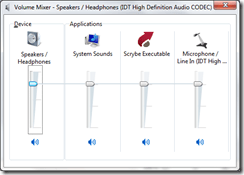
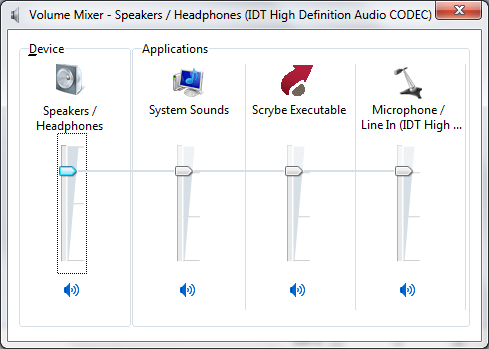
- mixer:
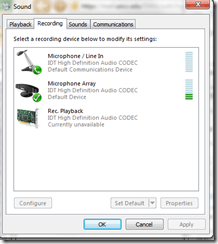
- recording devices (playback is the other tab) : does your input volume meter show activity? Can you press a button: “configure to activate/turn on the microphone? meter
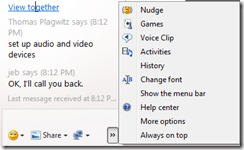
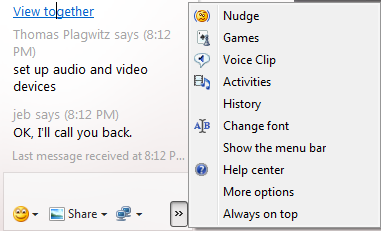
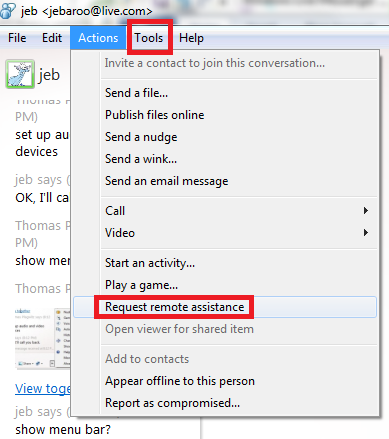
- how to request remote assistance ( via screen and control sharing)

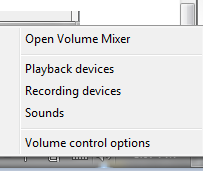
- or so



Categories: software, web-conferencing
audio, ms-live-messenger
Sharing and reusing Moodle learning content using backup and restore, part III: Shared intermediate courses
2012/01/03
1 comment
- You can facilitate the sharing process if you link source and destination Moodle courses via a Moodle course that is itself shared between the teachers (= all teachers can backup from or restore/import into this shared course), but not to students.
- By backing up to and restoring from such a shared Moodle course, you can more easily inspect the shared course content than
- if you’d import into the destination course to inspect,
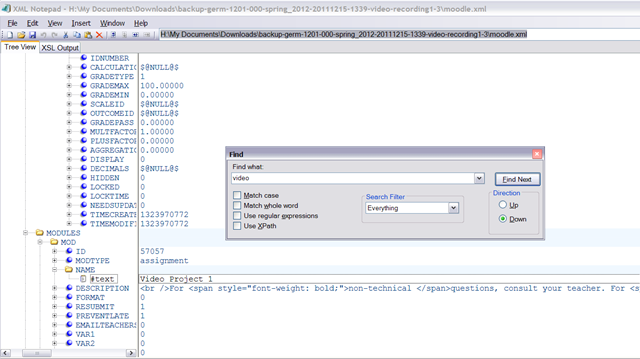
- or either inspect the unzipped XML of the Moodle course backed-up content format, like here:
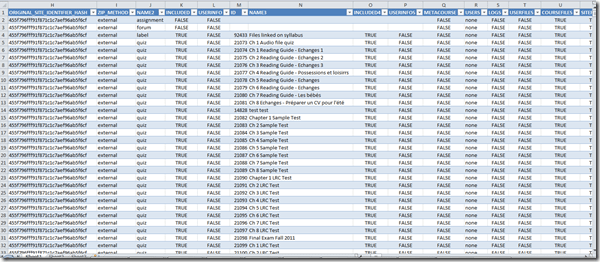
- which can be a daunting perspective on your content:

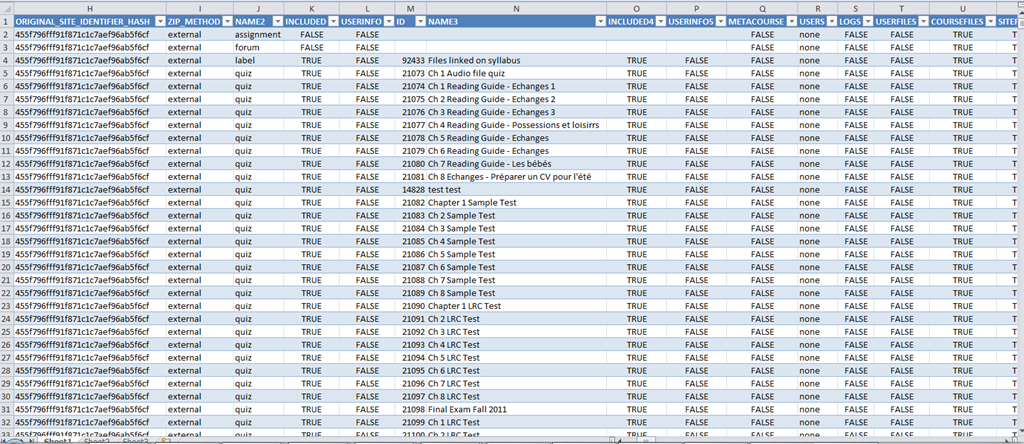
- A little more instructive are the Moodle course export file columns in a handy list, with sample content (where available in our case – sample content does not represent an actual “row”, but merges multiple “rows”, using Excel’s “Paste Special’/ “Skip blanks”):
- As you can see, there are fewer than 254 column (meaning you can even load this into Excel <2007), and apparently you get to actual teaching content already on nesting level 3.

Sharing and reusing Moodle learning content using backup and restore, part I: Backup
2011/12/15
4 comments
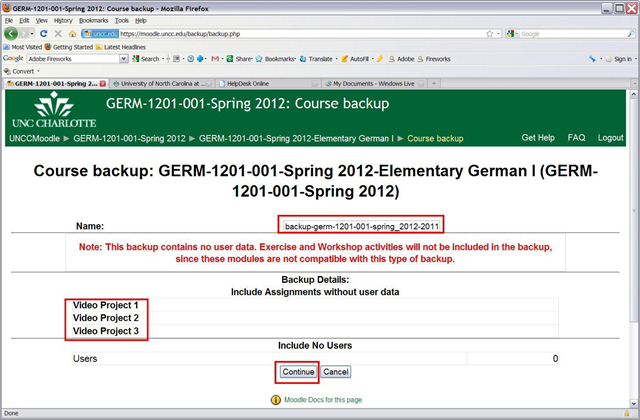
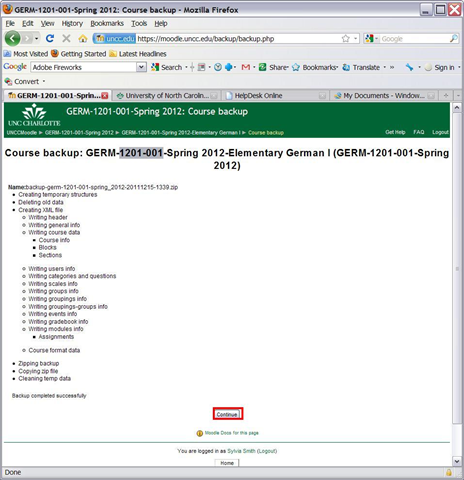
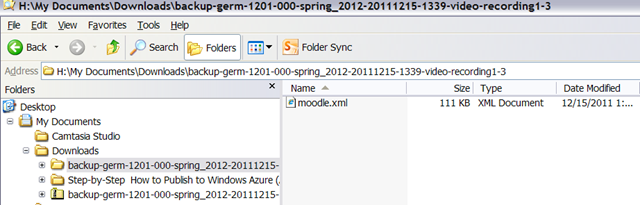
To reuse your own content, you can import. To use somebody else’s content, the other user can backup his content (even though not shown below, a subset of the content of a course can be chosen) and share (by downloading the file created within the course file area) the backup file with you (a zip-archive that contains an xml file), for the other user to restore. Like so: 


Sharing and reusing Moodle learning content using backup and restore, part II: restoring
2011/12/15
4 comments
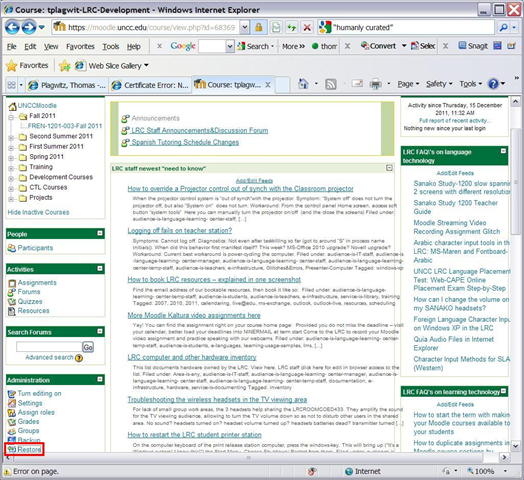
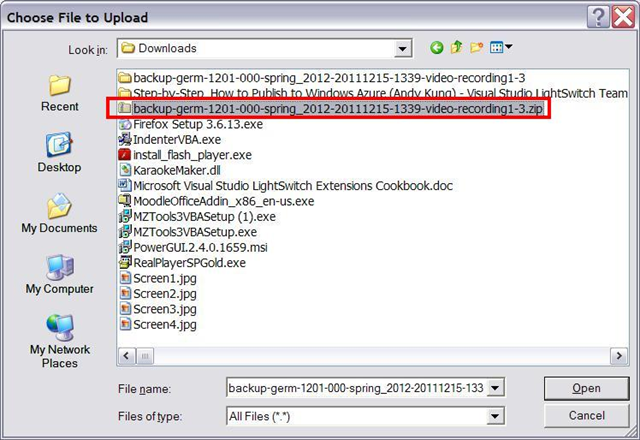
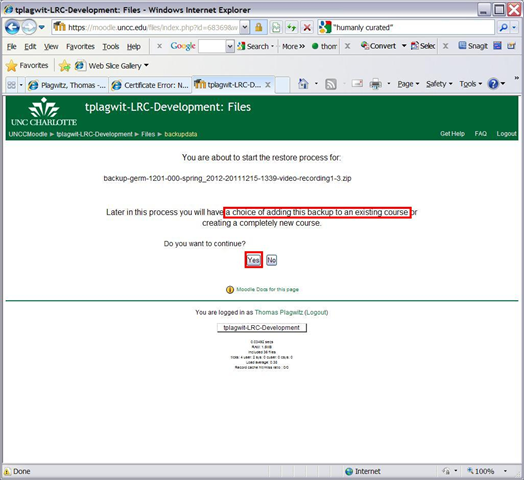
Here I am restoring the backup I made from a different user’s Moodle course in part 1:backup, to add the learning content to my own target course:




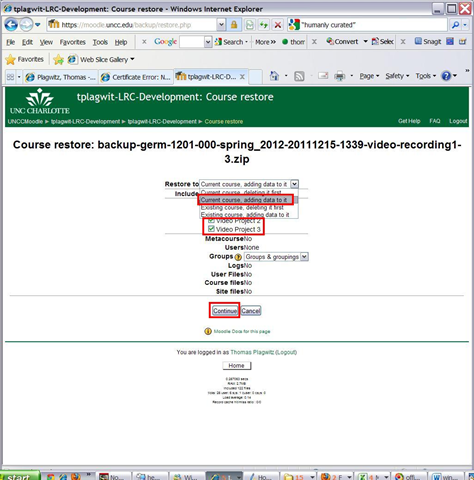


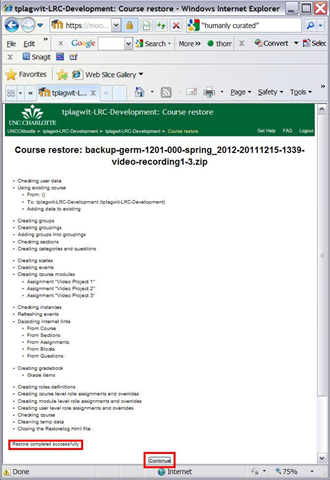
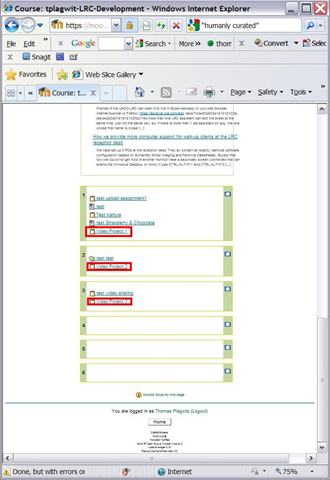
Now how can we scale this collaboration on Moodle learning content without an erepository?
How to search this blog: Combining searching for tags and categories with feed display in Internet Explorer
2011/12/14
Leave a comment
- By adapting this mask in the address-bar: https://plagwitz.wordpress.com/tag/YOUR-1ST-TAG+YOUR-2ND-TAG+…+YOUR-NTH-TAG/feed/?category_name=YOUR-1ST-CATEGORY+YOUR-2ND-CATEGORY+…+YOUR-NTH-CATEGORY
- you can combine into an AND-Search
- a tag-search (e.g. for the posts tagged as “FAQs”. You can find other tags from the tag-cloud in the right column of the blog; note that it is not complete, but only the most frequent tags are displayed there. Tags are a metadata collection that can flexibly grow on demand)
- a category_search (e.g. for “audience-is-teachers”. You can find other tags from the category-hierarchy in the right column of the blog; note that this hierarchy is complete, all categories tags are displayed here, top categories alphabetically, sub-categories alphabetically under their respective parent. Categories are a more controlled metadata collection)
- and the display of only the “feed”
- which makes for a quicker overview of large search result sets than the complete articles that a search without “ /feed” would return)
- and allows for subscribing to (or saving stored) searches
- Internet Explorer’sfeed display is
- compact
- provides a (1) cumulative overview of all tags and categories (the “ tag cloud for search results” that is missing on WordPress.com ) within the search results which is easy to browse and drill into, for searches within search results (click to “filter by category” and tag: Internet Explorer subsumes both tags and categories of WordPress.com’s blogs under the term “category”).
- (2) evidence of an AND-search across tags and categories (e.g. find only FAQs that are for meant for teachers: 15 matches for the former, 15 matches for the latter, 15 matches overall)
- Result:

- Limitations
- To browse categories by view (syntax /category/[CATEGORYNAME]), you would have to travel the full path of the category hierarchy. Using “&category_name=” seems easier, especially since the view does not allow for searching within the entire category sub-branch. Each node stands by itself.
- Remember that this is not full-text, but metadata (“human curated”) search technology. The quality of the search results hinges on the quality of the metadata originally added to the blog posts by the author (“To err is human”, or “Garbage in, garbage out”).
- Worse: There is no provision for collaborative tagging on WordPress.com.
- more hints:
- “/feed” works only before ?query-string-syntax, but only after /view-syntax, like in the following examples around “Arabic”.
- you do NOT need to give the whole branch of categories when using the view-syntax (and also not only for the 1st and 2nd level): https://plagwitz.wordpress.com/feed/?category_name=arabic works, but so does https://plagwitz.wordpress.com/category/arabic/feed and also https://plagwitz.wordpress.com/category/study-program-is-any/all-languages/arabic/feed.

Categories: audience-is-any, blog, documentation, e-learning
meta, metadata, searching
How to allow resubmitting of Moodle Kaltura video assignments
2011/12/12
Leave a comment
- Students may need a number of tries to complete a Kaltura video recording assignments, especially if they do not take advice to do it in the LRC, with the provided support structure, but overly confident, prefer to try “relying on their own metal”.
- To allow them to learn from their mistakes, one is best advised to allow for resubmission of their assignment.
- If you have not enabled the assignment, click on the assignment on the Moodle course home page – apparently no need to “turn editing on” prior –, and in the upper right corner of the assignment page, click button: “update this assignment”, like so:

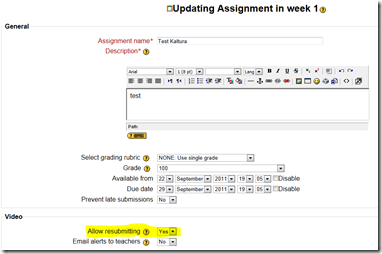
- On the assignment settings page, make sure, “allow resubmitting” is set to “yes”, like highlighted below:


Categories: audience-is-teachers, e-learning, lms
kaltura, moodle
How to override a Projector control out of synch with the Classroom projector
2011/12/10
Leave a comment
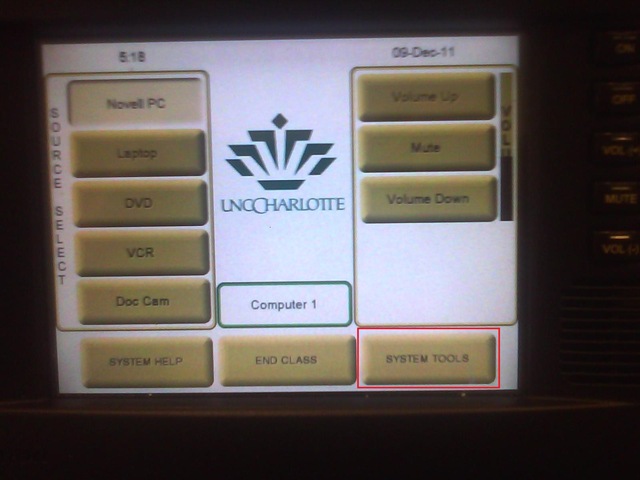
- When the projector control system is “out of synch”with the projector.
- Symptom: “System off” does not turn the projector off, but also “System on” does not turn.
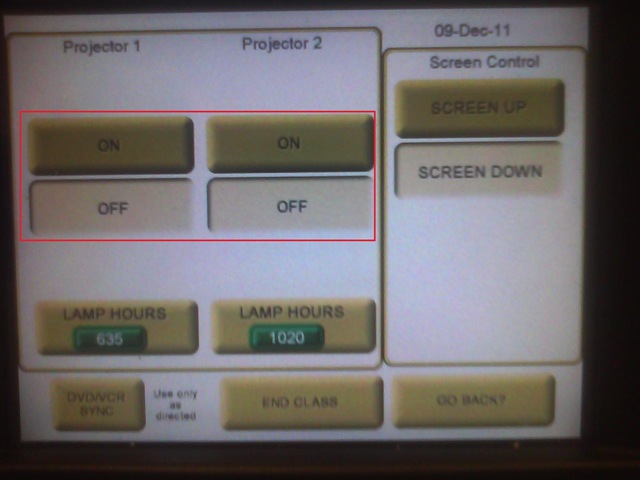
- Workaround: From the control panel Home screen, access soft button “system tools”

- Here you can manually turn the projector on/off (and the close the screens)


Questions? Read the About. Or just ask me a quick Our Databases: Resources with calendars -- Language learning material Moodle Sites, multimedia files -- films


FAQs for LRC student staff or for students or for teachers. To search our FAQs, in the browser addressbar, add after "https://plagwitz.wordpress.com/feed/?tag=faqs+/" "+TAG1" (from tag cloud below) OR "https://plagwitz.wordpress.com/feed/tag=faqs
&category_name=" "CAT1" (from category hierarchy below). OR search both categories and tags, and multiple TAGs/CATs (connect with "," for OR-search, with "+" for AND-search), like so: https://plagwitz.wordpress.com/feed/?tag=TAG1+TAG2+...TAGn&category_name=CAT1
+CAT2+...CATn"
Other ways to find help
If you cannot find it here, look there: 5,500 Language-Learning Links and Programs for learning or teaching 150 languages
Shortcuts:Our Lists, Our Maps, LRC Staff Moodle Site,LRC Project Moodle Site, 49erexpress, UNCC Moodle, Student Recordings: s:claslcslrcsanakostudent
Learning usage samples: Sanako oral exam, Kaltura webcam presentation, Dictation with speech recognition, Sanako written exam, Chinese and Japanese interactive stroke-order practice
Test the Sanako Installer, Webbrowser Popup Konfigurator for XP, or Windows7, faster LRC TeacherPC Log-in Let MS facilitate diacritics writing by installing for you US-International keyboard layout
This is my personal blog (Google+). The views expressed on these pages are mine alone and not those of my employer. The information in this weblog is provided “AS IS” with no warranties, and confers no rights.

