Archive
How to download videos from YouTube.com, and other video sites
- Don’t know what this institution recommends – here is a list of software that I have accumulated over time – I stopped a while ago, since there is always something newer coming out - try googling what is currently most popular.
- http://www.viloader.net/addon.htm: You have to click on download, and save the file with the name you want and in the end you have to add .flv that its the video format. Then when the video has been saved to your PC you have to convert the video in a comercial format like wmv, mpg, etc. or download a flv player to be able to see the videos.
- Youtube Catcher can download videos from Youtube, Google Video, Myspace Video, Yahoo video Dailymotion Stage6 Veoh. The downloaded videos can be exported to various formats like MPG,AVI, MP4,3GP, 3G2, WMV, PSP, MOV, FLV with the quality you choose: http://www.teknobites.com/2007/08/23/youtube-catcher-youtube-and-other-video-downloader-tool/
- zamzar.com
- http://userscripts.org/scripts/show/25105,
- http://www.googlewatchblog.de/2008/04/13/youtube-video-als-mp4-herunterladen/
- MPEG Streamclip can download YouTube files. They are always opened or downloaded in MP4 (MPEG-4) format, so they can be used in MPEG Streamclip.
- this works well as of 8/17/2009 1.Go to http://edtech.nwresd.org/?q=node/157 . You will see the words ""download script"" (in blue – a hyperlink). Right click on that text and then on ""Bookmark this link"" (at least that’s what it says using Mozilla Firefox as a browser). You can move this bookmark within your Bookmarks or Favorites Folder wherever you want. 2.Go to YouTube and locate a video you want to save. While the video is actually playing, go to your Bookmarks Folder and click on the ""download script"" link you saved there.3.Next look in the right hand column on the screen – to the right of the video playing. Just below the section that says URL, and EMBED (right below URL) you will see a text that says download as MP4. 4.Right click on that text and then click on SAVE LINK AS. You can choose where you want the file to be saved and you can even rename the file (for me the default name is ""video""). Just to be sure I’d let the video play to the end before checking to see if it actually where you put it.
-
if (document.getElementById(‘download-youtube-video’)==null && !!(document.location.href.match(/http:\/\/[a-zA-Z\.]*youtube\.com\/watch/))) {var yt_mp4_path=’http://www.youtube.com/get_video?fmt=18&video_id=’+swfArgs%5B‘video_id’%5D+’&t=’+swfArgs%5B‘t’%5D; var div_embed=document.getElementById(‘watch-embed-div’);if(div_embed){var div_download=document.createElement(‘div’);div_download.innerHTML=’ <br /><span id="\’download-youtube-video\’"><a href="\”+yt_mp4_path+’\’">Download as MP4</a> ‘+ ((navigator.userAgent.indexOf(‘Safari’)!=-1)?'(control-click and select <i>Download linked file as</i>)’:(‘(right-click and select <i>Save ‘+ (navigator.appName==’Microsoft Internet Explorer’?’target’:’link’) +’ as)</i>’))+’</span>’;div_embed.appendChild(div_download);}}void(0)
-
- Updates for the the 2013/4 academic year:
- YouTube Center, includes download functionality, more on YouTube center here.
- Orbit downloader:
- Claims to be a generic downloader, and looks complicated enough to convince me of that
 .
. - However, I did not have any luck here, at least I did not find a practical (=automated) way to cobbling these clips together (are media outlets, even if they are under non-US legislation and trying so hard, still bound by the fair use legislation?):
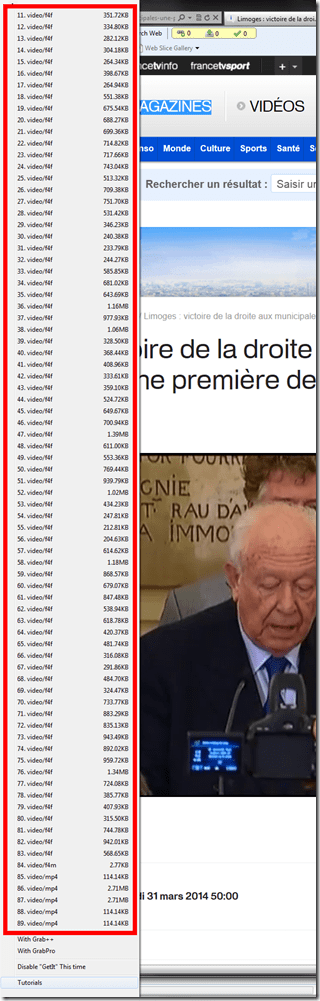
- Also changes your browser home page without asking – I can’t say I like the territory I get myself into with these teacher download requests.
- Claims to be a generic downloader, and looks complicated enough to convince me of that

News TV on the internet: Politics and Legislatures
http://en.wikipedia.org/wiki/Template:Parliamentary_broadcasters
http://en.wikipedia.org/wiki/Category:Legislature_broadcasters
http://ec.europa.eu/avservices/about/activities_en.cfm
”On-demand consultation of any event or subject during the week following its transmission on satellite. All products become accessible to any connected media or individual anywhere in the world through the Internet portal of the audiovisual service. On the site you will find EbS permanently updated transmission schedule, as well as shotlists detailing the content of pictures and links to complementary information sources and photos. Pictures and sound may be downloaded in broadcast quality formats: MPEG2 for video, MP3 for sound and JPEG for photos. This news material is published during or soon after the events, remains available *for at least one month* and is easy to download, process and file.”
LLC Catalogue: Video-Reserves.xlsm, Reserve desk, Schedule, using Blackboard Content System WebDAV
For a LLC video schedule, we came up with the following repurposing of existing infrastructure:
- MS-Excel: still the “Swiss army knife” of choice for the middle manager. Allows for: semi-automatic creation of reserve date sequences (insert series), given a start and end date; data validation during data entry, and, based on that, sorting and filtering and, based on that, finding.
- Blackboard Content management system (WebDAV) to manage reading and writing (editing) permissions.

- Staff can use MS-Excel to request videos – preferably at start of term – to be put on reserve within a start and end date, during which they will be periodically shown, by opening the spreadsheet from MS-Excel and filling in the green cells in the first empty row at the bottom.

- Lab Staff can use MS-Excel to periodically transfer video reserve requests into video showings.
- Lab Assistants can use MS-Excel to daily maintain video reserve desk and video showings.
- Students can use a web browser to preview video showing times during the remainder of the term.
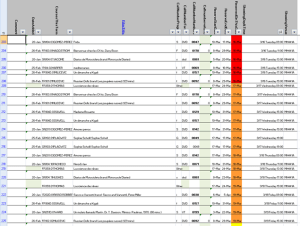
- To open the video schedule for read-only, Loyola students and staff can simply click this link in their browser: https://blackboard.loyola.edu/bbcswebdav/users/trplagwitz/llc-pfiles/video/video-reserves.xslm. Even read-only access includes the capability to search, sort and filter the schedule data, but you cannot save back.
- To open the video schedule for editing, LLC and Modern Languages staff can start MS-Excel, click menu: File / Open, and copy/paste this link: https://blackboard.loyola.edu/bbcswebdav/users/trplagwitz/llc-pfiles/video/video-reserves.xslm, then click open.
- All users will have to authenticate with their institutional account info:


Video Library: Scheduling for Reserve Desk and Viewings
Lab staff instruction for editing the video-reserves spreadsheet H:\LLC\scheduling\video-reserves&mh441b-showing\video-reserves.xls:
- Lab supervisors build the spreadsheet for the reserve desk and viewing: video-reserves-reservedonthisday-unfold-schedule-viewing.wmv, video-reserves-viewing-selecting-timeslots&venues.wmv
- Lab assistants read the spreadsheet and handle the actual media (i.e. update the reserve desk and show the videos): video-reserves-reservedonthisday-filter-viewing-or-reserve.wmv
B-languages for Relay interpreting in European Parliament Plenary Video (2009)
You can do relay interpreting from European parliament plenary videos by selecting one of the b-languages which the parliament interpreters provide.
The (3) video download control for videos older than 20080711 allows for the recording of only one language-track in the video. You can download, from a link emailed to you, either the a- (e.g. (1) Italian here) or one b-language (e.g. (2) German here), as you can see below:

Given that software tends to always get impoved, is is rather surprising that one does not seem to have a similar choice in the new video downloader – however, the improvement is just a bit hidden.
For Videos newer than 20080710, all language-tracks are automatically contained within the downloaded (how? see here) video file. To switch between a- and b-language or between b-languages, in Windows Media Player, go to menu (if the menu does not show, right-click left from the “Now playing”button””: file / play / audio and language tracks / [now choose your language].
E.g. if you do not want to listen to Ferrero-Waldner not speaking her native tongue, choose like pictured below:

And she does not really speak “Zulu” which seems to have been chosen by the European Parliament technicians as the designator of the original a-language, there being no such concept in windows media player. Çan’t have it all. Pretty close, though.
Learning materials management: Online_resources.xls I: Intranet (2003-2009)
Language labs tend to have many multimedia files (audio and video) on network shares – still more flexible than the web-based interfaces we are given (1 user operation does a batch on many files versus multiple clicks are needed for an operation on 1 file).
As a variation on the spreadsheet for multimedia file collections, I created a cataloging spreadsheet that imports lists of audio and video files, including metadata which gets preserved when windows media center records commercial digital TV, from a language center network share – you can find sample code on MS-Excel lists. You can see the import code in action in this screen cast.
Unfortunately, no recursion into subfolders and once more meant to move the files off the network and store on DVDs, for lack of space. Here at least the fields are less and the search relies more on regular expressions.
The current quick and dirty incarnation of self-made source material for interpreting exercises is here: 
Help with playing videos
- Some videos require special codecs to display properly/ at all.
- Here is info on the H.264 codec.
- Often, it is best to try, instead of Windows Media Player (which may be the default player that opens when you (double)click on a video, but not be able to display it without manual configuration),
- the free VLC player which you can download here, if you must, and install, if you are permitted. Then right-click video, “open with”, “VLC media player”, like here:


How AI and human intelligence can blend in the language lab to form personalized instruction

- An example from long before mobile computing but still: While I personally like communicative uses of the language lab infrastructure best (pairing, group conferences, with recording, screen sharing, collaborative writing),
- the above (click image to download and play WMV video, also on MAC – sorry, file won’t transcode) may be the 2nd best :
- The student is engaged
- primarily with a listening (comprehension) exercise using authentic target language media (German chanson),
- also with some light writing (recognition of vocabulary words)
- and receives automated feedback in response form quiz template.
- The communicative aspect is added
- through seamless, effortless, surgical and last not least private teacher intervention or “remote assistance”
- when the teacher (“automonitoring” all LAB300 students one after the other) notices from afar (even though thumbnail-sized, hence the large fonts of the quiz template)
- how the current automated error feedback may not be enough of an explanation, but may have created “a teachable moment”:
- Student heard phonetically correctly, but not etymologically. German “Fahrstuhl”, not “Varstuhl””: literally a “driving chair” – after this little intervention, likely a quite memorable compound.
- A good example how language lab computers need not get “in between you and your student”, but connect you – just like has become an everyday reality, in the meantime, in the social web world.
- The student is engaged


Questions? Read the About. Or just ask me a quick Our Databases: Resources with calendars -- Language learning material Moodle Sites, multimedia files -- films


FAQs for LRC student staff or for students or for teachers. To search our FAQs, in the browser addressbar, add after "https://plagwitz.wordpress.com/feed/?tag=faqs+/" "+TAG1" (from tag cloud below) OR "https://plagwitz.wordpress.com/feed/tag=faqs
&category_name=" "CAT1" (from category hierarchy below). OR search both categories and tags, and multiple TAGs/CATs (connect with "," for OR-search, with "+" for AND-search), like so: https://plagwitz.wordpress.com/feed/?tag=TAG1+TAG2+...TAGn&category_name=CAT1
+CAT2+...CATn"
Other ways to find help
If you cannot find it here, look there: 5,500 Language-Learning Links and Programs for learning or teaching 150 languages
Shortcuts:Our Lists, Our Maps, LRC Staff Moodle Site,LRC Project Moodle Site, 49erexpress, UNCC Moodle, Student Recordings: s:claslcslrcsanakostudent
Learning usage samples: Sanako oral exam, Kaltura webcam presentation, Dictation with speech recognition, Sanako written exam, Chinese and Japanese interactive stroke-order practice
Test the Sanako Installer, Webbrowser Popup Konfigurator for XP, or Windows7, faster LRC TeacherPC Log-in Let MS facilitate diacritics writing by installing for you US-International keyboard layout
This is my personal blog (Google+). The views expressed on these pages are mine alone and not those of my employer. The information in this weblog is provided “AS IS” with no warranties, and confers no rights.
 Thomas' Work Space