Archive
Archive for the ‘hardware’ Category
How to connect an MS-Surface RT to the secure campus wireless
2014/01/29
Leave a comment
- This worked on a 1st generation Surface, but with Windows 8.1.
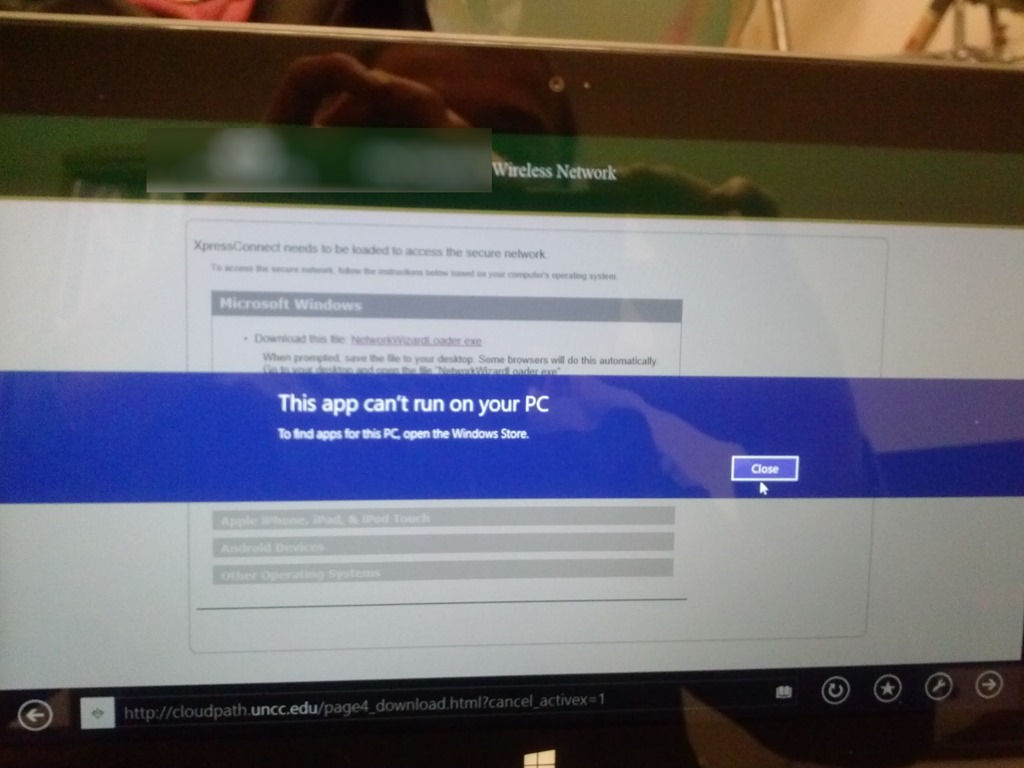
- No problem getting onto the UNCC49er network, but the Surface/Windows 8 is not supported on the NINERWifi-secure yet. Specifically, loading the automated configuration tools provided when first trying to access the NINERWifi-secure, fails on the RT platform.


- I received seemingly conflicting instructions:
- The campus website
- has for devices that are not supported manual configuration settings.
- Another campus that uses the same secure wireless provider has these instructions for Windows 8.
- I could piece it together from there,
- including any translation to (there is none needed that I could see which BTW actually amazes me) Windows 8 RT.
- Maybe the following would have worked also, but I did not try it since I was already in the middle of the above steps:
- Swipe in from the right-edge of the screen, and tap Settings. (If you’re using a mouse, point to upper-right corner of screen, move the mouse pointer down, and then click Settings.)
- Tap or click the wireless network icon Wireless network icon. A list of available wireless networks should appear.
- Look for the “Hidden Network” option and then choose it.
- When it prompts for a SSID, type in exactly: NinerWiFi-Secure
- It should then prompt for username/password (NinerNET credentials).
- Say yes to any certificates warnings that pop up.
- The campus website

“Back to basics”: Need once again to default to color scheme basic on teacher computer
2014/01/27
Leave a comment
- Same problem as last term: (What made it come unstuck/unfixed?):


- No Sanako screen sharing activity involved here, but MS-Community-Clips screen sharing.
- Classes are moving in, and we cannot have the teacher computer slow to a crawl and eventually crash in the middle of a Sanako class, especially not when an assessment is involved.


Putting 2 Manfroto and Cullman camera tripods and 2 Smith-Victor Lights back into circulation with repair parts from eBay and HomeDepot
2014/01/19
Leave a comment
- The Library handed us back circulation of equipment that supports production classes in film studies since they could not maintain the equipment in good state of repair. We are having a hard time to do that, too,
- and regularly seem to lose – since we have no library, but only student staff, likely even more – vital parts (despite plenty of training and (feed:)checklists)
- which we cannot get replaced through approved university procurement channels.
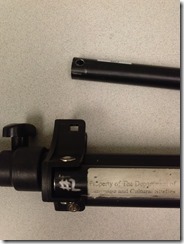
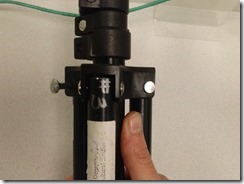
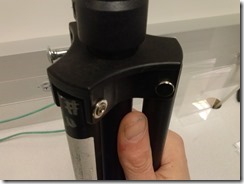
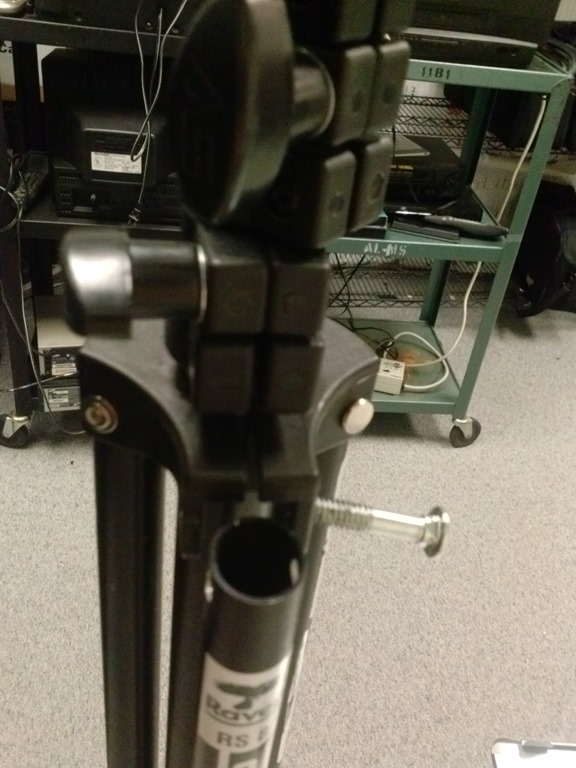
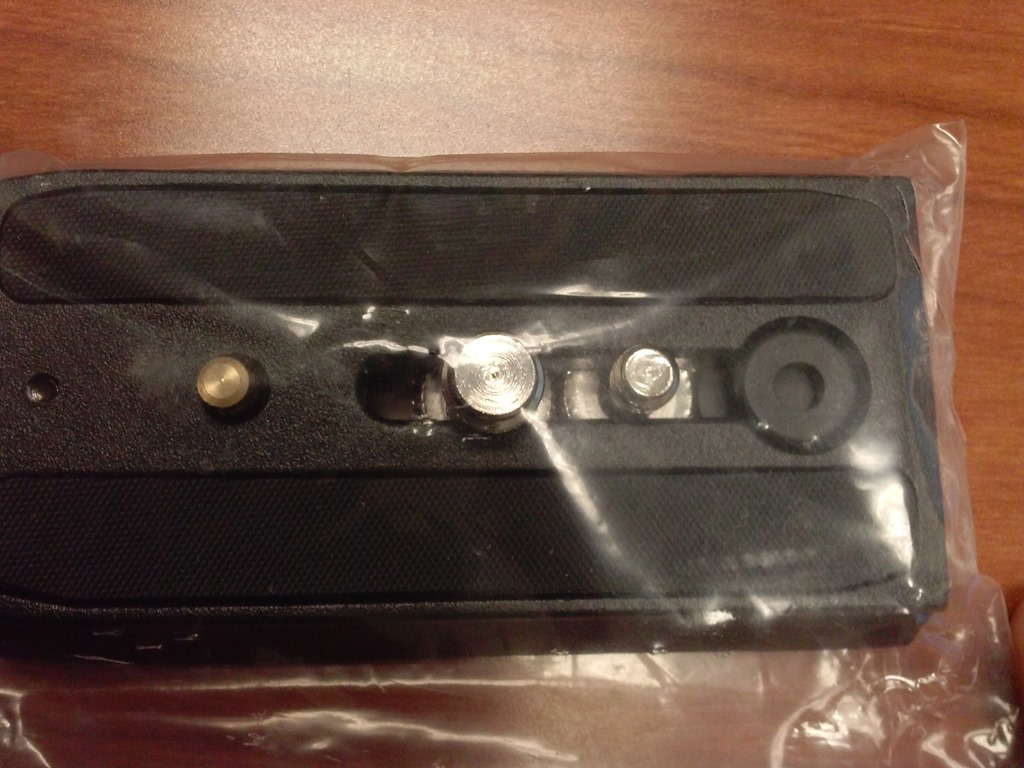
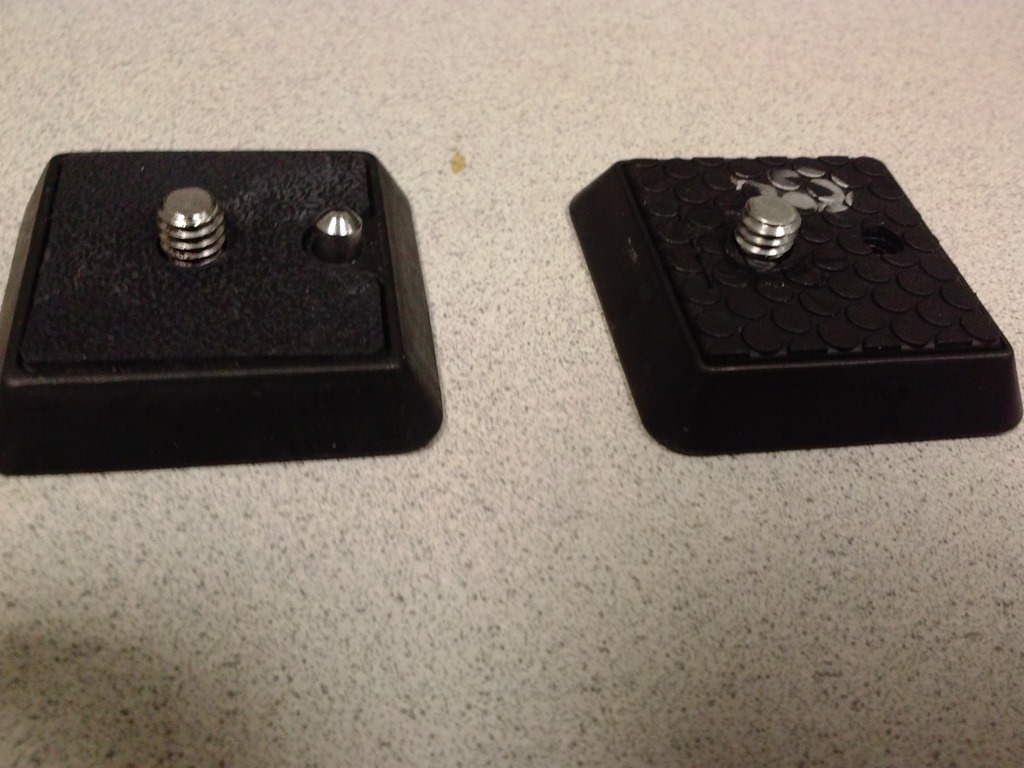
- Enter the local HomeDepot, which has an entire aisle dedicated to screws, bolts, nuts and wing nuts, and eBay, which provides reasonable search features if you specify your parts well. While we do not have part numbers, the first order attempt was delivered in short time and proved successful: Here are the broken lights (screws wing nuts has been replaced in the meantime):
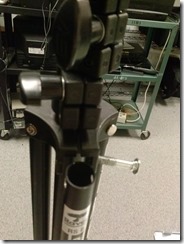
- Here are the the fixed tripods
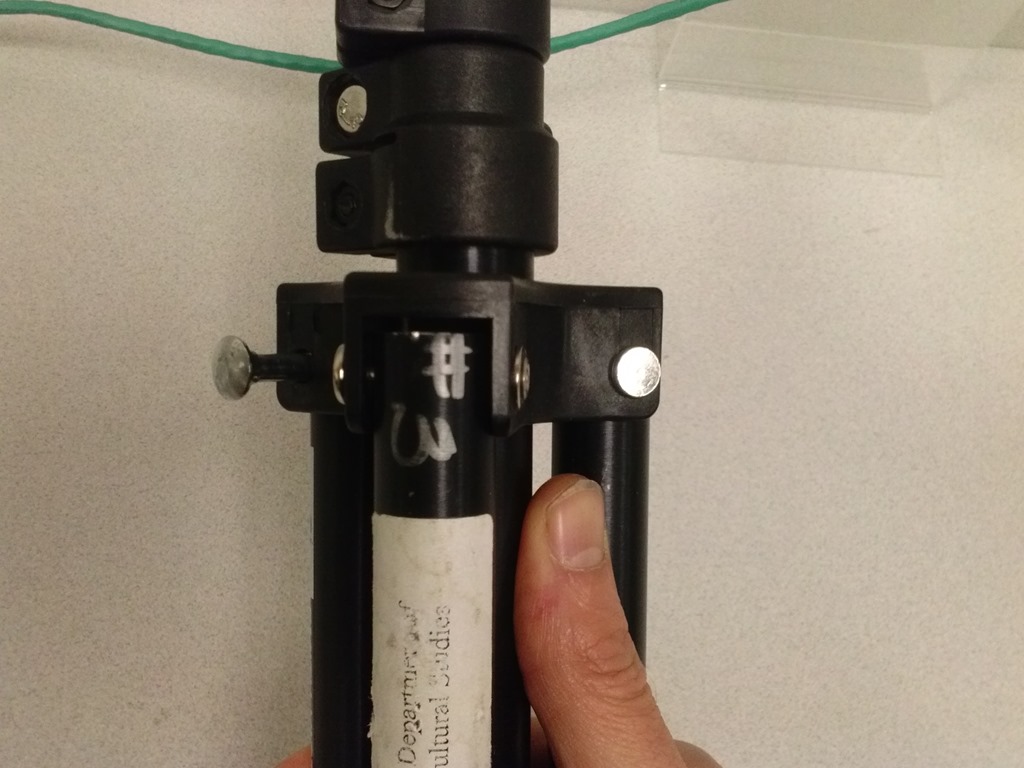
- (still in the surplus bin, but no need: back into circulation):

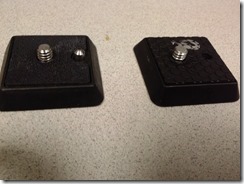
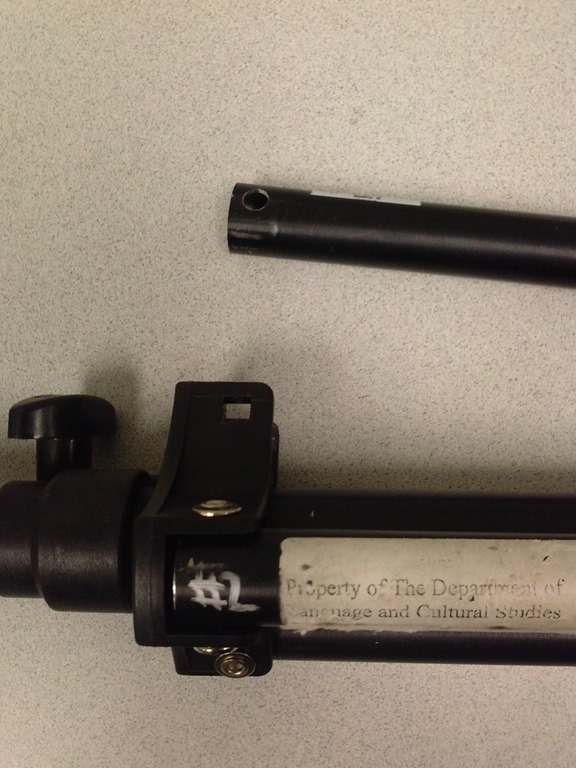
- and their original parts, and replacement parts from eBay:







How staff can connect their smart phones to Ninermail
2014/01/16
Leave a comment
Including Calendars, useful if you need to receive a reminder for your LRC bookings. It is all documented here (but the student instructions are on top of the search results, which may be confusing to some): http://itservices.uncc.edu/facultystaff-services/email/mobile.
Positioning of Language Lab PCs needs improving
2014/01/11
3 comments
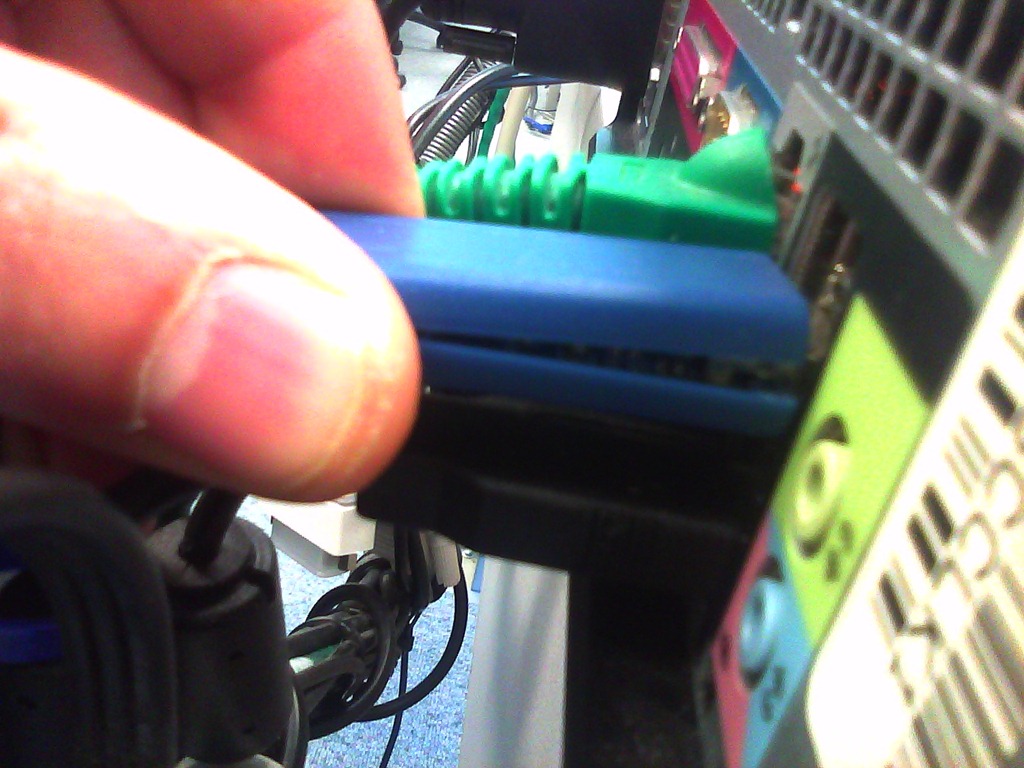
- Update: We worked around the issue with a male/female USB extension cord (black) to connect the Sanako USB connector (blue) into, this way, the whole setup can be aligned with the rear of the PC and won’t stick out and get in the way:

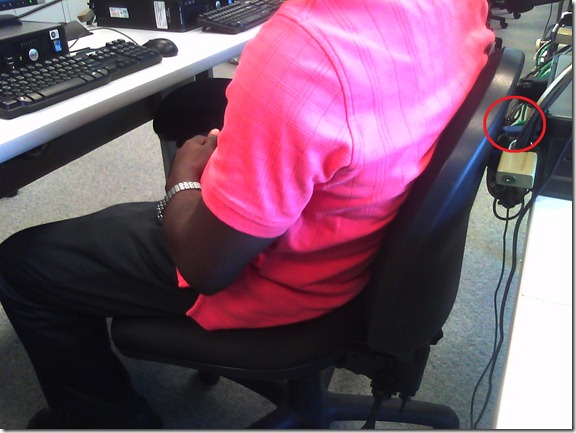
- Problem: Rear connectors of computers get disconnected or even damaged. Input (keyboard, mouse, microphone) and output devices (headset) get disconnected connected and therefore fails to work. Damaged equipment needs to be ordered and replaced, at considerable cost of time and money ($TBA per Sanako cable). It is too time-consuming to test equipment functionality (30 headsets and mice and keyboards) before each assessments and exam.
- Example of student in seat:
- We have observed these and similar damages regularly:


- Cause: Our language lab computer desks and rows are too narrow, for individual student sitting in front of the computer, not to mention classes moving in and out of their seats
- Other requirements:
- We need to have equipment plugged in the rear connectors of the computer and cable-tied to prevent students from trying to adjust or “fix” computers by re-plugging the equipment (often improperly, making them fail to work), and also because there is limited desk surface in front of the computers, given keyboard and mouse need to fit in front.
- For the functionality of the Sanako digital audio language lab system, we especially need to make sure, that the headset is plugged in on the same USB port in all computers.
- Solutionsthat we have
- already tried
- we have tied down the connectors with cable ties, but this has not worked sufficiently.
- yet to try: is there a way
- to permanently attach computers in a different, safer position on the existing furniture?
- or to buy and install different furniture, computers seated under desks inaccessible for end user and locked?
- already tried



Categories: e-infrastructure, Glitches&Errors, headphones, Photos, proposals, Student-Computers
furniture
Daily LRC walkthrough
2014/01/10
Leave a comment
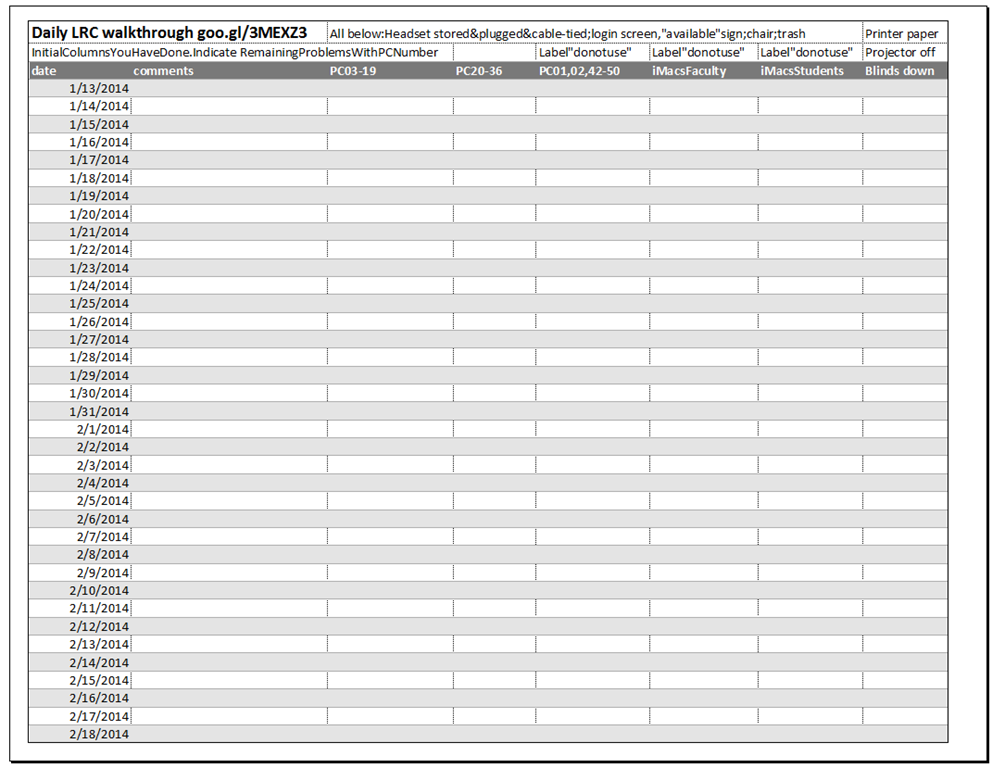
Take the clip board with this list, and, follow the instructions for the daily walkthrough, fill it out for the current row (= today’s date).
Categories: checklists, e-infrastructure, hardware, Spreadsheets
entrypoints
LRC headset tests
2014/01/10
Leave a comment
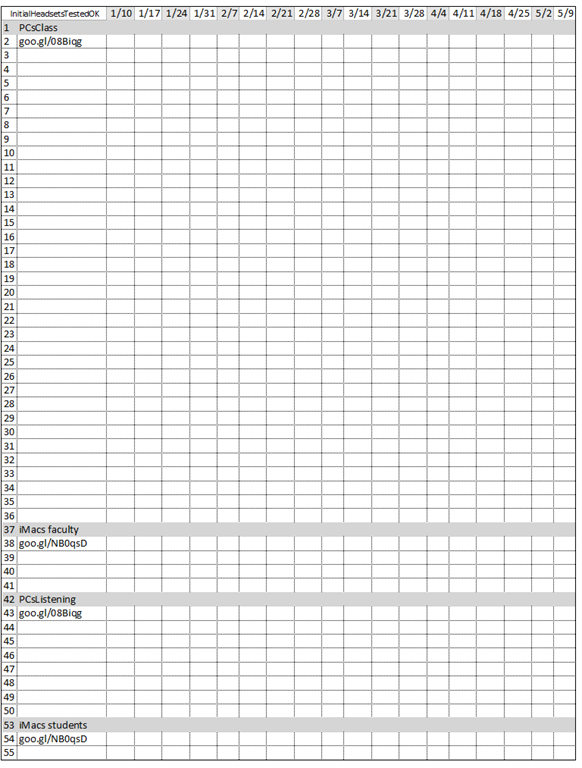
- To improve LRC readiness – given that headsets are the most prominent component of the language center, as well as a wear and tear part –,
- every Friday during the term (see column),
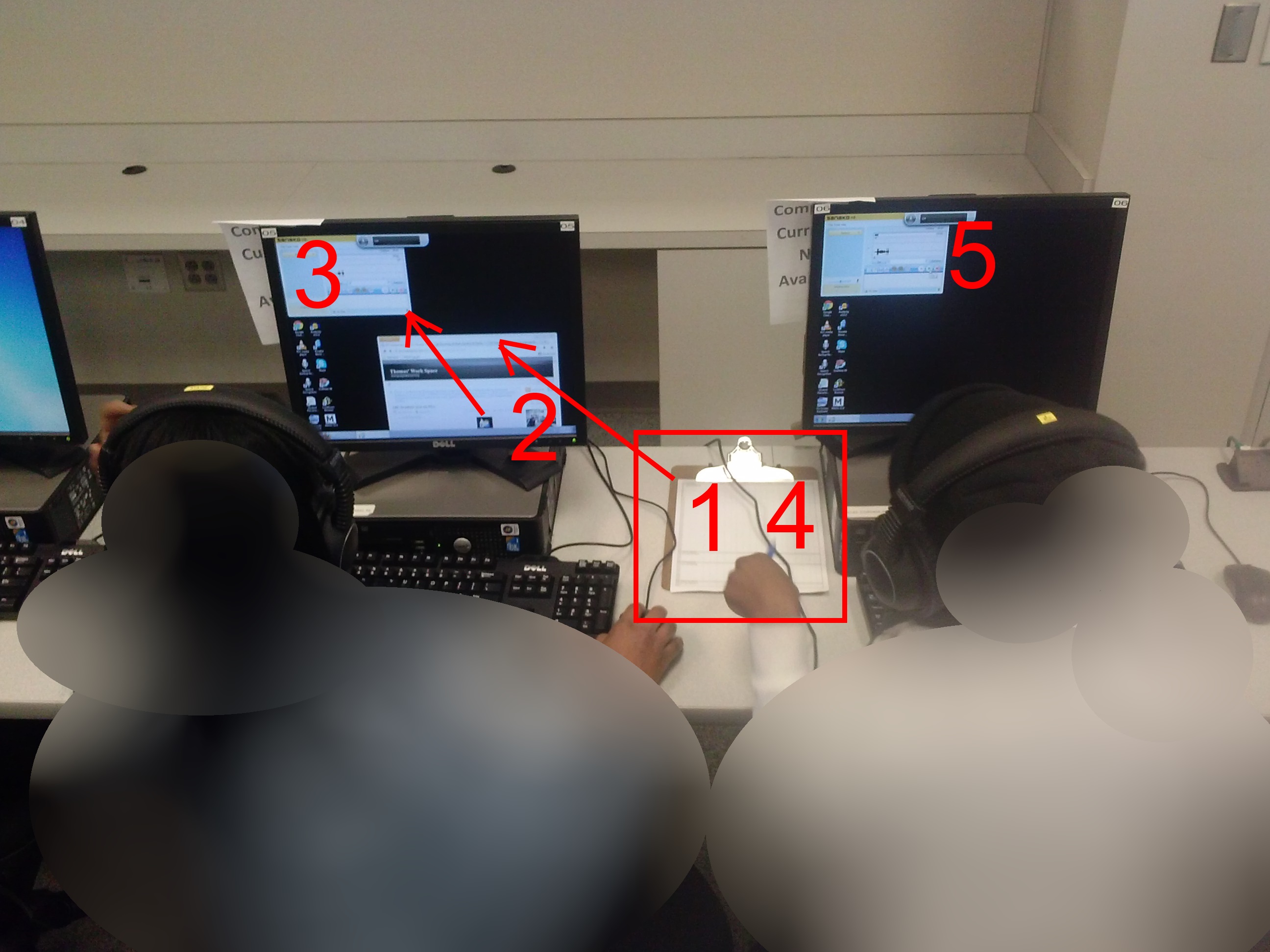
- a group of expert LRC assistants, armed with the above checklist on a clip board on the reception desk,
- tests each headset (see rows) in the LRC for functionality (play, record), using the procedure outlined in step-by-step instructions linked in the 2nd column from the left above
- and reports the test results on the clip board:
- upon success, puts tester’s initials,
- otherwise marks as “not ok”, e.g.
- “no plug”,
- ”no mic”, or “mic w/ static”
- “no sound”,
- etc.
- LRC assistants should, as pictured:

- from the clipboard,
- access the instructions
- follow the instructions
- record the results
- while working side-by-side to cut the load in half.
- In addition (not pictured), they can log in on multiple computers and start working on the first pair while the last pair stills starts up.
Categories: audience-is-students, checklists, e-infrastructure, hardware, headphones, Spreadsheets
asset-management


Questions? Read the About. Or just ask me a quick Our Databases: Resources with calendars -- Language learning material Moodle Sites, multimedia files -- films


FAQs for LRC student staff or for students or for teachers. To search our FAQs, in the browser addressbar, add after "https://plagwitz.wordpress.com/feed/?tag=faqs+/" "+TAG1" (from tag cloud below) OR "https://plagwitz.wordpress.com/feed/tag=faqs
&category_name=" "CAT1" (from category hierarchy below). OR search both categories and tags, and multiple TAGs/CATs (connect with "," for OR-search, with "+" for AND-search), like so: https://plagwitz.wordpress.com/feed/?tag=TAG1+TAG2+...TAGn&category_name=CAT1
+CAT2+...CATn"
Other ways to find help
If you cannot find it here, look there: 5,500 Language-Learning Links and Programs for learning or teaching 150 languages
Shortcuts:Our Lists, Our Maps, LRC Staff Moodle Site,LRC Project Moodle Site, 49erexpress, UNCC Moodle, Student Recordings: s:claslcslrcsanakostudent
Learning usage samples: Sanako oral exam, Kaltura webcam presentation, Dictation with speech recognition, Sanako written exam, Chinese and Japanese interactive stroke-order practice
Test the Sanako Installer, Webbrowser Popup Konfigurator for XP, or Windows7, faster LRC TeacherPC Log-in Let MS facilitate diacritics writing by installing for you US-International keyboard layout
This is my personal blog (Google+). The views expressed on these pages are mine alone and not those of my employer. The information in this weblog is provided “AS IS” with no warranties, and confers no rights.
 Thomas' Work Space