Archive
Archive for the ‘Classroom-technology’ Category
Step-by-step for using Windows Task scheduler, e.g. for automating language lab assessment emailing
2013/06/05
Leave a comment
- Press
 + R, type “Taskschd.msc”, press “OK”.
 -
On right menu, click “Create Task". To provide students with their assessments and possibly instructor feedback quicker, I run the LangLabEmailer repeatedly after end of business day. I show some settings that you can experiment with.
-
On tab: “general”, name your task:
-
-
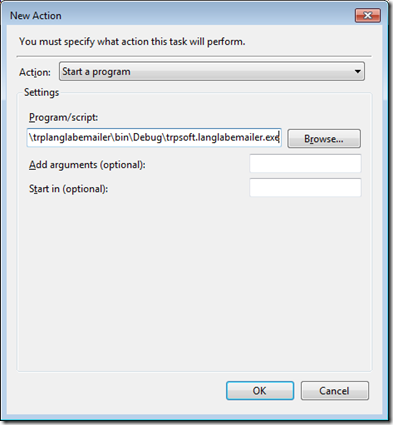
Tab: Actions, button:new / window:new action, button:browse, desktop/LangLabEmailer , button:open
-
-
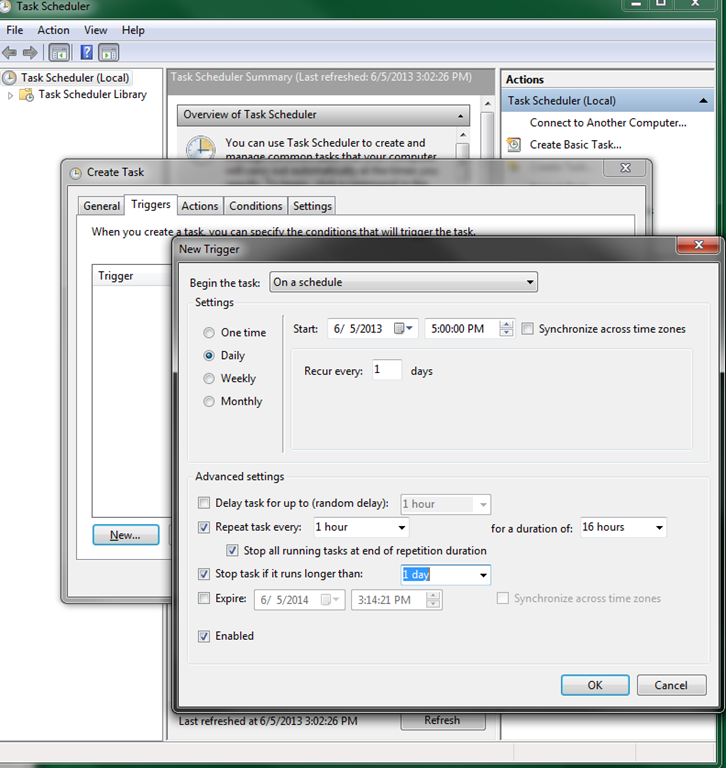
Next up: tab:“Trigger”, where you can set your schedule:
-
-
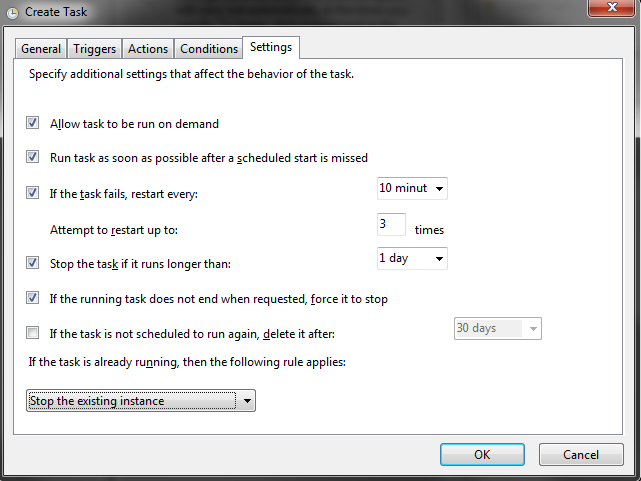
Finally, access additional (tab:)“Settings”:
-
-
Result:

-
I advise setting the scheduler to end a prior task if it is found still running.
- The above example is using an old ClickOnce distribution of the langlabEmailer– your installation executable will differ and look similar to this:

- Troubleshooting:
-
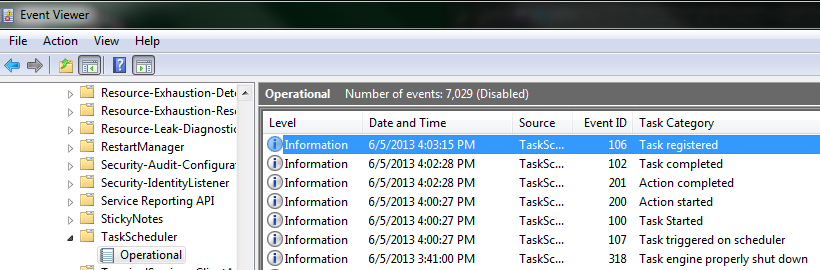
When a scheduled task fails, an entry gets written to the event log here: Press+ R, type “eventvwr.msc”, press “OK: Application and Services Logs /Microsoft /Windows /Task Scheduler /Operational:
-
-
Watch out for permission problems, tasks that have not been enabled, and disabled task histories (for troubleshooting).
-
You might also want to dig deeper and schedule a task to alert your when your scheduled tasks failed.
-



Introducing the LangLabEmailer
2013/06/04
Leave a comment
- The LangLabEmailer helps integrating the digital audio lab (still widely operating based on files and network shares) into the departmental language teaching and learning process by automatically forwarding (audio, text) assessments and assignments collected in the digital audio lab to teachers and students via campus mail (using MS-Exchange automation).
- Easy on the Language Lab Manager who can "set up and forget": 1000s of assessment files will reach their originating students and teachers in near real time without you lifting a finger.
- To earn "extra credit", show your teachers how they can override the default LangLabEmailer behavior by adding “_noemailing” or “_nostudentemailing” to the folder name when saving their digital audio lab collections.
- Status of the language lab and purpose of the software
- Features
- Prerequisites
- Downloading
- Installing
- Configuring (and sharing back)
- Running or scheduling
- End User options
- Troubleshooting
- Requesting features
- Getting Updates
- Uninstalling
- Samples & questions at my IALLT 2013 session.
Sanako Spring 2013 Newsletter is out: Nottingham University now boasts 11 Sanako Study 1200 language labs…
2013/05/02
Leave a comment
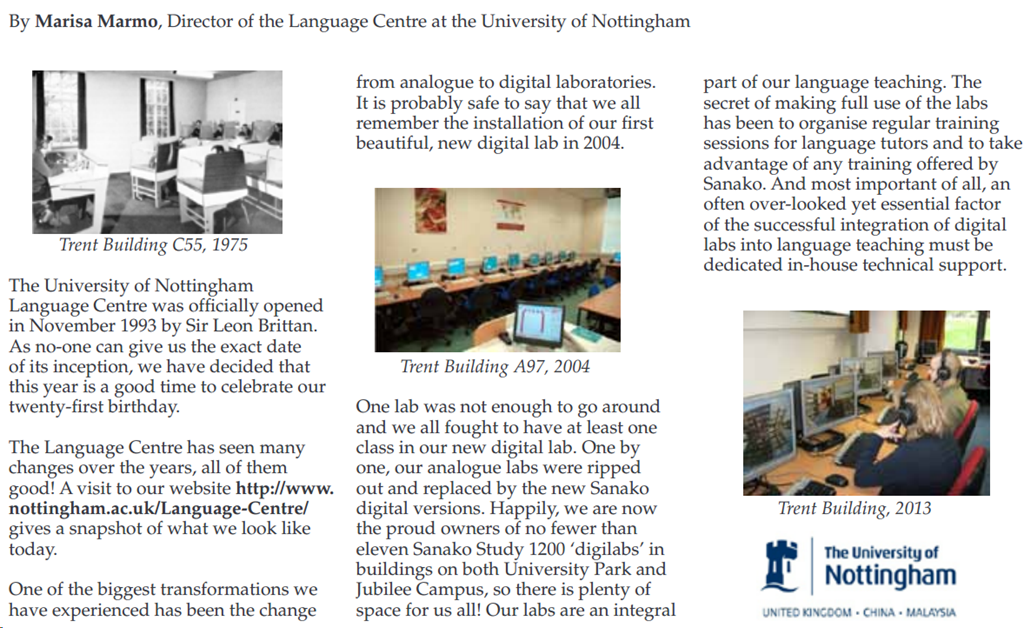
…for about the same size undergraduate student body (wow!), emphasizes need for training (I trained in their lab when it was still a Sanako Lab 300). Read the whole Sanako Spring 2013 newsletter here.
“Clickonce” to download Langlabemailer (BETA)
2013/04/26
Leave a comment
After receiving the response to your request for a download link, click the link in the response to go the download page, and on that page click the button: “Install”.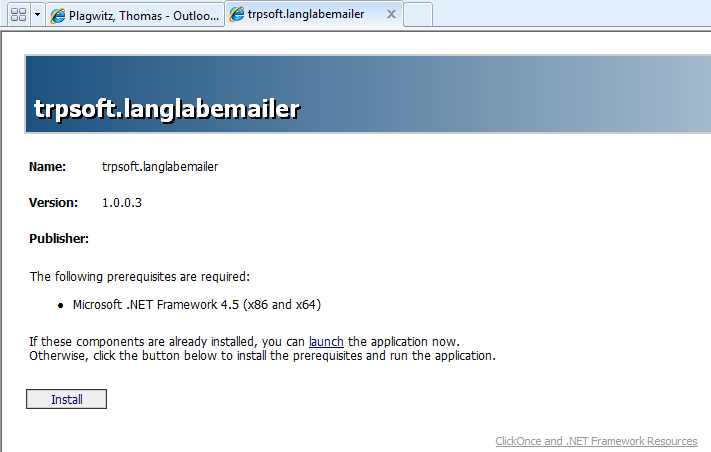
Next:Install. Or Langlabemailer (table of contents).
How a teacher can easily restart the Sanako Study 1200 licensing classroom server when experiencing a crash
2013/04/26
Leave a comment
- Try clicking and running this (http://goo.gl/lTVLc), if you see that:

- this is for
- if your sanako tutor hangs with status message "verifying tutor" and you are confronted with the error dialogue "Connection to the communication platform has been disconnected and the system is not able to communicate with the classroom server anymore"
- And if you run the classroom server on the same computer as the tutor (as we do)
- And if you have checked your "network connection", like gone to a website, and it is restored (e.g. If you simply had unplugged your the cable)?
- And if you do not want to "restart your system if needed" since, as in our case, that takes a big chunk time out of your class
- Hint: this can’t fix your network if that is the root cause, but may be able to work around temporary service outages.

Protected: How a teacher can give students aural feedback on oral exams using the Sanako Study 1200 Lite Recorder
2013/04/25
Enter your password to view comments.
Testing my Langlabemailer…
2013/04/11
Leave a comment
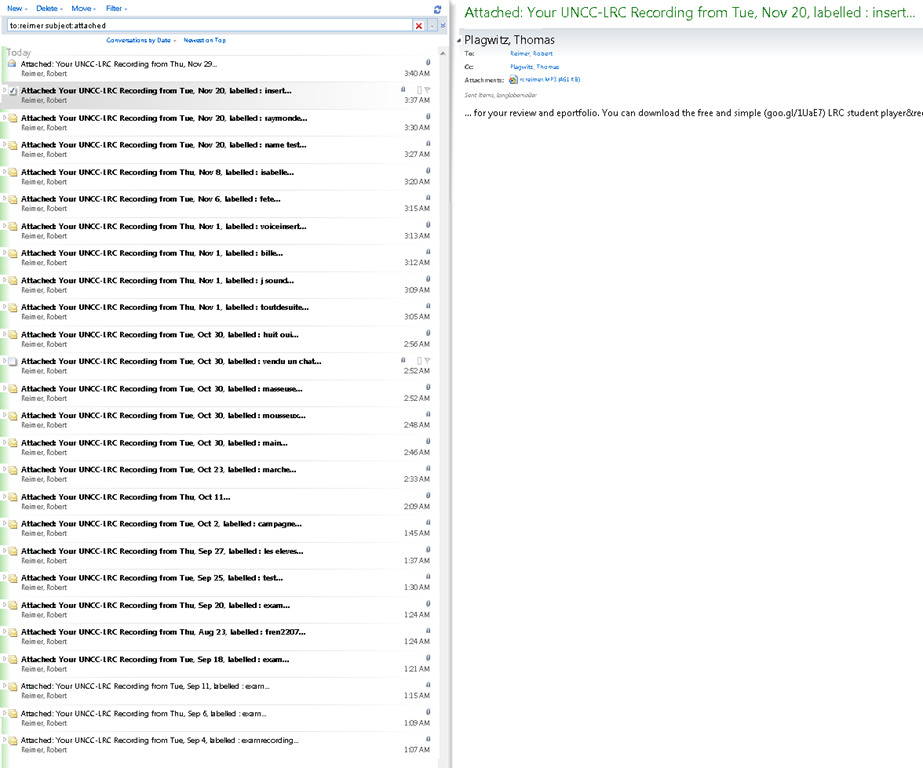
… to improve the integration of the digital audio lab into the university’s language teaching processes – 1000 emails at a time.  (Coming soon: same day delivery. More on this project will be available here: https://2013.iallt.org/session/driving-tutorial-call-face-face-classroom-and-what-it-took).


Questions? Read the About. Or just ask me a quick Our Databases: Resources with calendars -- Language learning material Moodle Sites, multimedia files -- films


FAQs for LRC student staff or for students or for teachers. To search our FAQs, in the browser addressbar, add after "https://plagwitz.wordpress.com/feed/?tag=faqs+/" "+TAG1" (from tag cloud below) OR "https://plagwitz.wordpress.com/feed/tag=faqs
&category_name=" "CAT1" (from category hierarchy below). OR search both categories and tags, and multiple TAGs/CATs (connect with "," for OR-search, with "+" for AND-search), like so: https://plagwitz.wordpress.com/feed/?tag=TAG1+TAG2+...TAGn&category_name=CAT1
+CAT2+...CATn"
Other ways to find help
If you cannot find it here, look there: 5,500 Language-Learning Links and Programs for learning or teaching 150 languages
Shortcuts:Our Lists, Our Maps, LRC Staff Moodle Site,LRC Project Moodle Site, 49erexpress, UNCC Moodle, Student Recordings: s:claslcslrcsanakostudent
Learning usage samples: Sanako oral exam, Kaltura webcam presentation, Dictation with speech recognition, Sanako written exam, Chinese and Japanese interactive stroke-order practice
Test the Sanako Installer, Webbrowser Popup Konfigurator for XP, or Windows7, faster LRC TeacherPC Log-in Let MS facilitate diacritics writing by installing for you US-International keyboard layout
This is my personal blog (Google+). The views expressed on these pages are mine alone and not those of my employer. The information in this weblog is provided “AS IS” with no warranties, and confers no rights.
 Thomas' Work Space