Archive
Archive for the ‘Classroom-technology’ Category
How to create screencasts of student presentations for the language learner ePortfolio in the digital audio lab
2013/11/08
Leave a comment
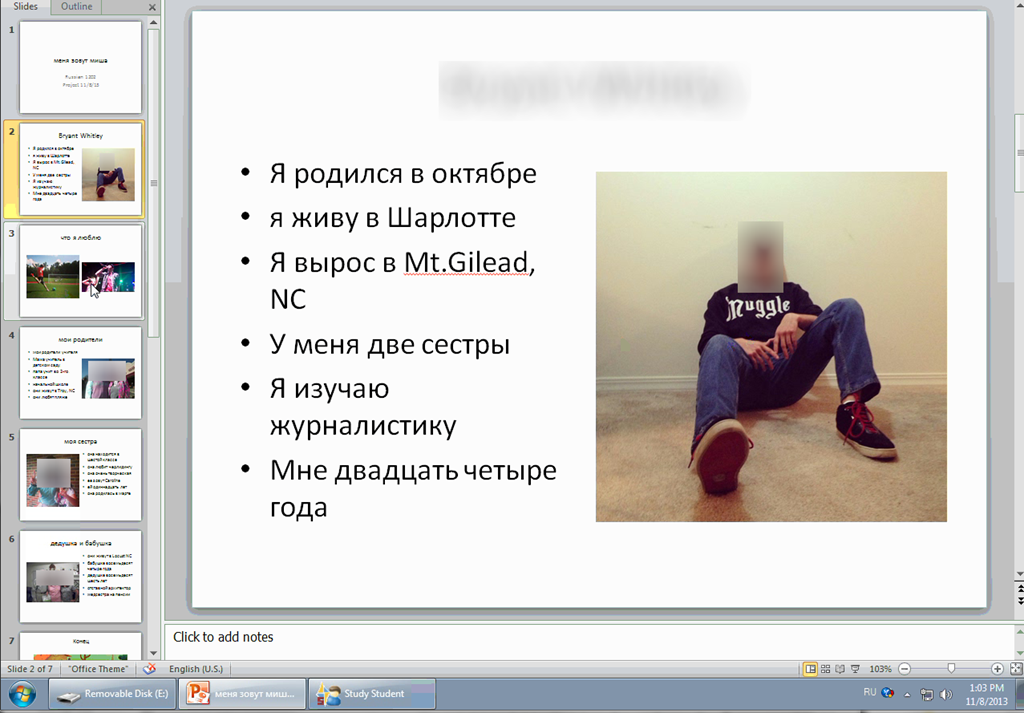
- Students can now easily video-record their own screens during class presentations – not only when using PowerPoint; instead students could demo a website, like their Facebook page.
- Last year, we were limited to PowerPoint’s record slideshow with timing and narration feature, and either send the PPSX (small, but requires the PowerPoint viewer) or the “Save as” video (new in PowerPoint 2010; computing intensive and large file size).
- Now with MS-Community Clips, screencasts are
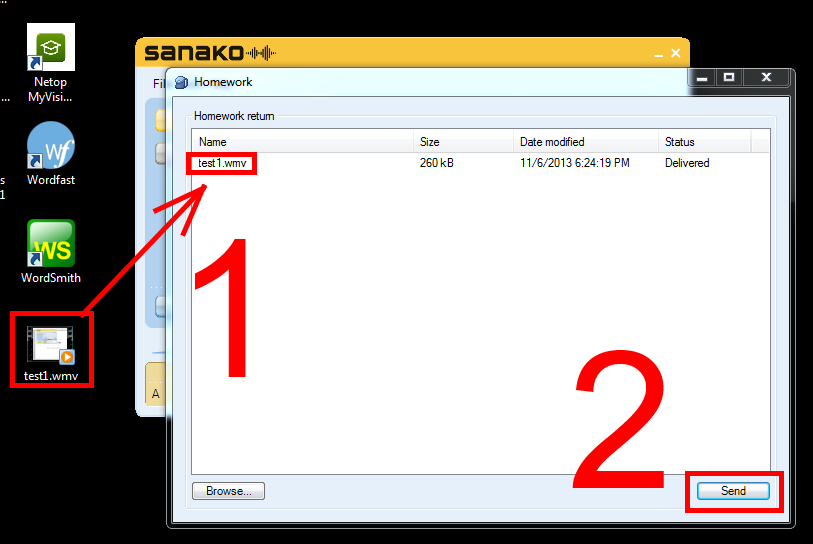
- minimal effort to create (keyboard shortcut WIN+ALT+R or T; save on desktop; drag/drop into Sanako homework folder)
- and little effort to distribute:
- Students could have uploaded to a Moodle’ file upload assignment (default file size limit: 64MB) or Kaltura file upload assignment (not sure whether there is a size limit). This seems more suitable for assignments with screencasts recordings.
- In this instance
- Sanako collected the Homework files to the Sanako share,
- my langlabemailer emailed them as attachment (so far tested to allow for 25MB attachment size, the equivalent of 7-8 minute screencast, a hefty space to fill in L2! We also established: 45MB is too much…
 ) to the originating student and teacher, for review, grading –
- and – provided it passes muster as an attractive and significant piece – possibly for re-use in the student’s language learner ePortfolio.
- In addition,
- Before the presentations, the teacher easily collaborated on proof-reading the slide decks of individual students, by using the Sanako Remote control screen sharing feature.
- During the presentation, students followed more closely – which seemed to increase their attention and comprehension -, thanks to audio and screen being shared to them from the presenter, using the Sanako’s “Model student” feature.
Categories: Arabic, audience-is-teachers, digital-audio-lab, e-languages, English, eportfolio, Farsi, French, German, Greek (modern), Hindi, Italian, Japanese, learning-usage-samples, Mandarin, multimedia-recording, office-software, Portuguese, presentations, Presenter-Computer, Russian, Spanish, Speaking, Student-Computers
file-upload, homework-activity, kaltura, langlabemailer, model-student, moodle, ms-community-clips, ms-powerpoint, sanako-study-1200, screensharing, videos
Static noise on sanako headsets
2013/11/08
Leave a comment
We seem to have one of these outages in ever class recently. Not sure, whether it is the hardware – the headphone seems not always have static, but frequently. What would be a good way to test this before class, or – to not have to log in individually on all lab computers – at beginning of class?
Categories: digital-audio-lab, Glitches&Errors, hardware, headphones
sanako-slh-07, sanako-study-1200
How to record your screen with MS-Community Clips
2013/11/06
Leave a comment
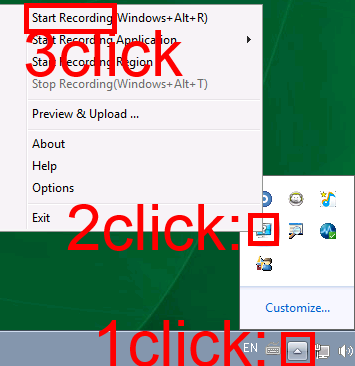
- During presentations, when creating demonstrations etc., it can be useful to record your screen (and your voice, if you speak into the headphone microphone). In the LRC, we have MS Community Clips pre-installed for this purpose. To start recording:
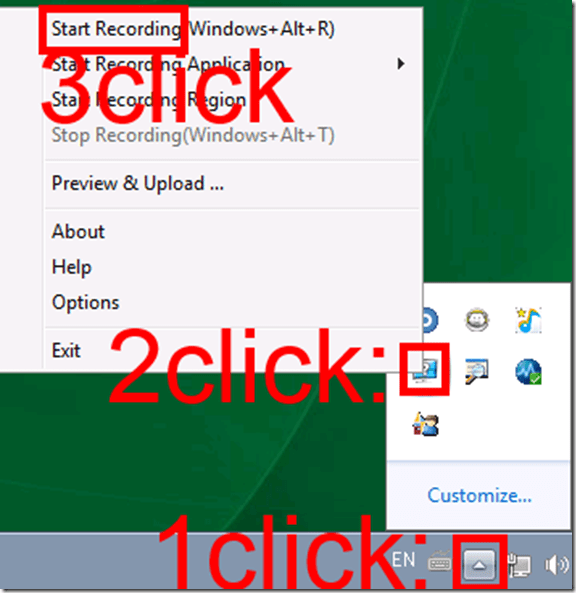
- To stop recording, follow the same steps, but in step 3 choose “stop”.
- Or forget about the menus and remember the keyboard shortcuts: WIN+ALT+R or T.
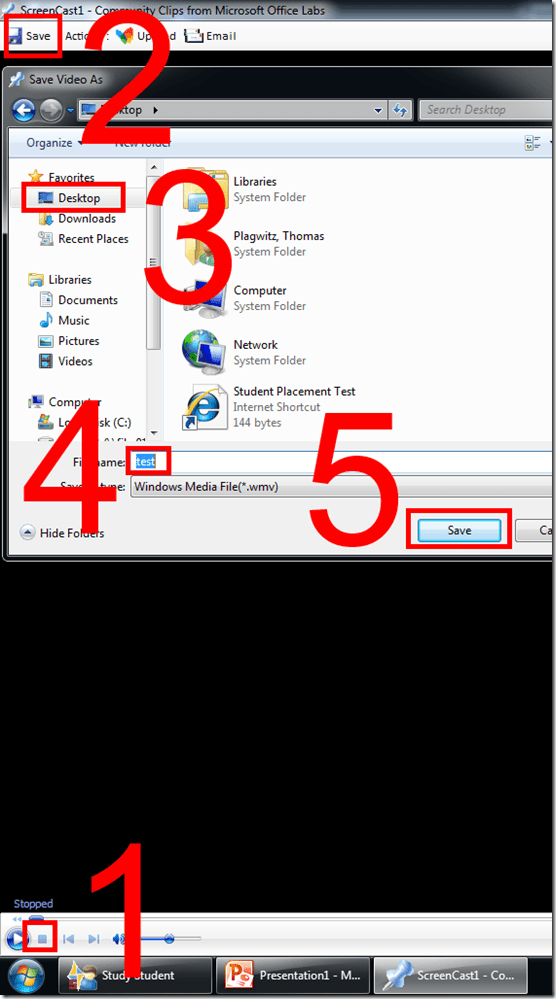
- The video will play automatically. Click stop, menu: Save, Save your recording where you need it (e.g. Desktop).
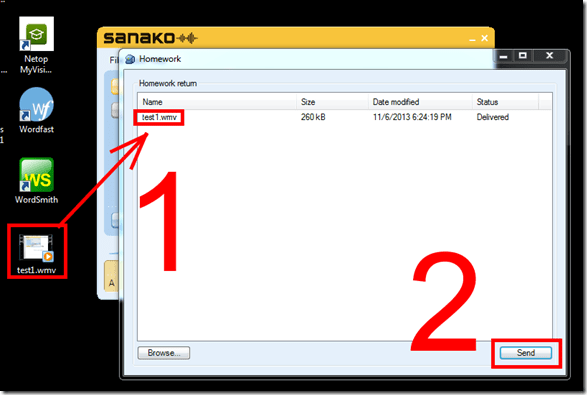
- If your teacher wants you to submit your recording, in the LRC you can drop it into the Sanako Homework window and “send” it:

Can we get rid of Windows Media Player first run experience?
2013/11/05
Leave a comment
- It costs a lot of time in a language lab where computers are frozen (user cannot change settings between sessions – unless this is a roaming user setting on the server which it does not appear to be) and audio files are frequently played for which Windows Media Player has is set to be the default player to go through this set of dialogues whenever trying to listen to a file. We had this bypassed in Windows XP/Symantec Ghost.

- Even better, make the Sanako Recorder the default player for audio files in the language lab. The Sanako student settings I recommend here are meant for the teacher office computers where we do not have to control and try and optimize the experience as tightly as in a face-to-face class teaching lab and therefore can tread lightly during install of the Sanako. In the Student Recorder Settings, "associate media files" option should be checked.

Categories: digital-audio-lab, e-languages
audio, image2013, sanako-study-1200, student.exe
Teacher cannot remote control student computers in Sanako Study 1200 Autoscan
2013/10/15
Leave a comment
- Problem:
- The 1st video shows me unable to remote control a student PC from the Sanako Tutor/ Screensharing / Autoscan window, despite (audibly) clicking the mouse and typing on the keyboard.
- The 2nd video demonstrates another strange behavior: Not only can I not remote control the student PC – the Autoscan window keeps showing the same screen even after switching to the next student – although students all work on different texts, as is further evidenced by the thumbnail view of the whole classroom on the left.
- This photo was supposed to demonstrate another oddity: the teacher’s typing (instead of going to the student) flashing up in the upper left of the Autoscan window, between the “Monitor” button and the “Word” window frame – but I missed the right moment. Besides, it may be an additional complication due to the Office 2010 Japanese IME chosen here on both teacher and student. Or it may be the root of the problems (but including mouse? screen not updating)

- Additional Info: For what it is worth: here are the Sanako log files from
- Debugging:
- Can this be replicated with an IME other than Office 2010 Japanese (or any non-Western IM), on teacher and/or student? An actual student should be logged in (<- permissions issue?), preferably many (<- performance issue?). Update: No, could not be replicated yet using another keyboard than an East-Asian IME is involved – bug?

Categories: digital-audio-lab, e-languages, Glitches&Errors
autoscan, image2013, sanako-study-1200, screensharing
How a teacher can start up the Sanako Study 1200 for her class
2013/09/30
Leave a comment
- The Sanako Tutor software starts automatically, when you log in on the teacher station in the LRC:

- Choose from “saved classes” what best you fits your class-size:
- “Both halfs” (still not the full classroom, due to lack of licenses),
- or, for small class sizes up to 16 computers, left or, preferably, right-half
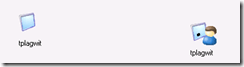
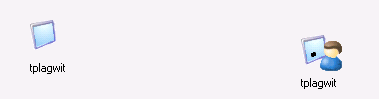
- Students also need to log in, and class is not ready for the Sanako until all students show up as Student icons like the right me:
-
- We can get there faster once we
- upgrade to faster computers
- fix that they manually have to choose their client
- have at least the teacher already log in from her office
- Hint: Log in yourself on a couple of student computers, to have them ready for latecomers (easier to deal with them being logged in as you than if the class has to wait for 5-10 minutes).
- We can get there faster once we
- Then, choose how to display the students on your classroom map:

- Finally,
- during your class’ first visit can play them this screencast introduction into Sanako digital audio lab procedures
- during later visits, you can refresh their knowledge of the basics in the digital audio lab with this slideshow.


Categories: audience-is-teachers, digital-audio-lab, Presenter-Computer
FAQs, sanako-study-1200
New problem in Sanako Study 1200 version 7 with 2 student recorder exe’s running simultaneously on client, under different user accounts?
2013/09/25
Leave a comment
- UPDATE: Also an issue in the spring term on the teacher computer..
- UPDATE: still an issue in the spring term.

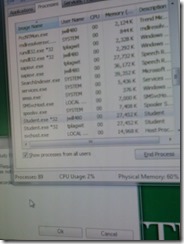
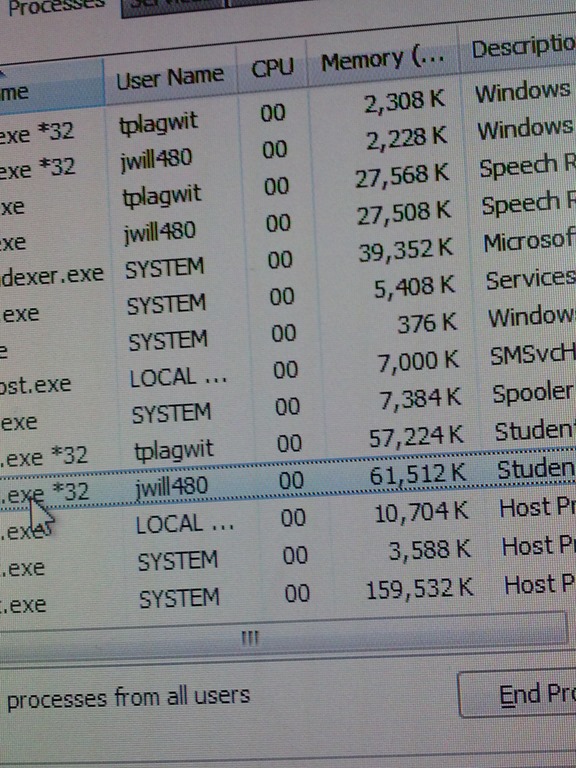
- This cannot be good (brought this student down).
- How is this possible?
- Presumably the student logged out an admin during a Sanako activity (we frequently have to place late-coming students sit and use an administrator computer, but they do not always get at term start that they are not supposed to log the admin out and in)
- So this seems another (special) case of the recently observed student managing to exit the Sanako during an activity (helper.exe was running alright).

Sanako screen sharing is now too slow for the client machine..
2013/09/25
Leave a comment
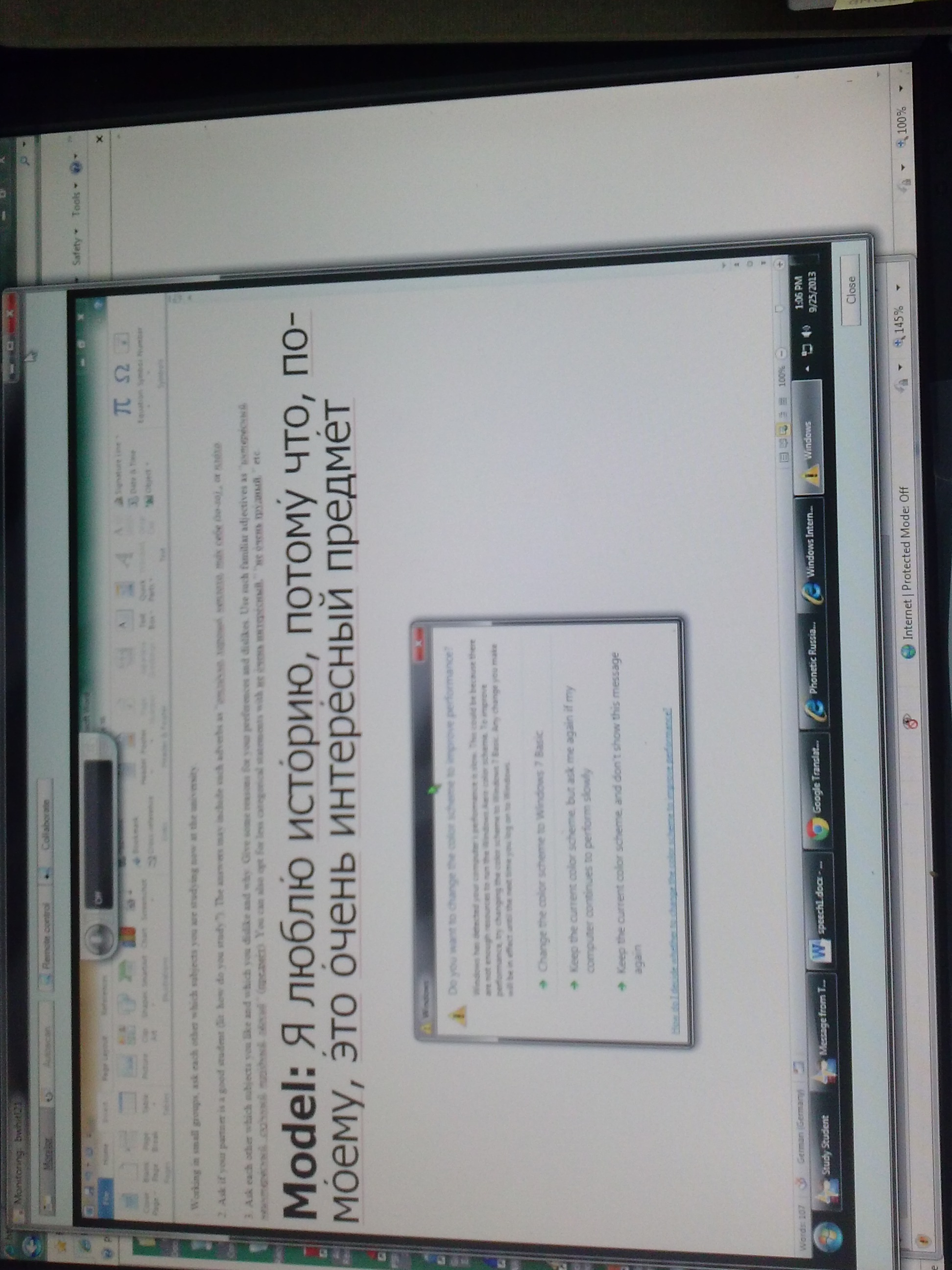
… So that clients get suggested to downgrade to basic color scheme, in the middle of class. I saw this for the first time recently , after upgrade to Windows 7 and study 1200 version 7, on the teacher machine, same 4yr old dell optiplex 760.
Categories: digital-audio-lab, Glitches&Errors
colorschemes, image2013, sanako-study-1200, screensharing


Questions? Read the About. Or just ask me a quick Our Databases: Resources with calendars -- Language learning material Moodle Sites, multimedia files -- films


FAQs for LRC student staff or for students or for teachers. To search our FAQs, in the browser addressbar, add after "https://plagwitz.wordpress.com/feed/?tag=faqs+/" "+TAG1" (from tag cloud below) OR "https://plagwitz.wordpress.com/feed/tag=faqs
&category_name=" "CAT1" (from category hierarchy below). OR search both categories and tags, and multiple TAGs/CATs (connect with "," for OR-search, with "+" for AND-search), like so: https://plagwitz.wordpress.com/feed/?tag=TAG1+TAG2+...TAGn&category_name=CAT1
+CAT2+...CATn"
Other ways to find help
If you cannot find it here, look there: 5,500 Language-Learning Links and Programs for learning or teaching 150 languages
Shortcuts:Our Lists, Our Maps, LRC Staff Moodle Site,LRC Project Moodle Site, 49erexpress, UNCC Moodle, Student Recordings: s:claslcslrcsanakostudent
Learning usage samples: Sanako oral exam, Kaltura webcam presentation, Dictation with speech recognition, Sanako written exam, Chinese and Japanese interactive stroke-order practice
Test the Sanako Installer, Webbrowser Popup Konfigurator for XP, or Windows7, faster LRC TeacherPC Log-in Let MS facilitate diacritics writing by installing for you US-International keyboard layout
This is my personal blog (Google+). The views expressed on these pages are mine alone and not those of my employer. The information in this weblog is provided “AS IS” with no warranties, and confers no rights.
 Thomas' Work Space