Archive
Archive for the ‘Learning-activity-is-any’ Category
How students can record their picture or photo presentations with PowerPoint 2010
2013/01/17
Leave a comment
- The screencast shows the necessary steps:

- inserting a photo album,
- presenting while recording the presentation with narration
- saving as a show (.ppsx) – make sure you have ribbon:”Slide show”/ “Play narrations” checked:

- to prepare an assignment for a Moodle single-file-upload (How a student takes a Moodle Simple file upload assignment).

Categories: Arabic, assignments, audience-is-students, documentation, e-languages, English, Farsi, French, German, Greek (modern), Hebrew, Hindi, Italian, Japanese, Korean, Latin, Mandarin, multimedia-recording, office-software, Polish, Portuguese, recording-software, Russian, Screencasts, service-is-applying-learning-tools, Spanish, Speaking, Swahili, Yoruba
2010, ms-powerpoint, narration
How to create a visual cue exam file using Insert Photo album in PowerPoint
2012/12/18
Leave a comment
Once you have found (e.g. with a Google advanced image search) your desired images and saved them in a folder, open PowerPoint (e.g. by clicking “start”/ “run”/ typing “powerpnt”, click “OK”) and do this: 

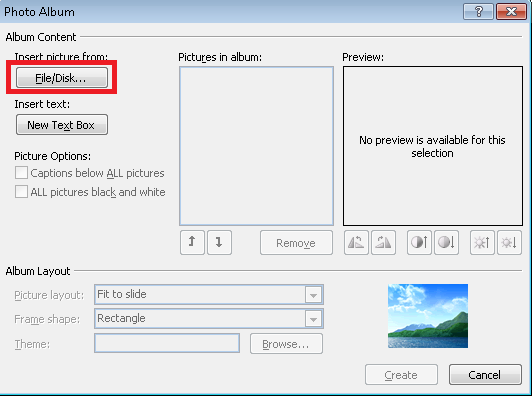

Result: an easy displayable list of images (you may want to drag&drop the slide thumbnails on the left in to a different sequence if you did not get the sequence right in the above “PhotoAlbum” dialogue: 
How a teacher can use Sanako voice insert to easily add spoken comments to students’ Sanako oral proficiency exams- step–by step
2012/11/19
Leave a comment
- Requirements:
- you need access to the network share to open/save student recordings (this works in your office;
I do not know whether there is technology supported on campus thatthis makes this work in your home office also, - you need to have the free Sanako student recorder Lite installed, here is how: Just “Run” the above link.
- Recommended: in the student recorder, from menu: TBA, set your “default save directory” to the current folder with the student recordings – otherwise you have to change the save as dialogue back to this destination for each file you save.
- you UPDATE: DO NOT ANYMORE need to disable the voice graph (
notcompatible with voice-insert recording; you can, however show the voice graph again when done recording and reviewing the file) - you need to save the student recording, updated with your comments, in the same folder with the same file name as the source (when “saving as” and choosing the name, preferably do not type it, but rather select or copy/paste it. The original file will still be preserved since your version will be saved in a a different format and therefore have a different file extension)
- you need access to the network share to open/save student recordings (this works in your office;
- TBA:you can rewind to listen, and re-record to overwrite comments that you want to revise
- More training:
How to retrieve students’ recordings under student login name if you saved under position or computer name in Sanako Study 1200
2012/10/30
Leave a comment
- Why? Most (though not all) times you will find it easier to manage student files if their names contain the student login names
- How?
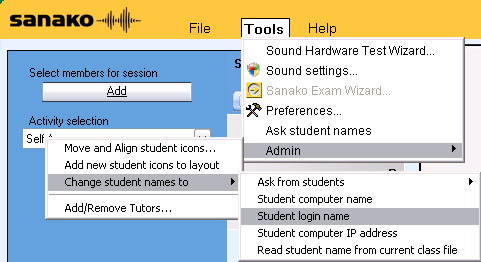
- Change the classroom layout naming scheme from menu:”Tools”/ “Admin”/ “Change student names to” / “Student login name”
 and
and - collect or repeat a prior collection of the student recorder buffer by using the activity pane: files icon
 (this requires that you have not yet used activity pane:button:”clear session”).
- Change the classroom layout naming scheme from menu:”Tools”/ “Admin”/ “Change student names to” / “Student login name”


Categories: assessments, audience-is-teachers, digital-audio-lab
FAQs, sanako-study-1200
How to conduct a Sanako Study 1200 functionality test before oral exams
2012/10/30
Leave a comment
- Why? Before high-stakes oral assessments, it is best practice to test the functionality of all computers in the digital audio lab.
- How?
- Log into 2 computers with your own account (these will serve as a backup computers. Should you need backup computers later, there will be no delay waiting for them to start up and become operational).
- Change Sanako classroom layout names to computer or position name (whatever makes it easier for you to identify any non-functioning machines).
- If you are doing this for a first time with a class, load your test exam audio into Audacity and display the voice graph to students on a projector. This way you make sure that students understand from the voice graph that they are supposed to
- hear an instruction over the headphones and
- respond to the instruction by saying their names into their microphones.
- Perform a name-test recording using Sanako activity:”Model imitation”and examine the results:
- Make sure the Sanako collection folder opens – meaning all student recordings could be collected. If not, identify the offending positions from the Sanako collection dialogue and open the folder with the remaining collected recordings manually from the Sanako collection dialogue
- Drag the recorded files into an empty Audacity window and examine the collected recordings visually, plus, where in doubt, aurally, by clicking “solo” and play on the track in question.
- React accordingly:
- If some positions show problems, move students to one of the backup machines that you logged into earlier.
- move backup machines not needed to a different session by right-clicking on their classroom layout icon.
- if more than one backup machine is indeed needed, Sanako – since it is you who are logged in on both – will ask you later for permission to number collected files for duplicate students sequentially. Allow that and rename the files manually.
- Don’t forget to change Sanako classroom layout names back to student login name.
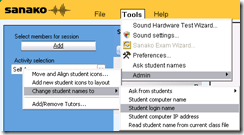 . Or else here is how you can later recover student recordings by student login names.
How teachers can use MS-Word Mail merge with filtering and if-then-else to quickly provide personalized feedback based to students depending on grade
2012/10/18
Leave a comment
- Intelligence is adaptation to feedback. Providing personalized feedback to students depending on their performance could make student development much more successful.
- Intelligence is expensive. How can the teacher provide personalized feedback time-efficiently? Likely by blending artificial intelligence with her own.
- Sounds like Sci-fi? A great practical example, using existing familiar IT infrastructure, you can find here: MS-Word’s (2010; 2007 works the same) mail merge feature, on the basis of a downloaded Moodle gradebook with student results, can customize semi-automatically your reusable feedback email message template to individual recipient’s performance and needs:
- Step-by-step instructions: http://teaching.uncc.edu/moodle/grade-book/how-to/using-mail-merge-grade-book.
- Screencast of the webinar instruction: http://mt202.sabameeting.com/SiteRoots/main/User/GuestAttend.jhtml?pb=true&s_guid=0000018151460000013a0a22cfb39443&domain=/Customers/uncc&domain=/
Categories: audience-is-teachers, e-learning, grading, lms, office-software, Screencasts, step-by-step-guides
MS-Word
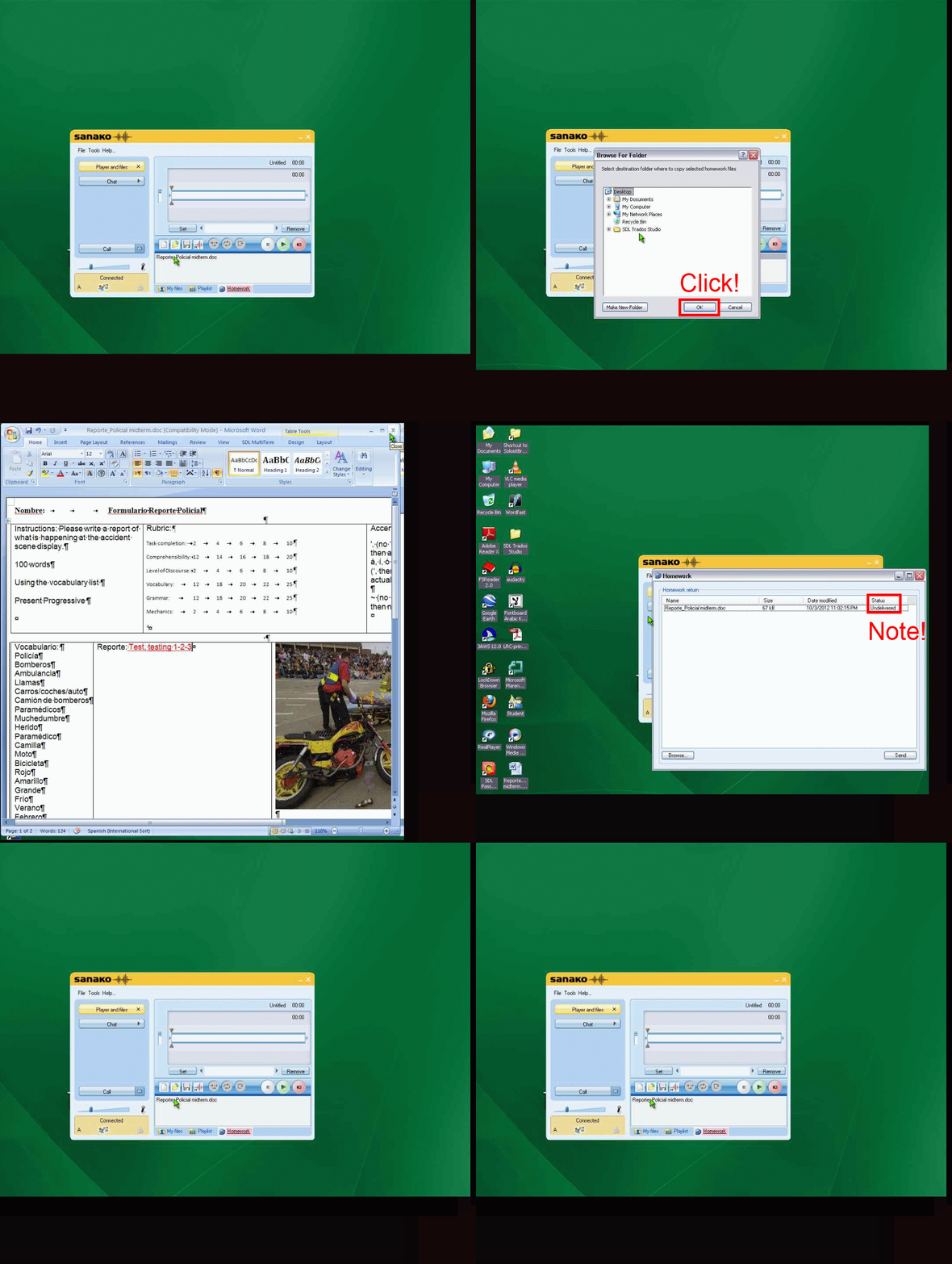
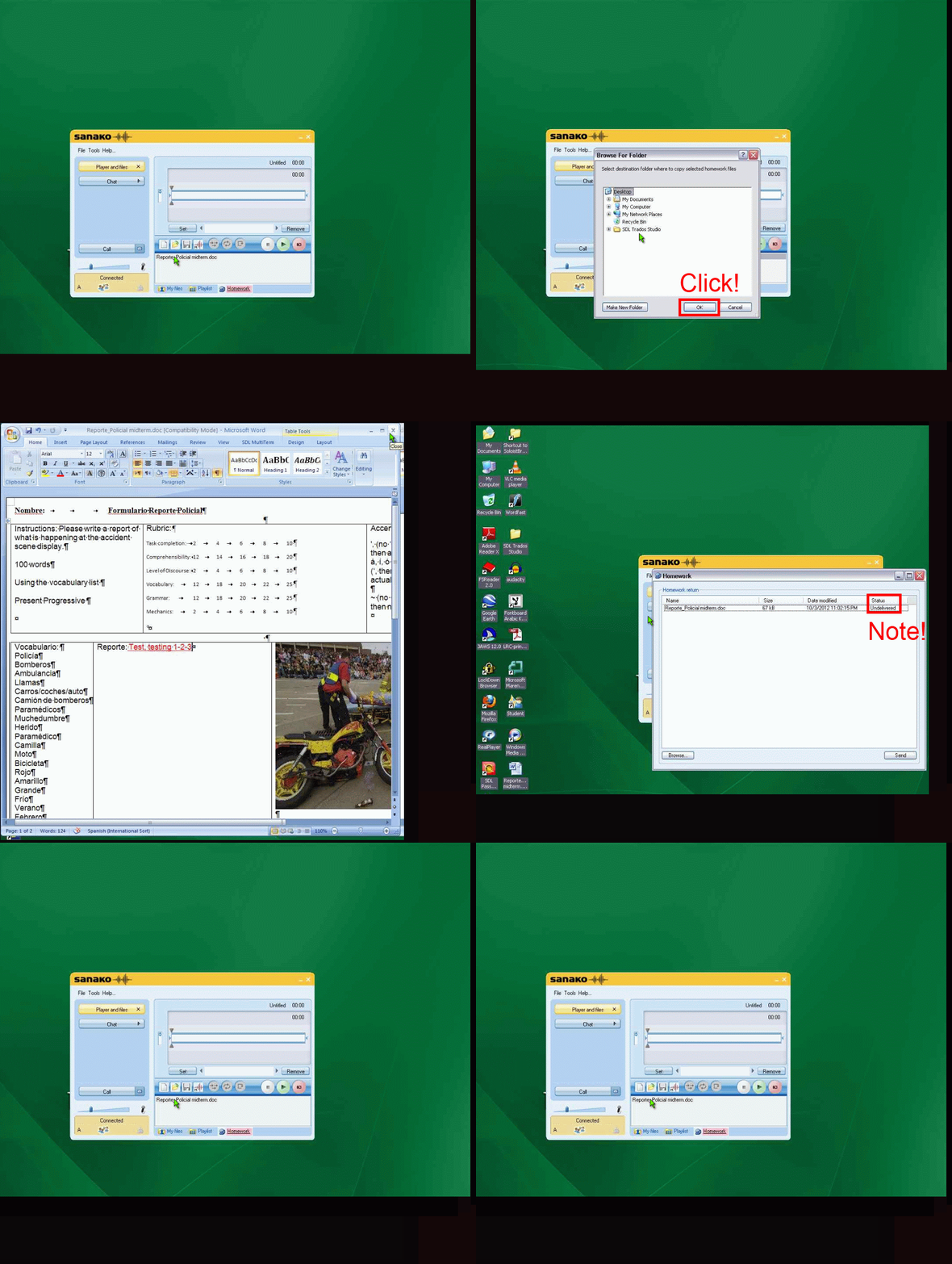
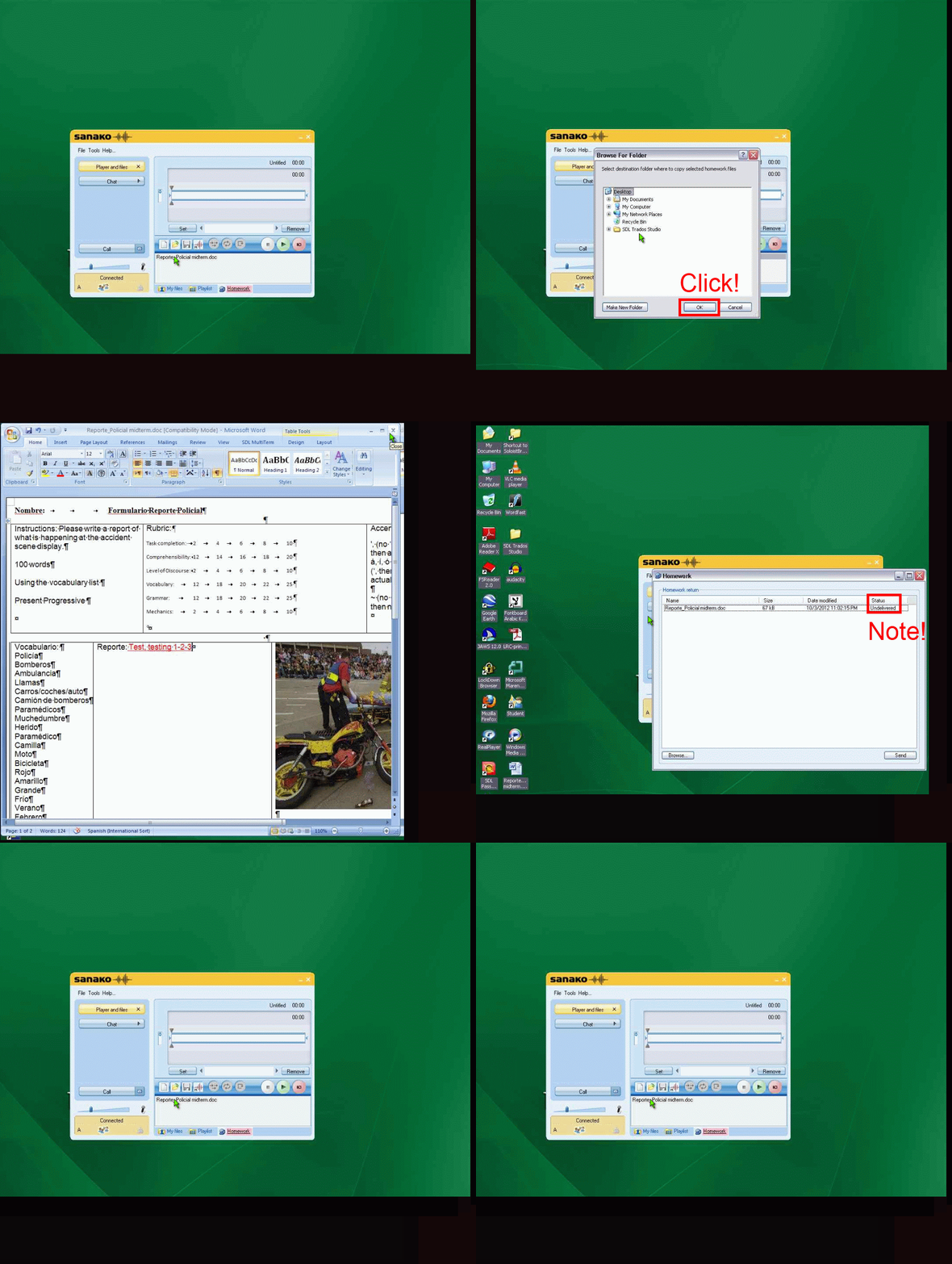
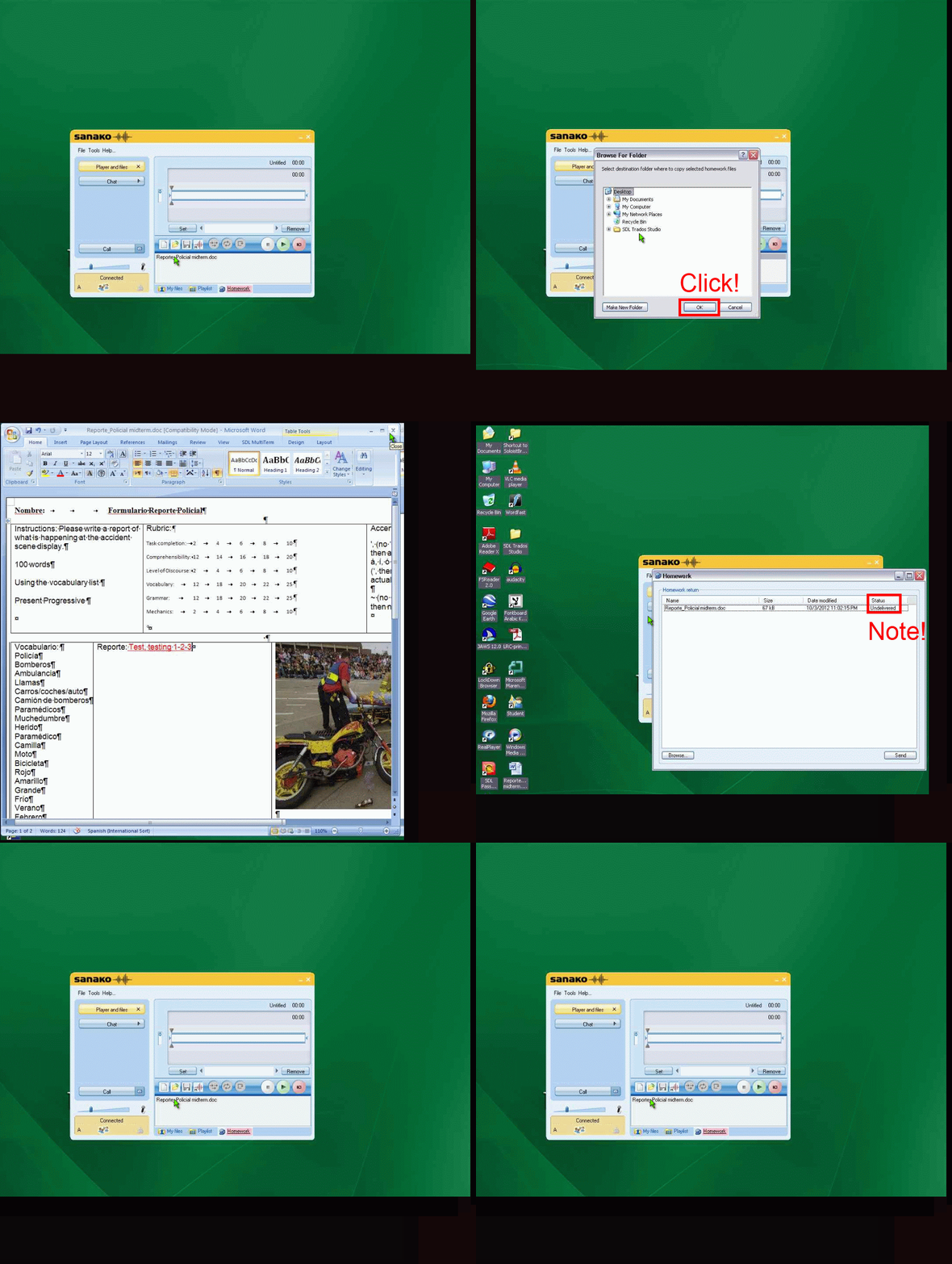
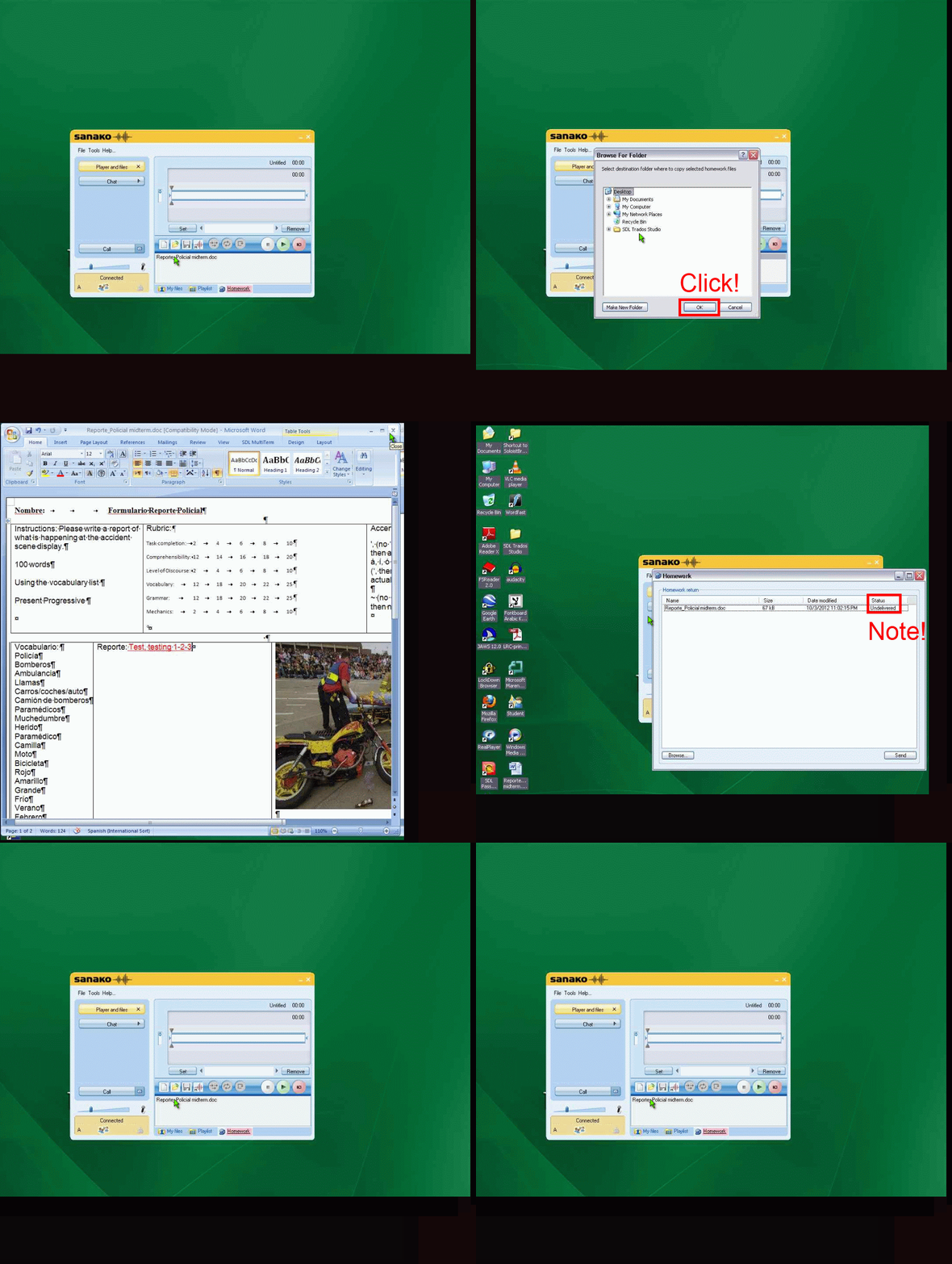
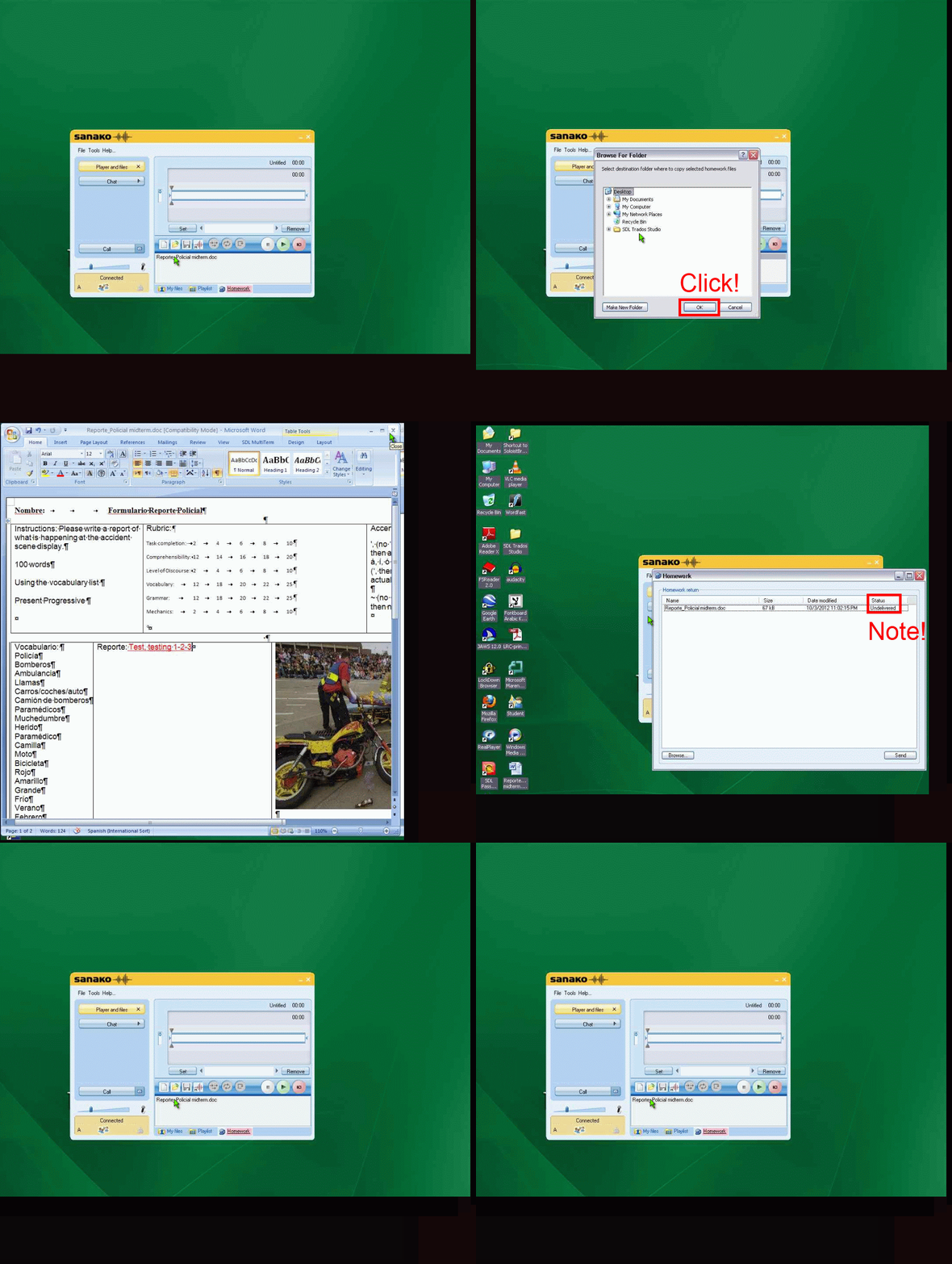
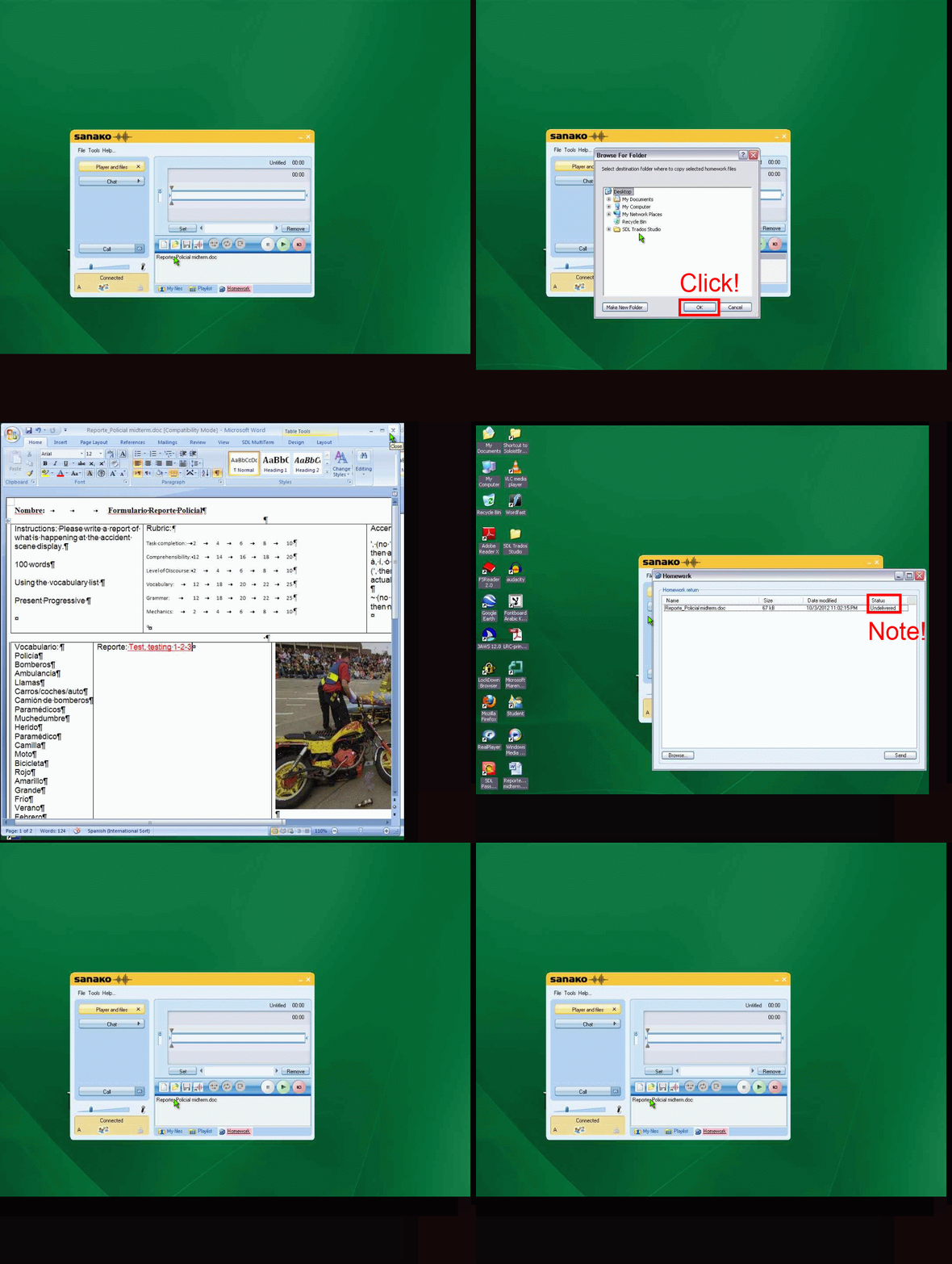
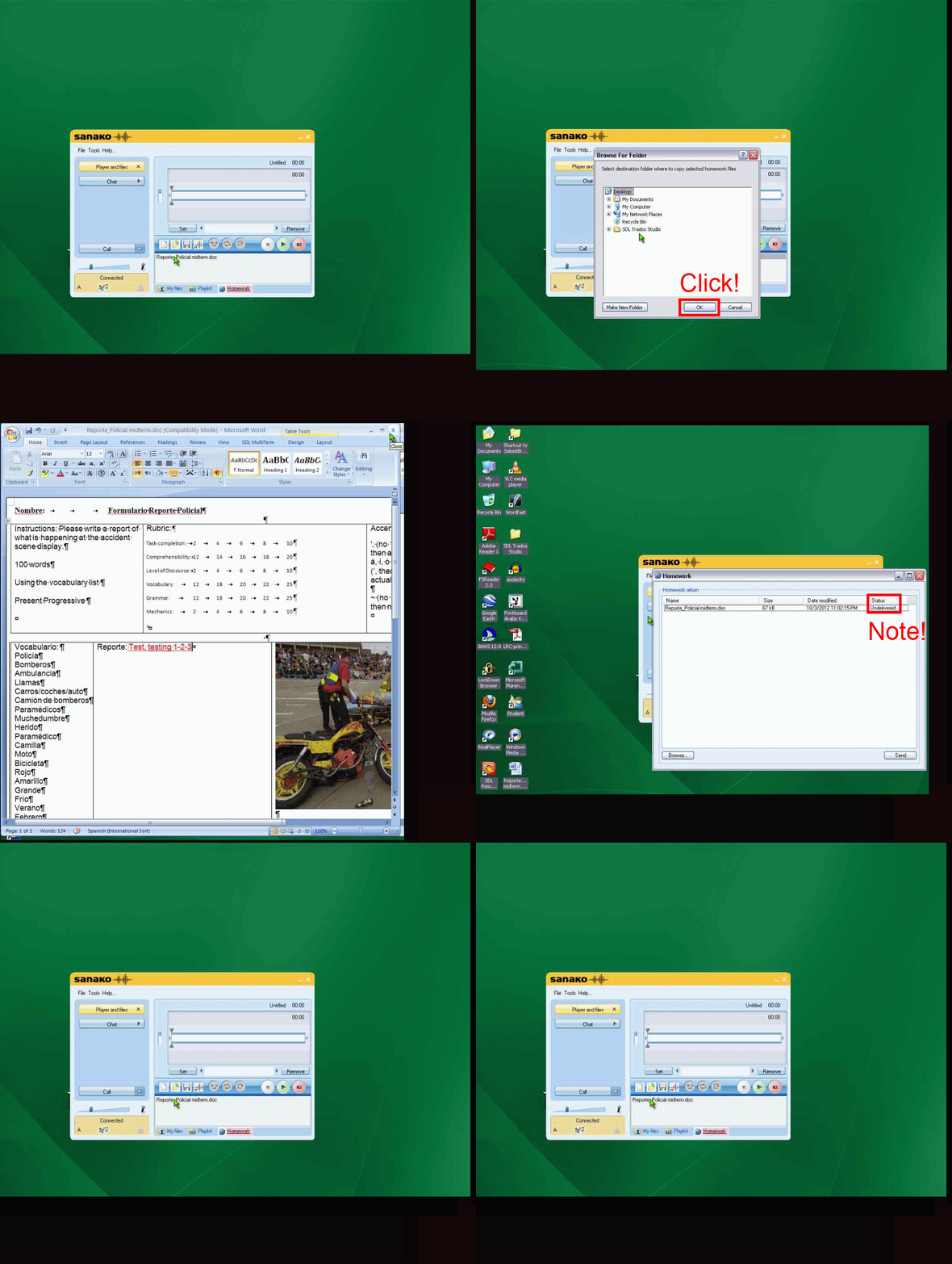
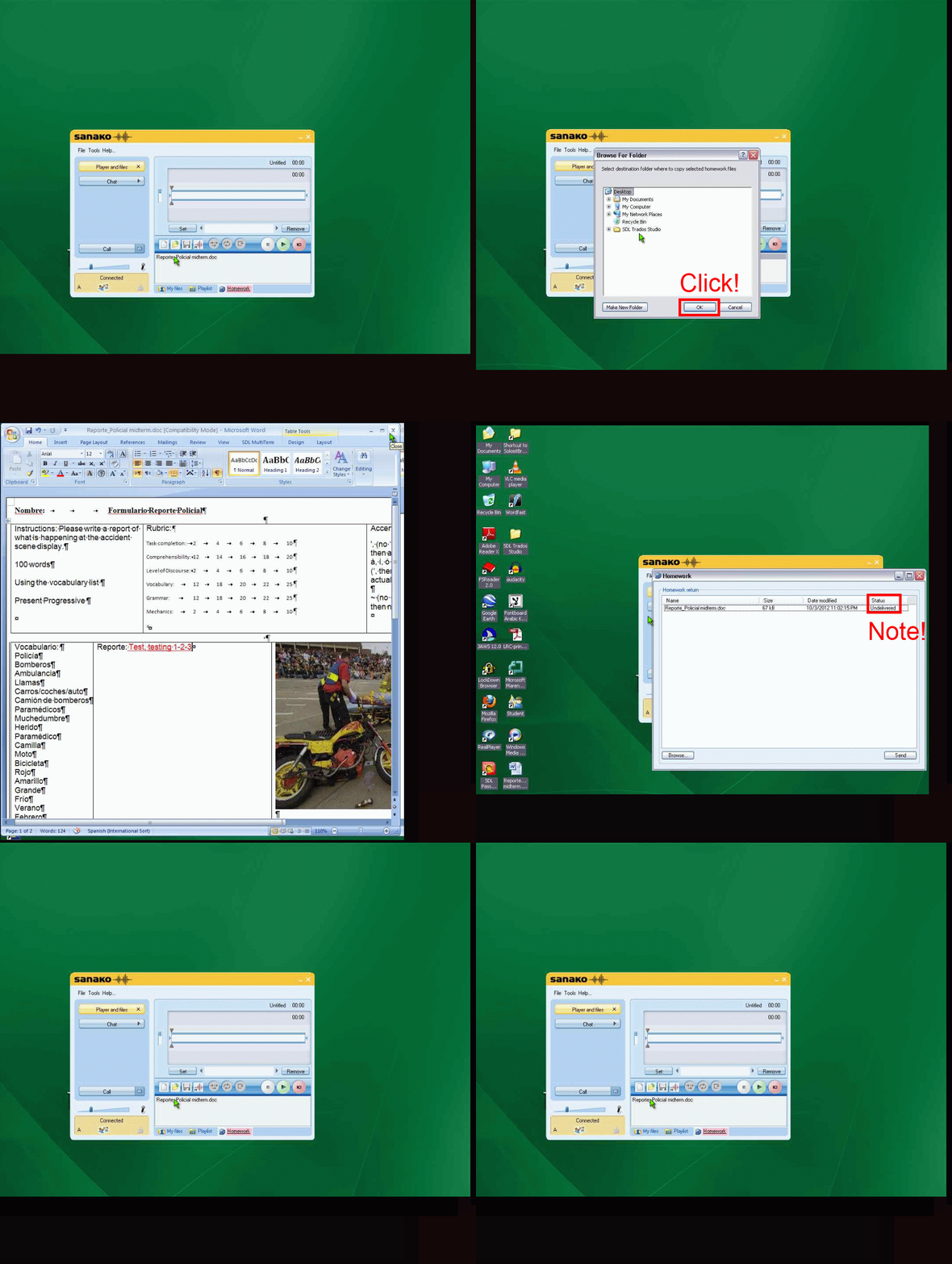
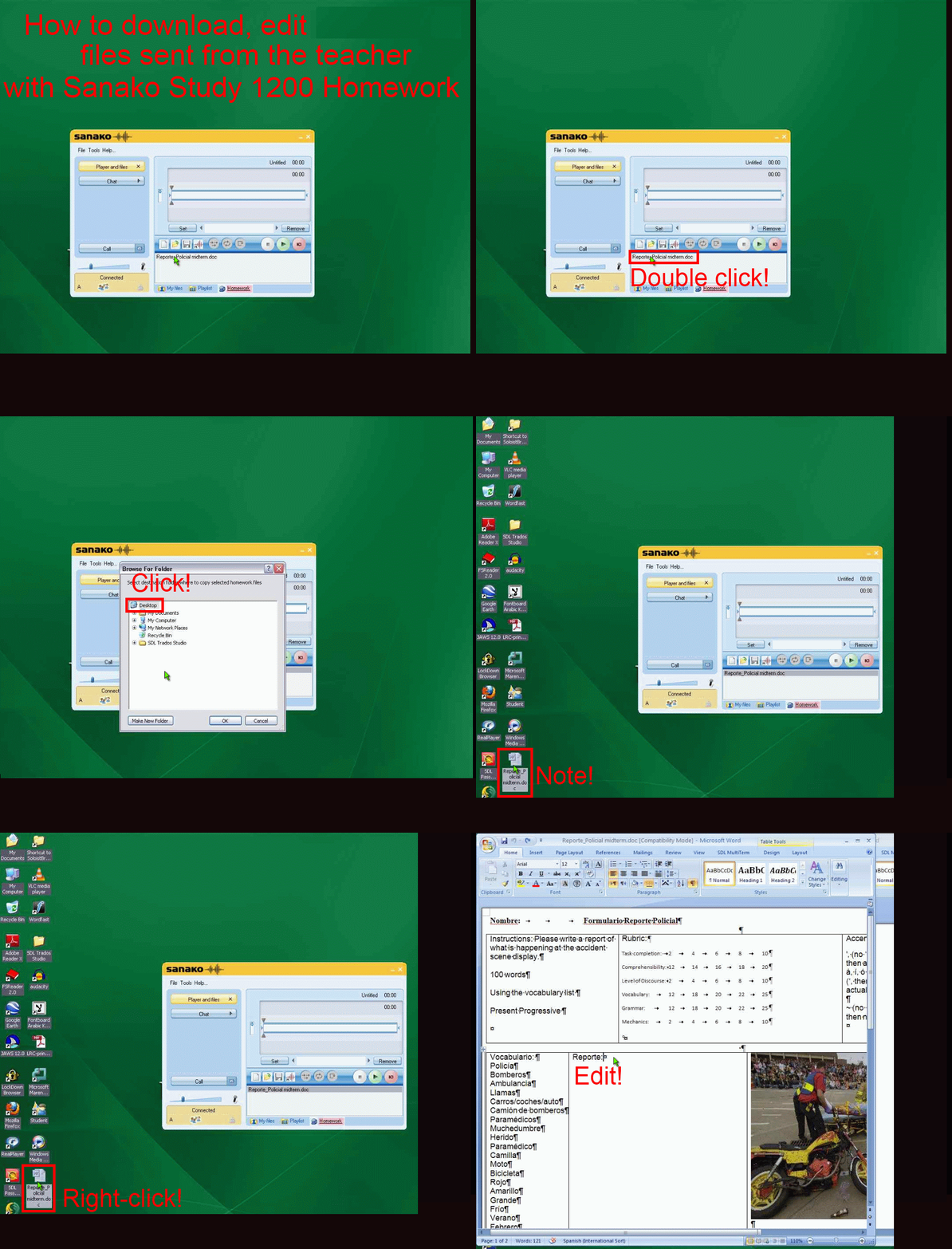
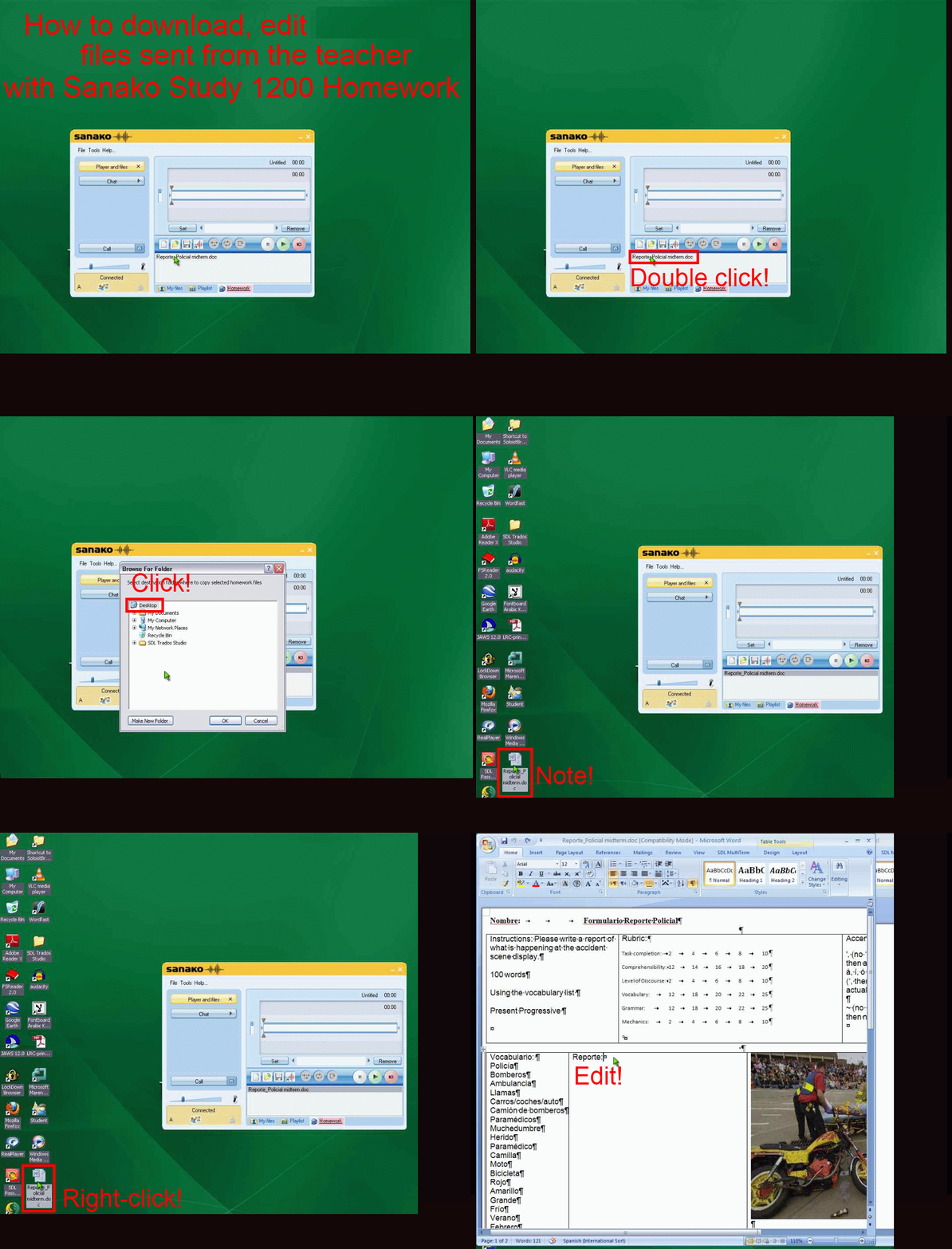
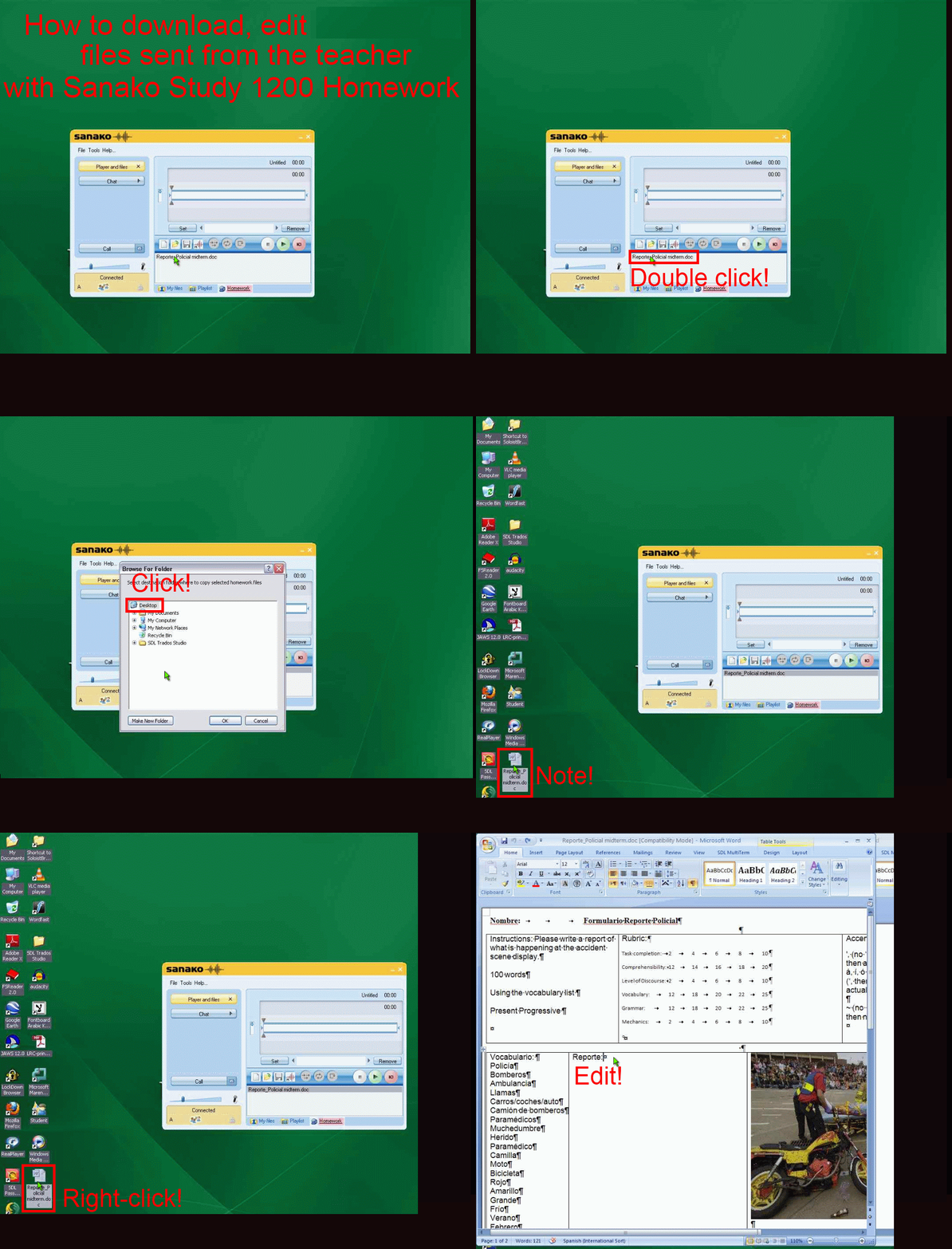
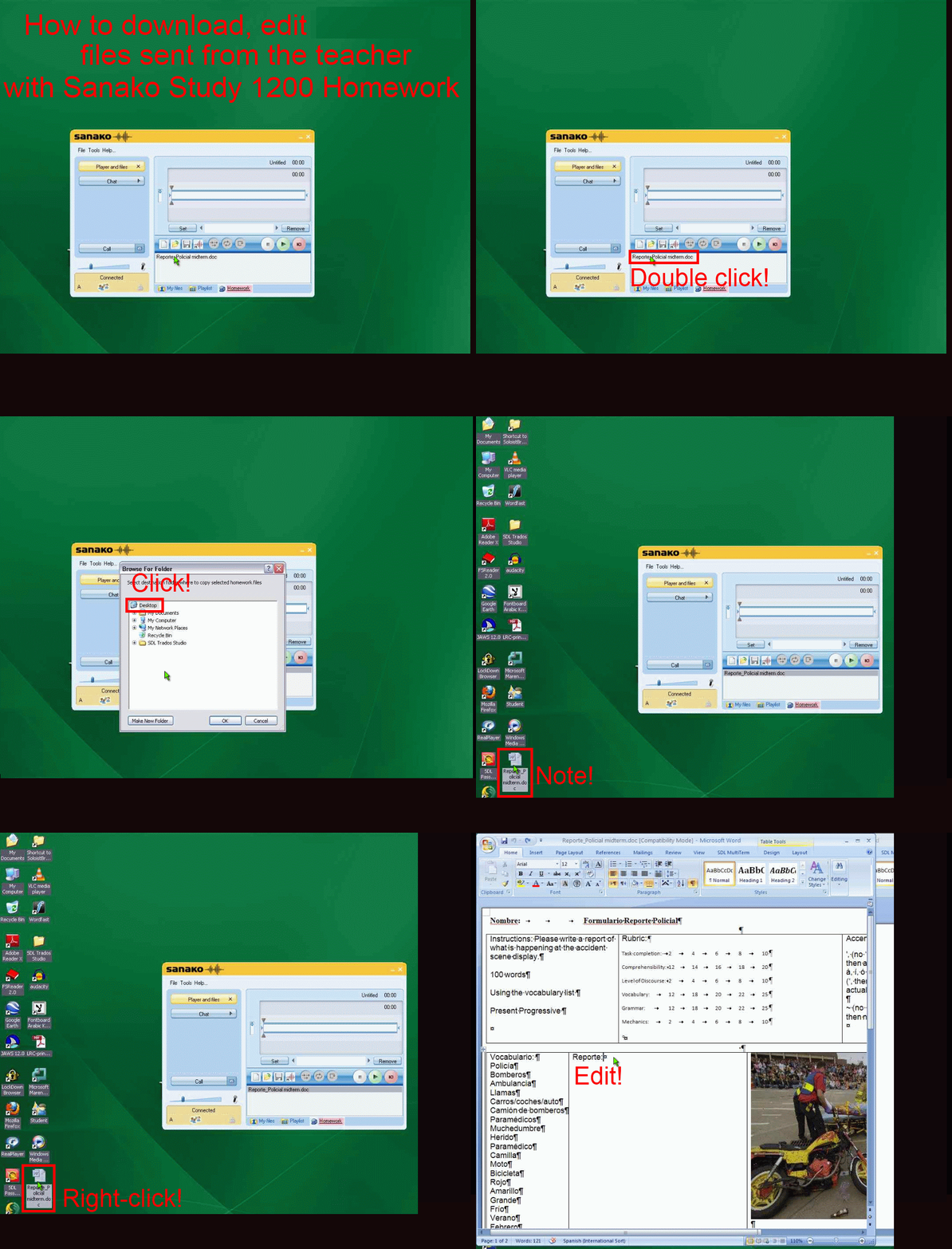
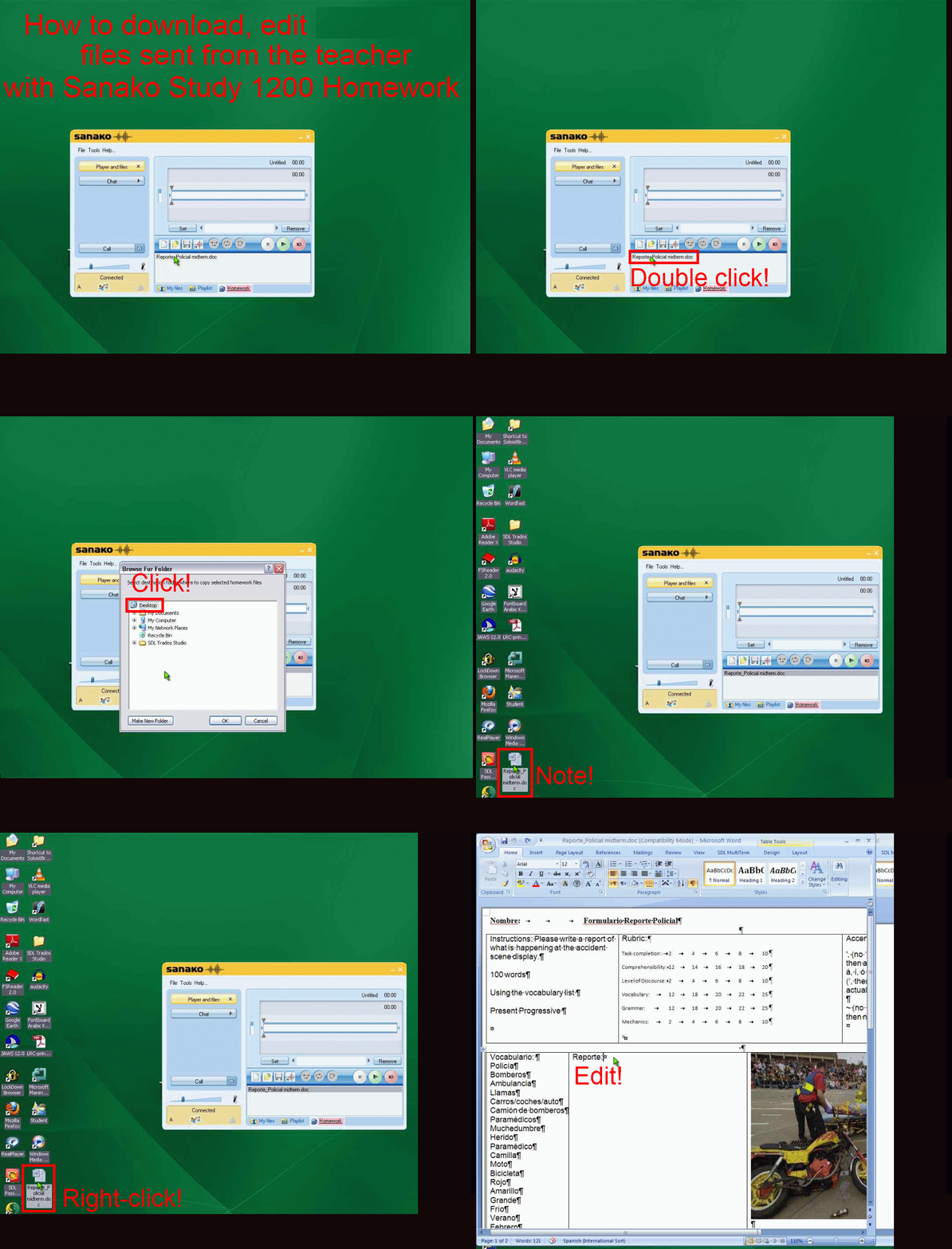
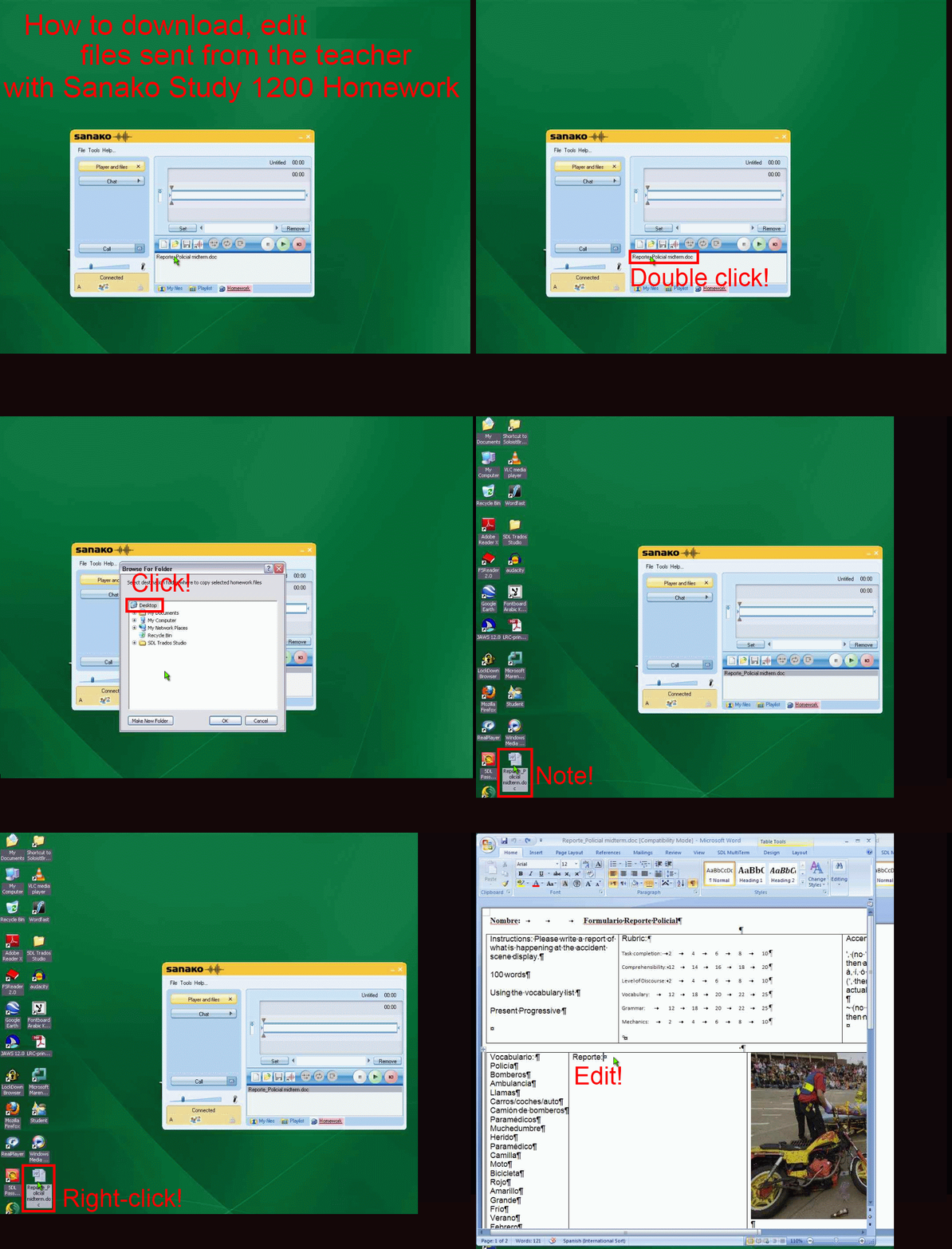
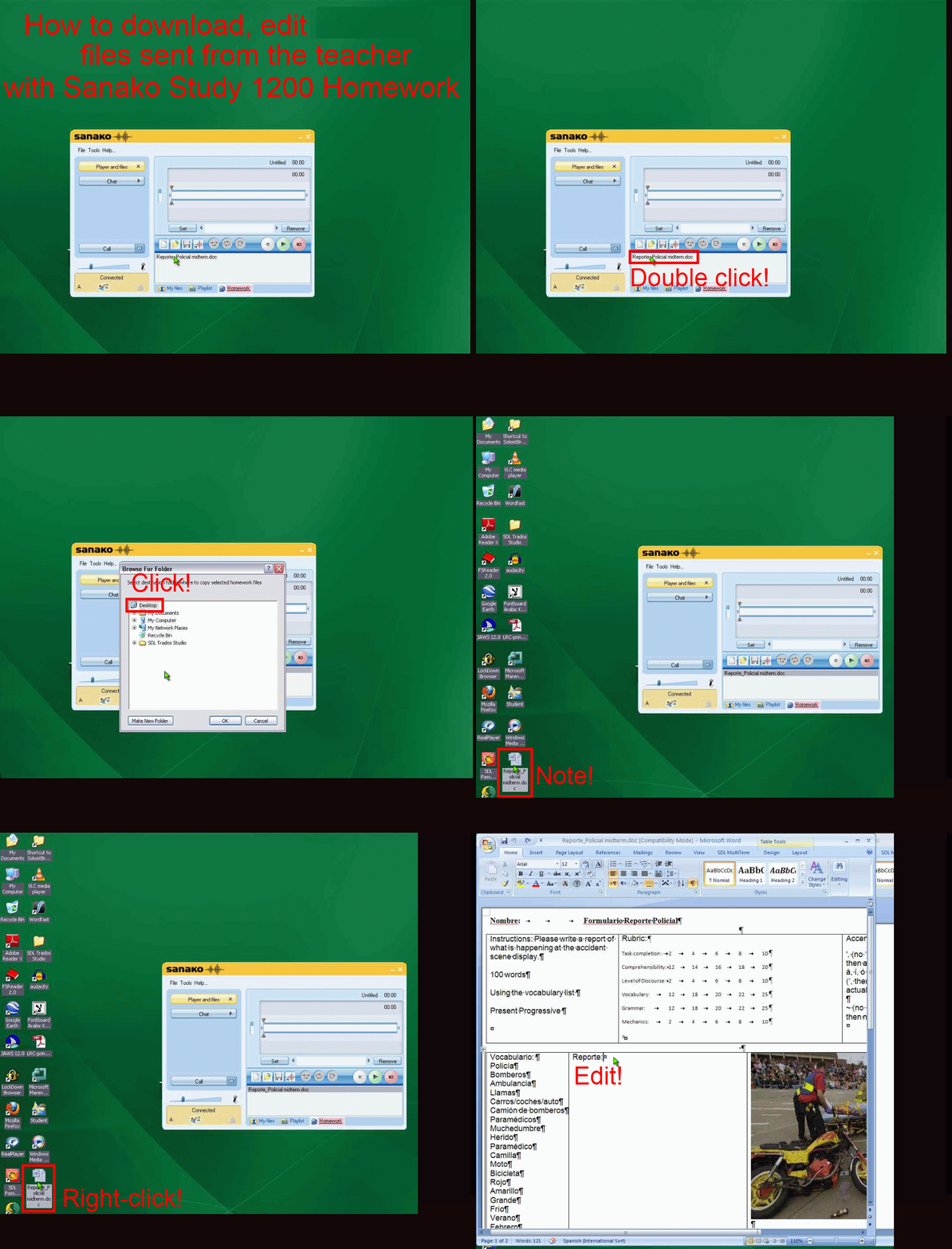
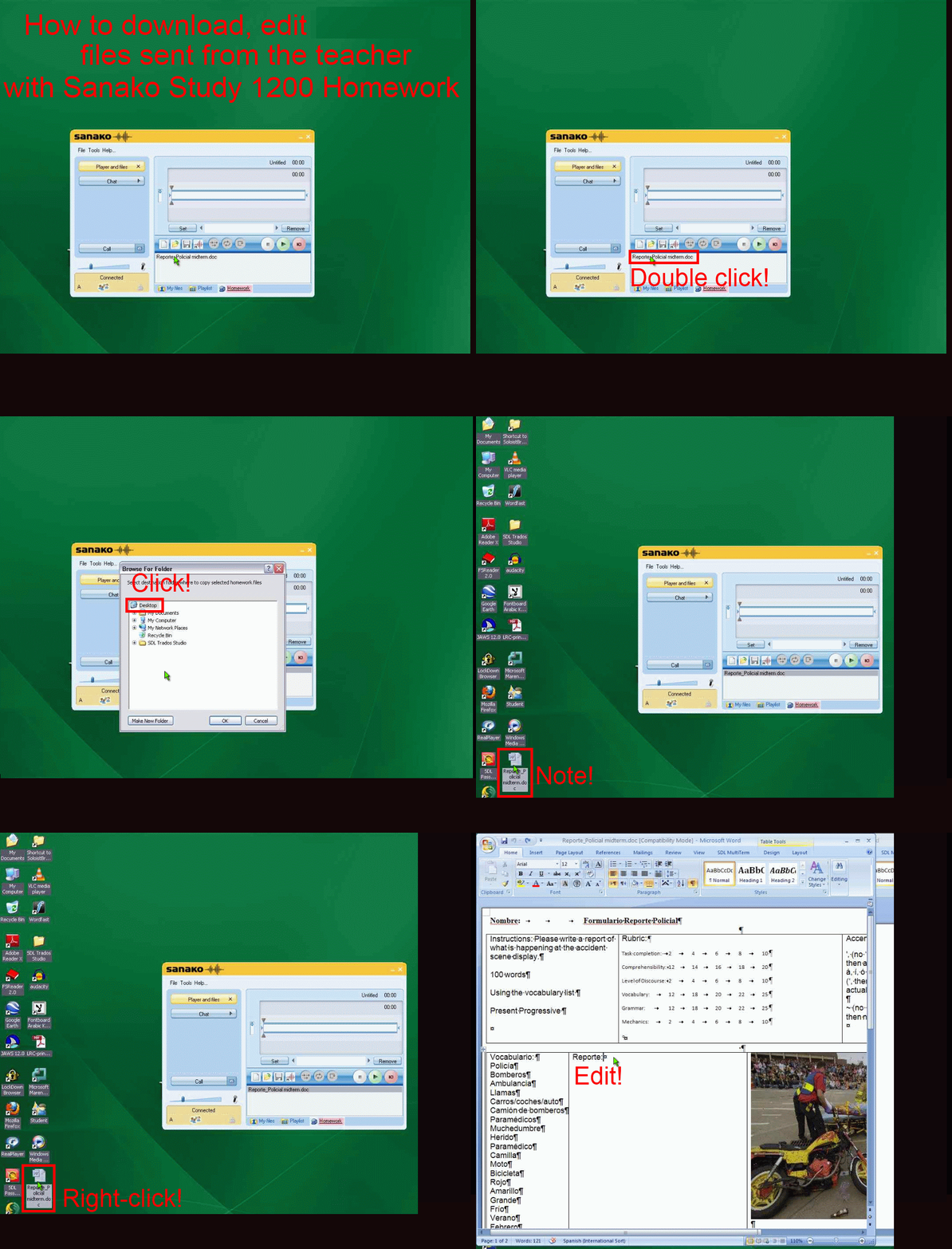
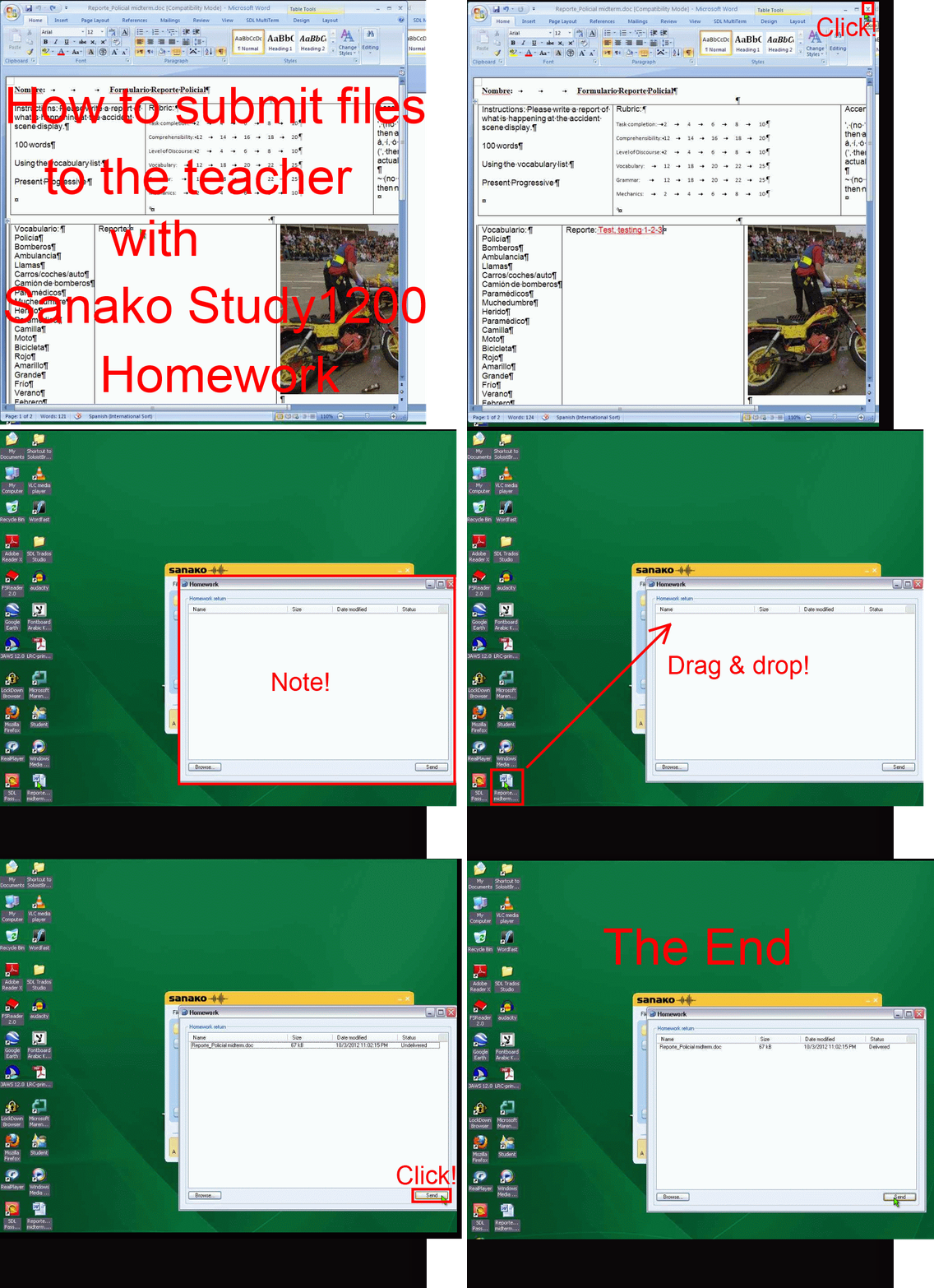
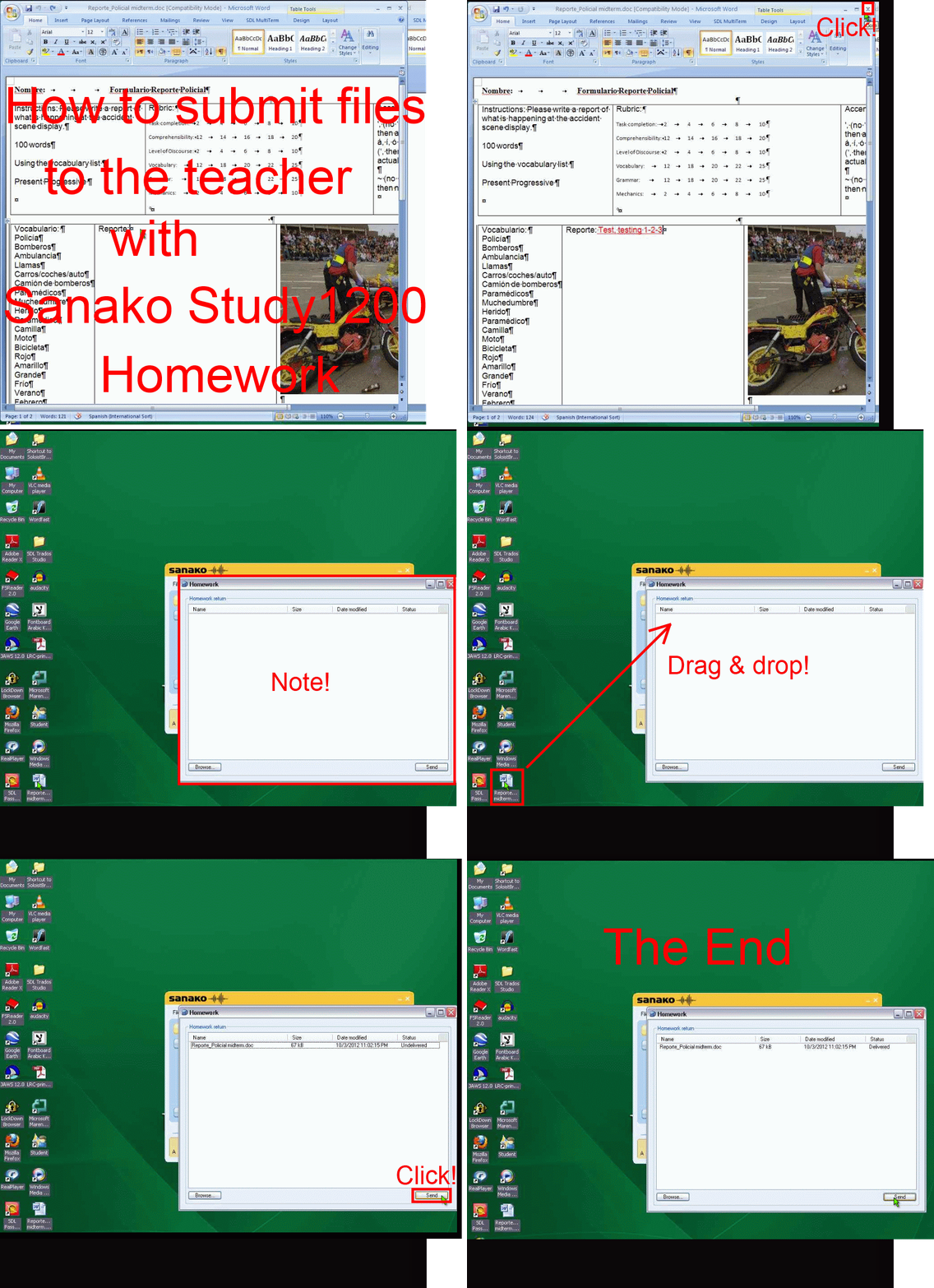
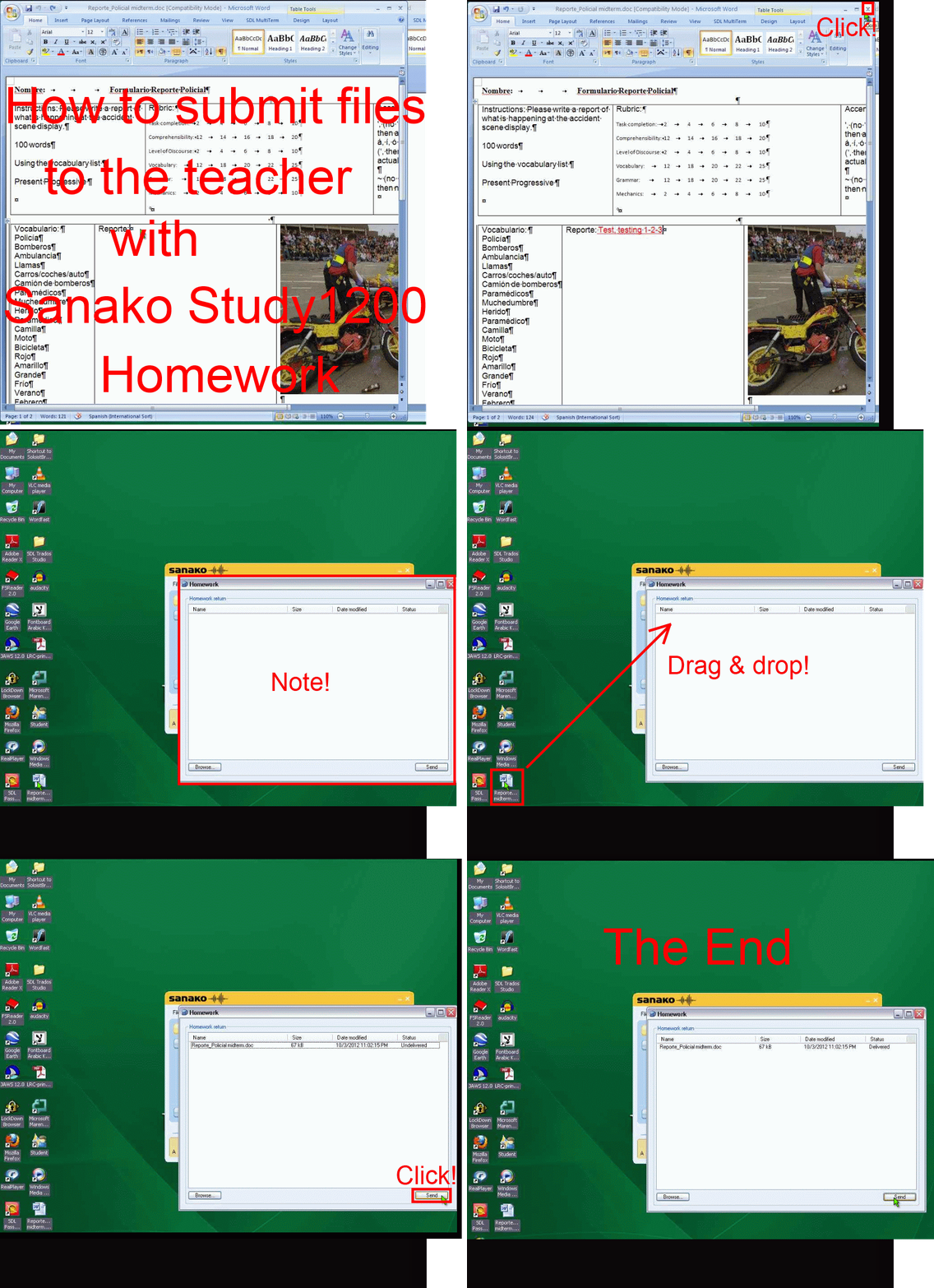
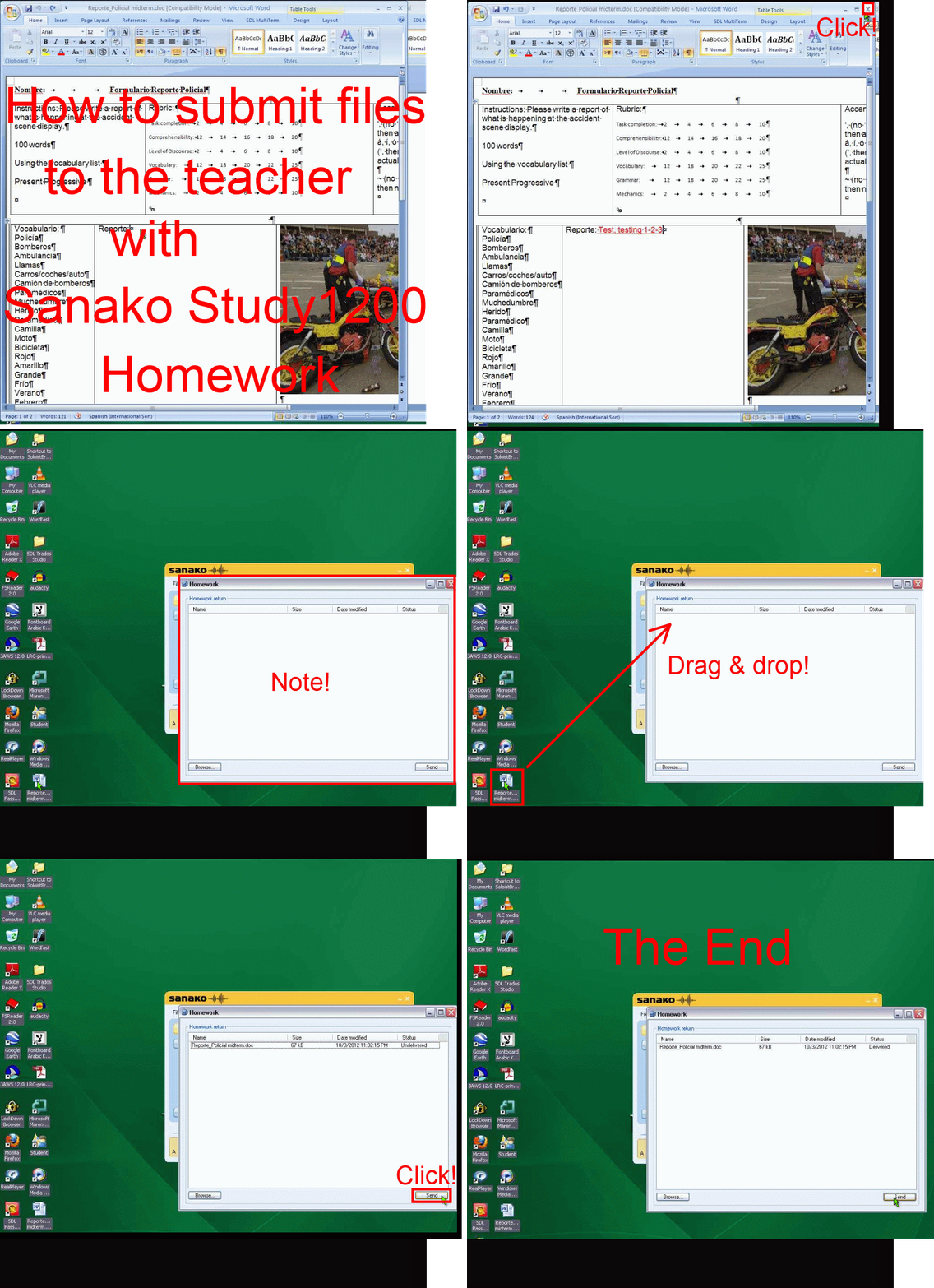
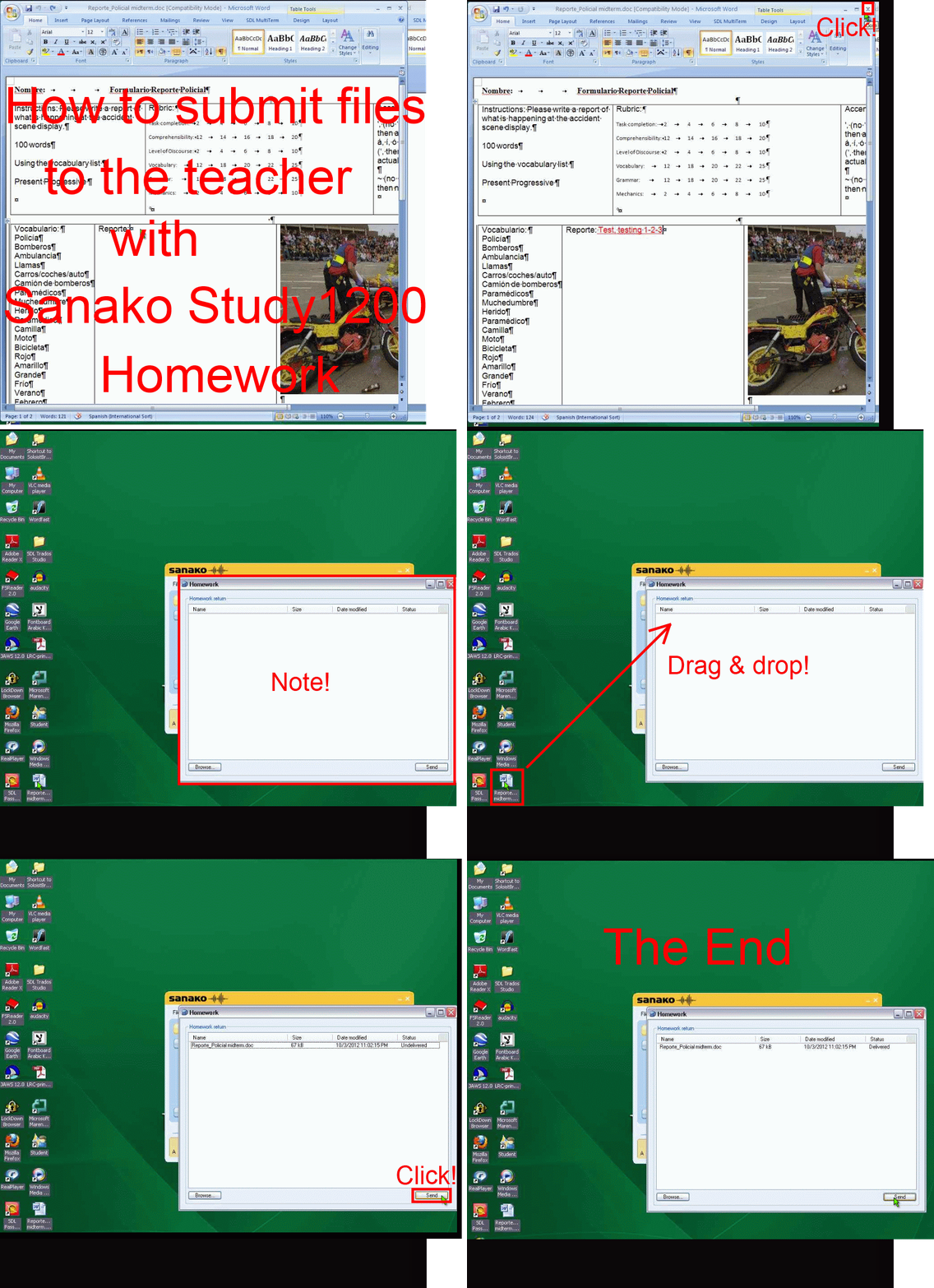
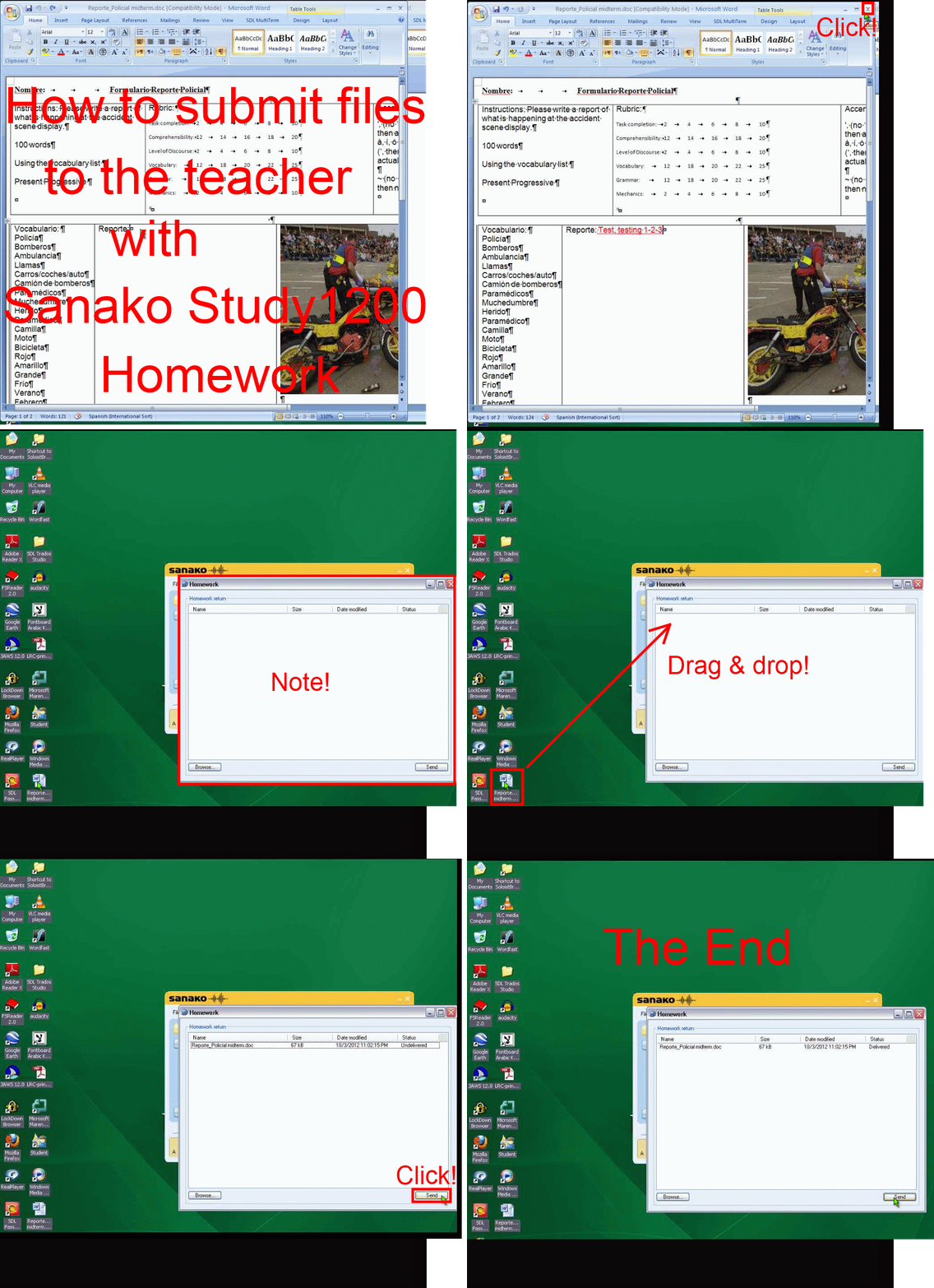
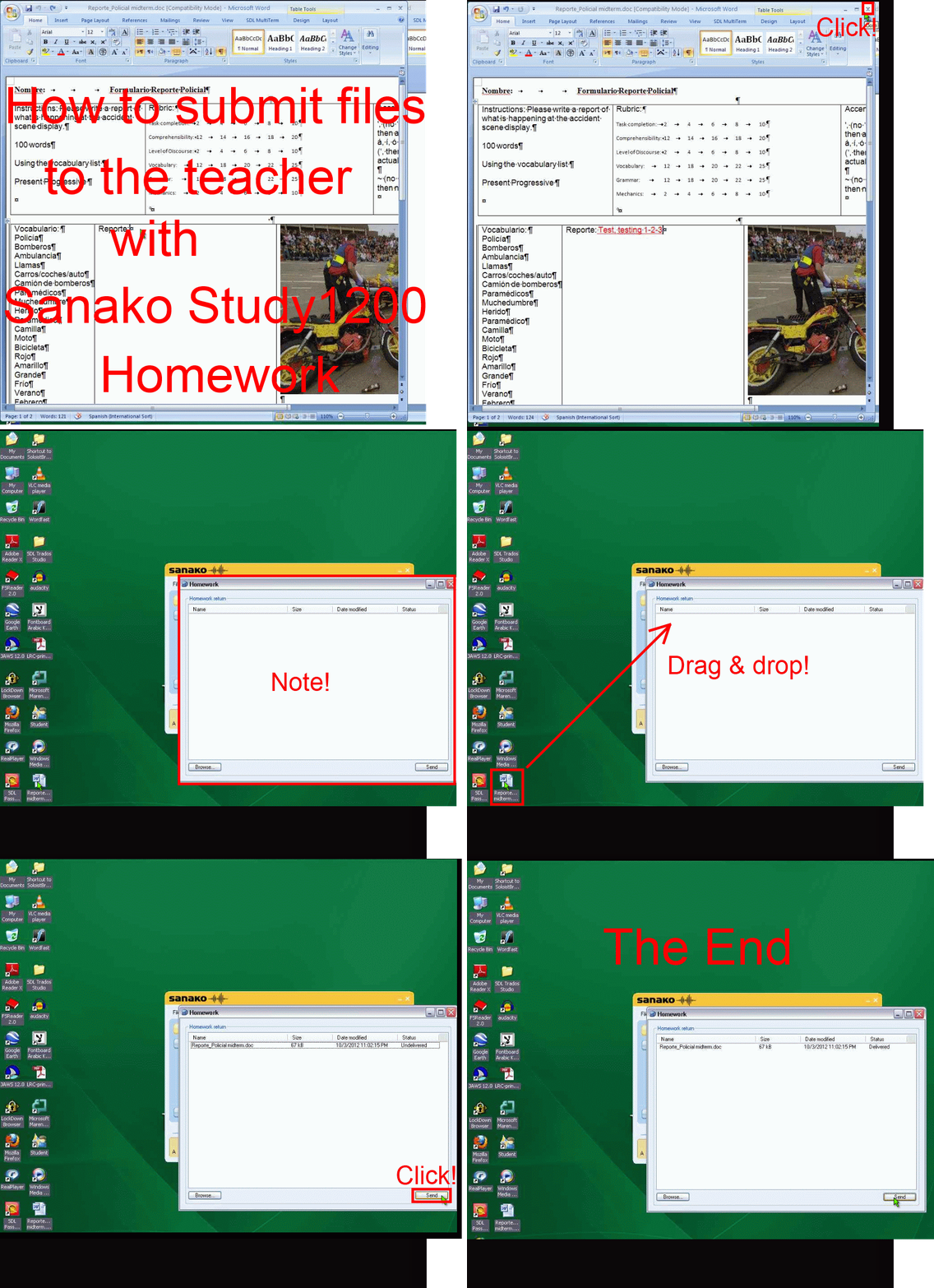
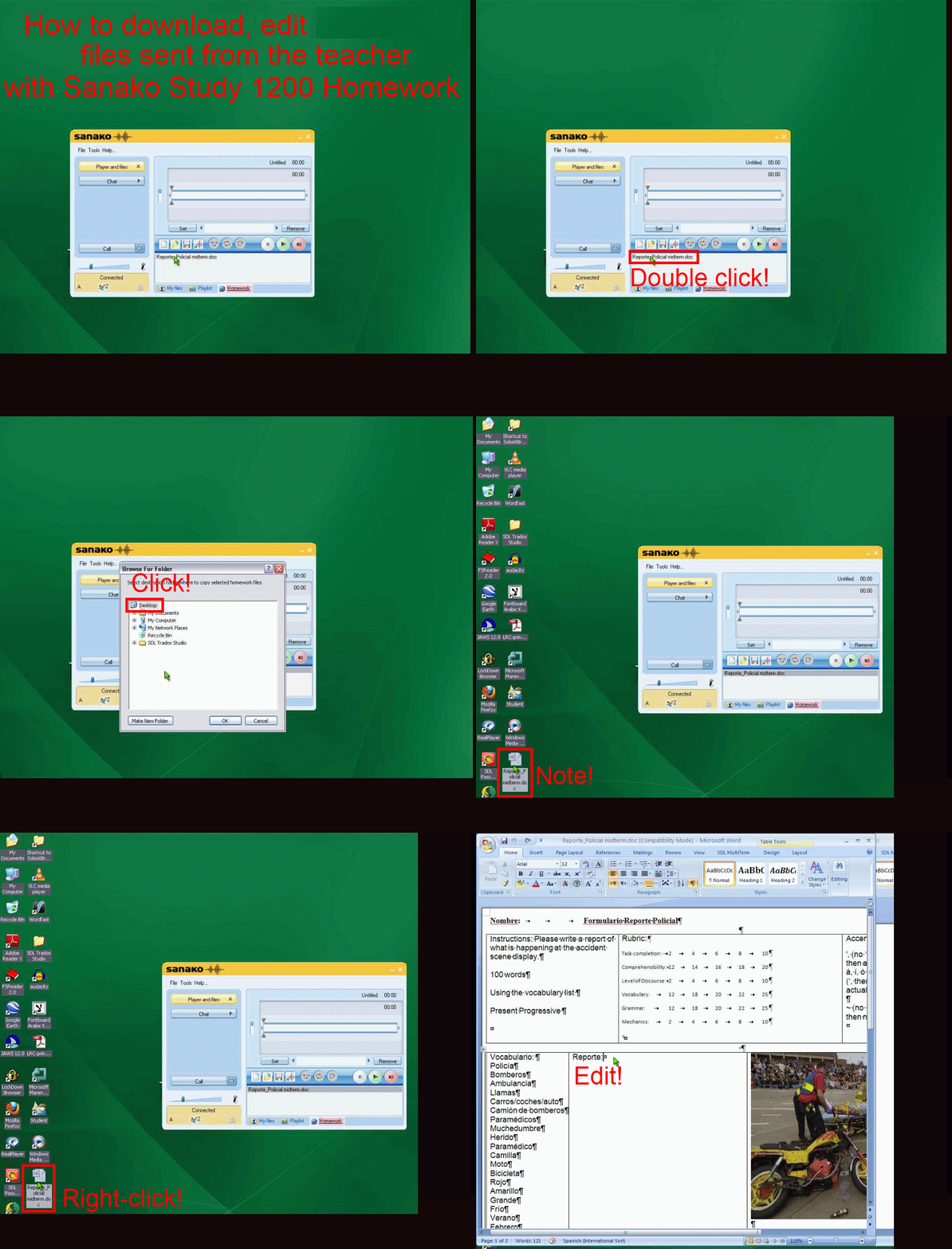
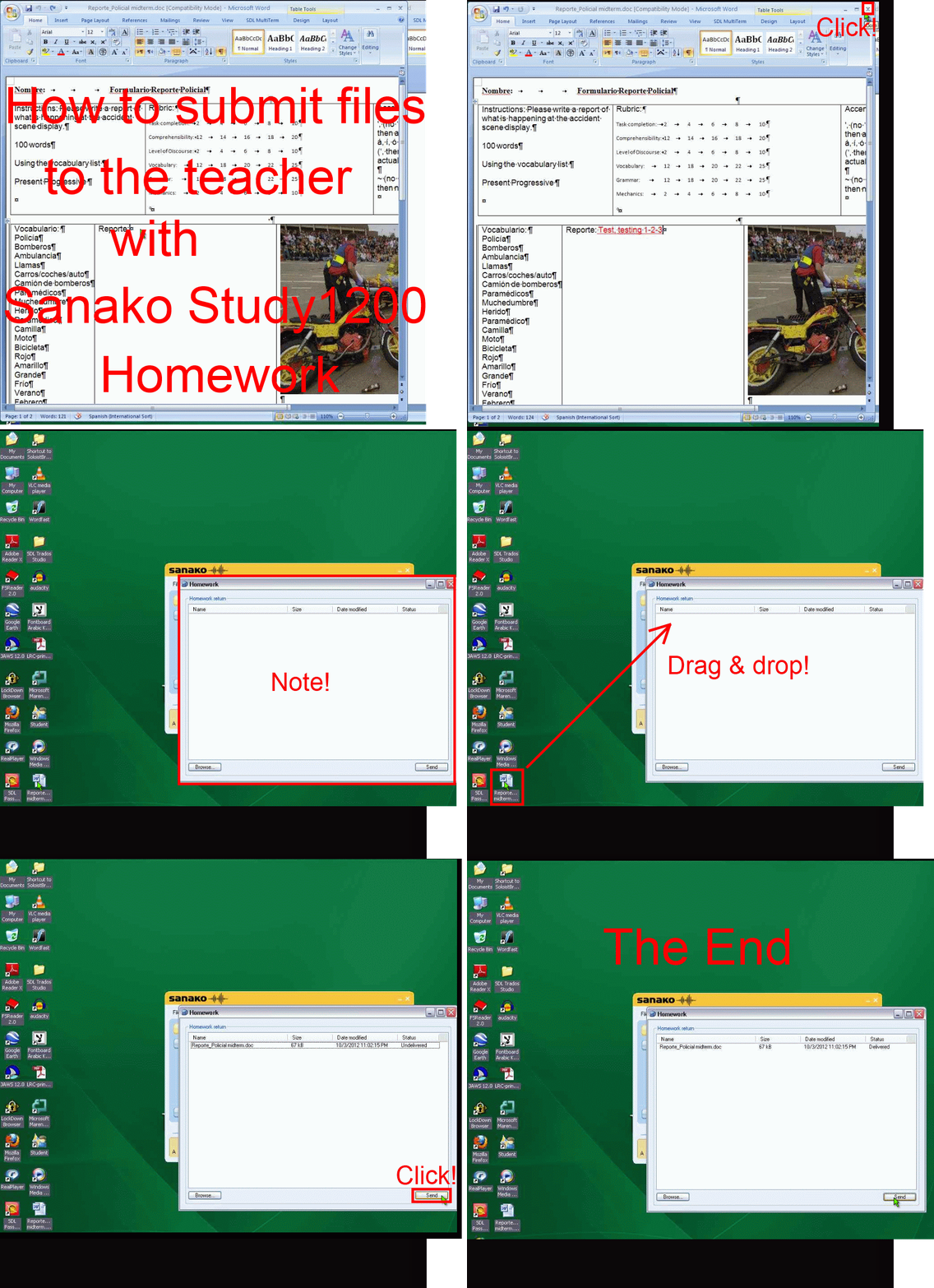
How student downloads, edits and submits files sent from the teacher with Sanako Study 1200 Homework –the ultimate training summary….
2012/10/16
Leave a comment
…using animated GIFs. (Here are the parts 1+2 that your teacher has to do). Slower? Click , 0.50sec, 0.75sec, 1sec, 2sec, 3sec, 4sec, 5sec, 6sec, 7sec, 8sec, 9sec, 10sec.
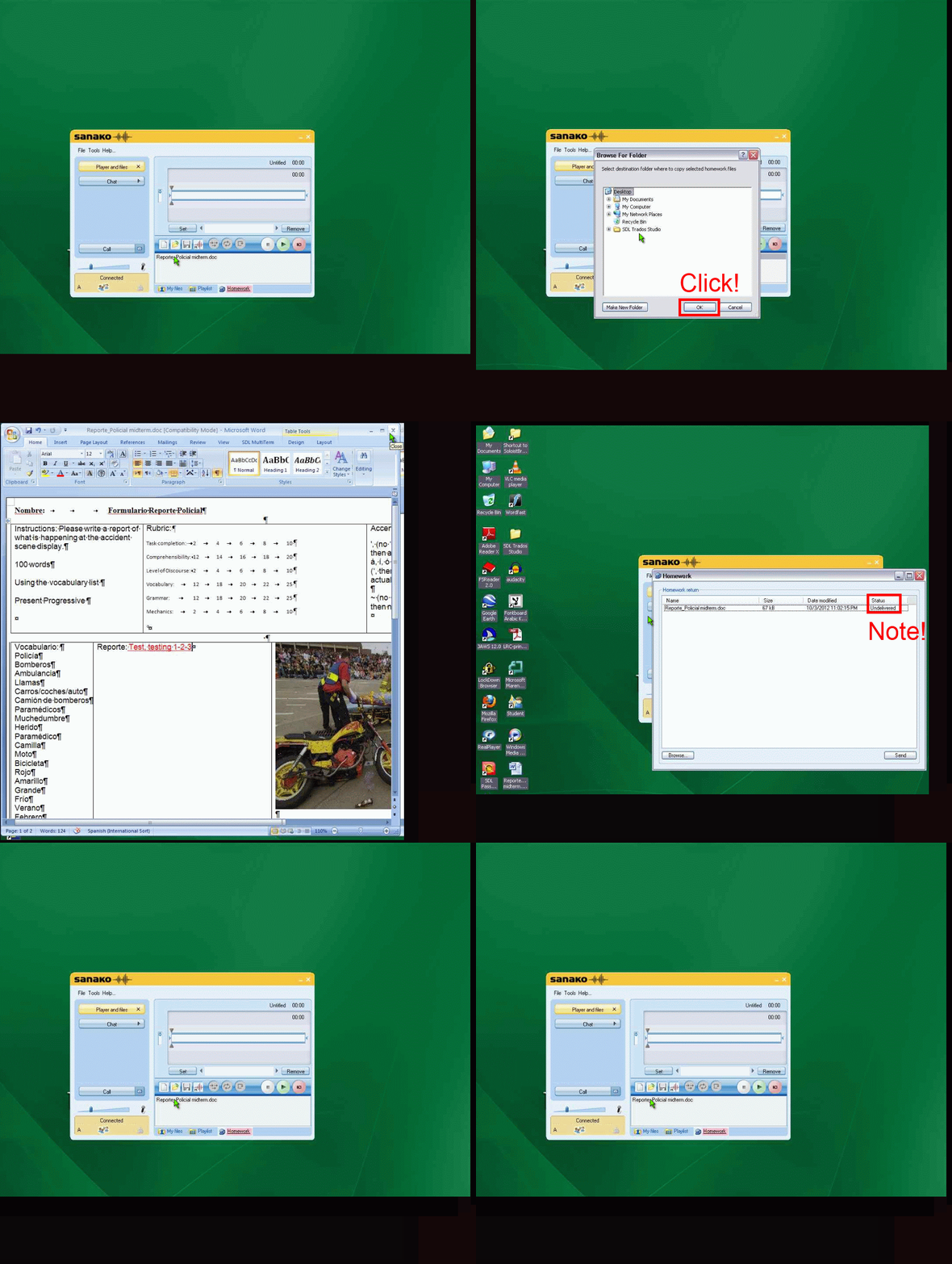
UPDATE: Now also split into
- PART 1: download from teacher (Here are the parts 1+2 that your teacher has to do). Slower? Click , 0.50sec, 0.75sec, 1sec, 2sec, 3sec, 4sec, 5sec, 6sec, 7sec, 8sec, 9sec, 10sec.

- PART 2: submission to teacher(Here are the parts 1+2 that your teacher has to do). Slower? Click , 0.50sec, 0.75sec, 1sec, 2sec, 3sec, 4sec, 5sec, 6sec, 7sec, 8sec, 9sec, 10sec.

How the LRC can help you proctoring your computer-based make-up exams
2012/10/15
Leave a comment
- We are testing
- whether we can offer proctored make-up exams for students that missed scheduled (publisher website- or Moodle-based) computerized exams that were held in the LRC. We have not been given additional resources for this service, so we have to set it up as smoothly as possible – as you and your students will desire also.
- Alternatively, you could administer your exam in your office, like you used to, but now using your office computer (where presumably you tested the exam in the first place – the LRC can temporarily borrow you a headset
- or we could group schedule all remaining students for a make-up in the main LRC classroom maybe during class meeting (likely more secure and quicker, but taking away from contact hours). Both the presence of the teacher and the lrc director may be required.
- The teacher gives
- to the studentthe exam’s
- step-by-step instructions (depends on your exam website, look at my example here regarding mylanguagelab tests (version 2012-10): goo.gl/g8q5g),
- or, if the exam is self-explanatory to the student (nothing ever seems to be, so if you want to go this route, please be prepared to troubleshoot with your students, the LRC can only help with making step-by-step guides beforehand), the link, i.e. login (e.g. mygermanlab: goo.gl/JUSUC) and exact location of exam (either path for manual browsing or (preferably, if at all possible) a direct link);
- duration
- deadline
- to the LRC coordinator the exam password. The LRC coordinator publishes the password in LRC Moodle forum “sticky notes” (to which only LRC staff has access).
- to the studentthe exam’s
- The student
- From her NINERMAILcalendar
- prepares a new/meeting request,
- “subject: [your course number] make-up exam”,
- to “resource:” lrcroomcoed433c @uncc.edu AND lrcroomcoed433d@uncc.edu, our small group rooms,
- uses the tab:”scheduling assistant” to find a free (= white, not-blocked) time-slot with the exam duration and before the exam deadline,
- and deletes that group room that s/he does not need before actual sending the meeting request (For the quietest experience, s/he should also stir clear of tutoring hours, subject:”up to ####” in the other group room http://mail.uncc.edu/owa/calendar/LRCRoomCOED433c@uncc.edu/Calendar/calendar.html http://mail.uncc.edu/owa/calendar/LRCRoomCOED433d@uncc.edu/Calendar/calendar.html ).
- The student can get help withmaking this meeting request at the LRC reception desk, including booking the room on the fly, but no group room may be immediately available for walk-in clients).
- cancels the meeting request if s/he changes her mind, to make the room available to other (we record the check-in time to report offenders who prevent other students from taking their make-up exams). Only in our 2 group rooms next to the reception desk the student can be (loosely) monitored by LRC assistants serving as proctors from behind the reception desk. We can test before term start if your website can use additional security features like Sanako controlled web browsing or Respondus Lockdown browser.
- prepares a new/meeting request,
- comes to the LRC shortly before her scheduled time slot,
- logs in on the computer in her group room first (to speed things up);
- opens her meeting request on the reception desk computer to receive a check-in code from the LRC assistant into the meeting request and “sends update”;
- places any personal possession behind the reception desk;
- opens the exam instructions (e.g. goo.gl/g8q5g) on the group room computer;
- Following instructions therein, goes to the exam website on the group room computer, opens the exam, so that the LRC assistant can type in the password from the LRC Moodle forum “sticky notes” without letting the examinee know the password.
- TBA: Will we require students to get a checkout code? The LRC assistants are not in a position to enforce exam deadlines; your testing software likely should be.
- From her NINERMAILcalendar


Questions? Read the About. Or just ask me a quick Our Databases: Resources with calendars -- Language learning material Moodle Sites, multimedia files -- films


FAQs for LRC student staff or for students or for teachers. To search our FAQs, in the browser addressbar, add after "https://plagwitz.wordpress.com/feed/?tag=faqs+/" "+TAG1" (from tag cloud below) OR "https://plagwitz.wordpress.com/feed/tag=faqs
&category_name=" "CAT1" (from category hierarchy below). OR search both categories and tags, and multiple TAGs/CATs (connect with "," for OR-search, with "+" for AND-search), like so: https://plagwitz.wordpress.com/feed/?tag=TAG1+TAG2+...TAGn&category_name=CAT1
+CAT2+...CATn"
Other ways to find help
If you cannot find it here, look there: 5,500 Language-Learning Links and Programs for learning or teaching 150 languages
Shortcuts:Our Lists, Our Maps, LRC Staff Moodle Site,LRC Project Moodle Site, 49erexpress, UNCC Moodle, Student Recordings: s:claslcslrcsanakostudent
Learning usage samples: Sanako oral exam, Kaltura webcam presentation, Dictation with speech recognition, Sanako written exam, Chinese and Japanese interactive stroke-order practice
Test the Sanako Installer, Webbrowser Popup Konfigurator for XP, or Windows7, faster LRC TeacherPC Log-in Let MS facilitate diacritics writing by installing for you US-International keyboard layout
This is my personal blog (Google+). The views expressed on these pages are mine alone and not those of my employer. The information in this weblog is provided “AS IS” with no warranties, and confers no rights.
 Thomas' Work Space