Archive
Call it “blog”, “CMS” or whatever, as long as your WordPress site visitor stats show that it helped people
I have been asked by a colleague about the “hits” in the upper right on my website. They are the number of visits I had(not counting myself, at least not when I am logged in – like many “bloggers”, I am likely my own best audience!  ).
).
My website could be called “a blog”, since it is based on WordPress, which started as a platform for blogging (but now – being so easy and flexible, and free (though not to host)- is behind every 5th website on the planet!).
WordPress is also the platform for the faculty blogs in CLAS-pages: If you are member of CLAS and not represented up there, I hope you know that you can request getting a CLAS-page here.
“Blog stats” is a hard-coded label that I cannot change. If I could, I’d prefer to call it “Content Management System stats” (that’s probably why they do not allow for changes ).
As opposed to just “web-logging” what is going on in my daily work life, I try to organize in this CMS the little things that I discover, hoping for reuse:
- by other people. That’s at least my justification for blathering, and I am sticking to it. (1125 posts? Really? Plus plus 1? Oh well… ).
- by myself. For the CMS and blogging habit (summarizing into a somewhat presentable, comprehensible form, and tagging for findability) makes me often search for answers that I have forgotten on my blog rather than on my computer (and that is despite me loving OneNote).
In my WordPress site (hosted on wordpress.com), I can see site visitor statistics like in the picture below: Includes search terms which led to clicks on one of my posts, countries of origin, outgoing links clicked etc.
I don’t do SEO or anything similar advanced on this website, nor do I use the statistics to cater to my audience (I am sure it is almost entirely transient). For me, it is just fun how I can glean from these statistics that I could help people find answers to their language, learning (and too often: computer infrastructure) questions and some of my work can be reused.

Heck, I decided to “blog” this email response, since it might answer the questions of a few more of colleagues than the person that emailed me.
How LRC assistants now help maintain LRC functionality with routine checks
Oral assessments have begun this week in the LRC. Please note that when using the LRC you may see LRC assistants going through the rooms doing a variety of chores (if need be, we can remind them that they must not disturb classes and other user activities).
We have written a large number of procedural guides, check lists with spreadsheets and illustrated parts lists (linked below) to train 7 groups of experts (varying in size between 2-6) in how to regularly inventory, test and maintain functionality of LRC equipment and services:
1. Daily LRC walkthrough check
2. Weekly headset test
3. Weekly film equipment check
4. Weekly staff and equipment calendar check
5. Biweekly faculty equipment check
6. Film collection maintenance (work in progress)
7. Help desk supervising

Samples of issues that we hope to address this way:
a. You check out a headset for recording learning materials over the last weekend before classes start and do not want to find it broken.
b. Your students come to the LRC for a quiz assignment/distance education and in the middle of it find the headset does not play audio while the timer/class is running.
c. You hold a recording class in the LRC and do not want to spend the first several more minutes – after the computers logged in – troubleshooting individual headsets that do not play or record.
d. Your students, when setting up film equipment for a film project (with location, actors/interviewees scheduled) have to find that the lights cannot stand essential since screws are missing.
e. Films cannot be located.
f. Etc.
I hope you will find experiencing fewer such issues a simplification in your interactions with the LRC .
How LRC assistants help maintain the film collection
Tuesday, January 21, 2014, 10:14:54 PM | plagwitz
Protected: How LRC assistants help with LRC room and resource mailboxes
Tuesday, January 21, 2014, 11:17:00 PM | plagwitz
New supervisor role for senior LRC Assistants
Monday, January 13, 2014, 7:09:36 PM | plagwitz
Friday, January 10, 2014, 10:45:32 PM | plagwitz
Friday, January 10, 2014, 8:52:51 PM | plagwitz
Thursday, January 02, 2014, 9:34:08 PM | plagwitz
Thursday, January 02, 2014, 9:00:44 PM | plagwitz
LRC daily walkthrough for all computers
Thursday, January 02, 2014, 9:38:44 PM | plagwitz
LRC daily walkthrough for classroom PCs
Thursday, January 02, 2014, 9:34:03 PM | plagwitz
LRC daily walkthrough for iMacs and printer
Thursday, January 02, 2014, 9:31:03 PM | plagwitz
LRC daily walkthrough for listening and group room stations
Thursday, January 02, 2014, 9:30:24 PM | plagwitz
Protected: A checklist for our regular equipment inventories
Monday, December 23, 2013, 11:43:29 PM | plagwitz
Checklist for the LRC Camera16
Monday, December 23, 2013, 11:32:25 PM | plagwitz
Monday, December 23, 2013, 11:19:13 PM | plagwitz
Monday, December 23, 2013, 11:15:42 PM | plagwitz
Monday, December 23, 2013, 11:14:29 PM | plagwitz
Checklist transcription foot pedal
Monday, December 23, 2013, 10:58:52 PM | plagwitz
Checklist for Voice recorder 03
Monday, December 23, 2013, 10:54:45 PM | plagwitz
Checklist for Voice recorder 01-02
Monday, December 23, 2013, 10:43:35 PM | plagwitz
Checklist for light kit (08-11)
Monday, December 23, 2013, 10:15:00 PM | plagwitz
Functionality tests for LRC microphones
Monday, December 23, 2013, 7:05:13 PM | plagwitz
Checklist for Vixia cameras (11-14)
Monday, December 23, 2013, 6:59:00 PM | plagwitz
LRC Wireless microphone basics
Monday, December 23, 2013, 5:59:04 PM | plagwitz
Monday, December 23, 2013, 5:25:24 PM | plagwitz
Checklist for light tripod (05-12)
Monday, December 23, 2013, 4:27:07 PM | plagwitz
Checklist for lavaliere microphones (01-03)
Monday, December 23, 2013, 3:29:47 PM | plagwitz
Checklist for heavy tripods (01-04)
Monday, December 23, 2013, 3:26:20 PM | plagwitz
Monday, December 23, 2013, 2:24:28 PM | plagwitz
Checklist for Rebel cameras (17/18/19/20)
Monday, December 23, 2013, 12:46:44 PM | plagwitz
Checklist for microphone booms
Monday, December 23, 2013, 12:34:00 PM | plagwitz
Wednesday, December 11, 2013, 3:02:51 PM | plagwitz
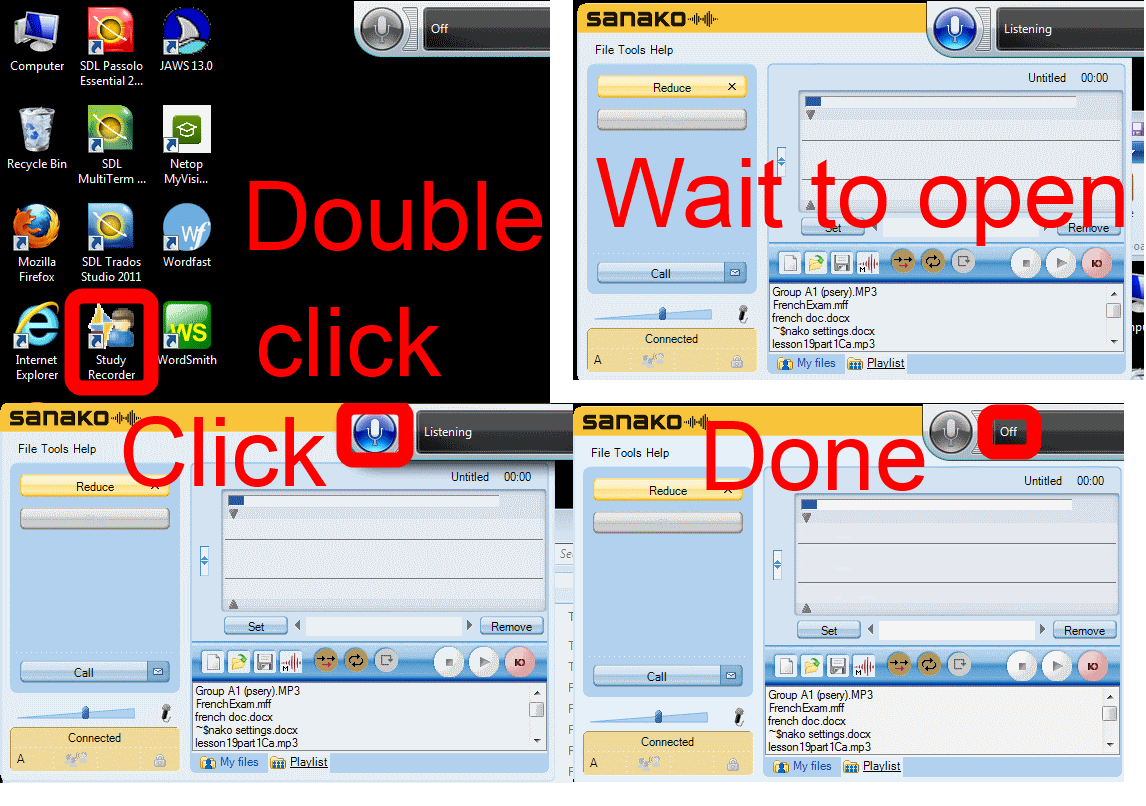
How students need to work around Sanako startup issues at start of 2014
UPDATE: Step 1 is not necessary anymore, Step2 (Microphone click) still is.
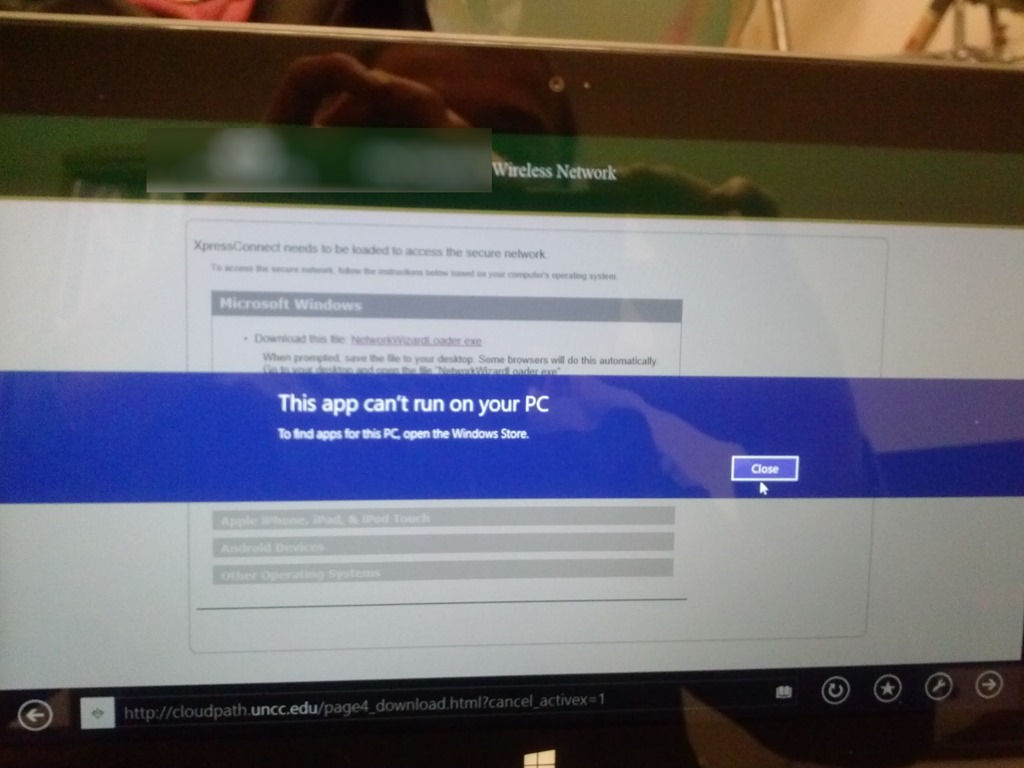
How to connect an MS-Surface RT to the secure campus wireless
- This worked on a 1st generation Surface, but with Windows 8.1.
- No problem getting onto the UNCC49er network, but the Surface/Windows 8 is not supported on the NINERWifi-secure yet. Specifically, loading the automated configuration tools provided when first trying to access the NINERWifi-secure, fails on the RT platform.


- I received seemingly conflicting instructions:
- The campus website
- has for devices that are not supported manual configuration settings.
- Another campus that uses the same secure wireless provider has these instructions for Windows 8.
- I could piece it together from there,
- including any translation to (there is none needed that I could see which BTW actually amazes me) Windows 8 RT.
- Maybe the following would have worked also, but I did not try it since I was already in the middle of the above steps:
- Swipe in from the right-edge of the screen, and tap Settings. (If you’re using a mouse, point to upper-right corner of screen, move the mouse pointer down, and then click Settings.)
- Tap or click the wireless network icon Wireless network icon. A list of available wireless networks should appear.
- Look for the “Hidden Network” option and then choose it.
- When it prompts for a SSID, type in exactly: NinerWiFi-Secure
- It should then prompt for username/password (NinerNET credentials).
- Say yes to any certificates warnings that pop up.
- The campus website

LRC Faculty Showcase: Enhancing reading fluency in Spanish through Online Courses
- The videos of the presentation by Maria Mahaffey, Emily Kristoff and Shaun Stone on SPAN2200, using Hot Potatoes exercises in Moodle, and the ensuing discussion, are available on the intranet:
- PowerPoint screencast with audio: “S:\CLAS\LCS\MYDEPT\mahaffey\span2200\showcase\SLP_2014_PowerPoint.wmv” (size: 130MB).
- Video with presenter and PowerPoint on projector: “S:\CLAS\LCS\MYDEPT\mahaffey\span2200\showcase\showcase-SLP-2014.mp4” (size:410MB).
Layout of the Language Resource Center (LRC)
The numbers in the layout correspond to the numbers we posted (to facilitate teacher and student orientation and to aid in LRC temp staff troubleshooting) on the computer monitors and also (for IT staff) to the number part of the underlying computer names which can also be displayed in the classroom management systems NetOP School and Sanako Study 1200 on the teacher computer (32).

How staff can connect their smart phones to Ninermail
Including Calendars, useful if you need to receive a reminder for your LRC bookings. It is all documented here (but the student instructions are on top of the search results, which may be confusing to some): http://itservices.uncc.edu/facultystaff-services/email/mobile.


Questions? Read the About. Or just ask me a quick Our Databases: Resources with calendars -- Language learning material Moodle Sites, multimedia files -- films


FAQs for LRC student staff or for students or for teachers. To search our FAQs, in the browser addressbar, add after "https://plagwitz.wordpress.com/feed/?tag=faqs+/" "+TAG1" (from tag cloud below) OR "https://plagwitz.wordpress.com/feed/tag=faqs
&category_name=" "CAT1" (from category hierarchy below). OR search both categories and tags, and multiple TAGs/CATs (connect with "," for OR-search, with "+" for AND-search), like so: https://plagwitz.wordpress.com/feed/?tag=TAG1+TAG2+...TAGn&category_name=CAT1
+CAT2+...CATn"
Other ways to find help
If you cannot find it here, look there: 5,500 Language-Learning Links and Programs for learning or teaching 150 languages
Shortcuts:Our Lists, Our Maps, LRC Staff Moodle Site,LRC Project Moodle Site, 49erexpress, UNCC Moodle, Student Recordings: s:claslcslrcsanakostudent
Learning usage samples: Sanako oral exam, Kaltura webcam presentation, Dictation with speech recognition, Sanako written exam, Chinese and Japanese interactive stroke-order practice
Test the Sanako Installer, Webbrowser Popup Konfigurator for XP, or Windows7, faster LRC TeacherPC Log-in Let MS facilitate diacritics writing by installing for you US-International keyboard layout
This is my personal blog (Google+). The views expressed on these pages are mine alone and not those of my employer. The information in this weblog is provided “AS IS” with no warranties, and confers no rights.
 Thomas' Work Space