Archive
Blackboard: Content System: Ancillary digital textbook material reuse (publish to course participants, roll-over between terms)
If you have a well administered language program, your admin should have uploaded all digital (text, audio, textbook and table of contents) materials that come with your textbook for convenient reuse between sections and terms into the Blackboard content system.
As a Blackboard course administrator, you can easily give all course participants access in 1 step (as course administrator, you can also access the audio materials during classes from the Blackboard content system directly).
Here is a video recording of a real-world walkthrough of this process – voice-over is in German, but Blackboard interface is in English: blackboard-content-system-finding-adding-existing-content-item-to-course-access-play.wmv
|
Start Time |
Topic |
|
0,0 |
overview of teaching and learning procedure |
|
0,1 |
course add item / content collection link |
|
1,30 |
how to search for content. Remember: Search is your friend, if you have a consistent metadata system for your content (start with meaningful file names): |
|
3,15 |
hot to add permissions for other users |
|
5,3 |
add to course for for students |
|
5,4 |
listen to an example audio from course |
Once you have given course participants access to the audio materials, and you teach the course again next term, it is even easier to roll over the access: Just use the Copy link in the Blackboard Control Panel.
How a teacher grades a Blackboard audio recording assignment
- Switch to interactive view, if your vertical scrollbar does not show up, and thus the assignment column is hidden (or reduce the font size in Firefox, e.g. by holding CTRL and rolling the mouse scroll wheel):
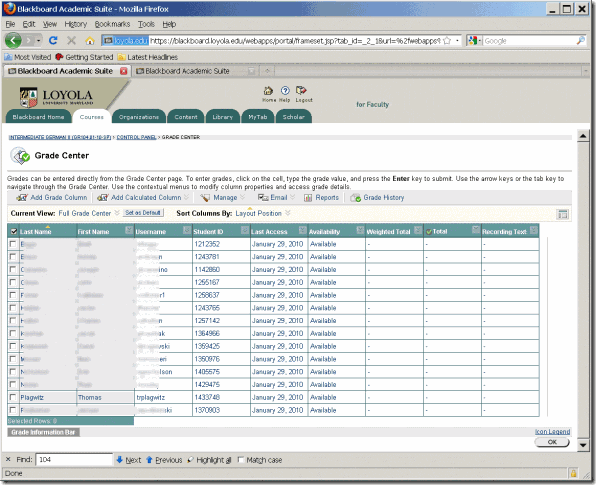
- Once you see the assignment column, you can either download all submissions as a zip file, open it with the built-in zip tools in Windows (XP or newer). This is especially practical if you want to then select all recordings and drag and drop them into an audacity window, for doing easy to comparative grading of student submissions, as described earlier.
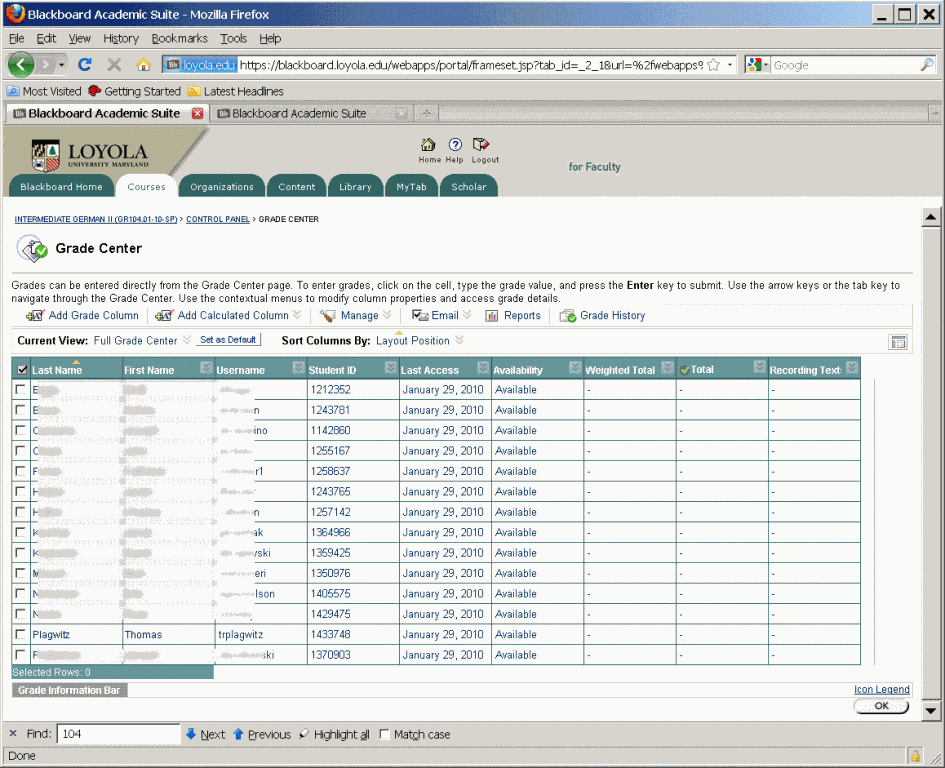
- To grade,
- you still need to click next to the green exclamation marks which indicate where there is an assignment to be graded,
![clip_image002[5]](https://thomasplagwitz.com/wp-content/uploads/2016/03/clip_image0025_thumb.gif?w=569&h=465 "clip_image002[5]")
- on the arrow keys which unfold a menu.
![clip_image002[7]](https://thomasplagwitz.com/wp-content/uploads/2016/03/clip_image0027_thumb.gif?w=593&h=483 "clip_image002[7]")
- you still need to click next to the green exclamation marks which indicate where there is an assignment to be graded,
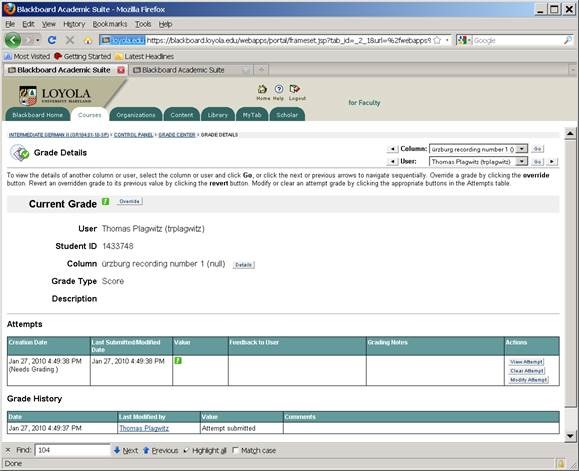
- This gets you to the grade details:
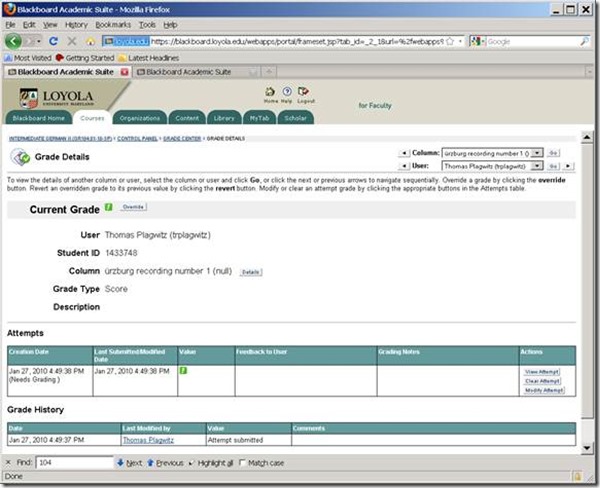
- You can also listen to the student recording submission by clicking on the file linked behind “users; file”.
![clip_image002[5]](https://thomasplagwitz.com/wp-content/uploads/2016/03/clip_image0025_thumb.jpg?w=600&h=488 "clip_image002[5]")
- Fill out your grade comments and grade.
- Instead of doing (only) written comments, you could also oral feedback grade the student recording, and re-upload this new recording.
- Finish by clicking button:”submit”.
- Next in series: How the student reviews a grade Blackboard audio recording assignments: TBA
- First in Series: A better way to do student homework audio recordings in the Sanako LAB 300, using Blackboard:Assignment.
![clip_image002[5]](https://thomasplagwitz.com/wp-content/uploads/2016/03/clip_image0025.gif "clip_image002[5]")
![clip_image002[7]](https://thomasplagwitz.com/wp-content/uploads/2016/03/clip_image0027.gif "clip_image002[7]")
![clip_image002[5]](https://thomasplagwitz.com/wp-content/uploads/2016/03/clip_image0025.jpg "clip_image002[5]")
How a student submits a Blackboard model imitation audio recording assignments
- Access the assignment in the location of your Blackboard course that your instructor pointed you to.
- Download the model audio recording attached to the assignment to your desktop (if any).
- Right-click on the downloaded file, choose open with (something else but the Sanako Duo which you will use to record).
- Play and listen to the model.
- Imitate the model, recording yourself using the previous instruction, using pause/play as needed.
- Upload the recording into the Blackboard assignment by clicking “browse to local file” [i.e. where you saved your recording].
- Click “submit”. If you get an error “Not a valid file’, try using another web browser to open the assignment and submit the file.
- Next steps: see How the teacher grades a Blackboard audio recording assignments
- First in series: A better way to do student homework audio recordings in the Sanako LAB 300, using Blackboard:Assignment
How to automate nightly updates of a Kiosk PowerPoint
This copies nightly a ppt file from a network share where it is collaboratively edite to a network computer where it is displayed for announcement and marketing. The ppt file should already be set to kiosk, manual timings, loop mode.
#region ;**** Directives created by AutoIt3Wrapper_GUI ****
#AutoIt3Wrapper_outfile=\\adfileprod01\Shared\LLC\scheduling\channel55-presenter\updater-channel55.exe
#endregion ;**** Directives created by AutoIt3Wrapper_GUI ****
; revision after hardware upgrade from hallway.au3, "hallway"->"channel55" not in variable names, only in strings , except for encryption password
; includes debugging
; connect to channel55-presenter using tightvnc
; adapt at [TBA]
#include <ie.au3>; put the compiled executable of this in channel55Presenter c:\temp and run it as a scheduled task  late-nightly
#include <debug.au3>
#include <File.au3>
#include <Screencapture.au3>
#include <String.au3>
#include <Date.au3>
Global $filename = "[TBA]"; "channel55"
Global $filenamelog = "[TBA]"; "channel55"
Global $fileextremote = ".pps"
Global $fileextlocal = ".pps"
Global $fileextlog = ".log"
Global $pathfilelog
Global $filepathlocal = "[TBA]"; "c:\temp\"
Global $fileshareordriveremote = "[TBA]"; "\\resman\Student Saved Work\"
Global $filepathremote = "[TBA]"; "Admin\conf\scheduling\channel55-presenter\"
Global $filepathremotebackup = "tmp\"
Global $usernameinstructor = "[TBA]" ; "trplagwitz"
Global $passwordinstructor = "[TBA]" ; hashed password
Global $passworddecrypt = "hallway"
Global $LogonDomain = "[TBA]" ; "ad.loyola.edu"
Global $timelocal
Global $timeremote
Global $debugtype = "debugconsole"
_ScreenCapture_SetBMPFormat(0)
$logfilehandle = FileOpen($fileshareordriveremote & $filepathremote & $filepathremotebackup & $filename & $fileextlog, 1)
If Not FileExists($fileshareordriveremote & $filepathremote & $filename & $fileextremote) Then
	$ret = FileWriteLine($logfilehandle, "cannot open file: " & $fileshareordriveremote & $filepathremote & $filename & $fileextremote)
	FileClose($logfilehandle)
	Exit
Else
	If ProcessExists("powerpnt.exe") Then
		ProcessClose("powerpnt.exe")
	EndIf
	Sleep(5000)
	If ProcessExists("powerpnt.exe") Then
		$ret3 = RunWait('taskkill /F /fi "imagename eq powerpnt*"  /im *')
	EndIf
	Sleep(2000)
	$ret = FileCopy($fileshareordriveremote & $filepathremote & $filename & $fileextremote, $filepathlocal & $filename & $fileextlocal, 1)
	$ret = FileWriteLine($logfilehandle, "result:" & $ret & " filemove from: " & $fileshareordriveremote & $filepathremote & $filepathremotebackup & $filename & "_" & today() & $fileextlocal & "t: " & $filepathlocal & $filename & $fileextlocal)
	If FileExists($fileshareordriveremote & $filepathremote & $filename & $fileextremote) Then
		FileDelete($fileshareordriveremote & $filepathremote & $filename & $fileextremote)
	EndIf
	ShellExecute($filepathlocal & $filename & $fileextlocal)
EndIf
FileClose($logfilehandle)
Exit
Func today()
	Return (@YEAR & @MDAY & @MON)
EndFunc   ;==>today
Func addHallwayPresenterNetworkshares($LogonDomain)
	If $LogonDomain = "" Then $LogonDomain = @LogonDomain
	If StringLen($passworddecrypt) > 0 Then
		$driveletterreplacementforhallwayread = DriveMapAdd("*", $fileshareordriveremote, 0, $LogonDomain & "\" & $usernameinstructor, _StringEncrypt(0, $passwordinstructor, $passworddecrypt))
	Else
		$driveletterreplacementforhallwayread = DriveMapAdd("*", $fileshareordriveremote, 0, $LogonDomain & "\" & $usernameinstructor, $passwordinstructor)
	EndIf
	myDebugOut(@ScriptLineNumber, "$driveletterreplacementforhallwayread is: " & $driveletterreplacementforhallwayread & ", $fileshareordriveremote is " & $fileshareordriveremote & ", $usernameinstructor, $passwordinstructor are " & $usernameinstructor & $passwordinstructor)
	If (($driveletterreplacementforhallwayread == "") Or $driveletterreplacementforhallwayread == 0) Then
		$driveletterreplacementforhallwayread = "H:"
	EndIf
	Return $driveletterreplacementforhallwayread
EndFunc   ;==>addHallwayPresenterNetworkshares
Func removeHallwayPresenterNetworkShares()
	$driveletterreplacementforhallwayread = $fileshareordriveremote
	If StringInStr($driveletterreplacementforhallwayread, ":") Then
		If StringInStr($driveletterreplacementforhallwayread, "\") Then
			StringTrimRight($driveletterreplacementforhallwayread, 1)
		EndIf
		$ret = DriveMapDel($driveletterreplacementforhallwayread)
		If $ret = 0 Then myDebugOut(@ScriptLineNumber, "failed to DriveMapDel for: " & $driveletterreplacementforhallwayread)
	EndIf
EndFunc   ;==>removeHallwayPresenterNetworkShares
Func myDebugOut($ScriptLineNumber = @ScriptLineNumber, $msg = "Error")
	Local $debugstring
	Local $debugfilename
	Local $tabhandle
	Local $tabmaxnumber
	Local $tempdir
	$tempdir = @TempDir
	If $tempdir == "" Then $tempdir = "c:\temp"
	$debugstring = $ScriptLineNumber & "~" & _Now() & "~" & $msg
	If $debugtype = "debug" Then
		Local $activewindowtitle = WinGetTitle("")
		MsgBox(0, "debug", $debugstring)
		WinActivate($activewindowtitle)
	ElseIf $debugtype = "debugconsole" Then
		ConsoleWrite($debugstring & Chr(13))
	ElseIf $debugtype = "run" Then
		If $tempdir == "" Then $tempdir = "c:\temp"
		$debugfilename = FileNameEscape($debugstring, $tempdir) & ".jpg"
		_ScreenCapture_Capture($debugfilename)
		_DebugOut($debugstring)
	ElseIf $debugtype = "debugconsolescreen" Then
		ConsoleWrite($debugstring & Chr(13))
		$debugfilename = FileNameEscape($debugstring, $tempdir) & ".jpg"
		_ScreenCapture_Capture($debugfilename)
	ElseIf $debugtype = "releasetextlog" Then
		If $pathfilelog == "" Then $pathfilelog = @TempDir & "\" & "autoitlogfile.log"
		$loghandle = FileOpen($pathfilelog, 1)
		If $ret = 0 Or @error Then Exit
		$ret = FileWriteLine($loghandle, $debugstring & Chr(13))
		If $ret = 0 Or @error Then Exit
		$ret = FileClose($loghandle)
	ElseIf $debugtype = "releasewordpad" Then
	Else
		SetError(1)
	EndIf
EndFunc   ;==>myDebugOut
Func FileNameEscape($filename, $tempdir)
	$filename = StringReplace($filename, ":", "_")
	$filename = StringReplace($filename, ">", "larger_than")
	$filename = StringReplace($filename, "<", "smaller_than")
	$filename = StringReplace($filename, " ", "_")
	$filename = StringReplace($filename, "/", "&")
	$filename = StringReplace($filename, "/", "+")
	$filename = StringReplace($filename, "&", "+")
	$filename = StringReplace($filename, Chr(9), "_")
	$filename = StringReplace($filename, "?", "questionmark")
	$filename = StringReplace($filename, "!", "exclamationmark")
	$filename = StringReplace($filename, "'", "quotationmark")
	$filename = StringReplace($filename, Chr(34), "doublequotationmark")
	$filename = StringReplace($filename, "__", "_")
	$filename = StringReplace($filename, "__", "_")
	$filename = StringReplace($filename, "__", "_")
	$filename = StringReplace($filename, "__", "_")
	$filename = $tempdir & "\" & $filename
	Return $filename
EndFunc   ;==>FileNameEscape
Func FileCopy2LocalTemp($filepath)
	Dim $arrfilepath, $filepathname, $arrfilepathname, $filepathnameext
	$blnValid = True
	If Not FileExists($filepath) Then
		If Not DriveMapAdd("", $filepath) Then
			$blnValid = False
		EndIf
	EndIf
	If $blnValid Then
		$arrfilepath = StringSplit($filepath, "\")
		If @error Then
			SetError(1)
			myDebugOut(@ScriptLineNumber, "error stringsplit filepath")
		EndIf
		$filepathname = $arrfilepath(UBound($arrfilepath) - 1)
		$ret = FileCopy($filepath, @TempDir & "\" & $filepathname)
	Else
		SetError(1)
	EndIf
EndFunc   ;==>FileCopy2LocalTemp
Video Library: Scheduling for Reserve Desk and Viewings
Lab staff instruction for editing the video-reserves spreadsheet H:\LLC\scheduling\video-reserves&mh441b-showing\video-reserves.xls:
- Lab supervisors build the spreadsheet for the reserve desk and viewing: video-reserves-reservedonthisday-unfold-schedule-viewing.wmv, video-reserves-viewing-selecting-timeslots&venues.wmv
- Lab assistants read the spreadsheet and handle the actual media (i.e. update the reserve desk and show the videos): video-reserves-reservedonthisday-filter-viewing-or-reserve.wmv
Quia Online Exercises
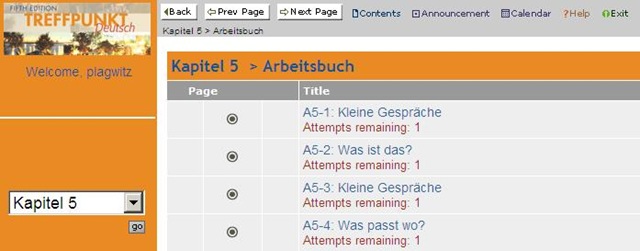
Here are examples from the Treffpunkt Deutsch Quia Website. Quia Treffpunkt Deutsch is organized in chapters which you can select from the dropdown navigation control on the left. As you see on the following page, each chapter contains 3 different types of exercises, organized in sections.

If you click on a section header, you will see a list of exercises:
Here is an example of an exercise, assigned as “A[rbeitsbuch=work book], K[apitel=chapter]9: A9[=chapter-number, again]-1[=exercise-number]”.
The letters and numbers from the assignment repeat in the exercise, see this screenshot:
 \
\
You can also hover your mouse over the info button in the upper left corner to get a summary of this information: 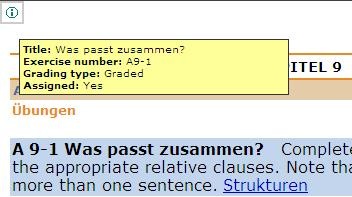
Also note the link to the corresponding preparatory web page which opens in a new window (Problems getting the window to open? the popup-blocker of your web browser may be the root? instead of simply clicking on the link, try CTRL-clicking, on the link as well as the browser information bar, if it comes up). It is crucial to read/review the corresponding preparatory web page first.
It is not necessary to get everything 100% correct. It is not even a good use of your time to redo the exercise until you get everything 100% correct. Especially if you try speeding up this tedious task by doing the first round mechanically to get at the automated feedback answers, then doing the second round mechanically by pasting them in. That is why I have my Quia course “Options” set to “Calculate cumulative scores based on students’ first attempt” and to “Ignore student results after the 1st attempt”.
Therefore, you will see that you have only 1 “Attempt remaining” for each exercise. You will also, unless individually told otherwise, only have to do the exercises that are “Assigned” (consult legend at bottom of page).
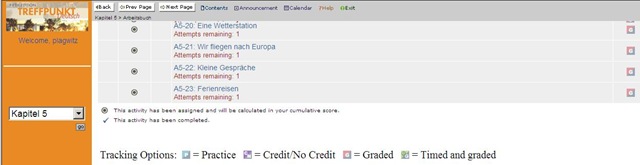
Rather use the valuable error feedback to go back to the Structures and try to learn and bring any remaining questions to class – it is highly likely that fellow students have the same problems, especially if they have the same native tongue. That is also the reason why I review your submission before class – not to mark you down, but to see from your problems help what to spend valuable class time one.

Also, the exercises are integrated into the progression of the course (including your ability to do partner work with others during class meetings). That is why you will not be able to submit exercises long after when they were due:

For reviewing, we will use other materials.
Finally, consult the Help which is linked in the top menu:

Canon ZR-200 LLC Camera Basics
The camera can store only about 30 [check, might be 100 or more, recording size is 5MB per 1 min video] minutes on its SD card
Currently we are using my personal SD card, bring your own to extend the recording time (by swapping the cards. You can move video clips onto classroom computers’ network shares if the classroom computer is in MS-Active Directory (which most should be) and if the classroom computer has an SD card reader (which most will NOT have).
Video–clips (internal access only) showing how to operate the camera are here:
camera-canon-zr200-Inserting&Removing_Memory_Card_Starting&Stopping&Filming.avi
camera-canon-zr200-Inserting_Memory_Card_into_Card_Reader_on_Assistant-Computer.AVI
camera-canon-zr200-moving_video_from_memory_card_to_H-Drive.avi
For base documentation, see these graphics:


You can change the audio modes:


Optimum video mode with card is 320*240.
All in all: Quick and dirty recording and archiving for basic assessments…


Questions? Read the About. Or just ask me a quick Our Databases: Resources with calendars -- Language learning material Moodle Sites, multimedia files -- films


FAQs for LRC student staff or for students or for teachers. To search our FAQs, in the browser addressbar, add after "https://plagwitz.wordpress.com/feed/?tag=faqs+/" "+TAG1" (from tag cloud below) OR "https://plagwitz.wordpress.com/feed/tag=faqs
&category_name=" "CAT1" (from category hierarchy below). OR search both categories and tags, and multiple TAGs/CATs (connect with "," for OR-search, with "+" for AND-search), like so: https://plagwitz.wordpress.com/feed/?tag=TAG1+TAG2+...TAGn&category_name=CAT1
+CAT2+...CATn"
Other ways to find help
If you cannot find it here, look there: 5,500 Language-Learning Links and Programs for learning or teaching 150 languages
Shortcuts:Our Lists, Our Maps, LRC Staff Moodle Site,LRC Project Moodle Site, 49erexpress, UNCC Moodle, Student Recordings: s:claslcslrcsanakostudent
Learning usage samples: Sanako oral exam, Kaltura webcam presentation, Dictation with speech recognition, Sanako written exam, Chinese and Japanese interactive stroke-order practice
Test the Sanako Installer, Webbrowser Popup Konfigurator for XP, or Windows7, faster LRC TeacherPC Log-in Let MS facilitate diacritics writing by installing for you US-International keyboard layout
This is my personal blog (Google+). The views expressed on these pages are mine alone and not those of my employer. The information in this weblog is provided “AS IS” with no warranties, and confers no rights.

