Archive
Computer Lab Imaging with Ghost Console and Deepfreeze Console
0. As of Winter 2011 Novell – AD and Deepfreeze 7 upgrade, flagged for updating: TBA.
1. DEEPFREEZE console
1.1. Unfreeze the image source client
2. Client PREPARE THE IMAGE
2.1. Login as labadmin,
2.1.1.NAL [tba], labtools, icon Microsoft Update (be sure to use icon in launcher it will disable policies that won’t allow it otherwise use windowsupdate.com
2.1.2 Remove the machine from the domain: My Computer / System Properties / Computer Name / Button: Change / Member of: Workgroup: LRC (if it asks for a user/pwd, leave both blank and click OK), restart as prompted using Ghost Console / Add to workgroup
2.2. Login as ITSadmin (work station only)
2.2.1.Create user testuser (Administrator), will be based on past default user template
2.3. Log in as testuser
2.3.1.Document what you are doing by running c:\temp\labscreencastfullhighaudio.wme / menu button: start encoding / when done, menu button: stop encoding, rename output file to not overwrite existing output,
2.3.2.Make changes ß centre_image_request_list_allda
2.3.2.1 if software installs complain about missing H: (home) drive, plug in a thumbdrive and change its driveletter to H:
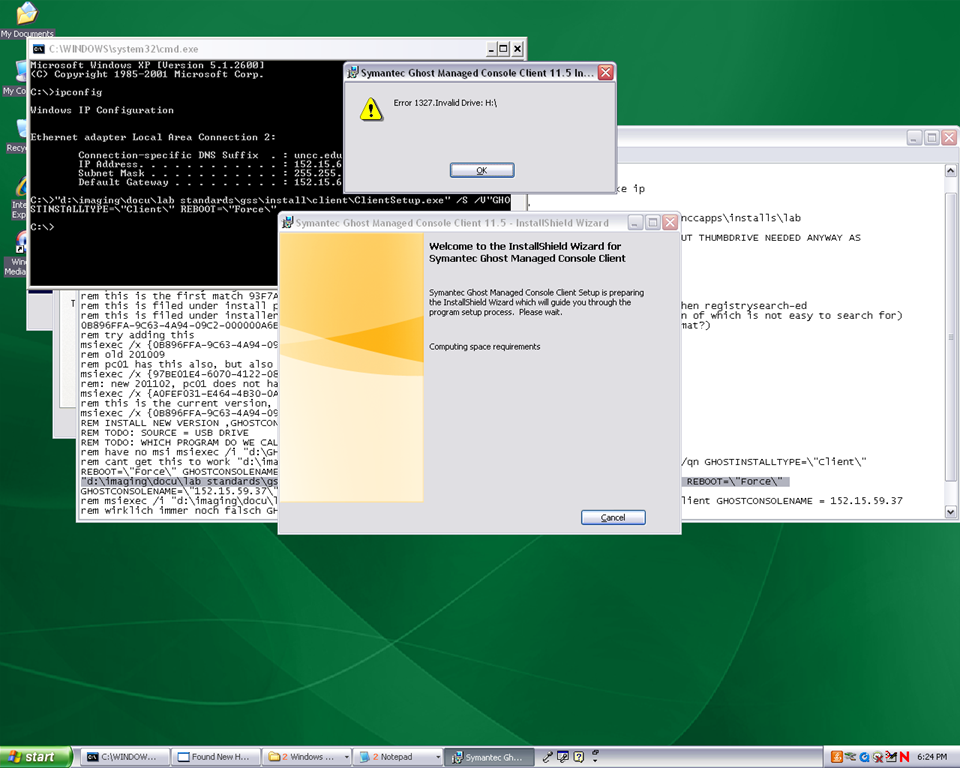
2.3.3.Clean before making testuser default user:
2.3.3.1. control / internet options / clean history and temp files
2.3.3.2. recycling bin: empty
2.3.3.3. right-click start button: / menu item:properties / button:customize / tab:general / button:clear list + tab:advanced: clear list
2.3.3.4. C: / properties /disk cleanup, all, except: “Compress old files”, “cached installers”, “Office setup files”
2.3.3.5 Firefox: menu: tools / clear recent history / time range: “everything”/ check everything and click button “clear now:” 
2.4. Log in as itsadmin
2.4.1.Document what you are doing by running c:\temp\labscreencastfullhighaudio.wme / start encoding / rename to not overwrite existing output,
2.4.2.Manage testuser – default user transition
2.4.2.1. USERS
2.4.2.1.1. Make testuser default user:
2.4.2.1.1.1. Unhide: explorer / tools / folder options / tab:view / show hidden files and folder, unhide protected operating system files
2.4.2.1.1.1.1. make a backup of old documents and settings/default user (entire directory, not only ntuser.dat): zip onto thumbdrive with date/version number )
2.4.2.1.1.2. xp copy profile windowskey+pause/break /tab:advanced / section:user profiles / button:settings, select the profile [you cannot copy the active profile, so log in as itsadmin], button: copy to, new window: copy to, section:copy profile to, button:browse, select c:\documents and settings\default user, button:ok
2.4.2.1.1.3. [not even the ntuser.dat seems necessary, since even the ntuser.dat gets updated by copy profile] c:\document and settings\testuser\ntuser.dat [+dolater:subfolders?]: back up ntuser.dat to ntuser.old, then copy into default user
2.4.2.1.1.4.Re-hide: explorer / tools / folder options / tab:view / do not show hidden files and folder, hide protected operating system files
2.4.2.1.2. Remove other accounts:
2.4.2.1.2.1. system / advanced / user profiles / clean profiles: delete all accounts except default user (it if shows) and itsadmin
2.4.2.1.2.2. administrative tools / computer management / treenode:local users and groups management / delete non built-in users and non-administrative users
2.4.3.Uninstall deepfreeze (by re-running the installer from unccapps/installs / df#wks.exe) (this will restart the computer; log in again as itsadmin)
2.4.4.delete c:\nalcache
2.4.5.backup the c:\temp \*.wmv screencasts onto a thumbdrive
2.4.6.do this as last step: run c:\windows\system32\trend\ImgSetup.exe, which gives a message: “this program has been configured to start whenever the system is restarted.”
2.4.7.if sysprep required (deploying to non-uniform hardware, e.g. dell optiplex 760 vs 780), run
2.4.8.Reboot to login screen
3. Ghost console configuration
3.1. Ghost console: upload/backup and download/deploy/clone the image
3.1.1. configuration resources / images / right-click: new / image pointing to a file with the NAME that includes today’s date in the format MMDDYY
3.1.2 task: “CAPTURE IMAGE” (not run): open
3.1.1.1. ISource machine: set to machine you have created the image on
3.1.1.2. Image: set to config resource that you have just created
3.1.1.3. [IF NOT CHECKED]check tab:general /checkbox: Remove machine from Domain before taking an image. You must remove the computer from its domain if you are going to roll out the image file to a number of computers. [except if using sysprep].
3.1.1.4 button: save, button:execute

4. DEEPFREEZE console
4.1. UNFREEZE ALL CLIENTS [LRC must be closed]
5. Ghost console configuration
5.1. Deploy task:
5.1.1.“DEPLOY IMAGE TEST”:
5.1.1.1. [ITEM IS ONLY FYI]tab:general / check: clone, but uncheck: configuration [tba: NOT unchecked now?] , refresh configuration, refresh inventory [tba: why?]
5.1.1.2. [ITEM IS ONLY FYI]tab: clone: check “use Ghost walker to perform a sid change”
5.1.2.configuration task “ADD TO DOMAIN”
5.1.2.1. [ITEM IS ONLY FYI] Alternative individually: ghost console / default configuration / right click computer / properties/ configuration / edit default configuration / tree: workgroup/domain membership
5.1.2.2. [ITEM IS ONLY FYI]alternative via batch configuration template: task “Add to AD group” to add to AD [for lcs? Is this why we do this separately from the domain?]: tab:general, check configuration , target machine group: browse for your default group / coed434, tab;configuration: browse for “add machines to ad” – based on template “add machines to ad”, check allow template settings, tree: workgroup/domain membership / check apply member of , check uncheck computer name which is already set, no description , workgroup/domain: its.uncc.edu, container:unccharlotte / labs / clas / lcs / workstations, uncheck: Move computers that are currently in a container.
6. Ghost console: TEST DEPLOY/ADD AD with 2 computers:
6.1. Test: template task: download/deploy to 2 clients
6.2. Test: on client:
6.2.1.Are clients joined to domain [cannot log in with domain account if not; global test: tba]
6.2.2.logging in (creating profiles based on default user) as staff and labstudent: language & translation apps coming up?
7. Ghost console : PRODUCTION DEPLOY/ADD AD
7.1. checks: are you deploying the right image? Are all computers turned on? Cancelling a Ghost deploy task is a pain, if it does not reboot to the login screen, run a token task like deepfreeze-boot-unfrozen
7.2. Clone/Download, Add to Domain/AD
7.3. Test the clients are joined to domain
7.3.1.For all: ghost console / default configuration / right click computer / properties/ configuration
8. Clients
8.1. Login as labadmin staff account (domain account ß uncheck “workstation only”, to freeze with this default)
8.2. DEEPFREEZE: install from novell-delivered application, from Ghost console: deepfreeze7-install, reboot to frozen install: from Ghost console:deepfreeze7-bootfrozen
9. DEEPFREEZE console
9.1. Test the clients are frozen (exclamation point denotes "not sure")
9.2 Add your scheduled maintenance window, again, to avoid domain trust issues .
Improved Lighting situation in the LRC
- The lighting situation in the LRC caused problem both when using the teacher computer and when showing videos.
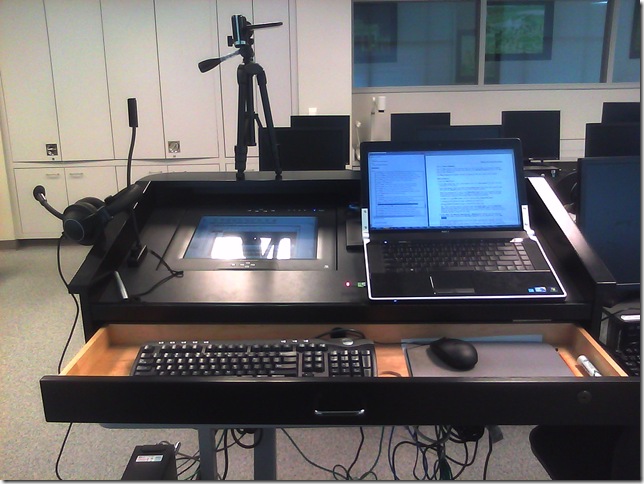
- We removed the fluorescent tubes right above the teacher screen. You can get an idea how strong the glare from the ceiling lights was from the next picture:
- The teacher screen which was flickering has been replaced.
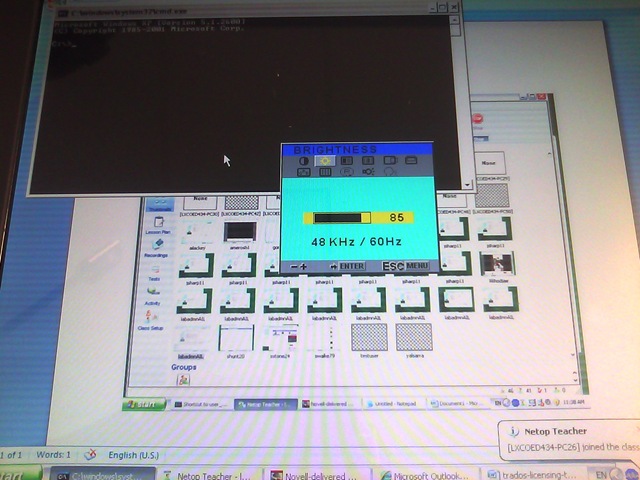
- By clicking on the button”menu on the Sympodium screen of the teacher computer, you can adjust the screen more to your liking. While not an optimum display setting, under the current ambient light circumstances, we found it an improvement to the brightness and also the contrast.

- You can also adjust the projector by accessing the projector menu from the NEC remote control.

- Note that increasing the projector brightness will lower the life-span of the expensive projector bulbs.

- Note that the menu also contains presets for displaying video, computer and other sources.

- Presentation …… Recommended for presentations from a computer.
Video …………….. Recommended for standard video such as a TV program.
Movie ……………. Recommended for film based video such as a movie (DVD or HDTV). - Finally, we made sure that the blinds cannot be raised, just tilted, to make it easier and quicker to darken the room as much as possible.


Using the MS-Word Quiz Template (and the MS-Excel subtitles spreadsheet)
Part I: quiz_dot_create_excel: Watch a screencast on How to ready target language subtitle source material for the quiz template:
|
0,00
|
Working with subtitle material from the source: time coding is not correct
|
|
1,40
|
spreadsheet formulae can fix the subtitle time codes
|
|
2,00
|
why using DVD chapters as learning units
|
|
2,20
|
filtering on chapters in the DVD
|
|
3,00
|
ready to copy paste the filtered learning unit text data into the quiz template
|
Part II: Watch a screencast on How you can apply your pedagogy with ease to a text and transform the same to a quiz, and how the student benefits from both
|
0,00
|
start quiz from word template (on file share)
|
|
0,35
|
paste text data, e.g. for listening comprehension, e.g. from target language movie subtitles
|
|
1,15
|
create markup from pedagogy
|
|
3,14
|
generate quiz from markup : parenthesis 1 {helpful hint}, parenthesis 2 [correct answer]
|
|
3,35
|
closing and saving the quiz, receiving a summary
|
|
3,55
|
create a backup
|
|
4,00
|
open the quiz to test the quiz from student perspective
|
|
4,30
|
what opening information the student receives
|
|
5,00
|
how the student inputs answers and receives feedback
|
|
5,20
|
language learning lookup menu , after pausing the quiz
|
|
6,30
|
or double-click words to look them up in the default dictionary for the set language
|
|
7,10
|
how the student resumes the quiz
|
|
7,20
|
how the student closes the quiz
|
Part III: Watch a screencast on How you can revise your pedagogy
|
0,15
|
open the quiz, enable macros
|
|
0,30
|
unprotect the quiz
|
|
0,45
|
office 2003: tools / macros / macros
|
|
1,00
|
now you can edit your pedagogical markup
|
|
1,10
|
regenerated the altered quiz
|
List of Maps for Foreign Language and Culture Study
The United Nations has a nice – even though not complete – collection of PDF-downloadable political maps of countries and regions – including some language regions – around the world:
- World
- [Broken:] Non-Self-Governing Territories (En.)
- [Broken:] Non-Self-Governing Territories (Fr.)
- [Broken:] Non-Self-Governing Territories (Esp.)
- South Asia
- South East Asia
- Central Asia
- Western Asia
- Greater Mekong Subregion
- Africa
- Africa(french)
- Eastern Africa
- Horn of Africa
- Horn of Africa (with Relief)
- South-Eastern Africa, Drainage
- Western Africa
- Great Lakes Region 1
- Great Lakes Region 2
- Great Lakes Region 2 (french)
- Central & Eastern Europe
- Baltic States
- South Eastern Mediterranean
- Middle East Region
- ECA
- ECE
- ECLAC
- ESCAP
- ESCWA
- Darfur Regional map
- Afghanistan
- Afghanistan, Regions
- Albania
- Angola
- Armenia
- Azerbaijan
- Bahrain
- Bangladesh
- Belarus
- Bolivia
- Bosnia and Herzegovina
- Bougainville Island
- Burkina Faso
- Burundi
- Cambodia
- Cameroon
- Central African Republic
- Chad
- Central Chile
- Chile
- Comoros
- Congo
- Costa Rica
- Côte d’Ivoire
- Croatia
- East Croatia
- Cyprus
- Czech Republic
- Djibouti
- Democratic People’s Republic of Korea
- Democratic Republic of the Congo
- Democratic Republic of the Congo (East)
- Ecuador
- Egypt
- El Salvador
- Equatorial Guinea
- [Removed:] Eritrea
- Estonia
- [Removed:]Ethiopia
- Fiji
- Gabon
- Georgia
- Ghana
- Greece
- Guatemala
- Guatemala (Southern)
- Guinea
- Guinea-Bissau
- Haiti
- Honduras
- Indonesia
- Iran (Islamic Republic of)
- Iraq
- Israel
- Jammu and Kashmir area
- Kazakhstan
- Kenya
- Kosovo
- Kuwait
- Kyrgyzstan
- Lao People’s Democratic Republic
- Latvia
- Lebanon
- Region of Southern Lebanon
- Liberia
- Libyan Arab Jamahiriya
- Lithuania
- The frmr Yugoslav Republic of Macedonia
- Madagascar
- Malawi
- Mali
- Moldova
- Mongolia
- Montenegro
- Morocco
- Mozambique
- Myanmar
- Nepal
- Nicaragua
- Niger
- Nigeria
- Oman
- Pakistan
- Palau
- Papua New Guinea
- Paraguay
- Peru
- Poland
- Prevlaka
- Qatar
- Moldova
- Romania
- Russian Federation
- Rwanda
- Southern Serbia
- Senegal
- Serbia
- Sierra Leone
- Slovakia
- Slovenia
- Somalia
- South Africa
- Sri Lanka
- Sudan
- Syria
- Tajikistan
- Tanzania, United Republic of
- Thailand
- Timor-Leste
- Timor-Leste (Regions)
- Turkmenistan
- Uganda
- Uganda (regions only)
- Ukraine
- Uzbekistan
- Western Sahara
- Yemen
- Former Yugoslavia map
- Zambia
- Zimbabwe


How to batch-upload learning materials, give students access in Moodle
To upload a set of learning materials (e.g. multiple audio tracks from a CD) at once:
- On your computer, browse to the files (assuming that, if your source material is on an audio CD, you have already “ripped” the audio to files on your computer)
- Zip the folder, e.g. using the built-in Windows right-click/context menu option “send to”/ “compressed file” (for more options, install the free 7-zip is more powerful, which is required on Windows XP if your file names contain foreign language diacritics).
In your Moodle course, Step 1 is to upload the files: click at the bottom of the left menu: “File”
- No need to create a folder since this is done automatically (advantage: keep files manageably together, e.g. applying student permissions to an entire folder set of files versus individual files – disadvantage: you may run into our Moodle file size limit (as of 2011-05 64MB for individual files, including the uploaded zip-file; you may ask for an increase or TBA:compress your audio files) .
- Enter the folder and upload, by browsing to the zipped file on your computer
- Wait for the upload to finish (remember you may have a single file size limit, so while it is not as convenient as uploading all files in one batch, you may have to split the files. When using Windows “Send to”, you have to manage this manually. 7-zip offers more assistance),
- Once the file appears in the folder, there will be a link “unzip” to the right of it: Click it.

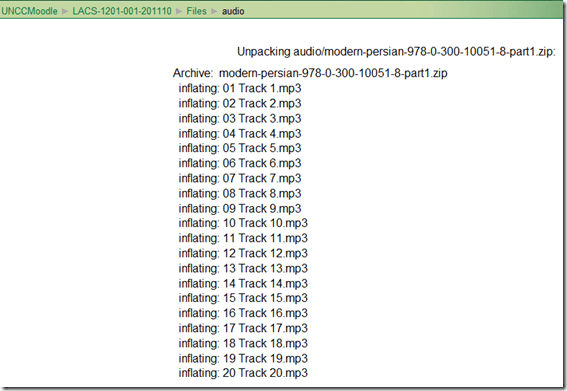
- Once the initial files appear in the folder, you can and may want to delete the zipped file.


Step 2 is to to make these files accessible to your students, by wrapping them as a resource:
- Button: “Turn editing on.”
- Section / drop-down:“Resources” / “Display a directory”.
- Enter a descriptive Name (your folder name will not carry over).
- You can enter a description of the file if you want into the Summary field. This is optional.
- Under “Display a directory”,’ select the desired folder directory from the pull-down menu.
- Click “Save and Display” to check the results.
Plagwitz – eLearning Papers presented
How to display rows as percentage of grand total in Excel Pivot Tables
A few notes on Excel’s Version of OLAP cubes: Here is a note detailing the steps taken to display rows as percentage integers of the grand total.



Questions? Read the About. Or just ask me a quick Our Databases: Resources with calendars -- Language learning material Moodle Sites, multimedia files -- films


FAQs for LRC student staff or for students or for teachers. To search our FAQs, in the browser addressbar, add after "https://plagwitz.wordpress.com/feed/?tag=faqs+/" "+TAG1" (from tag cloud below) OR "https://plagwitz.wordpress.com/feed/tag=faqs
&category_name=" "CAT1" (from category hierarchy below). OR search both categories and tags, and multiple TAGs/CATs (connect with "," for OR-search, with "+" for AND-search), like so: https://plagwitz.wordpress.com/feed/?tag=TAG1+TAG2+...TAGn&category_name=CAT1
+CAT2+...CATn"
Other ways to find help
If you cannot find it here, look there: 5,500 Language-Learning Links and Programs for learning or teaching 150 languages
Shortcuts:Our Lists, Our Maps, LRC Staff Moodle Site,LRC Project Moodle Site, 49erexpress, UNCC Moodle, Student Recordings: s:claslcslrcsanakostudent
Learning usage samples: Sanako oral exam, Kaltura webcam presentation, Dictation with speech recognition, Sanako written exam, Chinese and Japanese interactive stroke-order practice
Test the Sanako Installer, Webbrowser Popup Konfigurator for XP, or Windows7, faster LRC TeacherPC Log-in Let MS facilitate diacritics writing by installing for you US-International keyboard layout
This is my personal blog (Google+). The views expressed on these pages are mine alone and not those of my employer. The information in this weblog is provided “AS IS” with no warranties, and confers no rights.
 Thomas' Work Space