Archive
Archive for the ‘Glitches&Errors’ Category
FAQs for issues with Respondus Lockdown Browser
2014/02/18
Leave a comment
- New to Respondus Quizzes? Read the CTL’s write-up.
- No Photo ID (Niner ID or other state-issued)? Use the reception desk camera to take a photo with sheet, like below, we will forward it to the teacher for verification.

- Issues with starting:
- Respondus won’t open: How to bypass a Moodle Popup Window when using Respondus lockdown browser
- Test won’t open and you get a warning
- in Moodle that this test must be run in Respondus Lockdown Browser? Close your regular web browser and double click on the desktop on the Moodle Lockdown Browser Icon:
 , then go to Moodle2 from in there.
 - in Respondus that “No more attempts are allowed”, but the student has not made any attempts yet and the quiz closing date is long in the past: contact the teacher to check whether the quiz needs updating.

- in Moodle that this test must be run in Respondus Lockdown Browser? Close your regular web browser and double click on the desktop on the Moodle Lockdown Browser Icon:
- Issues with Audio:
- Students are advised to test the headsets before entering Respondus Lockdown browser assessments:
- Start Audacity from the desktop, click record: if you say something, you must see something;
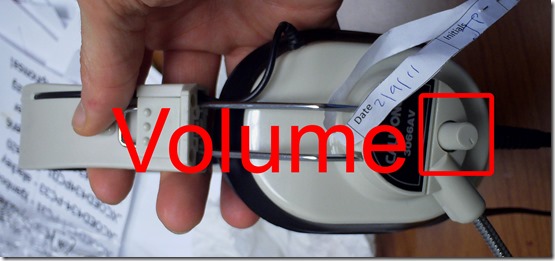
- Play back to test the speakers. Hear nothing? Try the volume knob:
- (More detail here).
- Rewind-audio may get you stuck – to fix, next-page, then back (reloads page). More info: How to workaround Moodle quiz audio not playing to the end in Respondus Lockdown Browser
- How to bypass a Moodle Popup Window when using Respondus lockdown browser
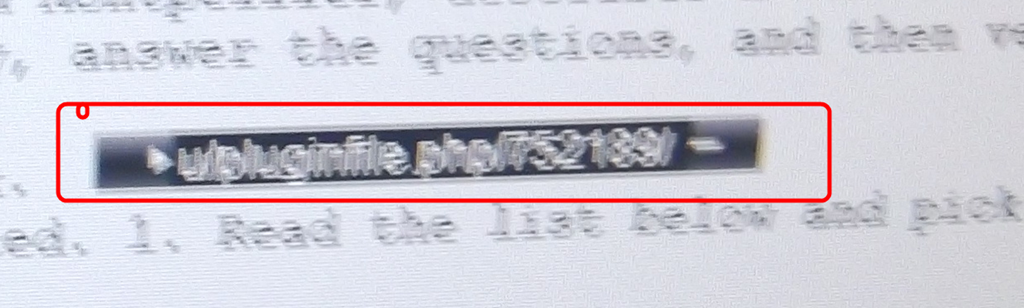
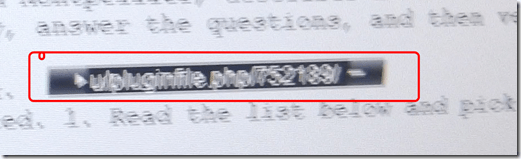 If no audio and error “pluginfile” flashes when clicking “Next”and back: notify permanent staff.
- Students are advised to test the headsets before entering Respondus Lockdown browser assessments:
- Issues with Writing:
- Lost the
 ?
?
- Clicking around nearby where it was may bring it back.
- Or
 , quickly cancel (gets you out of lockdown browser), new attempt from desktop shortcut.
 - Learn to use the installed US-international keyboard shortcuts.
 .
. - more info: Problems with accented characters in Respondus Lockdown Browser
- If your keyboard stops typing in English in a Respondus lockdown browser quiz…
- Lost the
- Issues with finishing
- If the test won’t submit, start Respondus lockdown browser on a different computer to see whether you can resume your attempt there.
- More issues? Let us know in the comments here.




 .
.Protected: Are oral exams failing since language students have not been given write access to the Sanako share?
2014/02/03
Enter your password to view comments.
Experiencing frequent crashes of Sanako student light recorder
2014/02/03
Leave a comment
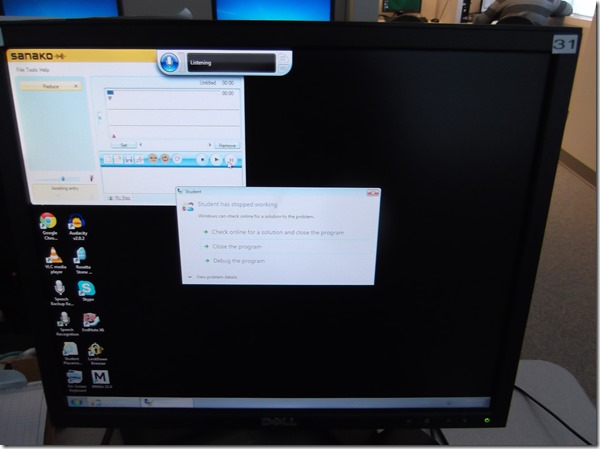
- The new weekly headset check by LRC assistants brought to light that the Sanako student recorder (updated to 7.1, but I did not observe this during a very brief test at start of term):
- Students provide us with large sets of photos like this:
- Need to investigate:
- what is the detail ?
- only on startup? what happens when the sanako is closed and restarted?
- collect the sanako log files before the (frozen) computer gets restarted

Categories: digital-audio-lab, e-languages, Glitches&Errors
7.1, sanako-study-1200, student.exe
Old new problem in Sanako Study 1200 version 7 with 2 student recorder exe’s running simultaneously on client, under different user accounts?
2014/01/31
Leave a comment
- –
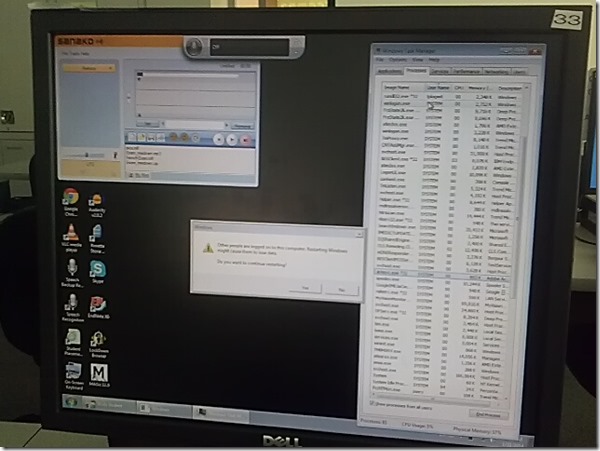
- This images is too low resolution, but I am trying to demonstrate that we still experience the same issue as in the fall: two users can be logged in simultaneously. In both cases ones was me. this can cause the language lab software to fail.
- If generally this is supposed to be prevented in our computing environment, what may be the root cause in these instances?
- I am pretty sure mstsc’ing has nothing to do with it. I do not remote into that PC usually.
- Is it possible for another user to log in when previous (administrative?) users got locked?

Categories: digital-audio-lab, e-infrastructure, Glitches&Errors, os
image2014spring, sanako-study-1200
How students need to work around Sanako startup issues at start of 2014
2014/01/31
Leave a comment
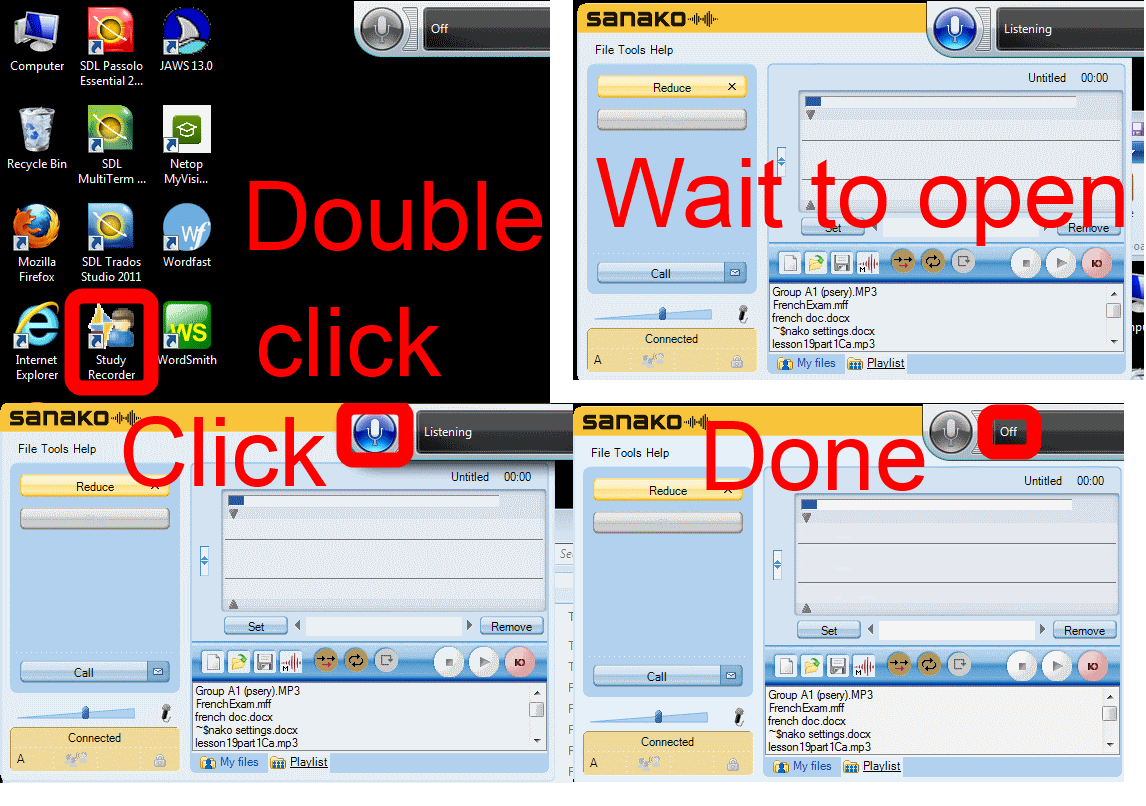
UPDATE: Step 1 is not necessary anymore, Step2 (Microphone click) still is.
Categories: animated-GIFs, audience-is-students, audience-is-teachers, digital-audio-lab, e-languages, Glitches&Errors, Institution-is-University-of-North-Carolina-Charlotte, Listening, multimedia-recording, service-is-testing-troubleshooting-debugging, Speaking, Student-Computers
image2014spring, sanako-study-1200, student.exe
“Back to basics”: Need once again to default to color scheme basic on teacher computer
2014/01/27
Leave a comment
- Same problem as last term: (What made it come unstuck/unfixed?):


- No Sanako screen sharing activity involved here, but MS-Community-Clips screen sharing.
- Classes are moving in, and we cannot have the teacher computer slow to a crawl and eventually crash in the middle of a Sanako class, especially not when an assessment is involved.


Why does MS-Exchange calendar publishing with Limited details show the name of the organizer in the subject?
2014/01/22
Leave a comment
- Partial answer: Because the organizer name gets already put into the booking itself, before publishing (I first thought it was put in by a bug the publishing settings, where there is supposed to be an option to enable/disable showing the organizer name ). UPDATE: Another part of the answer: AddOrganizerToSubject is set to true on the mailbox (Doh! Hm, but why did this not seem to cause a problem before)?
- Booking:

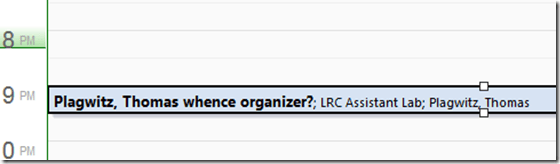
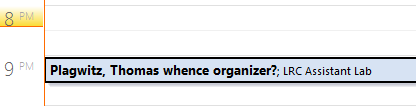
- Result (I saw the correct “whence”part of the subject briefly flickering up, but then the organizer name appeared in front of it):
- Publishing Setting:

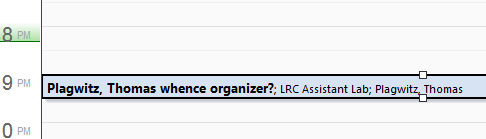
- Published View (which is where we do not want the organizer to show):

 2010 SP?.



Categories: e-infrastructure, Glitches&Errors
calendaring, ms-exchange, outlook, outlook-live, publishing, resources


Questions? Read the About. Or just ask me a quick Our Databases: Resources with calendars -- Language learning material Moodle Sites, multimedia files -- films


FAQs for LRC student staff or for students or for teachers. To search our FAQs, in the browser addressbar, add after "https://plagwitz.wordpress.com/feed/?tag=faqs+/" "+TAG1" (from tag cloud below) OR "https://plagwitz.wordpress.com/feed/tag=faqs
&category_name=" "CAT1" (from category hierarchy below). OR search both categories and tags, and multiple TAGs/CATs (connect with "," for OR-search, with "+" for AND-search), like so: https://plagwitz.wordpress.com/feed/?tag=TAG1+TAG2+...TAGn&category_name=CAT1
+CAT2+...CATn"
Other ways to find help
If you cannot find it here, look there: 5,500 Language-Learning Links and Programs for learning or teaching 150 languages
Shortcuts:Our Lists, Our Maps, LRC Staff Moodle Site,LRC Project Moodle Site, 49erexpress, UNCC Moodle, Student Recordings: s:claslcslrcsanakostudent
Learning usage samples: Sanako oral exam, Kaltura webcam presentation, Dictation with speech recognition, Sanako written exam, Chinese and Japanese interactive stroke-order practice
Test the Sanako Installer, Webbrowser Popup Konfigurator for XP, or Windows7, faster LRC TeacherPC Log-in Let MS facilitate diacritics writing by installing for you US-International keyboard layout
This is my personal blog (Google+). The views expressed on these pages are mine alone and not those of my employer. The information in this weblog is provided “AS IS” with no warranties, and confers no rights.
 Thomas' Work Space