Archive
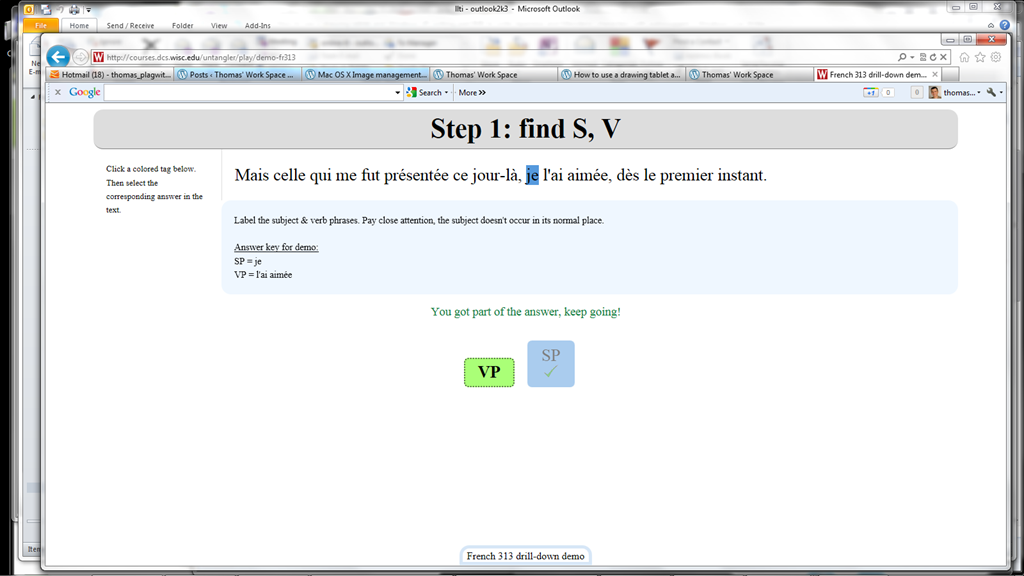
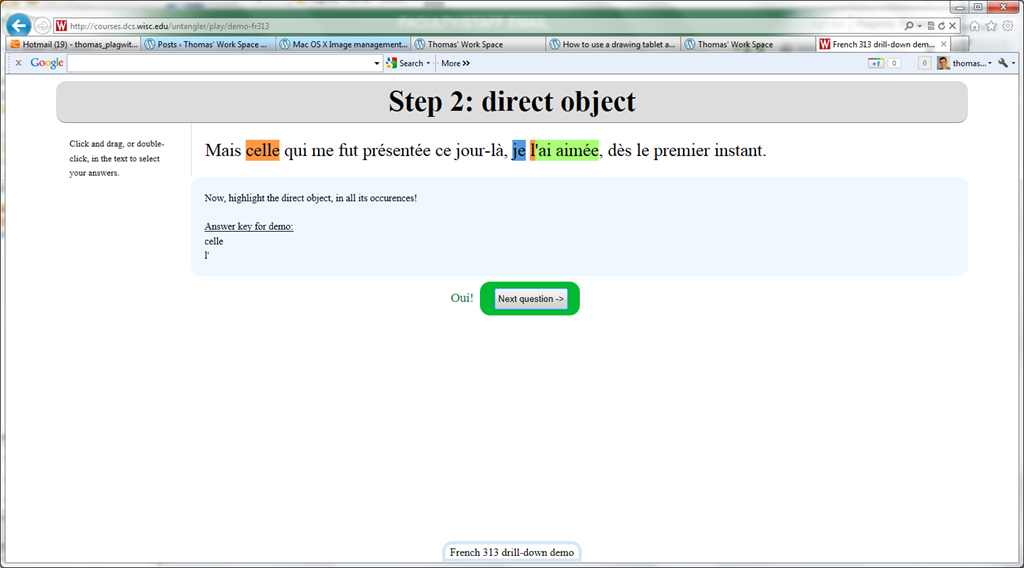
Nice Syntax highlighter tool from wisc.edu @ Madison
-
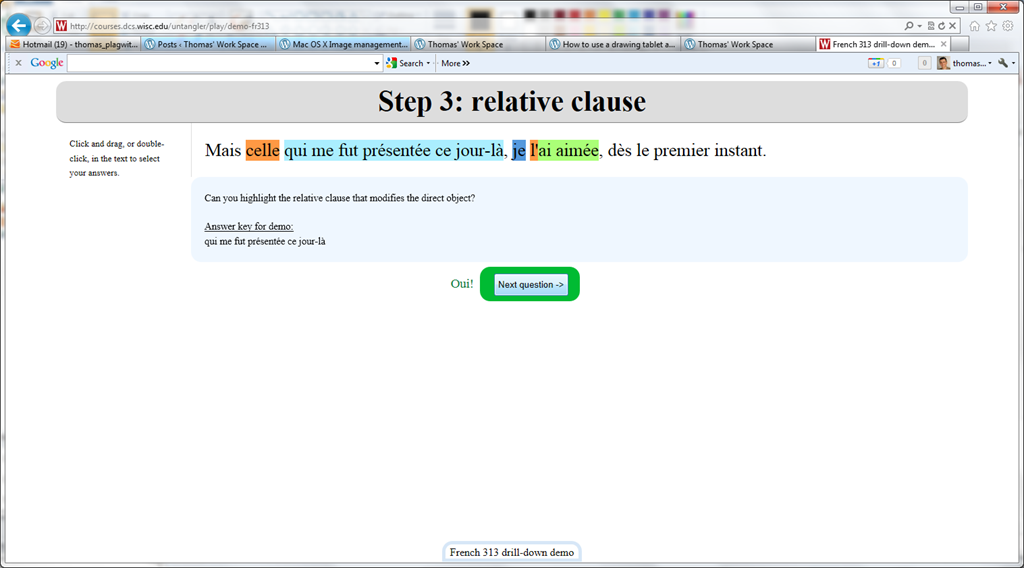
Wish my Latin teacher at home would have had such a nice tool when he analyzed the “Ante mare et terras et quod tegit omnia caelum / unus erat toto naturae vultus in orbe / quem dixere chaos”, he had only me:

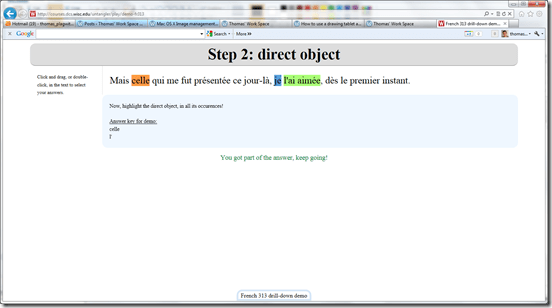

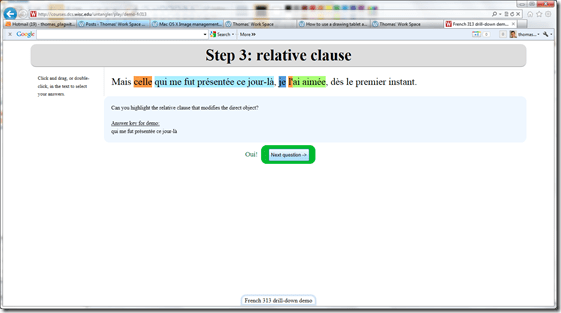

- Now how could such exercise creation made more automated by having it accept the output of NLP tools like Treetagger?


How to navigate your Moodle gradebook more easily by hiding columns
- Clicking on the minus-icon next to aggregate columns will hide the assignments in this category; clicking the plus-icon will unhide:

- before (wide)

- after (narrow, better overview)


How to use a drawing tablet and Windows XP writing pad IME to write Japanese and Mandarin characters with autosuggest
- Our small group work spaces each now have a Wacom Bamboo drawing tablet installed.
- You can use these tablets in conjunction with the Windows XP writing pad IME to input Mandarin/Kanji character strokes and receive autosuggest options you can pick you character from which make not only writing faster, but also reward you for remembering your characters, expose you to more and help you identify the correct one from a list of options.
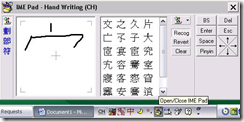
- Here is what the Windows XP writing pad IME and Wacom tablet looks like in action:
 (behind the pen: our Japanese tutor).
 - Here is how to access Windows XP Japanese IME keyboard and handwriting:
- Open the application you want to write in, e.g. MS Word (the language input option is specific to the current window and defaults to”English-US international” in the LRC if you open a new window).
- In the taskbar, in the language toolbar section, select Japanese or Chinese or Korean.
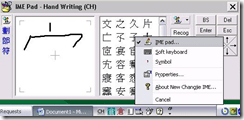
- If only the language identifier is showing in the language toolbar, right-click on it and choose “Show additional icons”
- Select as input method for the chosen language from icon “Options” or “Tools”” , the “IME pad” / “Handwriting”
- Prerequisites
- you need to have the handwriting IME installed for Japanese or Chinese or Korean in Control Panel / Regional and Language Options / Text Input, and East Asian language support).
- For simplified Chinese, the IME Pad may not be checked to be displayed by default. Access the Tools icon menu to check it.
- For both simplified and traditional Chinese, if checked, the IME Pad becomes a separate top-level ion in the language bar.
- Some screenshots may help:




Spanish movie subtitles exercise project
- objective:
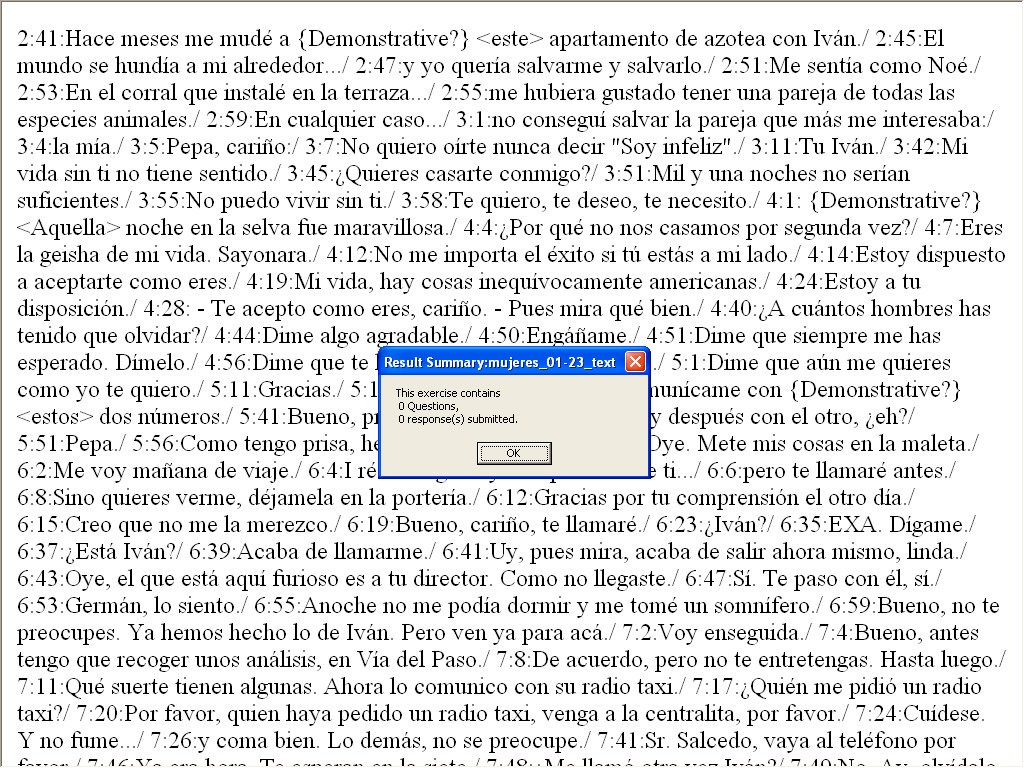
- To facilitate lesson delivery and student interaction in our Language Resource Center I have programmed a VBA- and MS-Word- based cloze quiz template with batch creation based on a simple markup language and rich autocorrecting functions that use string metric algorithms (Damerau-Levenshtein).
 The template supports typical activities in the digital language lab: digital audio- and video-based listening comprehensions, e.g. Quiz Template with Chanson Lyrics,
 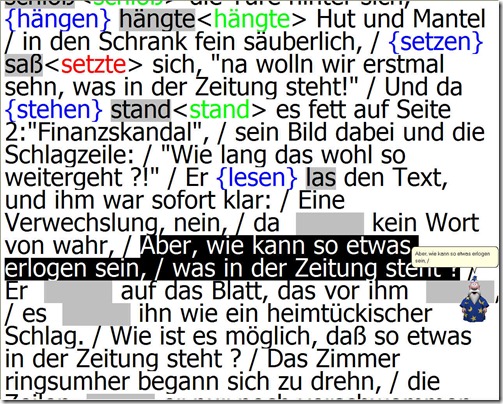 and speaking and dialoguing activities for language learning or other examples):
 - Teachers can use them as exercise-generating engines: the templates allow copy/paste of their own exercises into this template. To also automatically create language teaching materials with the required markup in French, German, Italian and Spanish (mostly based on movie subtitles) for this template, I wrote a C#-program that applies an expanding library of regular expressions which can match typical language learner tasks:
- function words,
 e.g for Spanish Movie Subtitling Exercise Creation,
- affixes/infixes
- and lexical subsets taken from corpus linguistic research on word-frequency (SUBTLEX, Opensubtitles)).
- function words,
- This template support the learner by strengthening learner autonomy and providing immediate corrective feedback and – in conjunction with the grouping facilities of the Center’s classroom management system infrastructure – allow for custom-tailored instruction based on the immediately available outcome of formative assessments, and also automated summative feedback:
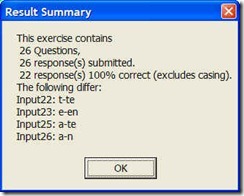
- A Spanish TA can provide meaningful vocabulary and grammar questions as input for cloze listening comprehension exercises that I will create on the basis of subtitles I have for Spanish movies being used in (= put on reserve for viewing in the LRC by) the Spanish program consistent exercises that students can take while watching the movie in class adapted meaningfully to technical possibilities of template
- Screencasts Demos:
- making of template exercises
- manually marked up: Part II to minute 4, Part III
- alternatively, markup can be generated by regular expressions which we will try to develop:
- use of template exercises : Part II, from minute 4
- materials
- source texts:subtitle files for proof reading
- Amores Perros
- Pedro Almodovar – Mujeres al borde de un ataque de nervios
- Pedro Almodovar – Hable Con Ella
- ideas for exercise needs that fit into this cloze format
- grammar
- function words
- affixes
- vocabulary
- frequency-based wordlists from corpus linguistics
- word lists from current textbook
- grammar
- source texts:subtitle files for proof reading
- Deliverables: combos of
- materials
- exercise ideas
- making of template exercises
- To facilitate lesson delivery and student interaction in our Language Resource Center I have programmed a VBA- and MS-Word- based cloze quiz template with batch creation based on a simple markup language and rich autocorrecting functions that use string metric algorithms (Damerau-Levenshtein).



Sharing vs. subscribing to Calendars in OWA/Ninermail
- Why does this matter? Different information may be visible to you, especially shared calendars can display more sensitive information than internet published calendars.
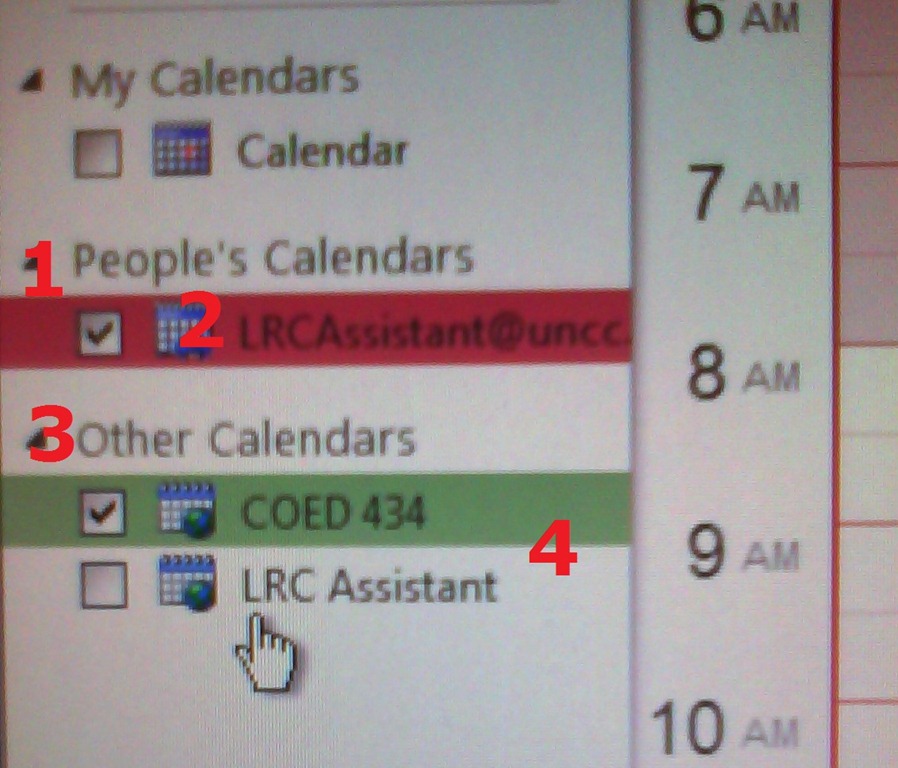
- How can I tell the difference? Apart from the amount of information that gets displayed to you, different calendar types appear :
- in a different place:
- Shared calendars appear under (1) heading “people” (even if it is a room or other resource),
- subscribed calendars under (3) heading “Other Calendars”
- with a different type of name:
- Shared calendars have as name the email address (2) “@uncc.edu”
- subscribed calendars have as default name only “calendar”. Only if you rename the calendar, it has a meaningful identifier, like was done here (4)
- in a different place:

How we improve client service through changes to the reception desk computer image
- These browser windows will now load automatically when student staff logs into the reception desk computers:
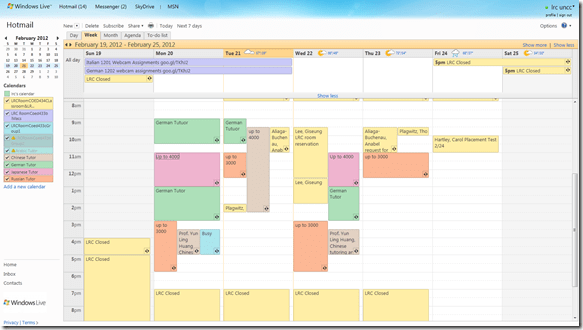
- Safari: In the entrance area, we display the live calendar of LRC events and services, containing the schedule of events (classes and other room and computer bookings from our bookable resources):
- Internet explorer
- is used by clients exclusively
- displays only the 49erexpress login screen in full screen
- clients do not close, but only log off
- dependent application windows can be opened from there
- Moodle
- Ninermail
- Firefox
- is used by LRC Assistants exclusively
- better overview thanks to fewer duplicate tabs
- immediate access to online spreadsheets
- bookable LRC resources
- film collection
- Moodle teaching resources
- LRC homepage, displayed for walk-in clients in the entrance area:

- Safari: In the entrance area, we display the live calendar of LRC events and services, containing the schedule of events (classes and other room and computer bookings from our bookable resources):


How a teacher creates a Moodle file upload assignment for writing
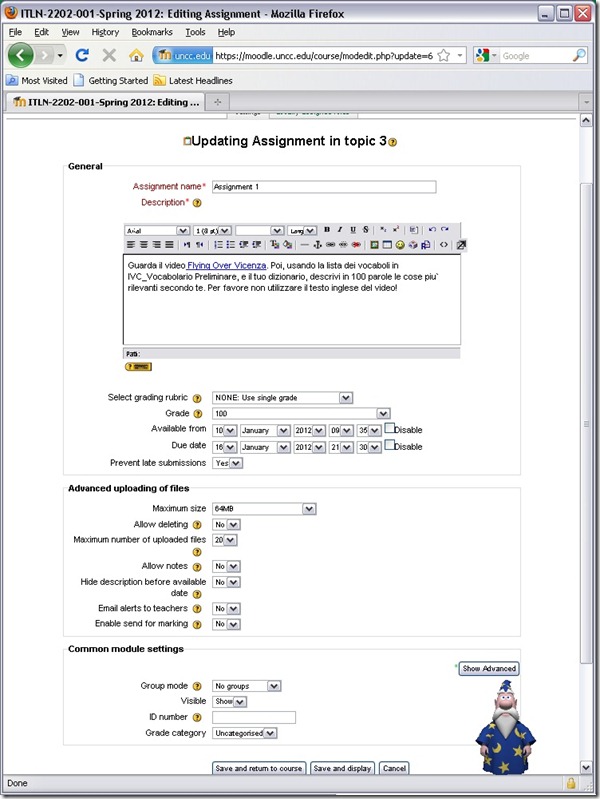
- In your Moodle course, turn editing on, choose Assignment: Advanced upload of files (required for response file from teacher).
- Provide name and instructions. Choose the desired options (uploading one file is enough):
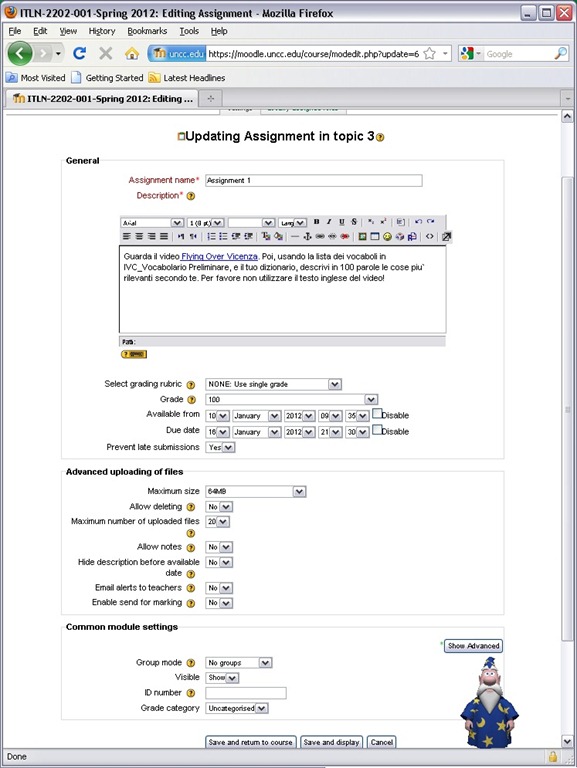
- A gradebook column will be automatically created, and will be initially empty.

- Instruct your students how to take the MS-Word upload assignment, and when (if you leave the default availability/due date on, the assignment will automatically appear in their Moodle Calendar, and can appear in their Ninermail calendar).

How we reorganized the reception area to improve support of circulation and small group work
The new reception desk is meant to secure the entrance to Coed436. To secure the circulation equipment, we do not let students into COED436 anymore, whether they are trying to check out equipment or for other reasons (except if they need to see the LRC coordinator). Hand all equipment to students over the counter. The door to Coed436 has to be locked when the LRC Assistant leaves the reception desk (it always can be unlocked from inside).
We also carved out 2 small group work spaces in the LRC entrance area. They can be used by language tutors with their students, and by other small student groups, including for assigned film viewing. These work spaces currently do not have to be booked, but they can be. Bookings take precedence over walk-ins. Send meeting requests to LRCRoomCoed433c@uncc.edu (Group1 next to entrance), LRCRoomCoed433d@uncc.edu (Group 2)). The calendar on the reception desk will display the bookings.
We moved 3 more iMacs (with built-in web cameras) into the main classroom (currently available to students only when all other iMacs are in use). All the iMacs in the main classroom actually have now also their own “room”: LRCroomCoed433b@uncc.edu (iMacs), but we are not requiring this “room” to be booked (yet). We are considering this in an attempt to avoid pile-ups of students trying to take video recording assignment. First we monitor actual usage patterns, especially nearing assignment dead-lines.
New “rooms”, and other equipment types are highlighted in green on our list of bookable resources.




Questions? Read the About. Or just ask me a quick Our Databases: Resources with calendars -- Language learning material Moodle Sites, multimedia files -- films


FAQs for LRC student staff or for students or for teachers. To search our FAQs, in the browser addressbar, add after "https://plagwitz.wordpress.com/feed/?tag=faqs+/" "+TAG1" (from tag cloud below) OR "https://plagwitz.wordpress.com/feed/tag=faqs
&category_name=" "CAT1" (from category hierarchy below). OR search both categories and tags, and multiple TAGs/CATs (connect with "," for OR-search, with "+" for AND-search), like so: https://plagwitz.wordpress.com/feed/?tag=TAG1+TAG2+...TAGn&category_name=CAT1
+CAT2+...CATn"
Other ways to find help
If you cannot find it here, look there: 5,500 Language-Learning Links and Programs for learning or teaching 150 languages
Shortcuts:Our Lists, Our Maps, LRC Staff Moodle Site,LRC Project Moodle Site, 49erexpress, UNCC Moodle, Student Recordings: s:claslcslrcsanakostudent
Learning usage samples: Sanako oral exam, Kaltura webcam presentation, Dictation with speech recognition, Sanako written exam, Chinese and Japanese interactive stroke-order practice
Test the Sanako Installer, Webbrowser Popup Konfigurator for XP, or Windows7, faster LRC TeacherPC Log-in Let MS facilitate diacritics writing by installing for you US-International keyboard layout
This is my personal blog (Google+). The views expressed on these pages are mine alone and not those of my employer. The information in this weblog is provided “AS IS” with no warranties, and confers no rights.
 Thomas' Work Space