Archive
Immerse yourself into your language of study by switching the user interface language on LRC PCs
- Ever imagine yourself studying or working in an e.g. Spanish– Japanese- or Chinese- speaking country? Then you will likely find yourself in front of a computer display that is in that language – what if you could get a sneak preview before you go?
- You can now switch the interface language of the LRC Windows 7 computers (including Internet Explorer and MS-Office (note that you have to change the editing language separately) to your language of study (How?).
- All non-classical languages studied here are supported:
Language Native name Arabic العربية Chinese (Simplified) 中文(简体) Chinese (Traditional) 中文 (繁體) English English French français German Deutsch Greek Ελληνικά Hebrew עברית Italian italiano Japanese 日本語 Korean 한국어 Polish polski Portuguese (Brazil) Português Portuguese (Portugal) português Russian Русский Spanish español - Some languages, however, come only with the limited support of a MS Language Interface Pack :
-
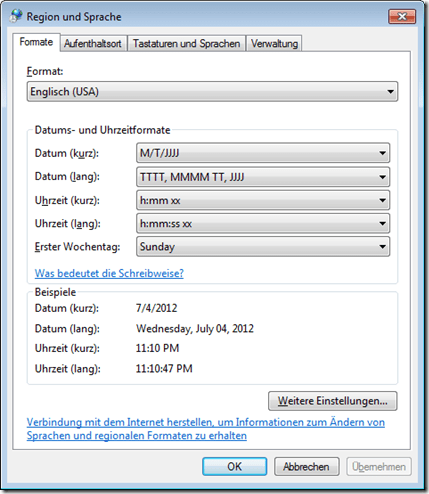
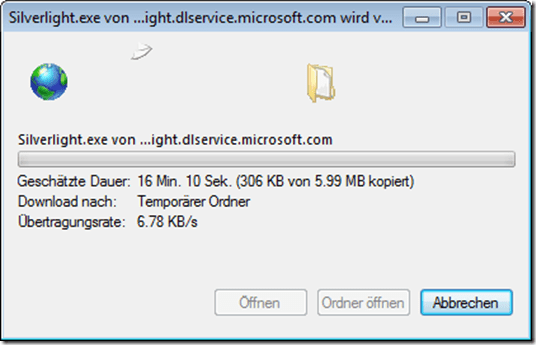
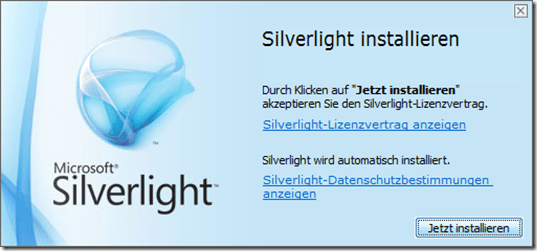
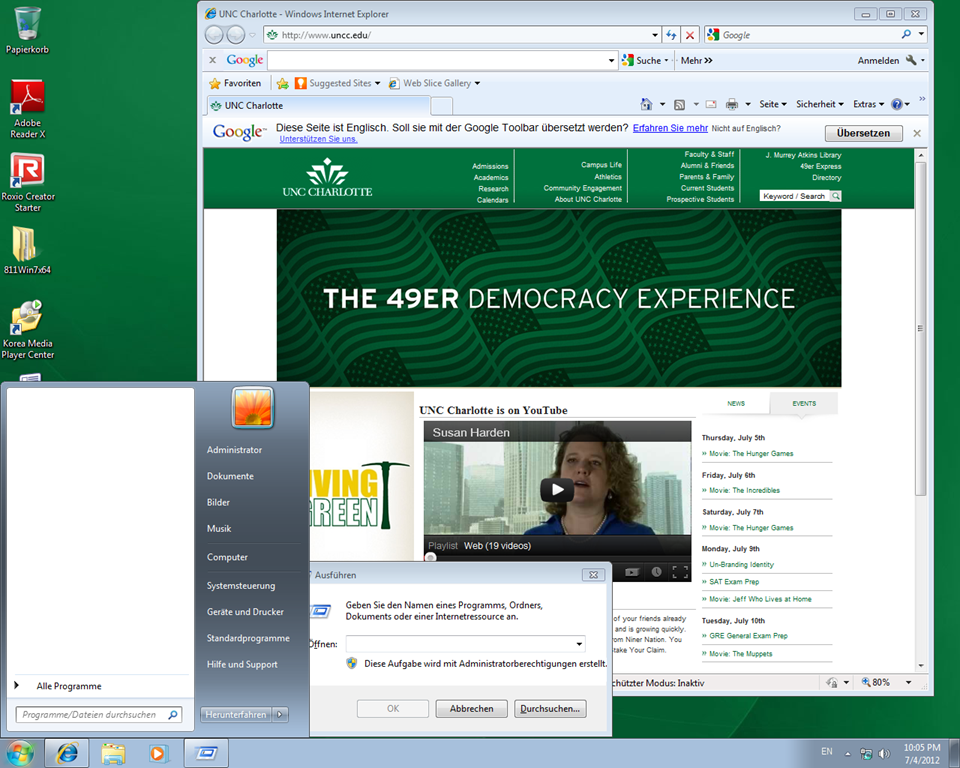
Hindi हिंदी KiSwahili Kiswahili Persian (Farsi) فارسی Yoruba ede Yorùbá - Below are examples (for German) what you get when you switch the operating system language:



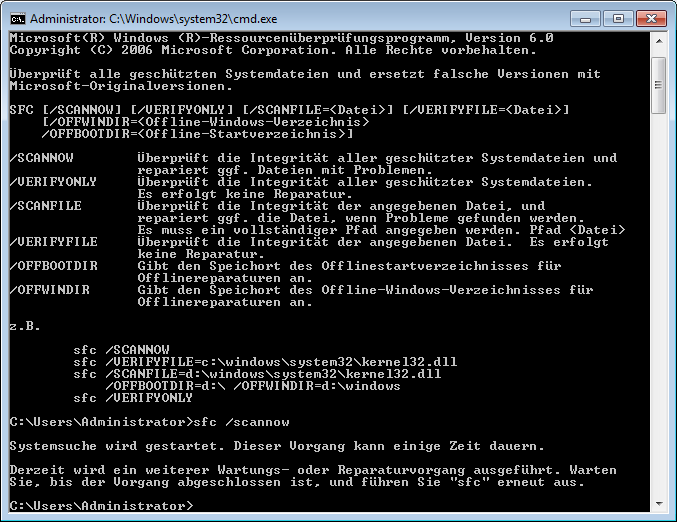

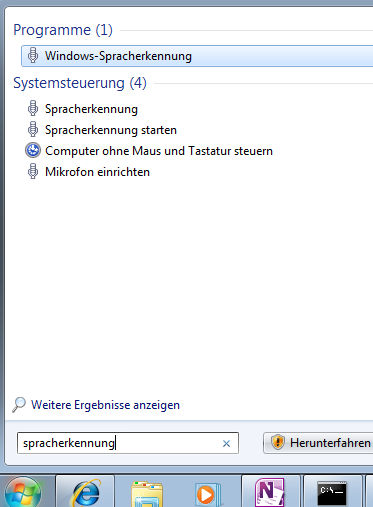

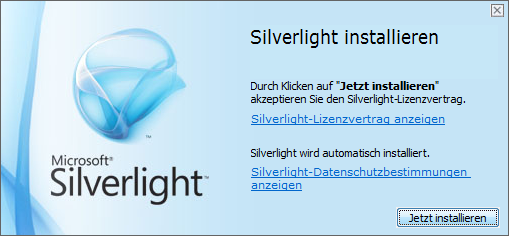
Keyboard layouts and IME’s on LRC Windows 7 PCs
You can change the input language using the language toolbar which appears next to the notification area in the lower right of the task bar.
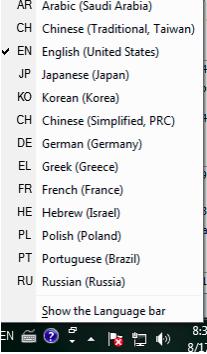
Note that many languages need not be listed since their characters can be typed, Windows-wide, using keyboard shortcuts of the English-US (international extended) keyboard layout.
Some installed input methods benefit from having keyboard overlays which have been installed on some computer. Other input methods allow for drawing characters, e.g. in Japanese or Mandarin, which works better with the Wacom tablet installed on PC01 and PC02 than with a mice.
Many languages have more than one keyboard/input method. After changing to your language on the language toolbar, you can switch from the language’s default keyboard layout to another by clicking on keyboard icon behind the 2-letter language abbreviation.
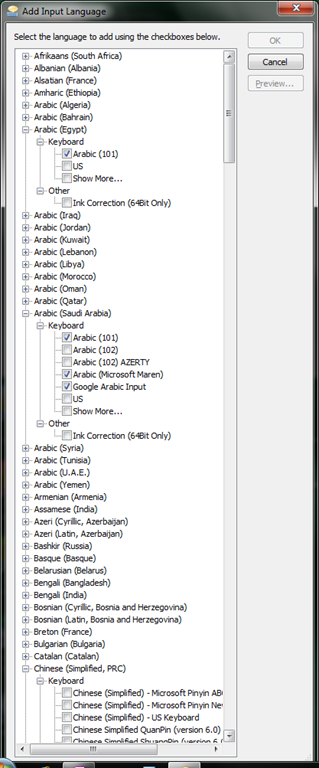
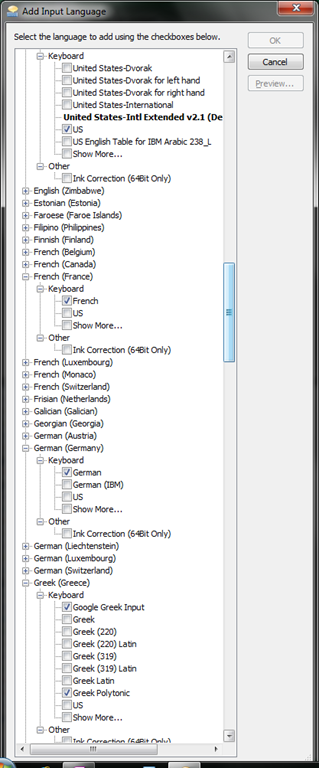
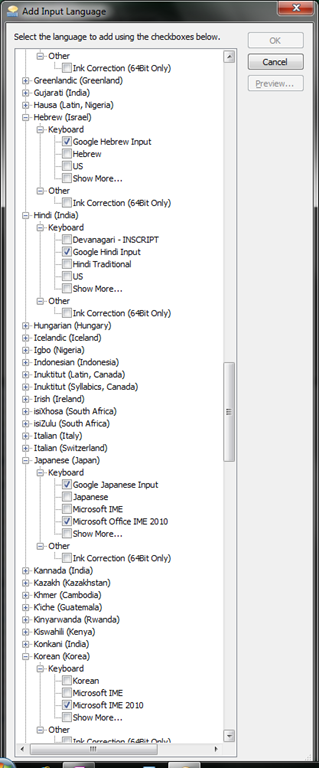
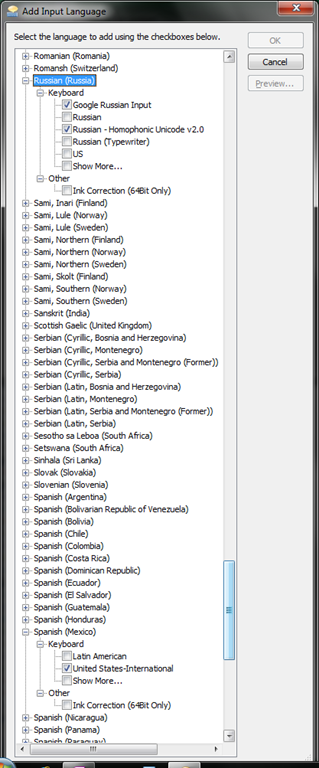
 Below is a comprehensive list of all layouts that are available to you:



Example 7: Exercise dictating in German to an LRC Windows 7 computer
How can we get language students more speaking practice with qualified, but affordable feedback ? Native speaker contact remains difficult to organize even in the days of online conferencing. The LRC hosts language tutoring, but numbers are limited. Enter speech recognition, the holy grail of iCALL, much easier for learners to relate to than the voice graph that digital audio can be broken down to, and thus for a long time a standout feature of costly second-language-acquisition packages like Auralog Tell-me-More (speech recognition in English tested here) – but now the LRC has Windows 7 Enterprise (and its free add-on language packs), and another crucial prerequisite: headphones with excellent microphones.
We are setting up the new Windows 7 computers in the LRC to allow for speech recognition in Chinese, English, French, German, Japanese and Spanish. Here is an example of me using this facility for a practicing my German during a dictation exercise:
Granted, German is my native tongue; but the example text is from the online component for the final chapter of the “Treffpunkt Deutsch” 1st-year textbook in use here, which sends the readers to the website of the Swiss (-German) employment agency.
Apart from infrequent words ("Archiven") and Lehnwörtern ("Bachelor" etc.), Windows 7 speech recognition accuracy seems quite impressive. The above example was actually my first dictation, except that immediately beforehand, I invested a few minutes into the standard Windows 7 speech recognition training (aimed at training the user, although may behind the scenes teach the computer a few things about the speaker already also) and a few more minutes of voice training (this one is meant exclusively for the computer, but the user can also see it fail and why). The – rather simple trick to boost speech recognition results – certainly accessible to our students – seems to be to speak not only clearly, but also slowly, with short pauses between most words.
Speech recognition in these languages is a feature of the Windows 7 (Enterprise/Ultimate version) “language packs” that we installed and switched to – that is why the entire computer interface appears in German. Practicing the L2 with (computer—operating) “voice commands” (instead of with a mouse) is also possible, simpler than replacing the keyboard (mostly) by voice, but not as easy to devise homework exercises for.
Tips for designing exercises using speech recognition: As the example shows ("Archiven") , doing all corrections by voice can quickly become tedious. But there is no pedagogical need to have your students’ bang their heads against this wall. Instead, just ask your students to correct their automatically recognized words manually at the end of their video, after their dictation. This way both you and your students get a clear summary of what they achieved – even clearer if they dictate in MS-Word with the spell and grammar check for the language (automatic with the switch to the language pack for the language) and (using key combination CTRL+SHIFT+E) track changes. We will show you later TBA:how we now enable students to easily record their screen and TBA:upload their screencast into Moodle Kaltura.
How to secure headphones on Lab PC
An LRC classic: In an attempt to improve, students will unplug/reseat and/or break headphone connectors, and render the LRC computers useless for even basic audio listening/recording use. In our attempt to prevent this and protect student users from themselves, here is what we have to work with on the rear of Dell Optiplex 760 (mini form factor): 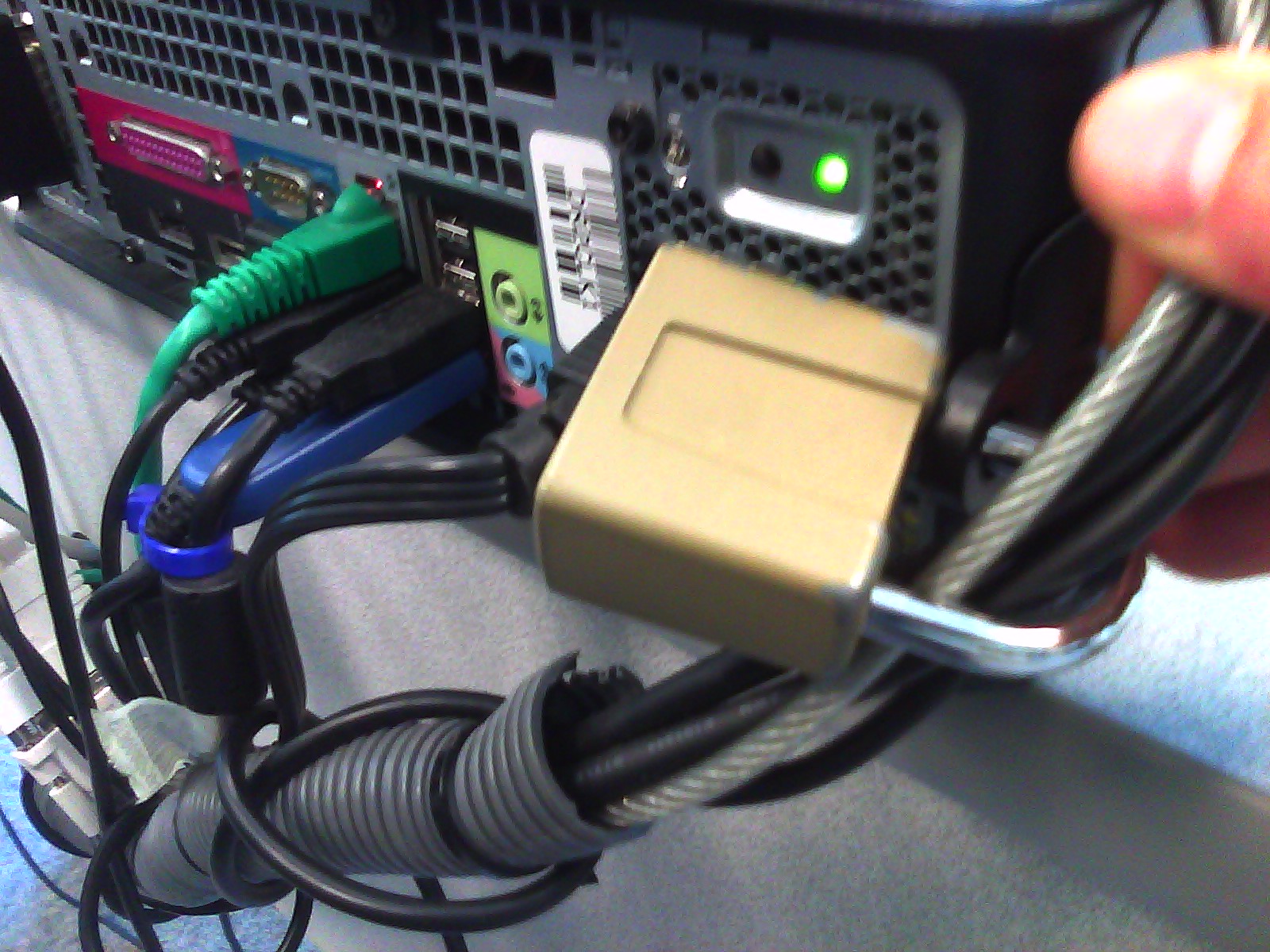 .
.
Cables tied to one another seems to be not stable neough. Maybe try, on top of the old (loop-headphone-cable-through-)washer-trick, a cable-tie looped through the rear grate openings which are closer and more accessible than the already installed lock?
How to use the MS-Office Labs Community Clips Screen Capture Tool
- I seem to remember this initiative of having MS-Office users sharing tips and tricks using screencasts has been faded out – but the screen capture tool is still available, and it is not restricted to recording MS-Office applications.
- After download and install (here on Windows 7),

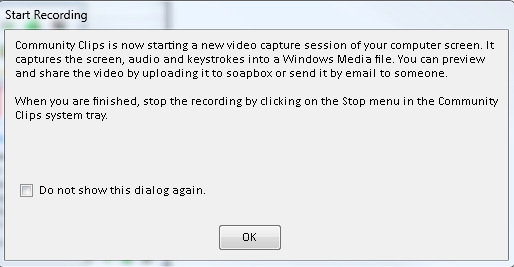
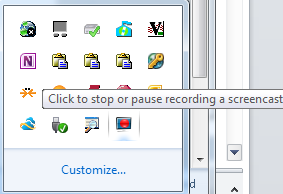
- click the community clips system tray icon to easily start a screen capture:
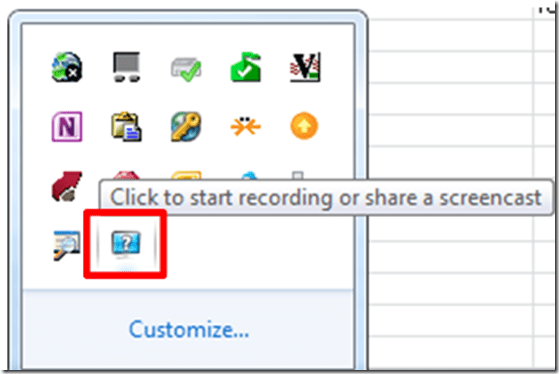
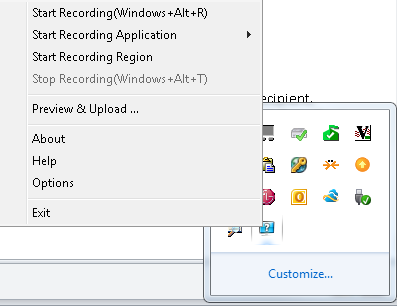
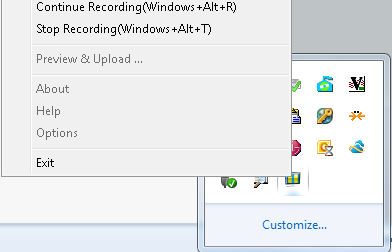
- Or access the context menu with advanced options:

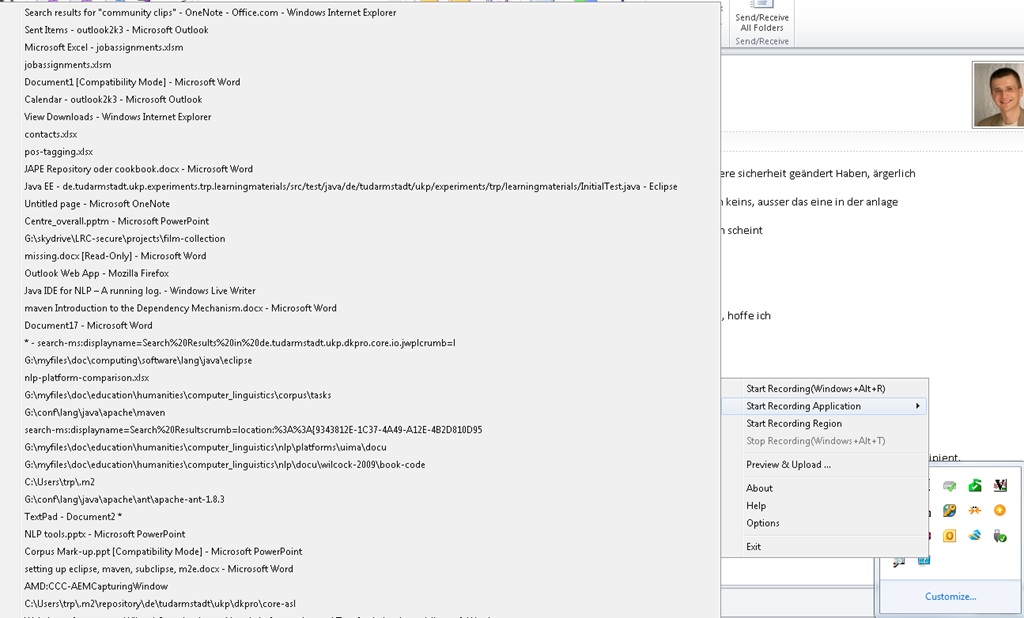
- including restricting recording to specific windows:
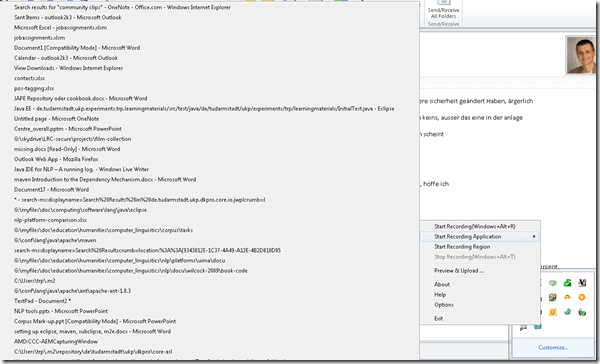
- It does not start up very fast:

- It flashes a frame around the recorded area.
- This is a test…
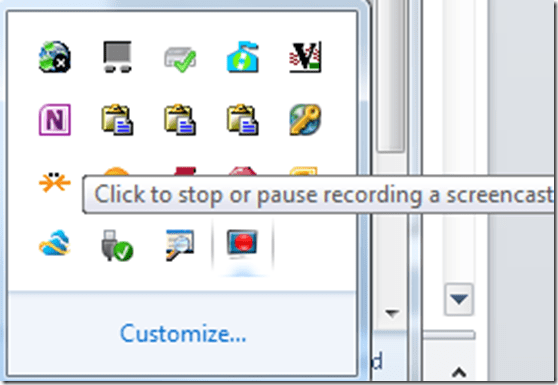


- The preview starts automatically:
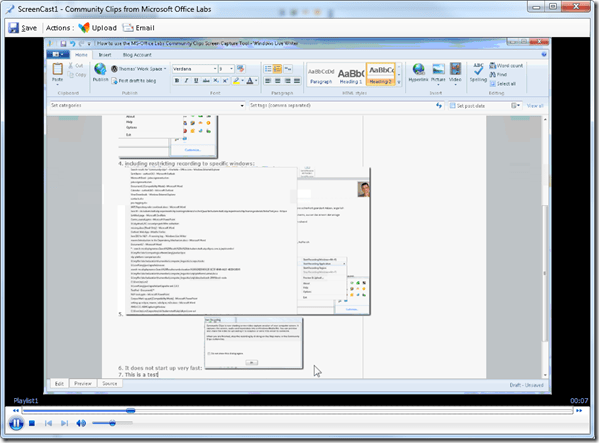
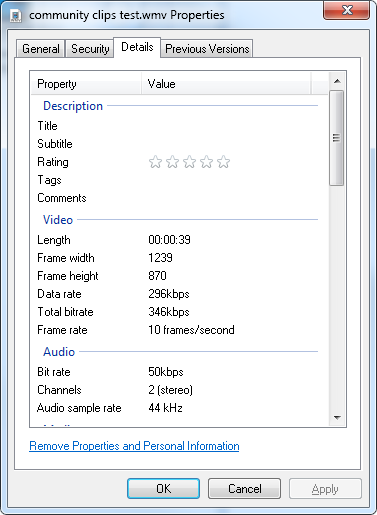
- About the file quality:

- Both the save and the email option
 work, only the built-in upload fails, likely due to the demise of MS-Soapbox:
  , but can be easily uploaded to other services, e.g. MS-SkyDrive
 - Unfortunately, like the Windows Media Encoder clips, it won’t preview without download on SkyDrive – unlike the (newer) MS-PowerPoint 2010-recorded screencasts:

- Still, the MS-Office Labs Community Clips Screen Capture Tool seems to have a friendlier interface than Windows Media Encoder, and is as free.






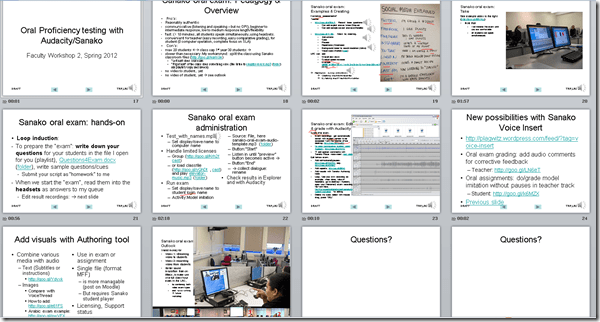
Spring 2012 Faculty Workshop II: Oral Proficiency testing with Audacity/Sanako
- View screens (best viewed side by side, but note that left and right screen are not synchronized):
- for full slide show (note the included short links for convenient further reading), left screen

- for Sanako interface and full audio track, right screen
 .
.
- for full slide show (note the included short links for convenient further reading), left screen
- Table of contents:
- Overview of a Sanako Oral Exam
- Examples of Exam teachers’ exam question recordings
- Example of a Sanako Exam
- Loop induction
- creating an exam question recording
- by taking a Sanako exam as a student
- Step-by-Step of administering a Sanako oral exam
- Grading Sanako oral exam student files
- Sanako voice insert for
- facilitating recording oral assignments for student without hard-coded pauses
- commenting on student responses during grading
- Sanako voice insert for
- Sanako authoring tool for providing visual on top of aural cues to students



Questions? Read the About. Or just ask me a quick Our Databases: Resources with calendars -- Language learning material Moodle Sites, multimedia files -- films


FAQs for LRC student staff or for students or for teachers. To search our FAQs, in the browser addressbar, add after "https://plagwitz.wordpress.com/feed/?tag=faqs+/" "+TAG1" (from tag cloud below) OR "https://plagwitz.wordpress.com/feed/tag=faqs
&category_name=" "CAT1" (from category hierarchy below). OR search both categories and tags, and multiple TAGs/CATs (connect with "," for OR-search, with "+" for AND-search), like so: https://plagwitz.wordpress.com/feed/?tag=TAG1+TAG2+...TAGn&category_name=CAT1
+CAT2+...CATn"
Other ways to find help
If you cannot find it here, look there: 5,500 Language-Learning Links and Programs for learning or teaching 150 languages
Shortcuts:Our Lists, Our Maps, LRC Staff Moodle Site,LRC Project Moodle Site, 49erexpress, UNCC Moodle, Student Recordings: s:claslcslrcsanakostudent
Learning usage samples: Sanako oral exam, Kaltura webcam presentation, Dictation with speech recognition, Sanako written exam, Chinese and Japanese interactive stroke-order practice
Test the Sanako Installer, Webbrowser Popup Konfigurator for XP, or Windows7, faster LRC TeacherPC Log-in Let MS facilitate diacritics writing by installing for you US-International keyboard layout
This is my personal blog (Google+). The views expressed on these pages are mine alone and not those of my employer. The information in this weblog is provided “AS IS” with no warranties, and confers no rights.
 Thomas' Work Space