Archive
Archive for September, 2013
First steps with the Sanako Study 1200 vocabulary test activity
2013/09/06
Leave a comment
- Click to watch an example below of the new (in version 6, we are now on 7) activity:”Vocabulary Test”
 which allows you to administer during a face-top-face-class just exactly what its name says –
 - with these benefits:
- needing no paper,
- digital contents
- “can” and reuse past tests with ease
- TBA: can you swap target and source language?
- blending automated and teacher feedback:
- the example I give below is based on what the teacher gave me: single words and very short idiomatic expression.
- You can use longer phrases (I prefer teaching and studying vocabulary in context), but then it become increasingly unlikely that the automated feedback is accurate (The automated feedback is limited to exact, up to case-insensitive string matching – now distance metrics).
- You can override the automated feedback before sending the results back to the student. This is somewhat practical, since the submitting is fast and not all students will finish at the same time, and if you provided students with the follow up activity after submission, The teacher overriding the feedback gets unpractical in large classes, so it is recommended restricting the test to short source/target language pairs. Also be clear about or minimize punctuation and, if required, the format of other metalinguistic information (gender, plural forms etc).
- Issues:
- not communicative, how can this be used or fitted in with other activities to make best use of a fully computerized face-to-face teaching environment?
- simplistic autocorrecting algorithm (case-insensitive, otherwise exact, right or wrong, my way or the highway” string matching)
- no tracking, no memory, personalization only via the other built-in Sanako personalization features (groups – to be left to the teacher to handle)
- no learning content – at least no vocabulary learning materials usable out of the box for us (TBA).
New issues with Respondus-lockdown-browser
2013/09/04
Leave a comment
- Problem description:
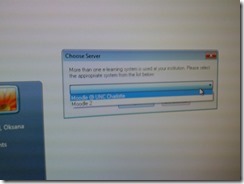
- Upon starting the quiz, Students are asked to select the right Moodle server (assuming Moodle2 is the right answer – how long will this step be necessary?)
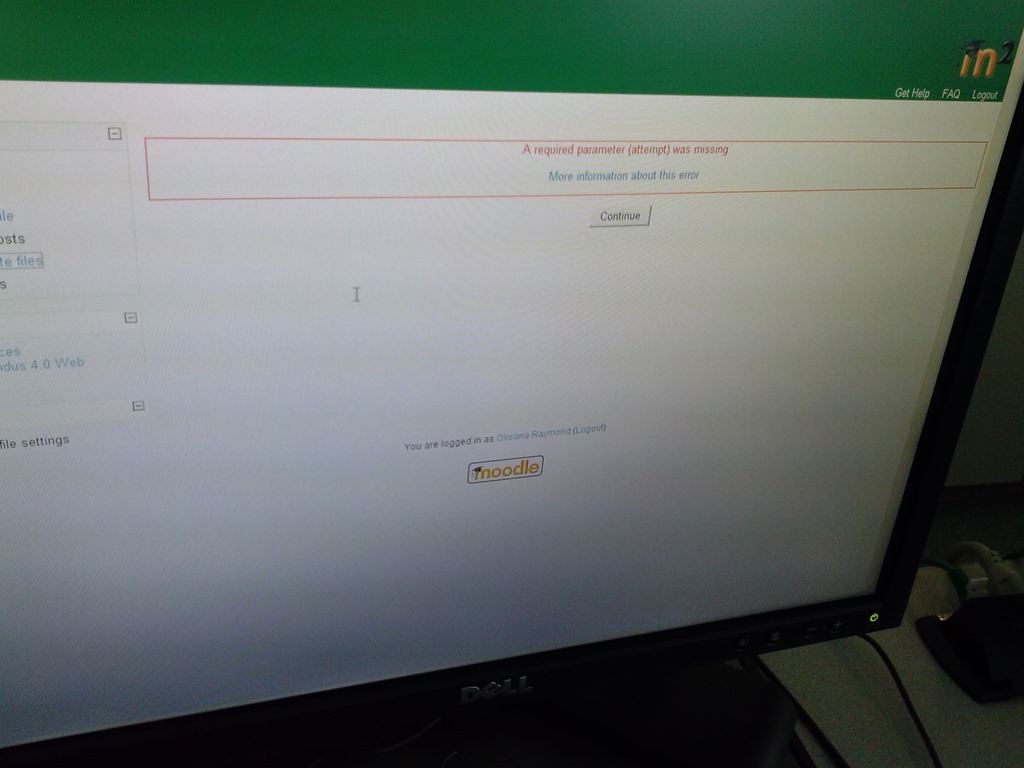
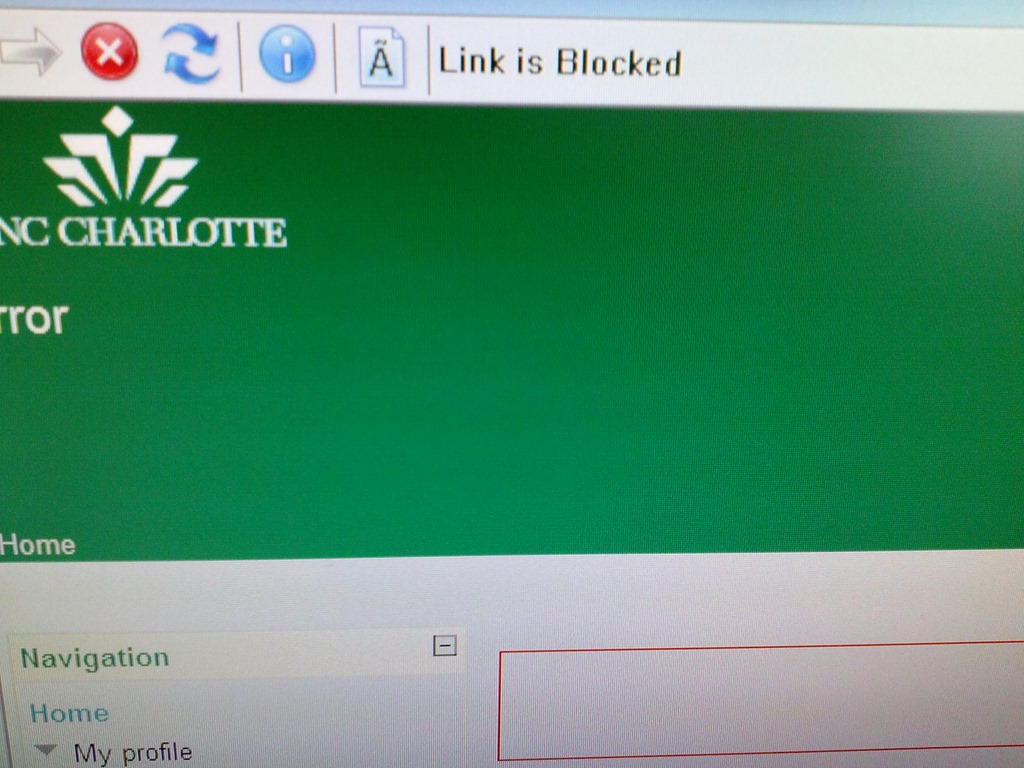
- When they are finished with the quiz, Students receive a combined “Ar required parameter is missing” (a link with “more information on this error” is offered underneath the red error message, but cannot be opened) and “Link is blocked” error

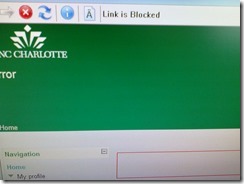
- before they reach the “SAVED” screen with the “submit all and finish”button: Meaning their attempt was not saved and since it cannot be submitted, will be lost.
- When logging in on a different computer, and starting the quiz in Lockdown browser, it tells students that the attempt is in progress,
- upon continue, they have to start afresh (nothing has been saved).
- This is on version from Dec 6 , 2012.

- Upon starting the quiz, Students are asked to select the right Moodle server (assuming Moodle2 is the right answer – how long will this step be necessary?)
- Workaround: Restarting the quiz on a different computer has been the best workaround I have seen so far.


Categories: French, Learning-logs, lms
moodle, Respondus-lockdown -browser
Protected: LRC Clinic designs a remedial package for Germ1202 using MyLanguageLab
2013/09/04
Enter your password to view comments.
Check today’s date if you’re the only one in your Saba centra class
2013/09/04
Leave a comment
-
And if your neighbors do not have problems connect to Saba centra.
-
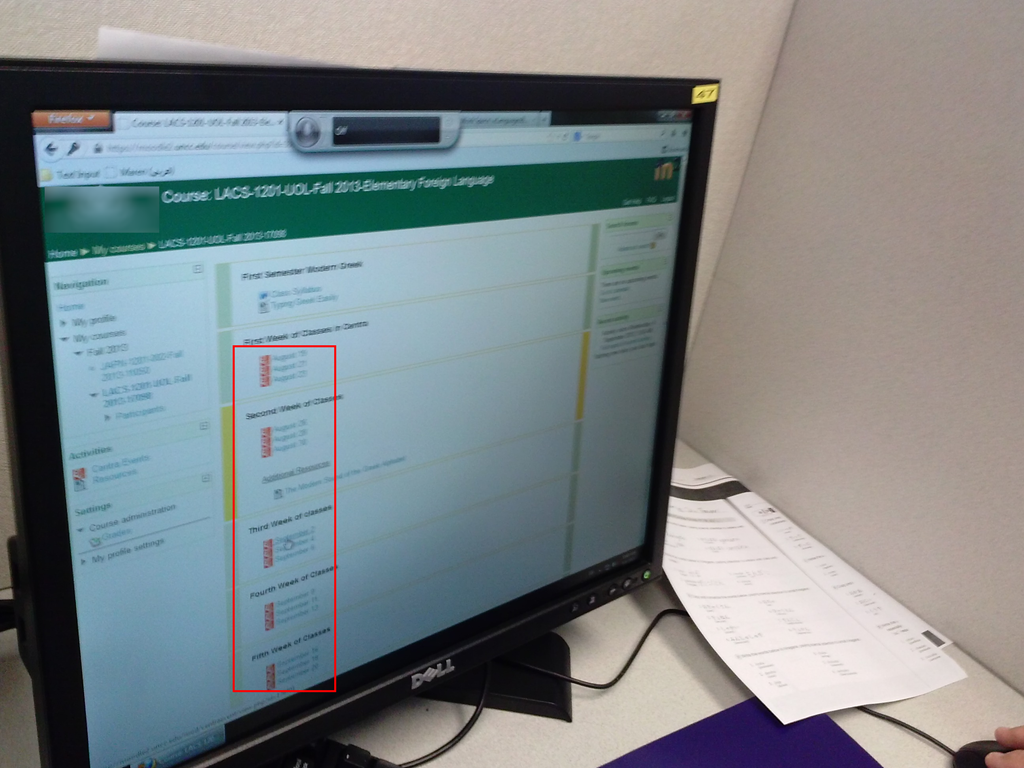
Your teacher may have put one Saba centra link for every class session, like in the list of links you can see in the center column here:

- You have to click on today’s one to participate.
Wacom Bamboo Tablet enables Teacher to draw characters for class
2013/09/03
Leave a comment
- We set up one of the Wacom Tablets which we have used for Hanzi/Kanji/Hanja practice in our student group rooms, at the LRC teacher station. Benefit:
- drawing characters where typing (including with IMEs) is not a satisfactory option. This includes
- IPA
- I noticed phonetics teachers making heavy use of the whiteboard and document camera/projector to transcribe.
- We tested a Phonetics keyboard, but remembering your keyboard shortcuts has a learning curve;
- Besides, the keyboard is currently not user-switchable.
- stroke-order demonstration for East-Asian languages.
- IPA
- Unlike the document camera, the Wacom could be set up at the teacher station – no need to move to the other end of the room, and works without need for the video switch we consider replacing.
- To use, you can
- e.g. start MS-paint (click start-button, “Run”, type “mspaint”, click “OK”)),
- select the “pencil” menu icon to the right of the center here:
 ,
, - remove the pen from pouch on the side of the wacom tablet next to the keyboard,
- draw digitally with the pen tip (soft),
- select the “eraser”menu icon to the right of the center here:

- turn the pen and rub to digitally erase (or “select all”and press the “del” key),
- finally save the drawing, if you want to reuse it or share it with students (e.g. using the Sanako playlist ).
- To change settings, go to the control panel (click start-button, “Run”, type “control”, click “OK”and start the Wacom Bamboo Control Panel Applet,
- if you do not like the Wacom tablet input panel being set to represent the entire left screen that is visible to students on the projector.
- if you are not right-handed,
- etc.
- drawing characters where typing (including with IMEs) is not a satisfactory option. This includes


Categories: audience-is-teachers, French, Japanese, Korean, Mandarin, Speaking, Writing
character-input, graphics-tablets, phonetics
Wacom Bamboo Settings for Teacher
2013/09/03
Leave a comment


For the dual screen teacher station, it should be the student viewable monitor
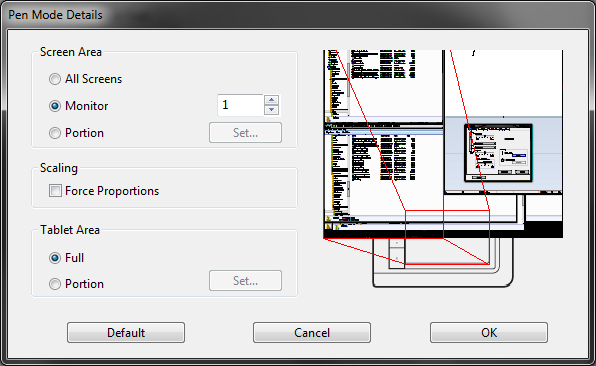
Are we complicating things with touch ? We still have a mouse connected.
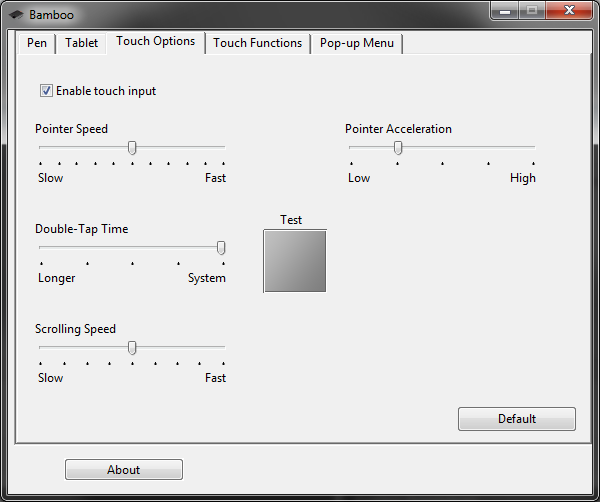

In tablet, no button allows setting to "popup menu"

Categories: audience-is-teachers, Presenter-Computer, software, Writing
cth-460, graphics-tablets, wcacom-bambo
How to find resources that best fit your schedule using the OWA scheduling assistant parallel timelines
2013/09/02
Leave a comment
- Load all equivalent resources for each resource type that you require.
- Using the parallel free/busy timelines in the “Scheduling Assistant”, look for and “plug the holes” (in white):

- In the above example,
- for the given time frame (between rad/green line), no item is completely available;
- however, if you adjust your time frame slightly to earlier in the morning, you would be able to book either camera13 and 17 (assuming you need only one) and micboom 2
- In the above example,
- Remove the resources from the “Attendee list that are non-white = busy for the start/end time that you require the resources for.
- Click upper left menu: “Send” to book.



Questions? Read the About. Or just ask me a quick Our Databases: Resources with calendars -- Language learning material Moodle Sites, multimedia files -- films


FAQs for LRC student staff or for students or for teachers. To search our FAQs, in the browser addressbar, add after "https://plagwitz.wordpress.com/feed/?tag=faqs+/" "+TAG1" (from tag cloud below) OR "https://plagwitz.wordpress.com/feed/tag=faqs
&category_name=" "CAT1" (from category hierarchy below). OR search both categories and tags, and multiple TAGs/CATs (connect with "," for OR-search, with "+" for AND-search), like so: https://plagwitz.wordpress.com/feed/?tag=TAG1+TAG2+...TAGn&category_name=CAT1
+CAT2+...CATn"
Other ways to find help
If you cannot find it here, look there: 5,500 Language-Learning Links and Programs for learning or teaching 150 languages
Shortcuts:Our Lists, Our Maps, LRC Staff Moodle Site,LRC Project Moodle Site, 49erexpress, UNCC Moodle, Student Recordings: s:claslcslrcsanakostudent
Learning usage samples: Sanako oral exam, Kaltura webcam presentation, Dictation with speech recognition, Sanako written exam, Chinese and Japanese interactive stroke-order practice
Test the Sanako Installer, Webbrowser Popup Konfigurator for XP, or Windows7, faster LRC TeacherPC Log-in Let MS facilitate diacritics writing by installing for you US-International keyboard layout
This is my personal blog (Google+). The views expressed on these pages are mine alone and not those of my employer. The information in this weblog is provided “AS IS” with no warranties, and confers no rights.
 Thomas' Work Space