Archive
Archive for November, 2011
Calendaring: How to view all your Moodle course assignments in Ninermail, OWA or MS-Outlook – Short version
2011/11/21
2 comments
- In Moodle:
- With Firefox (3.6 here), go to Moodle Calendar: https://moodle.uncc.edu/calendar/view.php?view=upcoming&course=1
- Right-Click on
 and choose “Copy Shortcut”: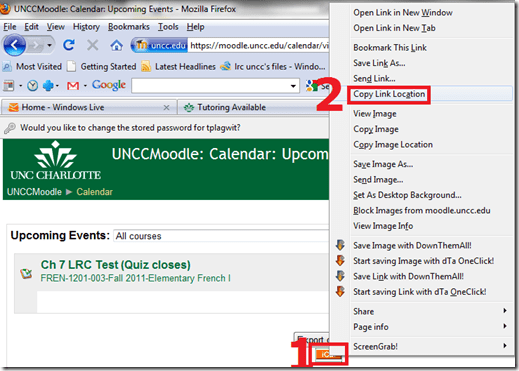
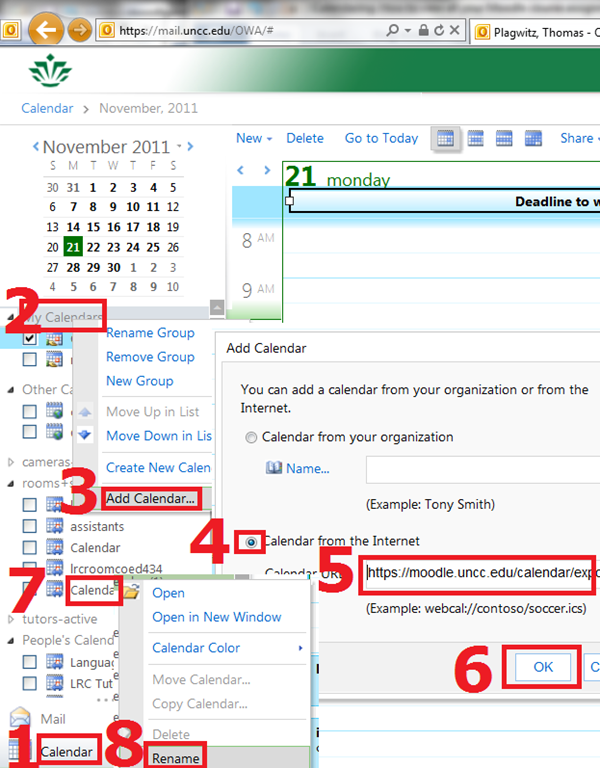
- In Ninermail/OWA: click “Calendar”, right-click “My calendars” , click “Add calendar’, click radio-button “From internet”, paste URL you put in clipboard into textbox, click button “OK”, right-click calendar added, click “rename” and call it “Moodle”

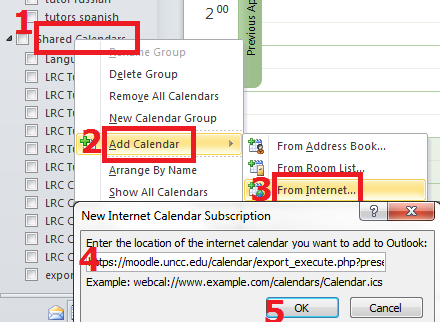
- Alternatively, in Outlook Desktop: go to “calendars”, right-click “shared calendars” , click “add calendar’, click “from internet”, paste URL you put in clipboard into textbox, click button “OK”, right-click calendar added, click “rename” and call it “Moodle”

- Want a longer explanation?

Categories: audience-is-students, audience-is-teachers, documentation, lms
calendaring, moodle, ms-outlook, OWA
How to run Windows Media Center during a Remote Assistance Session
2011/11/20
Leave a comment
-
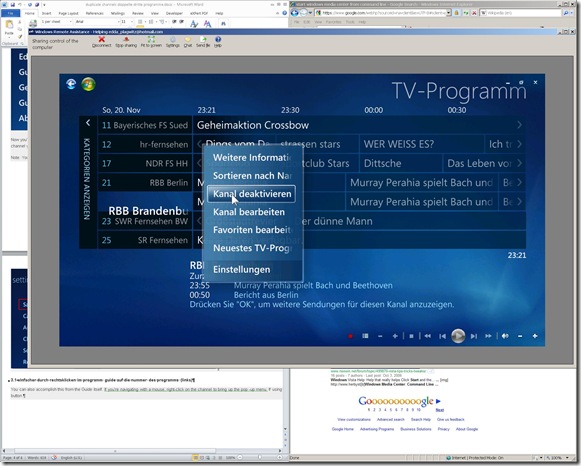
The /gdi switch for Windows Media Center allows for operating Windows Media Center full screen during
-
Windows Live Messenger Remote Assistance sessions if you have to help a relative over the internet.
-
Should also work in MSTSC Remote Desktop sessions if you manage media with Windows Media Center on your work network.
-
-
You can combine the above switch e.g. with the program guide shortcut to go directly there: /homepage:VideoGuide.xml /PushStartPage:True
-
Put the following in the “Target” field of your shortcut that you start on the remote computer (running Windows7 32-but here) during your remote assistance session:
-
%windir%\ehome\ehshell.exe /nostartupanimation /gdi /homepage:VideoGuide.xml /PushStartPage
- Voilà, or rather: “Dem Inschenör ist nichts zu schwör”.

Categories: documentation, e-infrastructure, Media
7, ms-live-messenger, ms-windows, mstsc, remote-assistance, windows-media-center
How to use the online Spanish pronunciation help to generate phonetic alphabet transcriptions and text-to-speech
2011/11/18
Leave a comment
- Go to http://showroom.daedalus.es/es/tecnologias-de-la-lengua/phonetictrans/phonetictrans.php, enter your text, select your phonetic symbol set:
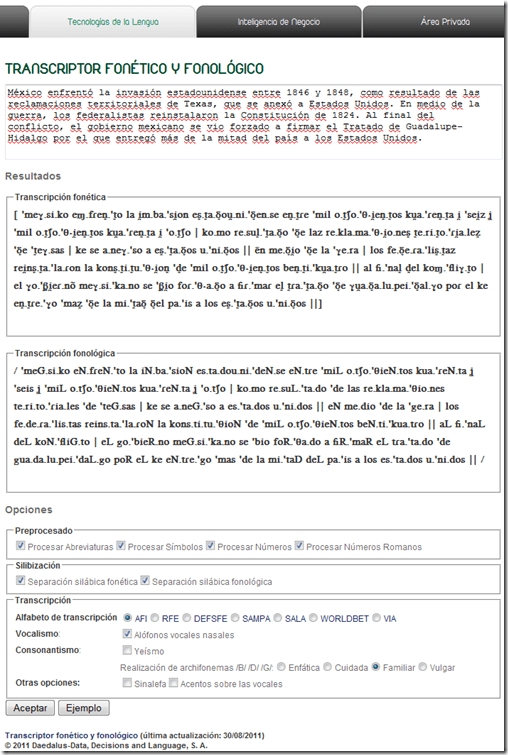
- Unlike with the Portuguese help, there is no text-to-speech option here.

Troubleshooting the wireless headsets in the TV viewing area
2011/11/18
Leave a comment
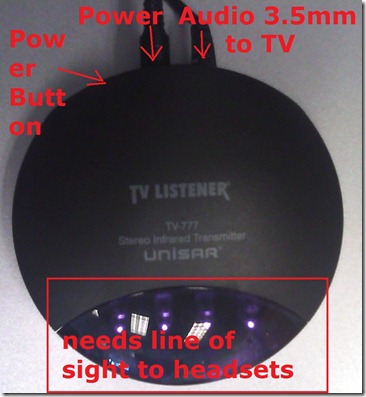
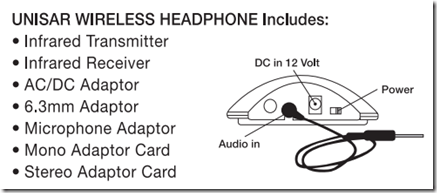
- For lack of small group work areas, the 3 headsets help sharing the LRCROOMCOED433. They amplify the sound for the TV viewing audience, allowing to turn the TV volume down so as not to disturb other users in the shared area.
- No sound?
- headsets turned on?
- headset volume turned up?
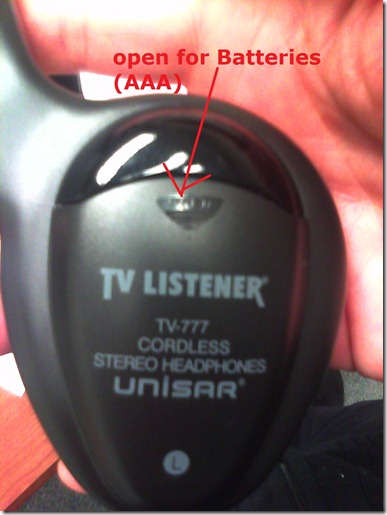
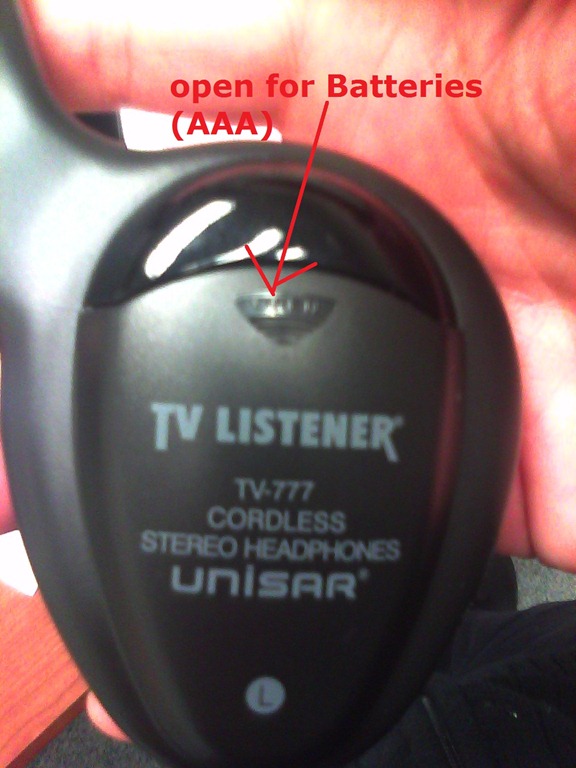
- headsets batteries dead?
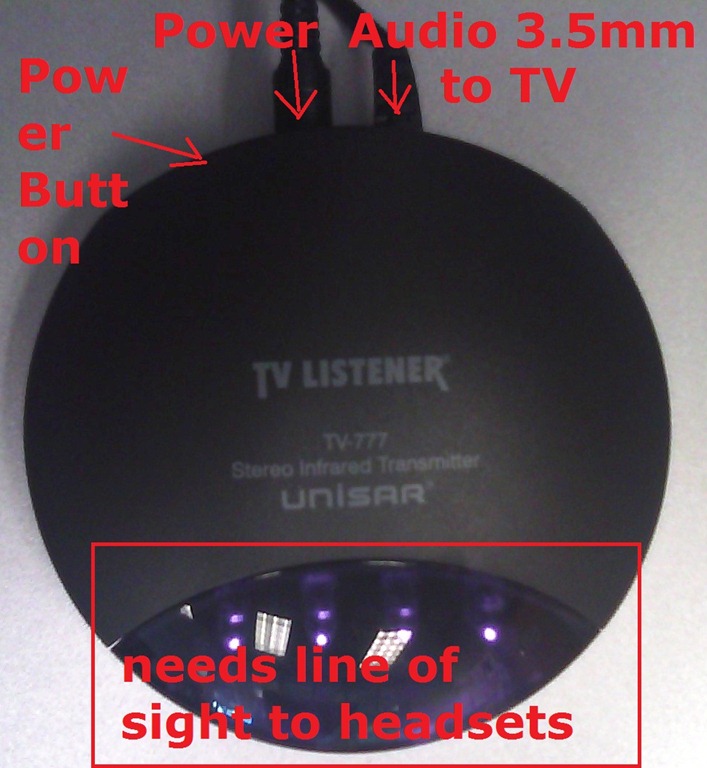
- transmitter turned on?
- Static noise on headsets?
- headsets batteries weak?
- no line of sight to transmitter?
- Other things you can try:
- a different headset. We have 3.
- a different transmitter. We have 2.
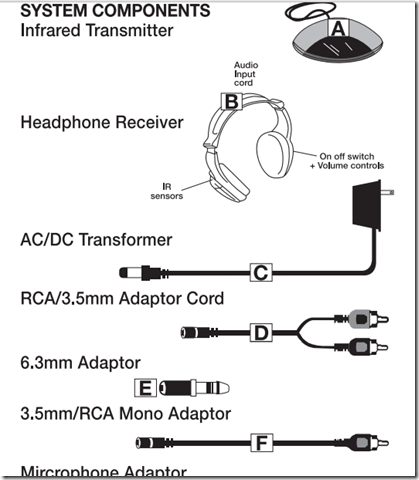
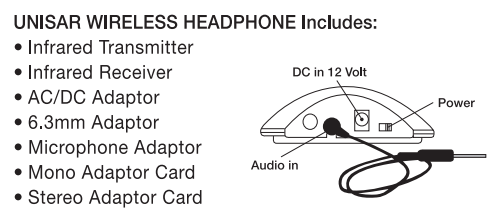
- An image says more than 1000 words:





Things to check when your Study1200 cannot record students anymore
2011/11/16
Leave a comment
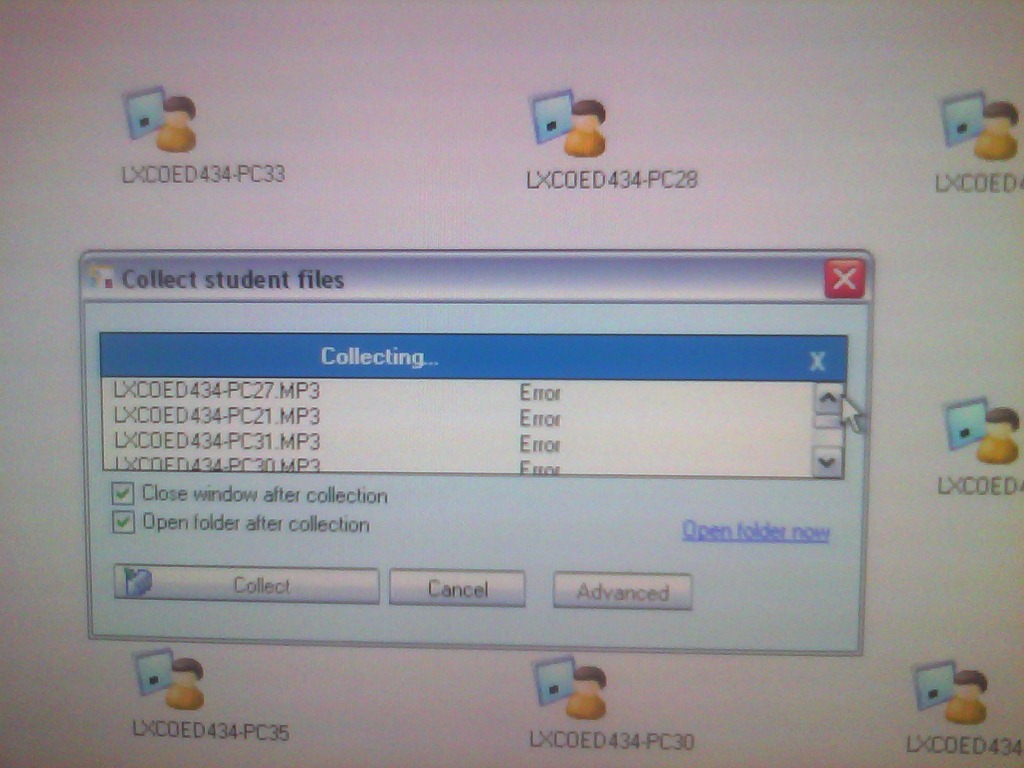
- Symptom: All your exam recordings fail to collect:

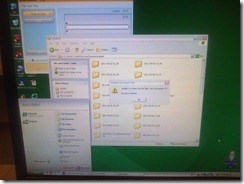
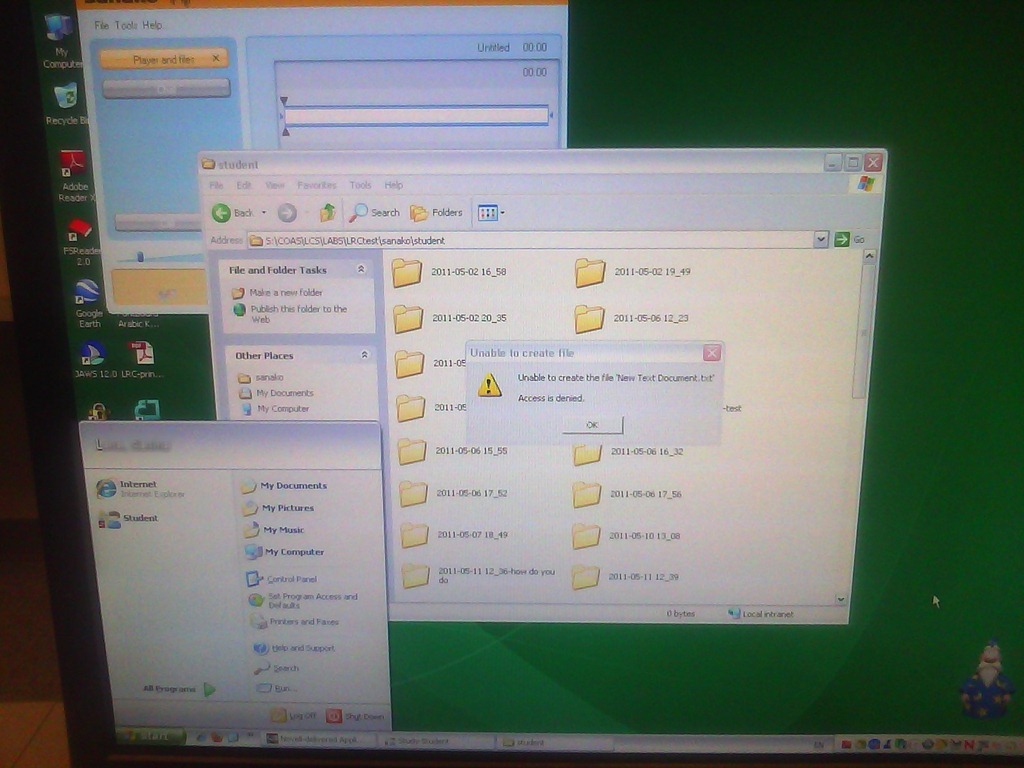
- Cause: Student do not have write permissions to the collect folder anymore, a prerequisite for the Sanako Study1200:
- Resolution: Have write permissions reinstituted?
Categories: e-infrastructure
sanako-study-1200
Web-based romanized letters to Cyrillic transliteration tool.
2011/11/16
Leave a comment
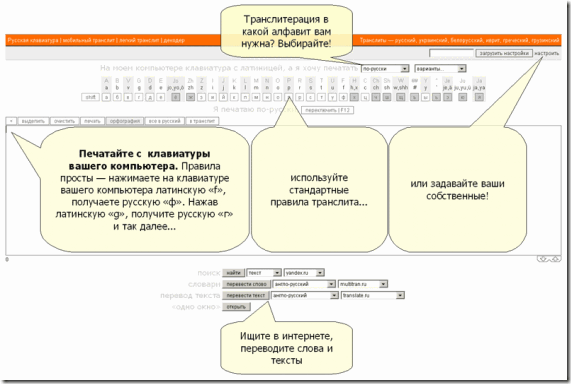
- Our Russian tutor uses this transliteration tool HTTP://TRANSLIT.RU which allows for phonetic input on a keyboard that does not have Cyrillic letters and seems popular with native speakers of languages written in Cyrillic.
- As so often, that implies: not designed for language learners. The explanation attests to that:
Categories: Advanced, audience-is-students, audience-is-teachers, e-languages, Intermediate, Russian, websites, Writing
character-input, websites
How to restart the LRC student printer station
2011/11/16
Leave a comment
- On the computer keyboard of the print release station computer, press the windows-key.
- This will bring up ("It’s a Windows system! I know this!") the Start Menu.
- Choose Shutdown/ Restart from there.
Categories: audience-is-language-learning-center-temp-staff, printer
FAQs, printing
Calendaring: How to view all your Moodle course calendars in one place (like live@edu, Google calendar or MS-Outlook)
2011/11/16
Leave a comment
- UPDATE: this does work, just make sure to give it some time to update AND to have actual appointments in the time window (length of that window is a setting you can change in Moodle) that you are trying to display.
- Static inclusion of syllabus deadlines in your calendar
- Go to your Moodle Course / “Go to calendar…” / select from dropdown: “Upcoming Events”: “All courses”/ click on “Export Calendar/. Open with MS-Outlook (fails in IE8).
- Here is showing how: screencast demo loading Moodle’s iCal into MS-Outlook (desktop).
- This is a static export of all your Moodle calendar information – taught and enrolled courses combined (despite
 showing in each of your courses. The dropdown: “Upcoming Events” does default to the current course, though).
 - The utility of this (= what “all” comprises, and how helpful the event information is) depends on how the course designers use the Moodle calendar functionality – or allow Moodle to do it for them: For setting a start/end (= deadline) for any assignment or assessment automagically adds this event to the Moodle course calendar.
- Go to your Moodle Course / “Go to calendar…” / select from dropdown: “Upcoming Events”: “All courses”/ click on “Export Calendar/
- A potentially even more useful dynamic subscription(that will reflect late-breaking changes, like extended deadlines in your courses or additional assignments)
- you can get if you right click on
 and choose “Copy link” from the context menu.
 - I have not found a way to feed the Moodle iCal link manually into MS-Outlook 2010 (Shared Calendars / Add Calendar / From Internet) or OWA (different problem comes and goes. Just subscribe while problem is gone
 ). In MS-Outlook, you can subscribe to this link via menu:tools / tab:internet calendars / button: new / dialogue new internet calendar subscription / paste the URL you copied.
 ![moodle-calendar-outlook-2010-subscri[1]](https://thomasplagwitz.com/wp-content/uploads/2012/01/moodle-calendar-outlook-2010-subscri1_thumb.png?w=244&h=180 "moodle-calendar-outlook-2010-subscri[1]")
- Don’t forget to rename your calendar to something more useful than the default, like “My classes”, by right-clicking and choosing “Rename”in OWA or “Properties” in Outlook2010.
![moodle-calendar-outlook-2010-subscri[3]](https://thomasplagwitz.com/wp-content/uploads/2012/01/moodle-calendar-outlook-2010-subscri3_thumb.png?w=244&h=228 "moodle-calendar-outlook-2010-subscri[3]")
![moodle-calendar-outlook-2010-subscri[2]](https://thomasplagwitz.com/wp-content/uploads/2012/01/moodle-calendar-outlook-2010-subscri2_thumb.png?w=195&h=244 "moodle-calendar-outlook-2010-subscri[2]")
- Your syllabus deadlines are now always only two clicks away in your Ninermail:
- click on “Calendar”
- click on checkbox “Moodle”.
- you can get if you right click on
- What seems not possible with any current version of Moodle is editing/updating your calendar in MS-Outlook and having the changes synch with Moodle, or any import actually – only the opposite direction works. So the tool is more useful for students (who don’t need to edit) than teachers (but still a nice aggregator of teaching information for the latter).
- More on Calendar you can find in the official 1.9 Moodle calendar doc and FAQ.
- I would prefer to use other calendaring software, but the export options of the Moodle (1.9 and 2.)) calendars are limiting. So I also find myself adjusting the settings when using the Moodle calendar:


![moodle-calendar-outlook-2010-subscri[1]](https://thomasplagwitz.com/wp-content/uploads/2012/01/moodle-calendar-outlook-2010-subscri1.png "moodle-calendar-outlook-2010-subscri[1]")
![moodle-calendar-outlook-2010-subscri[3]](https://thomasplagwitz.com/wp-content/uploads/2012/01/moodle-calendar-outlook-2010-subscri3.png "moodle-calendar-outlook-2010-subscri[3]")
![moodle-calendar-outlook-2010-subscri[2]](https://thomasplagwitz.com/wp-content/uploads/2012/01/moodle-calendar-outlook-2010-subscri2.png "moodle-calendar-outlook-2010-subscri[2]")

- Adjusting these settings may also fix the following error in OWA which reads like ICS link is invalid/broken, but may only mean that no events where returned for the time window that Moodle defaults to (with performance reasons, which, however, does not apply if Moodle does not have to return *any* events to your request). In other words: Try expanding the time window for events, e.g. to include the full term.


Categories: audience-is-students, audience-is-teachers, e-infrastructure
calendaring, moodle, ms-outlook


Questions? Read the About. Or just ask me a quick Our Databases: Resources with calendars -- Language learning material Moodle Sites, multimedia files -- films


FAQs for LRC student staff or for students or for teachers. To search our FAQs, in the browser addressbar, add after "https://plagwitz.wordpress.com/feed/?tag=faqs+/" "+TAG1" (from tag cloud below) OR "https://plagwitz.wordpress.com/feed/tag=faqs
&category_name=" "CAT1" (from category hierarchy below). OR search both categories and tags, and multiple TAGs/CATs (connect with "," for OR-search, with "+" for AND-search), like so: https://plagwitz.wordpress.com/feed/?tag=TAG1+TAG2+...TAGn&category_name=CAT1
+CAT2+...CATn"
Other ways to find help
If you cannot find it here, look there: 5,500 Language-Learning Links and Programs for learning or teaching 150 languages
Shortcuts:Our Lists, Our Maps, LRC Staff Moodle Site,LRC Project Moodle Site, 49erexpress, UNCC Moodle, Student Recordings: s:claslcslrcsanakostudent
Learning usage samples: Sanako oral exam, Kaltura webcam presentation, Dictation with speech recognition, Sanako written exam, Chinese and Japanese interactive stroke-order practice
Test the Sanako Installer, Webbrowser Popup Konfigurator for XP, or Windows7, faster LRC TeacherPC Log-in Let MS facilitate diacritics writing by installing for you US-International keyboard layout
This is my personal blog (Google+). The views expressed on these pages are mine alone and not those of my employer. The information in this weblog is provided “AS IS” with no warranties, and confers no rights.
 Thomas' Work Space