Archive
Posts Tagged ‘web-browsing-activity’
Protected: Sanako Web browsing activity fails with Outlook web access
2014/03/27
Enter your password to view comments.
Categories: digital-audio-lab, Glitches&Errors
OWA, sanako-study-1200, web-browsing-activity
Sanako Web browsing activity not compatible with modern web infrastructure (SunGard Portal, Outlook Web Access)?
2014/03/26
Leave a comment
- To access campus resources – here an assignment in a Moodle course – our students need to log into a SunGard portal (with SSO – a pretty common product in higher education)l, but already the redirection after login fails with this session expiration error.
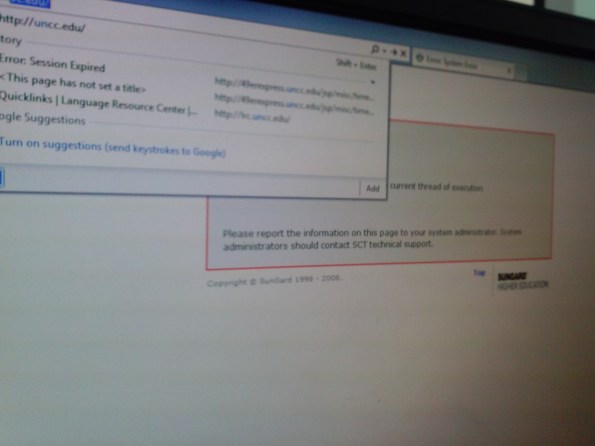
- We could work around this problem by browsing to the target site and logging into Moodle directly. But our students normally do not know how to do that.
- More problems arose when students tried to open an email in their campus OWA, in a popup window, which, however, gets redirected to the first browser homepage.
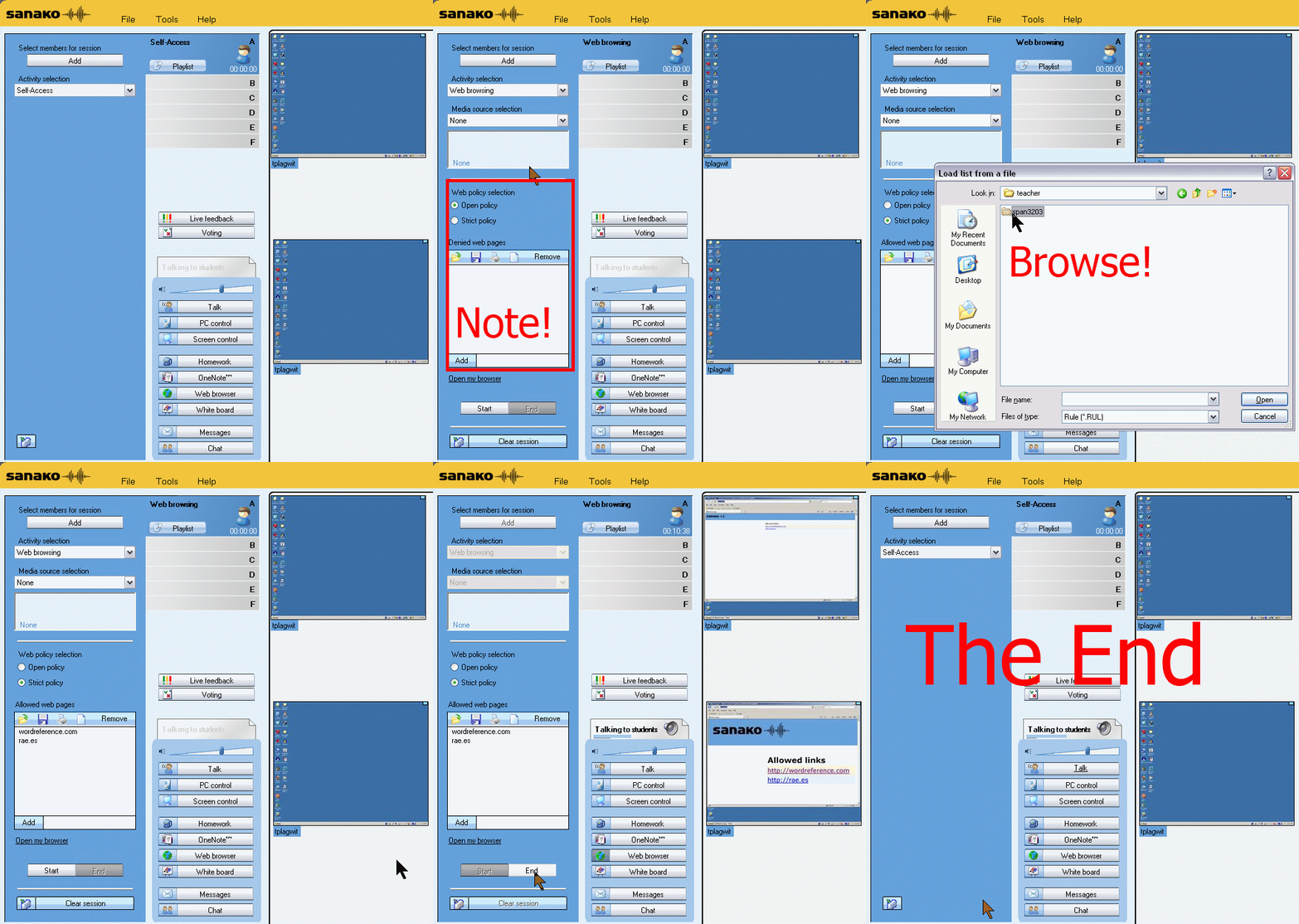
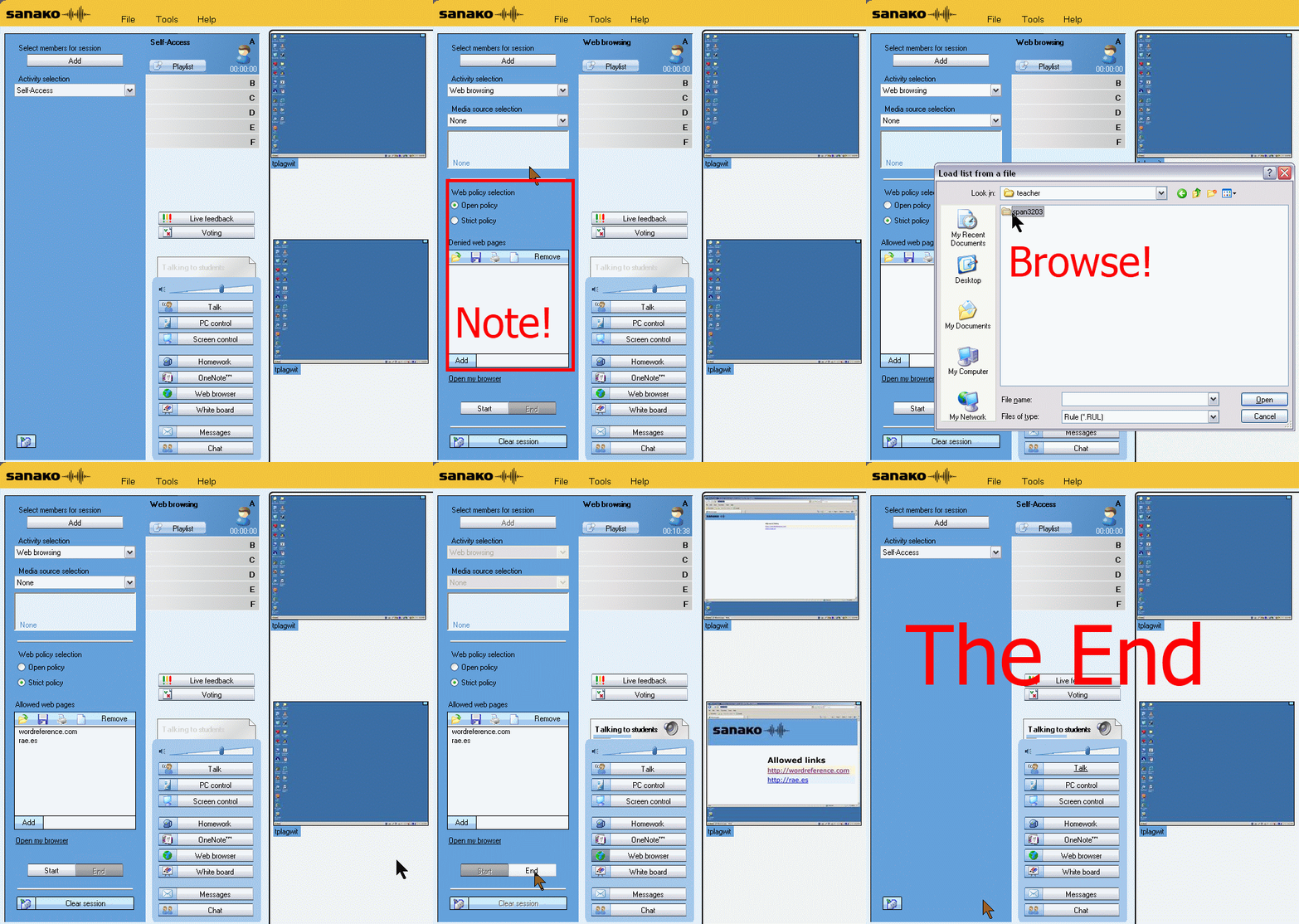
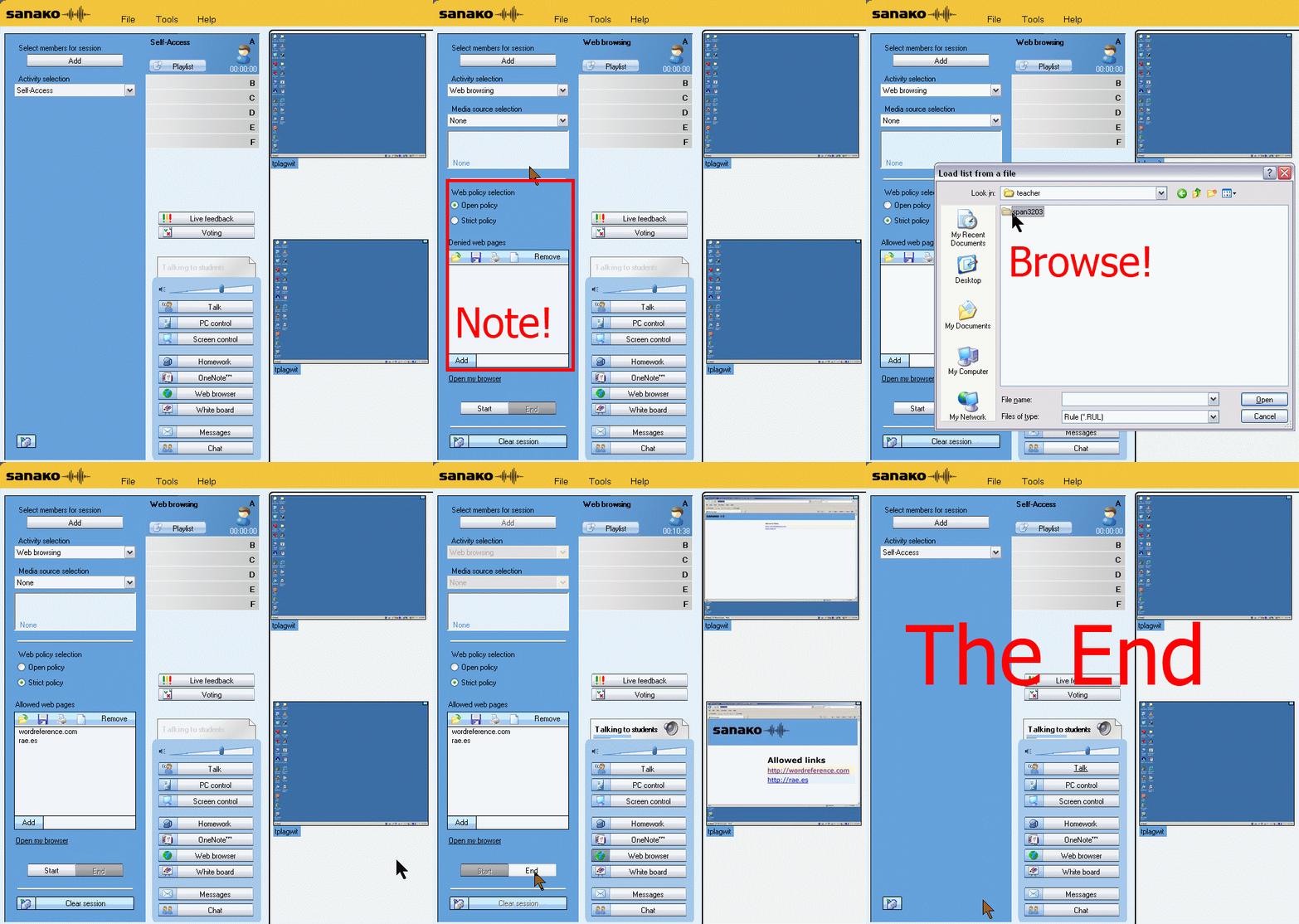
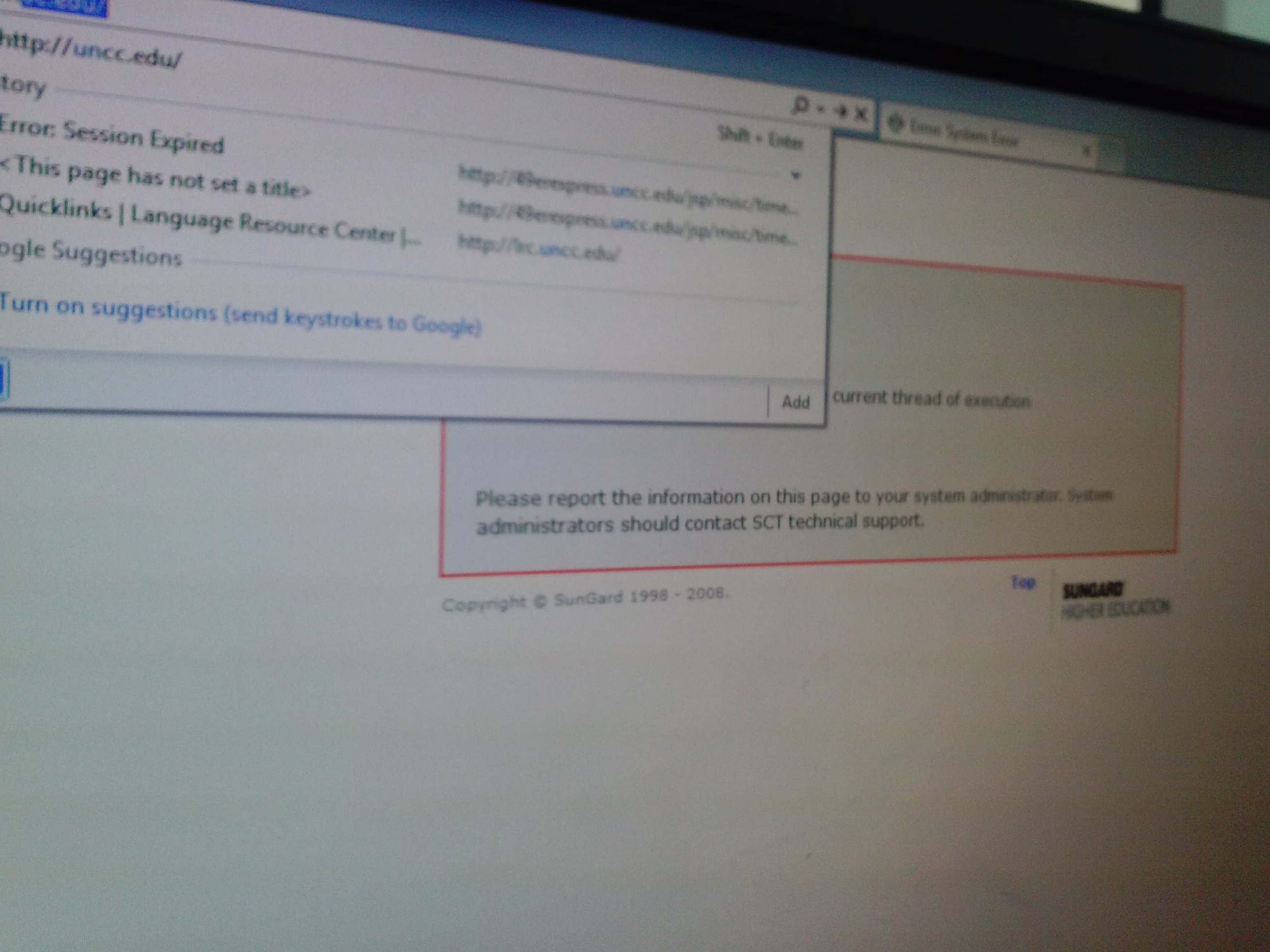
- This was during an “open/prevent policy” web browsing-activity, where – to keep students on task – only certain sites (social web, webmail) were blocked.., as can be seen in this screenshot:


Protected: Block common translator, webmail and/or social web sites during LRC class by loading a RUL file in Sanako Study 1200
2013/01/29
Enter your password to view comments.
Announcing new MS-Word templates for writing assignments during face-to-face-classes in the LRC
2012/11/08
Leave a comment
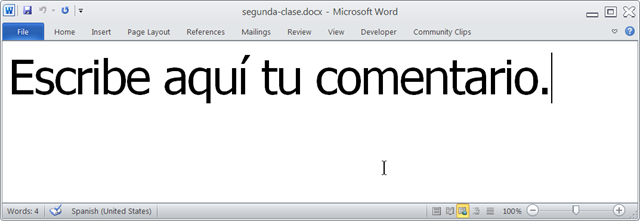
- Benefits
- MS-Word is technology that has become “transparent”for most users:
- Have teachers focus on assignment pedagogy, not authoring technology.
- Have students focus on the target language, not authoring technology.
- Document is protected (for restricting formatting to predefined Word-styles):
- Have students focus on form or content, but not on distracting formatting issues.
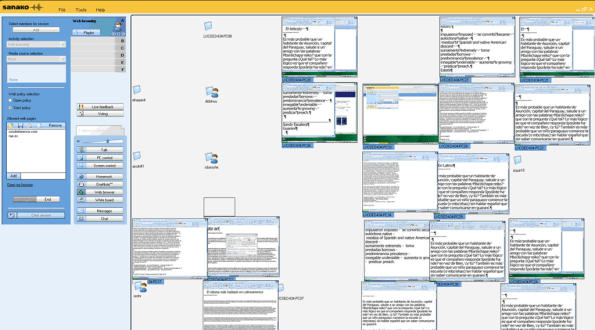
- Styles are designed to facilitate teacher monitoring students’ work using Sanako screensharing, like so:
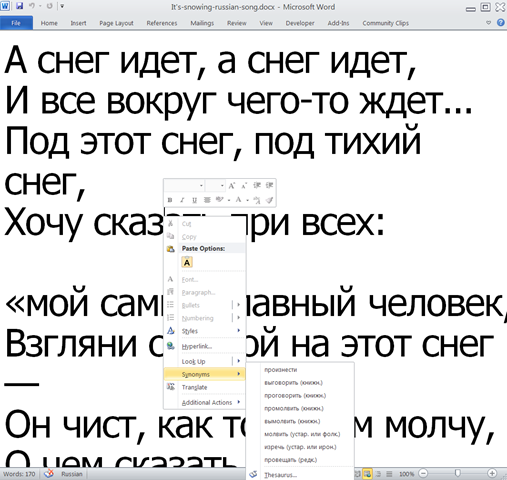
- Take advantage of MS-Office Proofing tools (templates are preset for your target language).
- Take advantage of easy assignment file management with Sanako homework activity.
- Take advantage of internet lookup process, especially pedagogical if you combine with Sanako controlled-web-browsing activity
- MS-Word is technology that has become “transparent”for most users:
- Requirements:
- Teacher
- The easiest is to save the writing template for your language in C:\Program Files\Microsoft Office\Templates\1033 (or if your run 32-bit MS-Word on a 64-bit Windows, C:\Program Files (x86)\Microsoft Office\Templates\1033)
- Then base your writing assignment document on the template (e.g. by double-clicking the template in the folder you saved it to).
- Then save your writing assignment to your class material folder on the Sanako network share (from the office or in the LRC).
- In class, launch the Sanako homework activity.
- Student: none other than downloading and submitting the Sanako homework.

- Teacher
Categories: announcements, audience-is-teachers, classroom-management-system, e-languages, office-software, Presenter-Computer, service-is-configuring-learning-tools, service-is-learning-materials-creation, service-is-programming, Student-Computers, Writing
homework-activity, MS-Word, sanako-study-1200, screensharing, templates, trpStudentWriting, web-browsing-activity
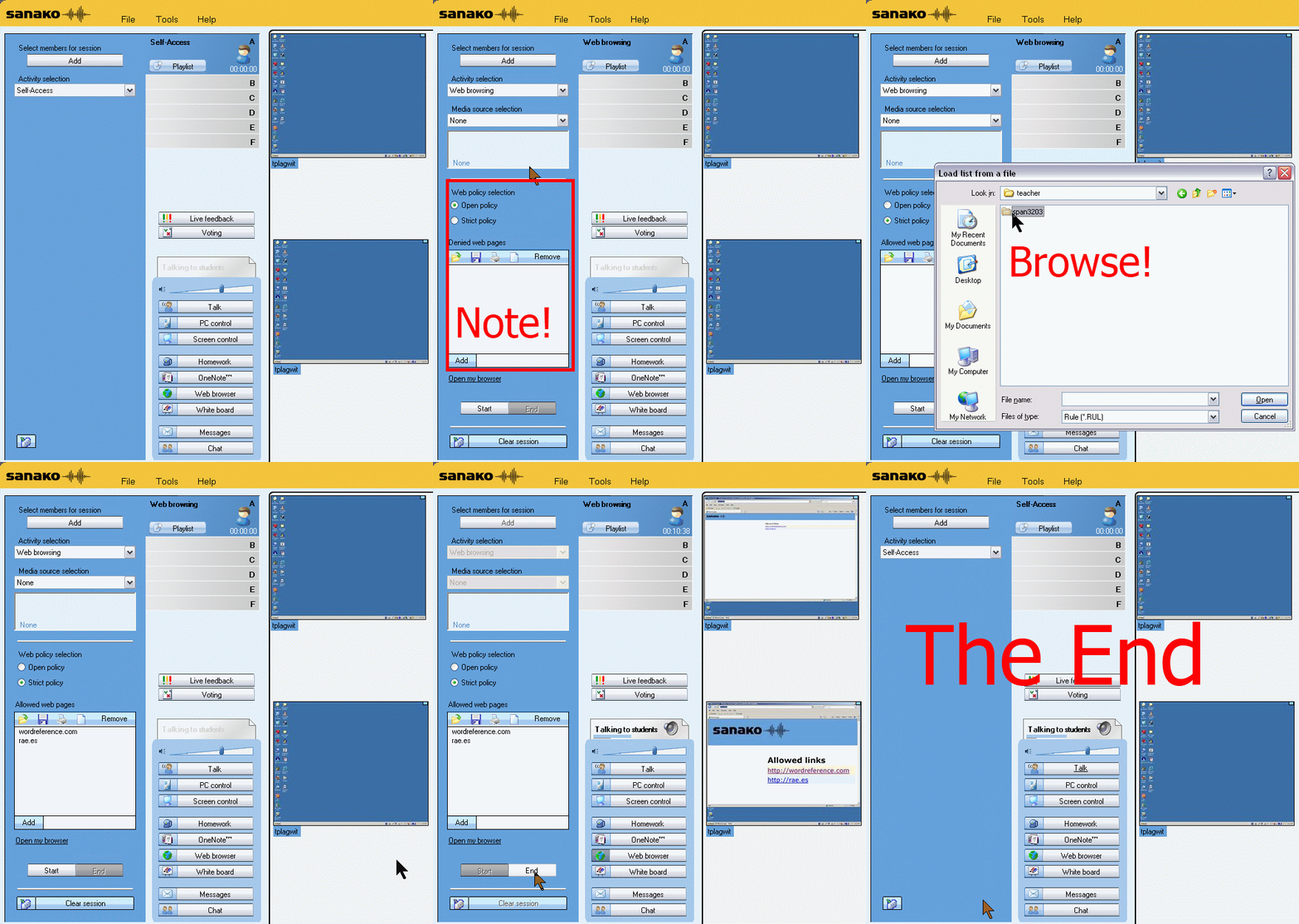
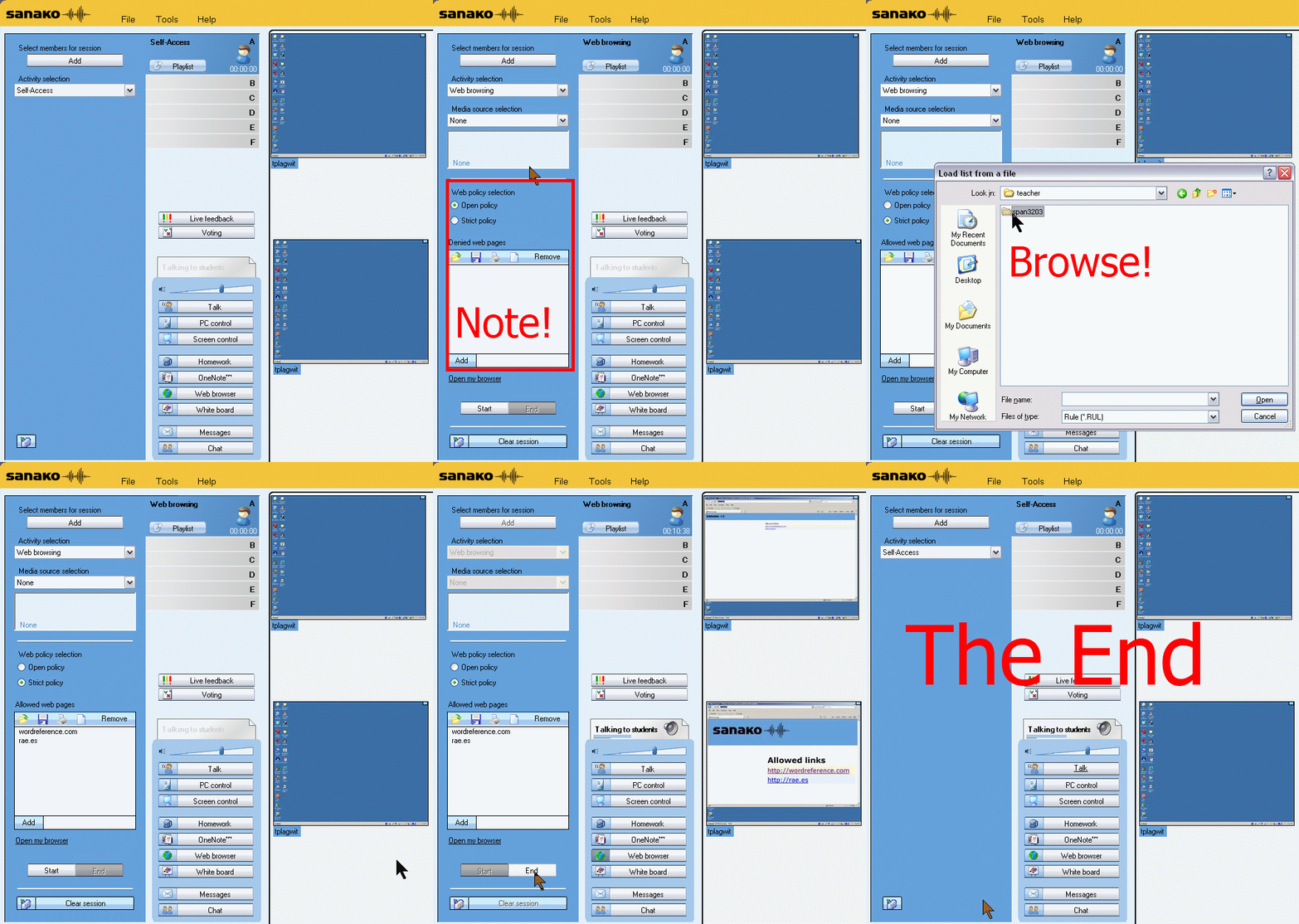
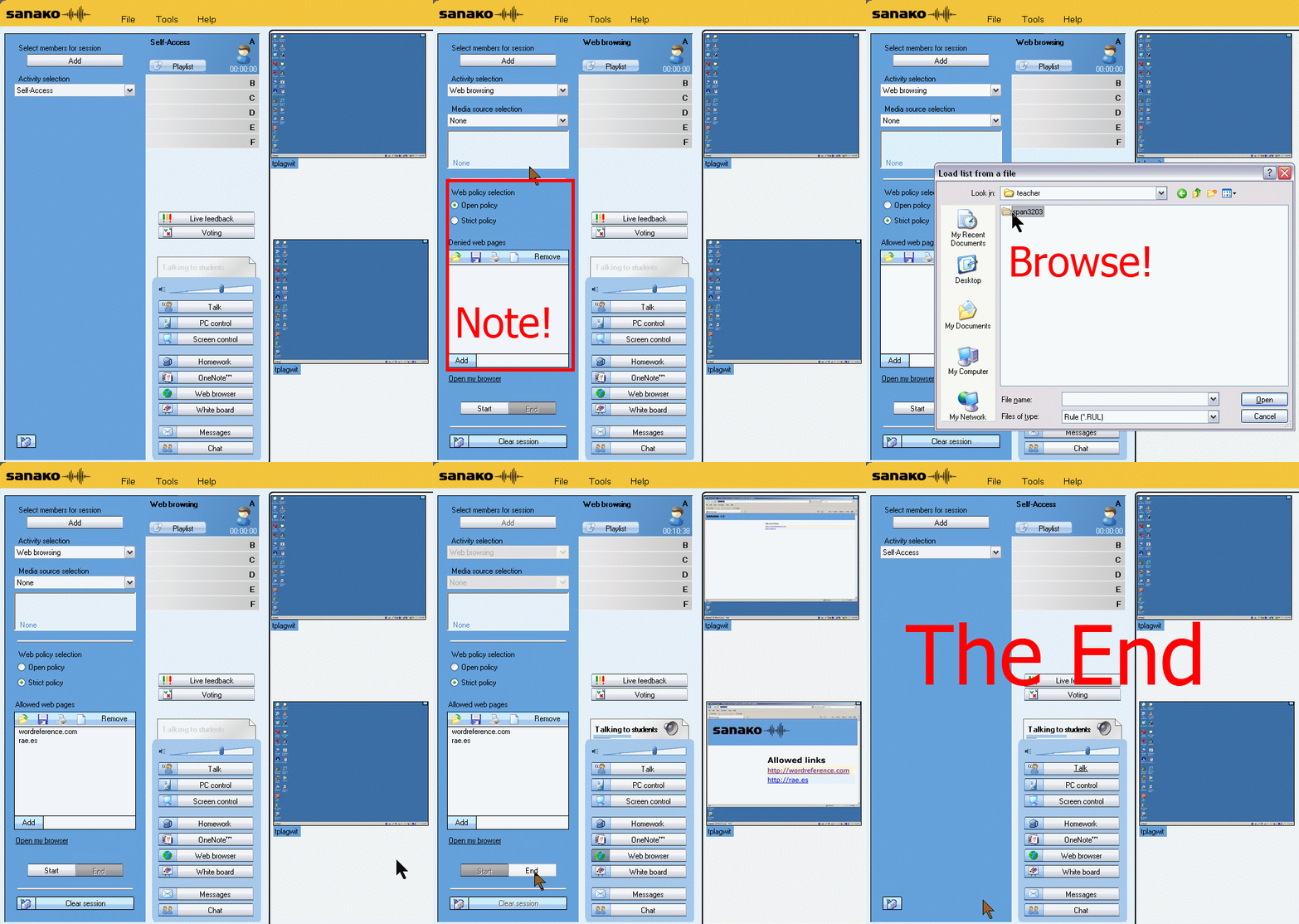
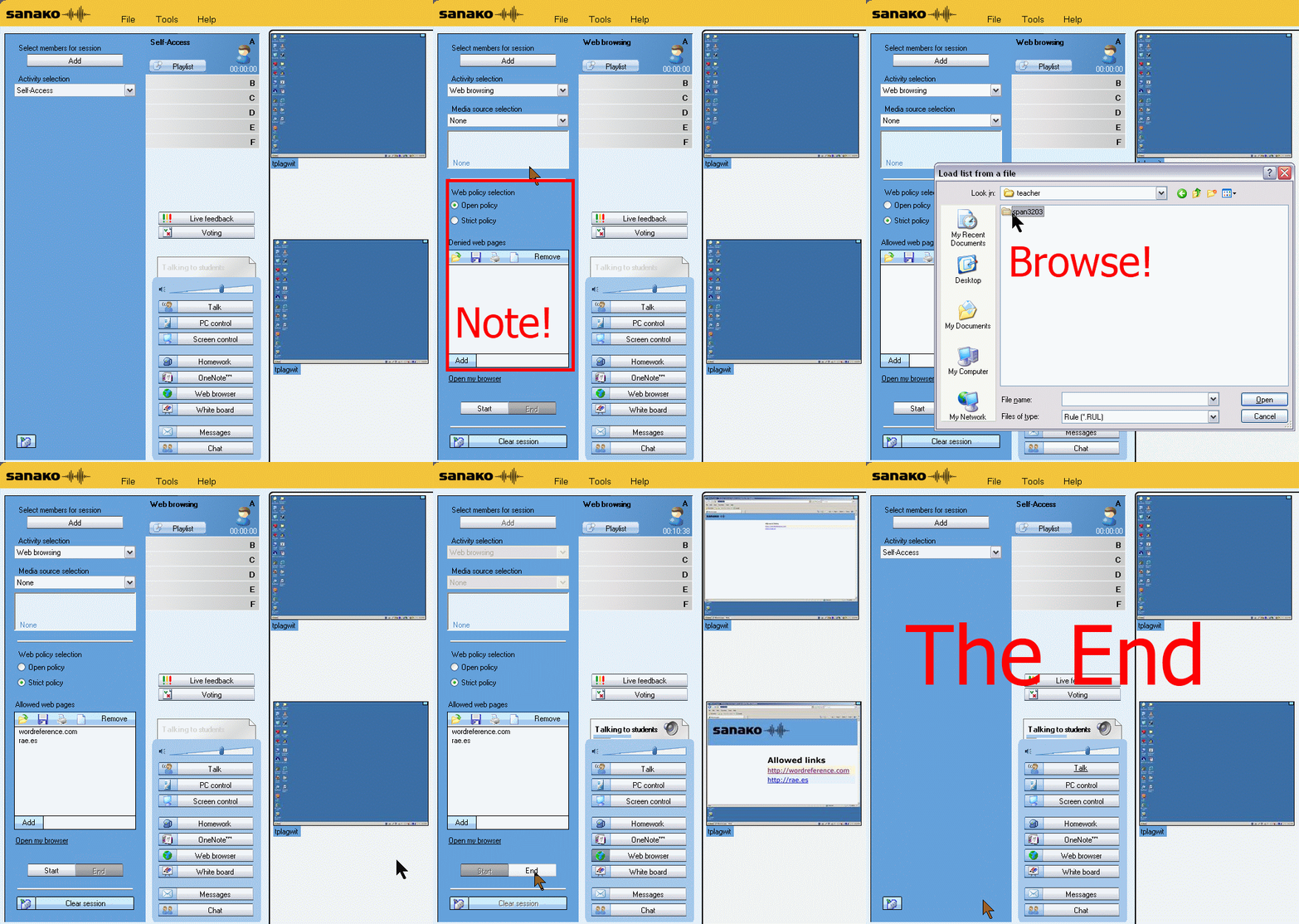
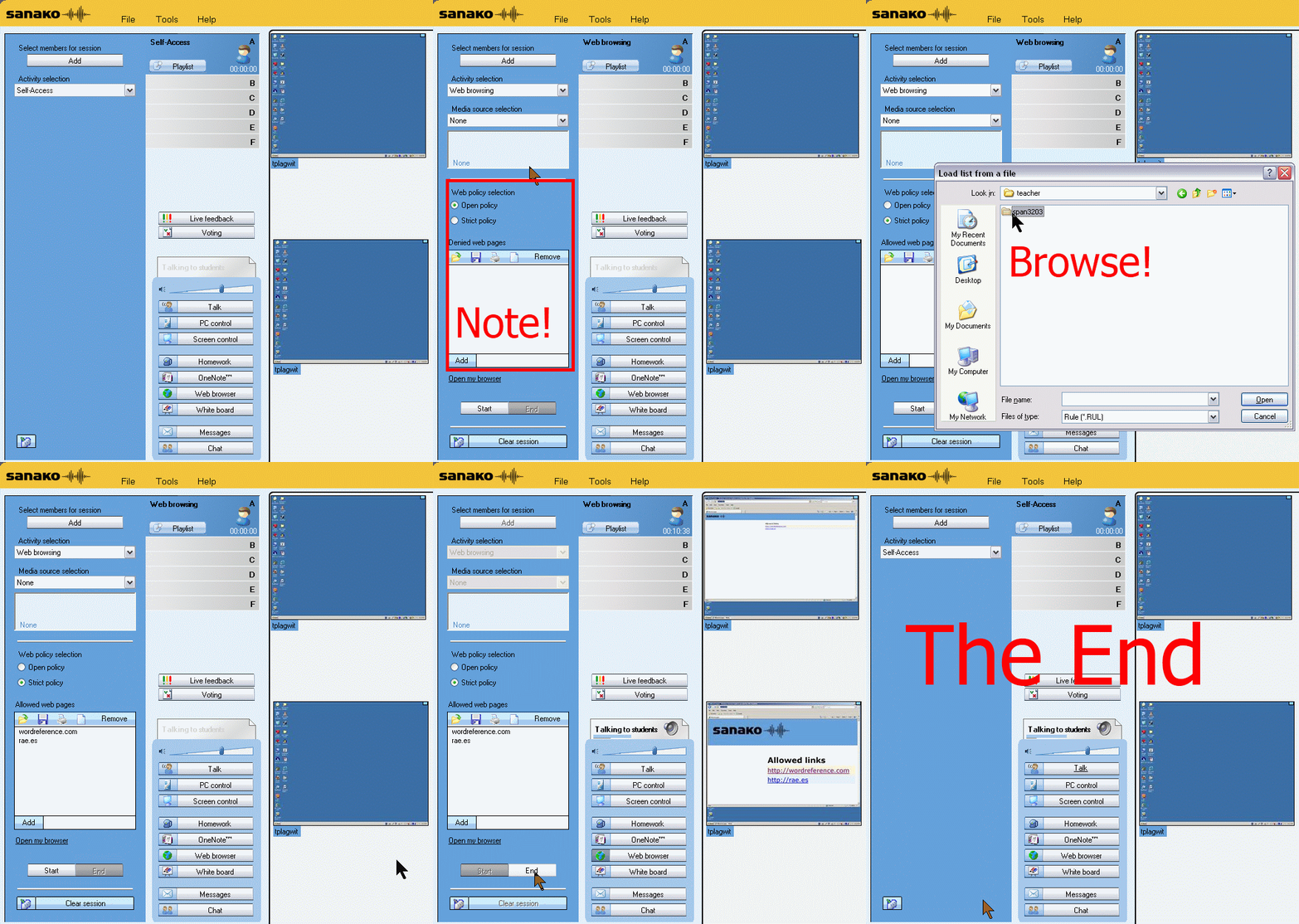
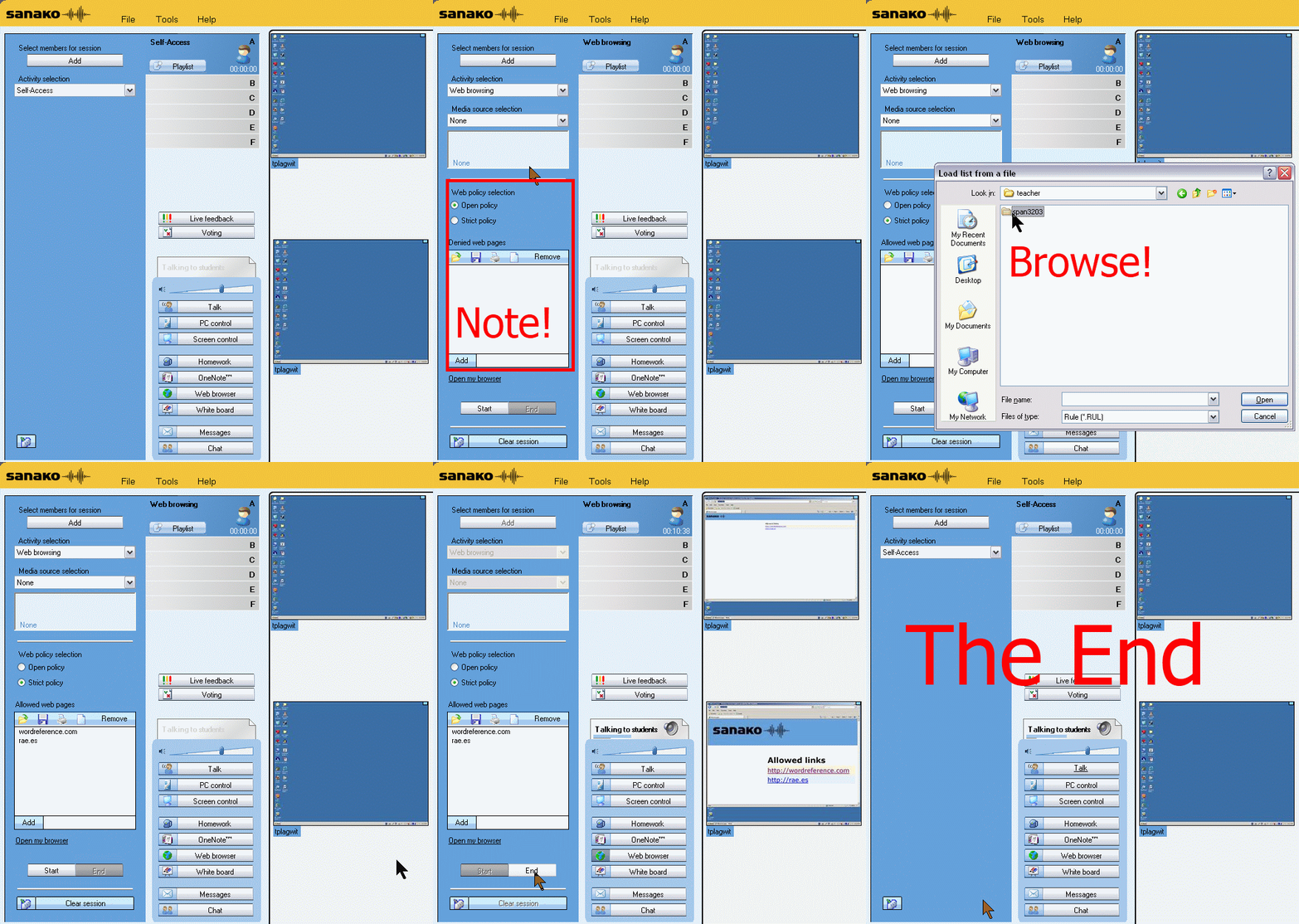
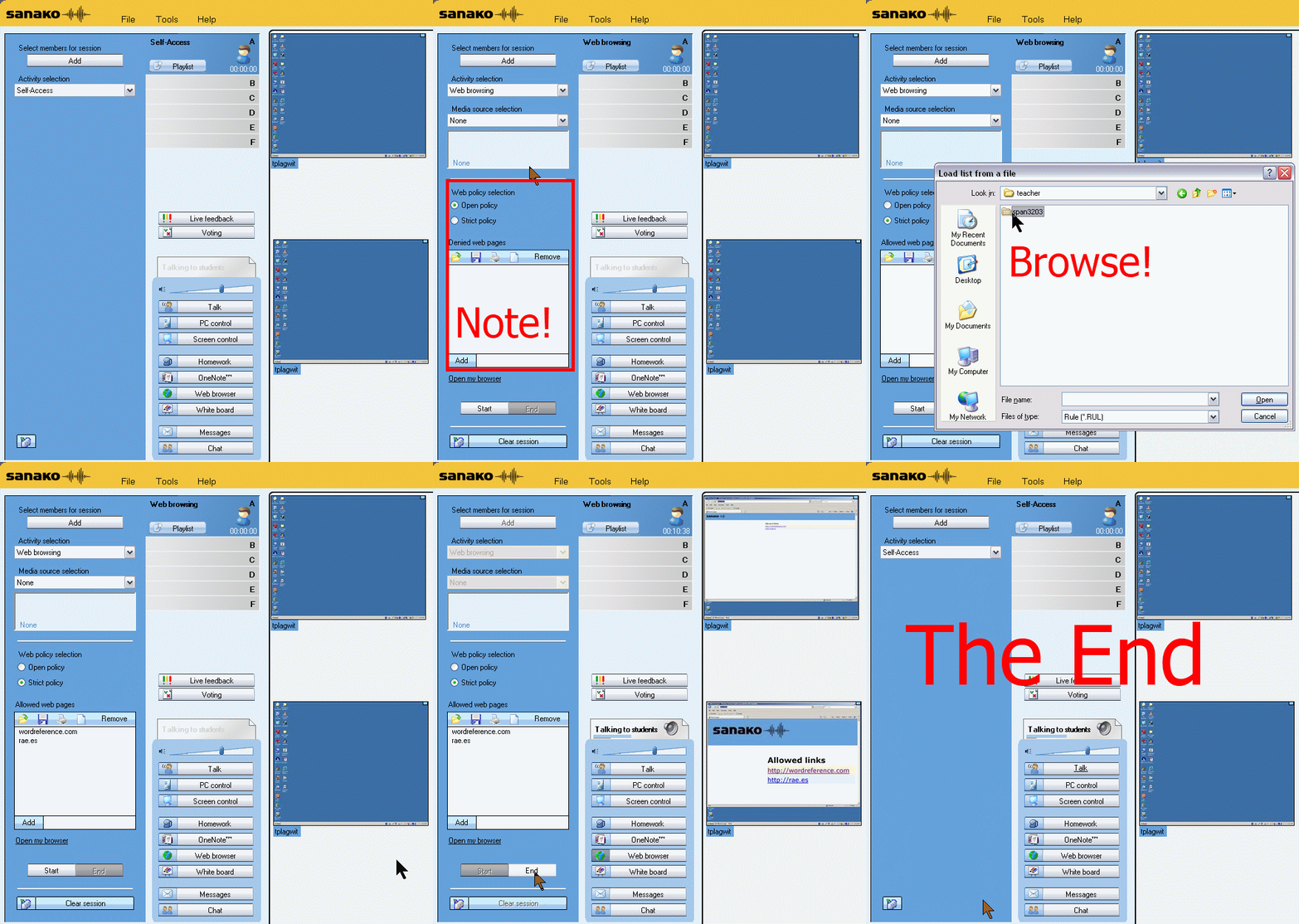
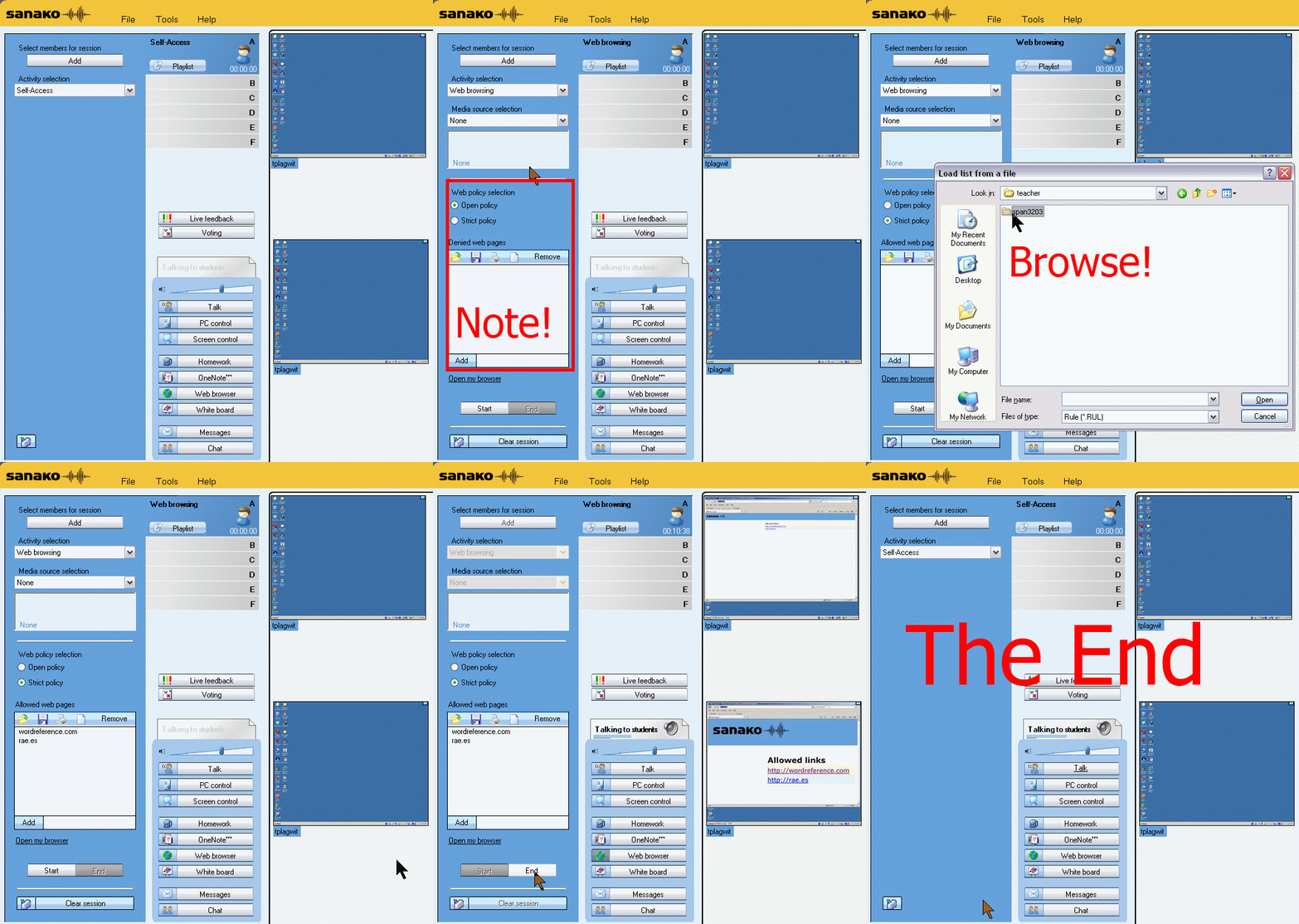
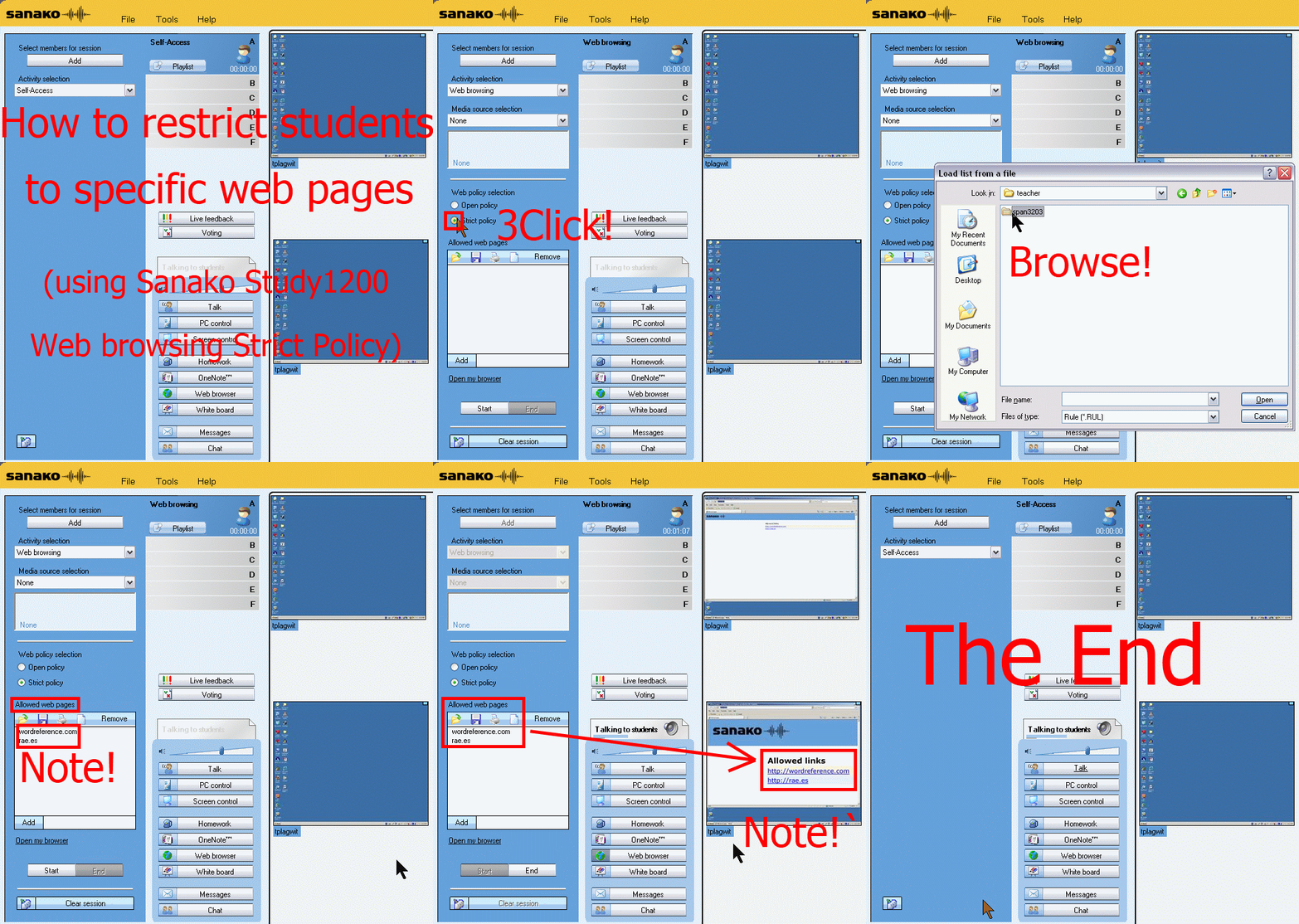
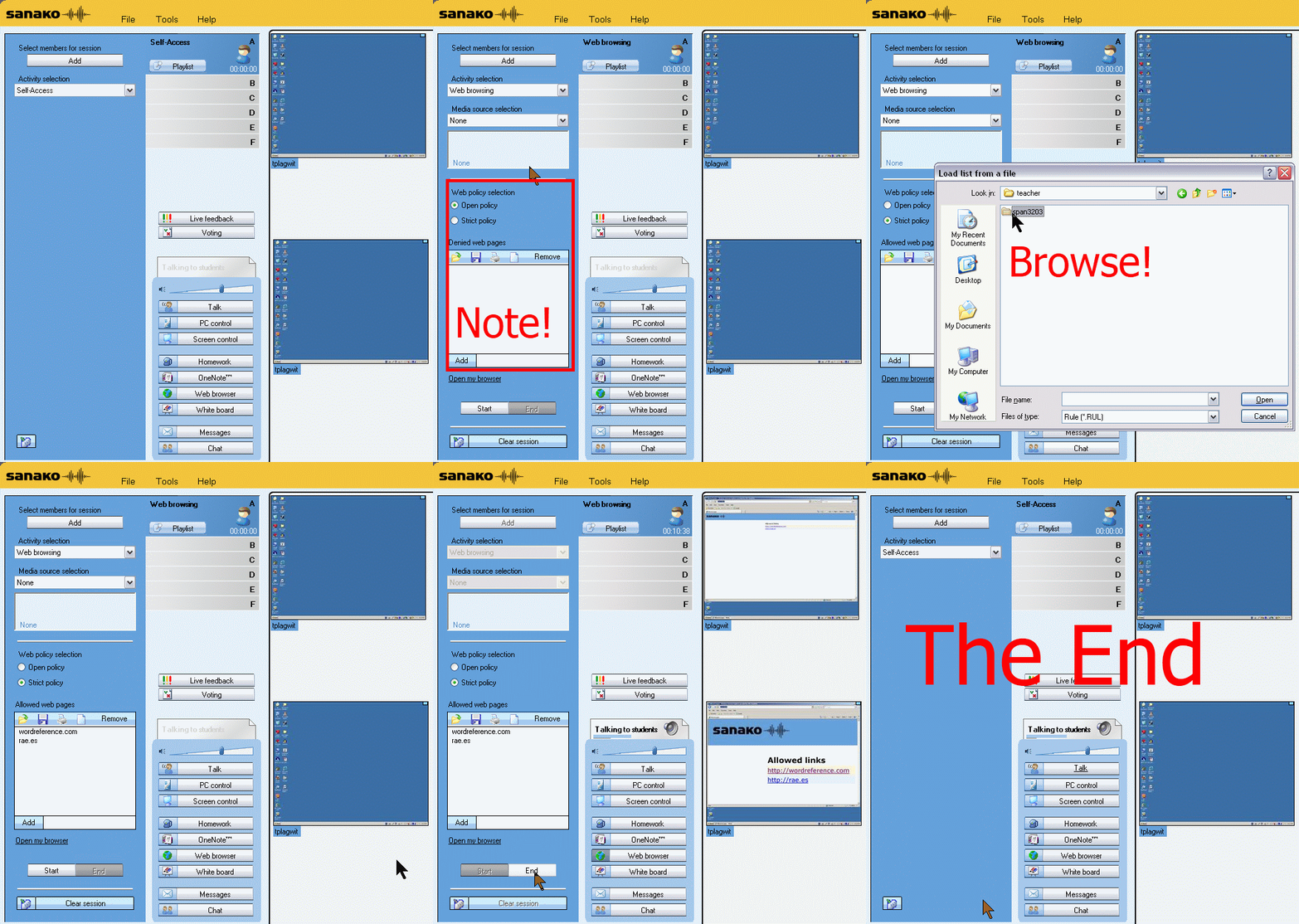
How teachers restrict students to allowed web pages with Sanako Study 1200 web browsing (strict) activity–the ultimate training summary
2012/11/01
Leave a comment
…using animated GIFs. Load the speed of your choosing (or several, use CTRL-Click to open links in a new tab) into the left screen of the teacher station before administering an oral exam, with the window active, press F5 in your web browser to restart the animation from the beginning:0.50sec,0.75sec,1sec,2sec,3sec,4sec,5sec,6sec,7sec,8sec,9sec,10sec
 .
.
Condensed (instructions only) for recap: 100cs, 200cs, 300cs, 400cs, 500cs, 600cs, 700cs, 800cs, 900cs, 1000cs. And if you need to pause:


Sanako Study 1200 controlled web browsing–strict policy
2012/04/18
Leave a comment
- View an
 80-seconds screencast showing how a teacher can set up a student activity where students are only allowed to access on web site.
 - In this example, the website is a common dictionary: http://www.dict.cc which the student will be allowed to access during an exam (in lieu of a paper dictionary policy).
- Never mind that the voiceover is partially in German – the video should be self-explanatory. If not, here is a written step-by-step on Sanako controlled webbrowsing.
Sanako Study 1200 student in-class web browsing activity caveats, errors&glitches
2012/03/01
Leave a comment
- If we put the full URI of the website (e.g. http://www.dict.cc), we experience the student web browser not opening up (either hanging at "verifying access" dialogue or empty browser window and definitely no table of contents browser window). Workaround: put just e.g. http://www.dict.cc.
- CAVEAT: make sure you actually know which sub-pages will be loaded (and thus need to be allowable) during your web browsing activity
- the address-bar is misleading when a your pages are loaded within a frameset. like in this example:
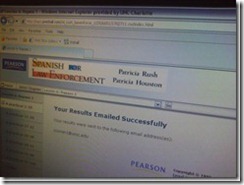 . In this example, allow all links in the left menu.
 - your list of allowable pages should cover the entire workflow, including feedback pages that the student may receive
- TBA: it is sufficient for a web page to be allowed/blocked if its URL string contains your listed URL as a substring
- the address-bar is misleading when a your pages are loaded within a frameset. like in this example:
- We have observed `the following issues:
- that the sanako web browser may hang, on startup or later, but a common workaround is closing a hanging sanako web browser which will reopen it on the table of contents page.
- that the “verifying access rights” window can disappear quickly, but may delay web browsing for a considerable time before your students are allowed to browse to a web page – please allow time for that (we are investigating whether the size of the class or the type of allow/deny list or individual allow/deny links cause this delay).
![sanako-webbrowsing-strict-policy_thumb[1]](https://thomasplagwitz.com/wp-content/uploads/2012/03/sanako-webbrowsing-strict-policy_thumb1_thumb.jpg?w=244&h=185 "sanako-webbrowsing-strict-policy_thumb[1]")
- that the sanako web browser on some computers (despite them have identical software images?) arbitrarily opening new windows which muddies the waters considerably – and also seems to require more time for the verifying –, but does not make the exercise fail:

![sanako-webbrowsing-strict-policy (1)_thumb[2]](https://thomasplagwitz.com/wp-content/uploads/2012/03/sanako-webbrowsing-strict-policy-1_thumb2_thumb1.jpg?w=600&h=451 "sanako-webbrowsing-strict-policy (1)_thumb[2]")

![sanako-webbrowsing-strict-policy_thumb[1]](https://thomasplagwitz.com/wp-content/uploads/2012/03/sanako-webbrowsing-strict-policy_thumb1.jpg "sanako-webbrowsing-strict-policy_thumb[1]")

![sanako-webbrowsing-strict-policy (1)_thumb[2]](https://thomasplagwitz.com/wp-content/uploads/2012/03/sanako-webbrowsing-strict-policy-1_thumb21.jpg "sanako-webbrowsing-strict-policy (1)_thumb[2]")
Protected: Mock exam for Spanish combines various learning technologies in the LRC
2012/03/01
Enter your password to view comments.
Categories: audience-is-teachers, classroom-management-system, e-languages, iMacs, learning-usage-samples, Listening, Listening-Stations, lms, LRCRoomCoed434, marketing, multimedia-recording, Photos, Practice&Demos, Reading, service-is-assessing, Spanish, Speaking, Vocabulary
kaltura, moodle, sanako-study-1200, web-browsing-activity


Questions? Read the About. Or just ask me a quick Our Databases: Resources with calendars -- Language learning material Moodle Sites, multimedia files -- films


FAQs for LRC student staff or for students or for teachers. To search our FAQs, in the browser addressbar, add after "https://plagwitz.wordpress.com/feed/?tag=faqs+/" "+TAG1" (from tag cloud below) OR "https://plagwitz.wordpress.com/feed/tag=faqs
&category_name=" "CAT1" (from category hierarchy below). OR search both categories and tags, and multiple TAGs/CATs (connect with "," for OR-search, with "+" for AND-search), like so: https://plagwitz.wordpress.com/feed/?tag=TAG1+TAG2+...TAGn&category_name=CAT1
+CAT2+...CATn"
Other ways to find help
If you cannot find it here, look there: 5,500 Language-Learning Links and Programs for learning or teaching 150 languages
Shortcuts:Our Lists, Our Maps, LRC Staff Moodle Site,LRC Project Moodle Site, 49erexpress, UNCC Moodle, Student Recordings: s:claslcslrcsanakostudent
Learning usage samples: Sanako oral exam, Kaltura webcam presentation, Dictation with speech recognition, Sanako written exam, Chinese and Japanese interactive stroke-order practice
Test the Sanako Installer, Webbrowser Popup Konfigurator for XP, or Windows7, faster LRC TeacherPC Log-in Let MS facilitate diacritics writing by installing for you US-International keyboard layout
This is my personal blog (Google+). The views expressed on these pages are mine alone and not those of my employer. The information in this weblog is provided “AS IS” with no warranties, and confers no rights.
 Thomas' Work Space