Archive
Posts Tagged ‘sanako-study-1200’
Face-to-face-teaching exam using Sanako Study 1200
2012/03/01
Leave a comment
- Sanako Exam is an add-on at additional cost and not currently available in our setup.
- Sanako Exam teacher-created content is stored locally, file management beyond that is up to the user. This makes such polls less portable, but potentially sharing within a department might be easier.
- Student Results can be identified by student, and saved.
 View here a screencast demo of how a Sanako Exam can be
- authored and
- deployed.
Live Feedback and Voting for clicker-like activities in Sanako Study 1200
2012/02/29
Leave a comment
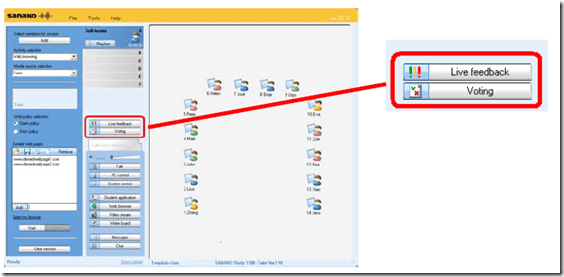 (Images are from the Sanako documentation, screencasts my own) .
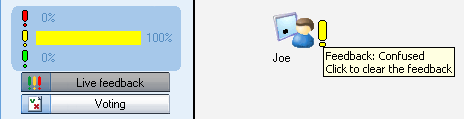
- Sanako Study 1200 comes with Live Feedback.
- This is what it looks like:
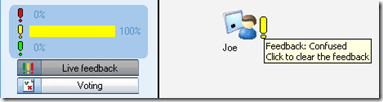
- The teacher enables students to give Live Feedback from their student player interface by pressing the Live Feedback button.
- Live Feedback is designed for students sending basic information whether they are following or confused or neutral.
- These up to 3 answer options could possibly be repurposed, and the question displayed by separate means. Polls can only be anonymous, results cannot be saved.
- More importantly, the results are not anonymous, but appear on the student icons in the classroom layout so that the teacher can attend to those students that are confused or otherwise struggling.
- This is what it looks like:
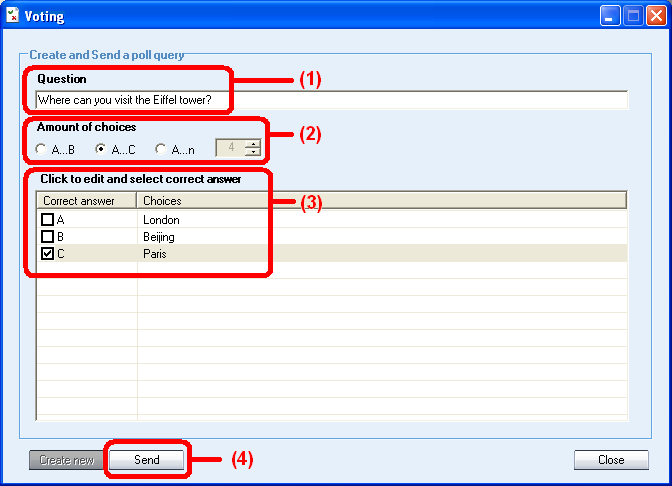
- Sanako Study 1200 also comes with Voting.
- A brief demo screencast of Voting is here:

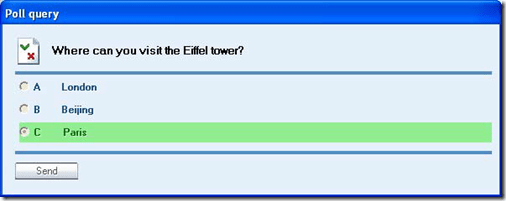
- The teacher enables students to give Voting from their student player interface by pressing the Voting button, entering questions, answer options, optionally marking one (and only one) answer as the right answer and clicking “send’ to the students,

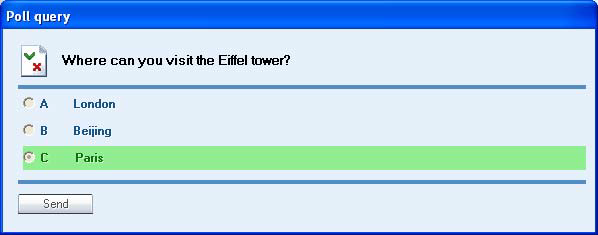
- on whose computer a window with will pop up with question and answer option
- while the feedback voting results window pops up on the teacher from where the teacher can “send the correct answer” to the students once everybody has voted, and “create new” polls.
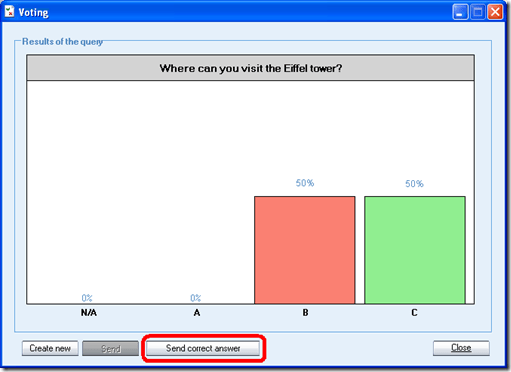
- Results can be viewed by the teacher and displayed to the class, but cannot be stored (there is no storing mechanism. One could however save a screenshot of the teacher voting result window).
- The Voting is also “live” insofar as no content can be archived and reloaded. Maybe this Live Voting can be both accelerated and extended through the use of a simple PowerPoint displayed on the classroom screen, by just using live Voting’s result aggregation features and forfeiting filling out/displaying the question and answer options within the live voting interface for the teacher/students.
- A brief demo screencast of Voting is here:
- Not free, but less limited: Sanako Exam.


How to restrict student in-class web browsing activity with Sanako Study 1200
2012/02/25
Leave a comment
- In the Group pane, from the Activity dropdown selector, choose web browsing.
- if your students
- do an open-ended web quest, choose radio button: open policy to be able to provide a list of non-allowable websites (e.g. YouTube.com may be useful for your students’ online research activity, but Facebook.com not)
- take a well-defined and –confined assessment like an online quiz, choose radio button: strict policy to be able to provide the list of allowable websites
- either way, put just the site address (e.g. http://www.dict.cc), without the protocol (NOT: http://www.dict.cc), or else…
- the web browsing activity,
- prevents any other browser from being opened by the student but IE
- begins with opening for the student the table of contents page in IE, listing the allowable websites; whenever the students closes the IE, Sanako reopens it on the table of contents page .
- each web activity of your student will be verified against your allow list:
- Note that
- there are some caveats, errors&glitches.
- the Respondus Lockdown browser (see screencast at min 18:00) installed in the LRC also can also be used to prevent students from accessing non-web-based programs on the computer they are working on; but can not be restricted to a number of web pages, nor can students receive a Table of Contents of the web pages they are allowed to go to .

How a student uses the Sanako Recorder Voice Insert mode for Moodle comparative recording exercises
2012/01/25
2 comments
- to load a file
- from Moodle:
- Find your assignment with the model audio file, presumably in your Moodle course.
- download the model audio file
- open the Sanako Student Recorder (introduction).
- go to menu: file / open, and open the file you downloaded
- from student recorder playlist: double-click the file.
- from Moodle:
- enable voice insert:
- To activate voice insert (which is a toggle that changes the behavior of the other buttons)
- either go to tools/ voice insert mode
- or click the voice insert button
 (darker shade of brown = OFF; tooltip should say “Toggle Voice Insert OFF”, meaning: it is ON now)
- To activate voice insert (which is a toggle that changes the behavior of the other buttons)
- press the green play button to listen until you reach the point (your teacher may have inserted a pause or aural cue) where you can repeat or respond.
- Then click the red speak-button
 to repeat after/respond to the source/teacher
 - When you are done repeating/responding, press the green play-button.
- At the end, press the blue stop-button.
- Rewind and review your recording (e.g. compare your pronunciation with the teacher’s model).
- When done, click file / save as and save only your, the student track, as mp3 or wma.
- Additional notes:
- TBA: you can overwrite your pronunciation where you deem necessary.
- Fixed in Sanako 7:
you cannot show the voice graph when in Voice insert mode – both are incompatible. - To see in action how to record with voice insert and save the student track, view
- The previous is just a step-by-step for our environment based on the Sanako Study 1200 documentation which follows here:


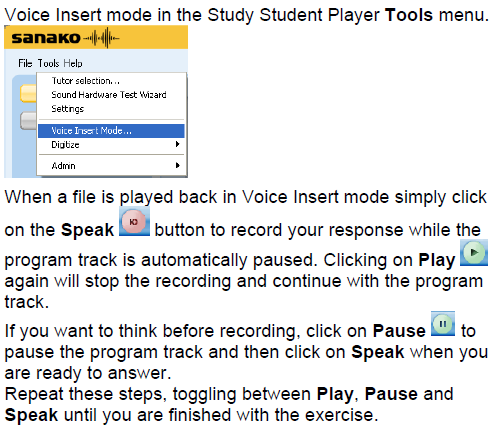
How a teacher creates audio recordings for use with Sanako Student Voice Insert mode
2012/01/24
Leave a comment
- One of the Sanako Student player’s useful features geared toward language learning activities, is that it can save the teacher the time and effort for inserting pauses into their audio recordings, so that students can record responses into them.
- Meaning the teacher can just press the red speak button
 and record through the entire file in one sitting.
 - The teacher can still help students finding their way around the file, especially where to insert their own audio recording responses, by adding aural cues.
- This can be done in minimal time: I once saw a teacher use a bicycle bell – and why not, if it saves time.
- A spoken instruction “Respond”/”Answer in 10 seconds” is not more difficult to spot (unless only the voice graph is being browsed) and might be even better.
- If you have spare time:
- You can post-edit the file with audacity, generating and inserting sinus tones.
- You can use the Sanako player to insert bookmarks instead of cues.
- Meaning the teacher can just press the red speak button
- As long as students have been instructed to how to use voice insert recording mode with the Sanako student recorder.
- This is for self access of students to teacher recorded files – be it during class or homework.
- If you want to record students under exam conditions, a similar insert recording feature is available within the activity: Model imitation, but not with a pre-recorded file, only when the live teacher is the program source students listen to for cues.

Categories: Arabic, audience-is-teachers, documentation, English, Farsi, French, German, Greek (modern), Hindi, Italian, Japanese, Korean, Listening, Mandarin, Polish, Portuguese, presenter-computer, Russian, service-is-learning-materials-creation, software, Spanish, Speaking, Student-Computers, Swahili, Yoruba
audio, recording, sanako-study-1200, student.exe, voice-insert
Sanako comparative recording exercises using Moodle
2012/01/13
Leave a comment
- Comparative recordings are one of the best-established practices in SLA with technology. We can implement them here using:
- The Sanako Study 1200 language lab software installed in LRCRoomCoed434 facilitates comparative recordings by students, based on a teacher-provided model audio, with its student dual track recorder software.
- Moodle’s Simple file upload assignment aids in managing the workflow,
- from delivering the audio file with the model recording to the student
- to organizing, assessing and grading the student input.
- For the teacher
- to create such an exercise, she
- creates an audio recording that serves as a model for the student pronunciation – a special application of our Audacity recording introduction. It is advised, however, to insert clear cues for the student to start his repetition.
- creates a Moodle’s Simple file upload assignment to which she attaches the audio recording
- continue with How a teacher grades a Moodle simple file upload assignment
- to create such an exercise, she
-
For the students to take such an exercise:
- How a student takes a Moodle Simple file upload assignment
- TBA: Sanako Student Recorder
Categories: Absolute-Beginner, Arabic, audience-is-teachers, Beginner, documentation, e-languages, English, Farsi, French, German, Greek (modern), Intermediate, Italian, Japanese, Korean, Mandarin, Polish, Portuguese, Russian, software, Spanish, Speaking, Student-Computers, Yoruba
moodle, sanako-study-1200, student.exe
Evaluating Student Writing with Adobe Acrobat Pro
2012/01/09
Leave a comment
- Interesting article on how audio comments (which save grader time) get through through to students better, by an language teaching practitioner in the EDUCAUSE Quarterly Magazine 2011.
- Using simple standard and readily available tools: your version of Adobe Acrobat Professional is ready for your use under Novell Applications.
-
Thinking through the observation that students tend to read only the bottom line grade of a returned paper, and do not even bother looking at the teacher’s comments, and that forcing them to the latter by assigning them to revise their papers is less popular, leads one to the question: what more advanced technology is available to take advantage of the teachable moments when writing? Maybe a blend of automated corrective feedback by natural language processing tools like the MS-Office proofing tools and – for the demise of the advanced real-time online collaboration platform Google Wave – a face-to-face writing tutorial emporium where a tutor monitors the writing progress of many students using screensharing applications of classroom management systems like NetOp School or Sanako Study 1200, like here (in a better resolution than this thumbnail, obviously, but you get the idea):
Categories: grading, Writing
adobe-acrobat, audio, netop-school, sanako-study-1200, screensharing
Screencasts for Fall 2011 Workshop: Computer classroom management in the LRC using Sanako Study 1200
2011/12/08
Leave a comment
- The workshop stayed “this side of the digital audio lab”, i.e. focused on those generic teaching tasks that the Sanako Study 1200 can facilitate which have the widest teaching application (including in, but also beyond language-skill-courses):
- remote controlling student computers,
- screen sharing, collaborating with students,
- launching applications on students computers,
- sending students to webpages,
- launching handout files to students and collecting their input back
- locking their computers, screens or keyboards,
- “clicker” classroom polls, for which I have written a PowerPoint Template you can base your own clicker-like face-to-face class exercises on.
- and more…
- Here are two screencasts of my presentation:
- one for the right screen/participant screen (using the Study1200 teacher to student screen casting). Requires Windows Media Player on PC, like in the LRC: download from MS-SkyDrive.
- one for the left screen/projector, where I displayed mostly a PowerPoint. You can watch this in parallel using another player, e.g. the VLC player, like in the LRC. However, it can also stream from MS-SkyDrive.


Questions? Read the About. Or just ask me a quick Our Databases: Resources with calendars -- Language learning material Moodle Sites, multimedia files -- films


FAQs for LRC student staff or for students or for teachers. To search our FAQs, in the browser addressbar, add after "https://plagwitz.wordpress.com/feed/?tag=faqs+/" "+TAG1" (from tag cloud below) OR "https://plagwitz.wordpress.com/feed/tag=faqs
&category_name=" "CAT1" (from category hierarchy below). OR search both categories and tags, and multiple TAGs/CATs (connect with "," for OR-search, with "+" for AND-search), like so: https://plagwitz.wordpress.com/feed/?tag=TAG1+TAG2+...TAGn&category_name=CAT1
+CAT2+...CATn"
Other ways to find help
If you cannot find it here, look there: 5,500 Language-Learning Links and Programs for learning or teaching 150 languages
Shortcuts:Our Lists, Our Maps, LRC Staff Moodle Site,LRC Project Moodle Site, 49erexpress, UNCC Moodle, Student Recordings: s:claslcslrcsanakostudent
Learning usage samples: Sanako oral exam, Kaltura webcam presentation, Dictation with speech recognition, Sanako written exam, Chinese and Japanese interactive stroke-order practice
Test the Sanako Installer, Webbrowser Popup Konfigurator for XP, or Windows7, faster LRC TeacherPC Log-in Let MS facilitate diacritics writing by installing for you US-International keyboard layout
This is my personal blog (Google+). The views expressed on these pages are mine alone and not those of my employer. The information in this weblog is provided “AS IS” with no warranties, and confers no rights.

