Archive
How to take roll in class using Sanako Study 1200
- Today:
- I had to work on getting my Sanako classroom layouts back up after a network cutover on the first day of the academic year.
- I could observe a teacher new to the Sanako lab taking roll on paper, reading out each student’s name and finding the student in the classroom . This is a known good way to learn to put a face to a students’ name. Once that is done (and maybe could be done also faster using student thumbnails in university computer systems like the LMS), one can save teaching time taking roll doing the following :
- At the beginning of each of your class meetings:
- You cannot start a sanako class before your students have logged in and their sanako student clients have started up – that is the first I always ask my students to do.
- In the initial Sanako tutor startup dialogue, open an empty class.
- Wait for the “corridor” to be fully populated, then select all.
- Have the sanako tutor populate the classroom layout.
- Choose menu file / save classroom layout as, and save in your tutor folder with the date as the filename.
- (Load your familiar class layout to actually begin your class – this will take little extra time, for Sanako tutor does not need to wait again for the Sanako student clients to start up).
- After the last day of classes:
- load each saved file into MS-Excel (as an XML table),
- first column will be class date, hide all columns in between that and your student login name,
- select and copy these 2 columns into an attendance spreadsheet (if you find a way to strip the xml wrapper, you can merge the files on the command line – after all, the classroom layout files are just plain text),
- in the attendance spreadsheet, calculate attendance
- either sort first by date, then by login name, and count attendance manually using the dates;
- or have Excel count for you with an array formula pasted into a third column that checks for and counts identical dates.
- Final thoughts: Your mileage may vary if you don’t teach all your classes in a Sanako lab – I used to and have come to appreciate an institutionally provided and maintained lab infrastructure which is stable – compared with complaints I have heard about having to rely on your students not forgetting their clickers if you want to use technology rather than class time for taking roll outside of a stable infrastructure.
Source code samples
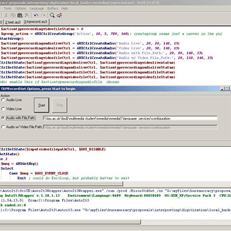 |
source code
|
|||
 |
 |
 |
 |
 |
 |
 |
|||
Summer 2012 Learning materials creation clinic for preparing oral assessments/assignments
1. I am holding a “Clinic”, open to anybody who needs help with preparing their classes using oral assessments/assignments in the LRC this fall term – RVSP if interested.
2. This clinic focuses on material creation for delivery in upcoming specific courses – based on, but different from my faculty workshops on this topics, If you have not attended, please view the below links for what was covered in the workshops
a. https://thomasplagwitz.com/2011/08/18/sanako-study-1200-workshop-spring-2011/
Specifically:
1. Materials creation
- with SANAKO
i. make teacher audio recording for model-imitation/question-response oral exam: https://thomasplagwitz.com/2012/01/25/how-a-teacher-best-adds-cues-and-pauses-to-an-mp3-recording-with-audacity-to-create-student-language-exercises/
ii. Make teacher recording (https://thomasplagwitz.com/2012/01/11/recording-with-audacity/) for model imitation with voice insert (like reading practice homework assignment, https://thomasplagwitz.com/2012/01/24/how-a-teacher-creates-audio-recordings-for-use-with-sanako-student-voice-insert-mode/ ):
- with Moodle
i. Moodle Kaltura webcam recording assignment: https://thomasplagwitz.com/2011/11/02/how-to-grade-a-moodle-straming-video-assignment-and-moodle-streaming-video-recording-assignment-glitch-2/
ii. Prepare Moodle metacourses learning materials upload: https://thomasplagwitz.com/2011/06/17/moodle-metacourses-part-iv-the-support-workflow-uploading/ and https://thomasplagwitz.com/2011/01/26/moodle-batch-upload-learning-materials-give-students-access/
- with PowerPoint (visual speaking cues with timers): https://thomasplagwitz.com/2009/11/18/create-a-powerpoint-slide-with-a-timer-from-template-for-a-timed-audio-recording-exercise/
- Materials delivery with SANAKO
- remote control student pcs, collaborate over headphones: https://thomasplagwitz.com/2012/05/04/how-you-can-view-the-computer-screens-of-your-class-using-sanako-study-1200/
- pairing students’ audio using headphones: https://thomasplagwitz.com/2011/05/11/study-1200-pairing/
- You must bring some assessment ideas that fit into your skills course which we will turn into audio recordings. You can also bring prerecorded audio files from textbooks as mp3 which we can edit to turn them into materials. If you would like some examples of what colleagues have done
- With Moodle Kaltura: https://thomasplagwitz.com/feed/?category_name=learning-usage-samples&tag=kaltura
- With Sanako oral (formative) assessments/(outcome) exams: please email me, I make accessible to you samples that we do not publish to preserve exam integrity.
Making audio cues for model imitation/question-response oral exams with Sanako Study 1200
We can easily record and post-process audio files in the LRC for use with the Sanako Study 1200 oral exam activities.
This can work not only for outcome exams (course- or chapter-wise), but also or formative assessment:
Think converting your textbook-based “drills” into Sanako, like repetitively recapitulating the newly acquired vocabulary item “donut” with different cues:
Example: “What can you do with [student can enter her favorite new vocabulary item for the current class] on [teacher can ask for one social web service after the other that her students likely are familiar with]?”. In response, student has to practice vocabularry item by forming sentences that fit the vocabulary item that fit like in the whiteboard example.
We can add to these recordings the features explained in the slide below.
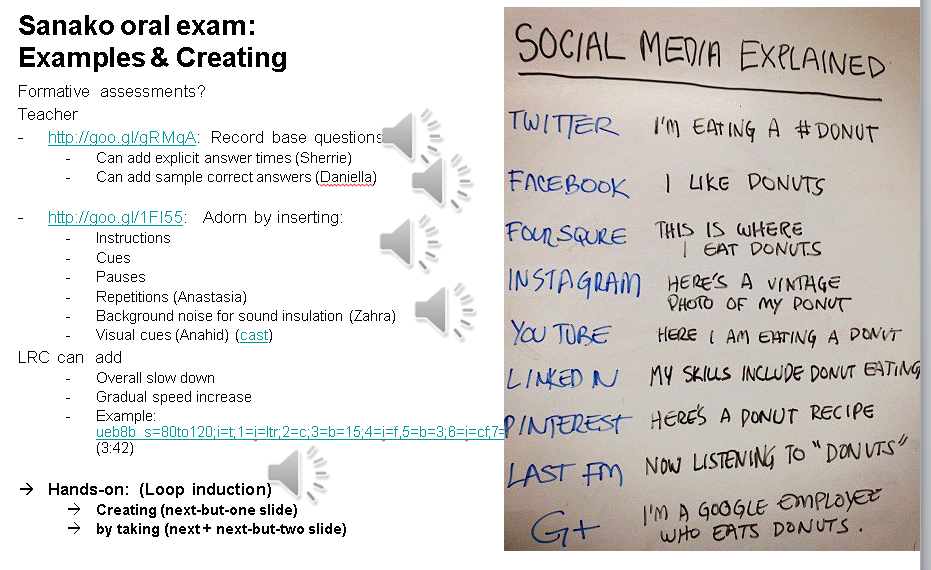
I’d be happy to play you examples from this slide – and more – in the LRC (not to be published here so that the exam files can be reused).
AP Exams in the LRC with Sanako Study 1200
You first need to enable AP examinations in the Sanako Study 1200 settings (not enabled by default). 
Only then you can follow the instructions from the Sanako documentation: “The AP® Exam is an exam type that is used in the highschool level by the Advanced Placement Program in the United States. With Study 1200 you can also accomplish externally-certified AP® oral exams and the Study 1200 student application provides a quick, easy and efficient exam vehicle. Before initiating the actual test, the students give their exam number code. To start the entering mode for the students’ PIN codes, click Send ID requests. The students enter their exam PIN code in the dialog that appears on their screens. The PIN codes appear on your GUI’s class view under each student icon. To initiate the exam, click Start. The media source is connected to the students, and the students are automatically recorded. The students hear all further instructions and the exam questions from the exam source and proceed with the exam as instructed. To end the exam, click End. The student recording collection window opens automatically and you can collect the student tracks for later evaluation.”


Questions? Read the About. Or just ask me a quick
Thank you for your response. ✨

FAQs for LRC student staff or for students or for teachers. To search our FAQs, in the browser addressbar, add after "https://plagwitz.wordpress.com/feed/?tag=faqs+/" "+TAG1" (from tag cloud below) OR "https://plagwitz.wordpress.com/feed/tag=faqs
&category_name=" "CAT1" (from category hierarchy below). OR search both categories and tags, and multiple TAGs/CATs (connect with "," for OR-search, with "+" for AND-search), like so: https://plagwitz.wordpress.com/feed/?tag=TAG1+TAG2+...TAGn&category_name=CAT1
+CAT2+...CATn"
Other ways to find help
If you cannot find it here, look there: 5,500 Language-Learning Links and Programs for learning or teaching 150 languages
Shortcuts:Our Lists, Our Maps, LRC Staff Moodle Site,LRC Project Moodle Site, 49erexpress, UNCC Moodle, Student Recordings: s:claslcslrcsanakostudent
Learning usage samples: Sanako oral exam, Kaltura webcam presentation, Dictation with speech recognition, Sanako written exam, Chinese and Japanese interactive stroke-order practice
Test the Sanako Installer, Webbrowser Popup Konfigurator for XP, or Windows7, faster LRC TeacherPC Log-in Let MS facilitate diacritics writing by installing for you US-International keyboard layout
This is my personal blog (Google+). The views expressed on these pages are mine alone and not those of my employer. The information in this weblog is provided “AS IS” with no warranties, and confers no rights.
 Thomas' Work Space