Archive
Protected: Our assessment results after 1.5 years with Sanako Study 1200
Announcing new MS-Word templates for writing assignments during face-to-face-classes in the LRC
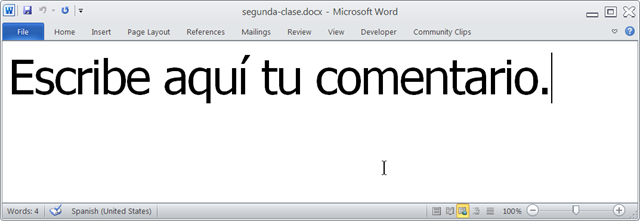
- Benefits
- MS-Word is technology that has become “transparent”for most users:
- Have teachers focus on assignment pedagogy, not authoring technology.
- Have students focus on the target language, not authoring technology.
- Document is protected (for restricting formatting to predefined Word-styles):
- Have students focus on form or content, but not on distracting formatting issues.
- Styles are designed to facilitate teacher monitoring students’ work using Sanako screensharing, like so:
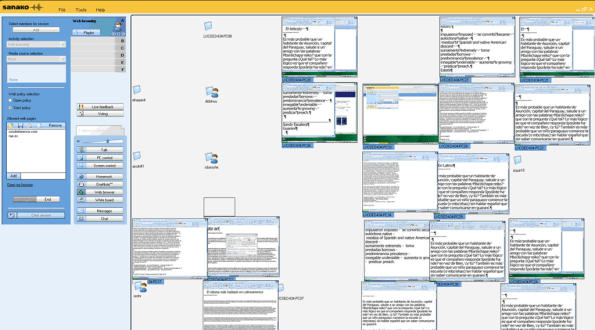
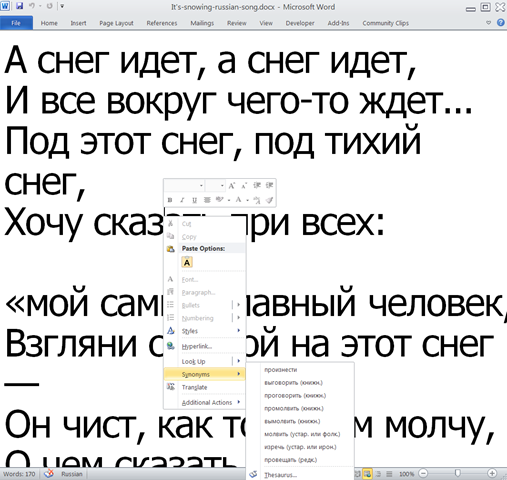
- Take advantage of MS-Office Proofing tools (templates are preset for your target language).
- Take advantage of easy assignment file management with Sanako homework activity.
- Take advantage of internet lookup process, especially pedagogical if you combine with Sanako controlled-web-browsing activity
- MS-Word is technology that has become “transparent”for most users:
- Requirements:
- Teacher
- The easiest is to save the writing template for your language in C:\Program Files\Microsoft Office\Templates\1033 (or if your run 32-bit MS-Word on a 64-bit Windows, C:\Program Files (x86)\Microsoft Office\Templates\1033)
- Then base your writing assignment document on the template (e.g. by double-clicking the template in the folder you saved it to).
- Then save your writing assignment to your class material folder on the Sanako network share (from the office or in the LRC).
- In class, launch the Sanako homework activity.
- Student: none other than downloading and submitting the Sanako homework.

- Teacher
Protected: How teachers find their Sanako materials
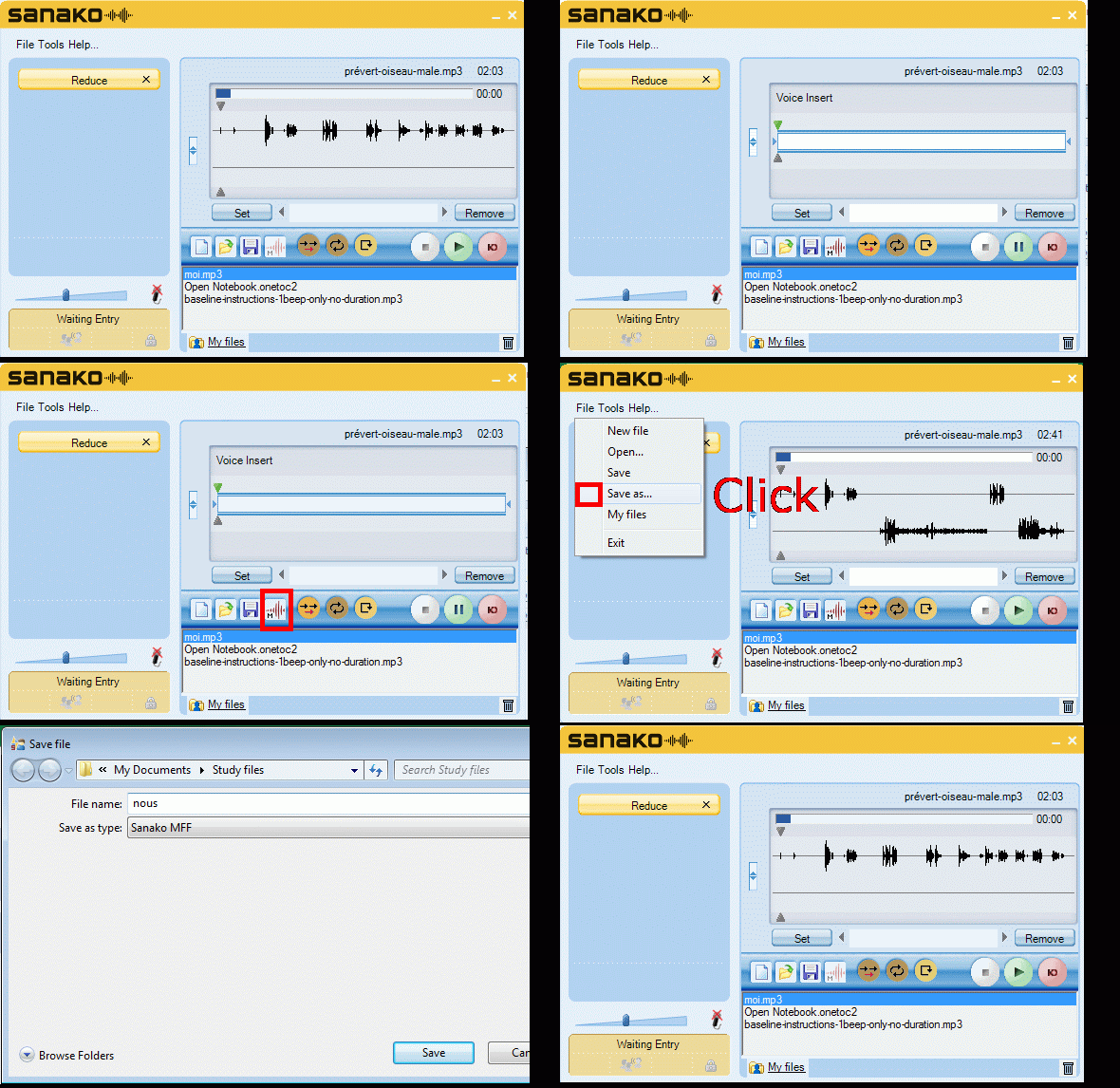
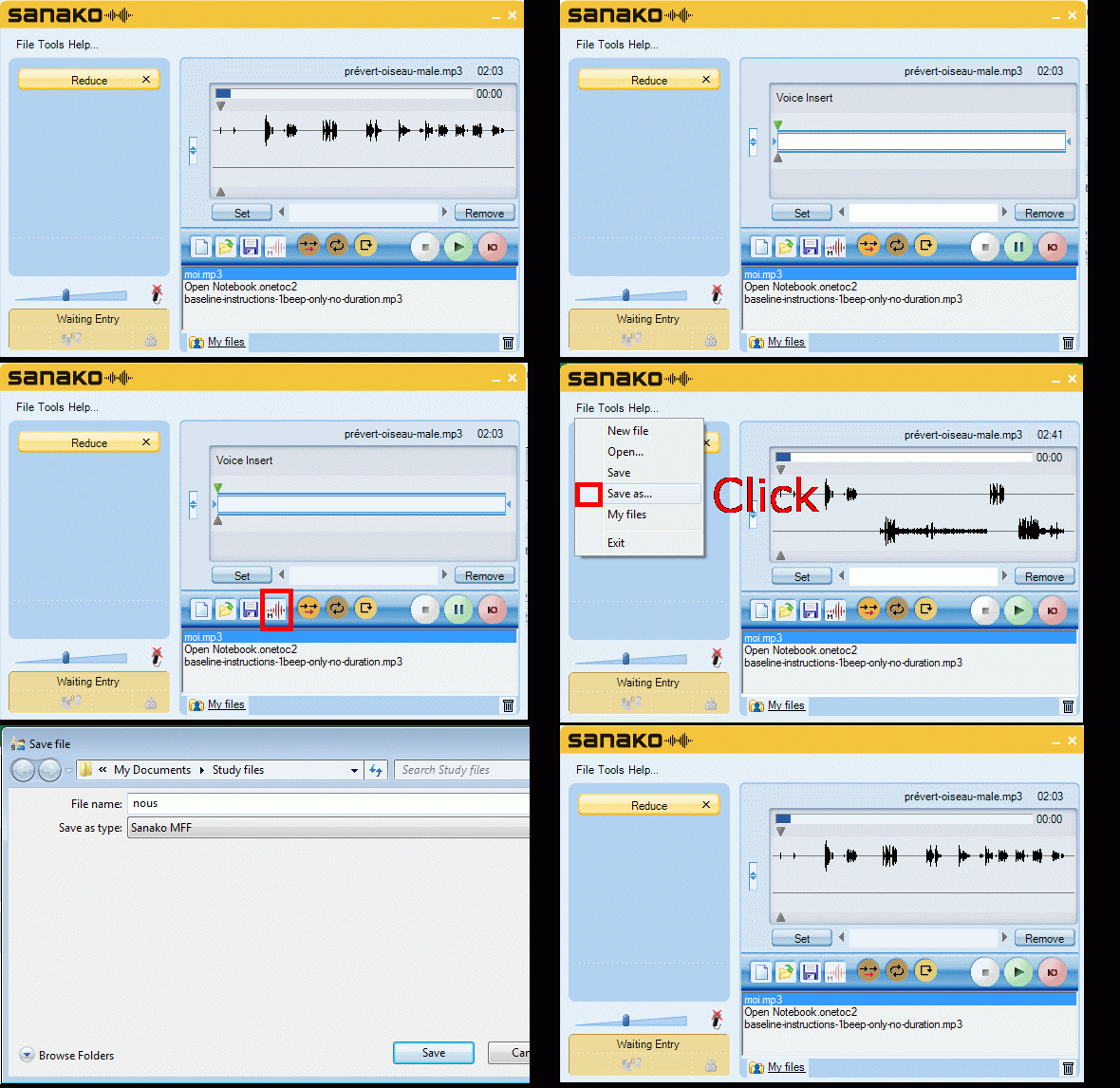
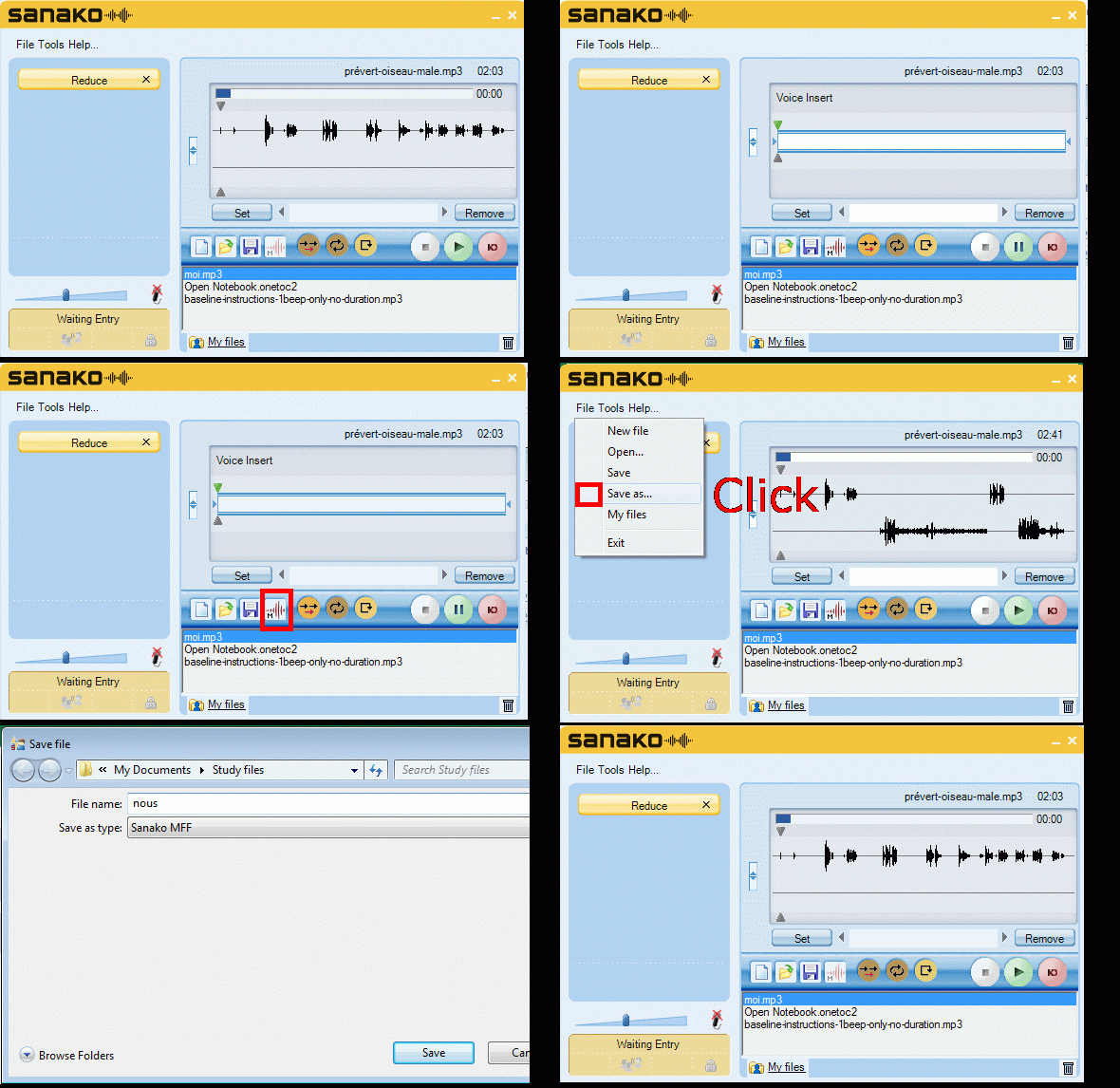
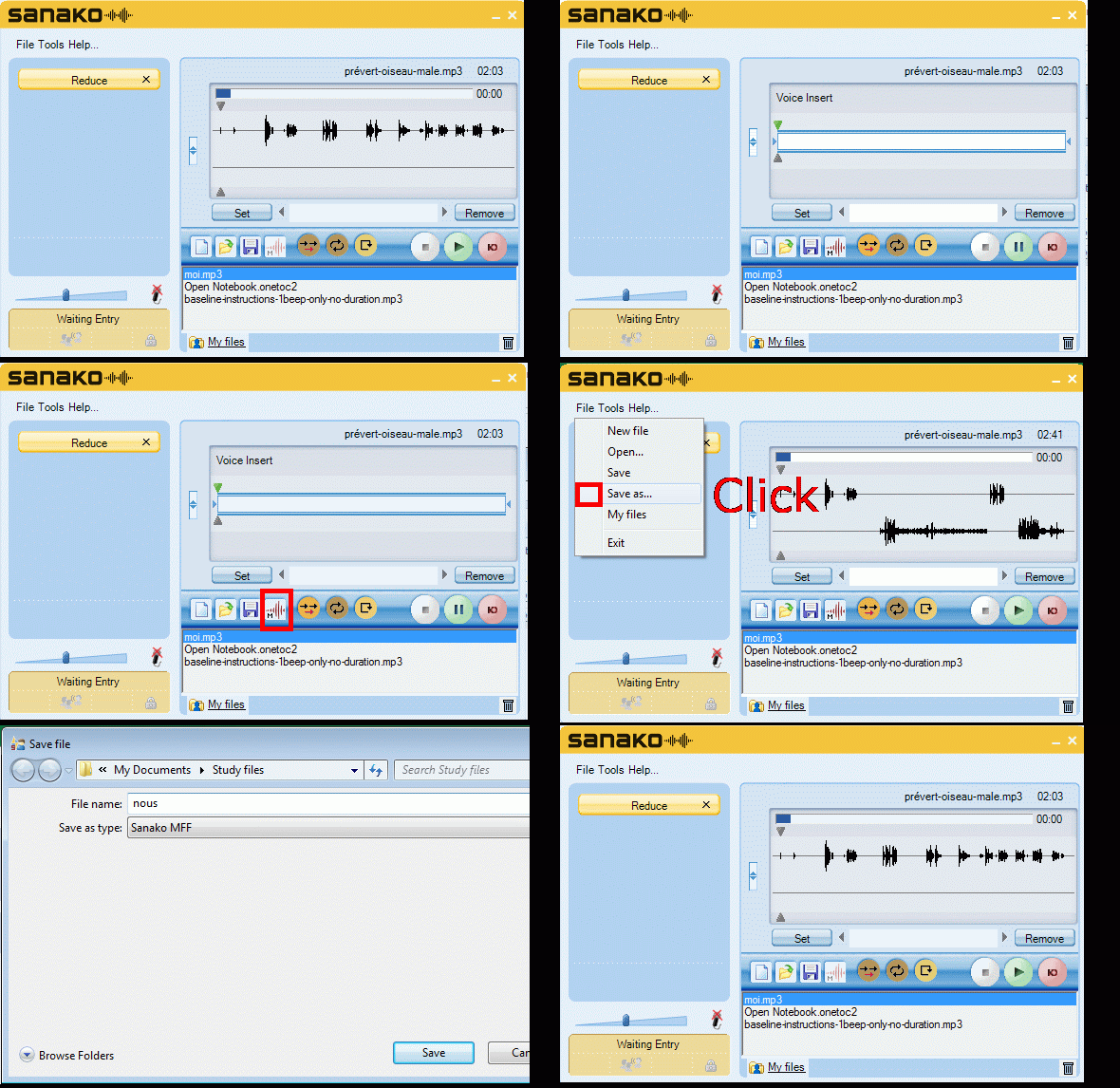
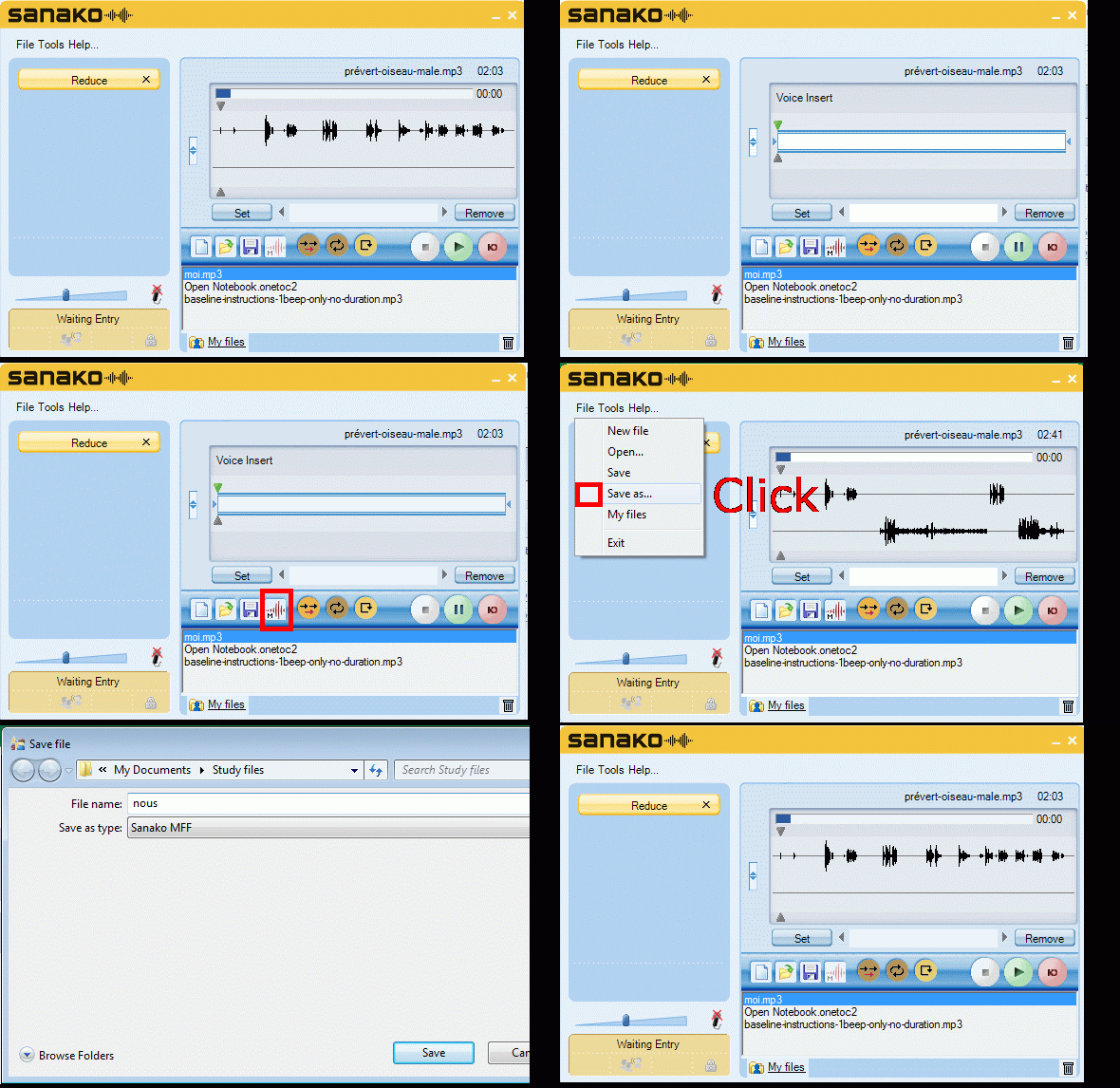
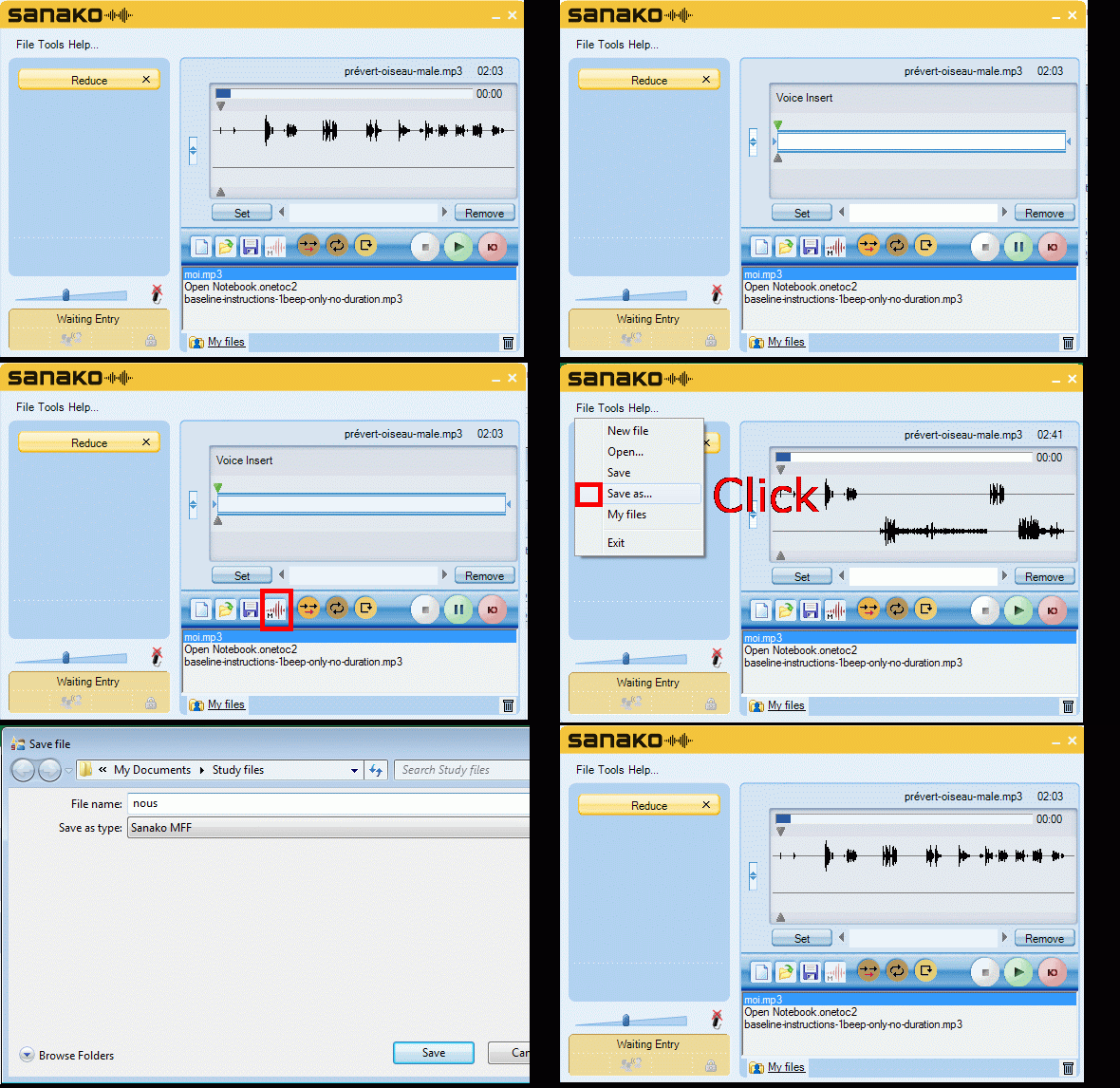
How students can do voice insert recordings with Sanako Study 1200 student recorder – the ultimate training summary…


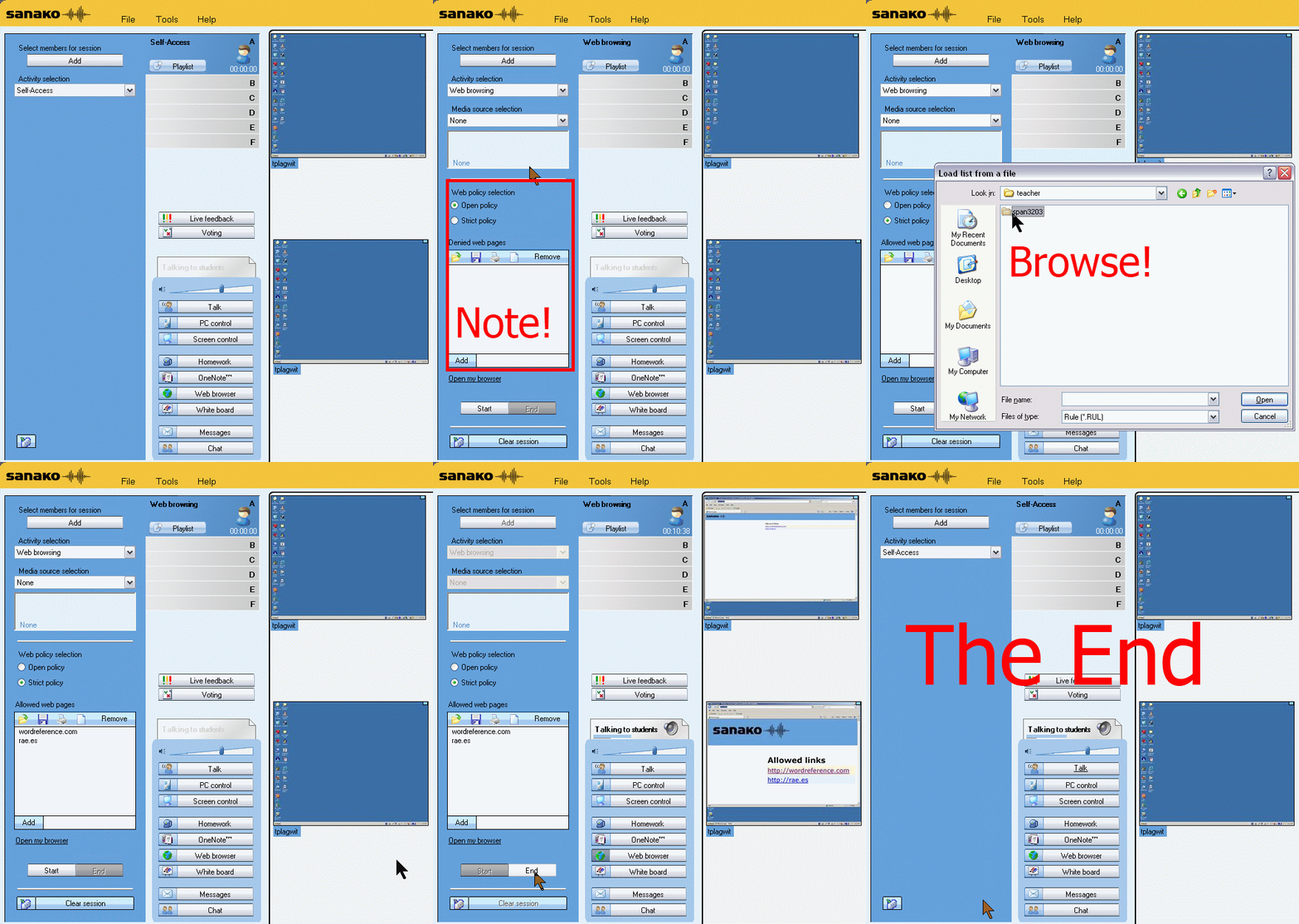
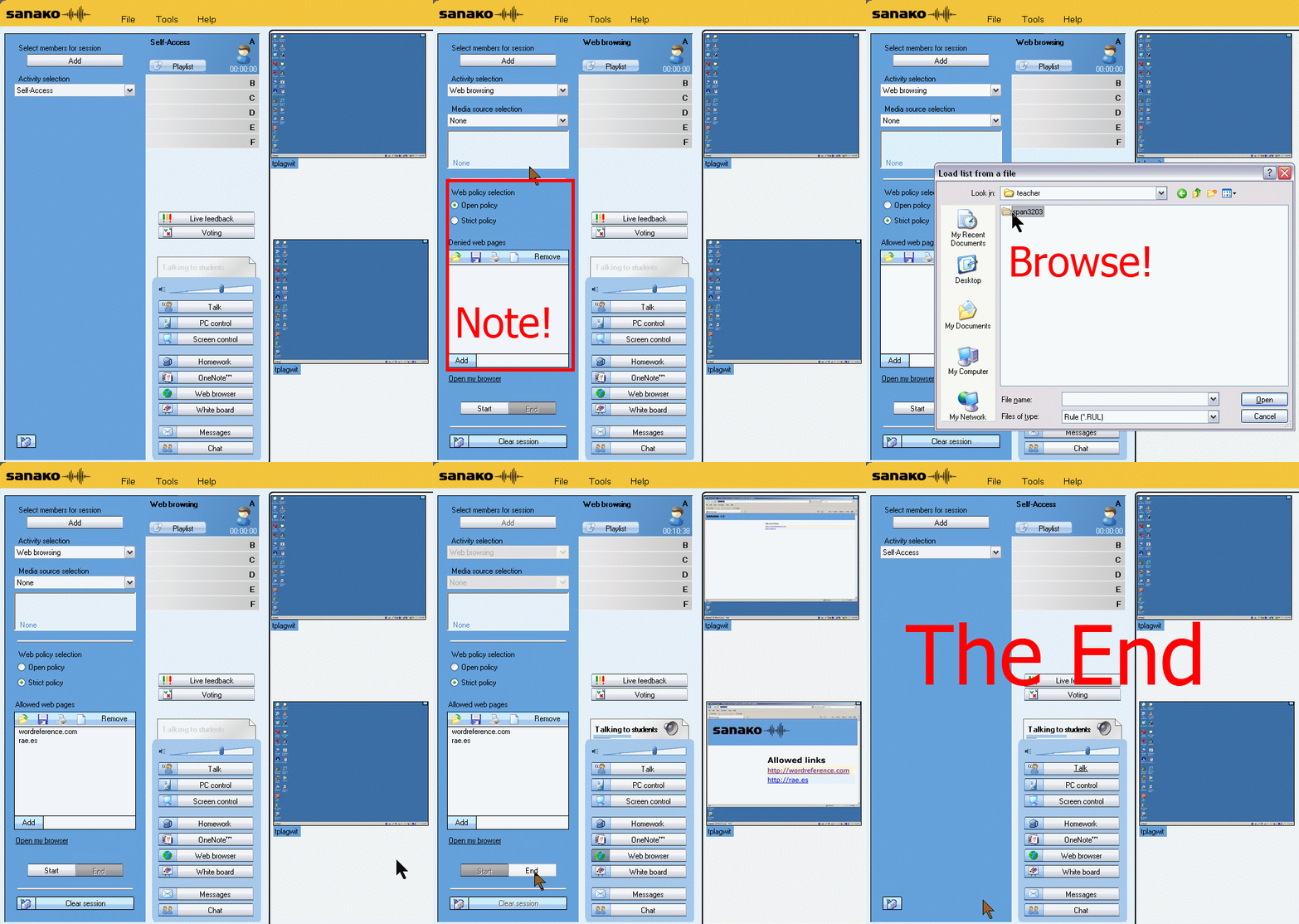
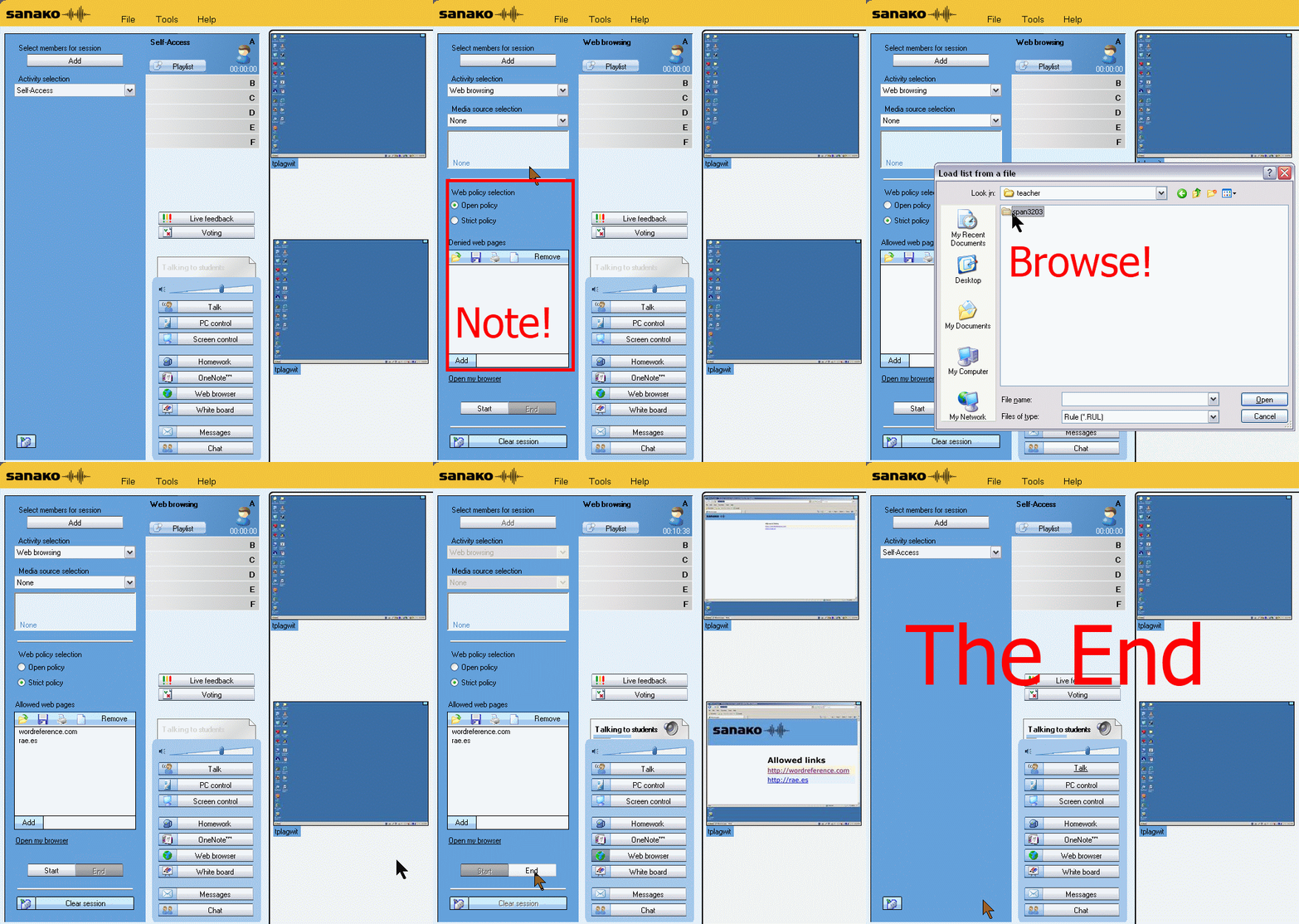
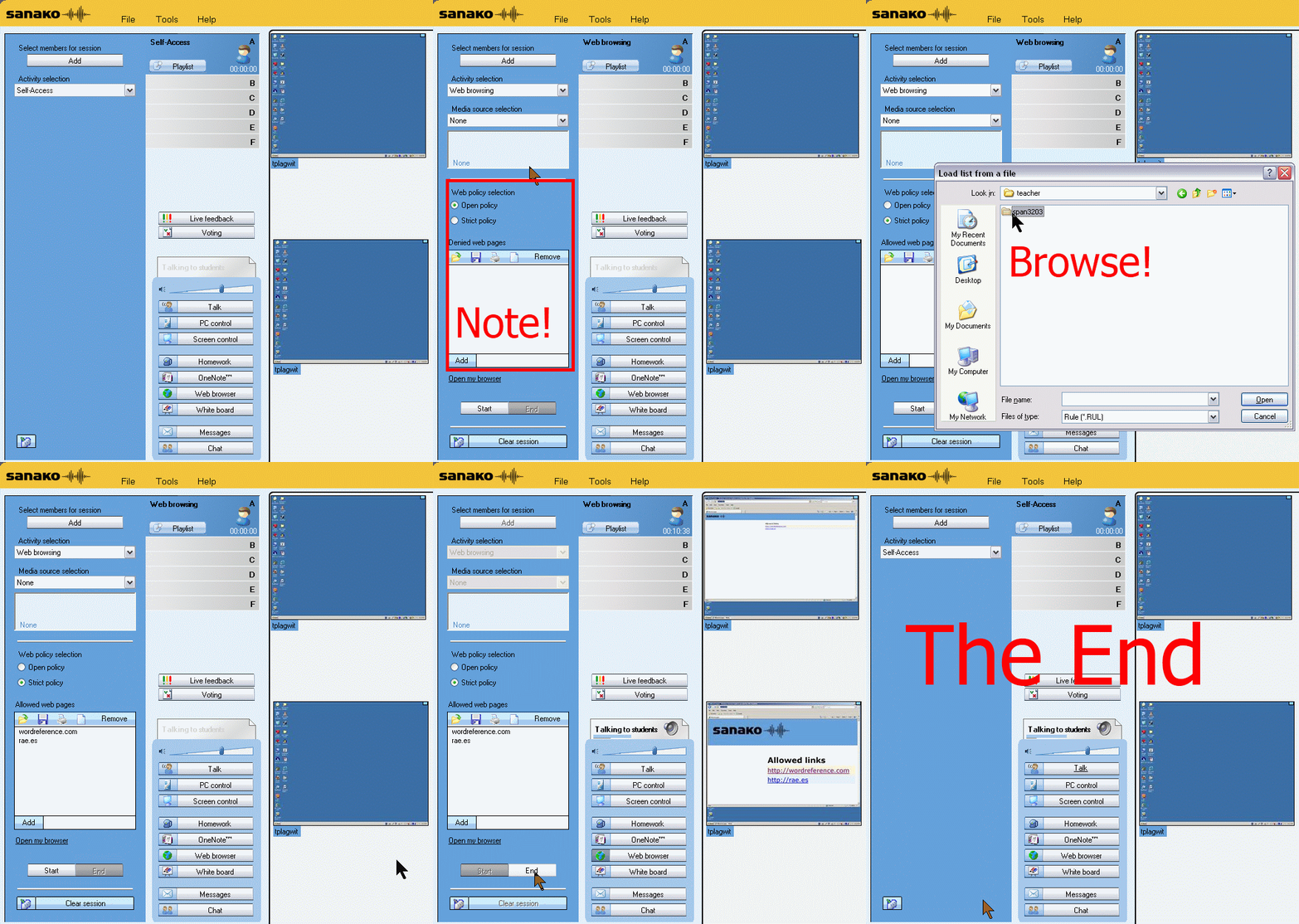
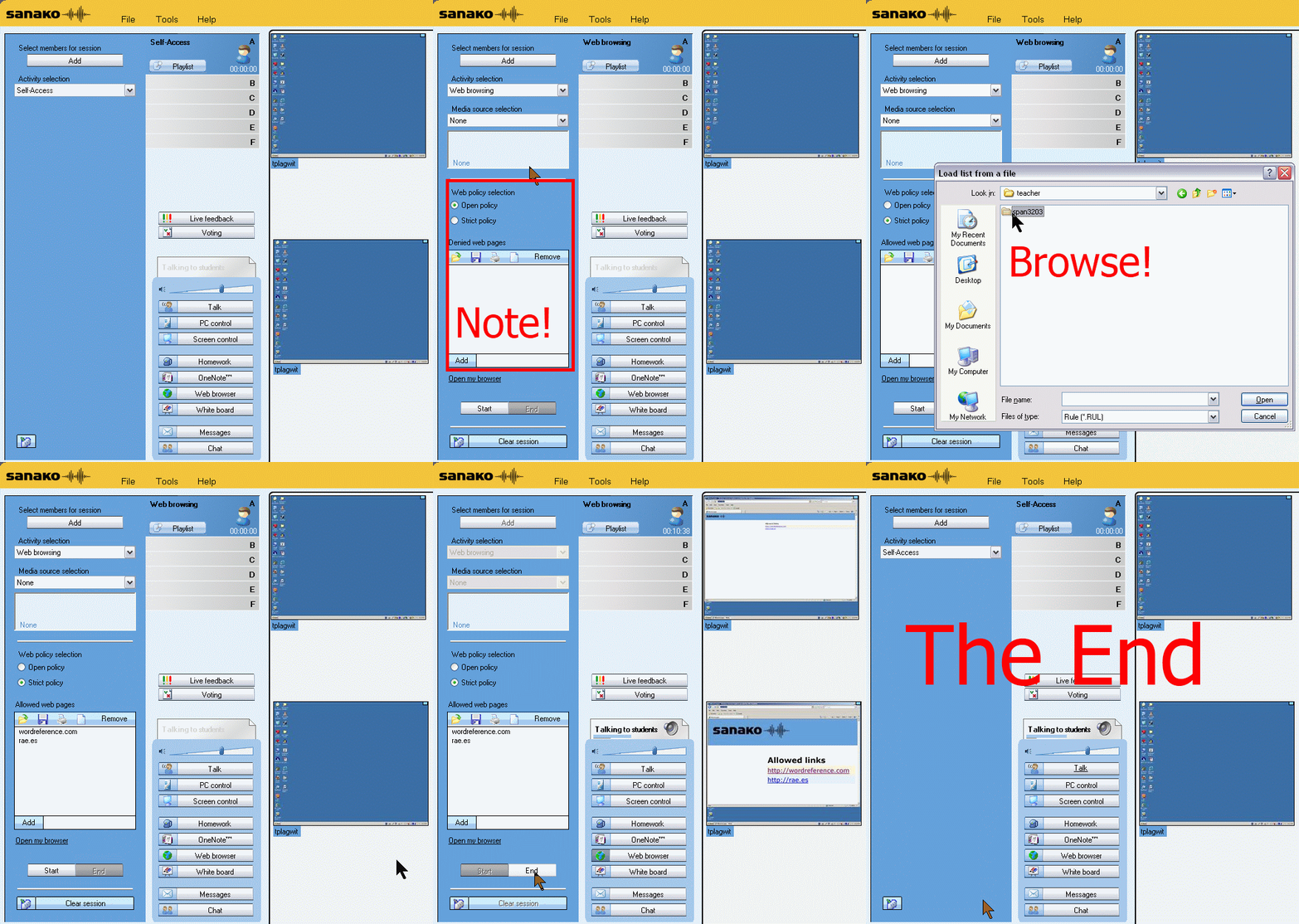
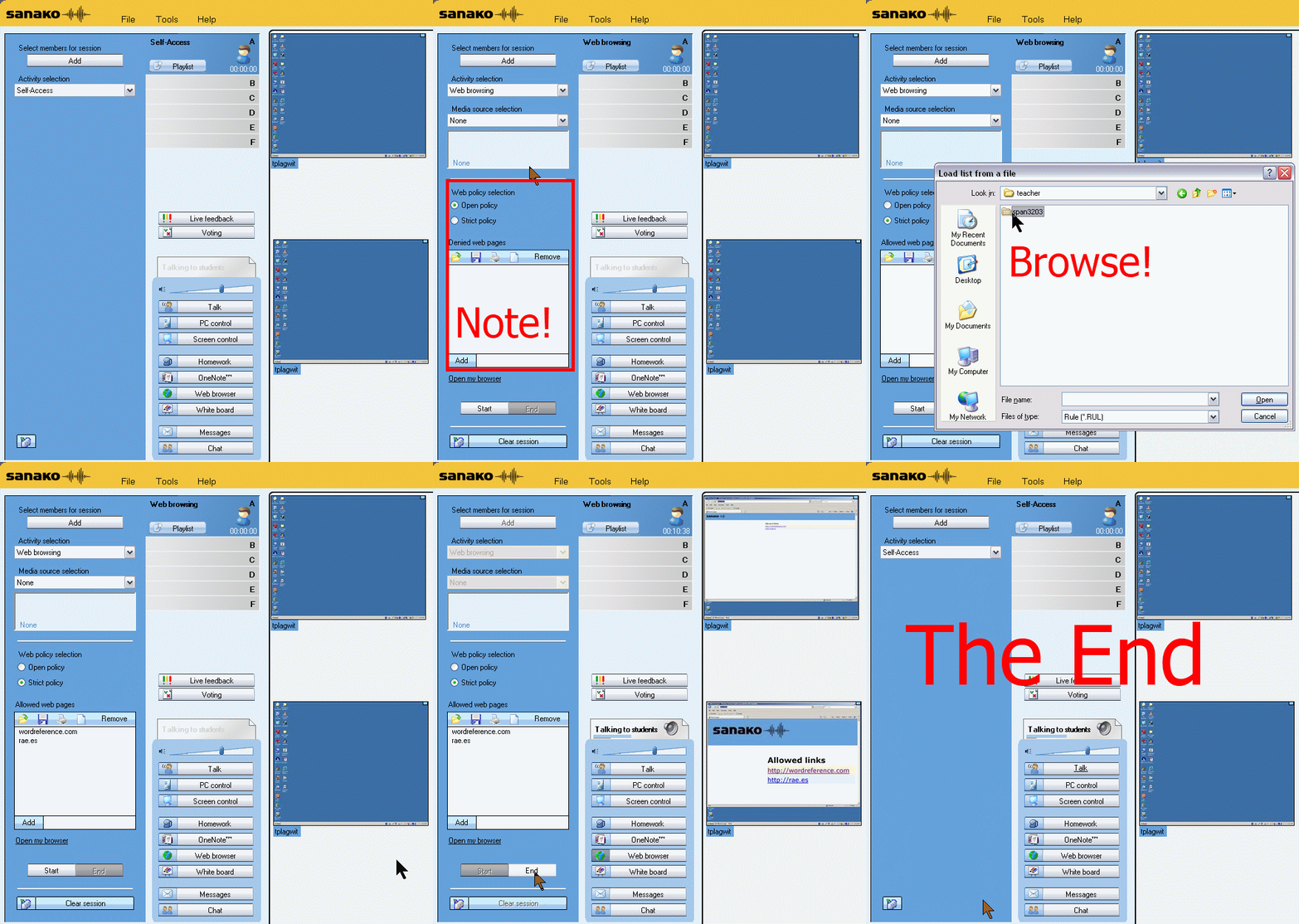
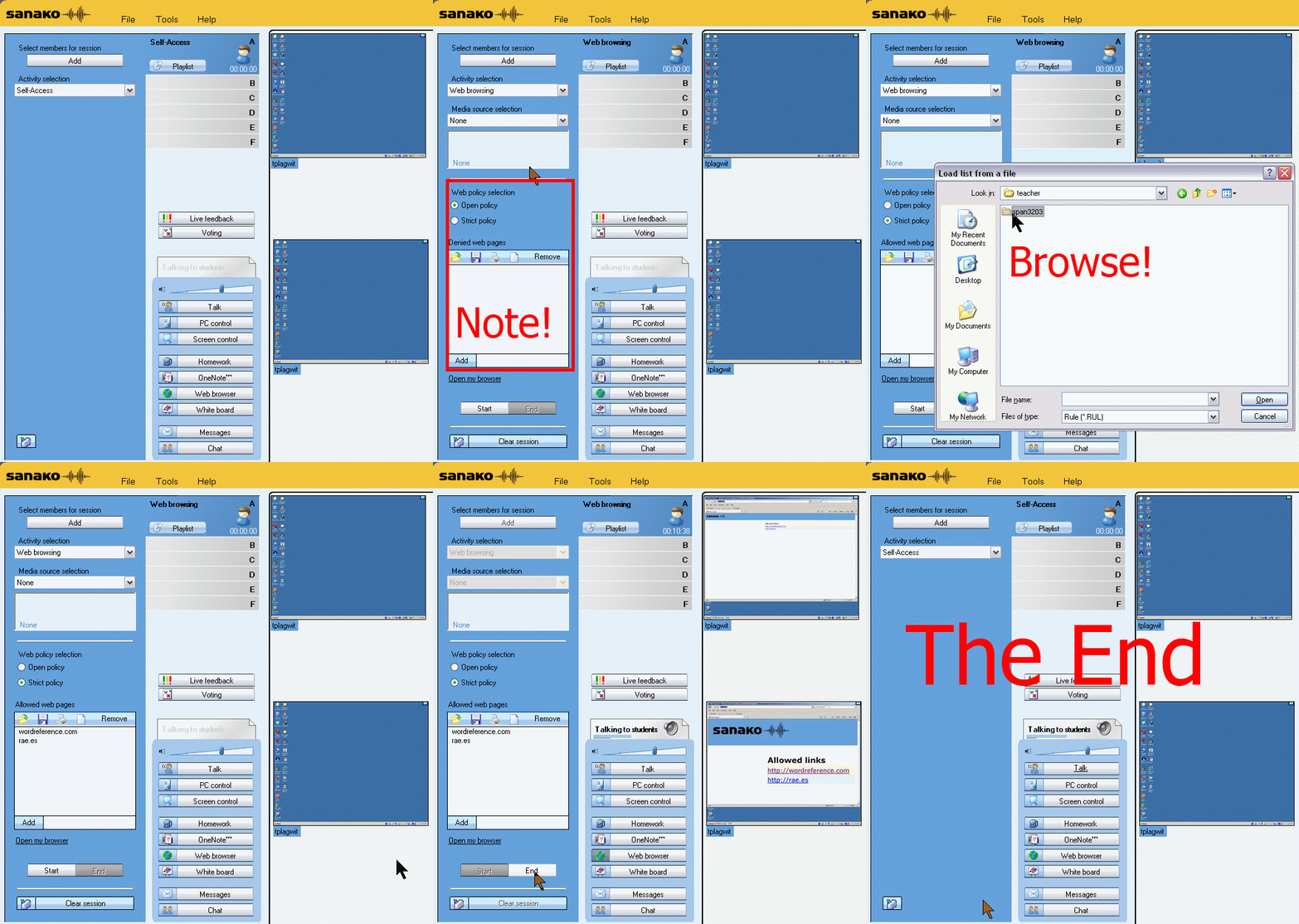
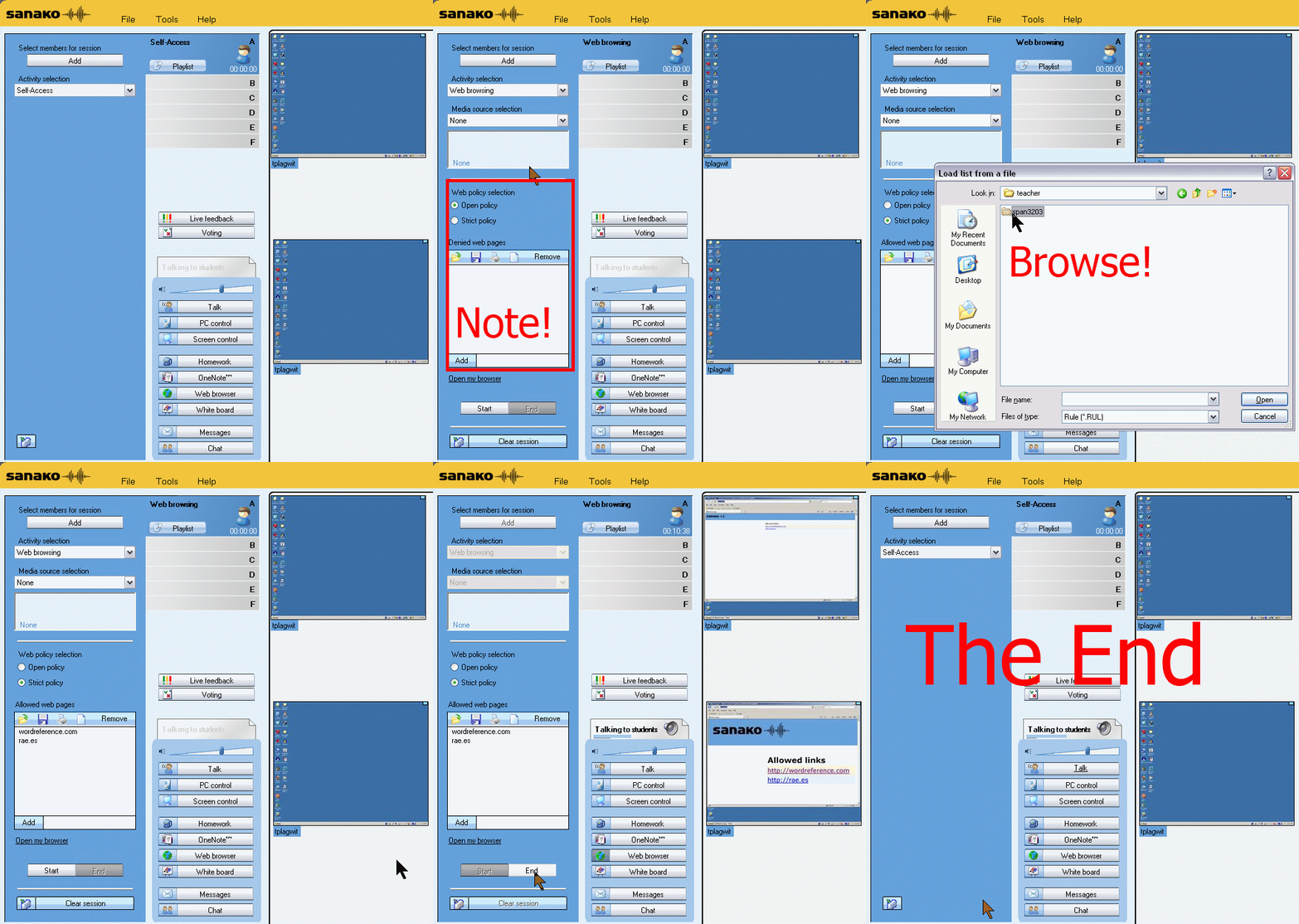
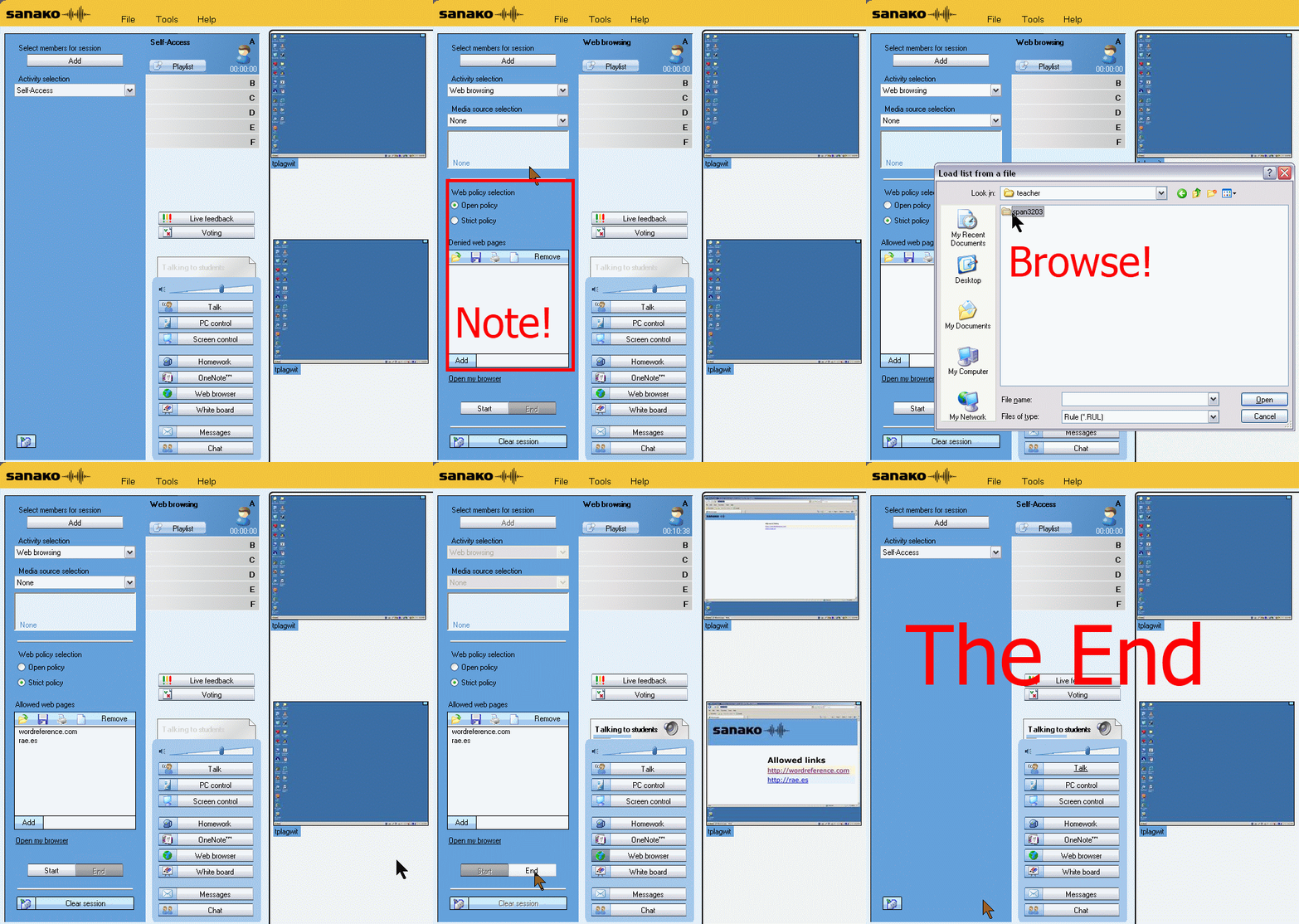
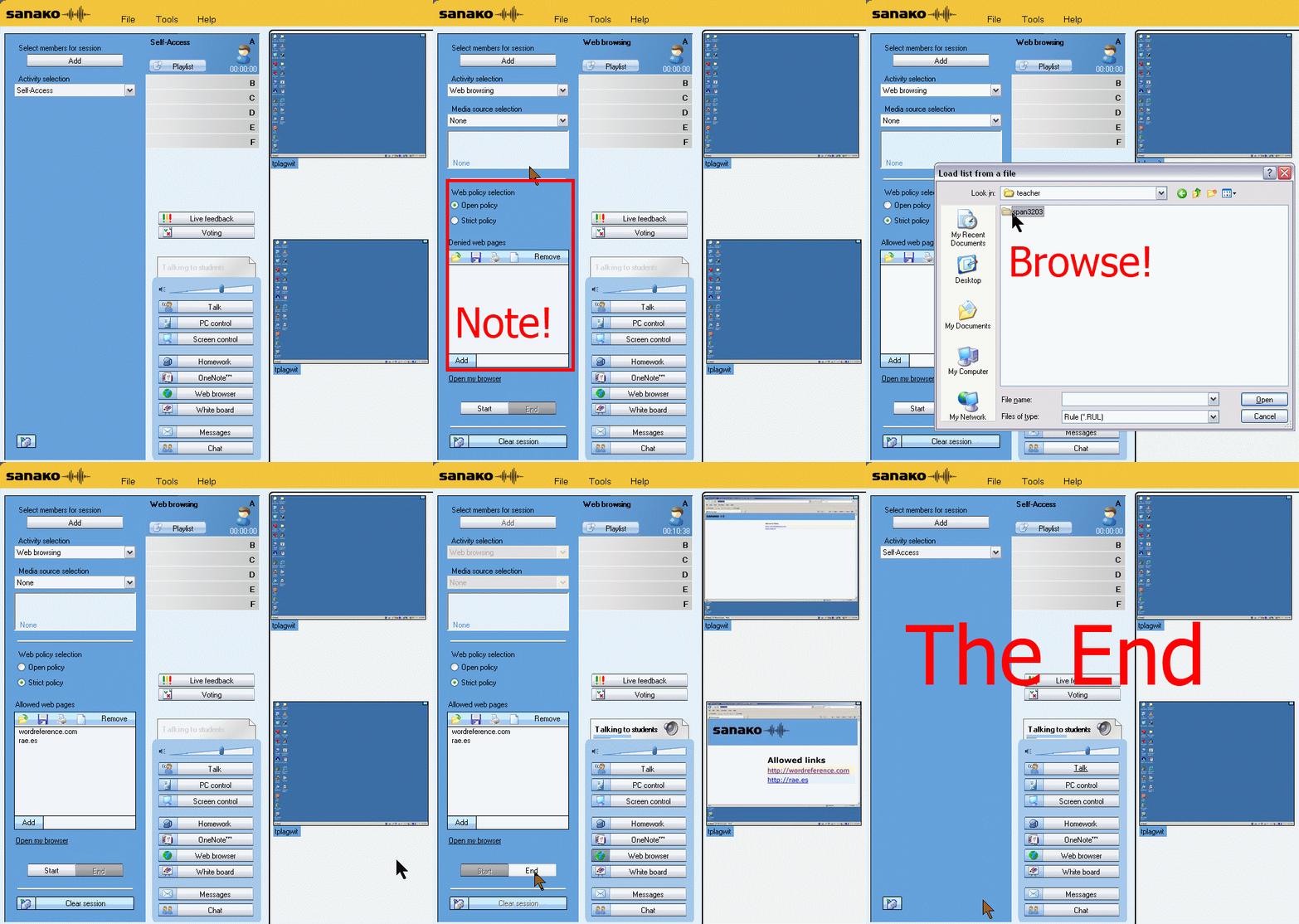
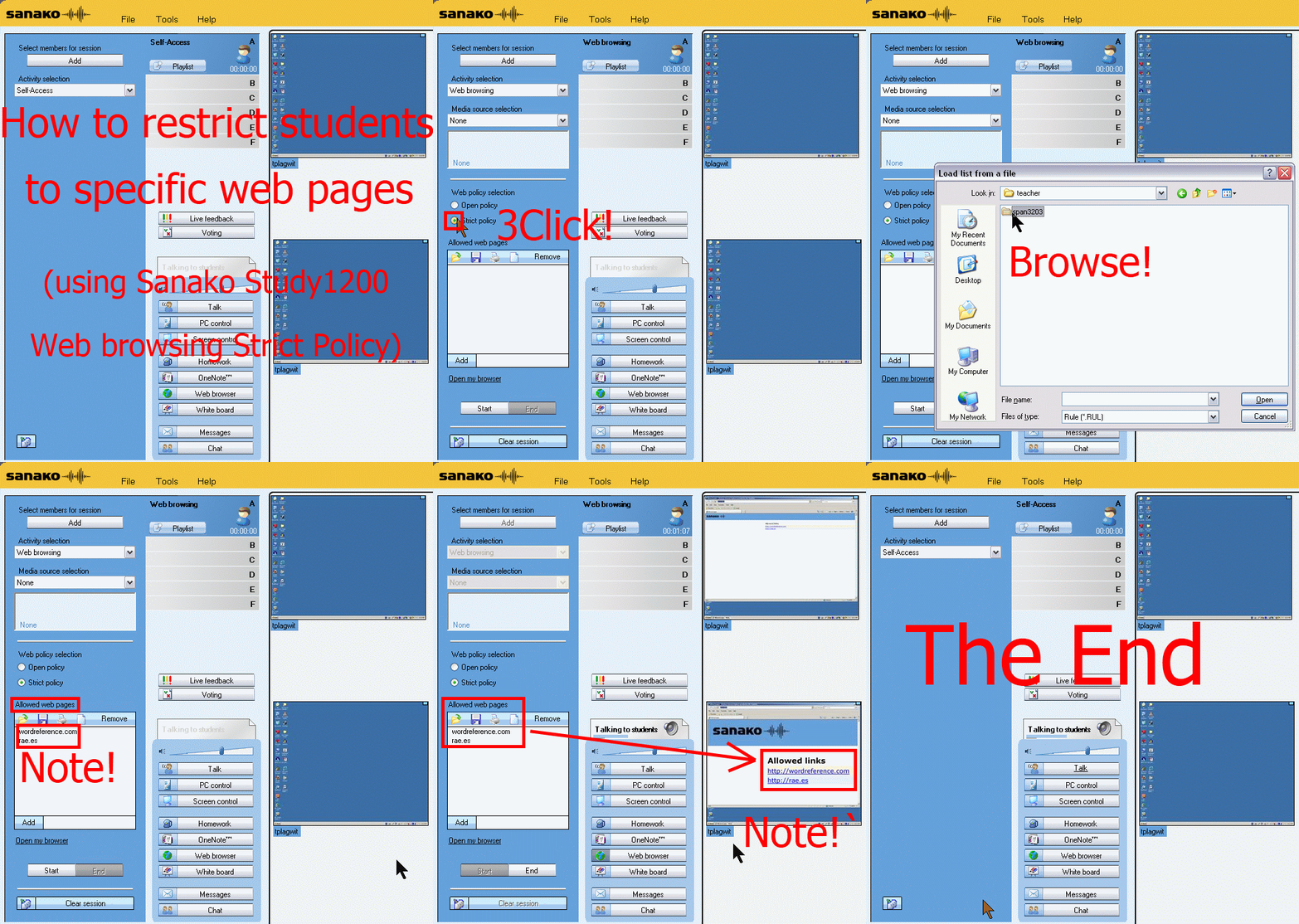
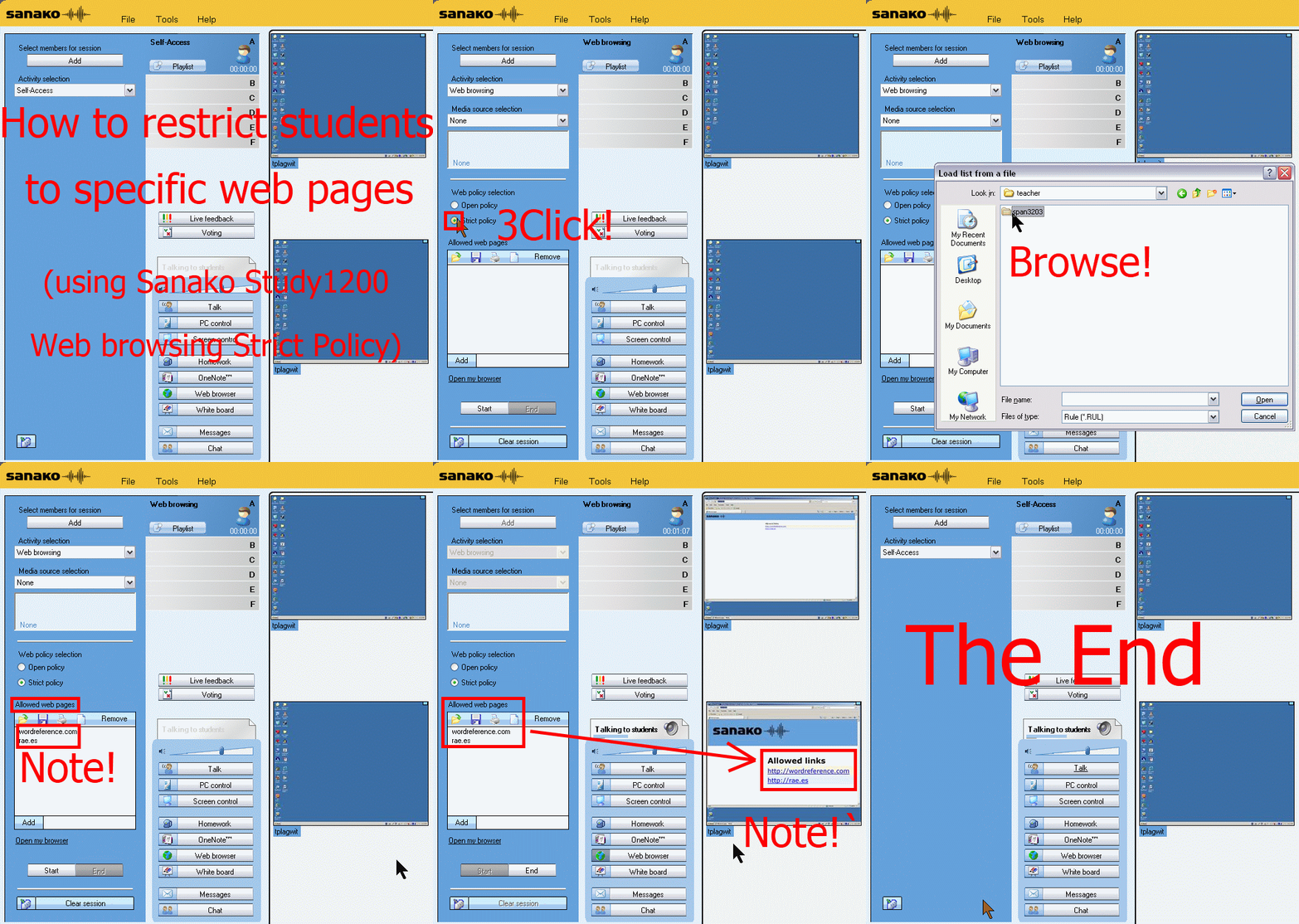
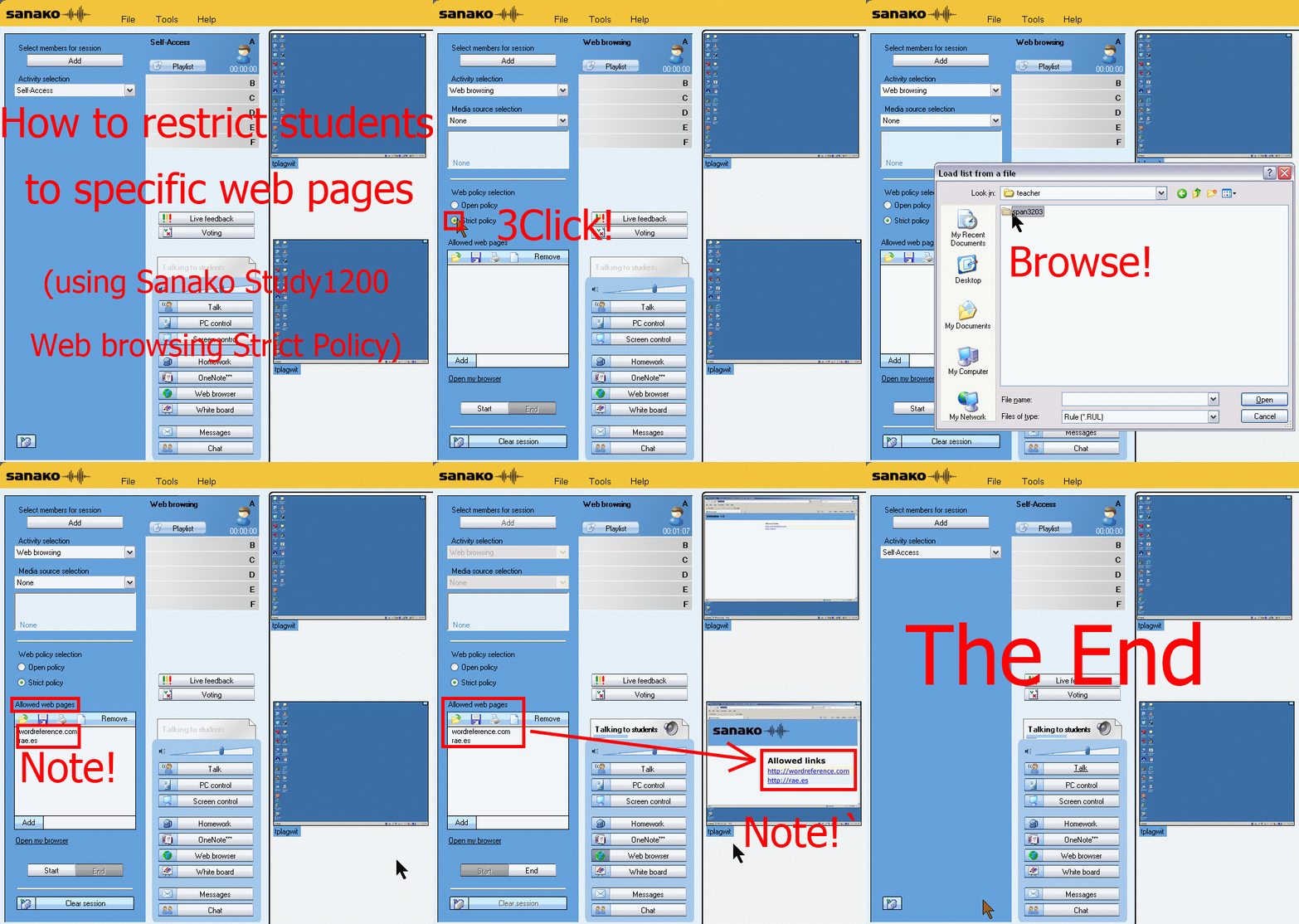
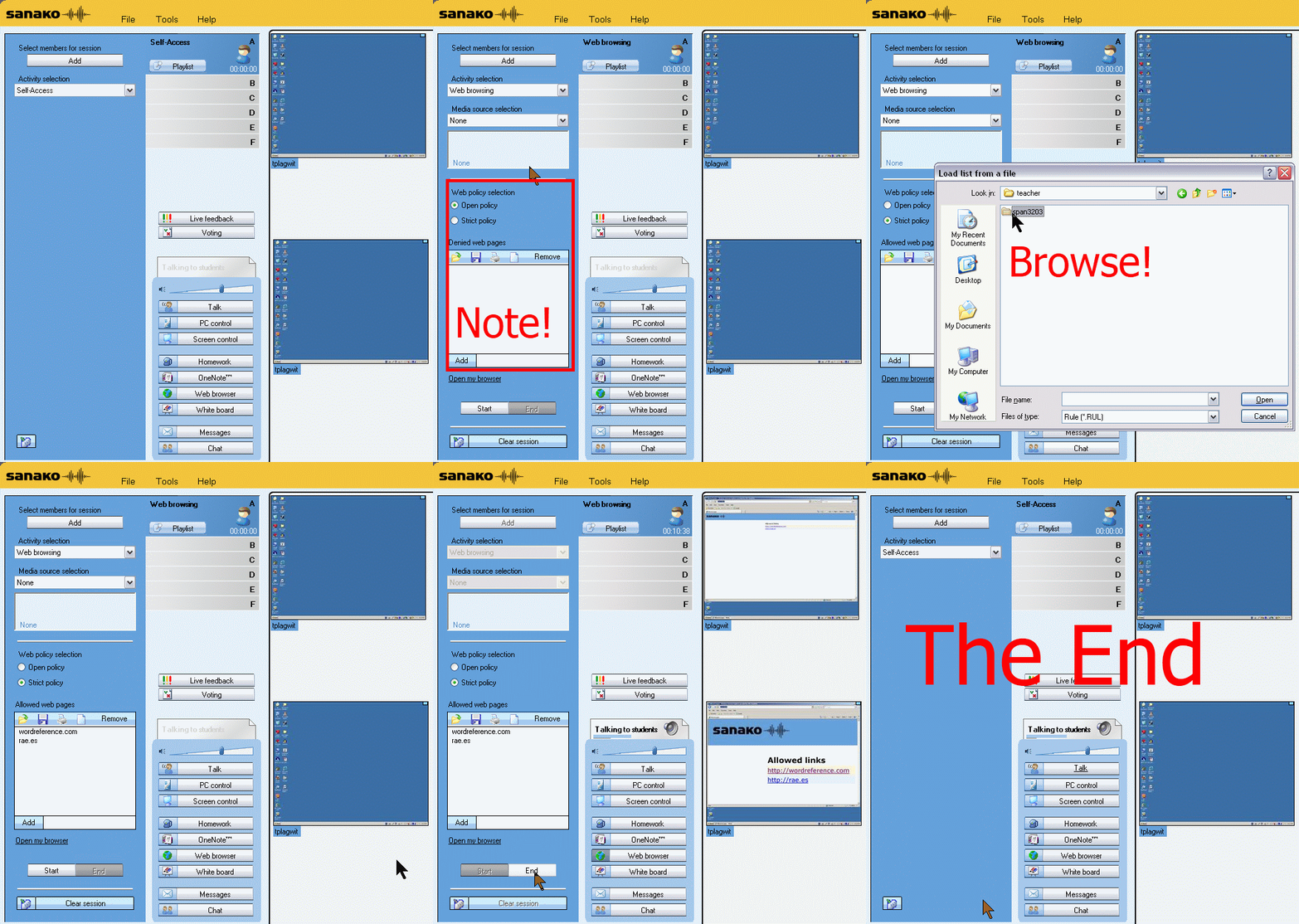
How teachers restrict students to allowed web pages with Sanako Study 1200 web browsing (strict) activity–the ultimate training summary
…using animated GIFs. Load the speed of your choosing (or several, use CTRL-Click to open links in a new tab) into the left screen of the teacher station before administering an oral exam, with the window active, press F5 in your web browser to restart the animation from the beginning:0.50sec,0.75sec,1sec,2sec,3sec,4sec,5sec,6sec,7sec,8sec,9sec,10sec
 .
.
Condensed (instructions only) for recap: 100cs, 200cs, 300cs, 400cs, 500cs, 600cs, 700cs, 800cs, 900cs, 1000cs. And if you need to pause:


LRC teacher screen new and improved

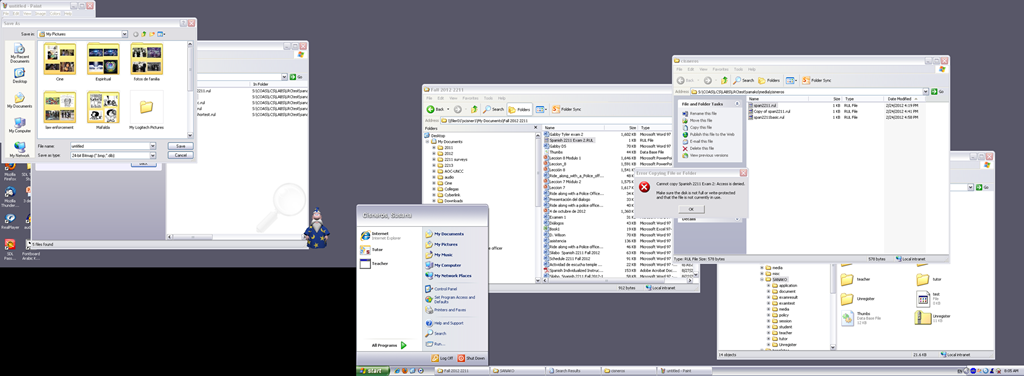
The above screenshot (taken from a screencast) does not do the new screen justice: Teachers can actually read all the ongoing student work, and, with two clicks, intervene surgically, where necessary.
On the right screen of the teacher PC in the main LRC classroom, we went from WXGA to HD1080, gaining almost 60% more screen real estate (=(1920*1080)/(1280*1024)), a crucial improvement for displaying all the information the Sanako Study 1200 provides the teacher with.
Or in more graphical terms (thanks to Wikipedia), we went from 2nd lower left to 3rd upper right:
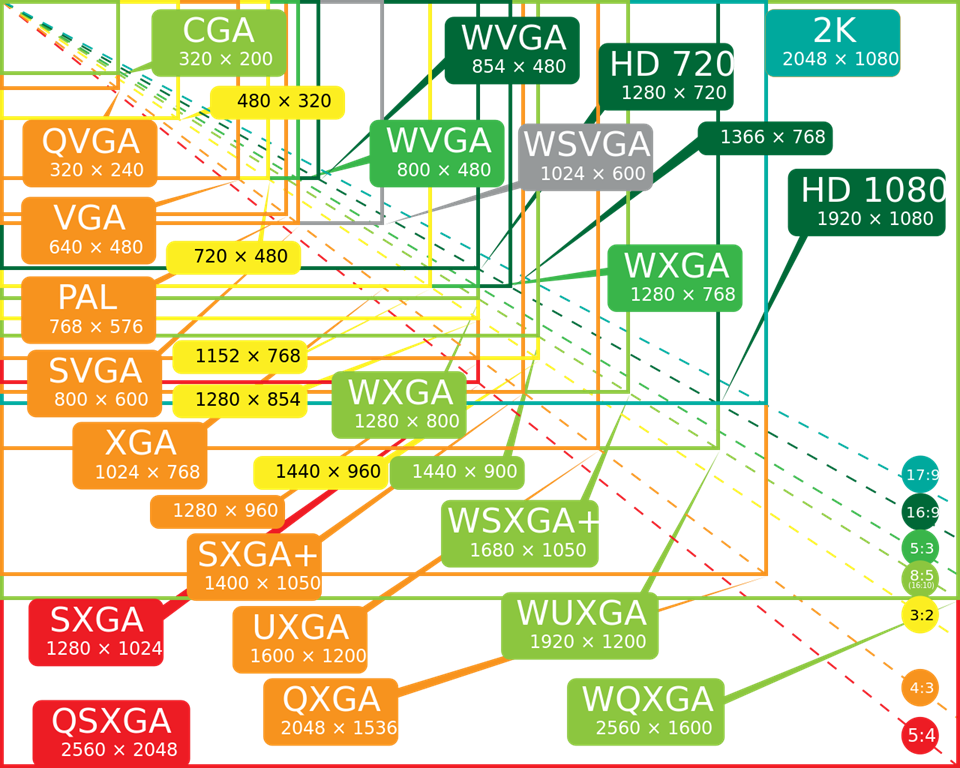
To fit the actual classroom layout into the display, we would however need the bottom lower right resolution (WQXGA). We still have to split the classroom you see into 2 halves and tilt those by 90 degrees clockwise to fit them onto the right teacher screen.
Since our left screen is still the original 1024*768 (and will be until not only the screen, but the switch and projector get upgraded), you have to work (= move your mouse pointer) around the “wall” formed by the black block in the lower right of this screenshot.
How to retrieve students’ recordings under student login name if you saved under position or computer name in Sanako Study 1200
- Why? Most (though not all) times you will find it easier to manage student files if their names contain the student login names
- How?
- Change the classroom layout naming scheme from menu:”Tools”/ “Admin”/ “Change student names to” / “Student login name”
 and
and - collect or repeat a prior collection of the student recorder buffer by using the activity pane: files icon
 (this requires that you have not yet used activity pane:button:”clear session”).
- Change the classroom layout naming scheme from menu:”Tools”/ “Admin”/ “Change student names to” / “Student login name”




Questions? Read the About. Or just ask me a quick
Thank you for your response. ✨

FAQs for LRC student staff or for students or for teachers. To search our FAQs, in the browser addressbar, add after "https://plagwitz.wordpress.com/feed/?tag=faqs+/" "+TAG1" (from tag cloud below) OR "https://plagwitz.wordpress.com/feed/tag=faqs
&category_name=" "CAT1" (from category hierarchy below). OR search both categories and tags, and multiple TAGs/CATs (connect with "," for OR-search, with "+" for AND-search), like so: https://plagwitz.wordpress.com/feed/?tag=TAG1+TAG2+...TAGn&category_name=CAT1
+CAT2+...CATn"
Other ways to find help
If you cannot find it here, look there: 5,500 Language-Learning Links and Programs for learning or teaching 150 languages
Shortcuts:Our Lists, Our Maps, LRC Staff Moodle Site,LRC Project Moodle Site, 49erexpress, UNCC Moodle, Student Recordings: s:claslcslrcsanakostudent
Learning usage samples: Sanako oral exam, Kaltura webcam presentation, Dictation with speech recognition, Sanako written exam, Chinese and Japanese interactive stroke-order practice
Test the Sanako Installer, Webbrowser Popup Konfigurator for XP, or Windows7, faster LRC TeacherPC Log-in Let MS facilitate diacritics writing by installing for you US-International keyboard layout
This is my personal blog (Google+). The views expressed on these pages are mine alone and not those of my employer. The information in this weblog is provided “AS IS” with no warranties, and confers no rights.
 Thomas' Work Space