Archive
Posts Tagged ‘ms-windows’
Request to download the digital audio lab classroom audio configuration on the fly, program and source for Windows XP
2014/08/22
Leave a comment
UPDATE: A Windows7 (and Vista) version is in the works, check back for a new post here.


Back to description of reset of classroom audio configuration on the fly program
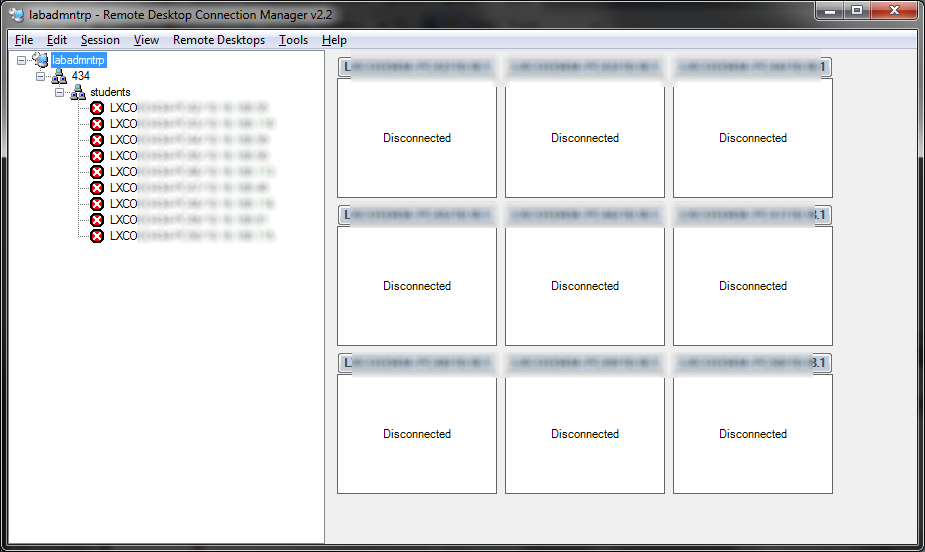
How to use Remote Desktop Connection Manager for computer lab access instead of having to manage faculty computers
2014/08/22
Leave a comment
- We have conflicting needs for a language technology software environment: diversity, simplicity, quality, manageability. We use of software configuration management tools like TEM. However, we are sitting between an extremely diverse user base (supporting 17 languages) in our unit and a central IT support with a diverse base of units to support.
- Enter MSTSC, facilitated by Remote Desktop Connection Manager:
 . If your LRC allows for MSTSC access, consider providing faculty access to a LRC computers via Remote Desktop.
 - this is for us a great time saver, compared with maintaining subsets of software on subsets of faculty computers that are as similar to the configuration of the subset software on LRC computers as possible,
- while for faculty at the same time a realistic test bed what it will be like to operate LRC computers during class.
- We provide access to a subset (which is easily set and edited in the RDG file loaded into Remote Desktop Connection Manager, which is stored on a shared network drive so that we can update the connection files without disruption of faculty access should there be network changes) since we teach faculty not to log out currently logged in users when they try to connect, but rather choose another computer from the subset that is free to not. We exclude computers used in classes where we frequently have high-stakes exams. We also have high-stakes assignments (using Respondus Lockdown browser)
- we put a shortcut to the Remote Desktop Connection Manager on the start menu or desktop.
- Our computer numbering scheme is simple enough for faculty to navigate – besides, since we connect only to the uniform LRC PC environment, it does not matter.


How to add US International keyboard layout in Windows 8
2014/08/22
2 comments
How things have changed in Windows 8:
![image_thumb[5]](https://thomasplagwitz.com/wp-content/uploads/2013/03/image_thumb5.png "image_thumb[5]")
![image_thumb[6]](https://thomasplagwitz.com/wp-content/uploads/2013/03/image_thumb6.png "image_thumb[6]")
However, if you remember Windows 3.1, plus ça change, plus c’est la même chose.
Categories: e-languages, French, German, Italian, Polish, Portuguese, Spanish, Writing
foreign-language-character-input, ms-windows, us-international
How to remote desktop from a vertical dual-monitor config on MS-Vista (and up) to MS-Vista (and up)
2014/08/22
Leave a comment
Just let mstsc figure it out: mstsc /span /v:<servername>
Trying to feed the resolution /v and /h commandline parameters did fail.
The new span dual monitor support in the MS-Vista MSTSC does not only support horizontal monitor configurations (mine are 2*w:1050*H:1680), seems a tad slow, though).
Categories: Back office, e-infrastructure
ms-vista, ms-windows, mstsc, multi-monitor
Windowing system infinite loop on windows 8.1
2014/08/05
Leave a comment
-
Rather annoying, no getting out of this loop, endless window foreground switching, but also unclear about the screen resolution, it seems. Ha
-
Oh, wait, I changed the dpi scaling, but chose to not log off, has that got something to do with this? Well, I have seen this loop behavior before, and I also frequent get terrible slowdowns which I have not been able to do root cause analysis for (also video-related? or network? )
-
Either way, likely related frequent explorer crashes which downgrade from aero. Sometimes I lose Aero’s advanced task scheduler completely, here I have a screenshot of it just coming back:

-
Have not been able to find other similar problem / but reports – something wrong with my setup then? (never mind that my camera has its own infinite loop auto focus bug.

Categories: Glitches&Errors, Screencasts, Uncategorized
aero, ms-windows
Your camera roll backup to OneDrive may not be turned on automatically on the MS-Surface after all
2014/06/25
Leave a comment
- Swipe from the right, tab on “Settings”, “Change PC Settings”.
- On the next page in the left menu, tab on “OneDrive”, and check:
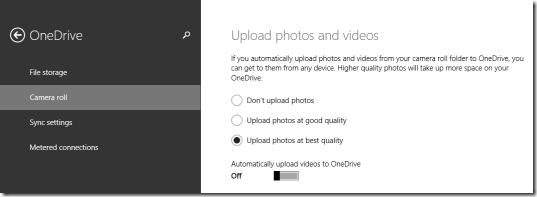
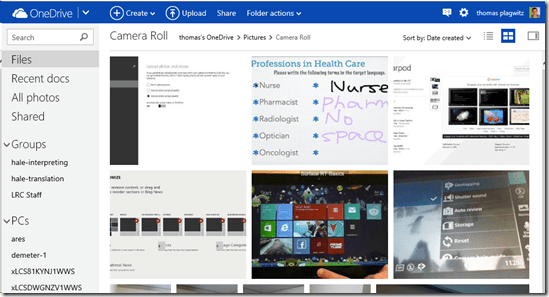
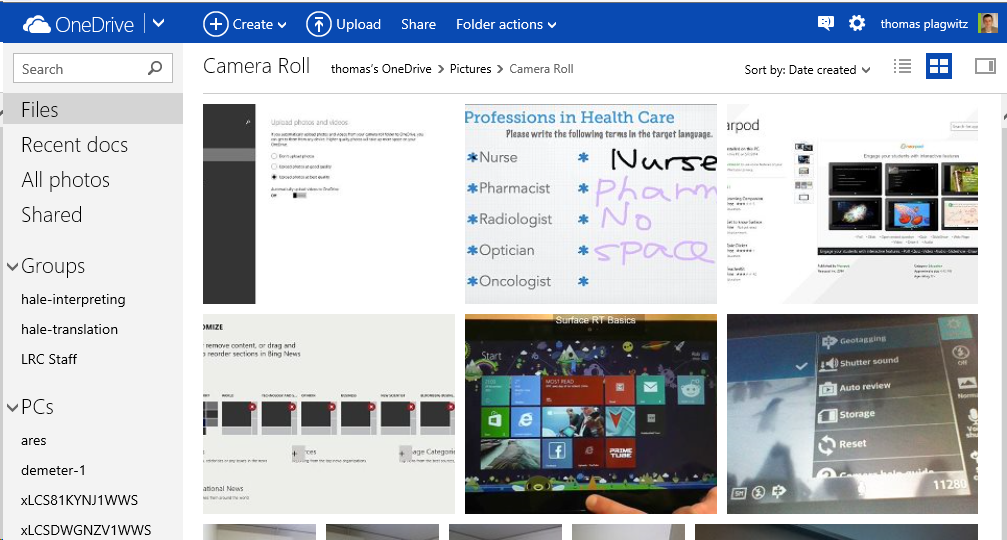
- Turn it on. If necessary, start OneDrive, give it some time, then check in OneDrive whether your photos from your Surface camera get uploaded:
- My automatic camera roll backup may have been off
- due to an initial problem setting up OneDrive on my MS-Surface
- due to a path that was too long
- due to the fact that, in spite of trying the instructions to change this folder, my surface seems to insist on synching my OneDrive to a subfolder of my user folder: That, however, is a post for another day…

Categories: e-infrastructure, tablets
8, Camera-roll.backup, MS-OneDrive, ms-surface, ms-windows, rt


Questions? Read the About. Or just ask me a quick Our Databases: Resources with calendars -- Language learning material Moodle Sites, multimedia files -- films
FAQs for LRC student staff or for students or for teachers. To search our FAQs, in the browser addressbar, add after "https://plagwitz.wordpress.com/feed/?tag=faqs+/" "+TAG1" (from tag cloud below) OR "https://plagwitz.wordpress.com/feed/tag=faqs
&category_name=" "CAT1" (from category hierarchy below). OR search both categories and tags, and multiple TAGs/CATs (connect with "," for OR-search, with "+" for AND-search), like so: https://plagwitz.wordpress.com/feed/?tag=TAG1+TAG2+...TAGn&category_name=CAT1
+CAT2+...CATn"
Other ways to find help
If you cannot find it here, look there: 5,500 Language-Learning Links and Programs for learning or teaching 150 languages
Shortcuts:Our Lists, Our Maps, LRC Staff Moodle Site,LRC Project Moodle Site, 49erexpress, UNCC Moodle, Student Recordings: s:claslcslrcsanakostudent
Learning usage samples: Sanako oral exam, Kaltura webcam presentation, Dictation with speech recognition, Sanako written exam, Chinese and Japanese interactive stroke-order practice
Test the Sanako Installer, Webbrowser Popup Konfigurator for XP, or Windows7, faster LRC TeacherPC Log-in Let MS facilitate diacritics writing by installing for you US-International keyboard layout
This is my personal blog (Google+). The views expressed on these pages are mine alone and not those of my employer. The information in this weblog is provided “AS IS” with no warranties, and confers no rights.
 Thomas' Work Space