Archive
Making Page 1 on Google when searching for “Exchange Resource Mailboxes”?!
- Even in “private browsing”?

- How? Don’t ask.


How to make changes to a meeting request to update/alter a reservation
- You can easily release a reservation of an LRC room or resources, completely or partially (e.g. some of the time when you return an item earlier than anticipated), from your calendar in OWA/NINERMAIL:
- By opening the meeting request
- In (staff:)OWA,
- go to your calendar
- find and open your meeting
- make changes to the meeting, e.g. start and end time
- click “Send Update”
- (students:)NINERMAIL: looks like you have to cancel the meeting and recreate it with new times. This may change once we get the calendars used by students set up to autoaccept.
- More conveniently, without opening:
- right-click on and choose delete the appointment (if necessary, the system is smart enough to ask you whether you want to delete an entire series of appointments or only this occurrence; on cancelling, see also here).
![owa-update-recurring2_thumb[1]](https://thomasplagwitz.com/wp-content/uploads/2012/01/owa-update-recurring2_thumb1_thumb.png?w=559&h=302 "owa-update-recurring2_thumb[1]")
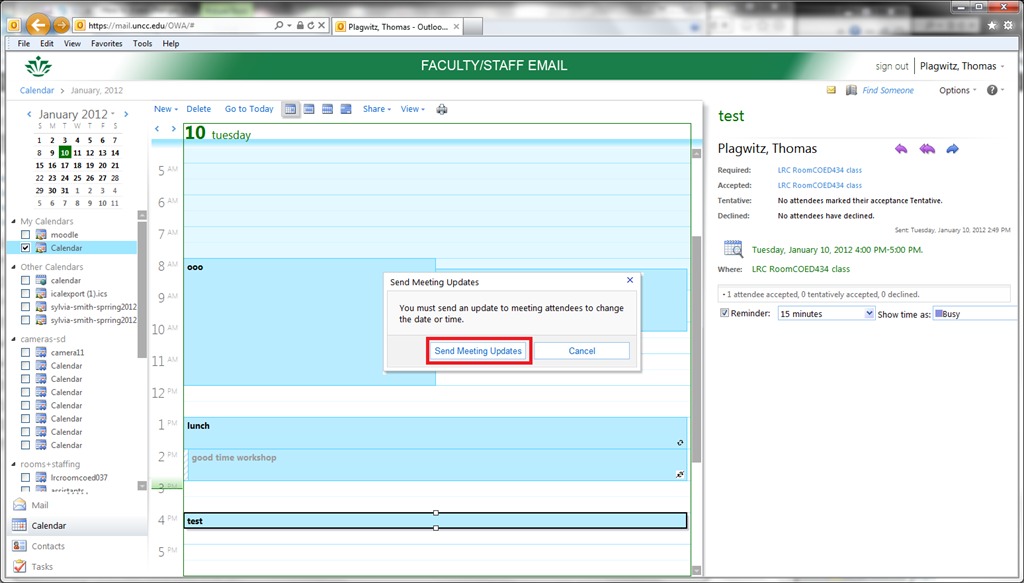
- Or to release the reservation partially (= reduce the time), drag the upper or lower margin to the new desired start or end time.
![owa-update-recurring_thumb[2]](https://thomasplagwitz.com/wp-content/uploads/2012/01/owa-update-recurring_thumb2_thumb.png?w=572&h=309 "owa-update-recurring_thumb[2]")
- If you are working with a meeting request (which by definition has more than the organizer as participants, unlike appointments you make for yourself on your calendar; be wary of making changes to meeting requests which you are not the organizer of (= you did not initially create the meeting request)), the system offers you – and should should accept – to notify the other participants automatically.

- Which in this case is not a person, but only (unless other people have been included in the resource booking which can be done) a resource mailbox which, if configured to autoaccept, may still respond to you like so, in this case with an acceptance, since you can not cause a conflict when releasing a resource that had been reserved for you):

- This also only affects the occurrence you are currently working with, as you can see from the stricken-out recurrence icon that results:
![owa-update-recurring1_thumb[2]](https://thomasplagwitz.com/wp-content/uploads/2012/01/owa-update-recurring1_thumb2_thumb.png?w=600&h=324 "owa-update-recurring1_thumb[2]")
- This flexibility is one of the main reasons (= better resource utilization) why we introduced this system: so that users who want to visit the LRC with their class/borrow a resource on short (often happens, depending on pedagogy, with a couple off days or less ) notice don’t have to be turned away with no good reason.
- Just do not try updating from the publically viewable web calendars, those are for “view”-ing only, including by students:
![owa-update-don-not-do-this-from-the-publically-viewable-web-calendar_thumb[3]](https://thomasplagwitz.com/wp-content/uploads/2012/01/owa-update-don-not-do-this-from-the-publically-viewable-web-calendar_thumb3_thumb.png?w=570&h=325 "owa-update-don-not-do-this-from-the-publically-viewable-web-calendar_thumb[3]")
- right-click on and choose delete the appointment (if necessary, the system is smart enough to ask you whether you want to delete an entire series of appointments or only this occurrence; on cancelling, see also here).
![owa-update-recurring2_thumb[1]](https://thomasplagwitz.com/wp-content/uploads/2012/01/owa-update-recurring2_thumb1.png "owa-update-recurring2_thumb[1]")
![owa-update-recurring_thumb[2]](https://thomasplagwitz.com/wp-content/uploads/2012/01/owa-update-recurring_thumb2.png "owa-update-recurring_thumb[2]")

![owa-update-recurring1_thumb[2]](https://thomasplagwitz.com/wp-content/uploads/2012/01/owa-update-recurring1_thumb2.png "owa-update-recurring1_thumb[2]")
![owa-update-don-not-do-this-from-the-publically-viewable-web-calendar_thumb[3]](https://thomasplagwitz.com/wp-content/uploads/2012/01/owa-update-don-not-do-this-from-the-publically-viewable-web-calendar_thumb3.png "owa-update-don-not-do-this-from-the-publically-viewable-web-calendar_thumb[3]")
Protected: LRC Outlook/Exchange Resource mailboxes update for Winter 2012
Meeting Requests in OWA – from the source
How to book LRC resources – explained in one screenshot
You can come to the LRC reception desk to book an item (you will still need to log into your NINERMAIL). But you can also self-help, and get immediate confirmation, from any device with access to your NINERMAIL:
If you have a basic LRC classroom booking scenario, send to the room lrcroomcoed434@uncc.edu what looks like “an email that includes times”: Go to your Ninermail inbox. Using the little triangle icon, unfold the “New” menu. Click menu item “Meeting request”. In the window, that opens, in the “Resources:” field, put lrcroomcoed434@uncc.edu. In the “Subject:”, put your course number. Enter start and end times of your classes visit. In the upper left, Click “Send”. Within a few seconds you receive a response email from the room in OWA: If you did not check the “Scheduling Assistant” tab, you may be asked to reschedule because of a conflict. If you fail to get a response, something went wrong, did you mistype the address? OWA remembers and suggests it after first use, but the first time you need to get it right.
For more advanced scenarios (beyond #3 below), first find the email address of our bookable resources, then book it like so:

More on repeating/recurrence here.
How to subscribe to an LRC calendar – in one screenshot
Subscribing to LRC calendars, e.g. for tutoring, will give you access from your Ninermail/OWA and always keep you updated of late-breaking changes. Here is how, starting from our list of bookable resources:

How to poll for the best meeting time using Meeting Requests
- Please also see the follow-up user-perspective video here: How to respond to a poll for the best meeting time using Meeting Requests.
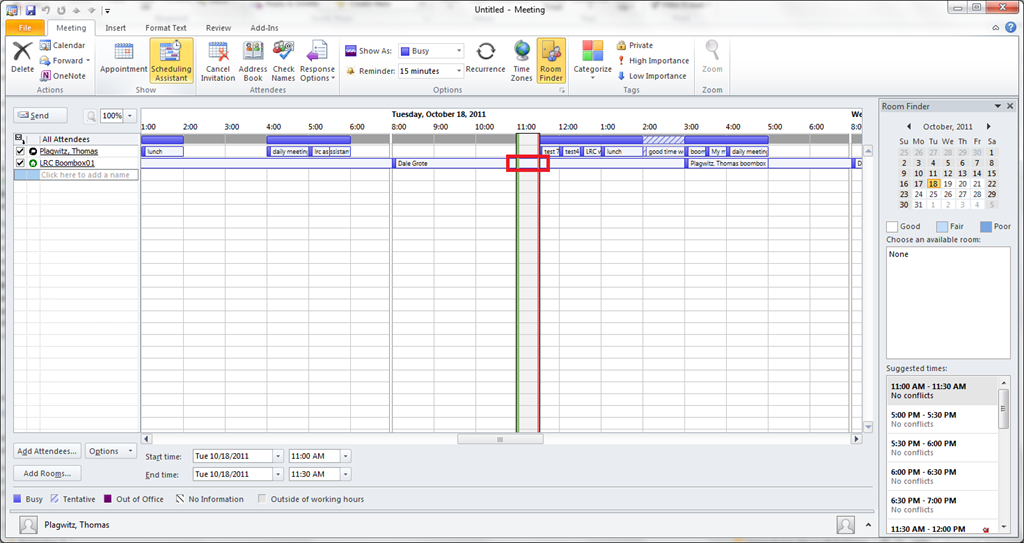
- A traditional issue around the LRC is getting busy teachers to agree on a common workshop time. Ideally, the scheduling assistant would automate this by allowing you to see the common free time slot in their busy timelines. However, this requires that the university calendaring system has already been widely adopted. In the meantime, meeting requests can still greatly facilitate finding this most common free time, by serving as a poll.
- To find the most popular time slot, send a number of alternative meeting requests with the instruction: “If interested in the workshop, please accept those times during which you could attend. I will only not cancel the most popular meeting time”. (Make sure that respondents know that they can “Edit response before sending” to include a message, or else this will skew the tally).
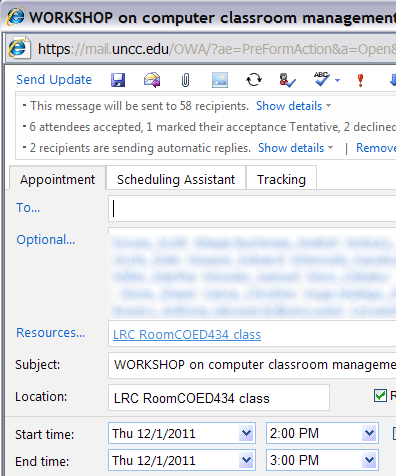
- At the end, you can easily tally the response in your calendar, and, as the meeting organizer, cancel the unpopular ones:

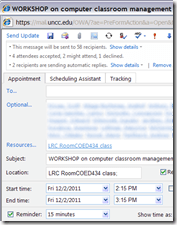

- And you can spare everybody one final summary email: “ Mark your calendars!” . The interested parties’ calendar has already be marked.


How not to book LRC equipment: Avoid scheduling conflicts by not using “Show times as free”
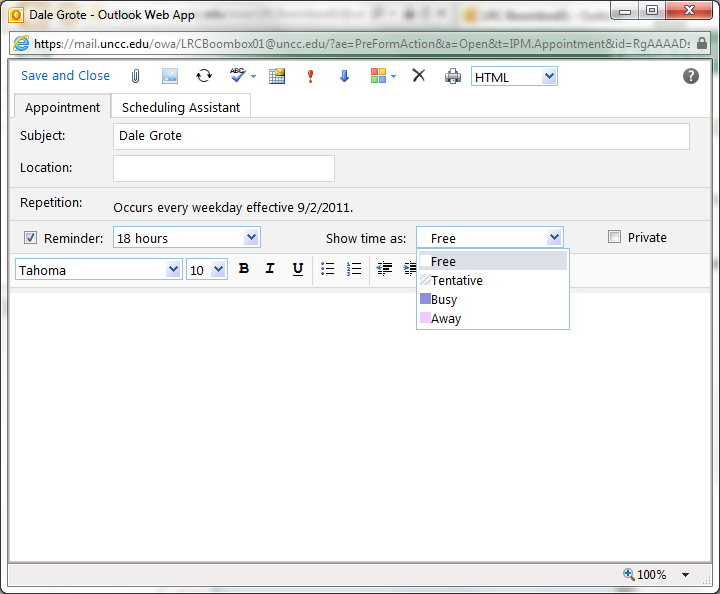
- Appointments and Meeting requests default to “Show time as busy”.
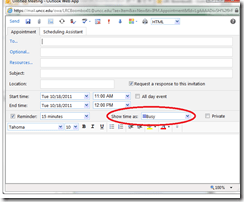
- Before you change this, like so:
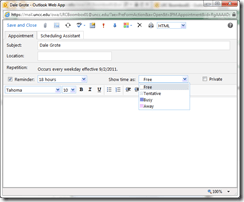 . Note this “Gotcha”: “If you have already specified that this is an all day event, Save As is set automatically to Free “.
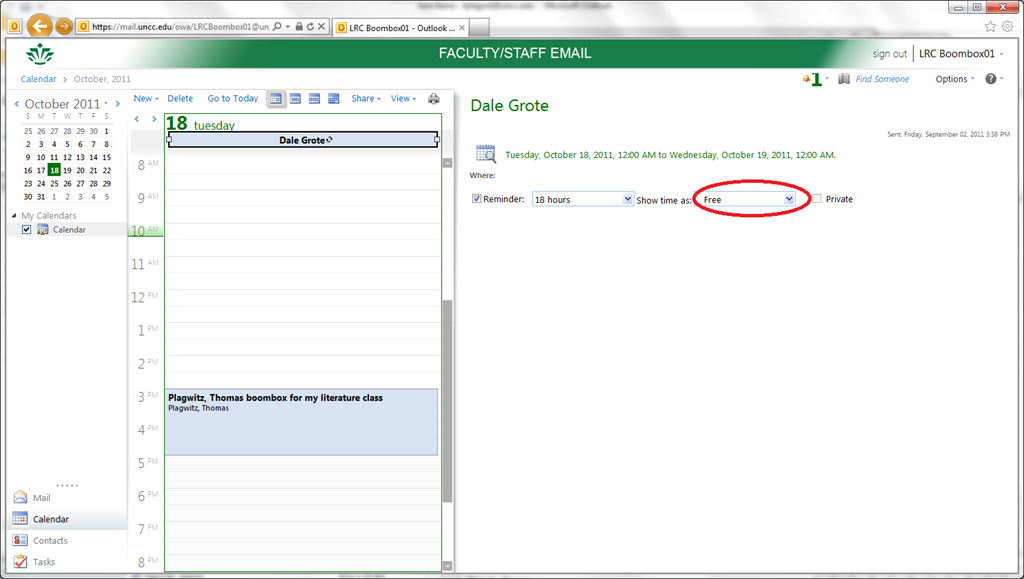
 - consider this: a scheduling conflict can easily result, if people coming after you cannot see the resource as “busy”, they might inadvertently book over your booking:
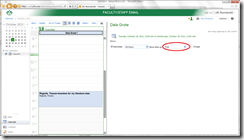
- Remember this is a platform for collaboration, not for spreading confusion: If you leave your appointment as “busy”, per the default, voilà, others can see that the resource is busy, and work around it:




Questions? Read the About. Or just ask me a quick
Your message has been sent

FAQs for LRC student staff or for students or for teachers. To search our FAQs, in the browser addressbar, add after "https://plagwitz.wordpress.com/feed/?tag=faqs+/" "+TAG1" (from tag cloud below) OR "https://plagwitz.wordpress.com/feed/tag=faqs
&category_name=" "CAT1" (from category hierarchy below). OR search both categories and tags, and multiple TAGs/CATs (connect with "," for OR-search, with "+" for AND-search), like so: https://plagwitz.wordpress.com/feed/?tag=TAG1+TAG2+...TAGn&category_name=CAT1
+CAT2+...CATn"
Other ways to find help
If you cannot find it here, look there: 5,500 Language-Learning Links and Programs for learning or teaching 150 languages
Shortcuts:Our Lists, Our Maps, LRC Staff Moodle Site,LRC Project Moodle Site, 49erexpress, UNCC Moodle, Student Recordings: s:claslcslrcsanakostudent
Learning usage samples: Sanako oral exam, Kaltura webcam presentation, Dictation with speech recognition, Sanako written exam, Chinese and Japanese interactive stroke-order practice
Test the Sanako Installer, Webbrowser Popup Konfigurator for XP, or Windows7, faster LRC TeacherPC Log-in Let MS facilitate diacritics writing by installing for you US-International keyboard layout
This is my personal blog (Google+). The views expressed on these pages are mine alone and not those of my employer. The information in this weblog is provided “AS IS” with no warranties, and confers no rights.
 Thomas' Work Space