Archive
How can I change the volume on my SANAKO headsets?
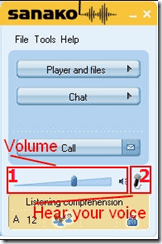
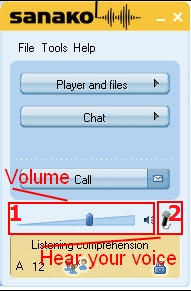
- Q: How can I change the volume on my headsets? Hear my own voice on the headsets? A:Use the Sanako Student Player 1. Volume Slider and 2. (for Sidetone = echo of your speaking) Headset Icon:
-
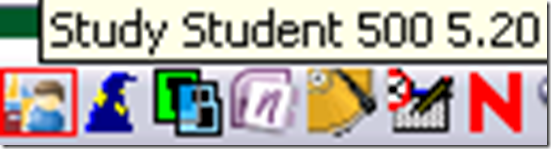
- Q: Where is the Sanako Student Player? A: Show Sanako Student by clicking on the notification bar icon:

Digital language lab audio configuration: Using the Sanako Study 1200 Sound Device Wizard on student computers
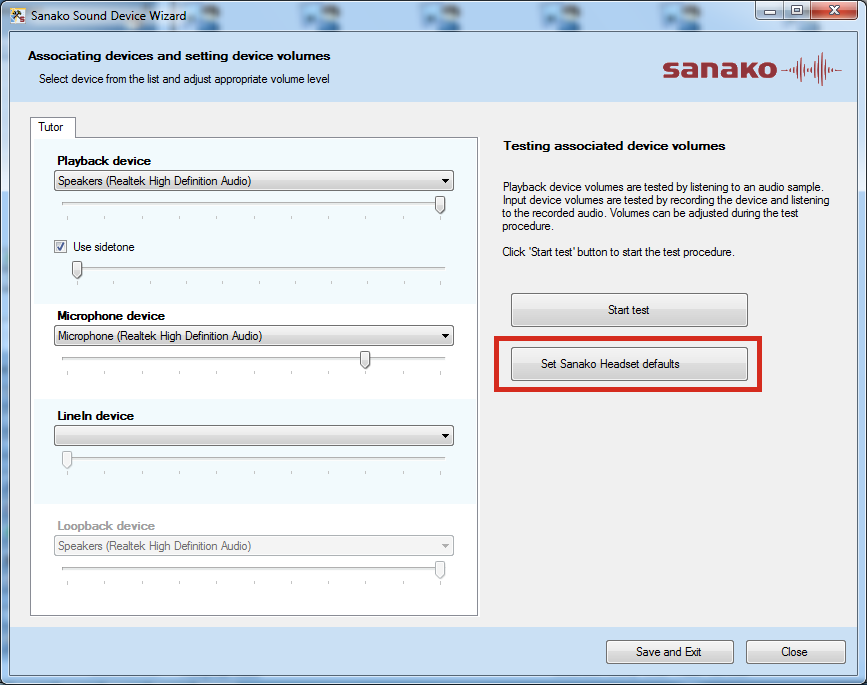
Watch a screencast of operating the Sanako Study 1200 Student Sound Wizard from menu: Tools / Sound Settings – using an analog headset. However, “If you are using Sanako SLH07 USB headsets, Study has inbuilt default audio settings that you can easily apply. Simply click on Set Sanako Headset defaults to employ audio settings that have been preconfigured for use with a Sanako headset“, like shown here:
Digital language lab audio configuration
Issues (BSODs) have been reported with simultaneously running USB sound-card driven headsets and on board audio, which have been alleviated by either USB soundcard driver updates or disabling the onboard audio or both.
To be safe, we do the latter, on this screen of the Dell-Optiplex-760-bios: f12 / System Setup / Settings / Configuration / Miscellaneous Devices (you need to push button “Unlock”and issue the BIOS password to make changes):

Dual audio is also a potential source of confusion for the user. This is the reason why we prefer hiding the MS-Windows Volume control icon in the notification bar – a setting in the control panel / sound and audio devices:

We rather stir the user to the Sanako student player audio volume slider as the single point of entry – and one which can be easily seen by the teacher: see Study 1200 teacher / PC Control / Show the student player).
This comes with added responsibility for the teacher, as the Sanako student player audio volume slider does not control the WAVE volume level. Ensure proper setting of the WAVE volume level AND proper source audio levels – or use our TBA:teacher lab audio control extensions to control the WAVE levels on student computers.
Introduction of NanoGong, free open source voice recorder for Moodle
- This is a brief summary outline of NanoGong (which has just been upgraded to version 4.1, which includes an installation file for our current Moodle version 1.9.8), would be a good audio recording add-on for language learning to install in our Moodle learning system. What follows is compiled from various online sources:
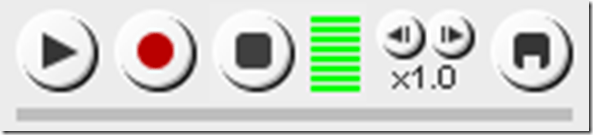
- “NanoGong is an applet that can be used by someone to record, playback and save their voice, in a web page. When the recording is played back the user can speed up or slow down the sound without changing it. The speeded up or slowed down version of the recorded sound can be saved to the user’s hard disk, if he/she wishes
- There are special features for programmers, such as the ability to show or hide parts of the NanoGong interface or to completely control what the applet does.
- The NanoGong applet has been released as an open source project since version 3. The picture below shows the NanoGong applet with all components shown. “
- “NanoGong provides a very simple and transparent voice support for Moodle. Using a NanoGong activity and a NanoGong filter NanoGong provides two different types of voice support for Moodle”:
- “An extended HTML editor which supports voice-enriched content”, “ enabling a voice recording option for virtually any Moodle activity entry that uses the wysiwyg toolbar”, as you can see here:

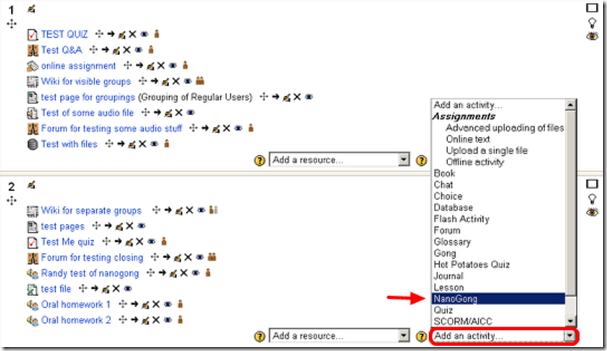
- ”A NanoGong activity which allows students to submit voice messages to their teachers”:
- Questions remain:
- You can customize the recorder applet: Need to check whether this includes the timestretching capability, given that language teachers can be averse to student-controlled,
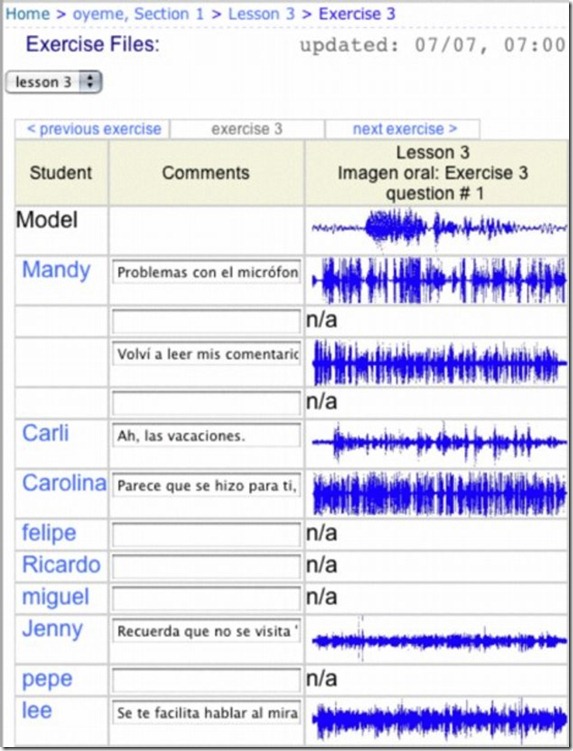
- Need to check for capability of downloading batches of submissions from the student class and grade it with time-saving techniques, like described here using Audacity. A more sophisticated example that testifies to the same features required to get graders adopt increasing audio student submissions was Web Audio Lab, an authoring system for developing interactive audio-based language courses (Language Resource Center, Cornell University. 2003-2007):

- How could one implement a dual-track recorder using NanoGong, with the program track providing aural cues for a more natural oral interaction?
- Requires JAVA (test compatibility).
- There is no Moodle 2.0 version yet.
- NanoGong seems “a derivative of the Gong standalone voice board” – without similar requirements and issues? Gong can also be integrated into Moodle, seems more advanced, but also much more difficult to implement (requires a tomkat server; problems have been reported with losing course deletion functionality in Moodle, the authentication pass-through not working from Moodle and the audio graph not working in Moodle).
- As with any open source project, there are some move Ifs.
- However, Nanogong seems the free audio recording plug-in for Moodle which is currently most favored.


Poster on time-stretching audio @ NEALLT 2011
A wealth of authentic audio materials on the Internet are still out of reach for language learners, and an abundance of textbook materials not as personalized to the learners’ needs as they should since their audio speed cannot be adjusted in a naturalistic way. This poster presents a software that can batch-produce from mp3 and wma input files a user-adjustable range of audio output speeds and – for a more natural sounding output than the time-stretching mechanisms commonly built into current media players – differentiate between language and pause segments in the input when time-stretching: Time-stretching audio POSTER (big)
Wireless voice recorder
The college’s infrastructure offerings now include a wireless-voice-recorder.
The setup consist of a Sony-voice-recorder-pcm-m10, a lavalier microphone, audio-technica freeway-atw1201-transmitter and audio-technica r200-transmitter.
I made these photo and audio materials during a test.

The test audio demonstrates remaining problems with
- mono recorded through micro, stereo expected by recorder
- the transmission breaking up after 60 paces distance (static, then recording stops entirely – I cut that part at the end)
If you cannot make out the person recording in the panoramic photo of the hallway, that can give you an idea of the suitability of the recorder for e.g. large lecture halls.
Subtitling Audio Files with Windows Media Player Enhanced Tag Editor
Working with (target language) subtitles is a common requirement in digital language labs.
While the method demonstrated in the following screencast requires some getting used to – remember to share and reuse the result -, the advantage over Sanako Media Assistant subtitling is that the subtitles get stored in the file and not only linked to in a separate file (links tend to/are bound to break if you try to manage your product in course management systems or erepositories): subtitling-with-windows-media-player-enhanced-tag-editor.wmv.
And then there is this very nice capability of YouTube.com: http://www.google.com/support/youtube/bin/answer.py?answer=100077, if you dare navigate the waters of copyright, data protection and privacy (FERPA).
Quia Audio Files in Internet Explorer
Quia.com contains “Play audio” links to mp3 audio.

You may experience this, when you first try to access the audio with Internet Explorer.

If you cannot read the instruction in the information bar, resize the window so that you can, like here:

After clicking “trust Microsoft” and “Run ActiveX” in the following dialog, the “Internet Explorer cannot display this webpage” may appear. Ignore this, close the window and reopen it by clicking again on the “Play” link in the parent window.
This time you will (hopefully) see this:

You need to do this only once – per PC? per user? Let me know in the comments.


Questions? Read the About. Or just ask me a quick Our Databases: Resources with calendars -- Language learning material Moodle Sites, multimedia files -- films


FAQs for LRC student staff or for students or for teachers. To search our FAQs, in the browser addressbar, add after "https://plagwitz.wordpress.com/feed/?tag=faqs+/" "+TAG1" (from tag cloud below) OR "https://plagwitz.wordpress.com/feed/tag=faqs
&category_name=" "CAT1" (from category hierarchy below). OR search both categories and tags, and multiple TAGs/CATs (connect with "," for OR-search, with "+" for AND-search), like so: https://plagwitz.wordpress.com/feed/?tag=TAG1+TAG2+...TAGn&category_name=CAT1
+CAT2+...CATn"
Other ways to find help
If you cannot find it here, look there: 5,500 Language-Learning Links and Programs for learning or teaching 150 languages
Shortcuts:Our Lists, Our Maps, LRC Staff Moodle Site,LRC Project Moodle Site, 49erexpress, UNCC Moodle, Student Recordings: s:claslcslrcsanakostudent
Learning usage samples: Sanako oral exam, Kaltura webcam presentation, Dictation with speech recognition, Sanako written exam, Chinese and Japanese interactive stroke-order practice
Test the Sanako Installer, Webbrowser Popup Konfigurator for XP, or Windows7, faster LRC TeacherPC Log-in Let MS facilitate diacritics writing by installing for you US-International keyboard layout
This is my personal blog (Google+). The views expressed on these pages are mine alone and not those of my employer. The information in this weblog is provided “AS IS” with no warranties, and confers no rights.
 Thomas' Work Space