Archive
Subtitling language learning exercises with Sanako Study 1200 Student
I love to work with target language subtitles in the media-rich environment of the Language Resource Center: Target language subtitles provide readily available transcripts of non-ephemeral, often authentic target language to base language learning exercises on.
More and more target language subtitles are included in newer editions of movies. In addition, projects that crowd-source subtitles for other video materials, have sprung up on the web also, e.g. http://www.universalsubtitles.org/en/ . So if you just want the transcripts to build language learning exercises from, you have a variety of choices.
If however you think “Der Weg ist das Ziel” and the listening comprehension and writing activities in creating subtitles are valuable language learning exercises in themselves, the Sanako Student player comes with a subtitling mode:
In the following screencast I subtitle one of my own training screencasts (explaining how to access timestretched animated GIFs for practicing Chinese stroke order in the LRC environment) in a 3-step process: type along as fast as you can while listening to a first run of the screencast; listen to the screencast again and correct errors; finally, to adjust the timing of the subtitles (which the Sanako makes especially easy), listen to the screencast for a third time (talk about “massed presentation”).
Testing Ribbon Hero 2 as a training resource for MS-Office
“A game fit for playing at work”? I am game!
Easy to tell after a couple of rounds that this constitutes a nice effort, but…
I wish the Excel Ribbon Hero game would remember – after all, Office 2010 still does, thank you! – the Office 2003 keyboard shortcuts, like for Data / Sort.
Or do you really think I needed a hint to sort a table in Excel?
“Right, but is the game called Excel Keyboard Shortcut Hero?”. Oh well, I earned my points via the context menu, that is not a Ribbon feature either, is it?

Digital language lab audio configuration: Using the Sanako Study 1200 Sound Device Wizard on student computers
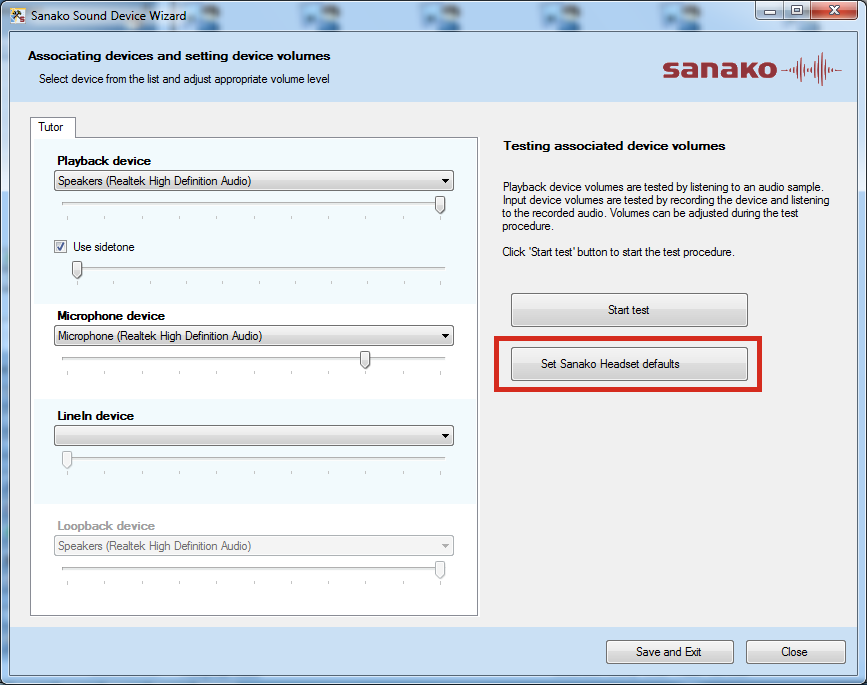
Watch a screencast of operating the Sanako Study 1200 Student Sound Wizard from menu: Tools / Sound Settings – using an analog headset. However, “If you are using Sanako SLH07 USB headsets, Study has inbuilt default audio settings that you can easily apply. Simply click on Set Sanako Headset defaults to employ audio settings that have been preconfigured for use with a Sanako headset“, like shown here:
Digital language lab audio configuration
Issues (BSODs) have been reported with simultaneously running USB sound-card driven headsets and on board audio, which have been alleviated by either USB soundcard driver updates or disabling the onboard audio or both.
To be safe, we do the latter, on this screen of the Dell-Optiplex-760-bios: f12 / System Setup / Settings / Configuration / Miscellaneous Devices (you need to push button “Unlock”and issue the BIOS password to make changes):

Dual audio is also a potential source of confusion for the user. This is the reason why we prefer hiding the MS-Windows Volume control icon in the notification bar – a setting in the control panel / sound and audio devices:

We rather stir the user to the Sanako student player audio volume slider as the single point of entry – and one which can be easily seen by the teacher: see Study 1200 teacher / PC Control / Show the student player).
This comes with added responsibility for the teacher, as the Sanako student player audio volume slider does not control the WAVE volume level. Ensure proper setting of the WAVE volume level AND proper source audio levels – or use our TBA:teacher lab audio control extensions to control the WAVE levels on student computers.
How to map your MS-Windows Live Skydrive/Office online storage as a network share to work natively with cloud storage
This allows you access cloud storage files (Note: works only for MS-Office files) as easily as within MS-Windows, and without having to deal with web browser incompatibilities.
Setup:
- If you know the URL of your MS-Office online Skydrive (how?),
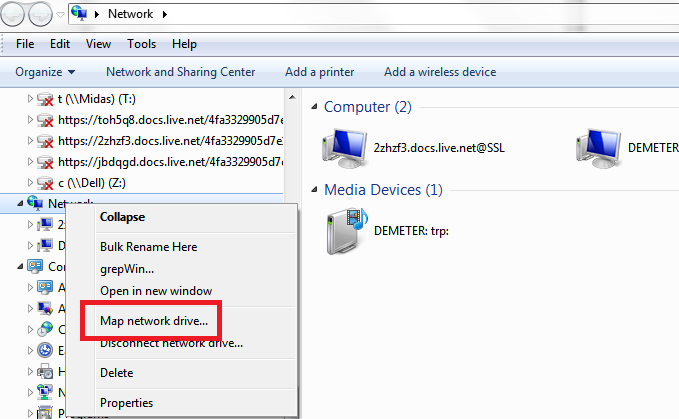
- in Windows 7, go to Network / Map network drive:
- Enter the URL that SkyDrive gives you, make sure to change “https:”to “http:”, select a drive letter:
- And voilà: An MS-Skydrive WebDAV location as a drive in your Windows Explorer:
Troubleshooting:
- if you have try this over the (restrictive) university wireless, you seem to get errors (“The file cannot be accessed by the system”):
- Interestingly after successfully receiving the authentication challenge from the resource
- If you have successfully mapped the drive over the non-wireless and then try to access it over the wireless, you may get this (0x80070035: ”The network path was not found”):


How to reveal your Skydrive/Office online cloud storage URL with SkyDrive Simple Viewer
A useful tool is SkydriveViewer which can reveal the URL of your MS-Office online Skydrive if you provide your Windows Live online credentials:
![skydrivesimpleviewer-url_thumb[1]](https://thomasplagwitz.com/wp-content/uploads/2011/05/skydrivesimpleviewer-url_thumb1.png "skydrivesimpleviewer-url_thumb[1]")
Download it from the SkyDrive Simple Viewer Codeplex site.
How to rip an audio CD in MS-Windows with Windows Media Player
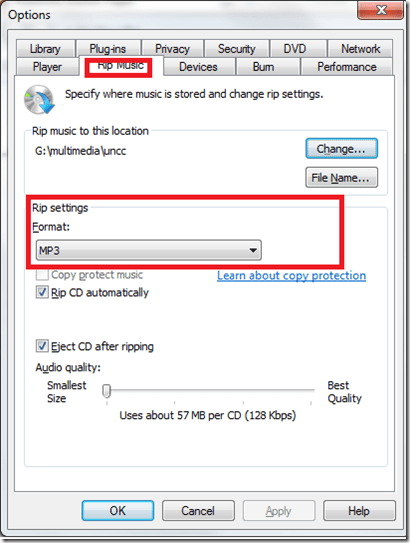
- Windows Media Player has CD-ripping capabilities built-in, WMA-format used to be the only option and is still the default in Windows 7, but can be changed under menu:”tools” / “options”/ tab:”rip music”
Study 1200 Pairing
In the Sanako Lab300, Group conference and Pairing were separate activities in the digital audio lab.
In the Sanako Study1200, pairing (and recording) students is an option under the discussion activity, as you can see here:



Questions? Read the About. Or just ask me a quick Our Databases: Resources with calendars -- Language learning material Moodle Sites, multimedia files -- films


FAQs for LRC student staff or for students or for teachers. To search our FAQs, in the browser addressbar, add after "https://plagwitz.wordpress.com/feed/?tag=faqs+/" "+TAG1" (from tag cloud below) OR "https://plagwitz.wordpress.com/feed/tag=faqs
&category_name=" "CAT1" (from category hierarchy below). OR search both categories and tags, and multiple TAGs/CATs (connect with "," for OR-search, with "+" for AND-search), like so: https://plagwitz.wordpress.com/feed/?tag=TAG1+TAG2+...TAGn&category_name=CAT1
+CAT2+...CATn"
Other ways to find help
If you cannot find it here, look there: 5,500 Language-Learning Links and Programs for learning or teaching 150 languages
Shortcuts:Our Lists, Our Maps, LRC Staff Moodle Site,LRC Project Moodle Site, 49erexpress, UNCC Moodle, Student Recordings: s:claslcslrcsanakostudent
Learning usage samples: Sanako oral exam, Kaltura webcam presentation, Dictation with speech recognition, Sanako written exam, Chinese and Japanese interactive stroke-order practice
Test the Sanako Installer, Webbrowser Popup Konfigurator for XP, or Windows7, faster LRC TeacherPC Log-in Let MS facilitate diacritics writing by installing for you US-International keyboard layout
This is my personal blog (Google+). The views expressed on these pages are mine alone and not those of my employer. The information in this weblog is provided “AS IS” with no warranties, and confers no rights.
 Thomas' Work Space