Archive
Windows 7 cannot connect to shared printer (error code 0x0000000d)
- Problem here: Dell MFP1125 on XP 32-bit gets shared and discovered from Windows 7 (64-bit), but not connected to from Windows 7 (error code 0x0000000d). Elsewhere, many people encounter this error, in a variety of configurations (printers, Windows).
- Resolution:
- on Windows 7, from the command line, issue “net use LPT1: \\yourservername\yourprinter /persistent:yes”
- In devices and printers, from the add printer wizard, add a local printer on LPT1 (installs driver), print your job to that (for it to get redirected to the shared printer).
- If you lose your printing capability (“net use” shows “unavailable”), delete the local printer, reissue the “net use” line above, and reinstall the local printer.
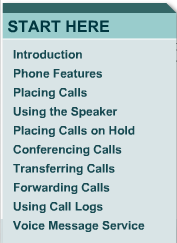
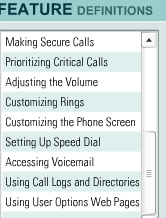
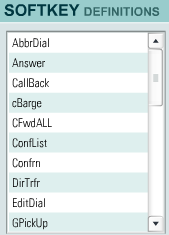
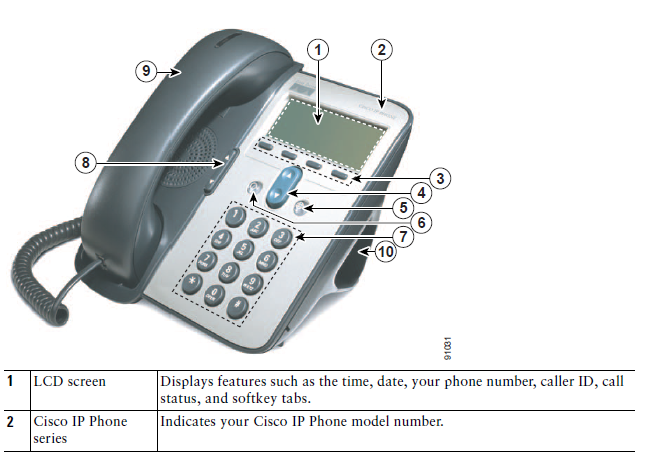
Cisco IP Phone 7912G Tutorial & Manual





Screencast showing how to “Add resource: link to a file” in Moodle, including file upload into file area
If you do not know how to make an MS-Word or audio or other file accessible to your course through Moodle, you can view a demo here.
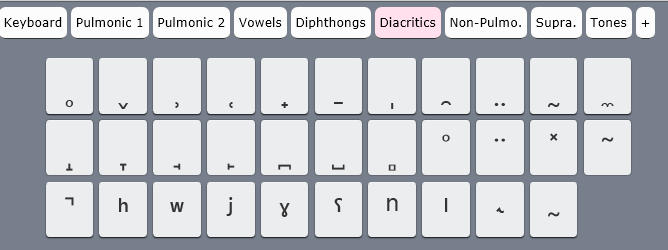
I2speak.com: Web-based IPA Keyboard
The Sciweavers Team announces http://www.i2speak.com: “an online Smart IPA Keyboard that lets you quickly type IPA phonetics without the need to memorize any symbol code. For every Roman character you type, a popup menu displays a group of phonetic symbols that share the same sound or shape beneath typed character. Use arrow keys to select the proper symbol then hit the Enter button. I2Speak also supports the following features:
1. The Sampa English Keyboard lets you type English phonetics using Roman characters according to SAMPA (Speech Assessment Methods Phonetic Alphabet) rules.
2. The IPA English Keyboard provides you with a full English phonetics keyboard. Press the symbol of interest using a suitable input device.
3. You can type directly on your physical keyboard or on the virtual on-screen keyboard using a suitable input device such as mouse or touch screen device.
4. You can change the keyboard symbols by selecting another layout from the list box located above the virtual keyboard.
5. For every keyboard layout, more symbols can be displayed by pressing the CAPS Lock.
6. When you hover the mouse over an English phonetic button, a slick tooltip will show some example English words.
7. You can save typed phonetics as an MS-Word file by clicking the Save button, copy them to clipboard using the Copy button, or post them to Twitter, Facebook, etc. by clicking the desired button.”



Protected: Students still in wrong time zones in live@edu
Protected: Moodle streaming video recording assignment glitches 3, 4, 5, 6, 7 & 8: A running log
How to display Furigana phonetic guide for Japanese Kanji in MS-Word 2010
- Furigana uses Kana (usually Hiragana) to phonetically transcribe Kanji, above (for horizontally written Kanji) or to the right (if in vertical writing mode), for special characters or audiences (children and second language learners).
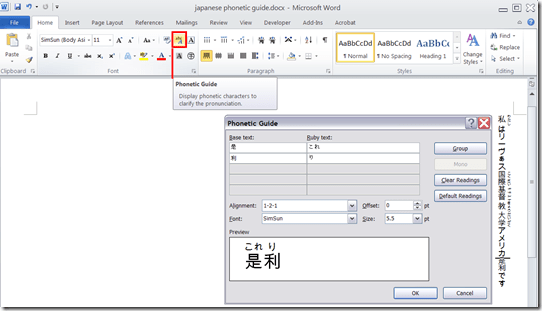
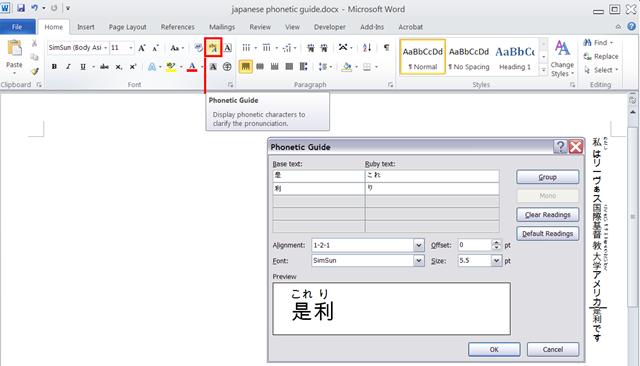
- In MS-Office, if you have a Japanese Input Method Editor selected in MS-Windows, select some Kanji and in the ribbon, under tab: home, section: font; click on the Phonetic guide, to bring up a dialogue that attempts to auto detect the furigana.
- You can make adjustments there, click “OK “to insert. Like so:


Questions? Read the About. Or just ask me a quick Our Databases: Resources with calendars -- Language learning material Moodle Sites, multimedia files -- films


FAQs for LRC student staff or for students or for teachers. To search our FAQs, in the browser addressbar, add after "https://plagwitz.wordpress.com/feed/?tag=faqs+/" "+TAG1" (from tag cloud below) OR "https://plagwitz.wordpress.com/feed/tag=faqs
&category_name=" "CAT1" (from category hierarchy below). OR search both categories and tags, and multiple TAGs/CATs (connect with "," for OR-search, with "+" for AND-search), like so: https://plagwitz.wordpress.com/feed/?tag=TAG1+TAG2+...TAGn&category_name=CAT1
+CAT2+...CATn"
Other ways to find help
If you cannot find it here, look there: 5,500 Language-Learning Links and Programs for learning or teaching 150 languages
Shortcuts:Our Lists, Our Maps, LRC Staff Moodle Site,LRC Project Moodle Site, 49erexpress, UNCC Moodle, Student Recordings: s:claslcslrcsanakostudent
Learning usage samples: Sanako oral exam, Kaltura webcam presentation, Dictation with speech recognition, Sanako written exam, Chinese and Japanese interactive stroke-order practice
Test the Sanako Installer, Webbrowser Popup Konfigurator for XP, or Windows7, faster LRC TeacherPC Log-in Let MS facilitate diacritics writing by installing for you US-International keyboard layout
This is my personal blog (Google+). The views expressed on these pages are mine alone and not those of my employer. The information in this weblog is provided “AS IS” with no warranties, and confers no rights.
 Thomas' Work Space