Archive
Character Input Methods for SLA (Western)
For studying (typing) Western Languages (= need for diacritics only; whether you have a US keyboard hardware or UK which is pretty similar), we recommend the MS Windows US International Keyboard layout which is based on “dead keys”.
Currently installed in the LLC are the Language Bar (floating on top of screen or accessible from the taskbar) with these keyboard layouts:
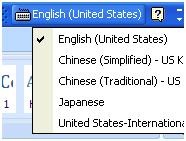
Keyboard layout settings are application/window specific, and “US” (non-international) is still the default for new applications/windows, so prepare to switch after you start a new application;
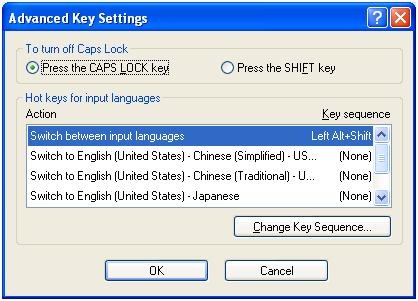
There are keyboard shortcuts for switching, however, “Key settings”: “switch between input languages” , using LEFT ALT + SHIFT, does not work. Workaround: use the language bar for switching:
Windows keyboard layout settings can be temperamental – if you find you cannot switch to a certain layout anymore, you may have to restart the computer.
Use the following keyboard shortcuts to enter diacritics more easily:
|
Press (together, then release) |
then press |
Example Result |
|
` (accent grave) |
any letter that can have this accent, e.g. "a”, also cedilla ç |
à |
|
‘ (apostrophe) |
á |
|
|
^ (caret)- |
â |
|
|
~ (tilde) |
ã |
|
|
” (double quotation marks) |
ä |
|
|
CTRL+& |
Z or z |
æ |
|
rightALT+ |
X or x |
œ |
|
rightAlt+n |
|
ñ |
|
ALT+CTRL+? |
|
¿ |
|
rightAlt+? |
|
|
|
ALT+CTRL+! |
|
¡ |
|
rightAlt+1 |
|
|
|
rightAlt+s |
S |
ß |
To access the original, now dead keys, press space bar after pressing the dead key.
|
Modifiers(blue)/Layout |
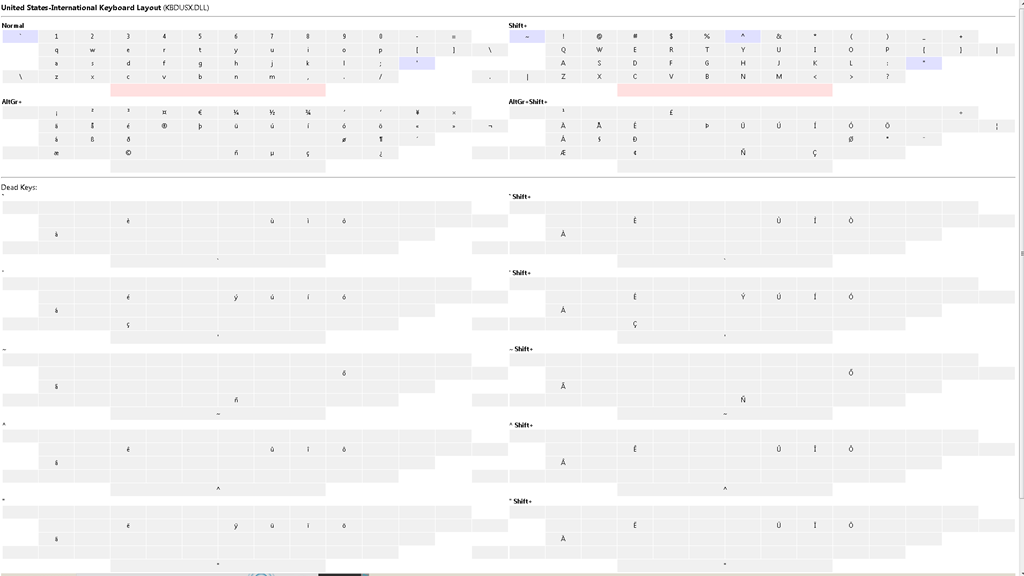
Note the new modifier = “dead” keys, indicated by light blue color (click to enlarge) |
|
Normal |
|
|
|
|
|
Shift |
|
|
|
US International |
|
|
|
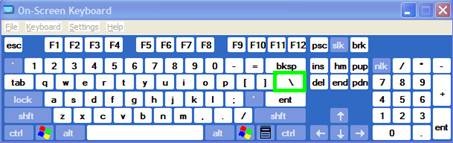
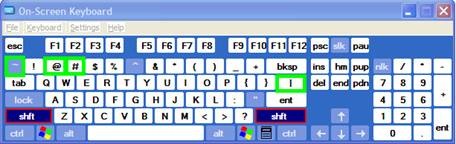
Screencast of US International in action here: deadkeys.wmv
Interactive Demo of installation procedure (personal computers outside of the LLC) here: keyboard_usinternational.swf
Planned improvements:
- Use LEFT ALT+Shift to switch to (Software) “Keyboard Layout” “United-States International”.
- Use other keyboard short cuts to access a desired keyboard layout directly
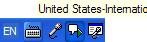
- Dock the “Language Bar” in the Taskbar, then hover over it to make sure you selected the proper “Keyboard Layout”.
· 
Getting answers for the LRC management from Report Express
- Report Express is a powerful tool to get current enrolment data which seems vital for running the LRC, but which I have not been able to get my hands on before easily (SCT-Banner limits access too much).
- Excel download format – which I recommend : cleaner (fewer graphics) and more information – DOES work, but for Excel 2010, I have to rename the download file extension from XLS to HTML (which the download is) and “open with” –> Excel.
- I have not been successful merging these output files per language on the command line into one large HTML file and cleaning up the <html><body> framework – so I have to open each one, merge by copy/paste the contents of the result worksheet into a new worksheet and clean up the data in there by converting into an Excel Table and sorting by a suitable table column, e.g. ID, which puts all actual enrolment data sequentially, and separates all (redundant anyways) header and footer information.
- I finally added table columns with array formulas to calculate the enrolment aggregates,
- per this section (to answer questions like: will this class fit into the language resource center?),
- this course # (to answer questions like: where can we have maximum impact on improving learning with technology with creating the minimum of new learning/assessment materials. Assessment is standardized per course #.)
- and per language-level.
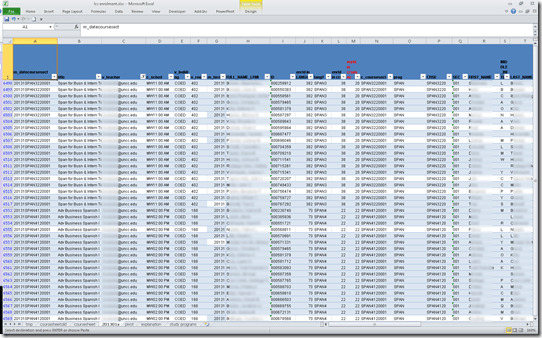
- Finally, vlookup-columns allow me to link the instructor of record and other missing class information (room, building, time) to the student enrolment rows. This allows me to filter, sort and search the enrolment sheet with real-life questions, like
- can we support this size class/course/level and language in the LRC
- is it practical to relocate this course for part/a whole class meeting to the LRC
- which students need be given access permissions to the SANAKO
- etc.
-
Sample filter of the aggregate sheet:

Query treebanks with Fangorn for English SLA?
To provide inductive empirical examples, SLA classes have benefitted from query interfaces to target language text corpora in SLA. But corpora are usually POS-tagged – and queried – at best, which constitutes a certain “impedance mismatch” to what SLA classes actually teach. The Fangorn very large treebank query language beta demonstration page

looks already interesting for analyzing English in SLA (hover over tree elements to highlight the corresponding text), including, thanks to its capability of editing and refining queries graphically from the search results, for demonstrations during face-to-face classes. Wondering whether other corpora than Penn Treebank, Wikipedia (5k and 5000k sentences) will be made available online, and other languages but English will be supported.
How to take roll in class using Sanako Study 1200
- Today:
- I had to work on getting my Sanako classroom layouts back up after a network cutover on the first day of the academic year.
- I could observe a teacher new to the Sanako lab taking roll on paper, reading out each student’s name and finding the student in the classroom . This is a known good way to learn to put a face to a students’ name. Once that is done (and maybe could be done also faster using student thumbnails in university computer systems like the LMS), one can save teaching time taking roll doing the following :
- At the beginning of each of your class meetings:
- You cannot start a sanako class before your students have logged in and their sanako student clients have started up – that is the first I always ask my students to do.
- In the initial Sanako tutor startup dialogue, open an empty class.
- Wait for the “corridor” to be fully populated, then select all.
- Have the sanako tutor populate the classroom layout.
- Choose menu file / save classroom layout as, and save in your tutor folder with the date as the filename.
- (Load your familiar class layout to actually begin your class – this will take little extra time, for Sanako tutor does not need to wait again for the Sanako student clients to start up).
- After the last day of classes:
- load each saved file into MS-Excel (as an XML table),
- first column will be class date, hide all columns in between that and your student login name,
- select and copy these 2 columns into an attendance spreadsheet (if you find a way to strip the xml wrapper, you can merge the files on the command line – after all, the classroom layout files are just plain text),
- in the attendance spreadsheet, calculate attendance
- either sort first by date, then by login name, and count attendance manually using the dates;
- or have Excel count for you with an array formula pasted into a third column that checks for and counts identical dates.
- Final thoughts: Your mileage may vary if you don’t teach all your classes in a Sanako lab – I used to and have come to appreciate an institutionally provided and maintained lab infrastructure which is stable – compared with complaints I have heard about having to rely on your students not forgetting their clickers if you want to use technology rather than class time for taking roll outside of a stable infrastructure.




Questions? Read the About. Or just ask me a quick Our Databases: Resources with calendars -- Language learning material Moodle Sites, multimedia files -- films


FAQs for LRC student staff or for students or for teachers. To search our FAQs, in the browser addressbar, add after "https://plagwitz.wordpress.com/feed/?tag=faqs+/" "+TAG1" (from tag cloud below) OR "https://plagwitz.wordpress.com/feed/tag=faqs
&category_name=" "CAT1" (from category hierarchy below). OR search both categories and tags, and multiple TAGs/CATs (connect with "," for OR-search, with "+" for AND-search), like so: https://plagwitz.wordpress.com/feed/?tag=TAG1+TAG2+...TAGn&category_name=CAT1
+CAT2+...CATn"
Other ways to find help
If you cannot find it here, look there: 5,500 Language-Learning Links and Programs for learning or teaching 150 languages
Shortcuts:Our Lists, Our Maps, LRC Staff Moodle Site,LRC Project Moodle Site, 49erexpress, UNCC Moodle, Student Recordings: s:claslcslrcsanakostudent
Learning usage samples: Sanako oral exam, Kaltura webcam presentation, Dictation with speech recognition, Sanako written exam, Chinese and Japanese interactive stroke-order practice
Test the Sanako Installer, Webbrowser Popup Konfigurator for XP, or Windows7, faster LRC TeacherPC Log-in Let MS facilitate diacritics writing by installing for you US-International keyboard layout
This is my personal blog (Google+). The views expressed on these pages are mine alone and not those of my employer. The information in this weblog is provided “AS IS” with no warranties, and confers no rights.
 Thomas' Work Space