Archive
Webinar: Respondus 4.0 for Moodle by Vendor
In case you could not make it to this live online presentation shortly before the term start, I taped this respondus-4-moodle-webinar (plays for sure in Windows Media Player on the Lab PCs) for your review. I also made this transcript which can help you jump to the information that interests you most:
|
0: 00 |
question editor |
|
1: 00 |
signing up for a test bank |
|
4: 00 |
importing questions from a test bank (example: human biology) |
|
6: 30 |
editing the quiz based on the test bank |
|
7: 00 |
adding another question, multiple choice |
|
07: 00 |
question types in Moodle and Respondus are similar |
|
08: 00 |
ad advanced formatting, like bold or html or multimedia |
|
09: 00 |
from a local computer or on the web, like youtube.com |
|
10: 00 |
equations |
|
12: 00 |
printing exams |
|
14: 00 |
publishing exams directly into Moodle |
|
14: 00 |
enter your Moodle server information (once; or never, if your administrator has prepopulated these fields for you) |
|
16: 00 |
summary |
|
18: 00 |
lockdown browser: can’t print, capture screen as image or video, can’t browse web or instant messaging programs |
|
20: 00 |
integration with Moodle (Moodle block if hosted, module if self-hosted) |
|
21: 00 |
within Moodle, on the update quiz link, in the section: Respondus lockdown browser |
|
21: 30 |
students perspective: local client software install |
|
23: 30 |
example of taking an exam with the lockdown browser |
|
28: 30 |
what the exam will look like if the students tries to access it with another browser |
|
30: 30 |
admin perspective: info for the lockdown browser license administrator, including for lab administrators with imaging and answer files |
|
34: 30 |
summary |
|
36: 30 |
online documentation |
|
37: 30 |
pricing |
|
38: 30 |
q&a: support for Moodle: 2.0,2.1 yes |
|
39: 30 |
q&a: the admin can in the admin portal prepopulate the server settings for the teachers’ Respondus |
|
40: 30 |
q&a: question types in Moodle are different from blackboard : these get dropped when you change the personality (blackboard/Moodle) within Respondus, but most basic question types simply carry over back and forth |
|
41: 30 |
q&a: default font size: menu: file / menu item: preferences/ tab: edit&publish |
|
42: 30 |
q&a: convert exam view files – go through the publisher of the text bank – or export to word, put the Respondus import markup in, import word into Respondus |
|
44: 30 |
q&a: lockdown browser system requirements: see online http://www.Respondus.com/lockdown/faq.shtml |
|
44: 30 |
q&a: timed exams? Yes, but through Moodle, lockdown browser just passes this through |
|
45: 30 |
q&a: virtual machine: lockdown browser prevents it (no need for vm with windows with new mac version of lockdown browser) |
|
46: 30 |
q&a: dual screen: lockdown browser prevents it , beyond enforcing full screen |
|
47: 30 |
q&a: how to push out the lockdown browser to your students during the first quiz? Best set up a test quiz with just this purpose |
|
48: 30 |
q&a: will the timer from Moodle show in the lockdown browser: yes |
|
49: 30 |
q&a: about hosting |
|
50: 30 |
q&a: multiple questions to a single image |
|
51: 30 |
q&a: publishers |
While I like the impetus of Respondus to facilitate formative assessment, its utility seems limited if you do not have pre-authored publisher test bank for your topic. Or rather the functionality of preformatting text in MS-Word and importing it – not demonstrated in this screencast – seems more convenient (and partially could be automated, especially in SLA quizzes by using NLP) than actually authoring quizzes in Respondus – but is also available in Moodle itself.
Or use a simple quiz-generating MS-Word template if you do not need an LMS, but rather feedback so much faster than on the WWW, as implemented in current LMS, that a difference in quantity difference forms a new quality).
And I can also not say that I see much new in Respondus since 2004, except for the Moodle support, which naturally did not exist then. In the area of Web 2.0, one would wish for more than just publisher-driven test banks (where language are largely absent except for the most popular courses).
How teachers can more quickly open/update/save their Moodle files from MS-Office
MS-Education Labs has published a plugin that speeds up editing MS-Office Files in Moodle.
To use the plugin, download (for 32-bit Office) , run, and from (2007) Office Button or (2010/2003) Menu: “File”, use menu item “Open from Moodle” (and later “Save to Moodle”).

You have to (once) let MS-Office (e.g. MS-Word or Excel) know the URL of Moodle (e.g. http://moodle.uncc.edu),  , then your login credentials:
  .
.
Note that your categorization of Moodle courses (in the tree menu on the left, all courses are filed away in folders called “Training”) prevents an instant load:  .
.
Instead, search for (part of) your course title:  .
.
Select the results you want to add and click button: “Add”: 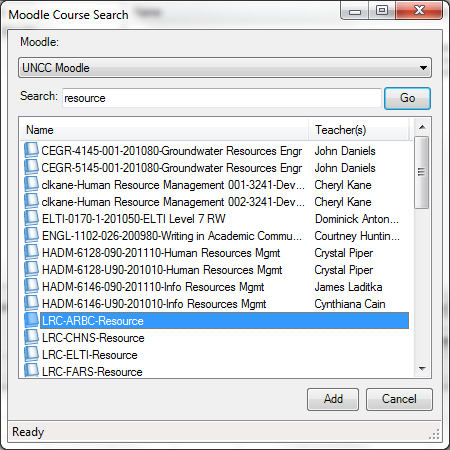 .
.
Wait for the courses to be loaded:  .
.
You can then use the left course tree to browse for matching MS-office files within each of your loaded courses: 
MS-Office files are likely involved in the majority of Moodle edits, so this promises to be a great timesaver.
For more information, see also the CTL’s step-by-step instruction Using the Office Add-in for Moodle.
Learning Materials eRepositories: Thoughts & Considerations
Cost- and time-saving benefits of learning material eRepositories include:
- sharing and reuse of content for the teacher ad learner
- de-duplication for the IT support
Typical issues I have encountered with learning materials repositories:
- questionable applicability of the software-object-oriented-design (OOD)-derived concept of encapsulated and reusable learning “objects” to highly progressive subjects like language arts;
- also, a not uncommon problem of OOD gone wrong: having a “God-object” vs. SOLID-principled object-design, is even more of a risk with “learning objects”: Don’t they not always tend to be too complex to truly reap the benefits of having a design based on many small encapsulated and reusable objects in software programming?
- licensing & copyright or privacy FERPA restrictions preventing uploads and specialization of interest prevents the network effects which have made the open internet so pervasive (and disruptive to some businesses);
 curation using metadata implementing controlled vocabularies and ontologies , even if crowd-sourced, remains a daunting task for domain specialists for non-librarians, while it has been said to be the secret of librarians:

“als ob er jetzt das Geheimnis dieser Wände aussprechen müßte: ‘Herr General,’ sagt er ‘Sie wollen wissen, wieso ich jedes Buch kenne? Das kann ich Ihnen nun allerdings sagen: Weil ich keines lese!” Weißt du, das war mir nun beinahe wirklich zuviel! Aber er hat es mir, wie er meine Bestürzung gesehen hat, auseinandergesetzt. Es ist das Geheimnis aller guten Bibliothekare, daß sie von der ihnen anvertrauten Literatur niemals mehr als die Büchertitel und das Inhaltsverzeichnis lesen. ‘Wer sich auf den Inhalt einläßt, ist als Bibliothekar verloren!’ hat er mich belehrt. ‘Er wird niemals einen Überblick gewinnen!’” (Robert Musil, Der Mann ohne Eigenschaften)
eRepository implementations I have used:
- Our Moodle instance is still looking for an erepository system to integrate. We are getting some eRepository benefits (easy reuse across courses without need for term-wise recycling/re-upload; de-duplication) by implementing [your language here] metacourses in which we enroll all [your language here] “child courses”
- The equella eRepository is used by NC-LOR, and TBA:I have managed learning materials in it earlier, in conjunction with Blackboard – most recommended (at least then) among educational technologists, but not for the faint of heart, which seems to have limited the faculty adoption (and for which NC-LOR may have been a reference implementation, if I remember correctly). One of the things I did not like about equella when I used it (2006-2008) was the seemingly endless point-and-click-and-WWWait.
- The Blackboard content-system was WebDAV based and therefore, once you had established the connection of your client to the WebDAV share (which MS-VISTA WebDAV updates unfortunately temporarily broke ), featured an extremely user-friendly integration with the MS-Windows shell that allowed for batch-handling of files in a familiar, fast “fat client” interface.
- I was, when it was first released, and its metadata-tagging features advertised by Jon Udell, highly impressed by – and consequently have become an avid proponent of, and much more active photographer itself – MS-Windows Vista (now also in: Live) PhotoGallery which combines intuitive use with great speed . However, requirements for managing and sharing a personal photo and video collection are not nearly as complex as for shared learning materials (although I have also used it managing my personal work ePortfolio).
How to use Wimba classroom for online tutoring
1. Before entering the Wimba online tutoring room, both teacher and student first run the Wimba Setup Wizard.
2. To enter the Wimba online tutoring room:
2.1. Teachers go to http://wimba.uncc.edu, and log in with their ninernet credentials
2.2. Students Click on the respective teacher link in the online tutoring schedule (SEPARATE HANDOUT), or build your URL from this:
2.2.1 room owner is student: http://67.202.211.176/launcher.cgi?room=stu_[replace […] by Ninernet username]
2.2.2 room owner is staff: staff: http://67.202.211.176/launcher.cgi?room=mtg_[replace […] by Ninernet username]
3. Text messaging: Teacher and user can type text messages in the text box in the lower left of the Wimba room.
4. Audio connection: Teacher and student have to hold the “Talk” button with your mouse (or change the options) when you talk. They can control that their audio is being recorded by monitoring the meter.
5. Screen sharing (e.g. for viewing the Centro online learning pages together):
5.1. is initiated by the teacher (through Remote AppShare Request).
5.2. The student gets to authorize it (by clicking “OK” in a window and dragging a frame around the portion of his screen she wants to share).
5.3. Both parties can end screen sharing as they wish.
6. Both teacher and student are advised to have a phone ready as backup. Note that, unless the student releases it, only the teacher phone number is available to the student.
7. In case of technical problems, make sure you have run the Wimba Setup Wizard and consulted the CTL Wimba FAQ.
8. Report remaining technical problems to http://helpdesk.uncc.edu or Faculty can call (704) 687-310, Students can call (704) 687-6400. After hours, get help at technicalsupport@wimba.com or call 866-350-4978.
Moodle: Video Assignment
Kaltura has been integrated into our Moodle system to enable video upload as an assignment type. Teachers can upload videos already now. It seems that students will be able to upload videos starting with the fall term.
Video source can be a webcam which could be interesting for language proficiency assessment, including – if the pieces can be gotten out of Moodle and into an ePortfolio system – to demonstrate longitudinal progression in proficiency.
The videos get stored on the Kaltura servers and redelivered in form of a Flash plug-in – in between happens a transcoding so that results are not available immediately. You can see us waiting for it at the end of this Kaltura video assignment upload screencast demo:
UNCC showed off our use of Kaltura at Educause 2011. You can see example applications quoted in the attached Kaltura use slide deck.
Finally, here is a test and walk-through of an elementary language course homework assignment using Kaltura.
Classroom management system: Netop School Software Install, Configuration and Test
- Uninstall the test install of Netop first from “Add/Remove Programs”

- The install should be made under the account that will before imaging copied into the Default User Profile.
- The install files are here (you need to be logged into, as well as for the videos).
- Both the teacher and the student software are recommended to be installed on the teacher computer.
- The basic settings for teacher:
- lrc-class: The name of the class that the Student module should join.
YES:Whether the Teacher module should use the Windows login name of the Student computer as student primary display name.
[see lrchelp mail account] =Protection password
NO:Whether the communication profile should be changed to something other than the default TCP/IP, for example wireless. - The basic settings for student install:
- YES:Whether the Student module should join a class automatically when started.
lrc-class:The name of the class the Student module should join. Note: This class name must match the class name defined in the Teacher module.
NO:Whether the communication profile should be changed to something other than the default TCP/IP, for example wireless - There are more configuration choices in the screencasts here:
- Teacher software Install Screencast
- Student software Install Screencast
- Functionality Test Screencast: (testuser needs to be logged in on PC05. Skip the waiting section before the results come in at the end; this is when I took the test on the student computer).
- In addition, try to point the shared folder for teachers J:\LRC\Plagwitz (try alternatively UNC: ). Try this first as labadmn (labadmn has no access to this share) and alternatively with your staff/teacher login (where Netop will likely accept it, but may not carry over from the labadmn into the Default User Profile).
- Try to add a copy of the “Teacher” program from “Startup”/ “All programs” to All Users / Startup

Wimba Classroom Session with AppSharing for online tutoring or support
Here you can view a 2.5 minutes screencast of how to initiate a Wimba Classroom session with Appsharing.
|
0:28
|
Logging in as participant
|
|
0:44
|
Chime indicates: loading finished
|
|
1:05
|
Demo:hand raising
|
|
1:17
|
Demo:messaging
|
|
1:42
|
Local screen sharing started by remote
|
|
1:57
|
Local dialogue to permit
|
|
2:02
|
Text message: “the app sharing is now displaying Plagwitz’desktop”
|
|
2:07
|
Local frame to select screen portion shared.
|
Now students can share a Moodle or other online assignment or all local text file with their tutor; users in need of computing support the offending application.
How to batch-upload learning materials, give students access in Moodle
To upload a set of learning materials (e.g. multiple audio tracks from a CD) at once:
- On your computer, browse to the files (assuming that, if your source material is on an audio CD, you have already “ripped” the audio to files on your computer)
- Zip the folder, e.g. using the built-in Windows right-click/context menu option “send to”/ “compressed file” (for more options, install the free 7-zip is more powerful, which is required on Windows XP if your file names contain foreign language diacritics).
In your Moodle course, Step 1 is to upload the files: click at the bottom of the left menu: “File”
- No need to create a folder since this is done automatically (advantage: keep files manageably together, e.g. applying student permissions to an entire folder set of files versus individual files – disadvantage: you may run into our Moodle file size limit (as of 2011-05 64MB for individual files, including the uploaded zip-file; you may ask for an increase or TBA:compress your audio files) .
- Enter the folder and upload, by browsing to the zipped file on your computer
- Wait for the upload to finish (remember you may have a single file size limit, so while it is not as convenient as uploading all files in one batch, you may have to split the files. When using Windows “Send to”, you have to manage this manually. 7-zip offers more assistance),
- Once the file appears in the folder, there will be a link “unzip” to the right of it: Click it.

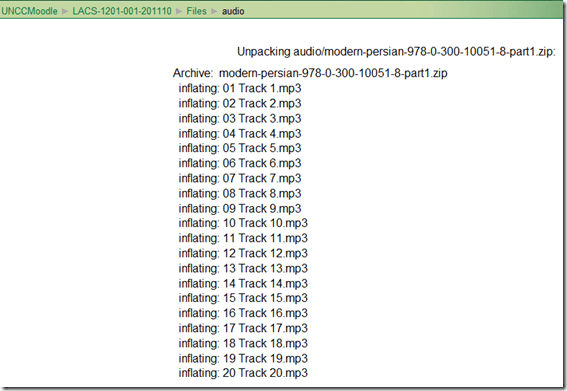
- Once the initial files appear in the folder, you can and may want to delete the zipped file.


Step 2 is to to make these files accessible to your students, by wrapping them as a resource:
- Button: “Turn editing on.”
- Section / drop-down:“Resources” / “Display a directory”.
- Enter a descriptive Name (your folder name will not carry over).
- You can enter a description of the file if you want into the Summary field. This is optional.
- Under “Display a directory”,’ select the desired folder directory from the pull-down menu.
- Click “Save and Display” to check the results.


Questions? Read the About. Or just ask me a quick Our Databases: Resources with calendars -- Language learning material Moodle Sites, multimedia files -- films


FAQs for LRC student staff or for students or for teachers. To search our FAQs, in the browser addressbar, add after "https://plagwitz.wordpress.com/feed/?tag=faqs+/" "+TAG1" (from tag cloud below) OR "https://plagwitz.wordpress.com/feed/tag=faqs
&category_name=" "CAT1" (from category hierarchy below). OR search both categories and tags, and multiple TAGs/CATs (connect with "," for OR-search, with "+" for AND-search), like so: https://plagwitz.wordpress.com/feed/?tag=TAG1+TAG2+...TAGn&category_name=CAT1
+CAT2+...CATn"
Other ways to find help
If you cannot find it here, look there: 5,500 Language-Learning Links and Programs for learning or teaching 150 languages
Shortcuts:Our Lists, Our Maps, LRC Staff Moodle Site,LRC Project Moodle Site, 49erexpress, UNCC Moodle, Student Recordings: s:claslcslrcsanakostudent
Learning usage samples: Sanako oral exam, Kaltura webcam presentation, Dictation with speech recognition, Sanako written exam, Chinese and Japanese interactive stroke-order practice
Test the Sanako Installer, Webbrowser Popup Konfigurator for XP, or Windows7, faster LRC TeacherPC Log-in Let MS facilitate diacritics writing by installing for you US-International keyboard layout
This is my personal blog (Google+). The views expressed on these pages are mine alone and not those of my employer. The information in this weblog is provided “AS IS” with no warranties, and confers no rights.
 Thomas' Work Space