Archive
How to use your office computer in the classroom
How-to:
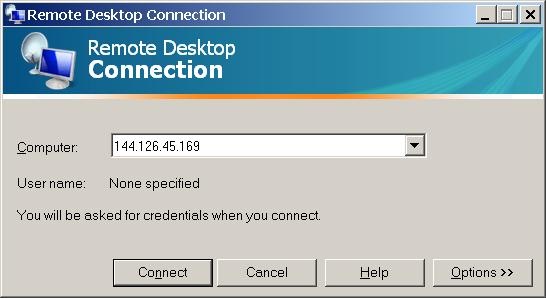
- Click
 , click
  , type “mstsc”, click
  .
. - In the field of the upcoming window, enter your office computer’s IP number (you have to do this only once, the teacher computer will remember the number).

- This will connect you to your office PC, and if you run mstsc (Microsoft Terminal Services Client) in full-screen, it appears pretty much like working on your office computer.
- To find out your office IP number, on your office pc, Click , click , type “cmd”, click . cmd. On the command line, type “ipconfig”, your “IP address” appears .
- Problems? Tell OTS with a link to this post.
Benefits:
- use your local configuration with which you are most familiar also in class (e.g. US-international keyboard);
- prepare windows for classes in your office at leisure (windows will show in the state you left them in the office), saving class time;
- use the computer in class more, saving class time.
Risks:
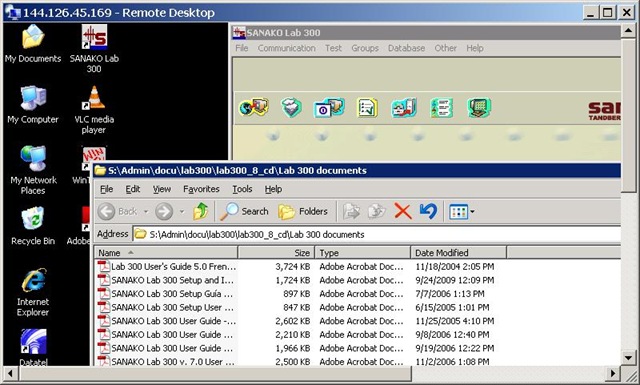
- does not work well with multimedia. Workaround: switch mstsc to window mode and play multimedia from the local desktop of the classroom PC:
- make sure you do not have any windows open in the office which you do not want to display in the classroom
- set your online status to “busy” in Office Communicator and other instant messaging applications, or else others might send disrupting text message pop-ups while you teach
- possible screen size incompatibilities (mstsc can automatically accommodate for differences, within limits)
- always test before going live.
How to configure a re-imaged (syspreped) Sanako Lab 300
1. On each of the 30 student computers in the main lab MH441, log in as user “llc-staff”.
2. In the Windows taskbar, click “start”, “run”, type: “c:\Program Files\Sanako\Lab\Lab300\duo\config.exe”, click “OK”.
3. In the “Media Assistant Duo” window that opens, change the field “Workstation number” to the last (one or two: omit leading zeros) digit(s) of the white label at the edge of the monitor that you are working at:
4. 
5. Click button “Finish”, then restart the computer.
Bonus hint:
If your lab goes down again in the middle of the term, check whether your IT department has set up new computers on the sub-network whose network names conflict with the Crossroad naming scheme of the Sanako Lab 300, as seen in the above dialogue and set in the Lab 300 crossroad settings dialogue.

Digitization of the SAVILLE analogue Conference interpreting recording facility: Lecture/Floor recording and CCTV streaming
The original conference interpreting lab setup had no provision for digital video recording of the lecture/floor. A workaround used on of the booth VCRs for analogue recording, with video form an ELMO dome cameras and audio from a lectern microphone – an audio installation which ran in parallel to the main DSI conference interpreting facility (and covered only the lectern, not the conference table).
A home-brew add-on was based on a consumer handheld digital camera for video. Experiments with different add-on microphones for audio from the lectern and floor were less than successful.
The DIS system however provides an audio out of the lectern an/or floor audio, as well as the capability for the conference administrator to open or mute floor microphones and for the technical administrator to set the maximum number of open microphones, and control their gain.
For the digitization of this system, I used
- an already retired standard university student lab computer
- to which I added an old spare ATI All-in-Wonder video card
- to which I connected a TEVION home TV switch as a poor man’s (~5£) video splitter into which I fed
- the (hitherto unused) DIS audio out balanced stereo, using an RCA adapter, as well as
- the ELMO video, using a coax to RCA adapter (video signal was split into the ATI as well as back into the original SAVILLE Kramer AV switch).
While originally coming with its own digitization software, the ATI All-in-wonder also works well with Windows Media Encoder.
Two wme configuration files were created:
- capturetestaticomposite_pal-l_480x320works.wme(find this file on the computer connected to the central rack, then double-click it in order to start Windows Media Encoder, then click the Record button in the top menu – no custom GUI was deemed necessary for this non-student operated recording) for recording to files that can be played with Windows media player, whether on Windows or on Mac OS X.
- streamtest480x320_15fps_pal.wme (again, simply find this file on the central rack computer, then double-click it) for streaming CCTV live to the back office. An onsite admin office was one of the usual features of a teaching lab which was missing in this installation. CCTV allows to keep an eye on teaching activities in the conference interpreting lab, proactively spot support needs ands absorb feature requirements which instructors tend to have problems articulating (or even seeing the need for articulating). A (lower quality archived stream is created on the side and can be picked up, post-processed and archived at TBA).


Language Learning Center Forms
Here you can download some forms which we use in our business processes.
Lab Assistant/Supervisor Job Application Form
Unless specified otherwise, submit to trplagwitz at Loyola.edu.
Can’t play video?
It is unlikely that you may be missing Adobe-Flash. Not quite so unlikely: MS-Silverlight.
You may simply be missing a codec. Many of my videos use the H.264 codec.
Short of dealing with too many codecs or codec packs, try a better media player:
- VLC player or
- Windows Media Player Classic or
- Windows Media Player 12 (comes with Windows 7)).
Windows Live FAQ
A team calendar for work groups on Windows Live
I have been asked whether we can have a workgroup calendar to coordinate who is on campus when.
We can use the hale-interpreting (http://hale-translation.groups.live.com) and hale-translation groups in Windows Live for this (http://hale-interpreting.groups.live.com).
Remember: Members only! You need to be a member of these groups to have access to their calendars. If you have not accepted my invitation email from a long time ago, you are not a member – and there is no point in digging that email out now, since it will have expired. However, you can go to either of the group’s home pages linked above and ask for being added. Then wait for the confirmation email response.
If you go to your calendar home page (http://calendar.live.com), all events from all “calendars” that you have access to (in the time span which you chose as your default – I use week view) display be default in one and the same “calendar”.
A bit of terminology: Lemma “calendar”, meaning: (1) a web page which looks like a paper calendar. (2) a series of related events (E.g. the MGB-36 events belong in one such “calendar” (2) as they all take place in this room).
Windows Live puts/displays all “calendars” (2) you have access to in one “calendar” (1), and differentiates the “calendars” (2) by giving each “calendar” (2) a distinct colour within “calendar” (1). The colours displayed in the picture below may be different for you – you can choose you own colour scheme from the calendar options –, but you, too, will have different colours per calendar.
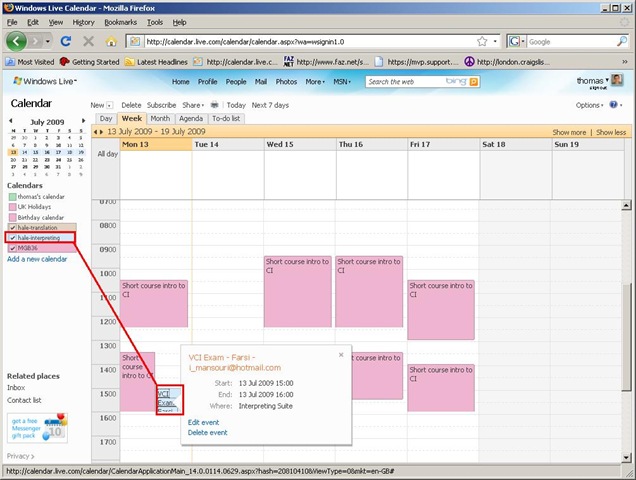
You will note that the Monday “Exam” above should be in the (red) MGB-36 calendar, not in the (light blue) interpreting group calendar. That is something you will have to pay attention to when you add an event, now that you have more than one ”calendar” (2) at your disposal (actually, you always had, and the most common initial error was users putting events in their personal ”calendar” (2) (coloured green above), with the result that nobody else but them could see those events).
You can set which “calendar” (2) to add an event to in the dropdown box labelled “Calendar” (framed red below, meaning “Which one?”). Also note the “All day [event]” option which should prove especially useful for a work group leave calendar (If you find a multi-day span option, let me know).

And here is the result, viewable for all users that have access to the hale-interpreting group calendar:
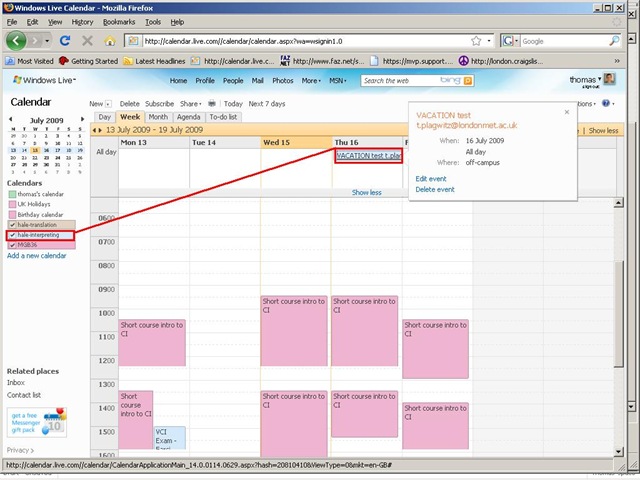
If colouring is not clear enough, filter the calendar (1) for specific “calendars”(2) = display only events from selected “calendars”(2). To do that, in the left menu, uncheck the box next to the calendar to hide all events from this calendar. Result if you view only the interpreting group calendar:

The natural next step is to have better collaboration even when not all workgroup members are in the same location, using instant messaging, including what is called presence. Windows Messenger 4.7 is already installed and ready on our computers (NOT if you have not abandoned Windows 2000 yet – do it now!). Just follow the quick start under my portrait picture at the right of my spaces home page . If you use your Windows Live login, a few things things should just fall into place. If you also want group messaging (multipoint), have the newer Windows Live Messenger installed.


Questions? Read the About. Or just ask me a quick Our Databases: Resources with calendars -- Language learning material Moodle Sites, multimedia files -- films


FAQs for LRC student staff or for students or for teachers. To search our FAQs, in the browser addressbar, add after "https://plagwitz.wordpress.com/feed/?tag=faqs+/" "+TAG1" (from tag cloud below) OR "https://plagwitz.wordpress.com/feed/tag=faqs
&category_name=" "CAT1" (from category hierarchy below). OR search both categories and tags, and multiple TAGs/CATs (connect with "," for OR-search, with "+" for AND-search), like so: https://plagwitz.wordpress.com/feed/?tag=TAG1+TAG2+...TAGn&category_name=CAT1
+CAT2+...CATn"
Other ways to find help
If you cannot find it here, look there: 5,500 Language-Learning Links and Programs for learning or teaching 150 languages
Shortcuts:Our Lists, Our Maps, LRC Staff Moodle Site,LRC Project Moodle Site, 49erexpress, UNCC Moodle, Student Recordings: s:claslcslrcsanakostudent
Learning usage samples: Sanako oral exam, Kaltura webcam presentation, Dictation with speech recognition, Sanako written exam, Chinese and Japanese interactive stroke-order practice
Test the Sanako Installer, Webbrowser Popup Konfigurator for XP, or Windows7, faster LRC TeacherPC Log-in Let MS facilitate diacritics writing by installing for you US-International keyboard layout
This is my personal blog (Google+). The views expressed on these pages are mine alone and not those of my employer. The information in this weblog is provided “AS IS” with no warranties, and confers no rights.
 Thomas' Work Space
