Archive
Archive for the ‘e-infrastructure’ Category
How to link screencasts from MS-SkyDrive
2011/10/19
Leave a comment
- I am trying to replace – in the routine cases that do not need post-editing, but where speed is of the essence – my practice to post-process my screencasts in MS-Expression Encoder (installed on one machine only) and upload the result with a page to load a Silverlight Control – all hosted on my MS-Windows Azure portfolio.
- Much easier and quicker would it be to store screencasts in MS-SkyDrive (mapping to drives in MS-Windows enables a more robust drag and drop than the still browser-specific web version on live.com), and top take advantage the embed links provided.
- Unfortunately, WordPress.com, my blogging platform, does not support iframes with videos from MS-SkyDrive.
- However, by linking to the URL in the embed code, to open in a new window (with the inelegant instruction to “click on the thumbnail that opens”; if it loads slow, the thumbnail ALT displays essentially the same),:
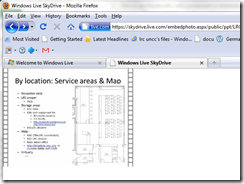
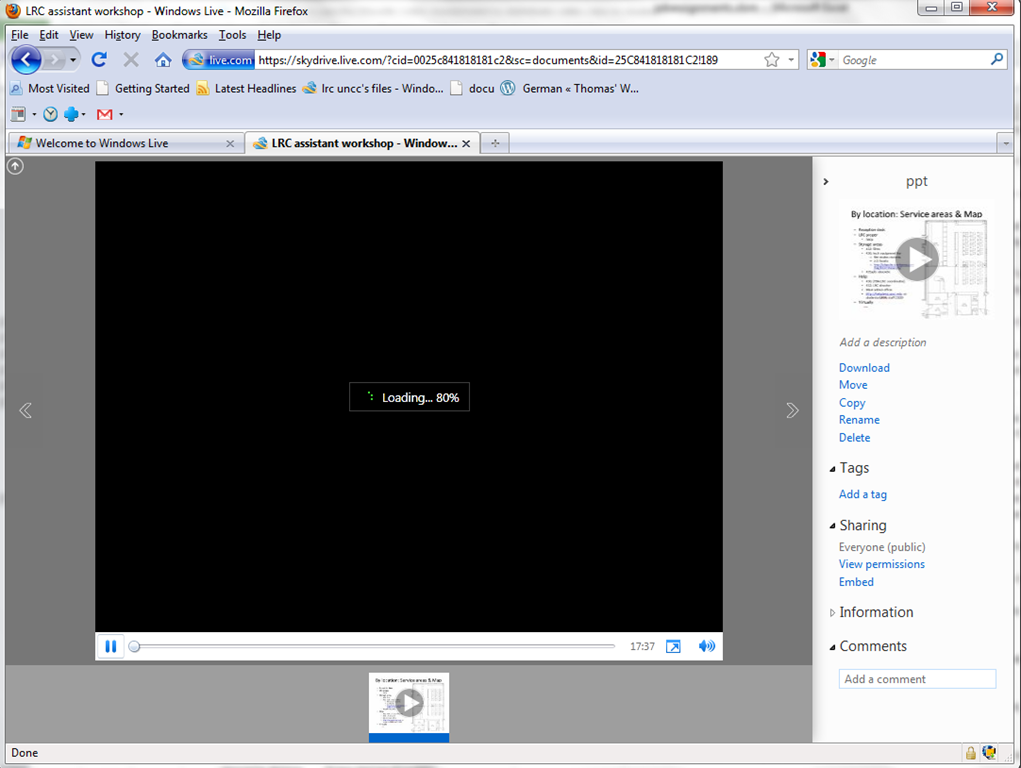
- I can get the user to an MS- Silverlight control which loads:
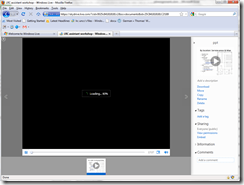
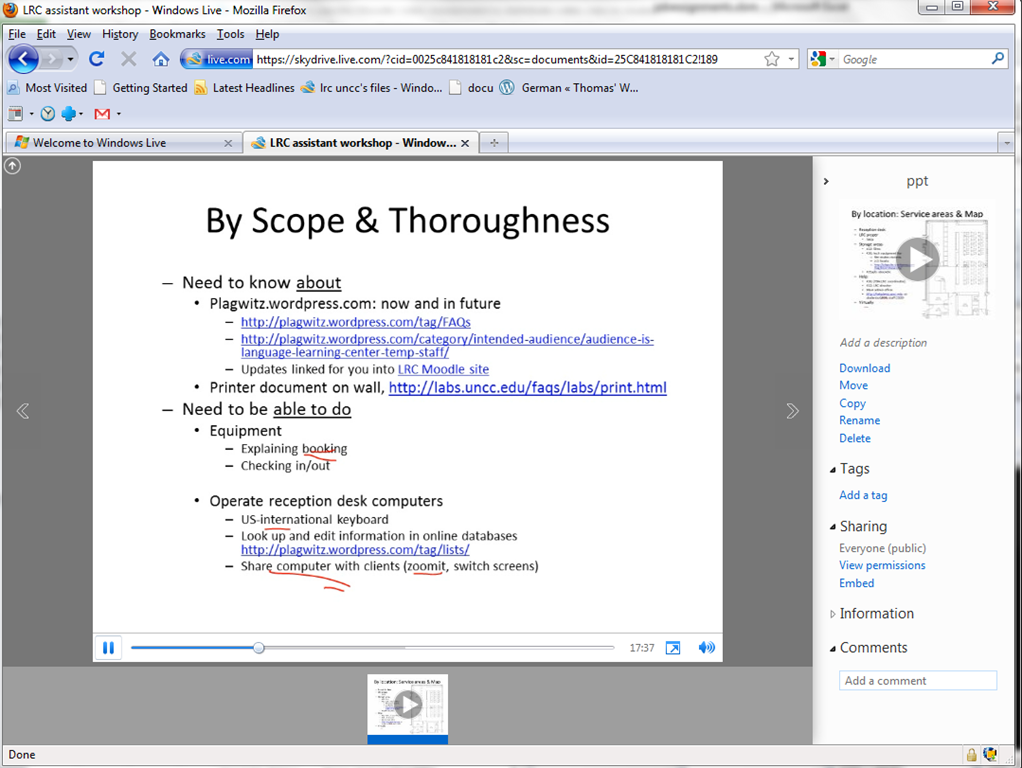
- and plays the video:

- more user-friendly and robustly (This has been tested to work on MS-Windows 7 with IE9 and Firefox 3.6) than distributing the bare WMVs of my screencasts directly.

How to make a screenshot of your computer screen
2011/10/18
Leave a comment
- You can look it up, or:
- on Windows, press the “PrintScr” key (upper right corner of your keyboard)
- on Mac OS X, Command+Shift+3.
- Then paste the clipboard into an application that can handle images and that you are familiar with (your best bet may be MS-Word).
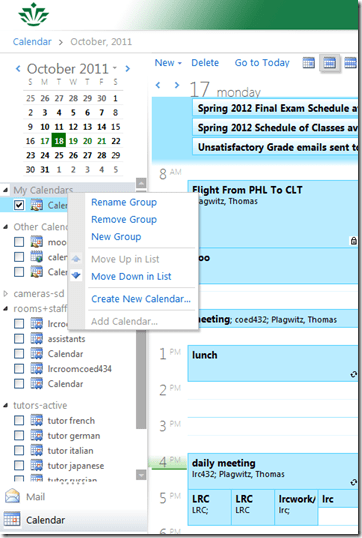
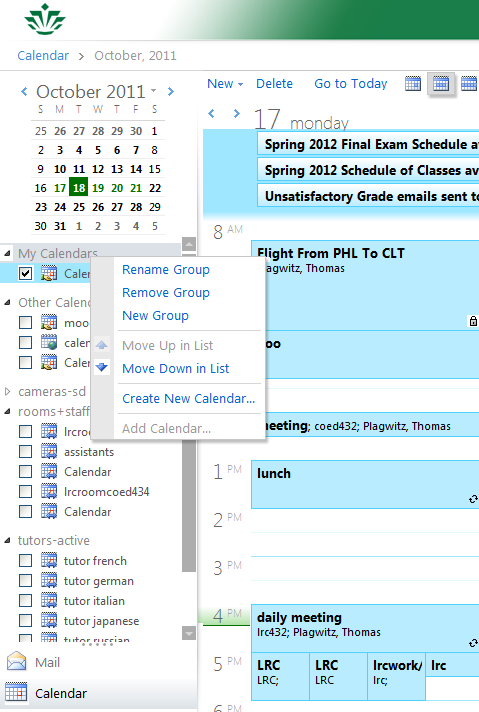
Why is the “Add calendar” item in the OWA’s My Calendars context menu often grayed out/not available
2011/10/18
2 comments
- This can been observed in IE8 and IE9.
Categories: e-infrastructure, Glitches&Errors
add-calendars, calendaring, OWA
Does your OWA look different from others’, but you do not want the low vision version?
2011/10/18
Leave a comment
- If you log in on http://mail.uncc.edu and see this:
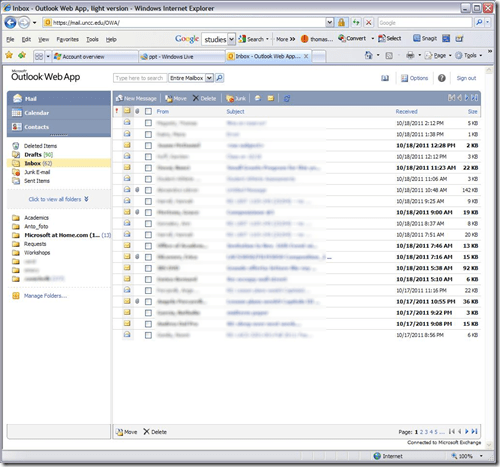
- do this
- Click on Options in the upper right corner
- Click on Accessibility on the left side of the screen
- Uncheck the box for ‘Use the blind and low vision experience’
- Click Save at the top of the screen
- Sign out in the upper right hand corner
- Go back to mail.uncc.edu and login normally without checking the ‘light version’ box, and you will see this:

- Not sure how you managed to inadvertently set it to “low vision”, but this is how to fix it, per our helpdesk.


Categories: e-infrastructure, Glitches&Errors
2007, 2010, 2011, accessibility, outlook, OWA
How not to book LRC equipment: Avoid scheduling conflicts by not using “Show times as free”
2011/10/18
1 comment
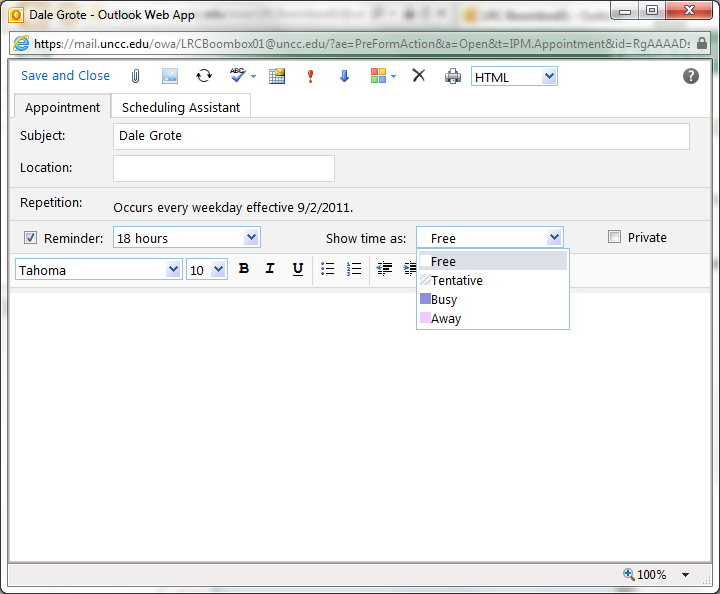
- Appointments and Meeting requests default to “Show time as busy”.
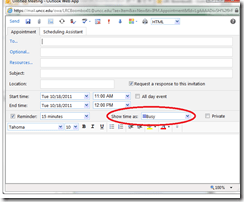
- Before you change this, like so:
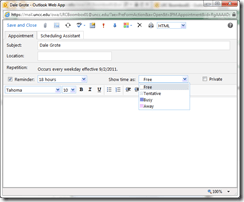 . Note this “Gotcha”: “If you have already specified that this is an all day event, Save As is set automatically to Free “.
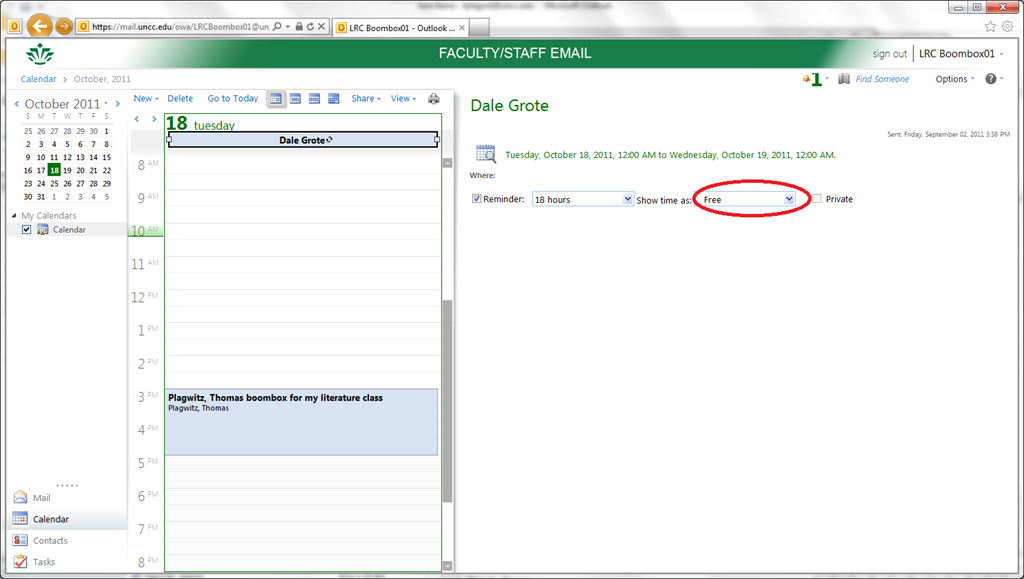
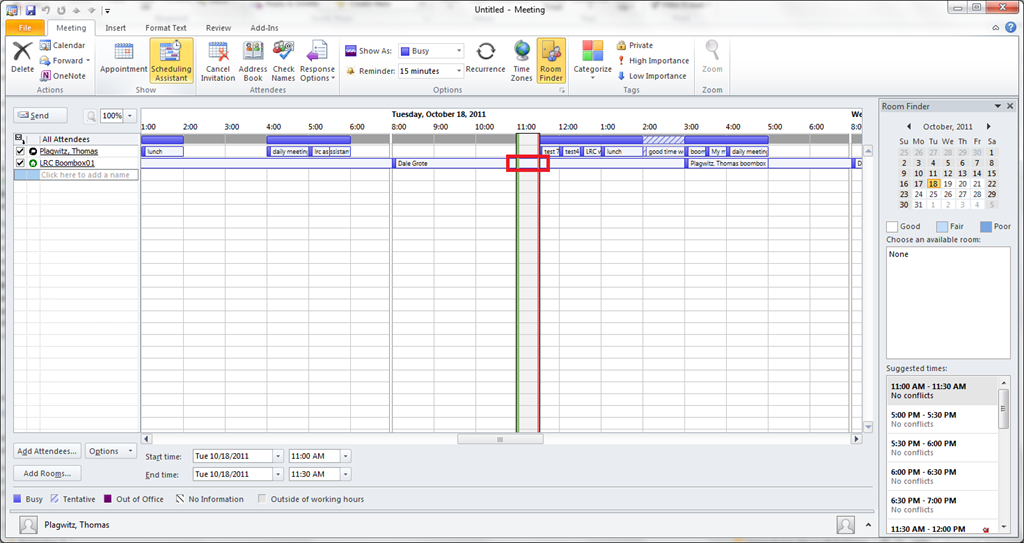
 - consider this: a scheduling conflict can easily result, if people coming after you cannot see the resource as “busy”, they might inadvertently book over your booking:
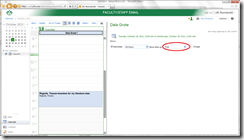
- Remember this is a platform for collaboration, not for spreading confusion: If you leave your appointment as “busy”, per the default, voilà, others can see that the resource is busy, and work around it:


Categories: e-infrastructure, service-is-library
2007, 2010, 2011, calendaring, Gotchas, ms-exchange, outlook, resources, scheduling
How to set up your laptop to use with the LRC portable Projector
2011/10/12
Leave a comment
- re LCD projector
- First, book the projector from this list of bookable items (manual included).
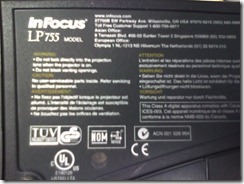
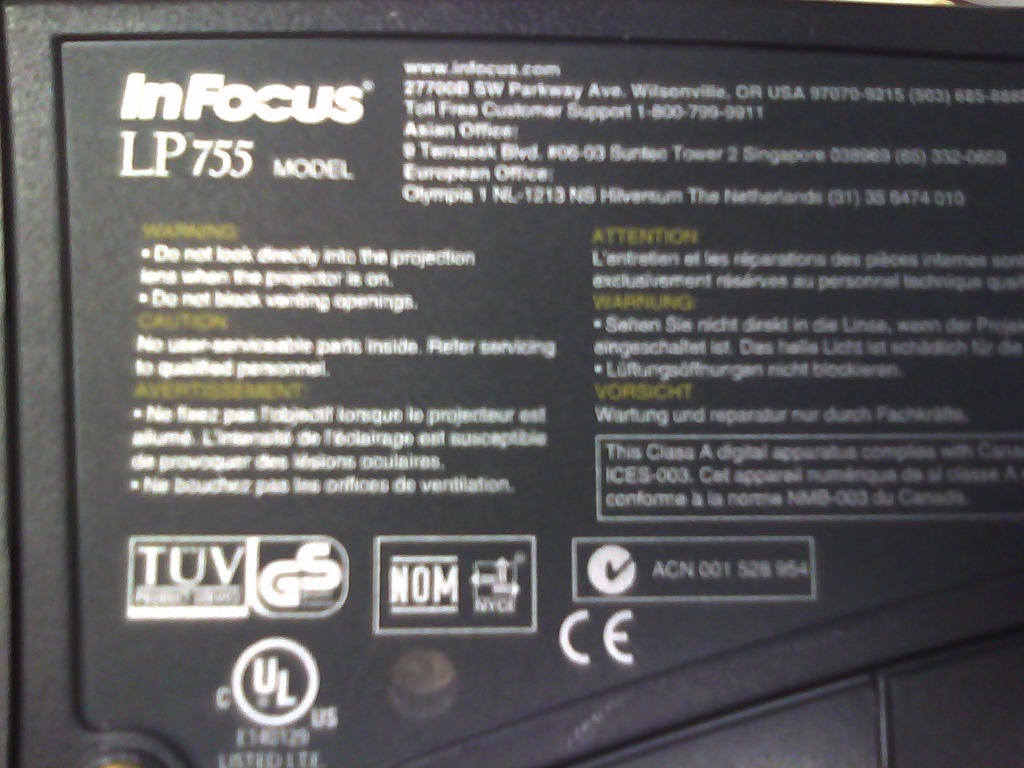
- Here is what we have as Projector:
 <
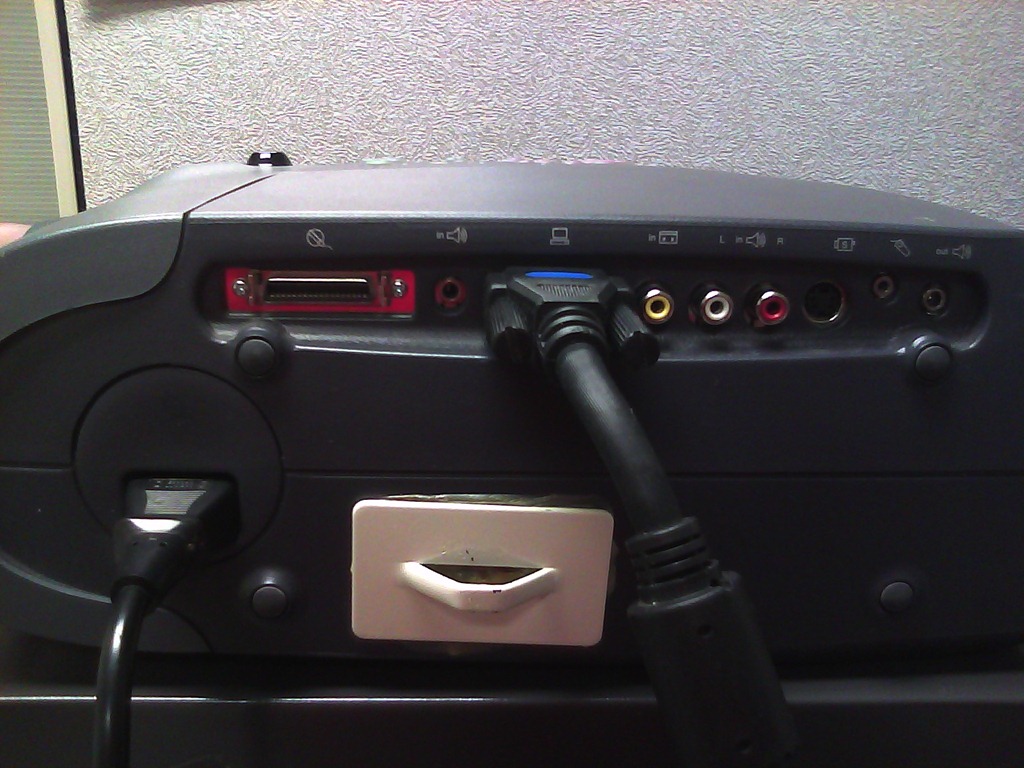
< - connect the VGA-adapter which is in the package:

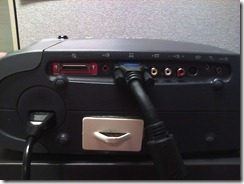 (if your laptop does not have a secondary VGA connector, you may need to bring an adapter).
 - power the projector on:
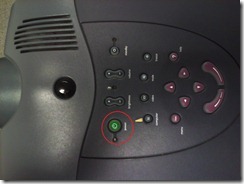 (also always power it off using the power button; never just pull the power plug).
- on your laptop:
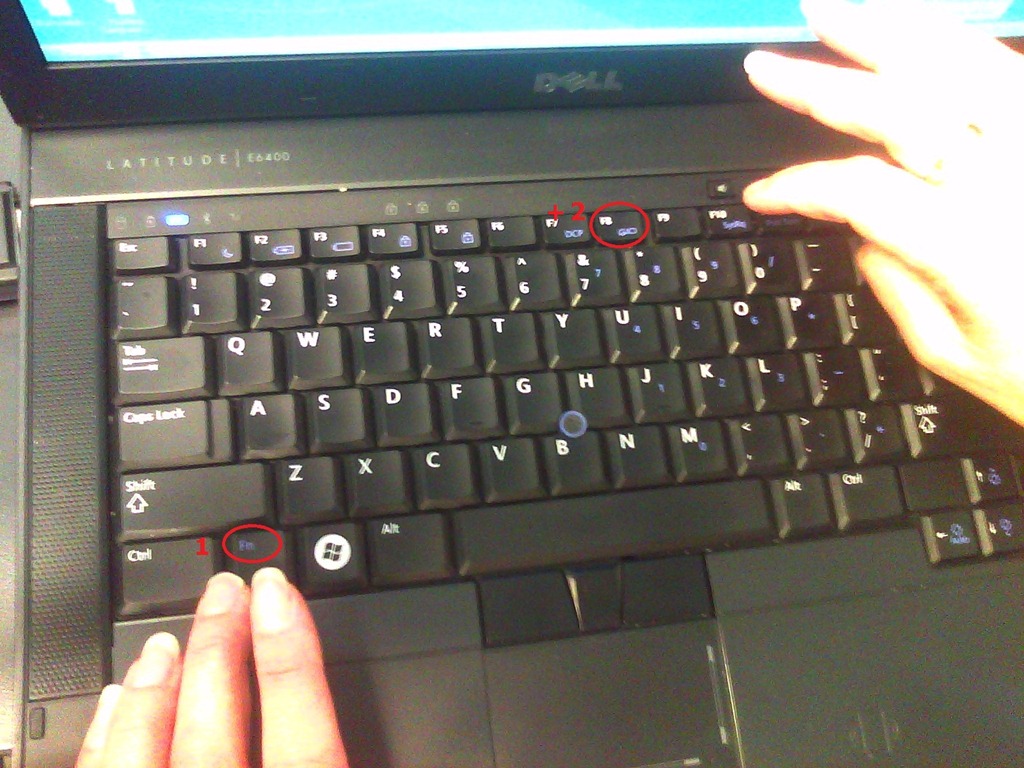
- find the key combination to enable the secondary output
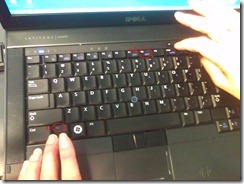

- right-click the windows desktop, access the graphics card settings;

- Enable the graphics card to send a video signal to the projector you just connected.
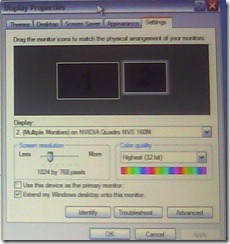 . I the projector native resolution is not automatically recognized, it is 1024*768.
- If you want to show a slideshow on the projector, go to PowerPoint
- ribbon, (1) Slide Show/ item: (2)) set up show, and bring up the (3) set up show dialogue
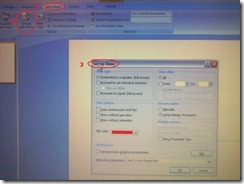
- here you can configure to show on monitor 2 (numbers correspond toe the numbers 1 and 2 in the graphics card dialogue above):
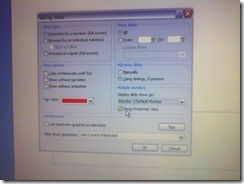 . Same principle as with other dual screen computers, like the teacher station in LRCCOED434.
- ribbon, (1) Slide Show/ item: (2)) set up show, and bring up the (3) set up show dialogue




How to get from our Film-collection.xlsx to in-depth bibliographic data on worldcat.org and upcdatabase.com
2011/10/10
Leave a comment
- worldcat.org,
- The link is based on the item’s ISBN (barcode-scanning was rarely possible, thus checksum checking becomes mandatory).
- upcdatabase.com
- The link is based on the item’s UPC/EAN which do come with barcodes, but lookup resources leave things to be desired:
- http://www.upcdatabase.com/item/[upc # here]: yields some info for some items (newer DVDs which usually also have ISBNs?)
- http://gepir.gs1.org/v32/xx/gtin.aspx?Lang=en-US, on spot-checking, yields only “Trade Item Ownership”, but “no Trade Item Info”, and does not support GET operation.

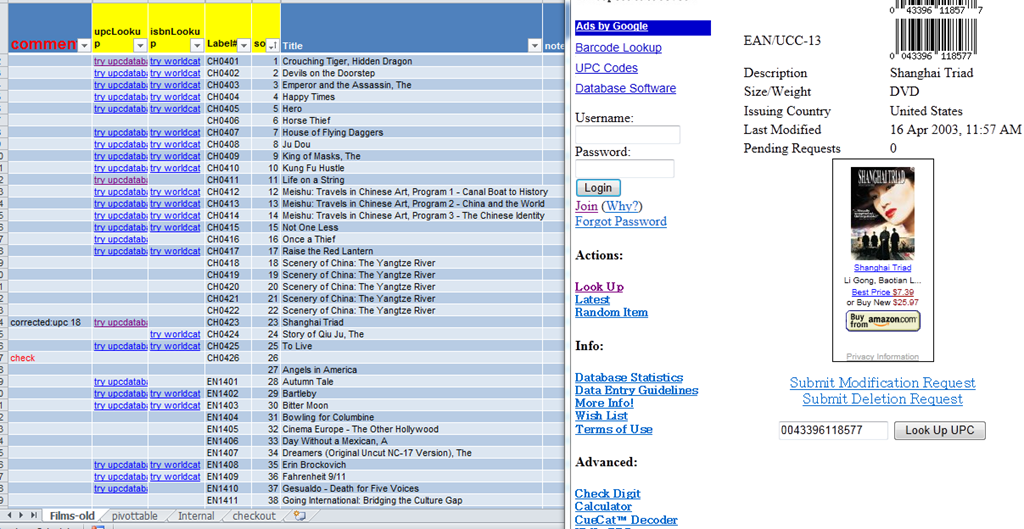
- This links another isolated and non-professional language resource center media collection to the world of non-pseudo libraries, where the power of crowdsourcing has long been known.
- The original plan – which will take more time to implement, especially since it can be automated only in a very limiting way – was to pull into the local collection spreadsheet accurate and multi-faceted bibliographic information, to prevent the common failures of even our usually basic item searches by title:
- foreign-language diacritics, given that non-foreign-language-librarians edited the local collection spreadsheet. This requires that foreign character input to be installed on the LRC help desk computers (done for Western) and that student assistant personnel can be trained (theoretically done – will need more practice)
- English translations: may provide a safety net for searches, short of automated flattening of all title diacritics.
How to validate an ISBN checksum with an MS-Excel formula
2011/10/10
Leave a comment

(Sorry, no Excel option in the sourcecode formatter on WordPress)


Questions? Read the About. Or just ask me a quick Our Databases: Resources with calendars -- Language learning material Moodle Sites, multimedia files -- films


FAQs for LRC student staff or for students or for teachers. To search our FAQs, in the browser addressbar, add after "https://plagwitz.wordpress.com/feed/?tag=faqs+/" "+TAG1" (from tag cloud below) OR "https://plagwitz.wordpress.com/feed/tag=faqs
&category_name=" "CAT1" (from category hierarchy below). OR search both categories and tags, and multiple TAGs/CATs (connect with "," for OR-search, with "+" for AND-search), like so: https://plagwitz.wordpress.com/feed/?tag=TAG1+TAG2+...TAGn&category_name=CAT1
+CAT2+...CATn"
Other ways to find help
If you cannot find it here, look there: 5,500 Language-Learning Links and Programs for learning or teaching 150 languages
Shortcuts:Our Lists, Our Maps, LRC Staff Moodle Site,LRC Project Moodle Site, 49erexpress, UNCC Moodle, Student Recordings: s:claslcslrcsanakostudent
Learning usage samples: Sanako oral exam, Kaltura webcam presentation, Dictation with speech recognition, Sanako written exam, Chinese and Japanese interactive stroke-order practice
Test the Sanako Installer, Webbrowser Popup Konfigurator for XP, or Windows7, faster LRC TeacherPC Log-in Let MS facilitate diacritics writing by installing for you US-International keyboard layout
This is my personal blog (Google+). The views expressed on these pages are mine alone and not those of my employer. The information in this weblog is provided “AS IS” with no warranties, and confers no rights.
 Thomas' Work Space